
This step applies only if your organization's project access strategy is by collaborator, and not for the entire organization.
-
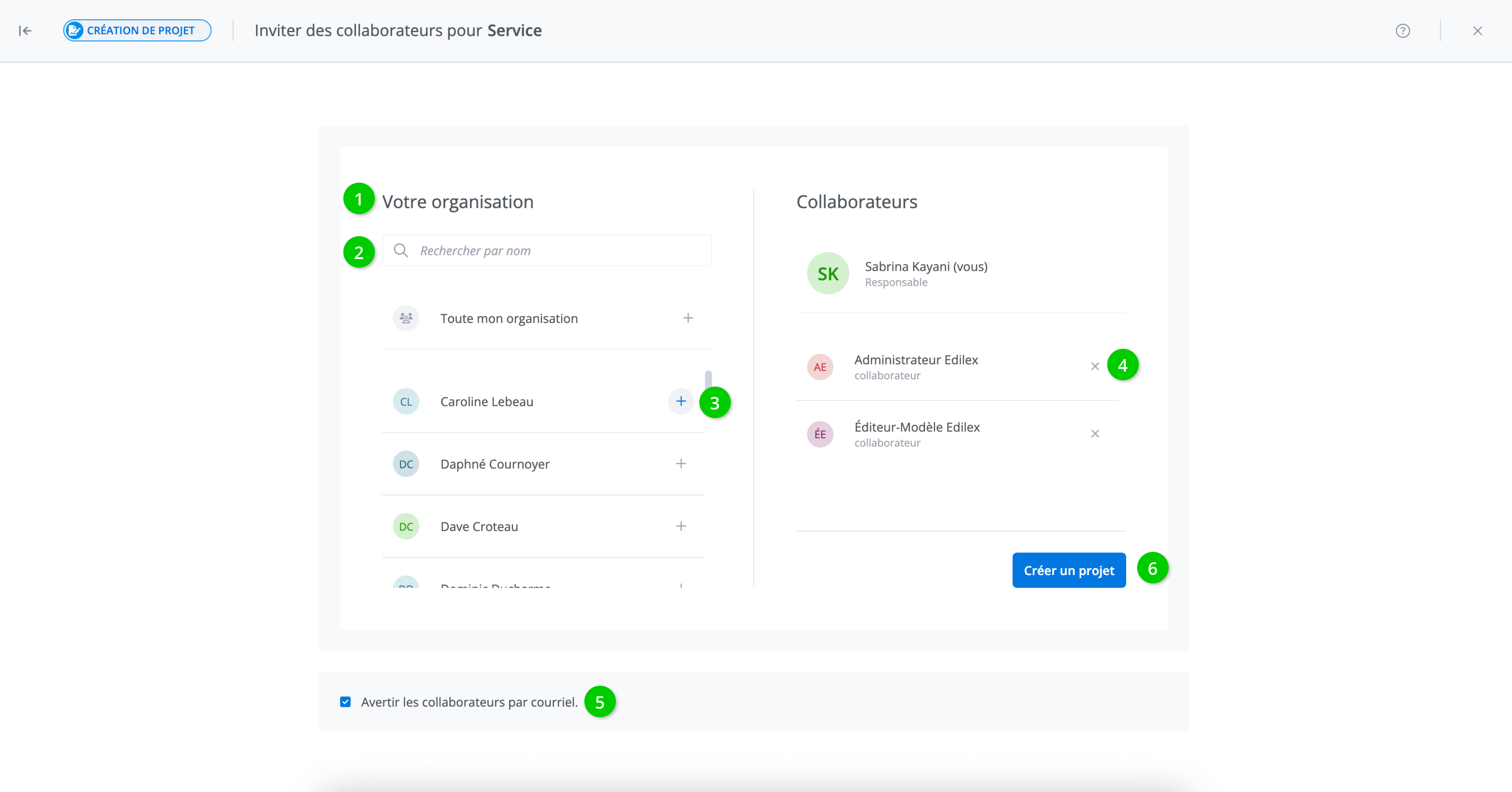
The displayed list contains all users from the same organization who have permission to view the project's documents;
-
Search for a collaborator by name, or scroll through the list until they appear;
-
To add the collaborator, click on + next to the collaborator;
-
To remove a collaborator, click on X next to the collaborator already associated with the project;
-
To notify collaborators by email, check the box;
-
Click on Create a project to create the project and assign it to the selected collaborators.
Default configuration: Only the project creator can access it in order to ensure confidentiality. For other users to view and/or edit a project, they must be invited as collaborators. Each user will be able to contribute to the project according to their permissions.
Configuration with project approval feature: Unlike the default configuration, access to your project will be automatically granted to collaborators who are part of the approval hierarchy chosen for your project. This way, each approval tier will be able to review the project in turn. Users who are part of the approval hierarchy also receive permission to approve projects within their hierarchy according to the established order.
You can also invite other collaborators from your organization so they can view or edit the project. Each user will be able to contribute to the project according to their permissions.