
The project management page contains:
-
The features menu
-
The collaborators mangement;
-
The project’s progress;
-
The drafting tracking (kanban);
-
The document tiles.
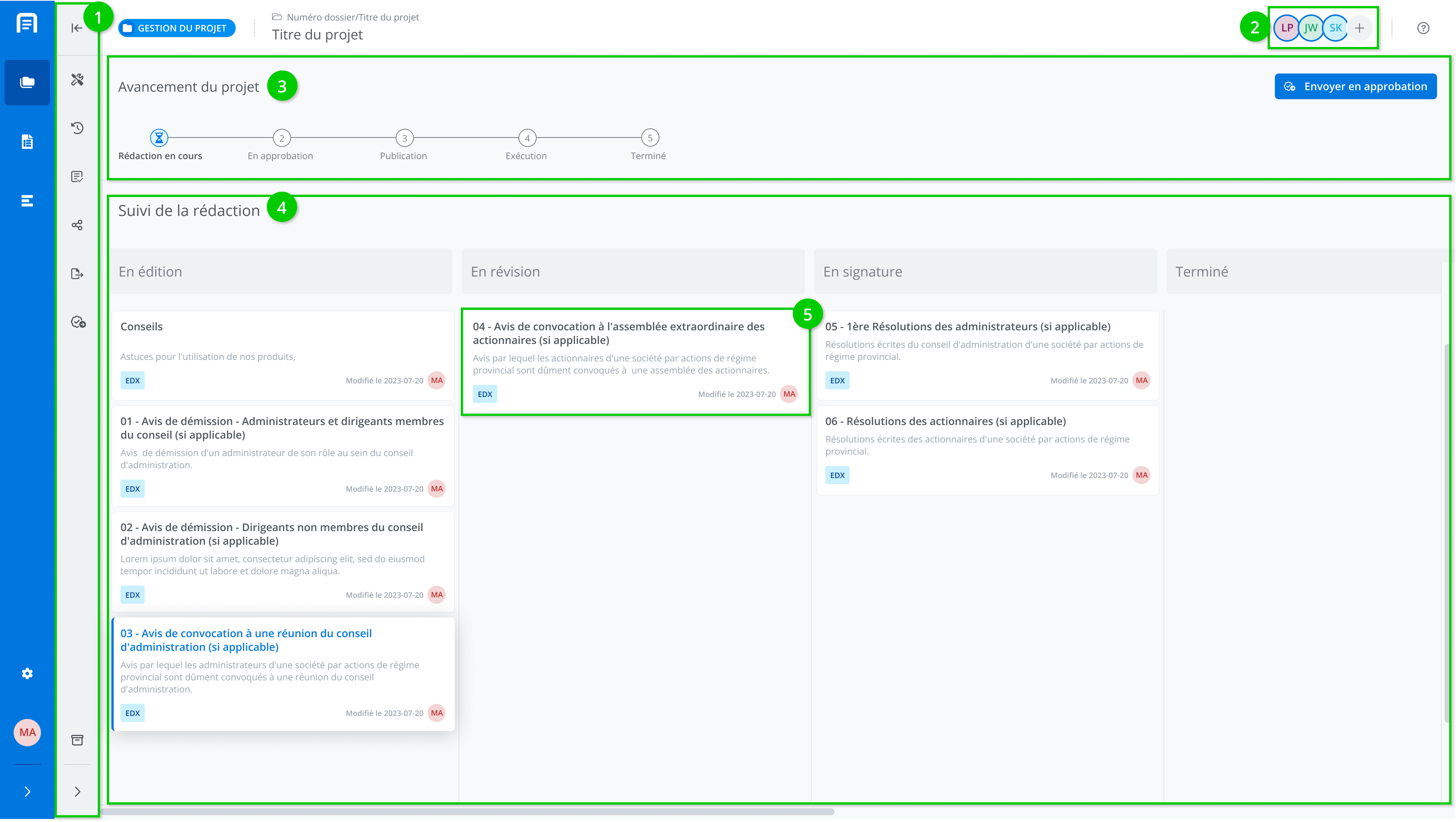
3. The project’s progress
Please note that depending on your subscription plan and project settings, the steps shown in the project progress section may vary.
Editorial follow-up
The editorial follow-up indicator shows all the stages the project will go through in order to reach completion.
The possible stages are:
-
Drafting: Completion and review of project documents.
-
Approval*: Verification process for user groups.
-
Publication*: Applicable to tenders, allows the creation of addenda.
-
Execution*: Allows the creation of amendments.
-
Completed: The project is read-only and can no longer be modified.
*Stage that is not always applicable
Main action buttons
The buttons displayed in the top right allow the project to move forward through the various stages.

4. The drafting tracking (kanban);
The drafting tracking section allows you to monitor document progress using a kanban-style display. Documents are moved between columns manually using drag-and-drop.
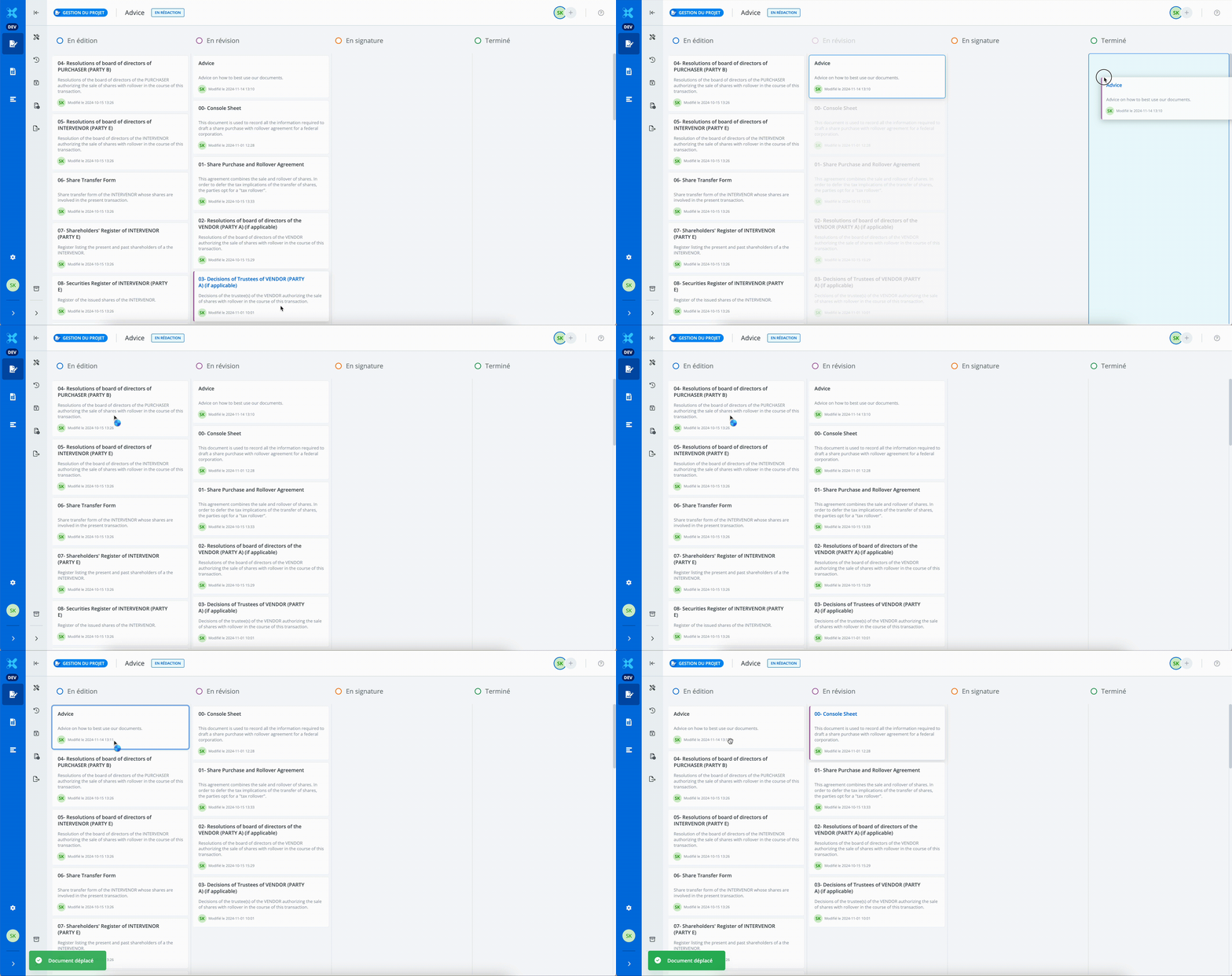
Note that document statuses can also be changed from within the document's page. Learn more.
Document status columns
By default, the kanban columns are:
-
In editing
-
In review
-
Awaiting signature
It is possible to modify the kanban column labels, and to add or remove columns. This is an organization setting called manual document management.
Archive or restore a project
It is possible to archive or restore a project.
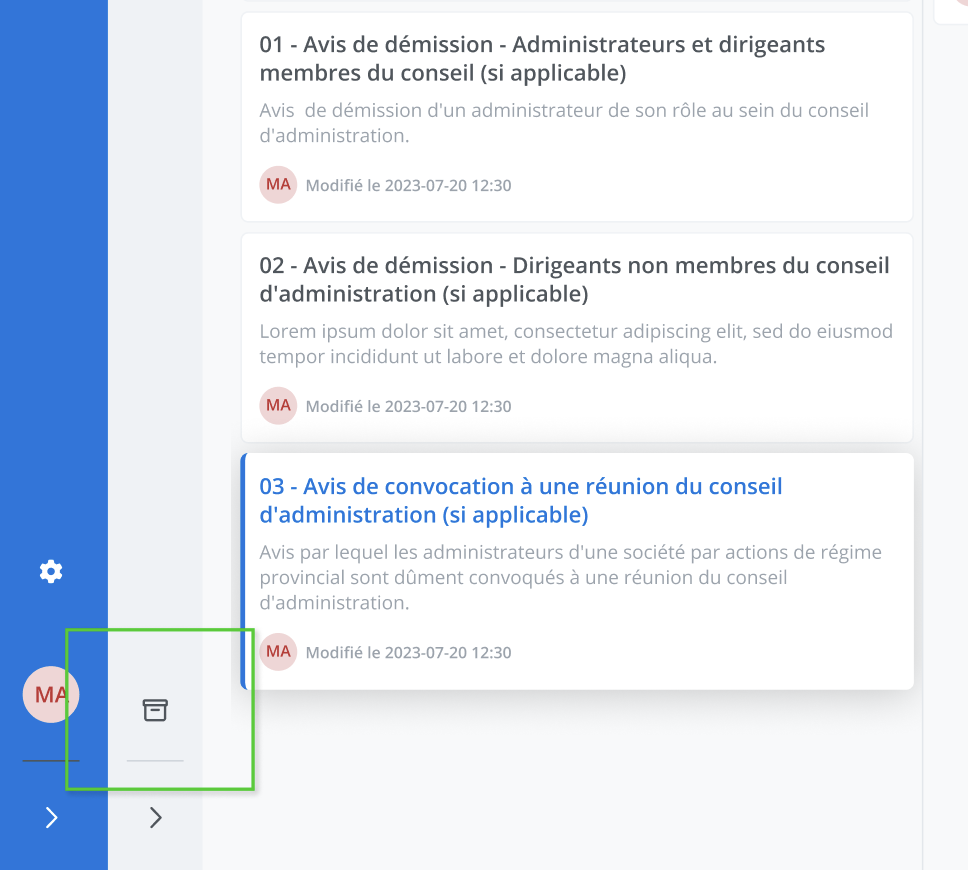
To archive a project, click on Archive at the bottom of the features menu.
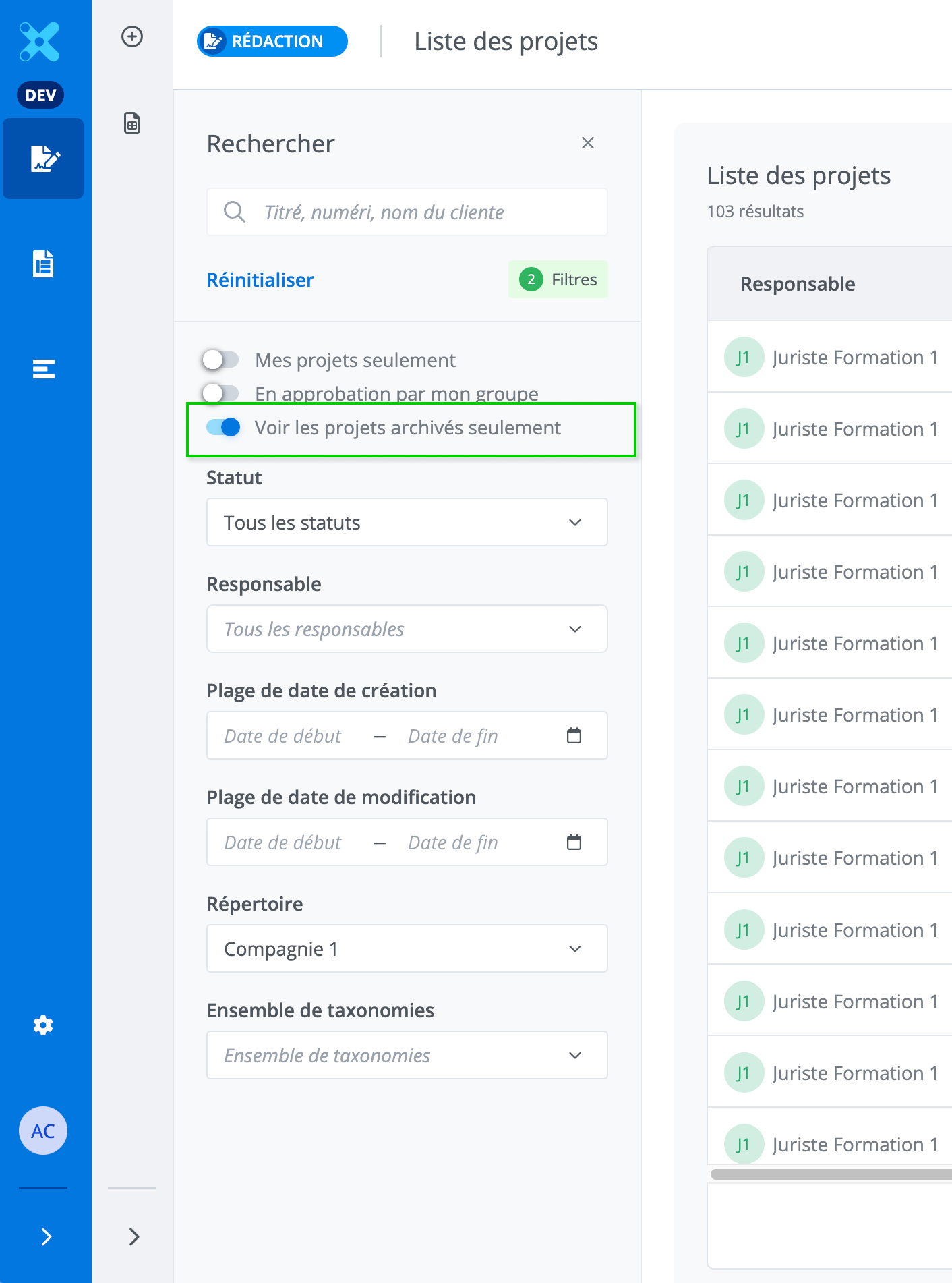
To view archived projects, in the List of projects, enable the Archived projects filter in the filters panel.
To restore a project, on the project management page, click Restore at the bottom of the features menu.
Navigate to a document
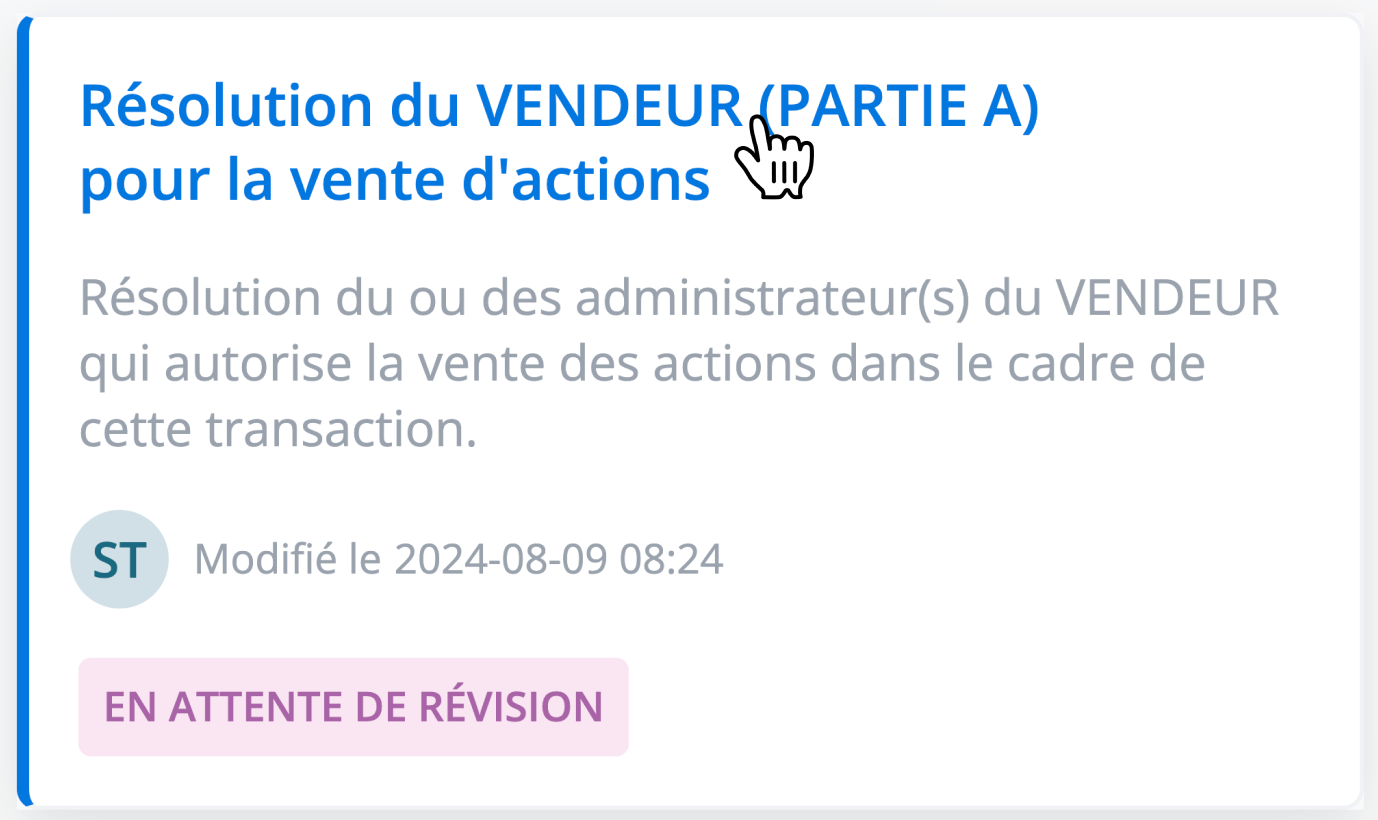
Click on the document tile's title to navigate to the document.
Change a document's title
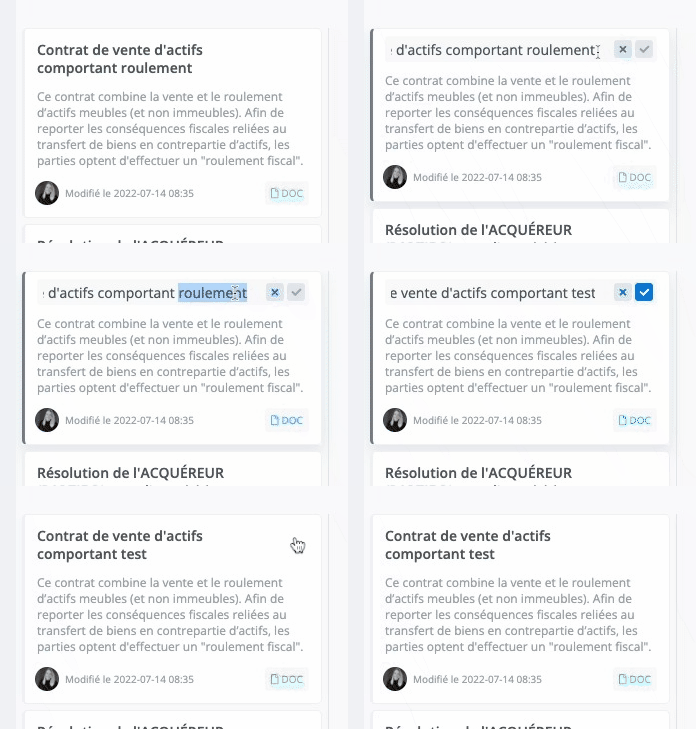
It is possible to modify the document’s title.
-
Click on Edit title;
-
Write the new title;
-
Then, click Save.
Note: It is possible to undo the changes and go back by clicking Cancel (the X button).
Changing the document title is not available for documents pending review.