There are two strategies to access projects:
-
Access by collaborator: This strategy allows you to manage who can access your projects (you select users from within your organization).
-
Access by organization: This strategy makes all projects visible to all users within your organization. As such, you will not be able to manage collaborators under this strategy.
The choice of strategy to manage access to projects is a client parameter.
Access to Feature
Collaborator management for a document is accessible from a project's page.

Description of the Feature
By clicking "+" in the collaborators bar from a project's page, a context menu appears allowing you to add collaborators from your within your organization, assign an owner, or invite an Edilex expert.
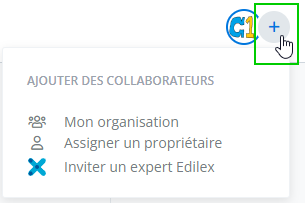
Two categories of collaborators are available:
-
My organization: This includes all users of the organization to which the user belongs who have at least permission to view the project's documents.
-
Invite an Edilex expert: This includes all Edilex users who have "expert" project editing permission.
Only the person who created the project can invite collaborators from the same organization to join, but ALL users who have been invited to collaborate on a project can invite an Edilex expert to obtain assistance.
You can invite an Edilex expert to join your project temporarily in order to resolve a technical issue or answer specific questions.
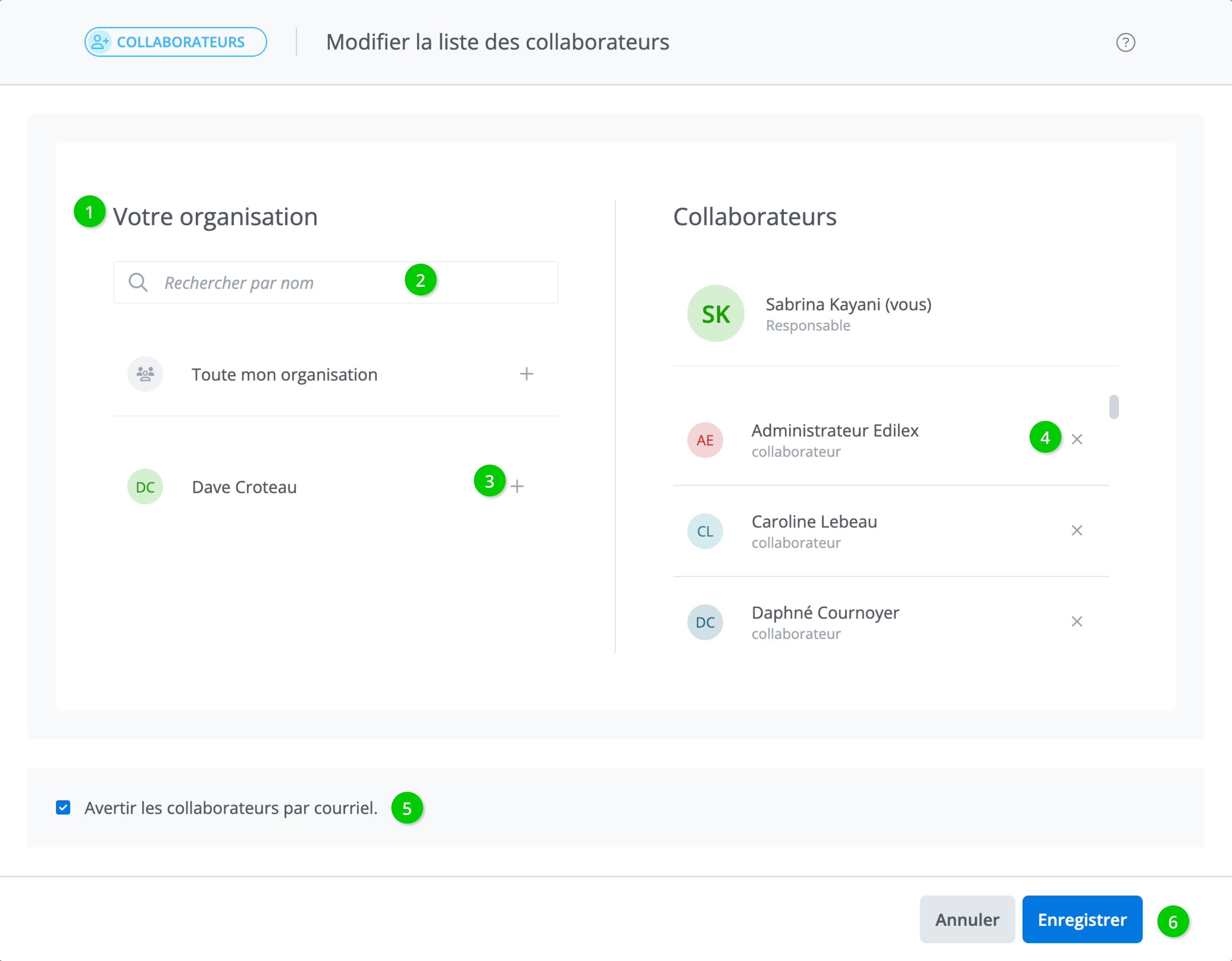
The Collborator Management Window
Steps to Follow
-
The displayed list contains all users from the same organization who have permission to view the project's documents;
-
Search for a collaborator by name, or scroll through the list until they appear;
-
To add the collaborator, click on + next to the collaborator;
-
To remove a collaborator, click on X next to the collaborator already associated with the project;
-
To notify collaborators by email, check the box;
-
Click Save to apply the changes to the project's collaborator list.
The collaborator list in the project header reflects the changes: