Access to Feature
The addendum feature is offered in beta version.
Please contact Edilex if you would like early access to this feature.
When the project is at the publication stage, changes are made by addendum.
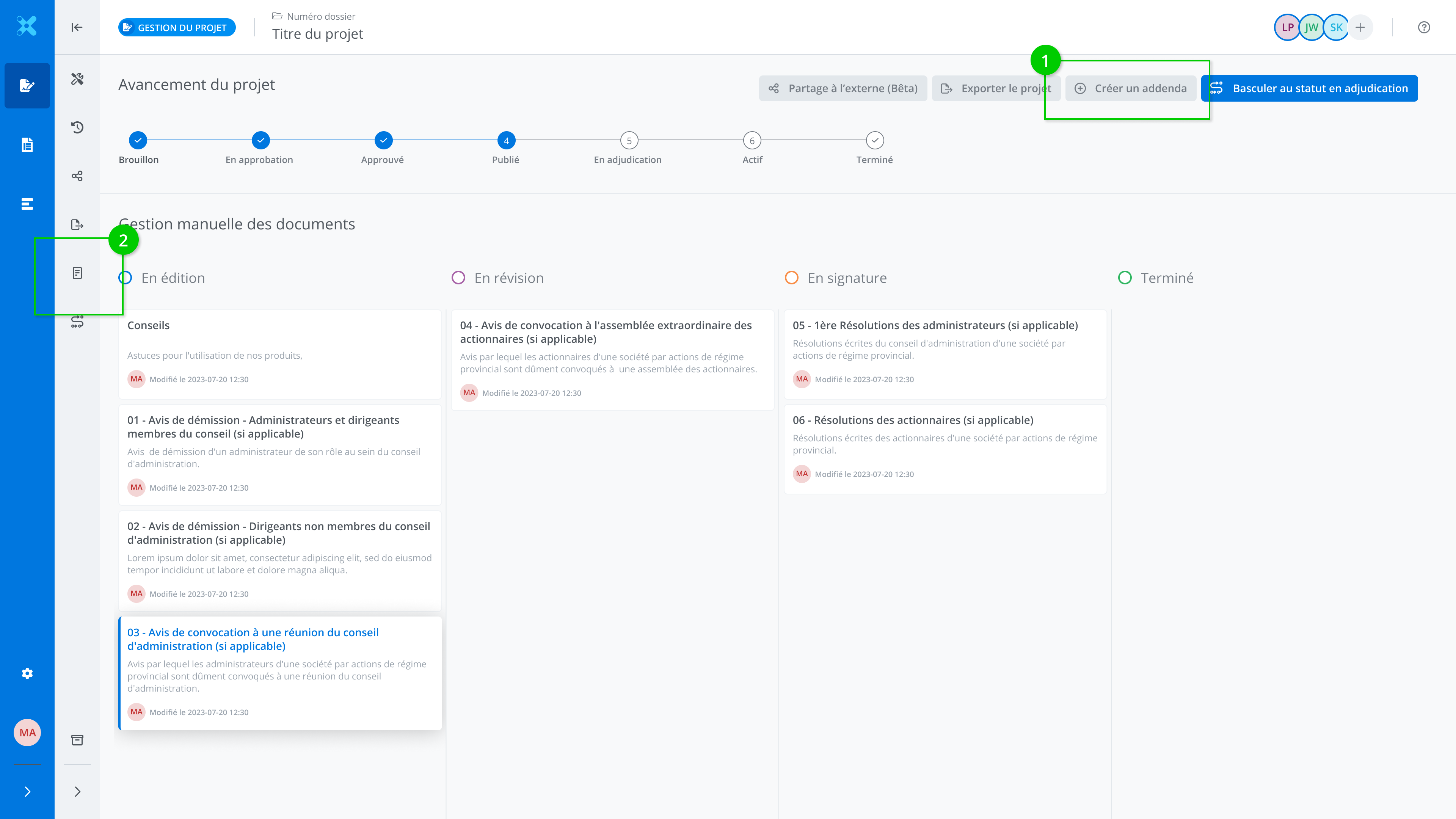
From the project management page, access the addendum feature by clicking on Create an addendum (1) at the top right of the screen, or click on Addendum management (2) in the features menu.
Description of the Feature
The feature allows you to produce addenda in order to make all the required changes to the contract documentation as part of a tender that is currently being published.
Create a new Addendum
From the addendum feature, click on Create an addendum. This action displays the form used to draft the addendum.
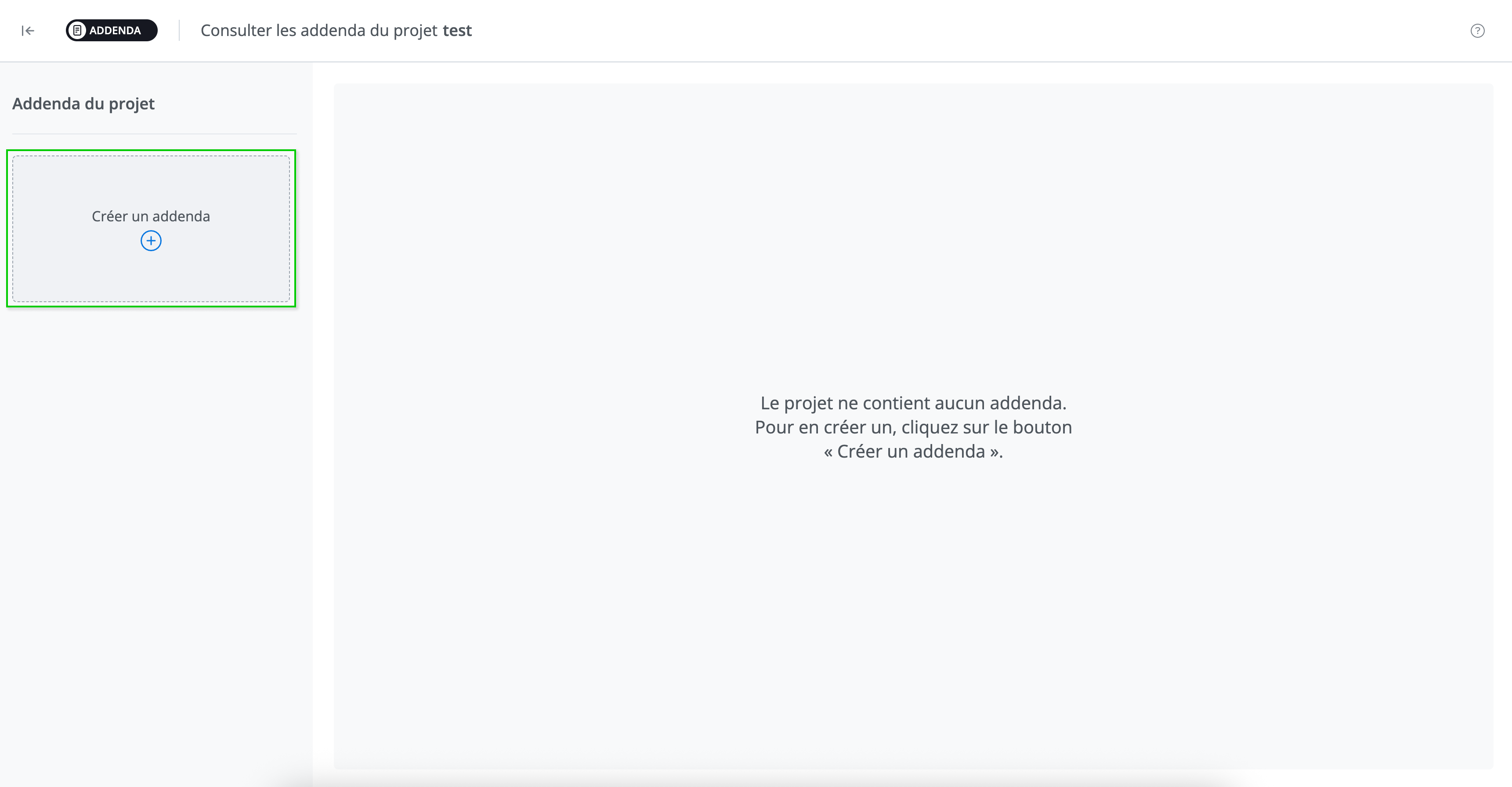
Note: Changes made to tender documents as part of an addendum do not affect the original documents. A copy of these is always kept in the system and available for viewing.
Addendum Form
The form used to produce an addendum includes several sections. Here is an overview of its main elements, their description, and how to use them.
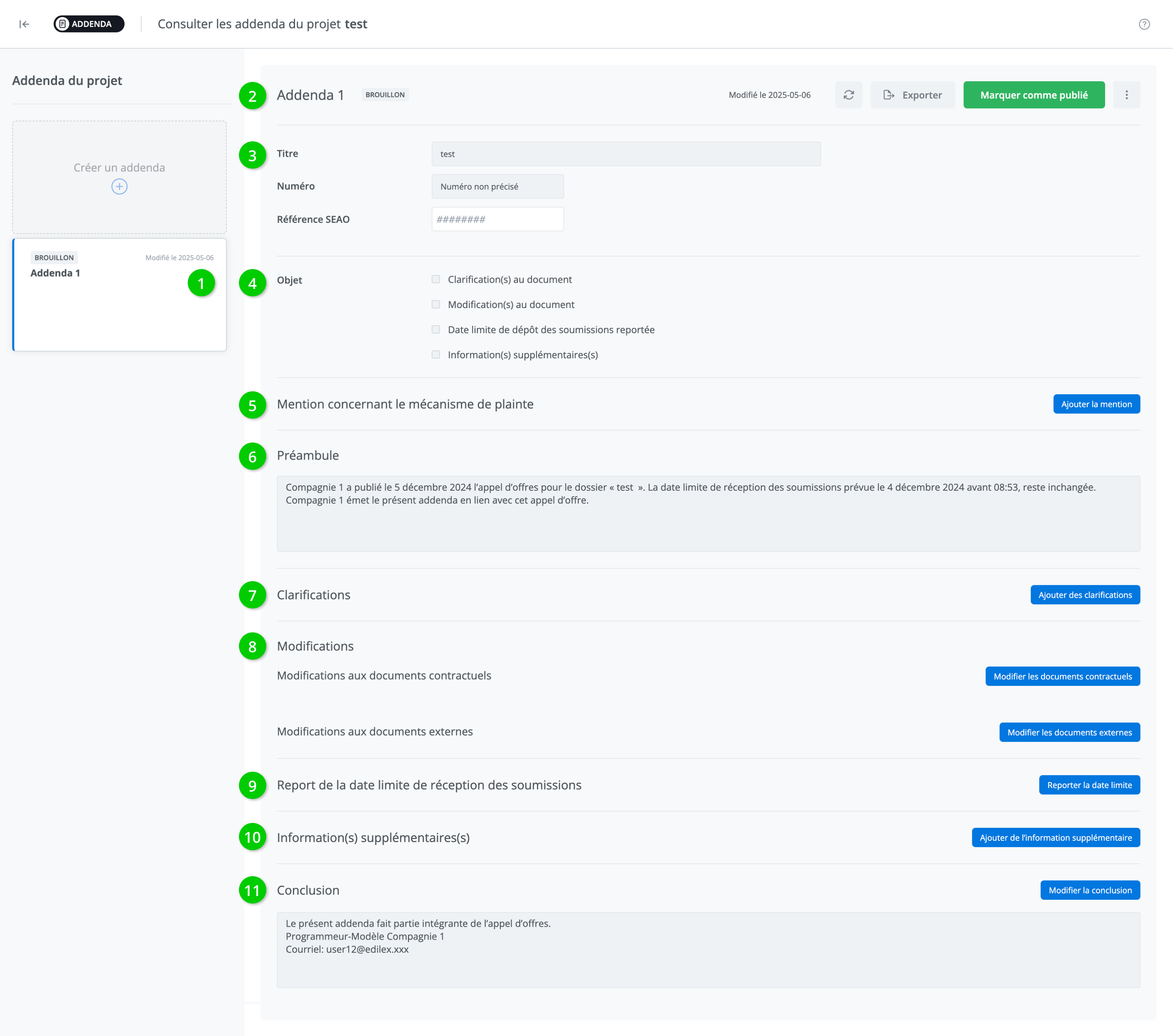
1 - Addenda Tile
Each addendum is displayed as a tile. It includes:
-
Its name and number (ex.: in the image below “Addendum 1”);
-
Its status (ex.: “Draft”);
-
The date of the last modification or publication.
2 - Heading
The addendum header provides basic information about the selected or currently edited addendum. You will find:
-
The name and number of the addendum;
-
The addendum’s status (“Draft” or “Published”);
-
The date of the last modification or publication (as the case may be).
-
The addendum management buttons (see the Addendum management section for usage details).
3 – Section - Information on the project

This section of the form provides information about the context of the addendum:
-
The title of the project associated with the addendum: The system automatically fills in the project title based on the corresponding value in the project properties.
-
The project number: The system automatically fills in the project number based on the corresponding value in the project properties.
-
The SEAO notice reference number: A text box is available to enter the reference number of the notice on the SEAO.
4 - Section - Object
This section of the form presents a summary of the types of items included in the addendum, allowing you to quickly understand what the addendum will cover.
Four types of items can be added to an addendum:
-
Clarifications to the document,
5 – Section - Mention regarding the complaint mechanism
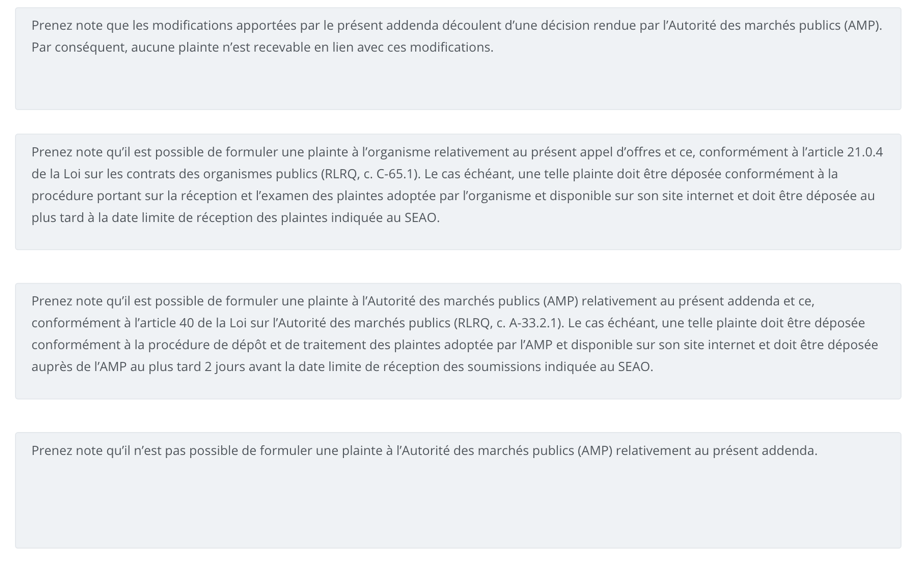
This section allows you to specify the complaint mechanisms of the addendum according to the drafting context.
It is possible to add the mention by selecting the suggested options; the corresponding information is then automatically displayed.
a. Add a mention
To add a mention, click on Add a mention located to the right of the section.

b. Select the complaint mechanism
Add the mention, then select the option that applies to the drafting context from the drop-down menu.

The following four choices are offered:
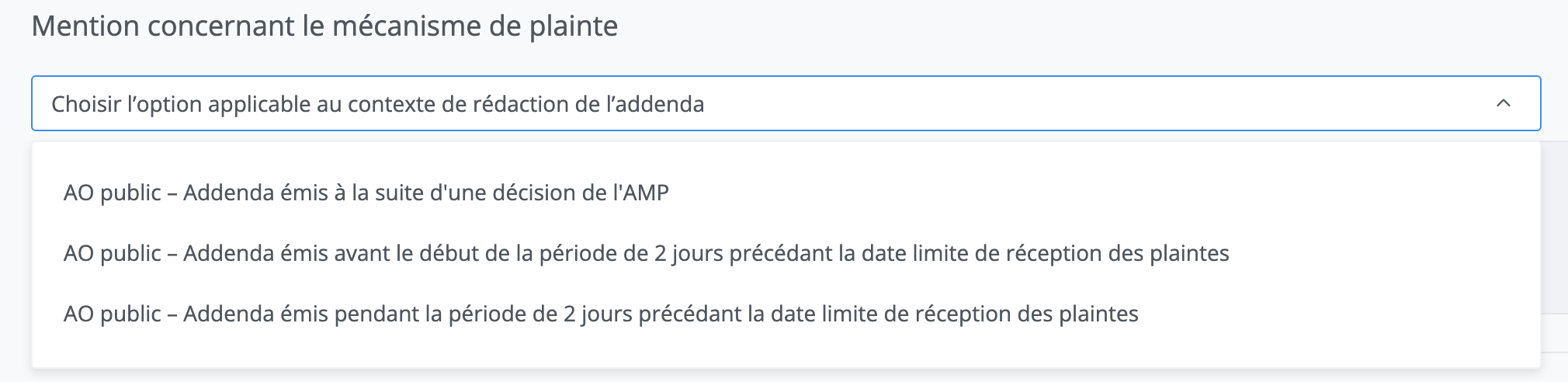
Selecting one of the options automatically displays the corresponding text in the addendum.
c. Remove a mention
Remove the mention by clicking on Remove the mention located to the right of the section. Note that removing the mention is only possible when the addendum is in "Draft" status.

6 – Section – Recitals
The Preamble section serves as an introduction and describes the context of the addendum.
The Preamble text box cannot be modified. The data it displays is taken directly from the project to ensure consistency of information.

7 - Section – Deadline extension
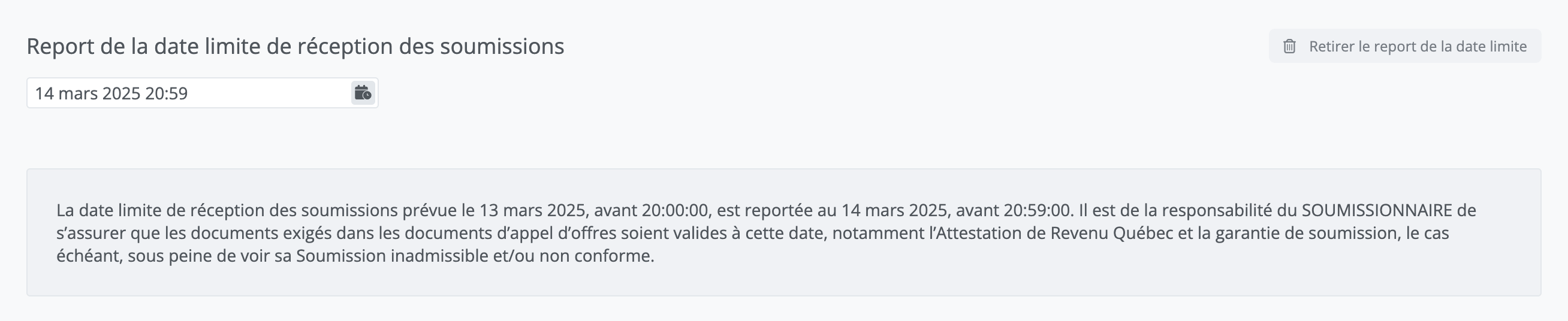
This section of the form allows you to postpone the tender submission deadline by selecting a new date, which will automatically display the information in the addendum.
a. Add a date extension
To add a date extension, click on Add a date extension located to the right of the section.

b. Remove a date extension
Remove the date extension by clicking on Remove a date extension located to the right of the section. Note that removing the extension is only possible when the addendum is in "Draft" status.

c. Select a new submission deadline
Select the new submission date and time using the drop-down menu.
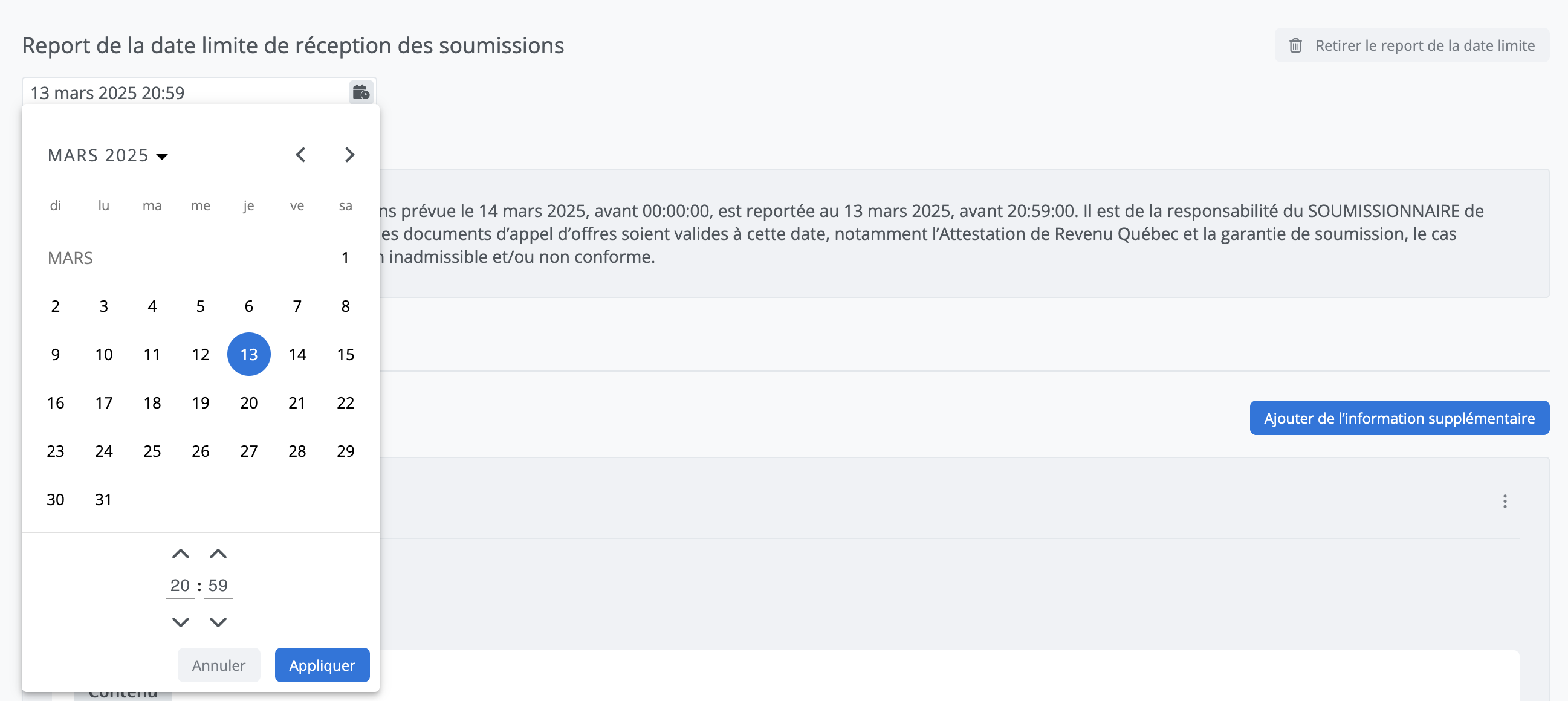
Your selections automatically add the corresponding text.
8 - Section – Clarification
Add clarifications
To add a block of question/answer items to the addendum, click on Add clarifications located to the right of the section.

a. Draft the clarification
By clicking on Add clarifications, the editing window is displayed and allows data entry.
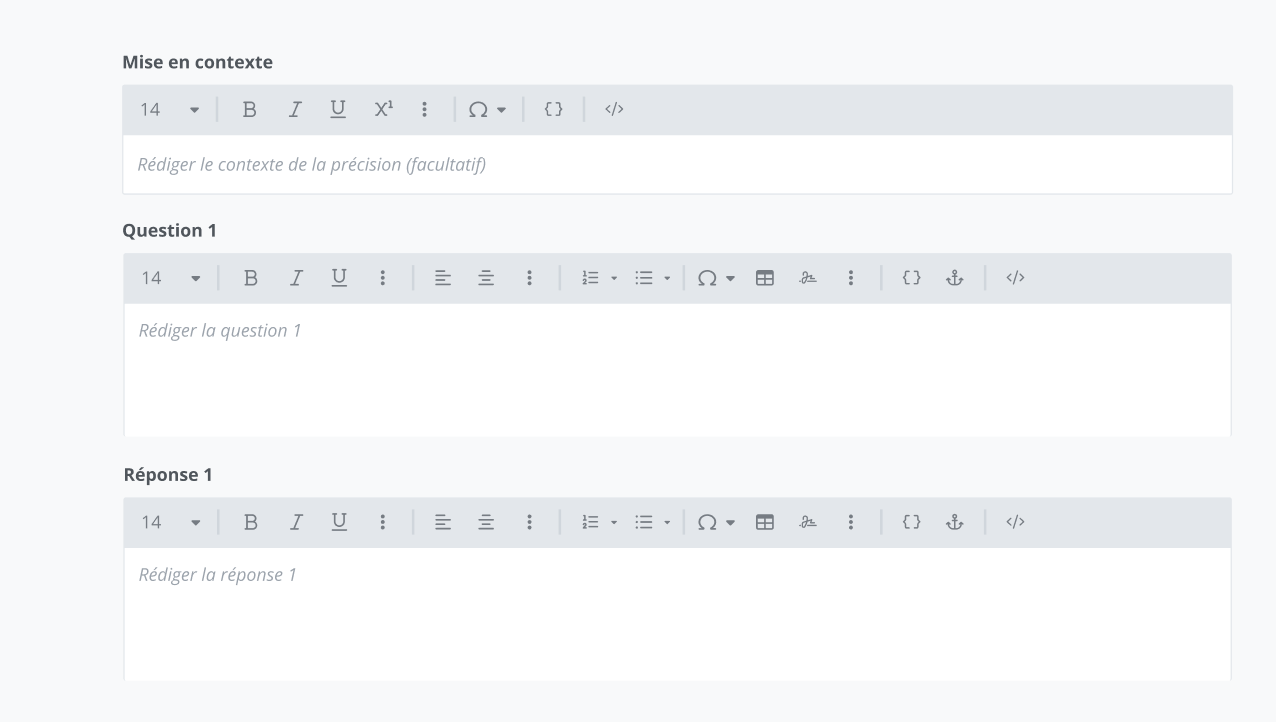
b. Context
The context is an optional element and allows you to include more details in your question/answer blocks.

c. Draft the question/answer block
Draft the block by filling in the two text boxes. Unlike the Context, these two boxes are mandatory elements. As a result, saving will only be possible once both text boxes have been filled in.
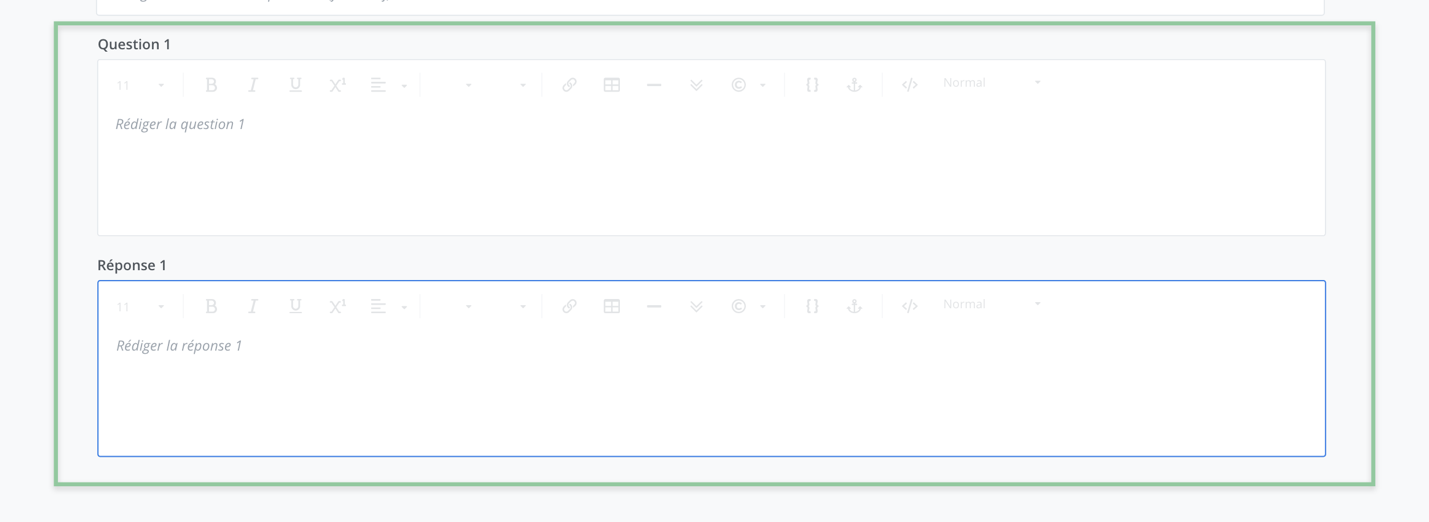
Click on Save to finish and return to the form. Your question/answer block is added to the addendum.
d. Display question/answer block
Once the clarification is saved, it is displayed in the form in chronological order of entry (when multiple clarifications have been entered) in the corresponding section of the addendum.
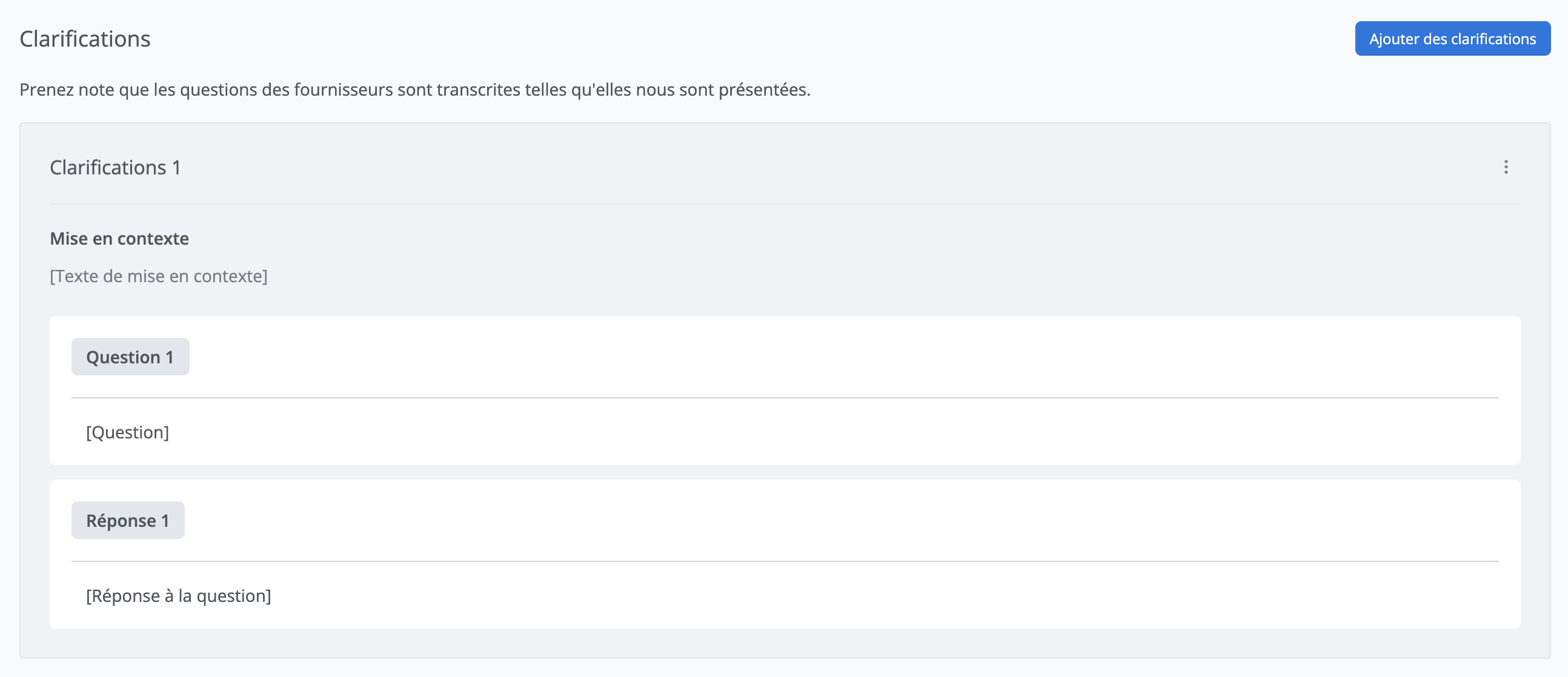
Management of clarification blocks
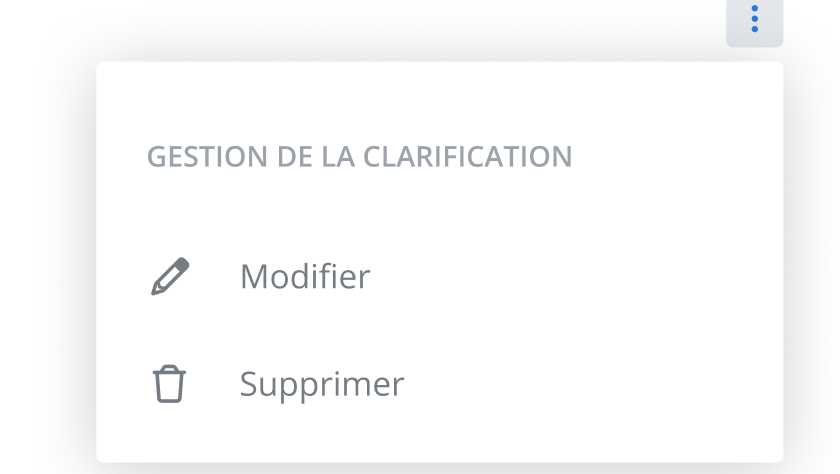
To edit or delete a clarification block, click on the menu to the right of the clarification block.
9 - Section – Modifications

The addendum modification section contains two subsections:
-
Modification to contract documents: Allows you to make modifications intended for the addendum directly in the tender document generated in the application. The changes made are automatically documented and added as text in the form.
-
Modification to external documents: Allows you to manually enter and fill in modifications concerning documents related to the tender that were not generated in the application, for example, modifications related to technical specifications.
Modification to contract documents:
Add a modification
Click on Modify documents and the system then redirects you to the tender documents to edit them.

Document navigation and editing
In edit mode for the addendum, the supported modifications are as follows:
-
Change alternative,
-
Modify a clause,
-
Modify field values,
-
Remove/add content.
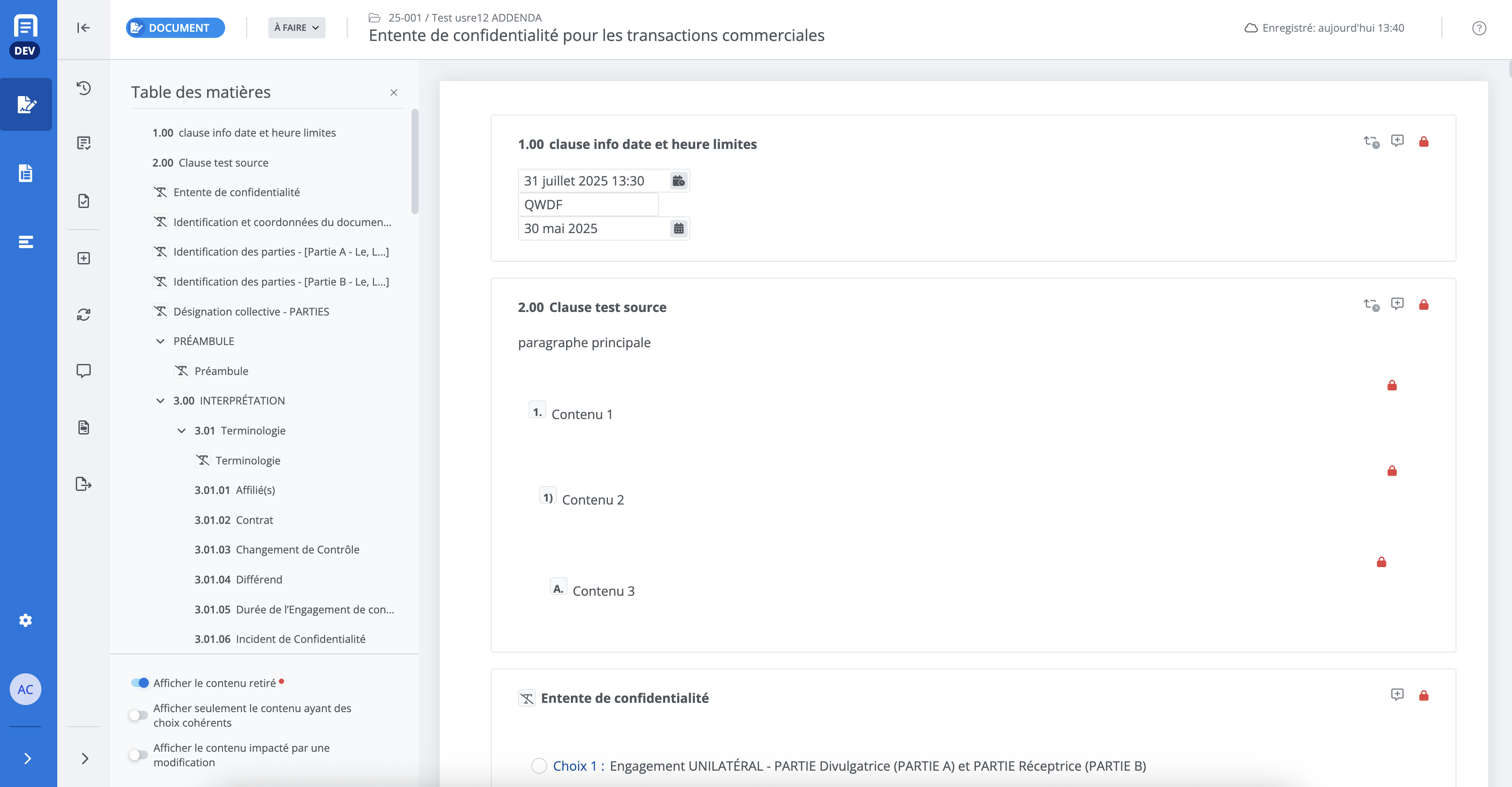
To return to the addendum form, go back to the project management list and click on Addenda.
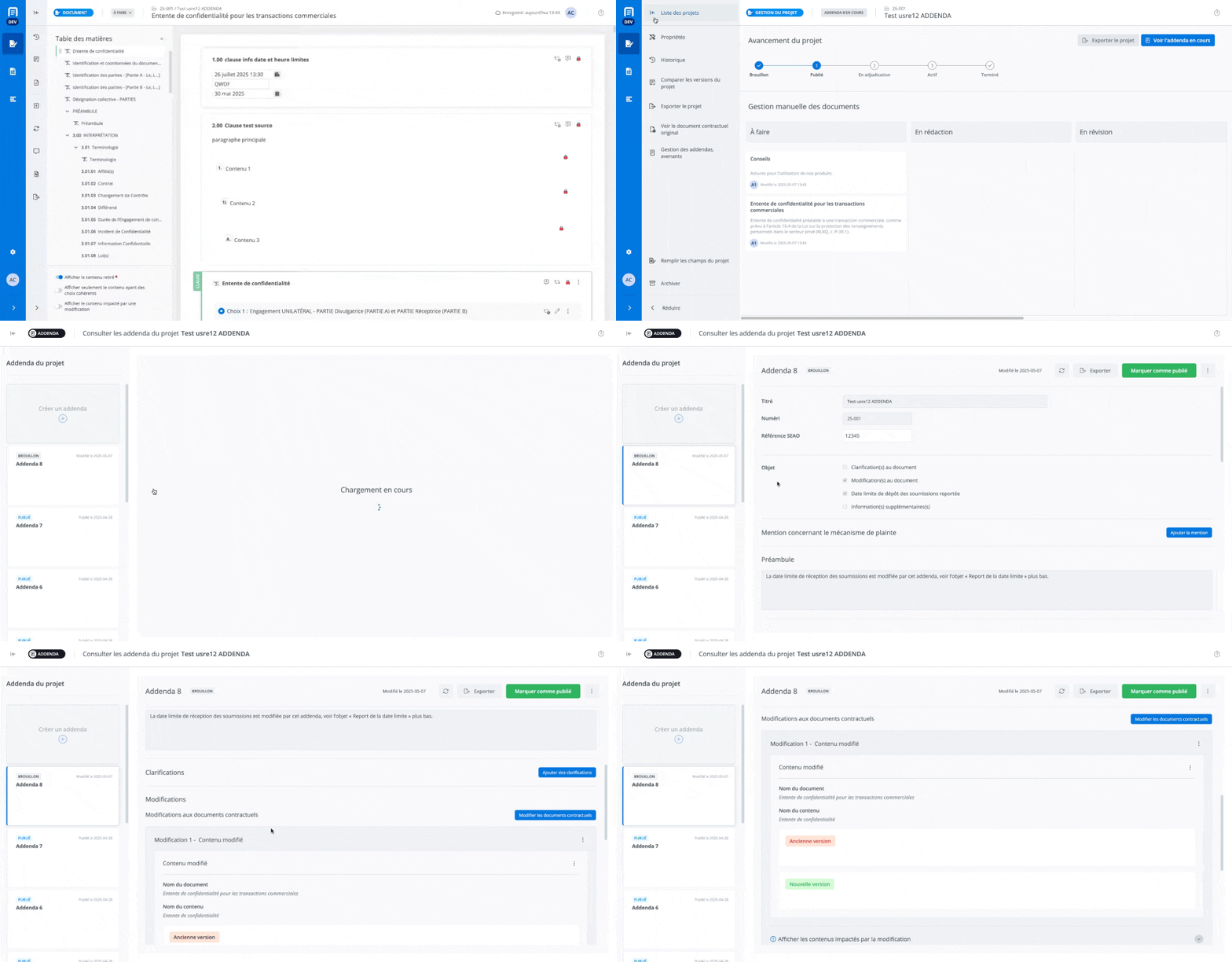
Displaying Changes
The modifications are displayed in the addendum form in chronological order of entry.
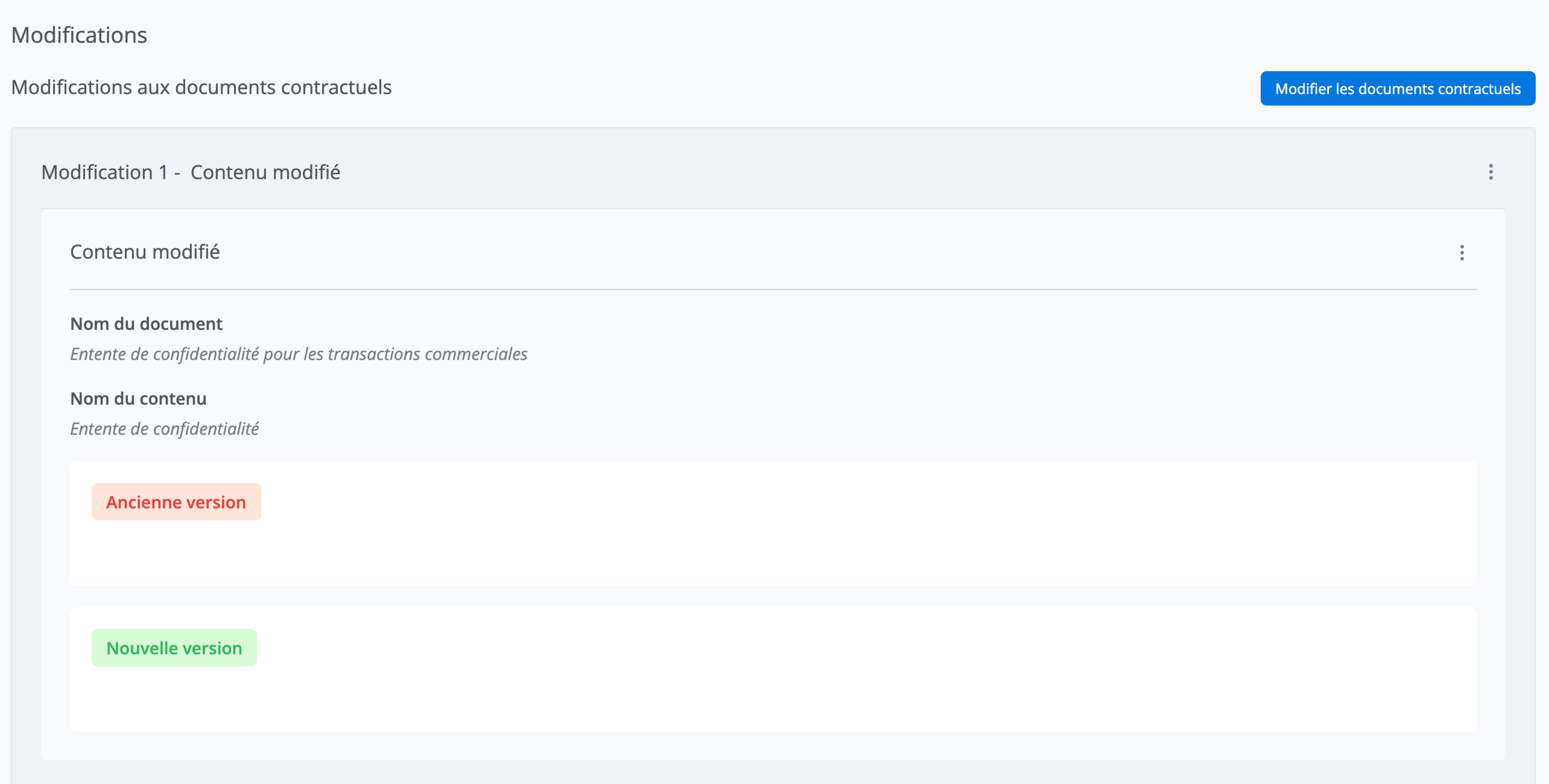
Modification management
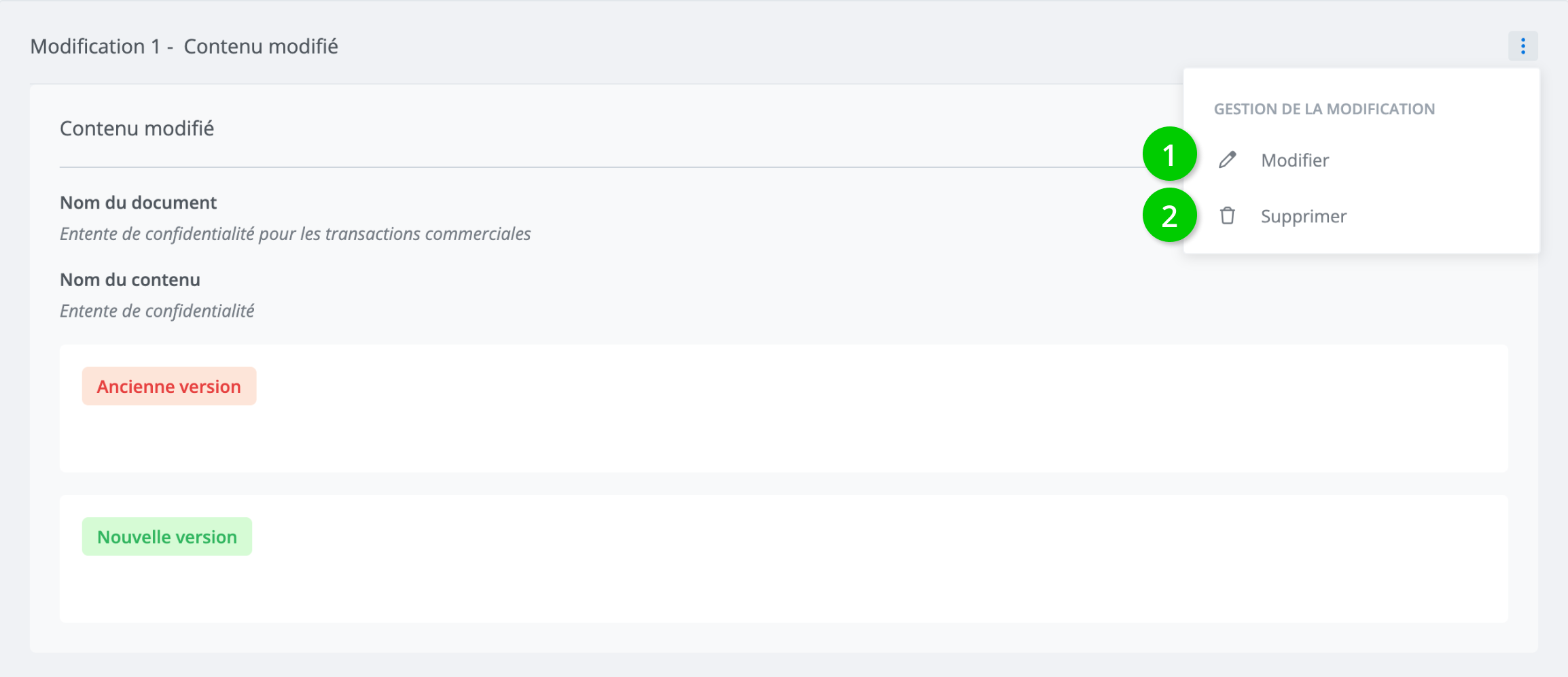
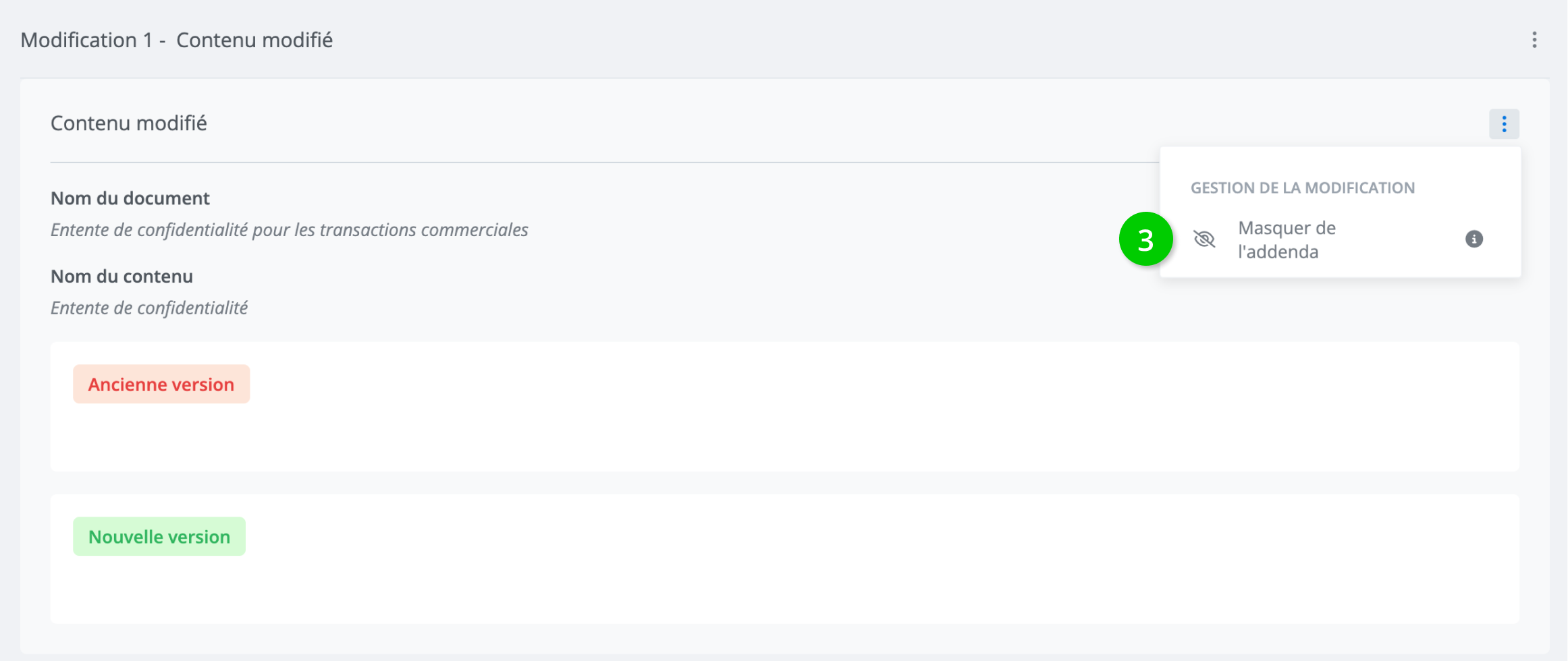
Three actions are possible on a modification:
-
Add and modify the context: Allows you to add details concerning the modification.
-
Delete the modification : Allows you to delete the modification.
-
Hide from addendum (or conversely Show in addendum): The modification remains in effect, but you can choose not to display it in the addendum if you don't feel it's relevant to show.
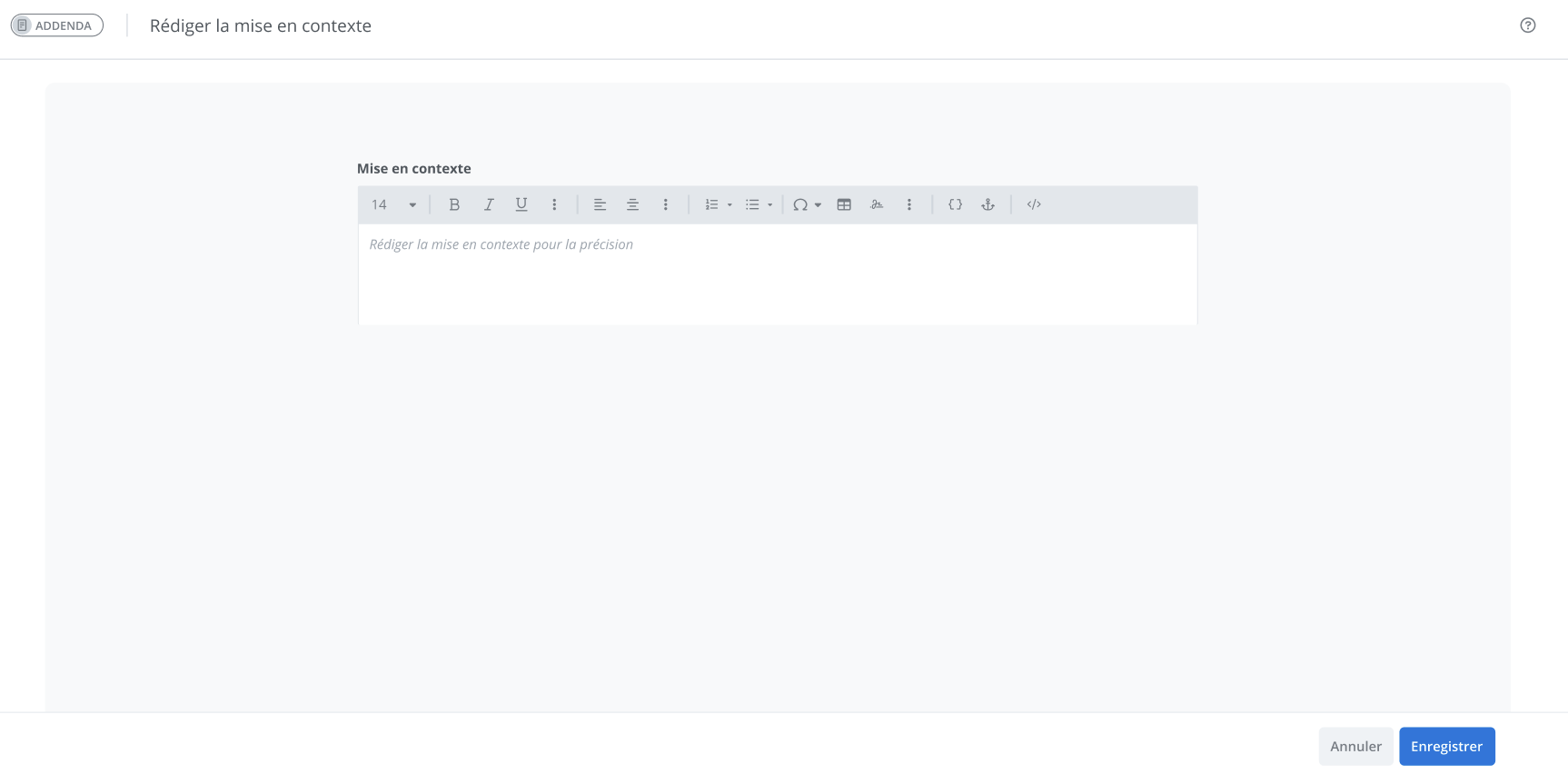
Draft a context for the modification
To add a context to your modification, click on Modify the context in the Modification management menu located to the right of the section. Entering this information is optional.
Modifications to external documents
Add a modification
To add a modification to the addendum concerning an external document, click on Add in the corresponding section.
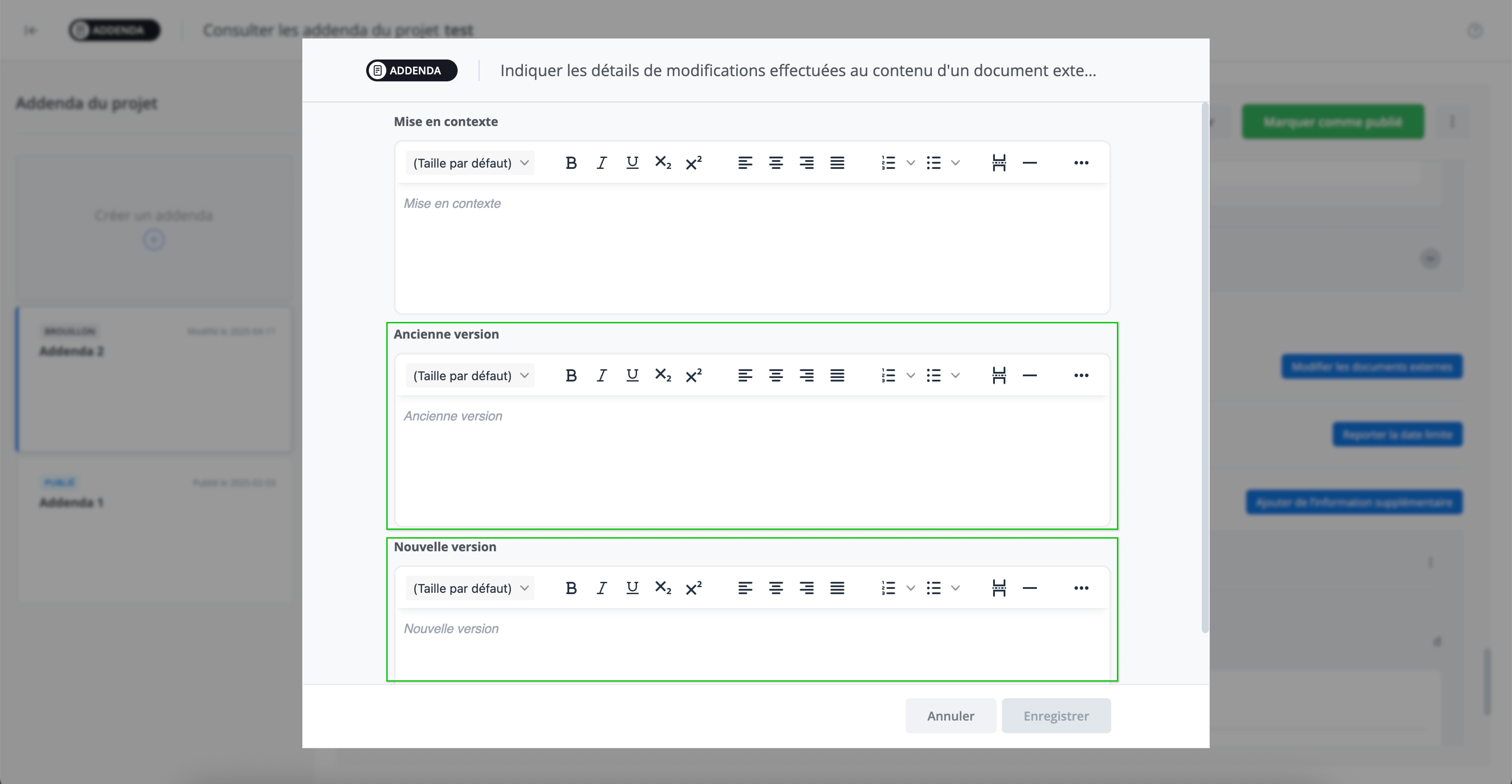
By clicking on Modify external documents, the editing window is displayed and allows you to enter information.

Context
A text box allows you to write additional details about the modification block. The context is an optional element.
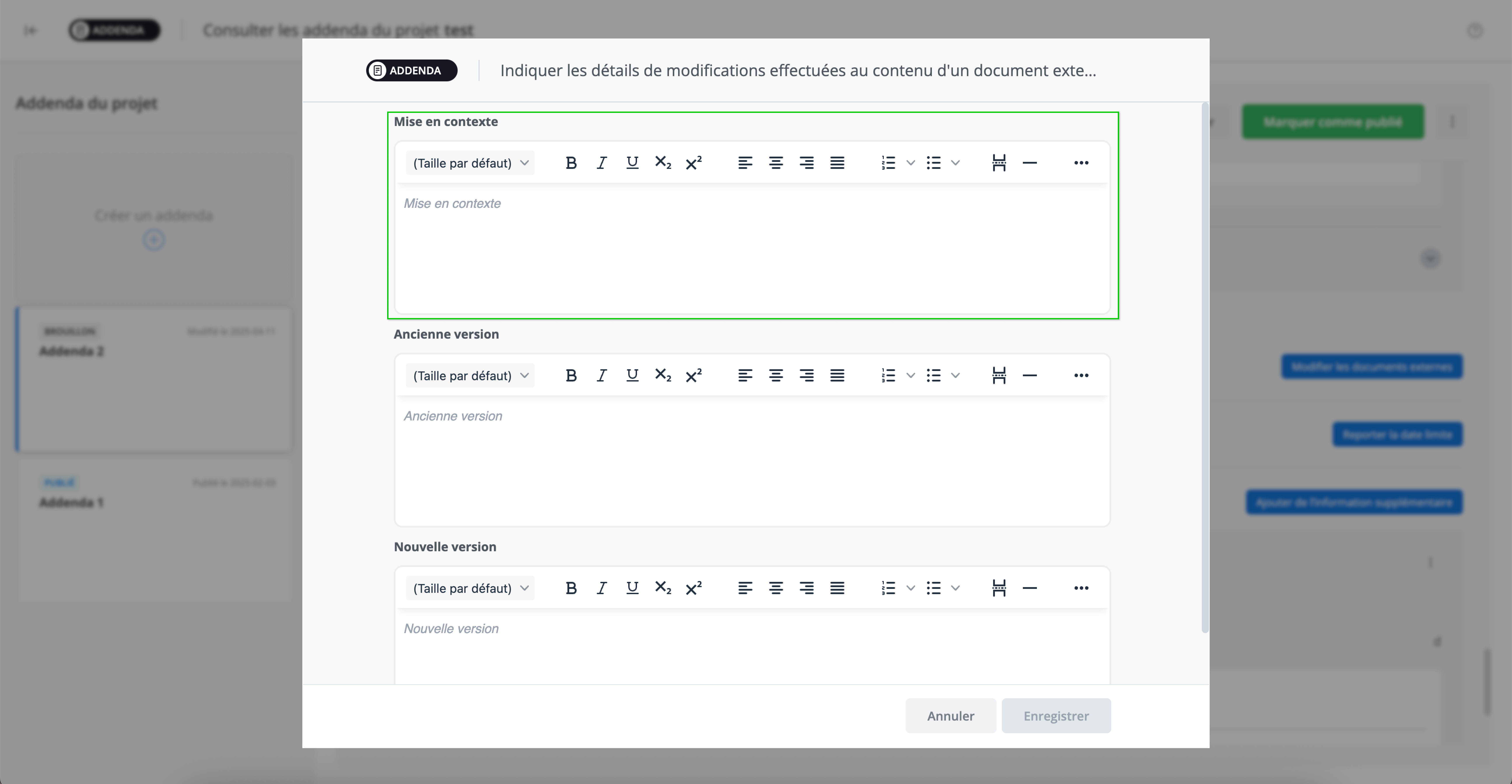
Draft the details of a modification
Two text boxes make up the modification block to indicate the changes between the old and new versions of a content item.
Once the details of the change have been entered in each of the text boxes, click on Save to return to the form.
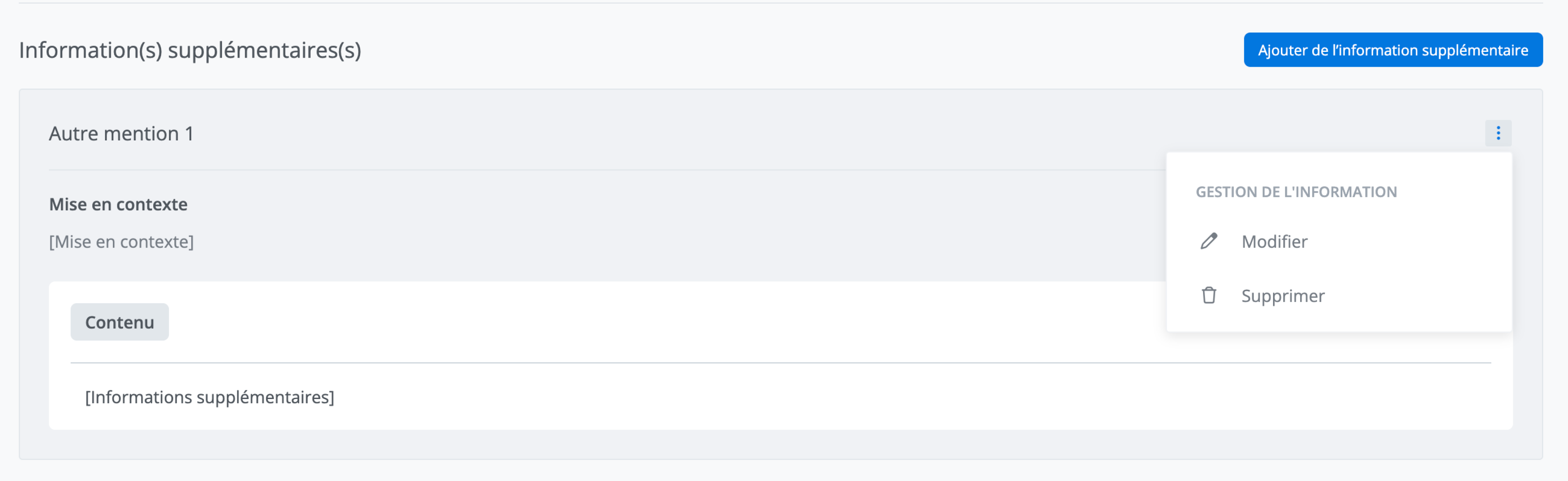
10 - Section – Additional Information
The Other section is used to add any other additional information that would be necessary for the addendum.

a. Add a block of information
Add a block of information by clicking on Add Additional Information located to the right of the section.

b. Draft a block of information
By clicking on Add, the editing window is displayed and allows you to enter information.
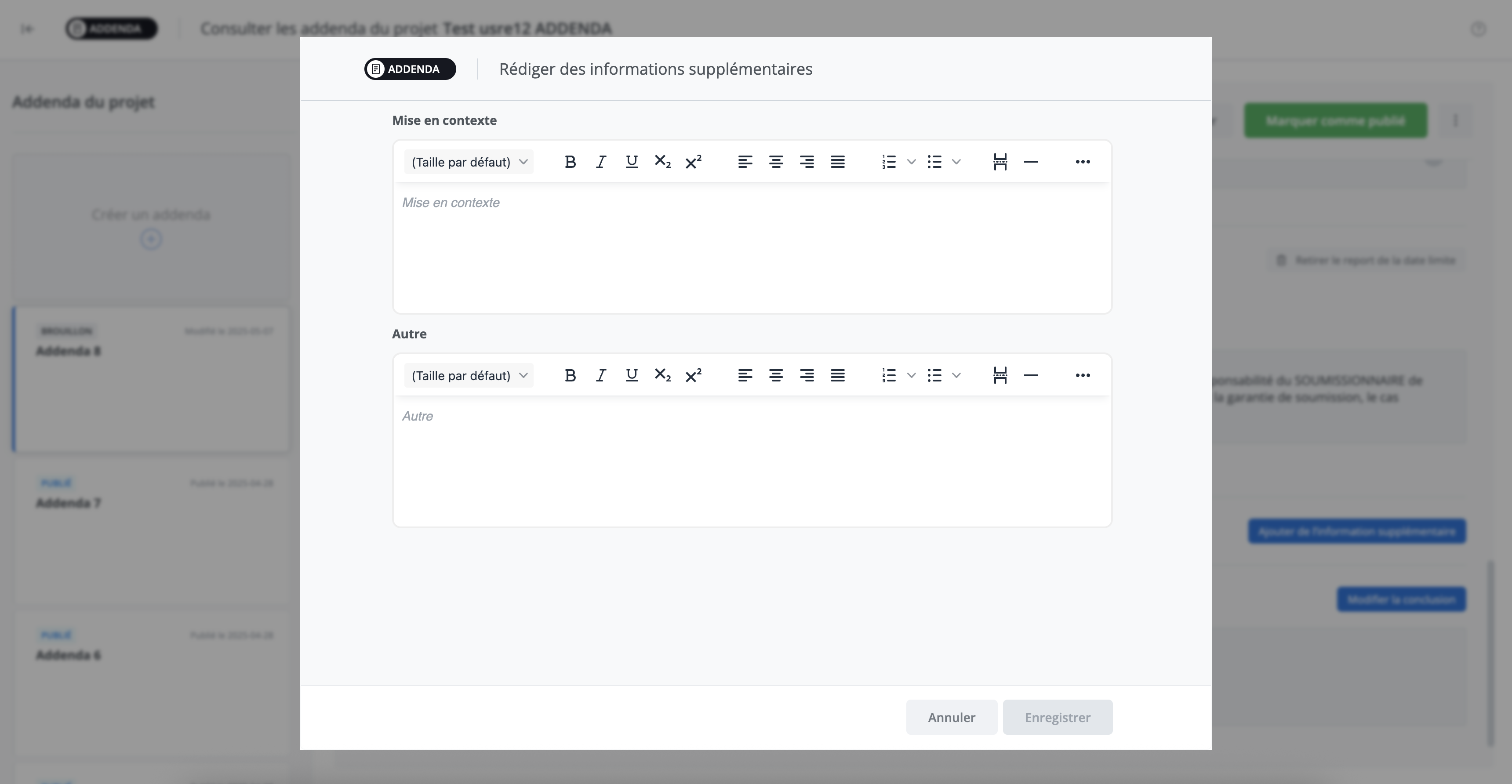
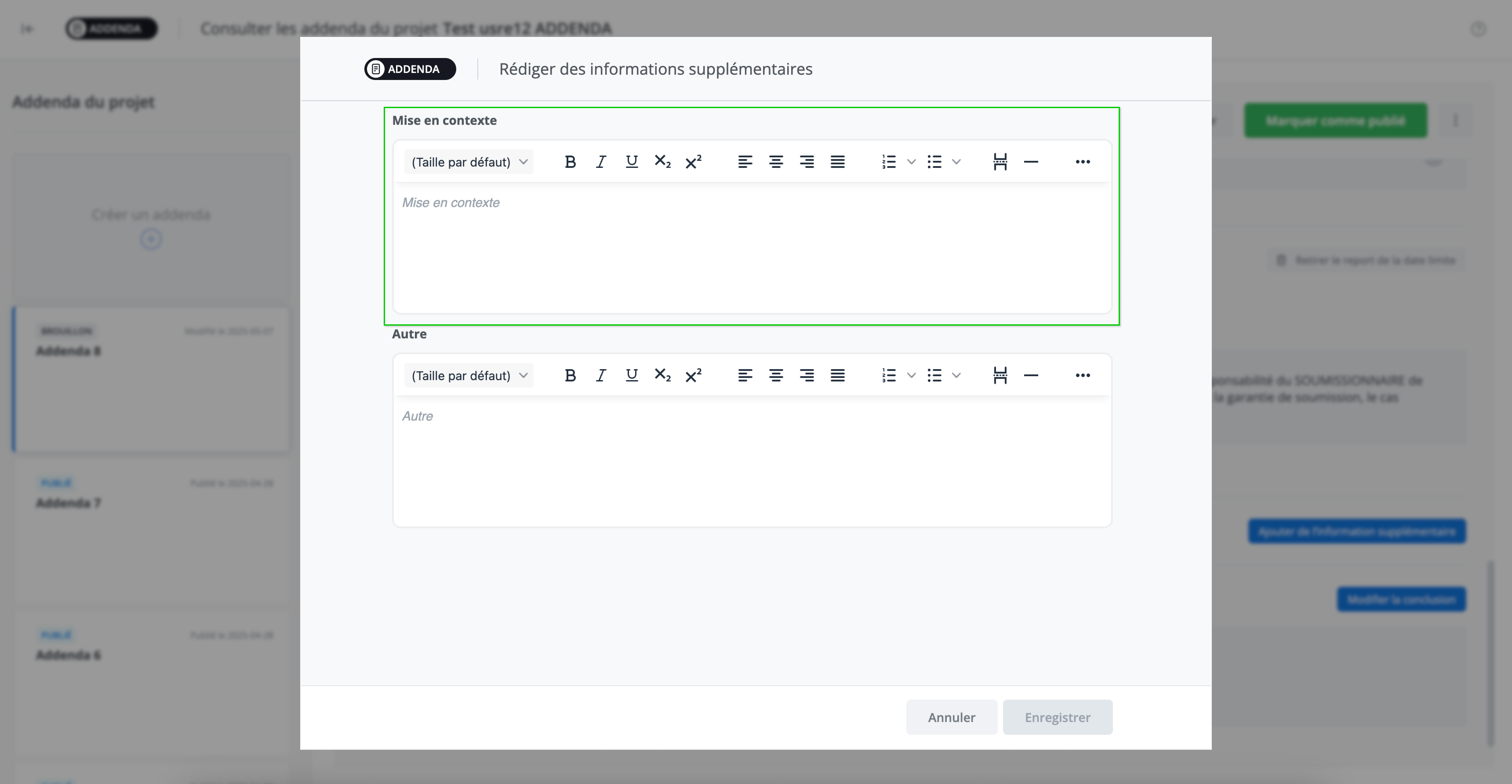
c. Context
A text box allows you to write additional details about the block. The context is an optional element.
d. Block of Information
A text box is available to enter the information. This is what will be displayed in the addendum once the drafting of the clarification is saved.
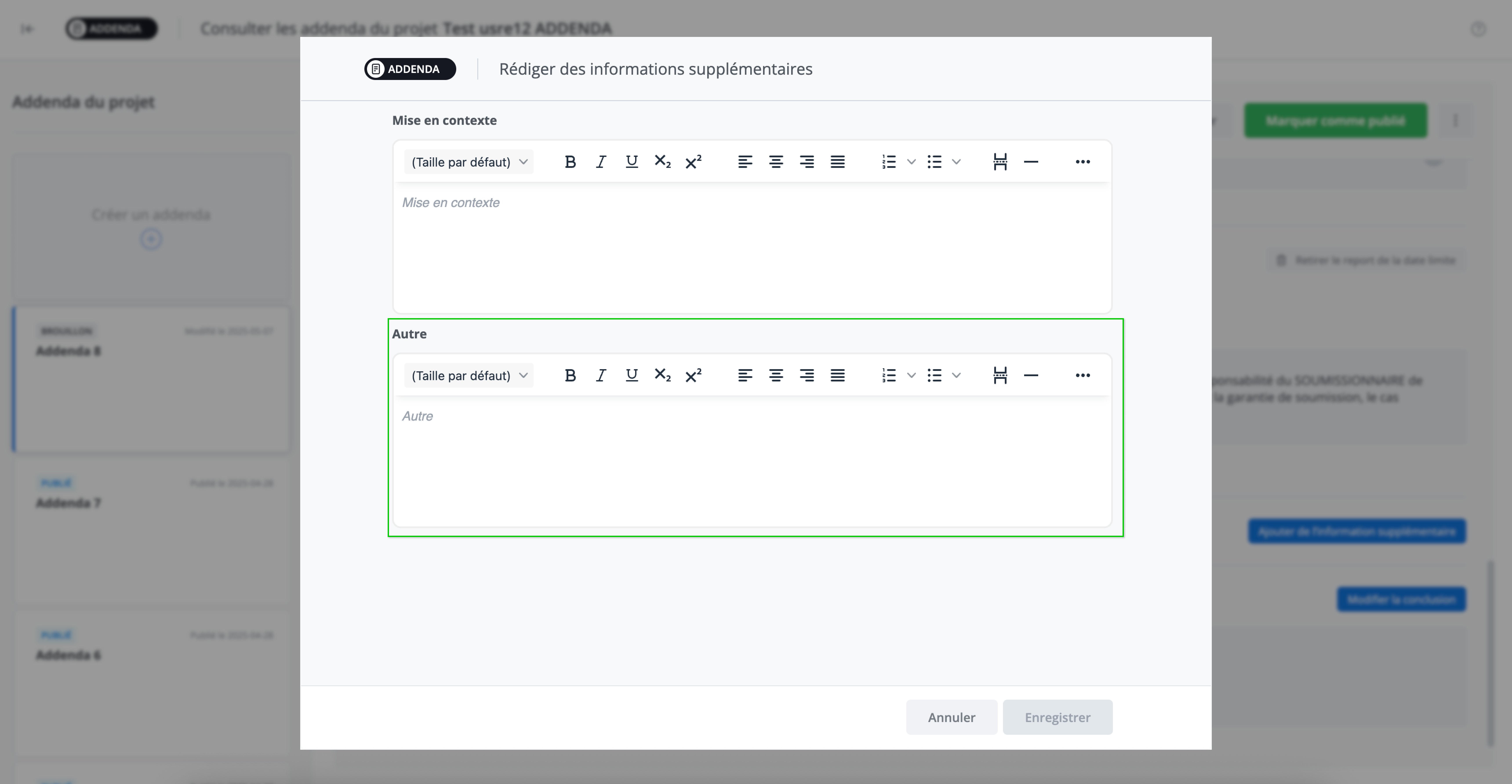
Once the information has been entered, click on Save to finish and return to the form.
Display Block of Information
The information is displayed in the form in chronological order of entry in the corresponding section of the addendum.
Management of Block of Information
To edit or delete a block of information, click on the block of information management menu available to the right of the section. Note that removal is only possible when the addendum is in "Draft" status.
11 - Section - Conclusion
The Conclusion section, as its name suggests, is used to conclude the addendum. This section automatically contains certain project data as soon as the addendum is created. As long as the addendum is being edited, in "Draft" status, this data can be modified, and it is possible to add any additional information by clicking on Edit the conclusion.

Addenda Management
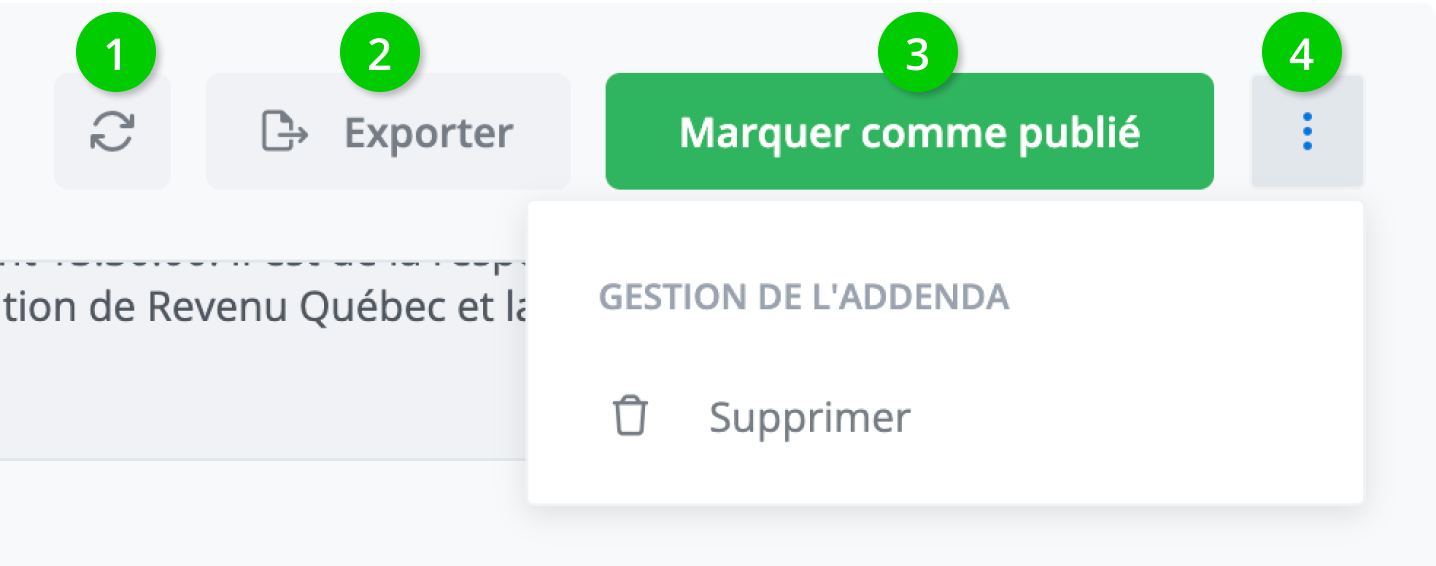
The functions associated with addendum management are located in the header of the addendum form. You can perform the following actions there:
-
Refresh the form: To refresh an addendum, click on Refresh located to the right of the header. This is used to update the form. It becomes especially useful when working with multiple tabs. The addendum form does not refresh automatically. Therefore, if a modification is made to the tender document in one tab while the form is open in another tab, clicking Refresh allows the most up-to-date data to be included in the form.
-
Export: To export the addendum currently being edited, click on Export located to the right of the addendum form header.
-
Mark as published: To mark an addendum as published, click on Mark as published located to the right of the header. Publishing the addendum serves to consolidate a version of the contractual document by integrating all the changes made (if any). The addendum status therefore changes from "Draft" to "Published." The data that was entered in the various sections of the form is locked. This action is irreversible.
-
Delete: To delete an ongoing addendum, click on the menu at the top right of the header. The Delete option appears in the menu. Click on Delete and then Confirm in the dialog box.
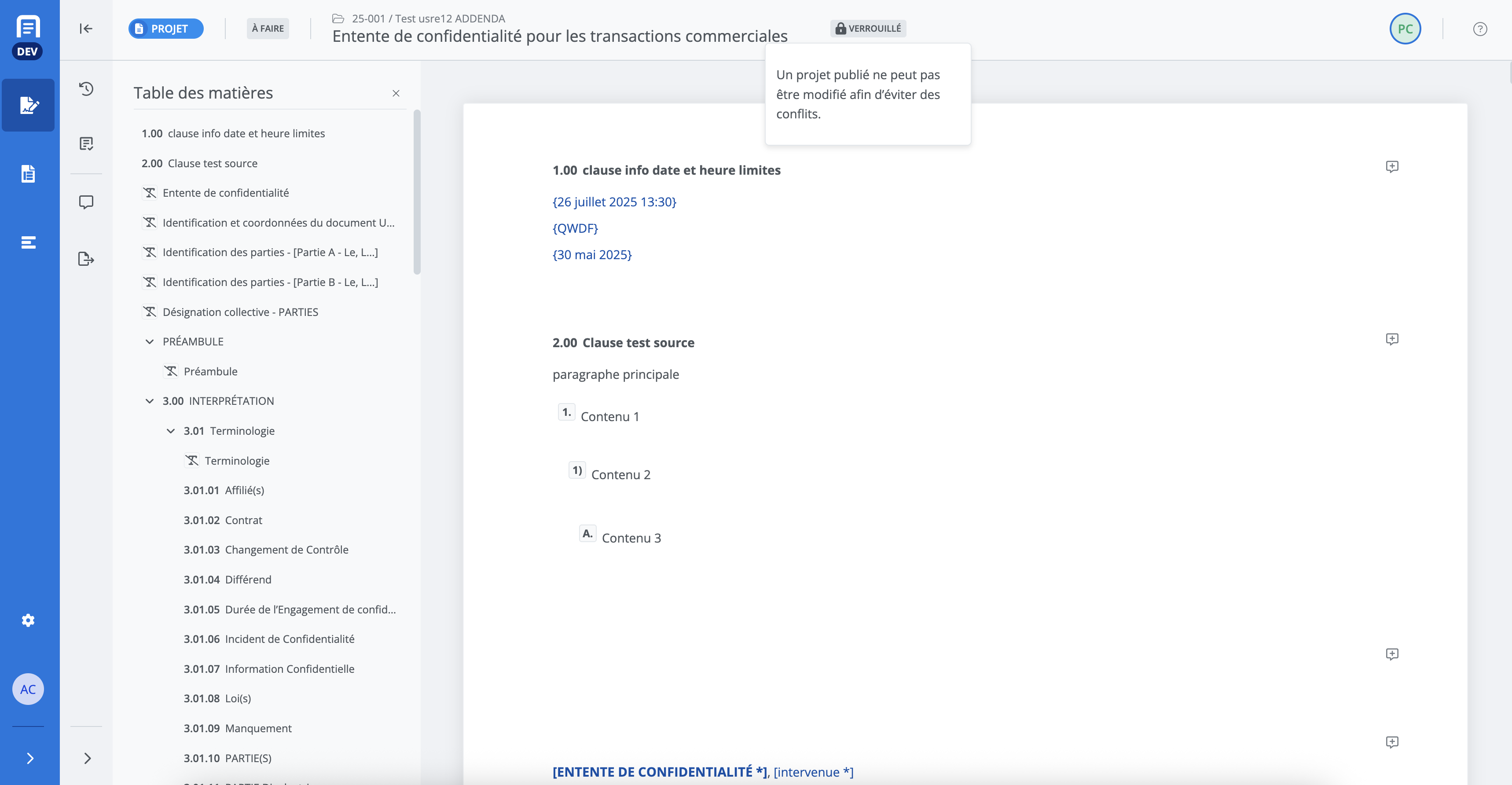
View the original contract document
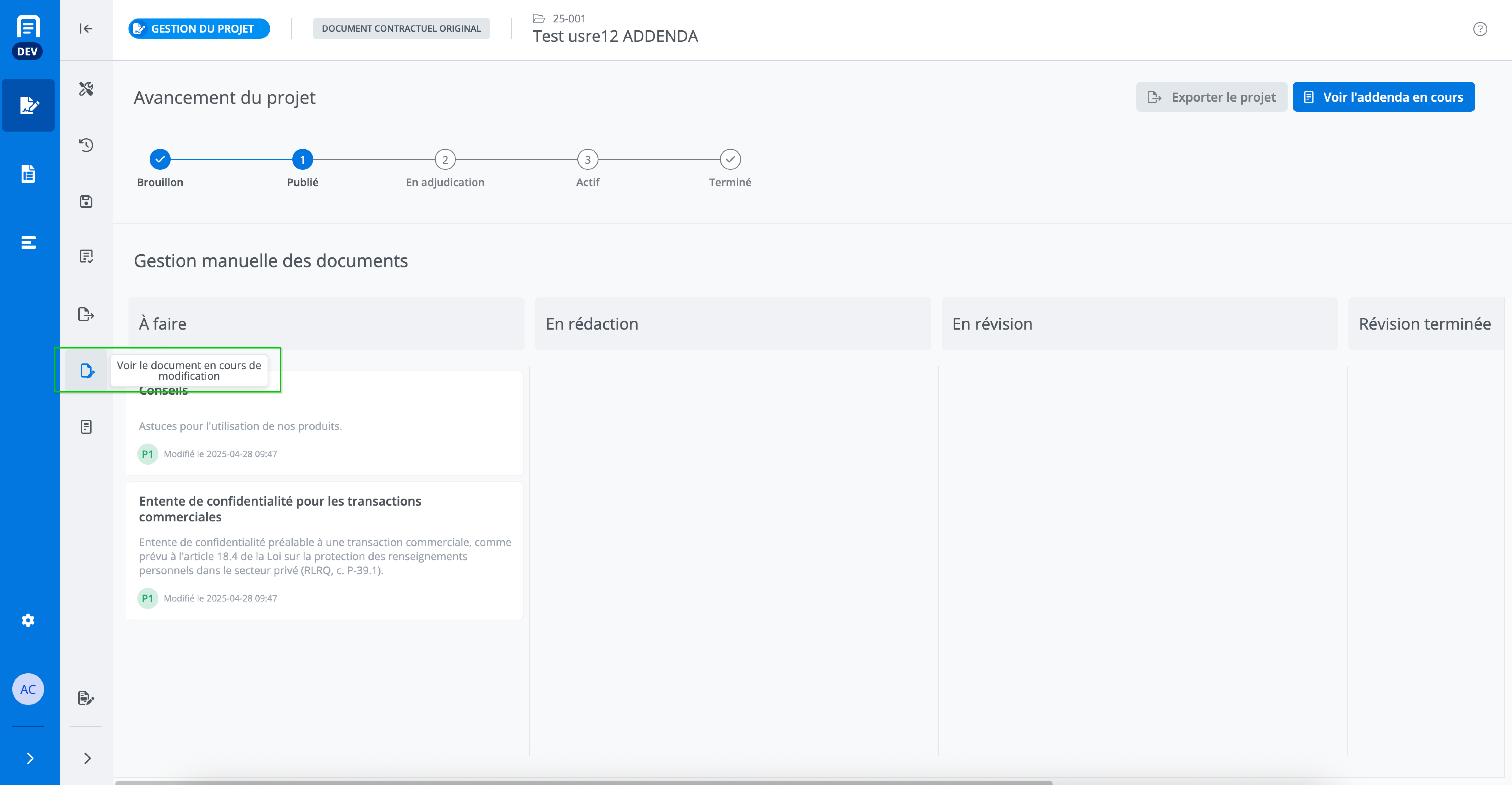
Even if an addendum is "Published" or "Being edited," a version of the original contract document is available for viewing from the project management screen. To view it, click on View the original contract document located in the menu bar to the left of the management screen.
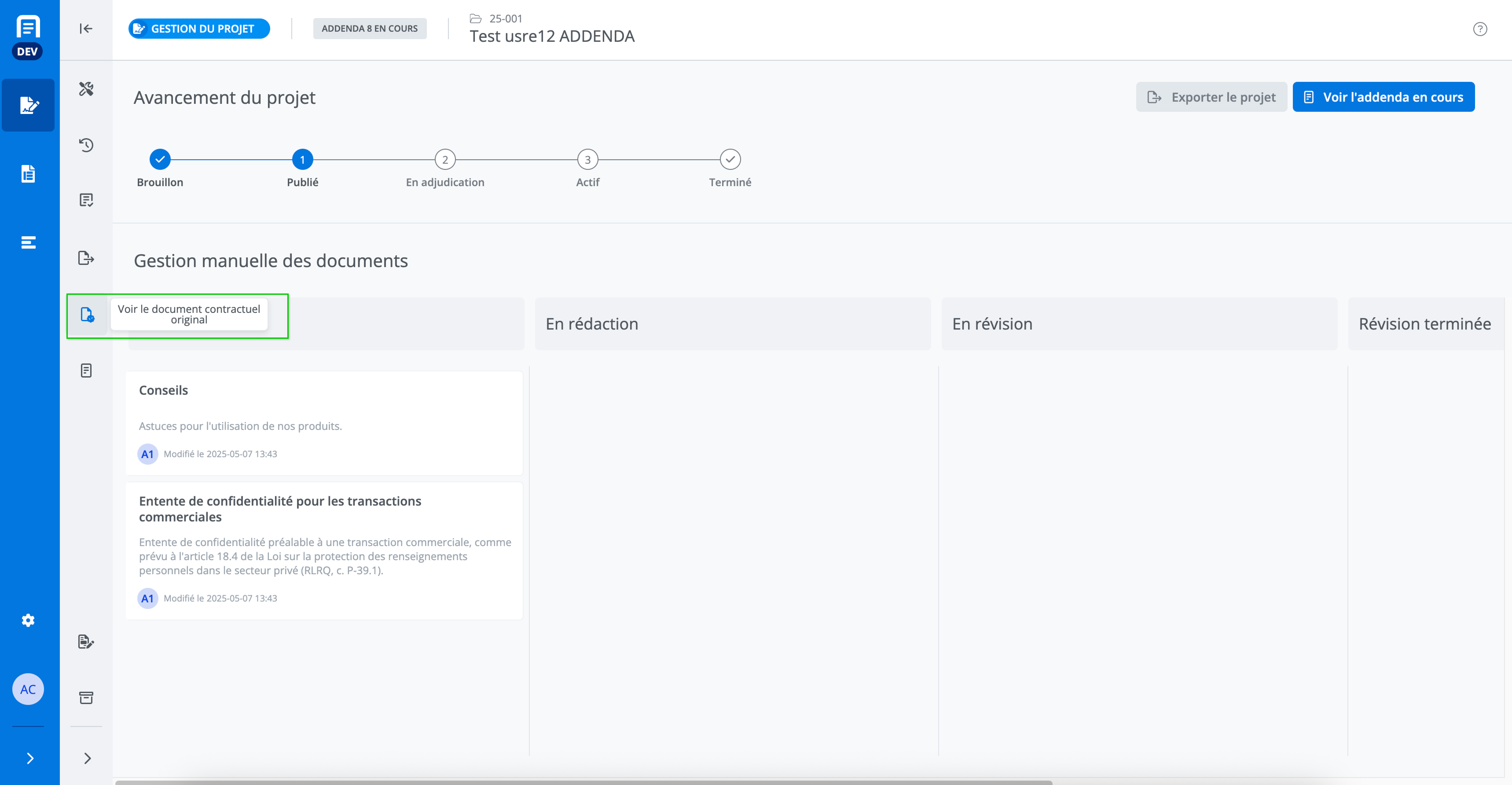
You will be redirected to the original contract document management screen and will be able to view it. The documents are available in read-only mode.
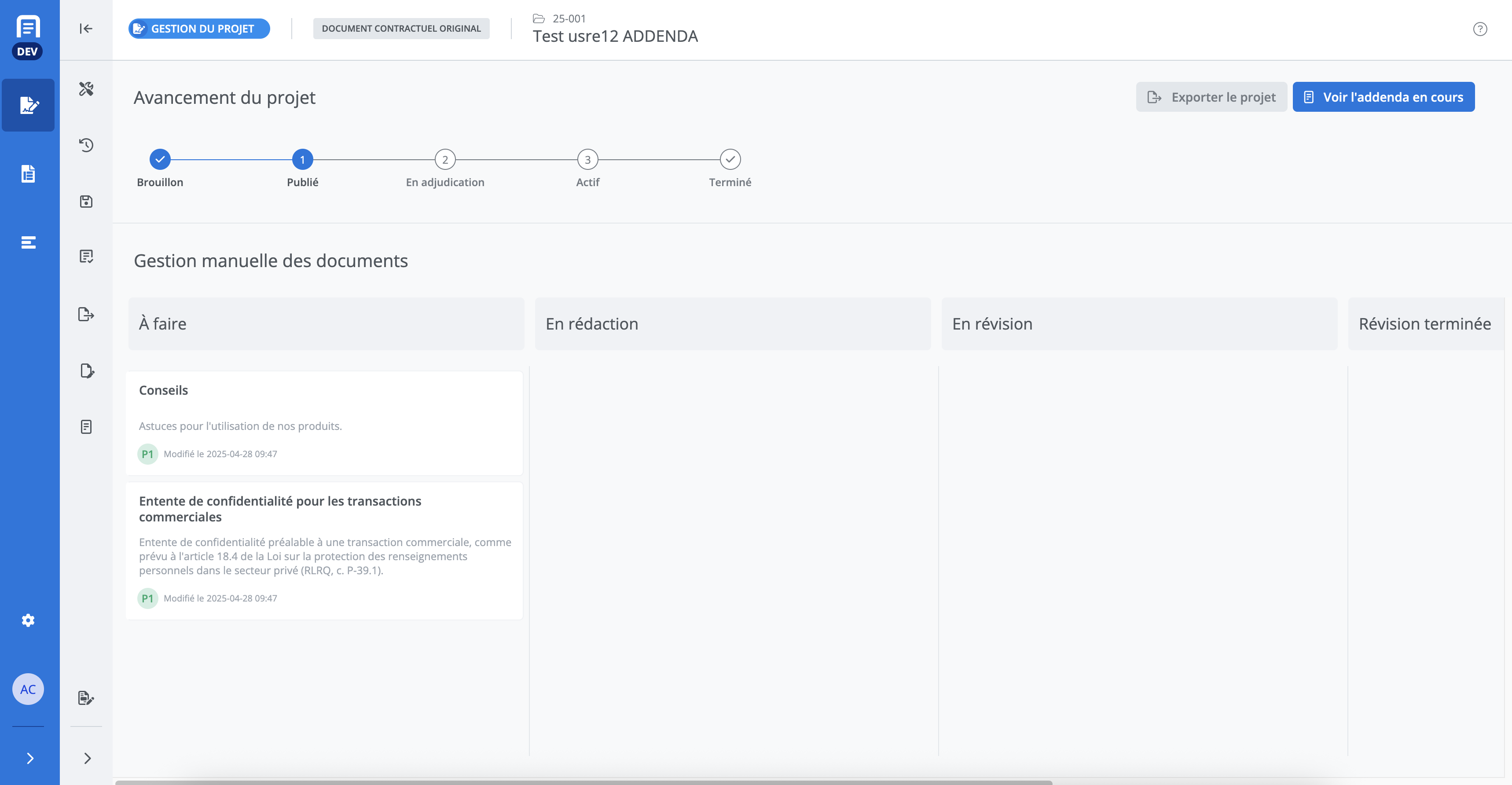
Return to the document management screen for the addendum in progress by clicking on View the document currently being modified.
View a published addendum
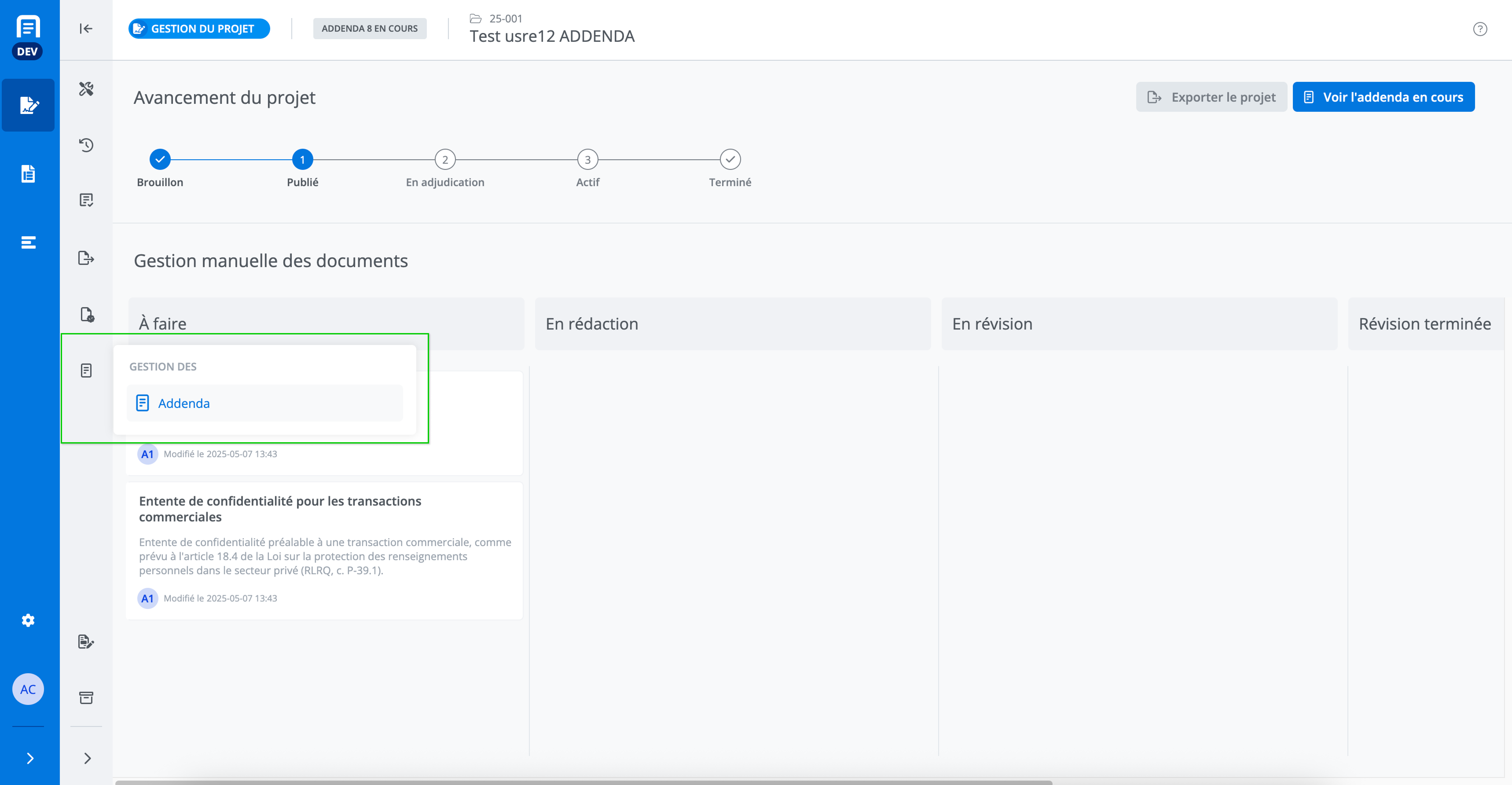
View published addenda by accessing the addendum management mode located in the features menu.
To view the details of a published addendum, click on its tile in the project's addendum list. The completed form will be displayed in the section on the right. The form is displayed in read-only mode and cannot be modified.
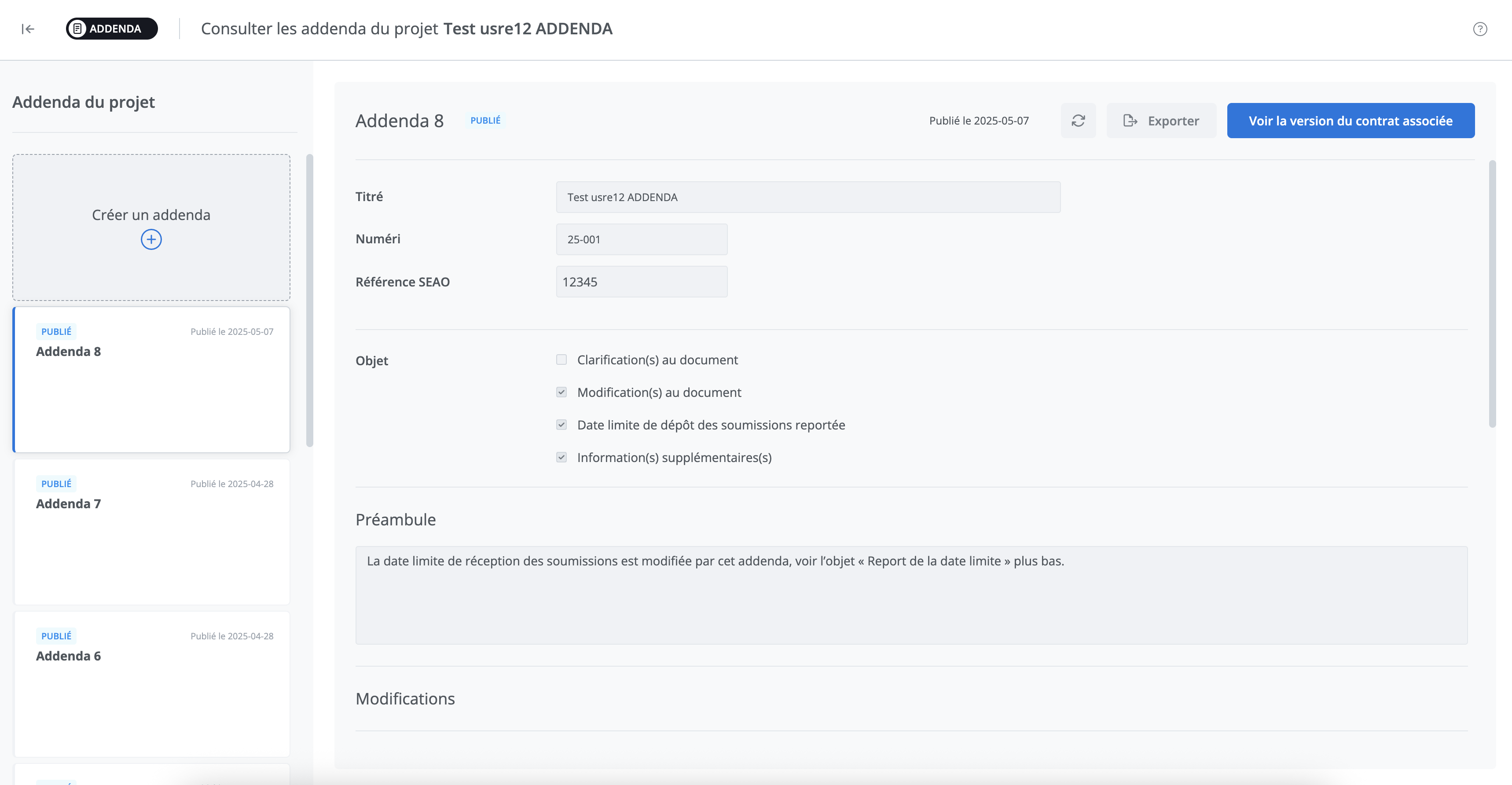
View the contract document associated with a published addendum
To view the contract document associated with a published addendum, click on View the associated contract version.

You will be redirected to the management of the project associated with the addendum.
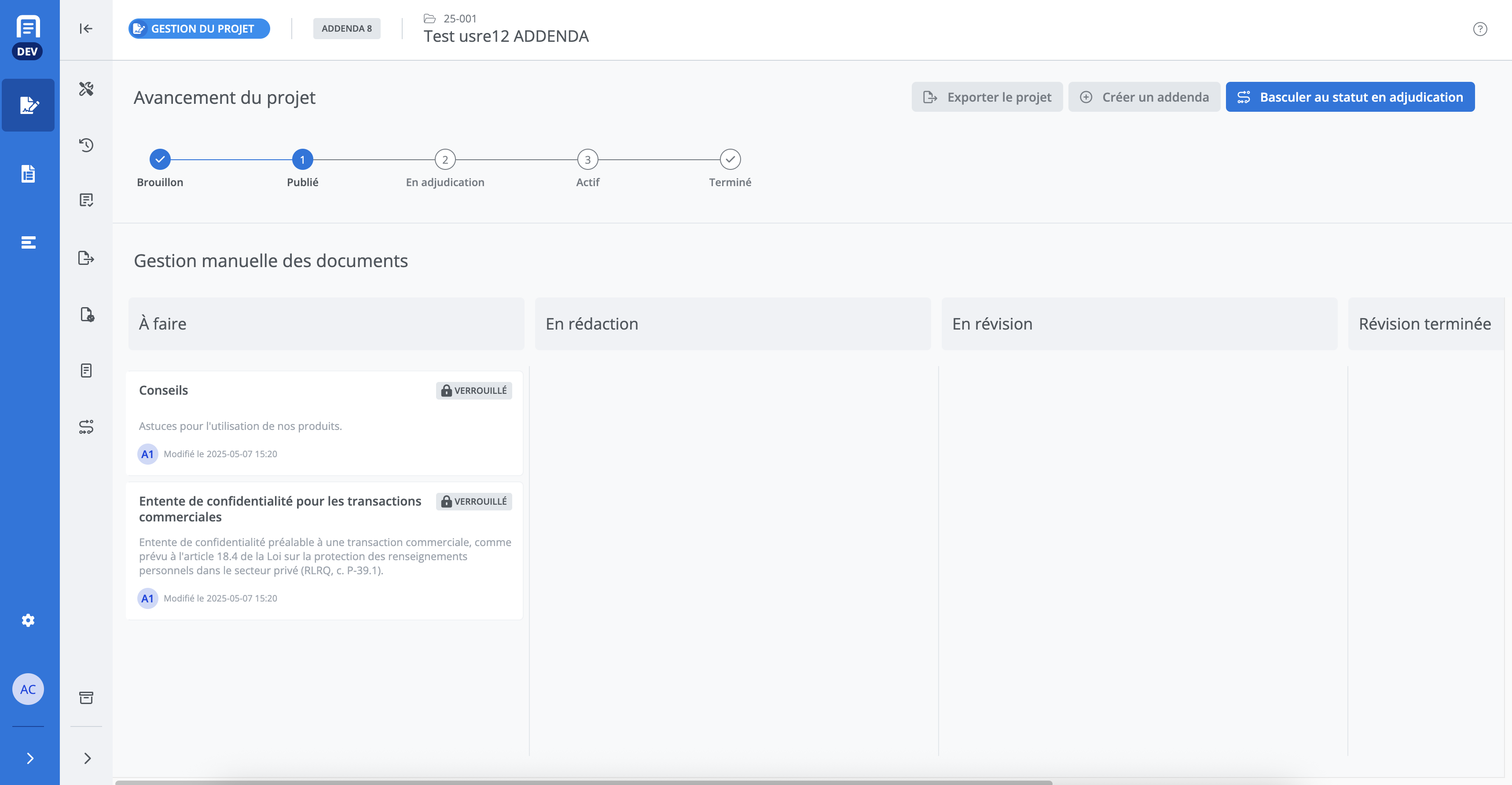
The documents are read-only and cannot be modified.
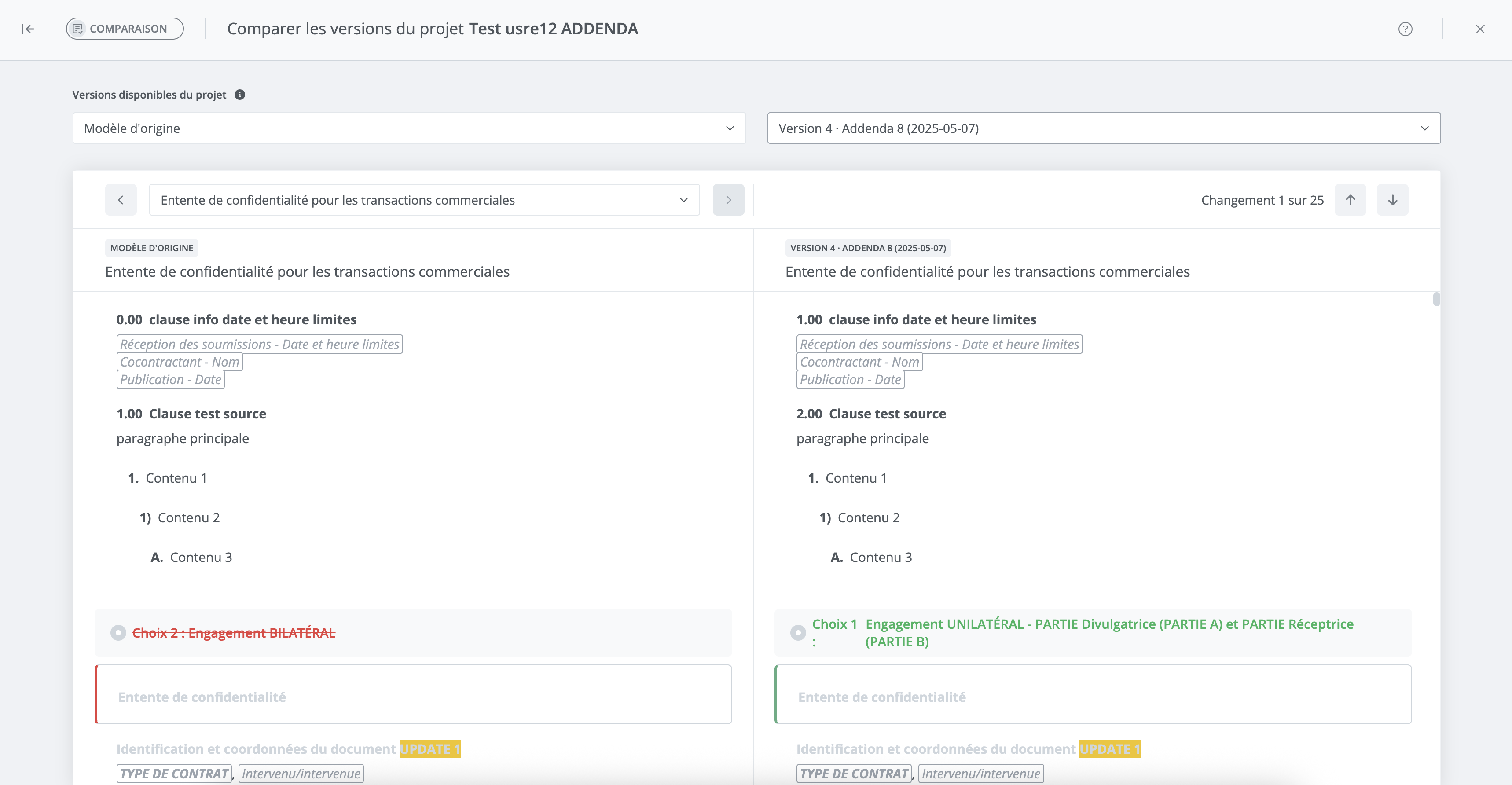
View the document's change tracking
To view the change tracking of an addendum currently being drafted, access review mode from the features menu. Click on Compare with the original contract document.
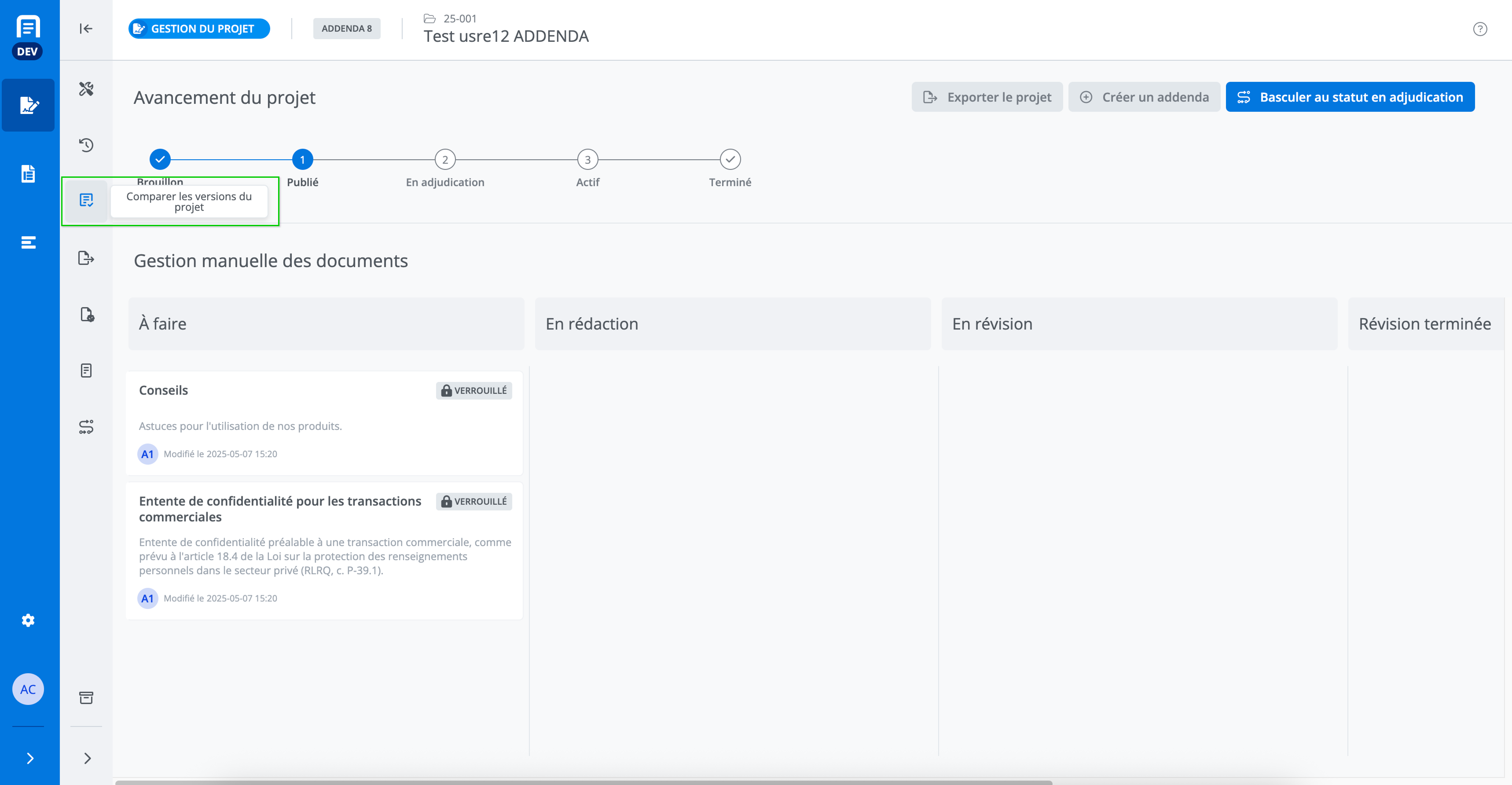
Le mode de révision vous permet de comparer le document contractuel original (à gauche) et le document en cours de modification (à droite).