Access to Feature
The amendment feature is offered in beta.
Please contact Edilex if you would like early access.
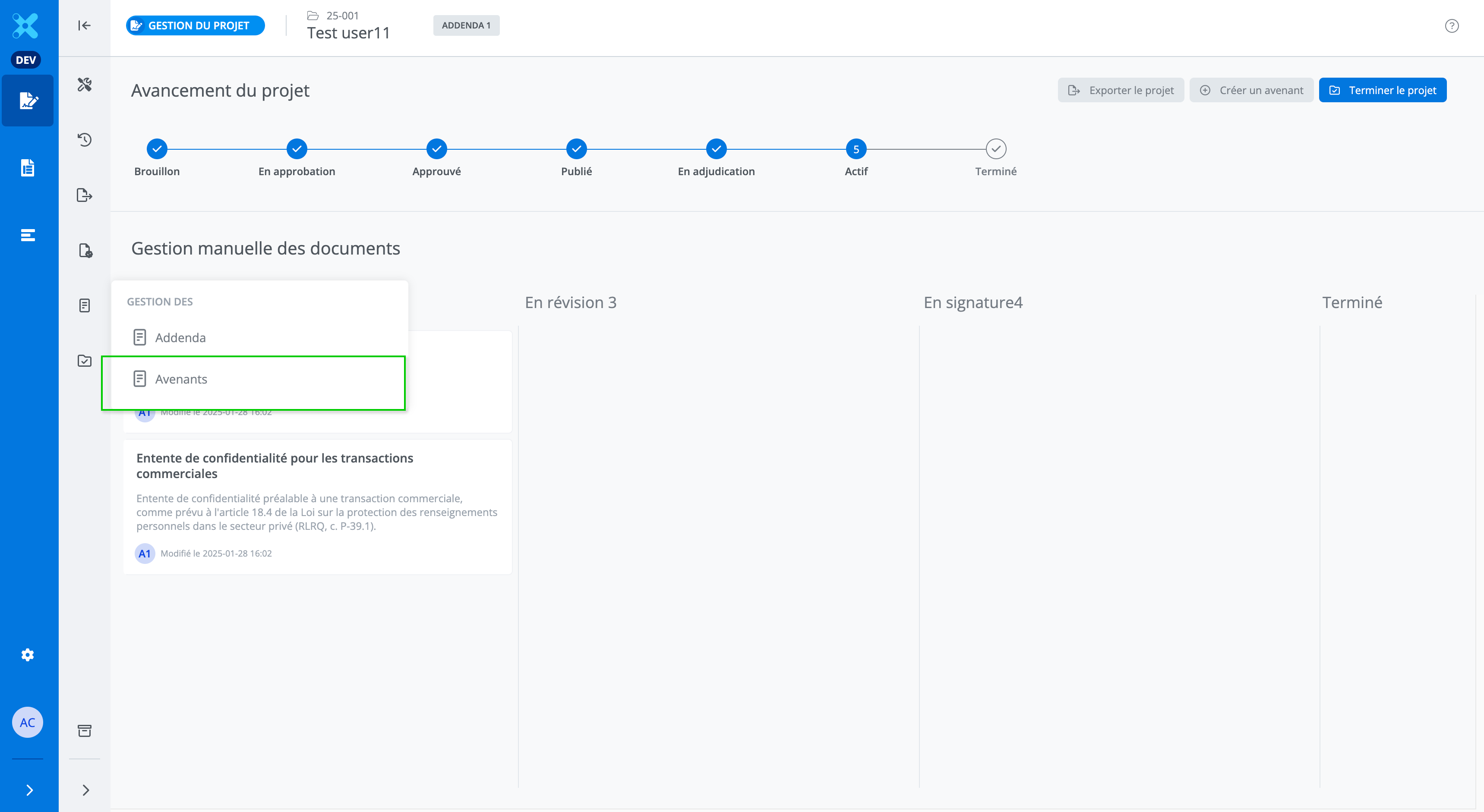
Access the amendment feature from the features menu of the project management screen.
Please note that creating an amendment is only available when the project is in Active status.
Description of the Feature
The feature allows you to produce amendments in order to make all the required changes to the contract documentation as part of a tender once the contract has been signed.
Create a new Amendment
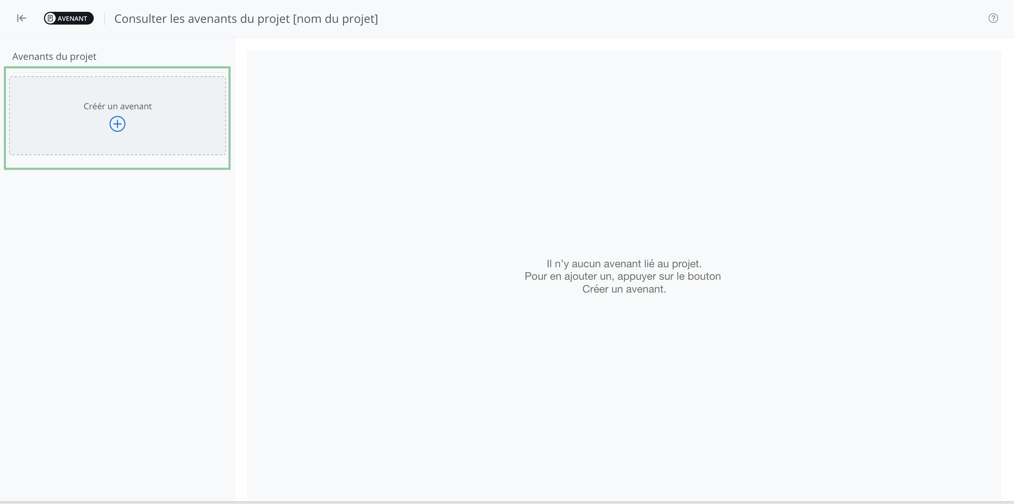
From the amendment feature, click on “Create an amendment”. This action displays the form used to draft the amendment.
Note: Changes made to tender documents as part of an amendment do not affect the original documents. A copy of these is always kept in the system and available for viewing.
Amendment Form
The form used to produce an amendment includes several sections. Here is an overview of its main elements, their description, and how to use them.
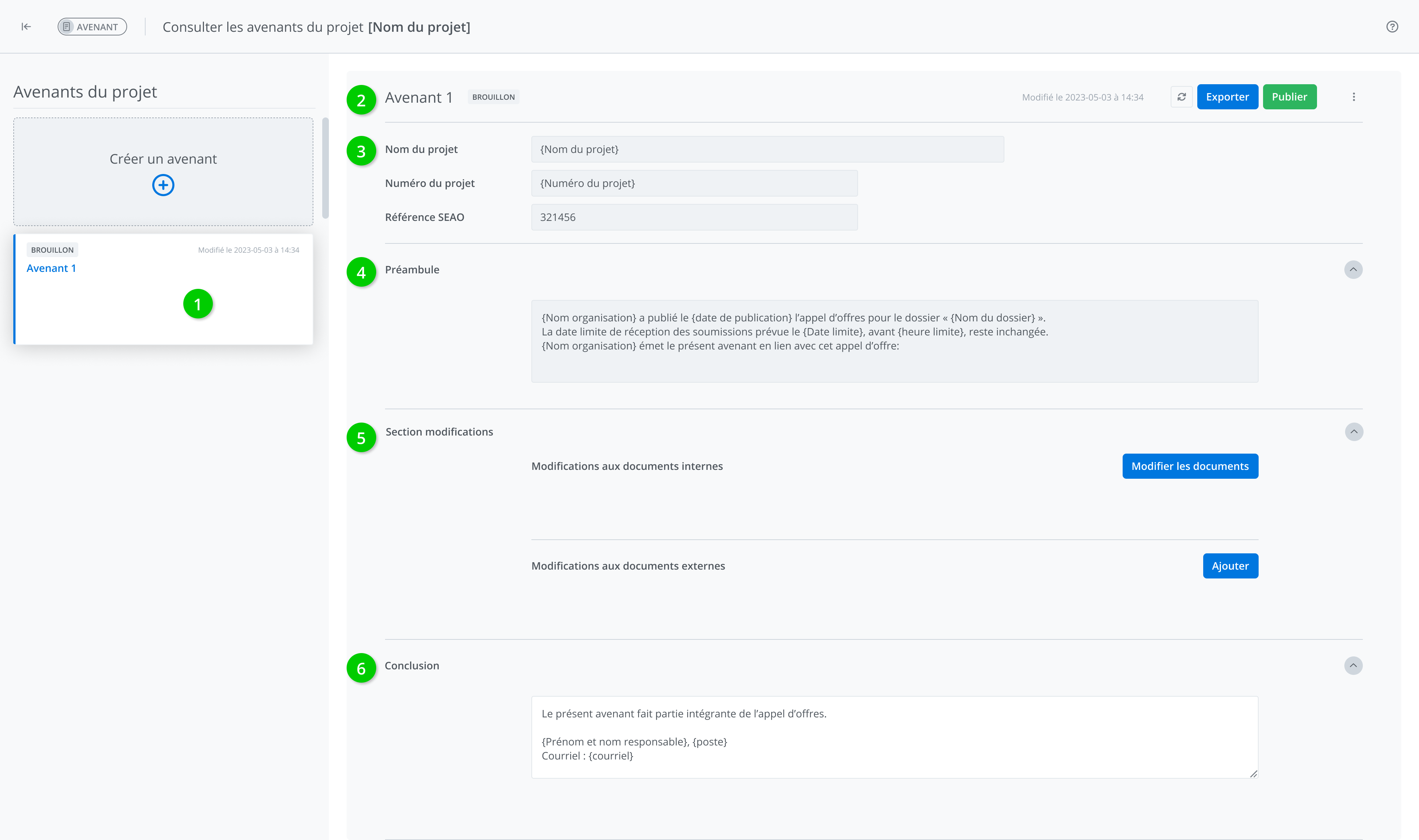
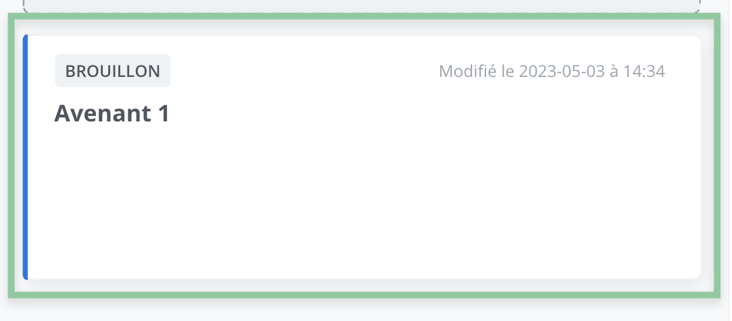
1 - Amendment Tile
You will find the amendment identification in the form of a tile, which consists of:
-
Its name and number, ex.: in the image below “Amendment 1”
-
Its status (ex.: “Draft”);
-
The date of the last modification or publication (as the case may be).
2 - Heading
The addendum header provides basic information about the selected or currently edited amendment. You will find:
-
The name and number of the amendment;
-
The amendment’s status (“Draft” or “Published”);
-
The date of the last modification or publication (as the case may be).
-
The amendment management buttons (see the Amendment management section for usage details).

The header also allows for its management through the buttons located at its far right. In order from left to right, the displayed elements are:
-
Refresh the form
-
Export
-
Publish
-
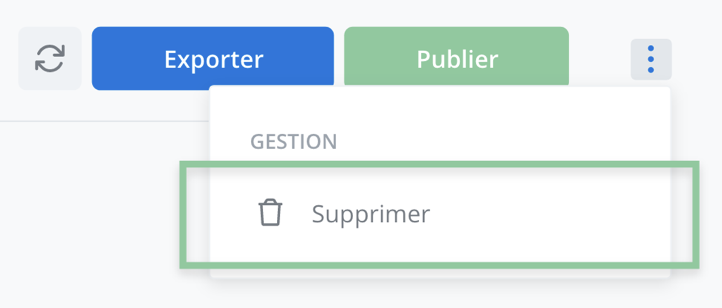
Delete
3 – Section - Information on the project

This section of the form provides context information for the amendment,
-
The name of the project associated with the amendment: When an amendment is created, the project name is automatically filled in by the system with the project name at the time the amendment was created and cannot be modified from the amendment.
-
The project number: At the creation of an amendment, the project number is automatically filled in by the system with the project number at the time of the amendment's creation and cannot be modified from the amendment.
-
Note: The project name and number in the amendment are not modified in the event that this information is changed on the project itself. This allows the amendment to reflect the project name that was in effect at the time the amendment was created.
4 – Section – Recitals
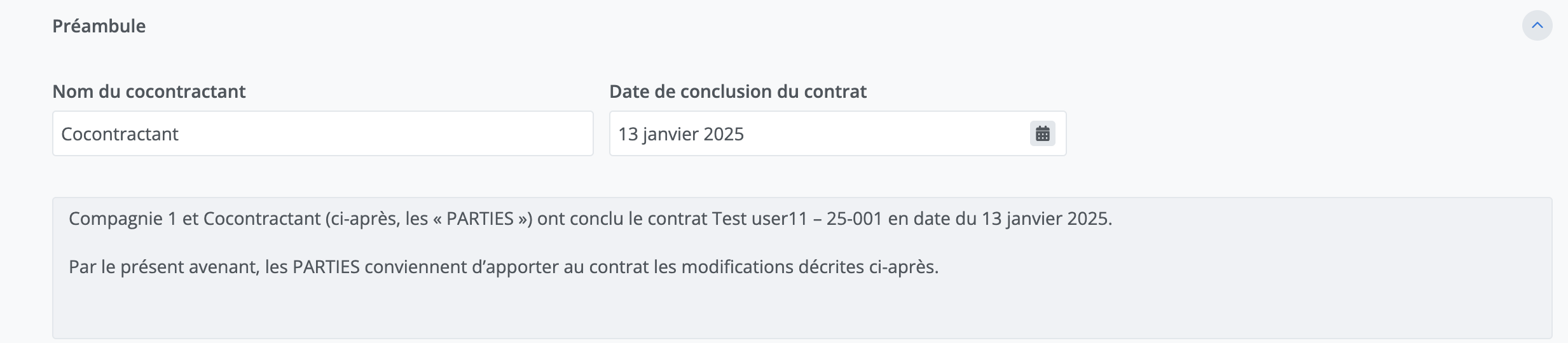
The Recitals section serves as an introduction and describes the context of the amendment.
In the Recitals, two pieces of information must be entered to complete the amendment:
-
The name of the co-contracting party;
-
The date of contract conclusion;
The Recitals text box cannot be modified. The data it displays is taken directly from the project to ensure consistency of information.
5 - Section – Modifications
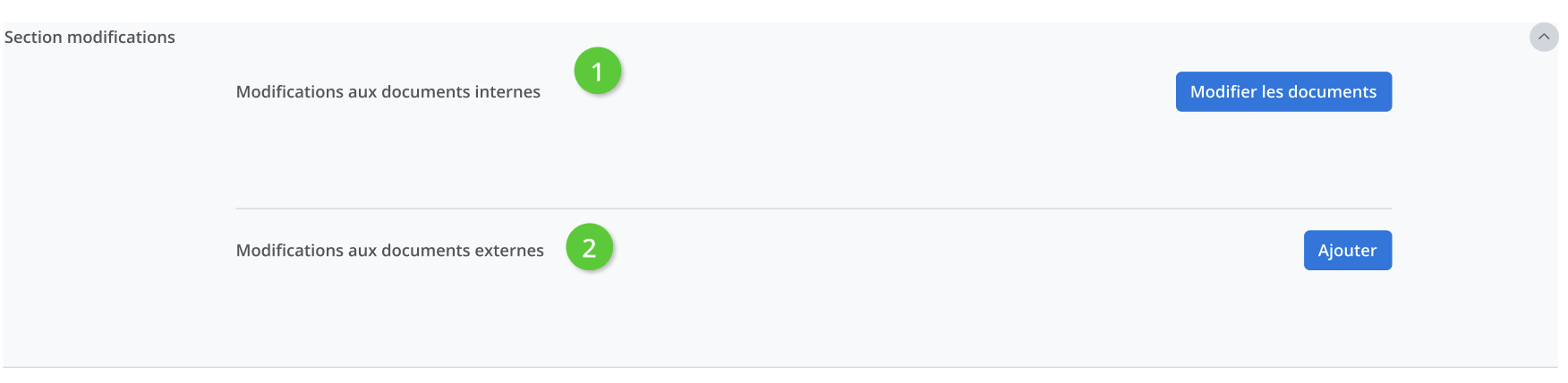
The amendment modification section contains two subsections:
-
Modification to internal documents: Allows you to make modifications intended for the amendment directly in the tender document generated in the application. The changes made are automatically documented and added as text in the form.
-
Modifications to internal documents
Add a modification
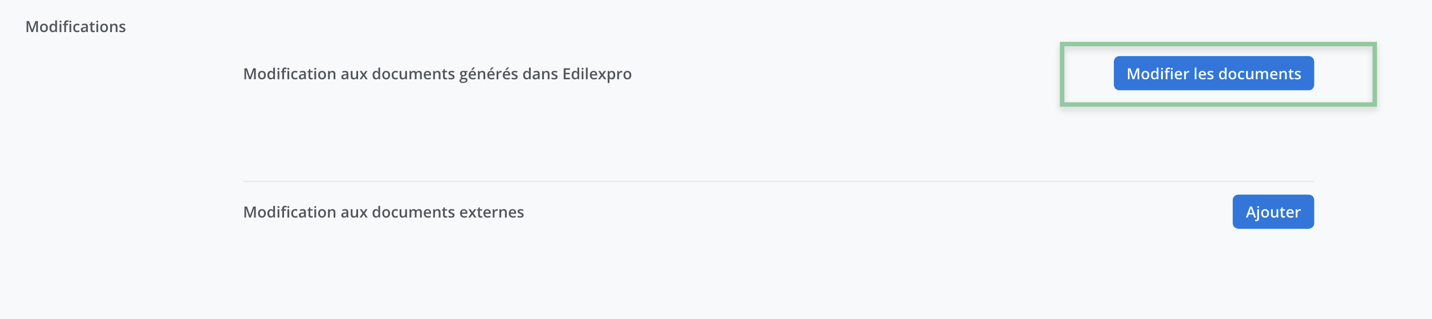
Click on “Modify documents” and the system then redirects you to the tender documents to edit them.
Document navigation and editing
In edit mode for the amendment, the supported modifications are as follows:
-
Change alternative,
-
Modify a clause,
-
Modify field values,
-
Remove/add content.
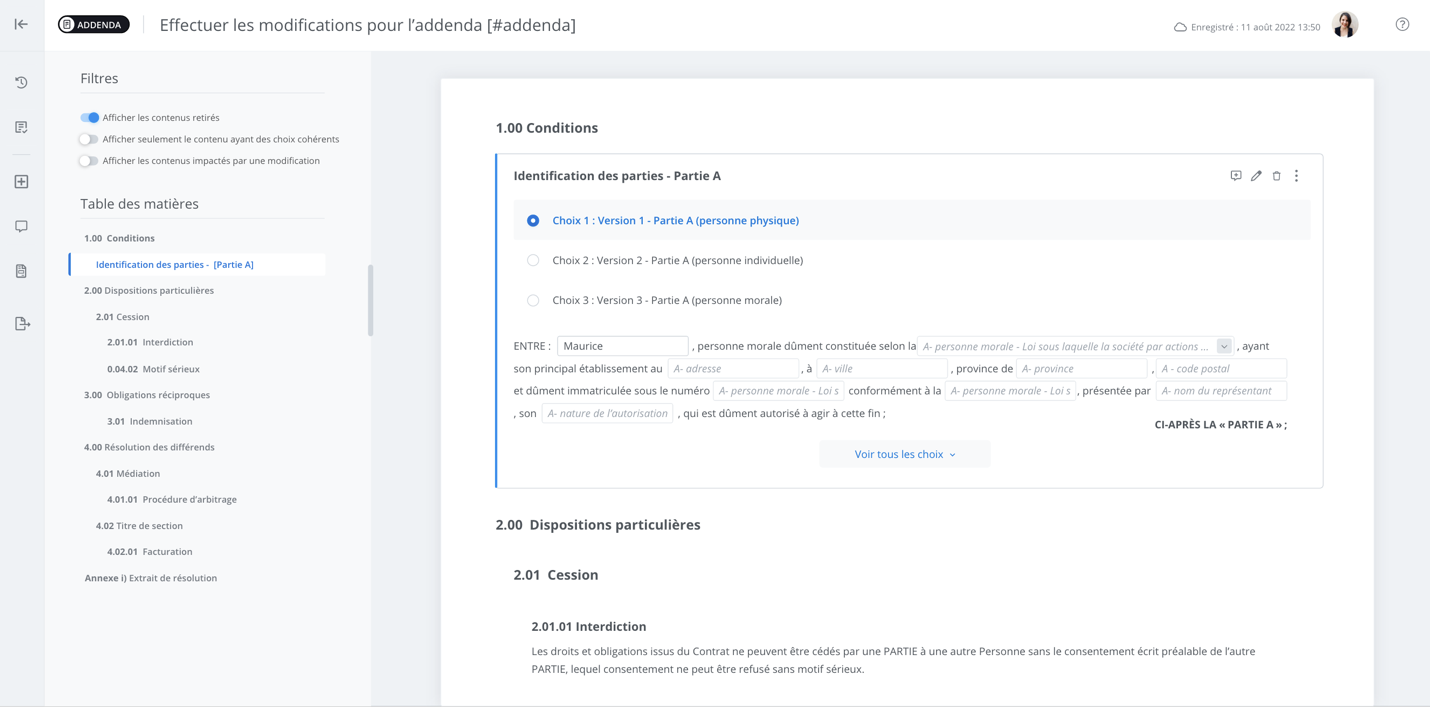
To return to the amendment form, click Back located in the upper left corner.
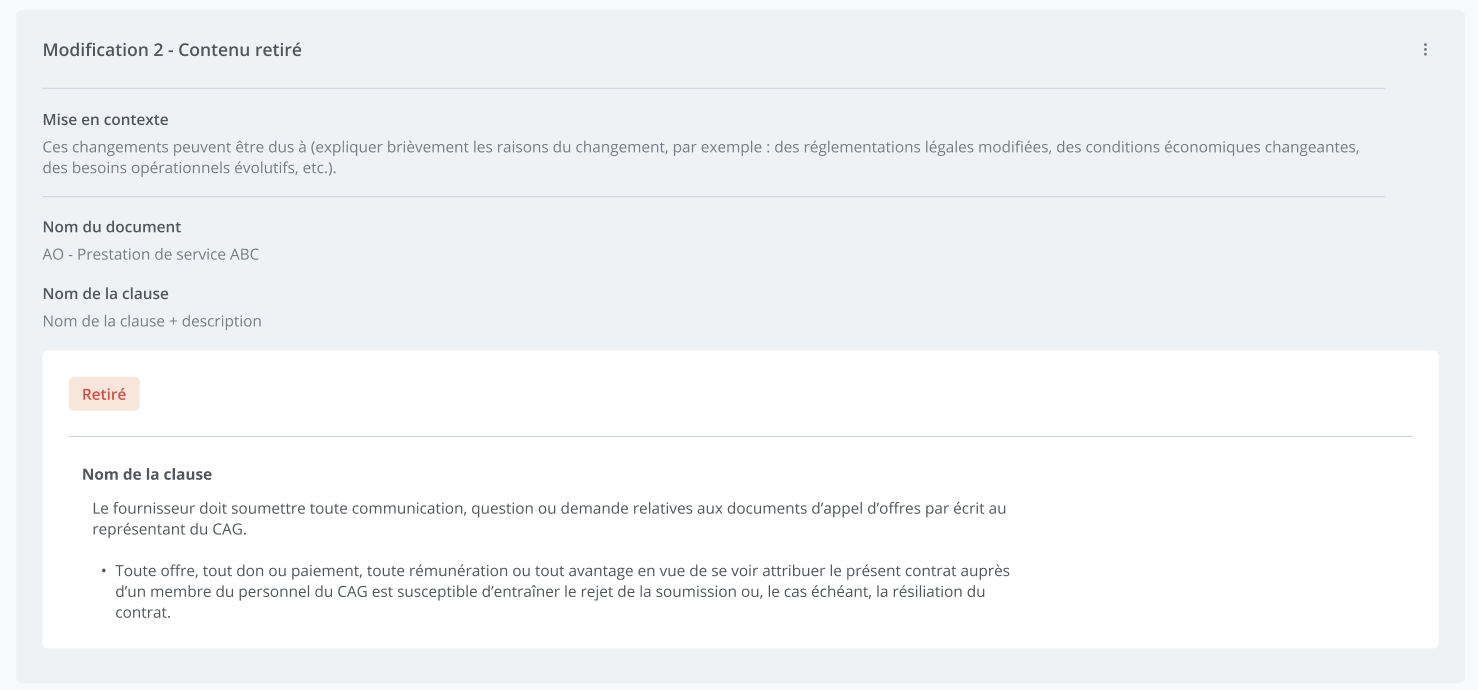
Displaying Changes
The modifications are displayed in the amendment form in chronological order of entry.
Modification management
Three actions are possible on a modification:
-
Add and modify the context: Allows you to add details concerning the modification.
-
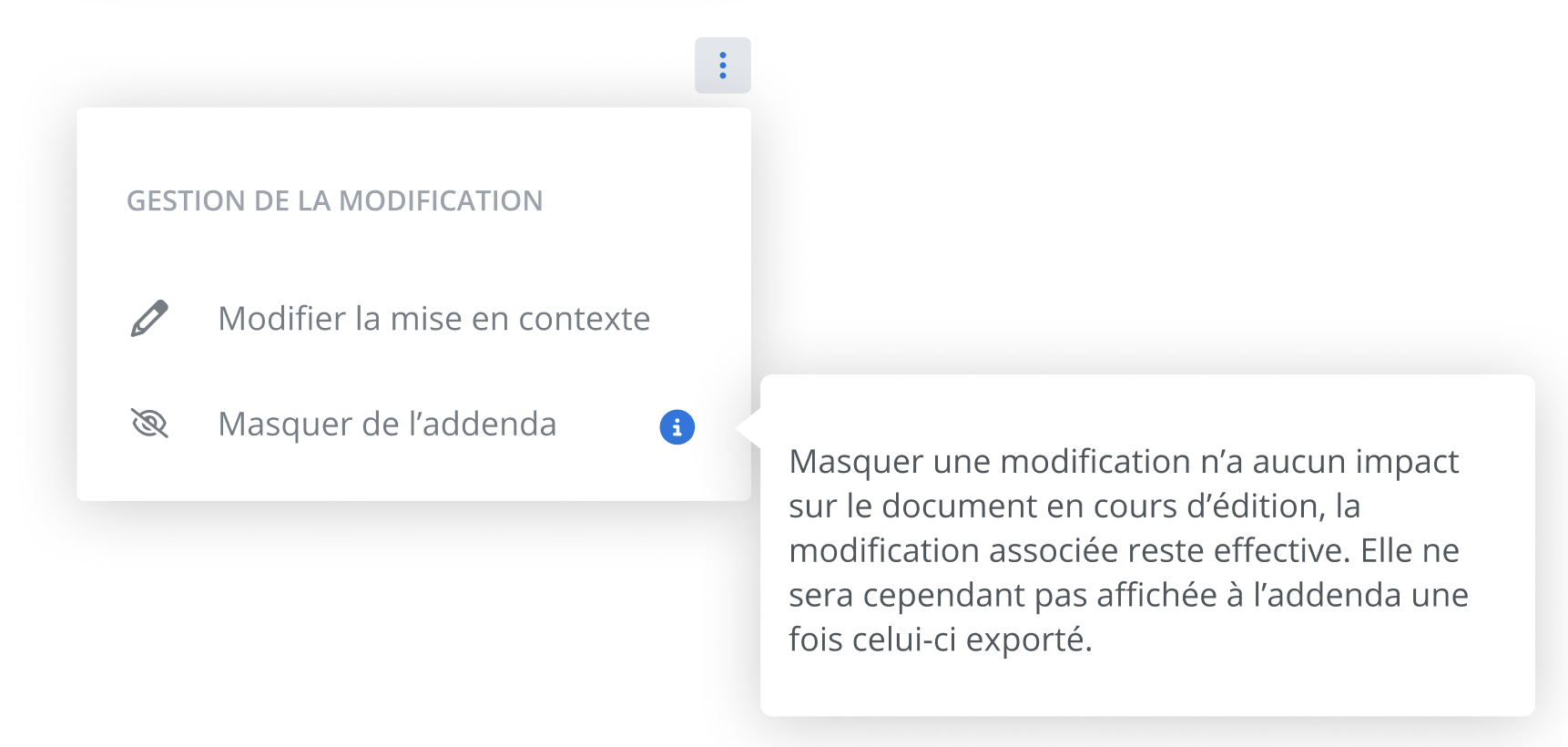
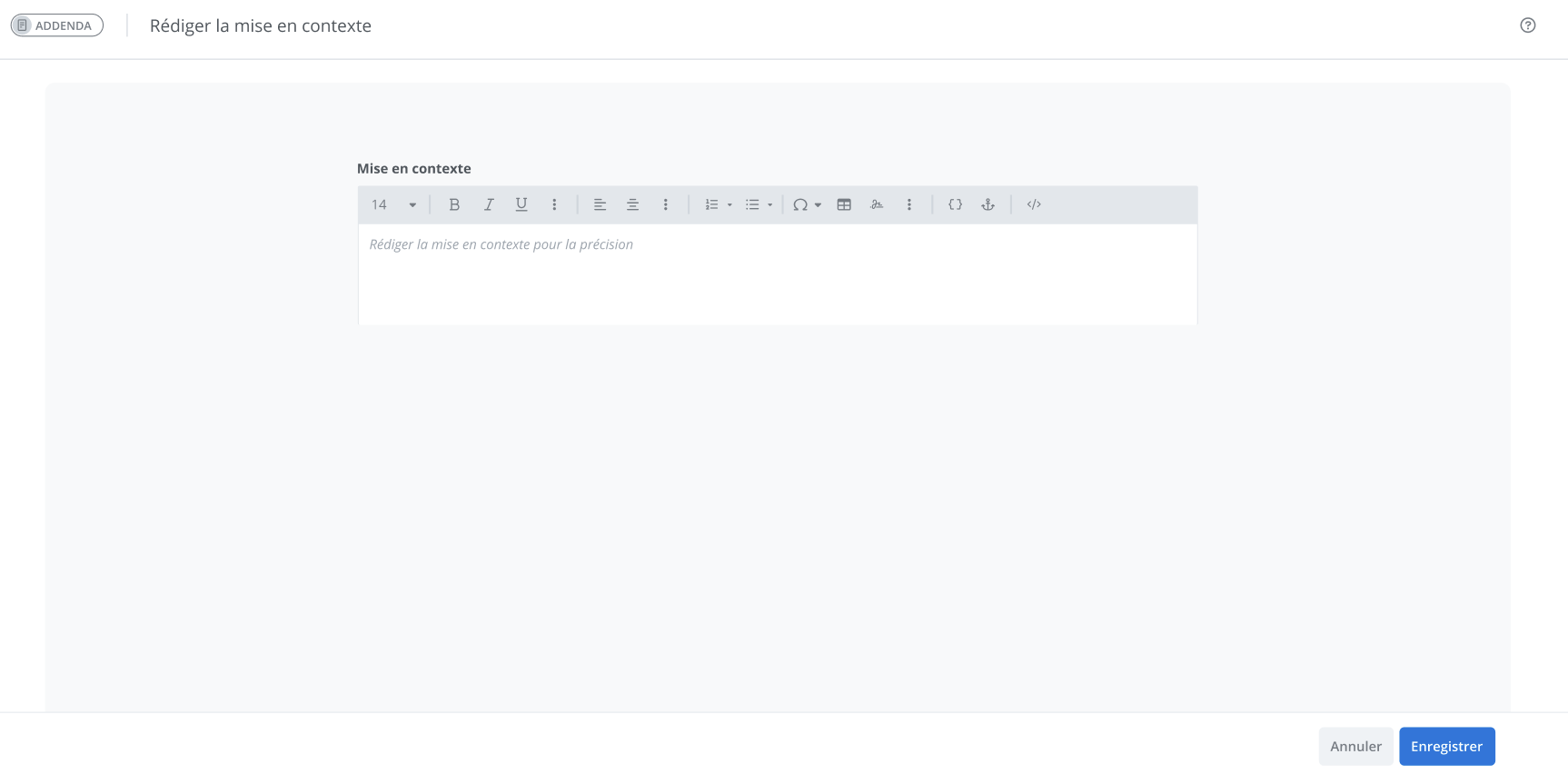
Draft a context for the modification
To add a context to your modification, click on Modify the context in the Modification management menu located to the right of the section. Entering this information is optional.
Modifications to external documents
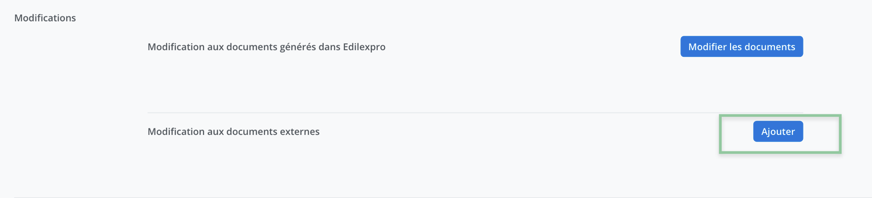
Add a modification
To add a modification to the amendment concerning an external document, click on Add in the corresponding section.
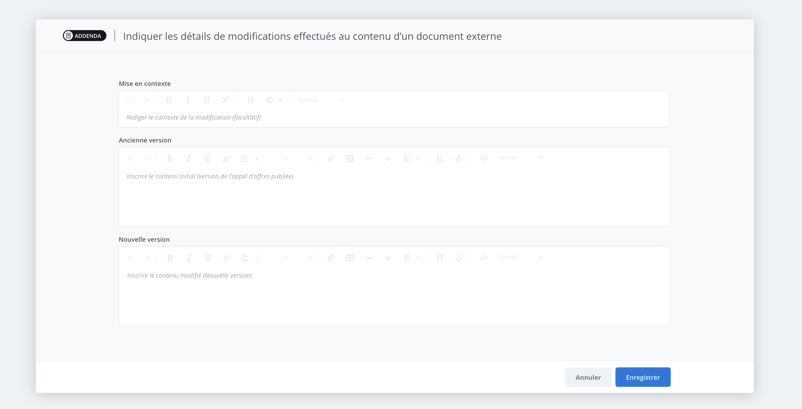
By clicking on Add, the editing window is displayed and allows you to enter information.
Context
A text box allows you to write additional details about the modification block. The context is an optional element.
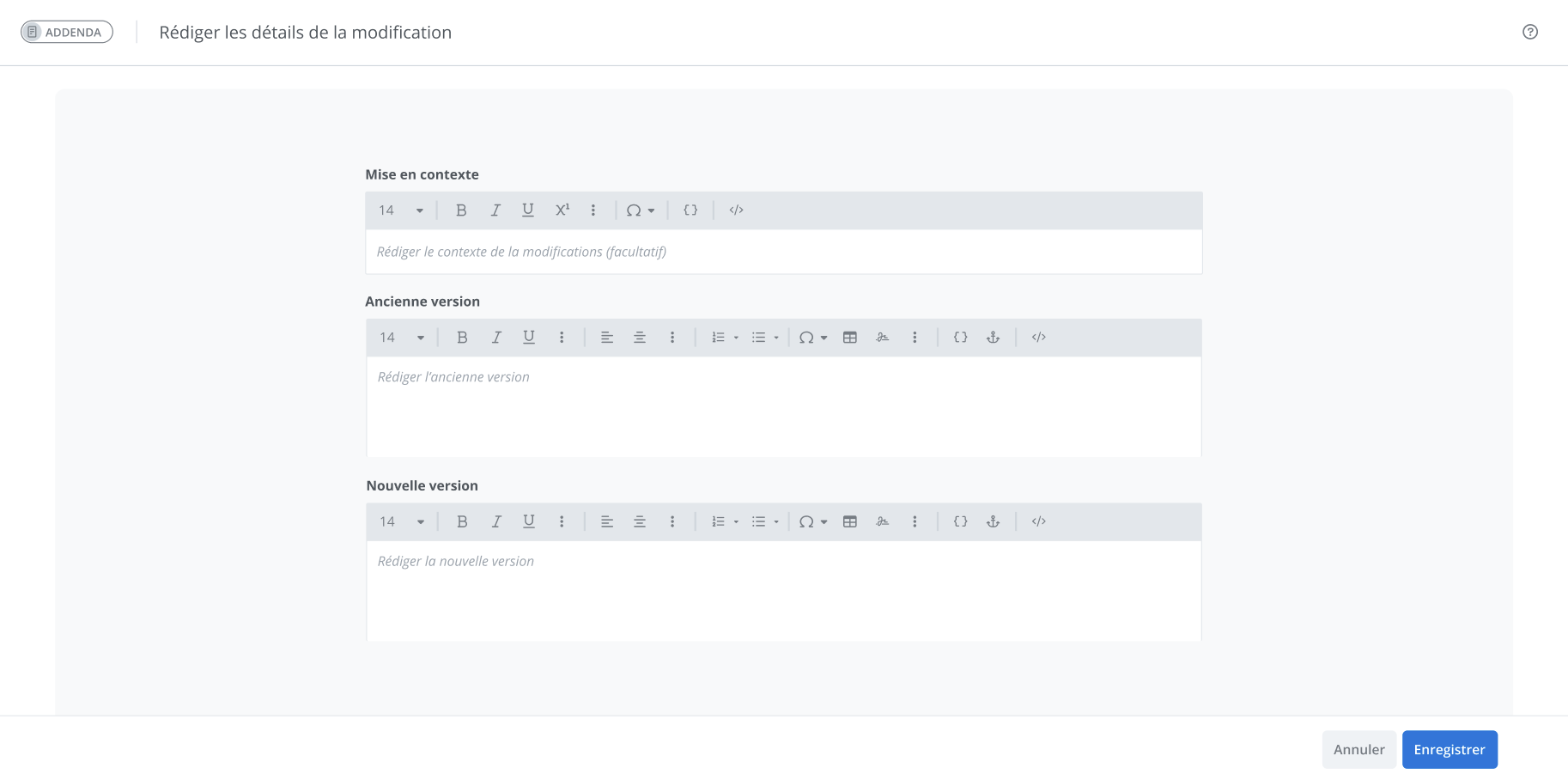
Draft the details of a modification
Two text boxes make up the modification block to indicate the changes between the old and new versions of a content item.
Once the details of the modification have been entered in each of the text boxes, click on “Save” to return to the form.
6 - Section - Conclusion
The conclusion section, as its name suggests, is used to conclude the amendment. By default, it contains two signature blocks as a conclusion, all of which can be modified so that you can adapt it to your needs.
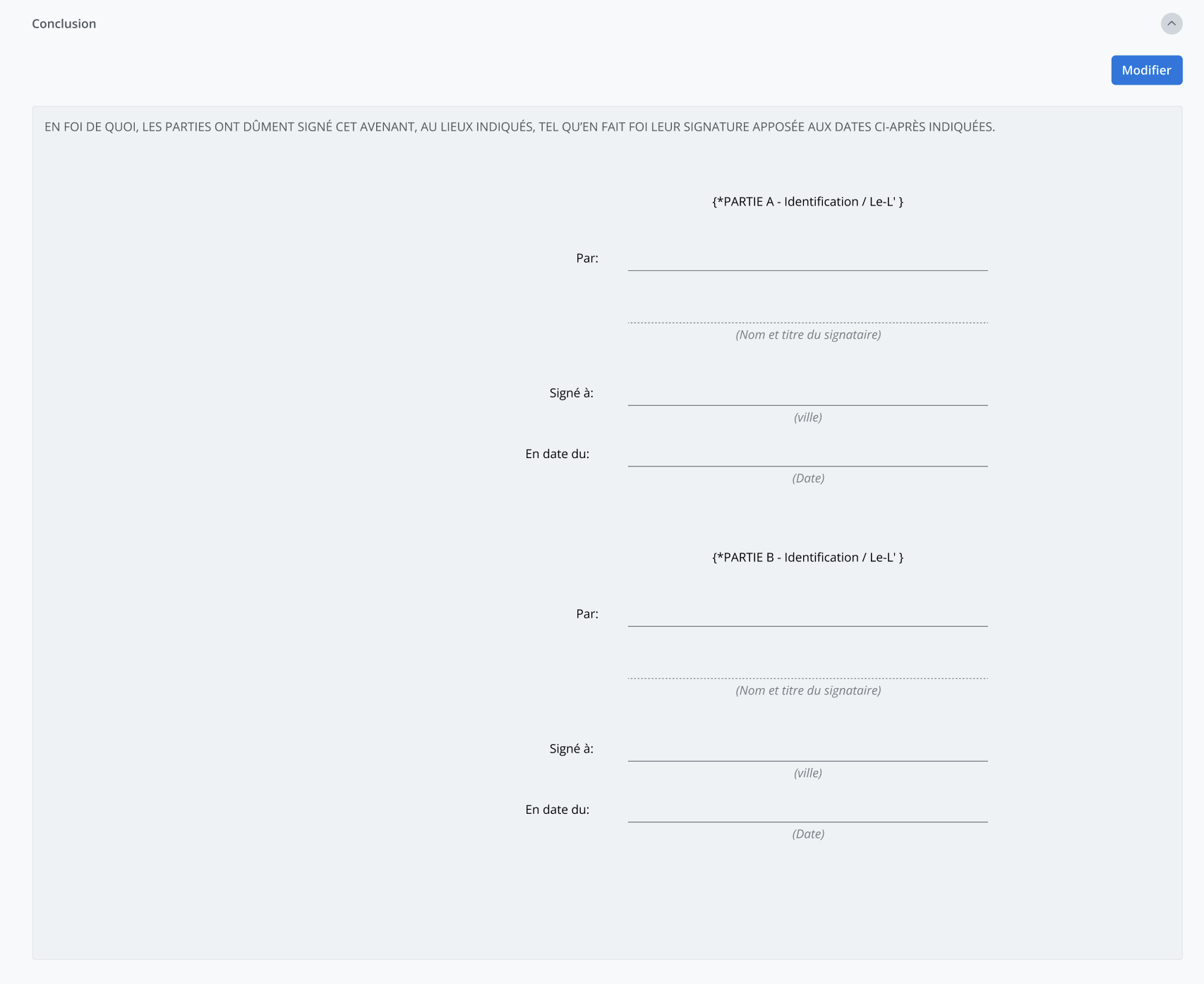
As long as the amendment is in "Draft" status, you will be able to modify it and add any additional information.
To do this, click on Modify.
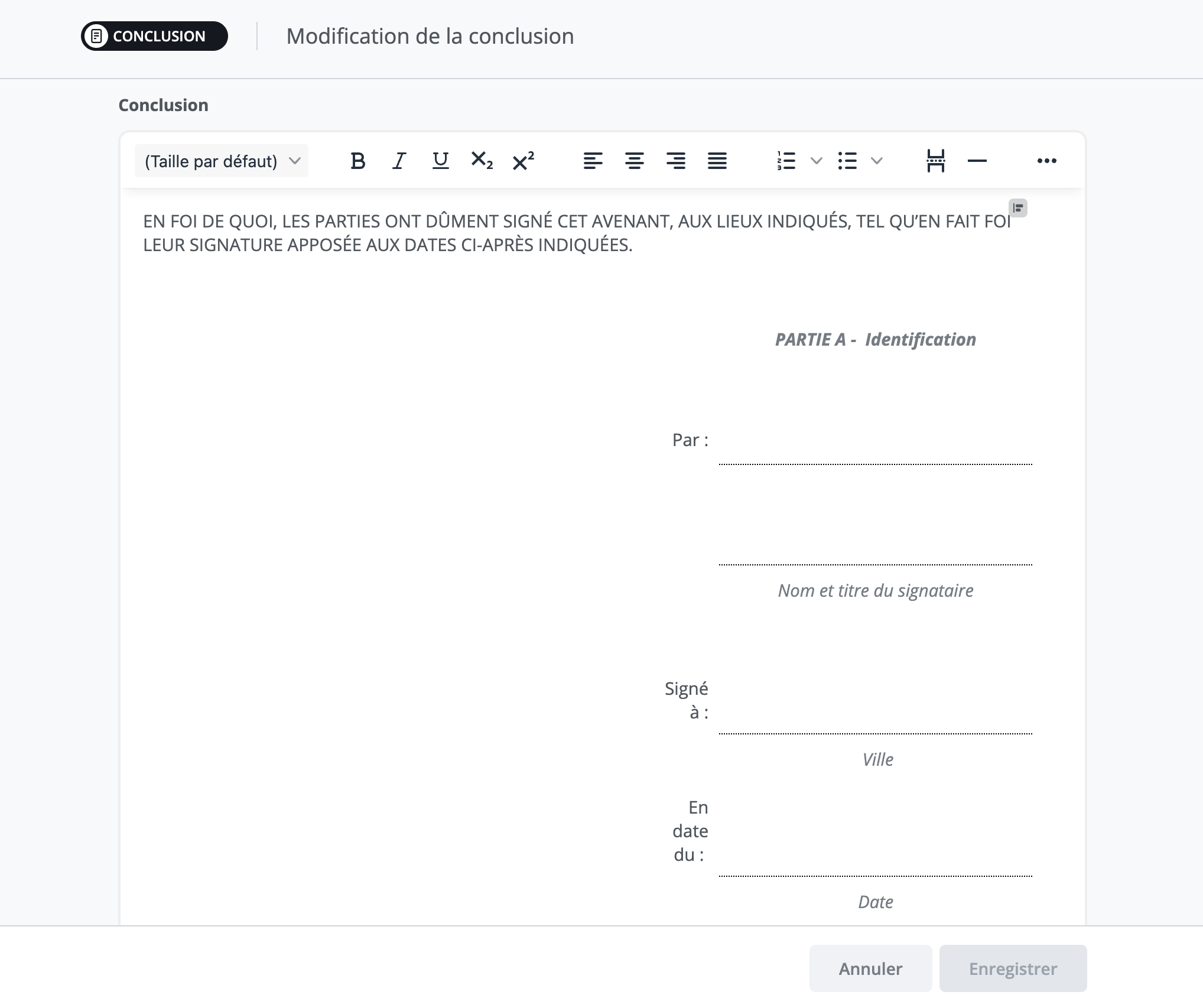
You will then be able to adjust the text and save it. Your entry will then be displayed in the text box seen previously.
Amendment Management
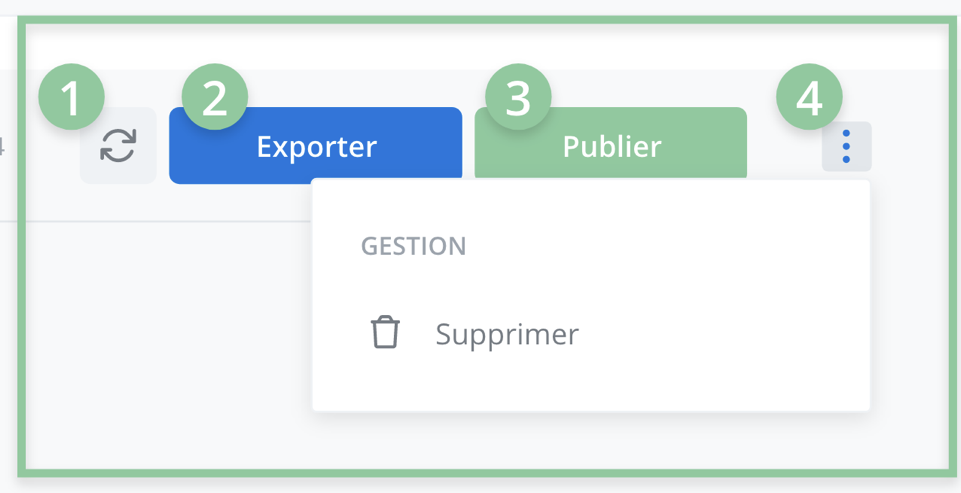
The functions associated with amendment management are located in the header of the amendment form. You can perform the following actions there:



View the original contract document
Even if an amendment is "Published" or "Being edited," a version of the original contract document is available for viewing from the project management screen. To view it, click on View the original contract document located in the menu bar to the left of the management screen.
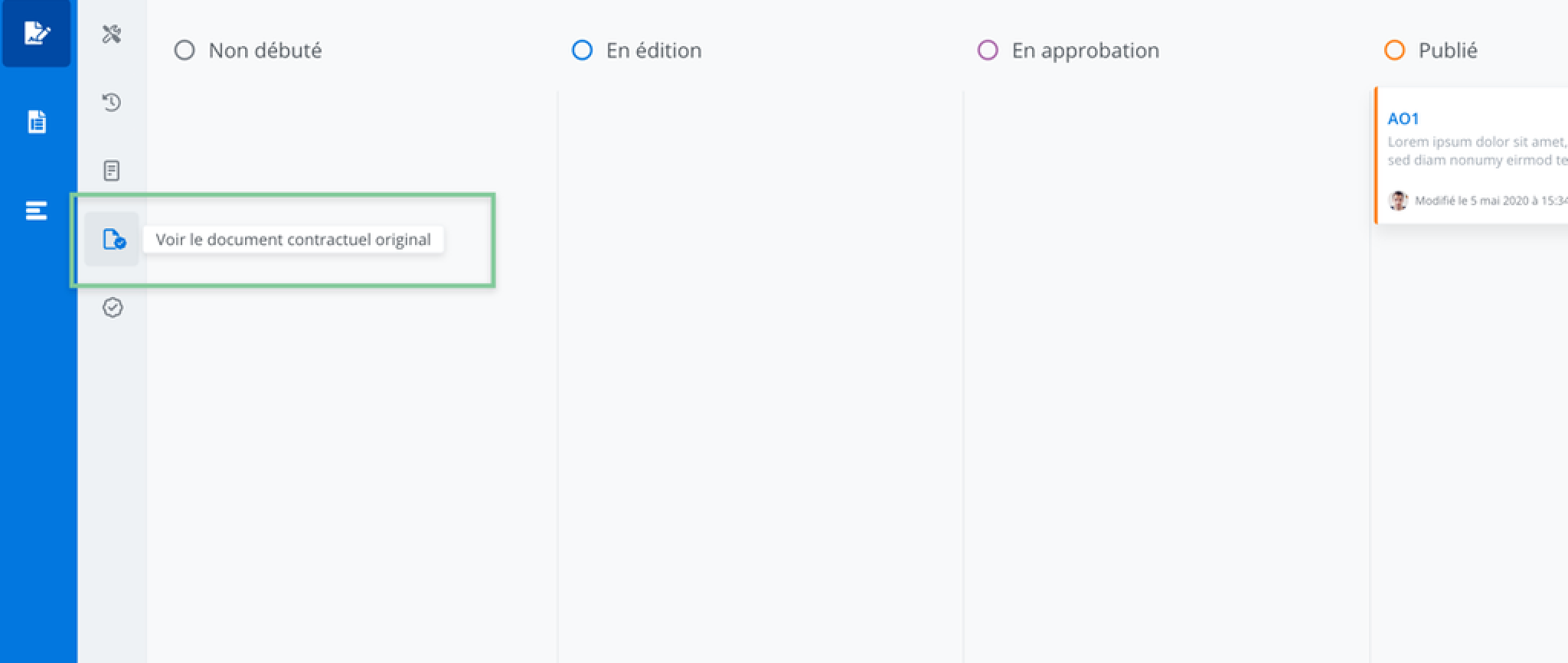
You will be redirected to the original contract document management screen and will be able to view it. The documents are available in read-only mode.
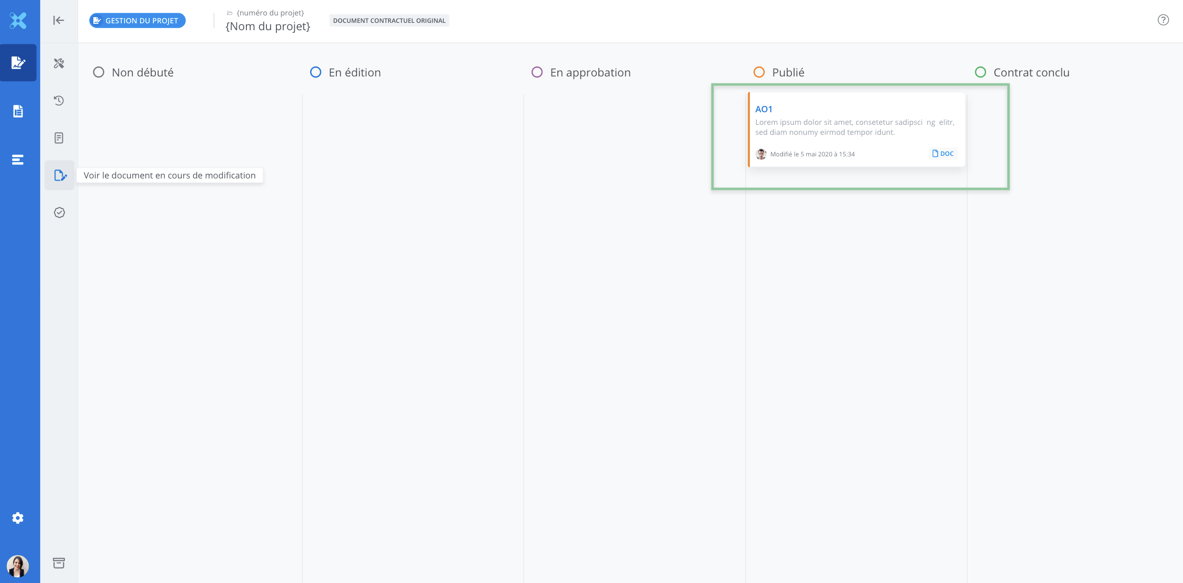
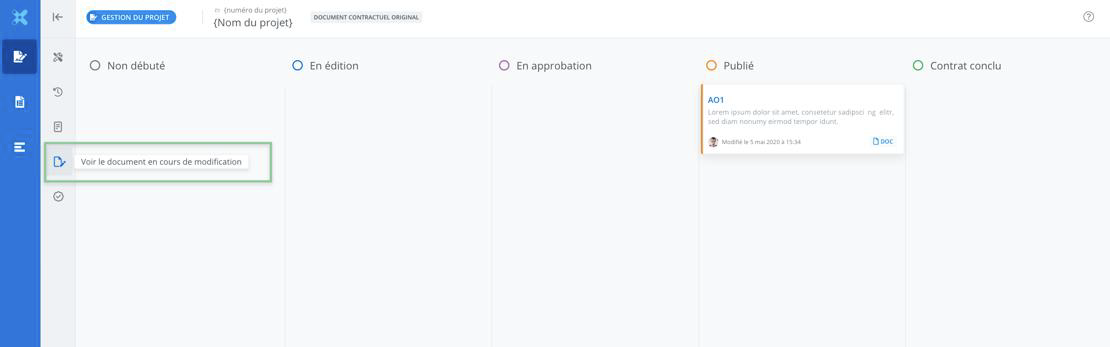
Return to the document management screen for the amendment in progress by clicking on View the document currently being modified.
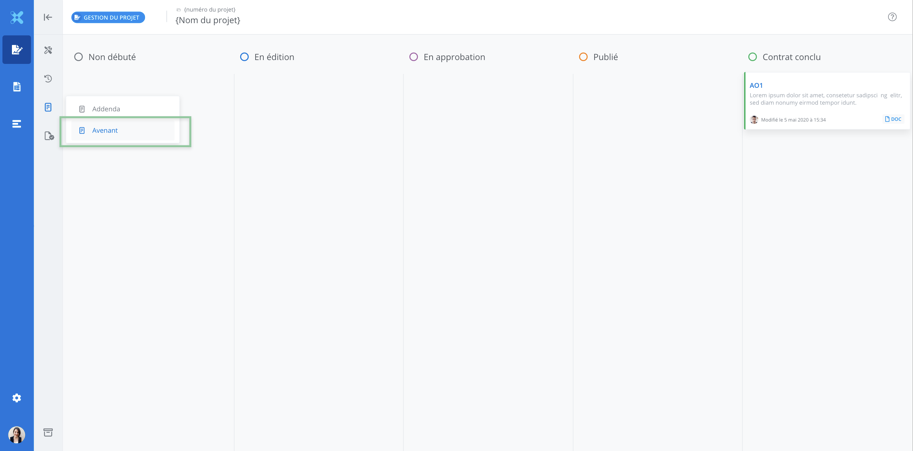
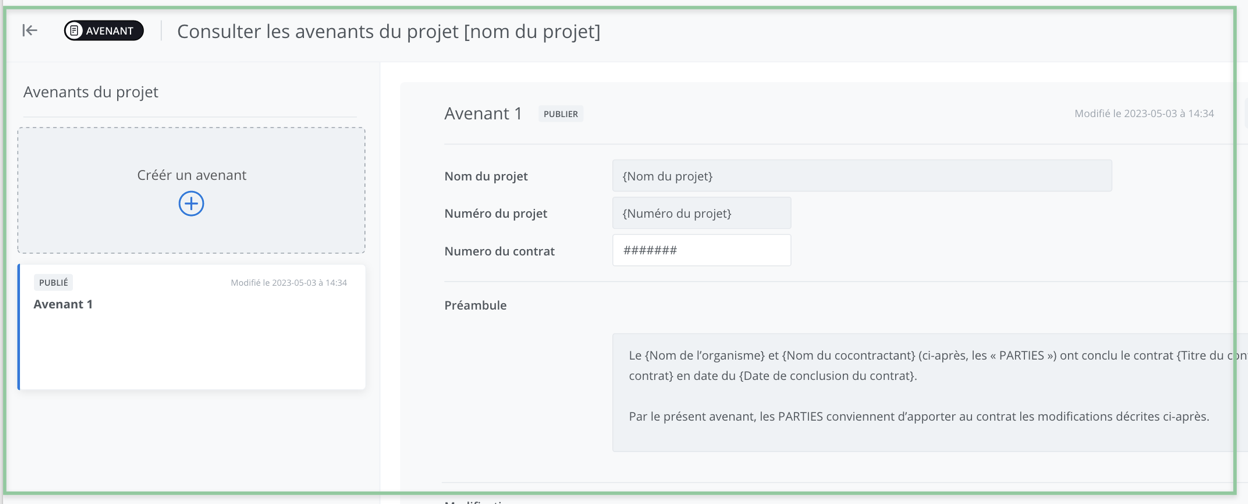
View a published amendment
View published amendment by accessing the amendment management mode located in the features menu.
To view the details of a published amendment, click on its tile in the project's amendment list. The completed form will be displayed in the section on the right. The form is displayed in read-only mode and cannot be modified.
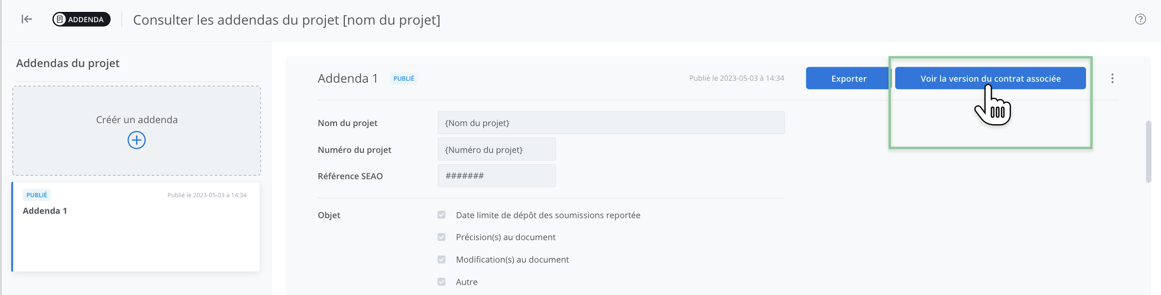
View the contract document associated with a published amendment
To view the contract document associated with a published amendment, click on View the associated contract version.
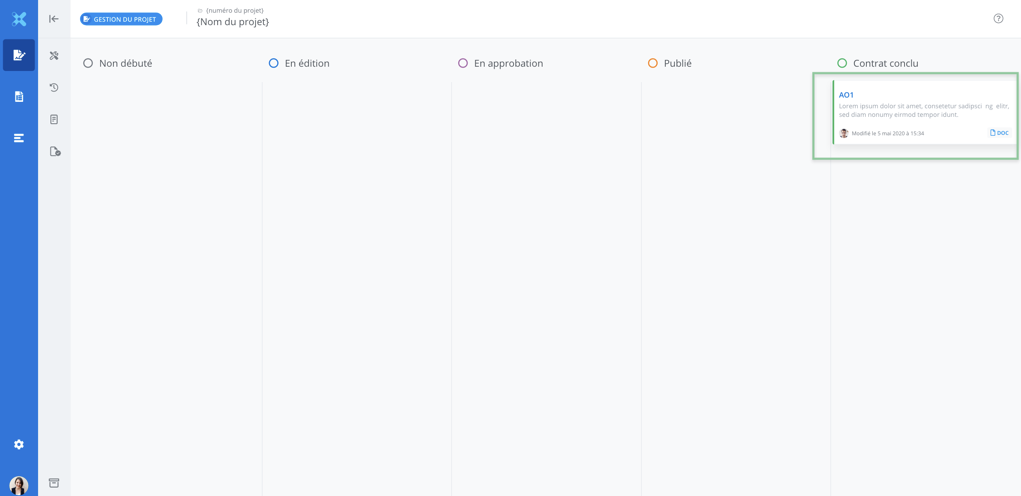
You will be redirected to the management of the project associated with the amendment.
View the document’s track changes
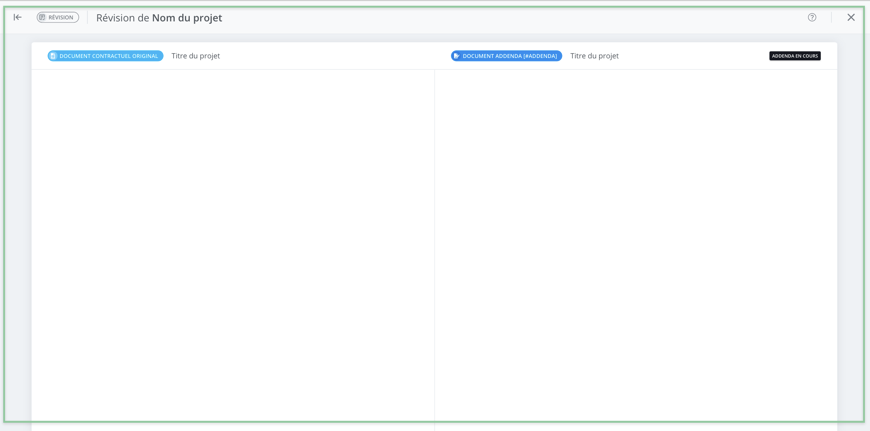
To view the track changes of an amendment currently being drafted, access review mode from the features menu. Click on Compare with the original contract document.
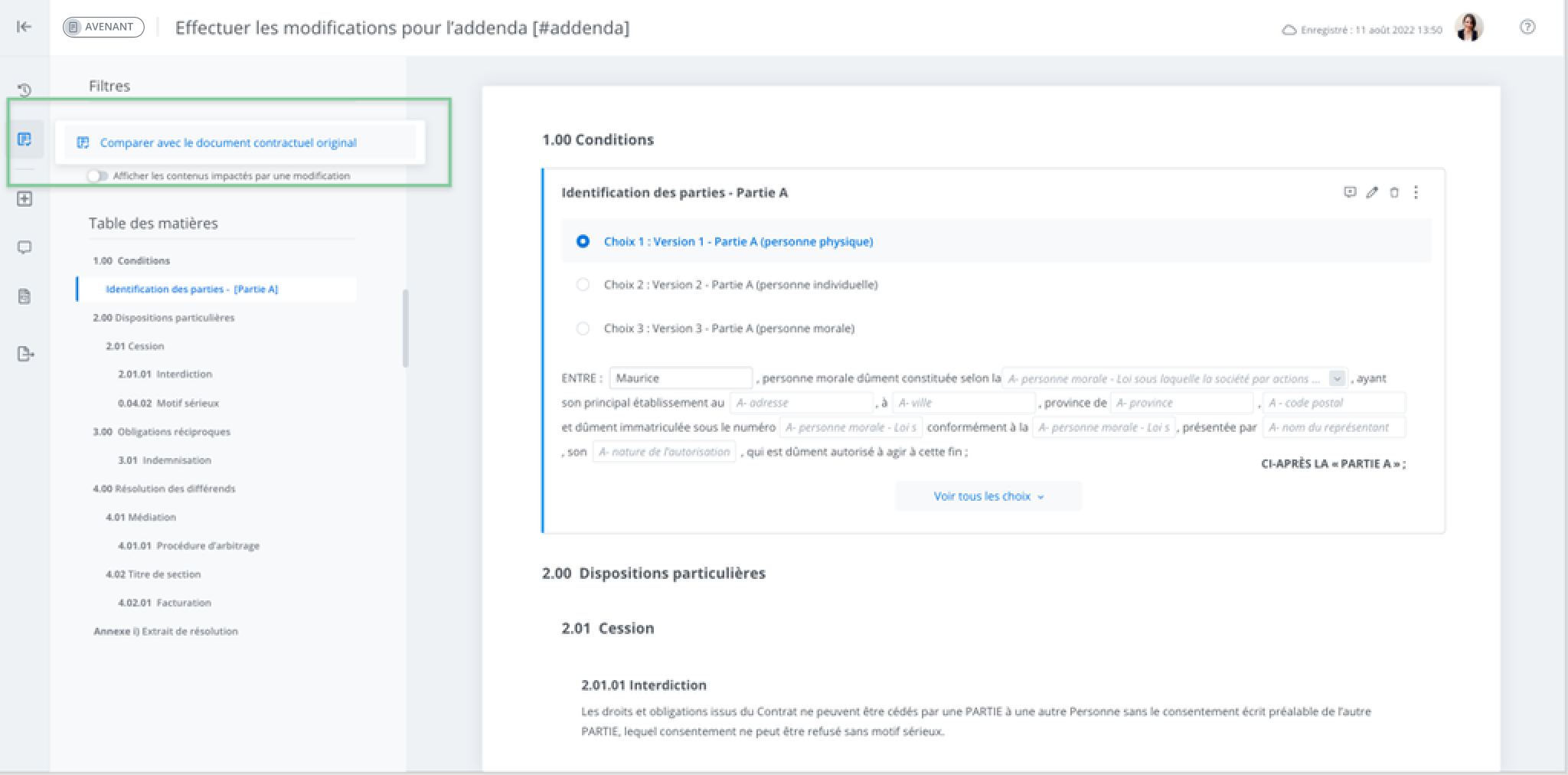
Review mode allows you to compare the original contract document (on the left) and the document currently being modified (on the right).