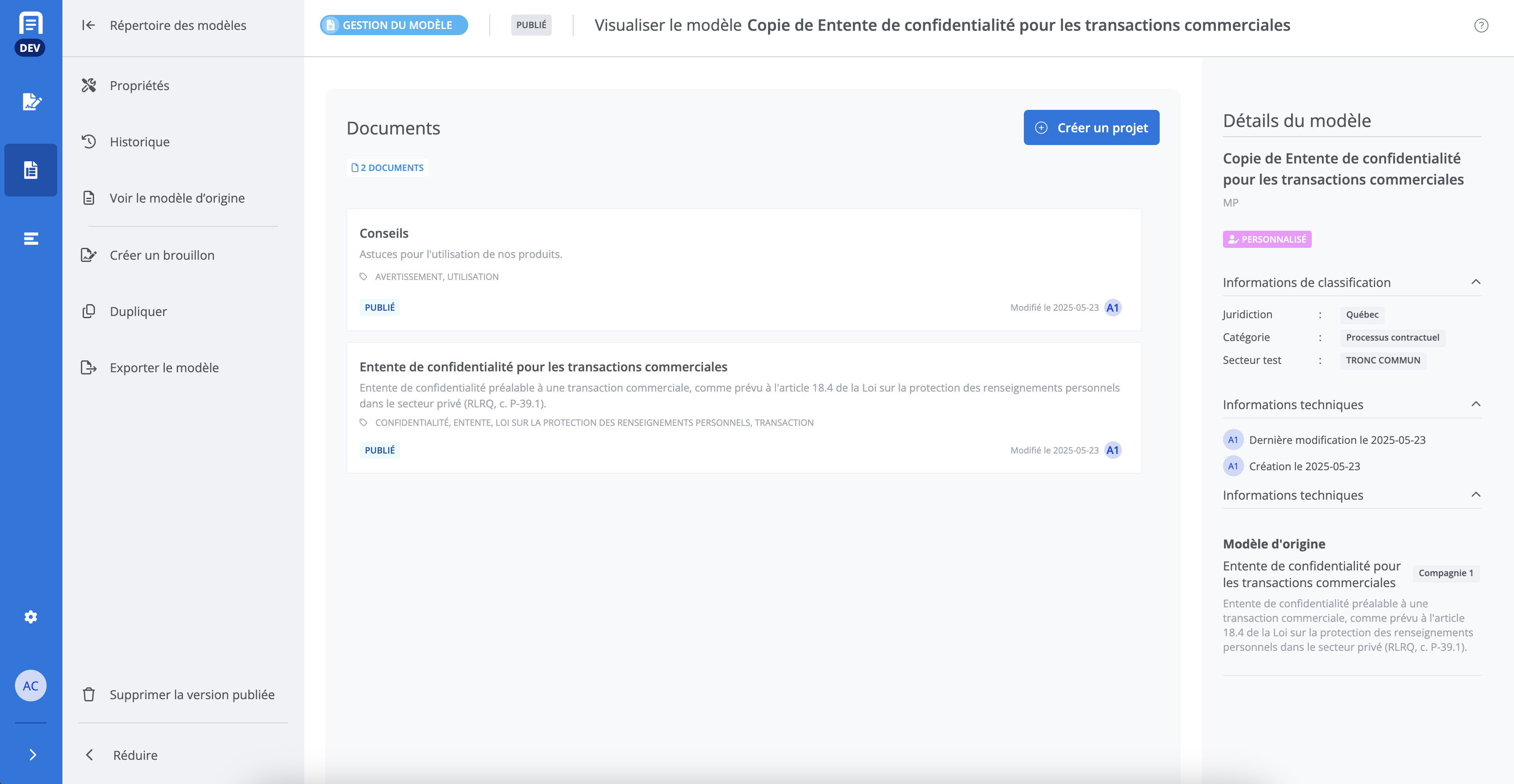
How do I update a custom template?
-
Go to the templates library;
-
Select the custom template in need of updating;
-
Click Review the new version of the original template in the banner.
You will be redirected to the review of the new version of the original template.
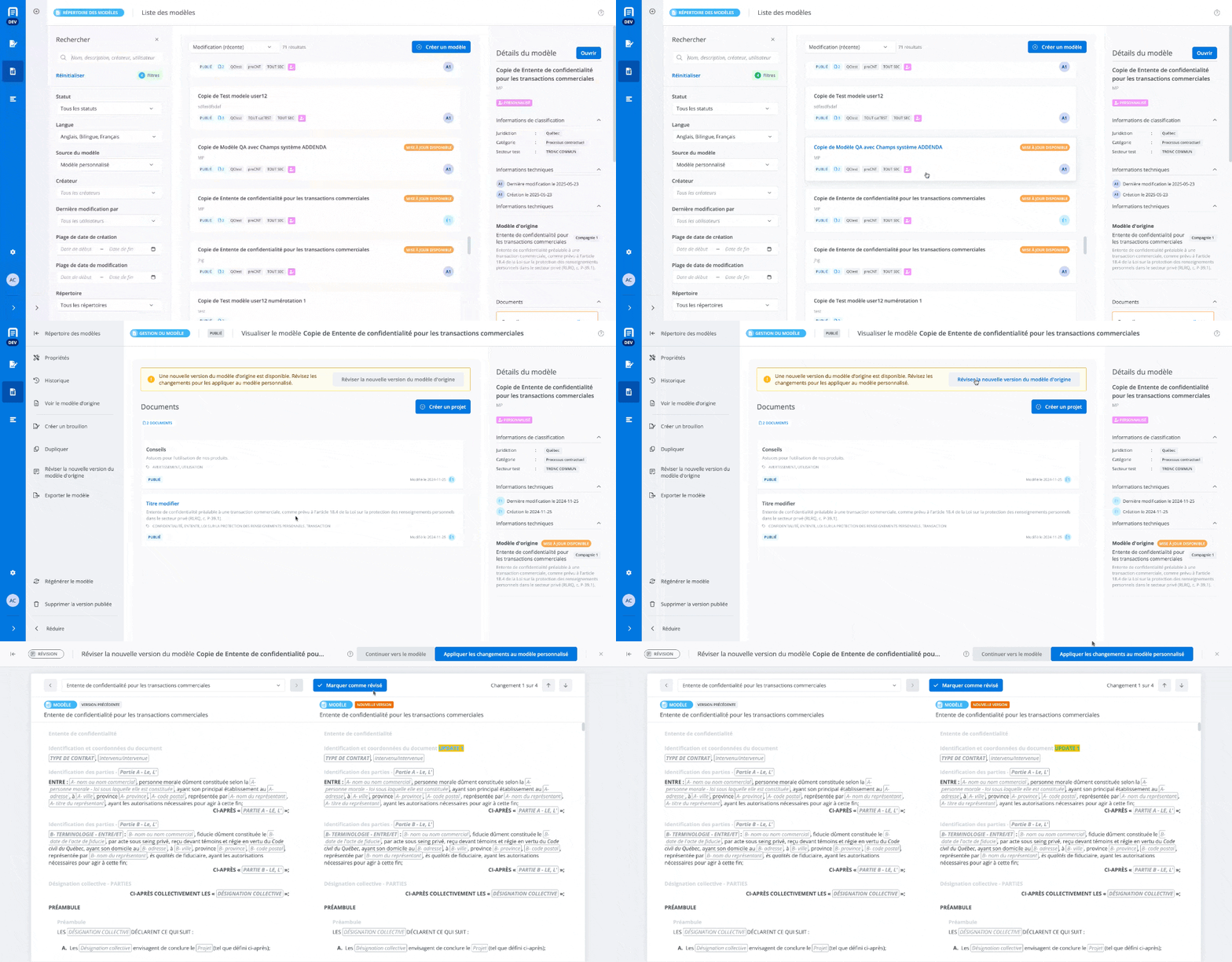
Review the new version of the template
In the review window for the newly updated version, you can:
-
select the document you wish to review;
-
mark the document as reviewed;
-
toggle between the changes in the document;
-
proceed to the template without applying the changes;
-
apply the changes to the custom template.
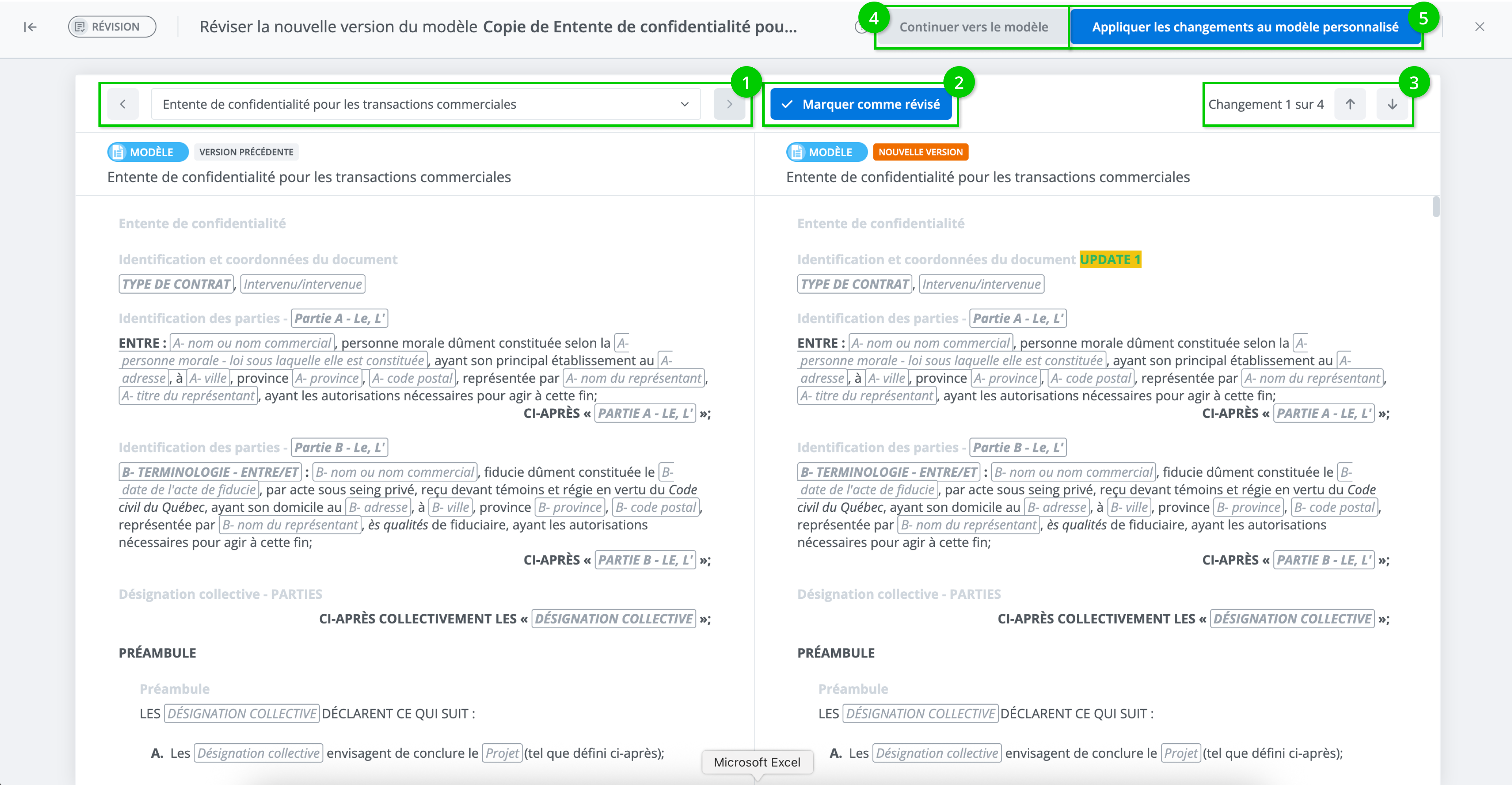
Resolve conflicts
Some documents in the template may present conflicts after applying the changes to the custom template. To resolve them, simply select the document and resolve the conflicts in the conflict management window.
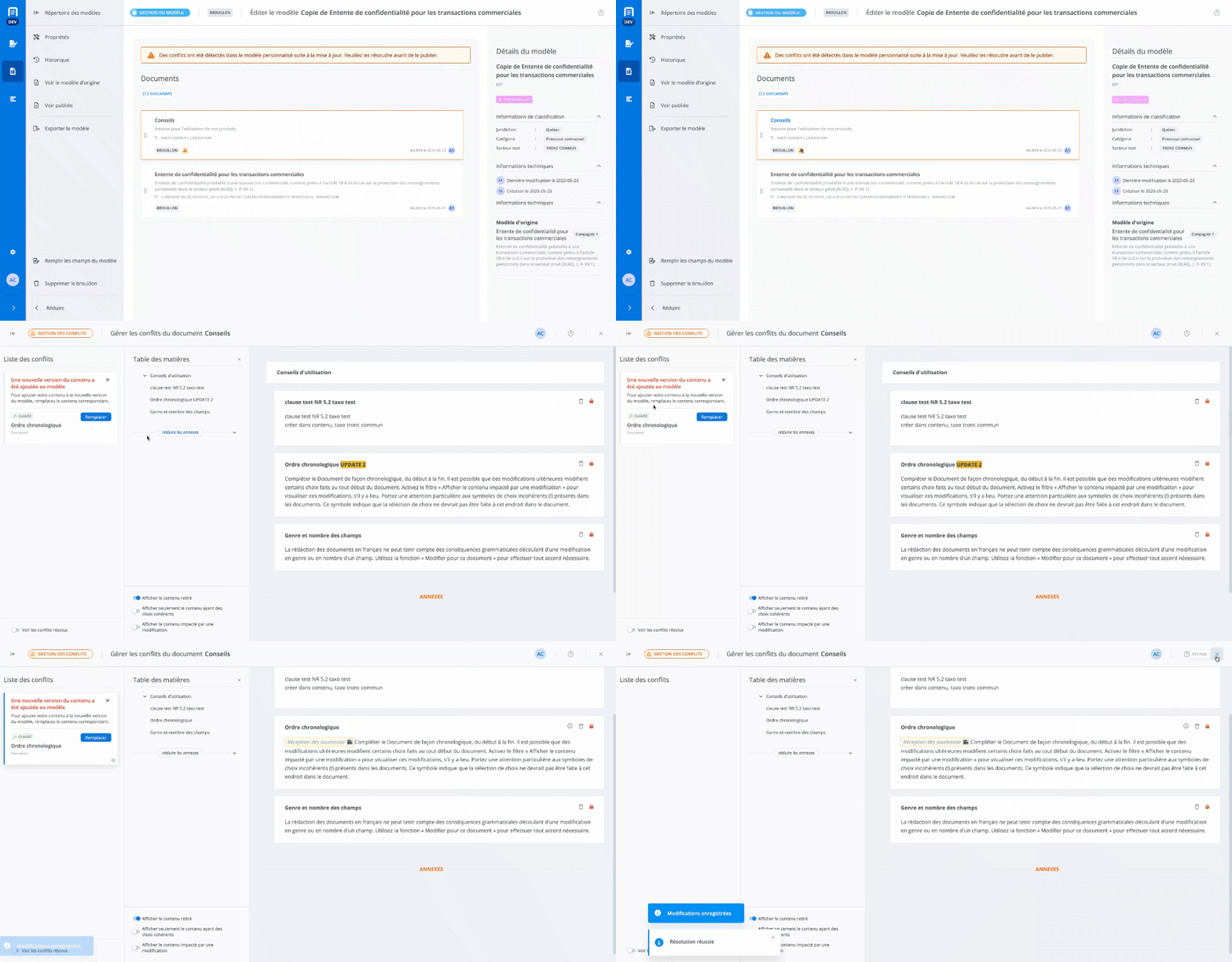
Review and publish the custom template
After resolving the conflicts, it is recommended to review the changes that were made to the custom template before publishing it. To review the custom template, simply:
-
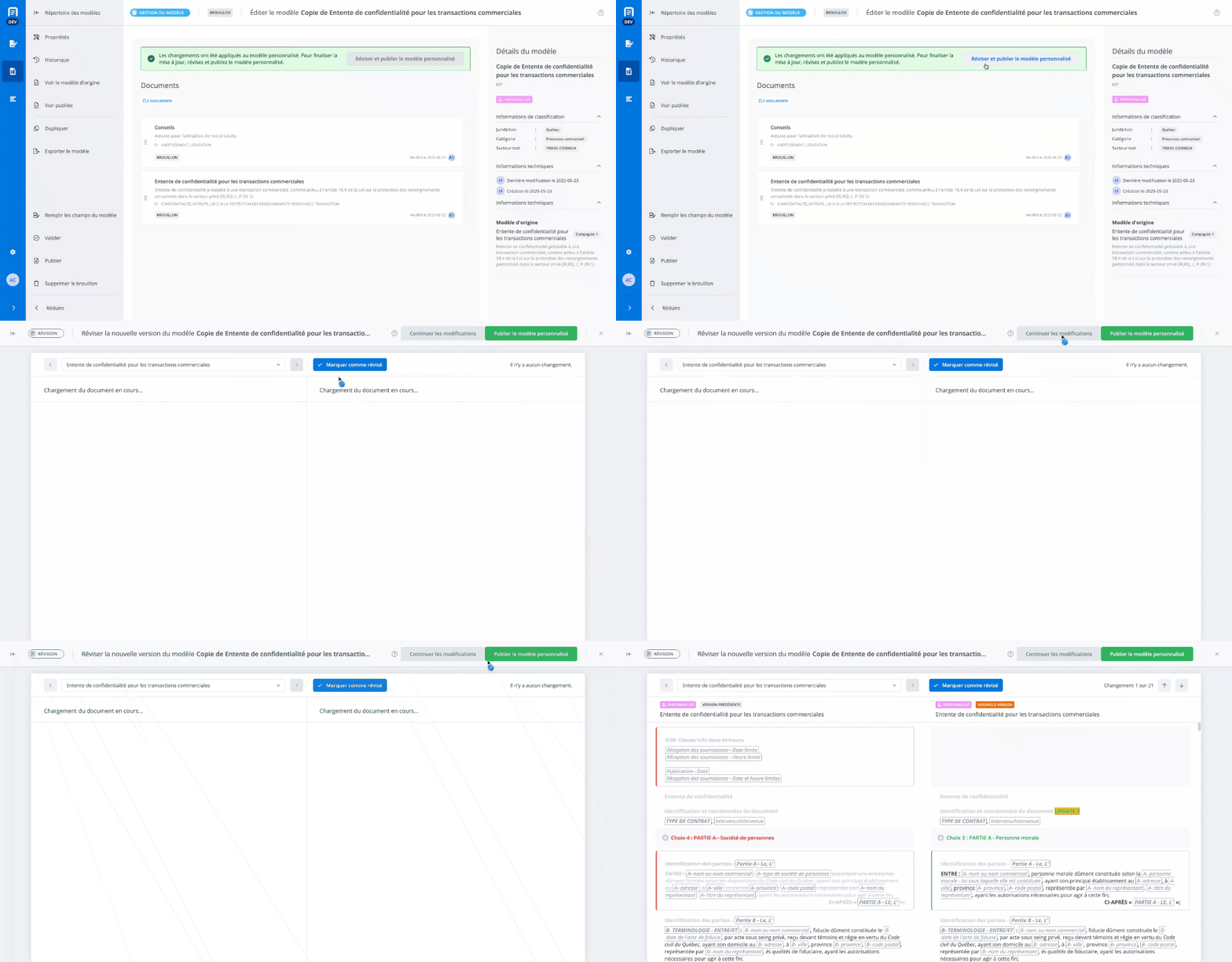
Clik Review and publish the custom template;
-
Review changes;
-
Click Publish the custom template.
The custom template is now up to date and published.