
In summary
New term
Variants were previously (until April 2026) called custom alternatives.
How a variant works
A variant is a modified version of a piece of content, which can be created for content of the clause and appendix type. Compared to so-called standard content, a variant has the particularity of inheriting the rules applied to the original content to which it is attached.
The scope of variants
Project variant
-
When a variant is created, by default, it is only found in the project in which it was created; it is then called a Project variant.
-
Saving a custom template publishes the project variants, but keeps their scope limited to that of the custom template.
Organization variant
-
A project variant can be converted into an organization variant.
-
An organization variant is available to all users in any project that contains the original content, within a given organization.
Create a variant
Advice
When creating a variant, it is important to respect the general meaning of the original content, so that the rules in place remain consistent and relevant. A variant should therefore be used to slightly rephrase or clarify content, not to change its overall meaning.
-
Click Create a variant for the clause or the schedule.

-
Make the desired changes and click Create.
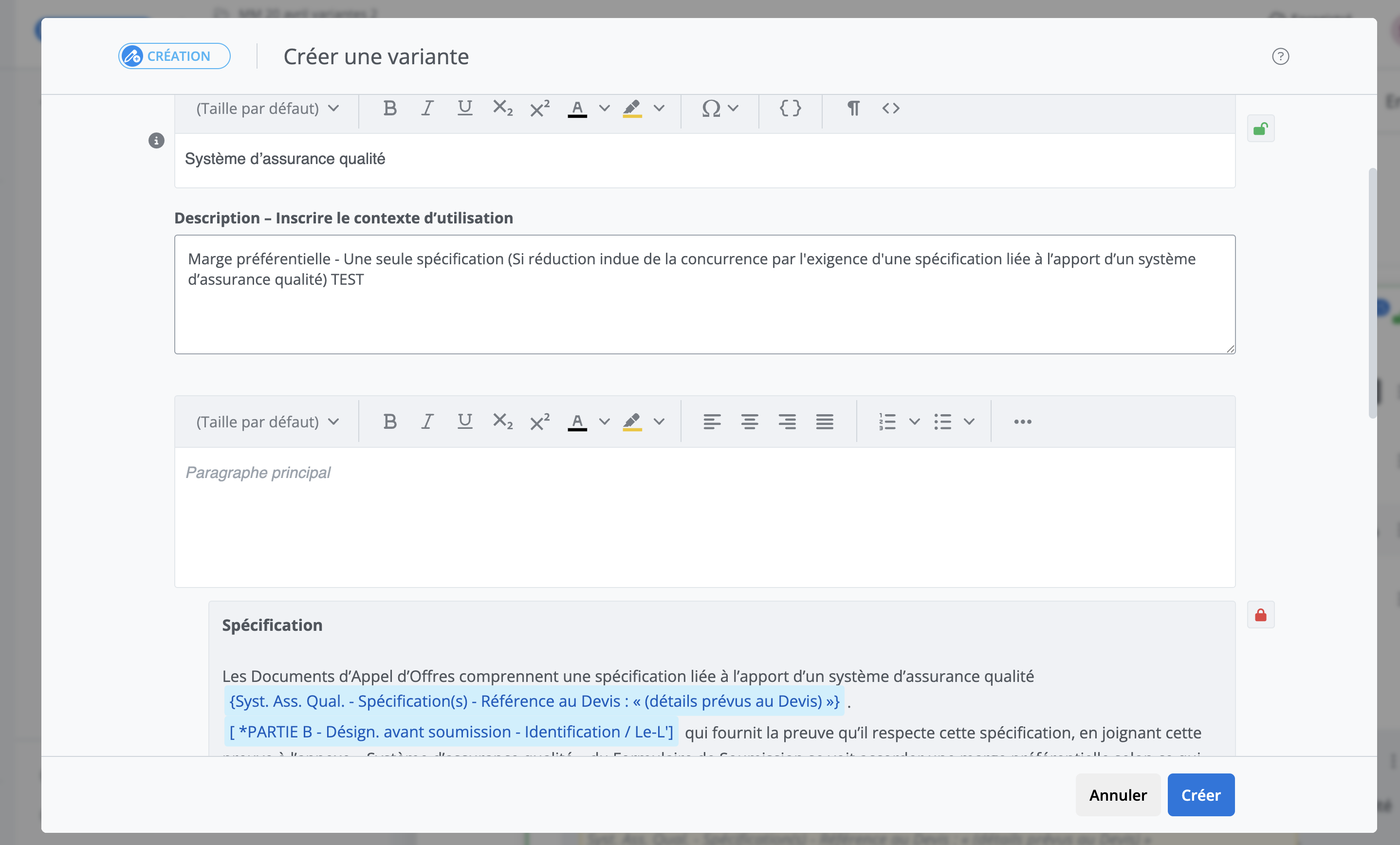
-
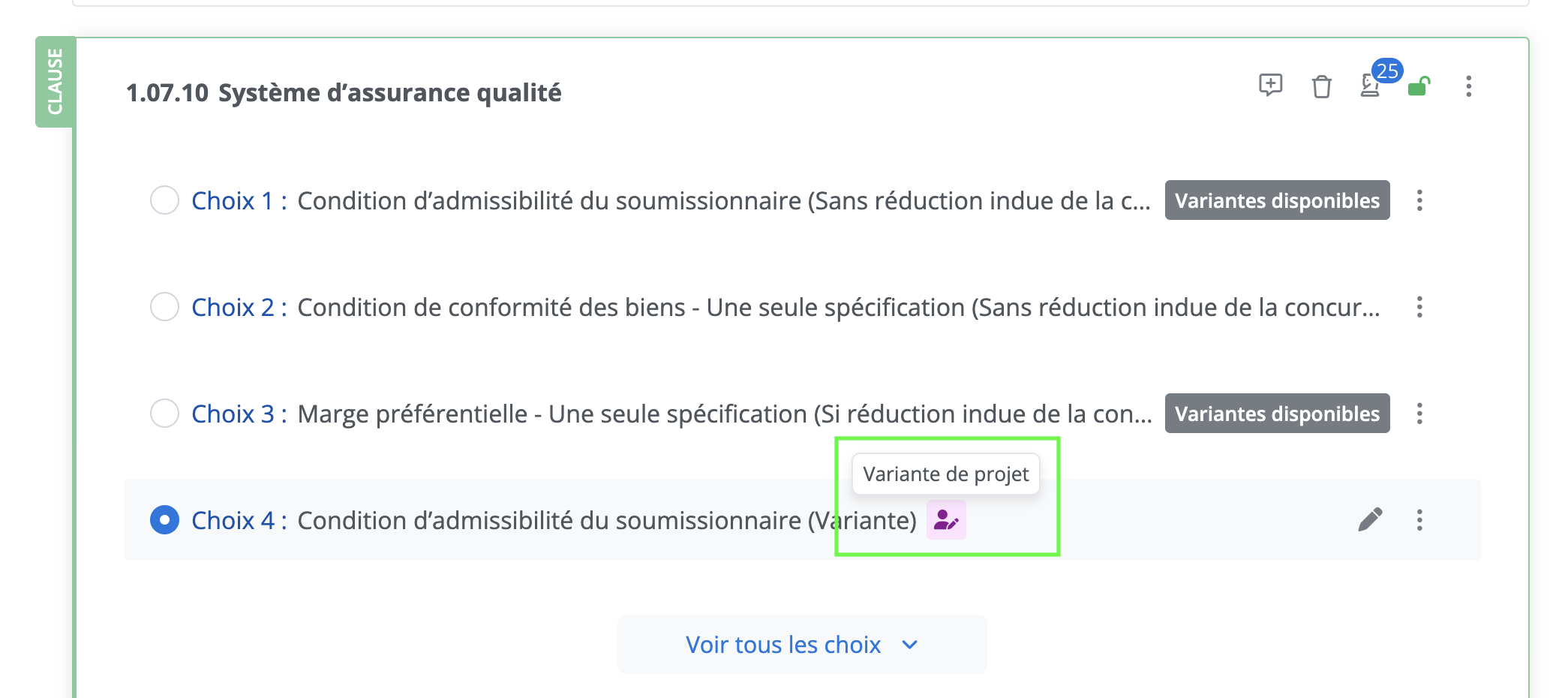
The variant that was just created is added as a choice and selected. Hovering over the pink indicator, you can see the scope of this variant: it is a project variant.
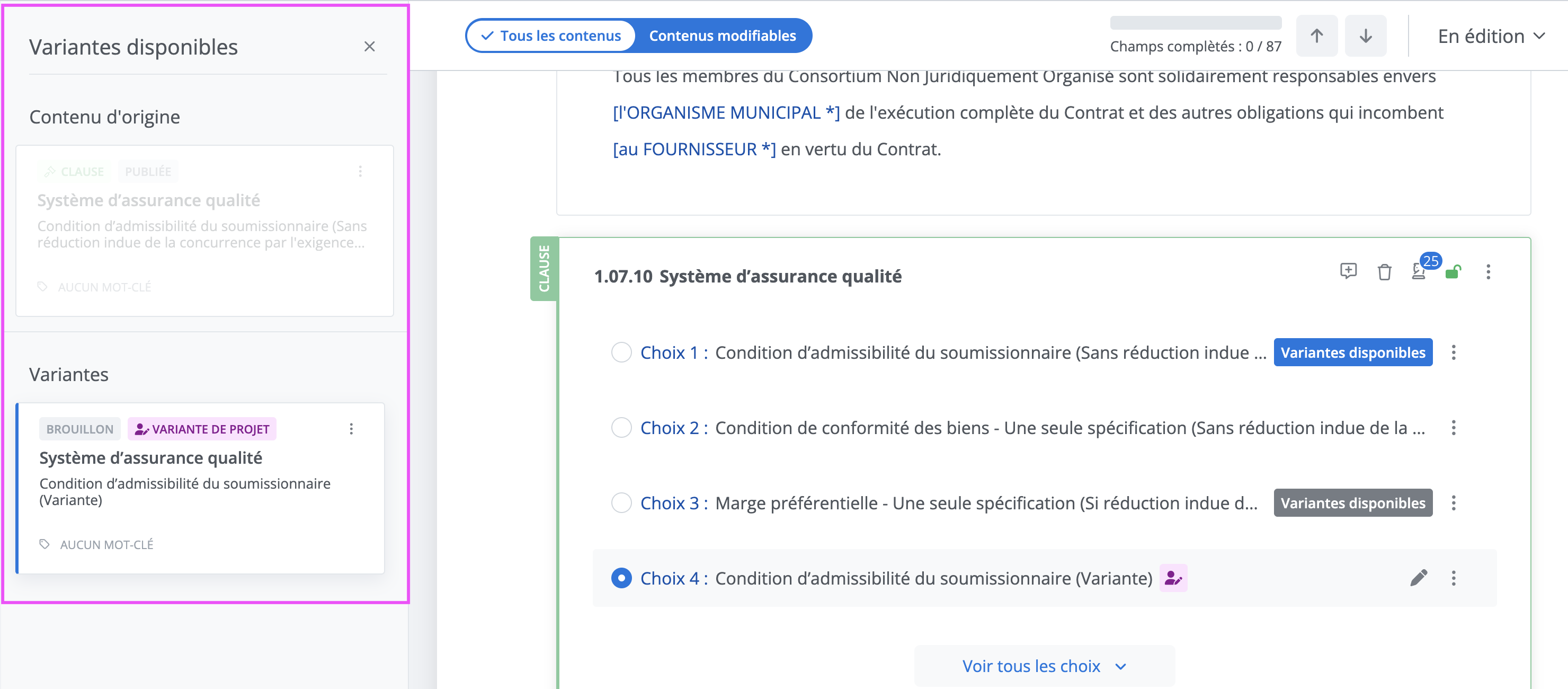
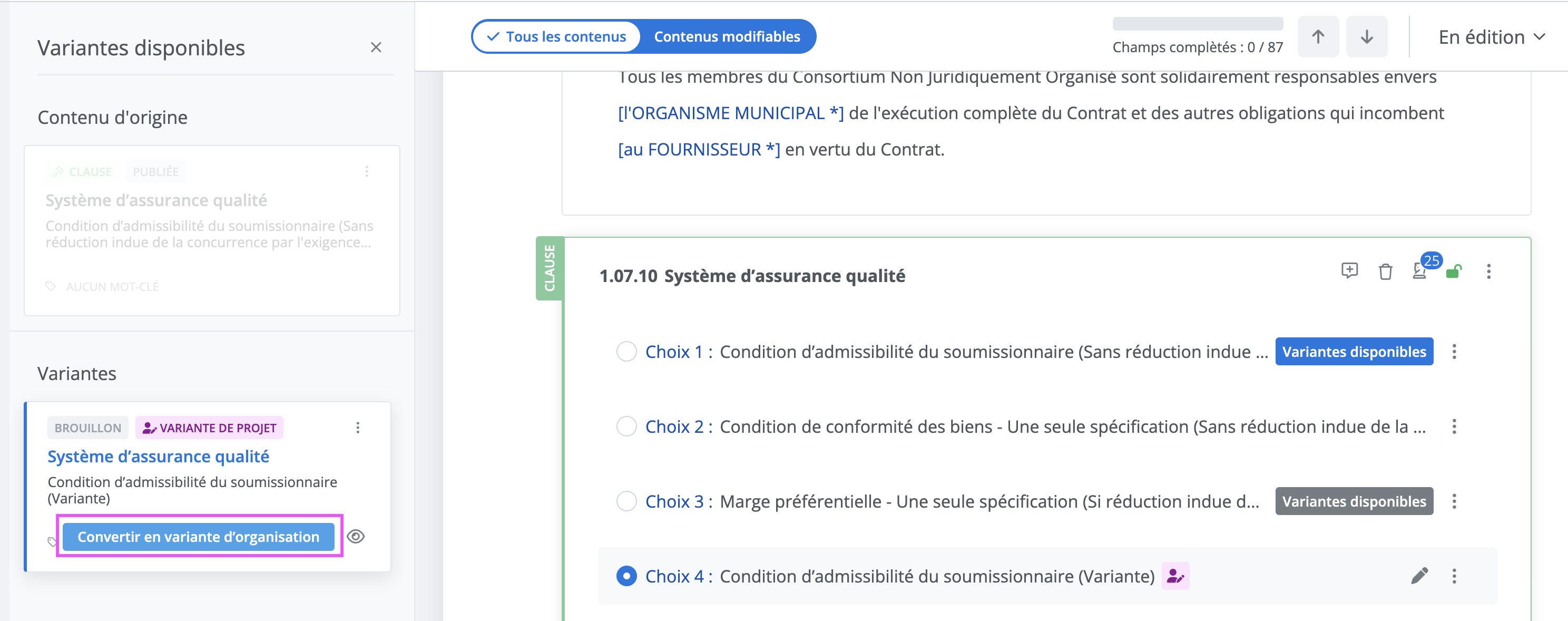
The panel of available variants is then displayed with:
-
The original content;
-
The variant(s) available.
Publish a variant
When a variant has just been created, it is named project variant and is in draft status, which means its scope will be limited to the project in which it was created. To make this project variant available on a larger scale and be able to reuse it in other projects, there are two methods:
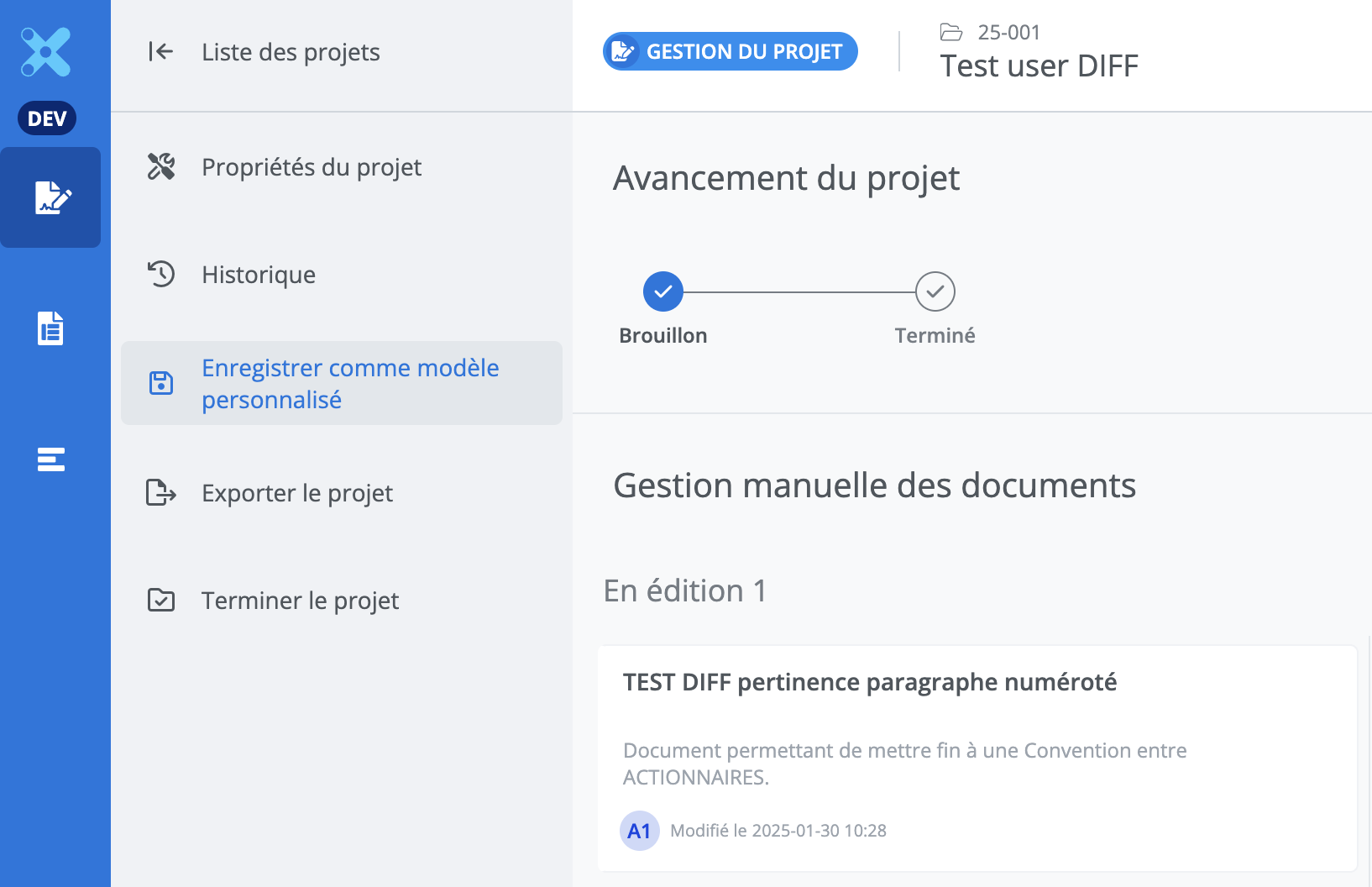
1. Save as custom template
When a project is saved as a custom template, any variant in draft status contained in the project will be published as a project variant. The scope of these variants will be limited to that of the custom template.
Converting a project variant (draft or published) into an organization variant will make it available to all users of an organization wherever the original content (to which it is attached) is found. To do this, use the Convert to organization variant button displayed on hover in the variant's tile.
Access available variants
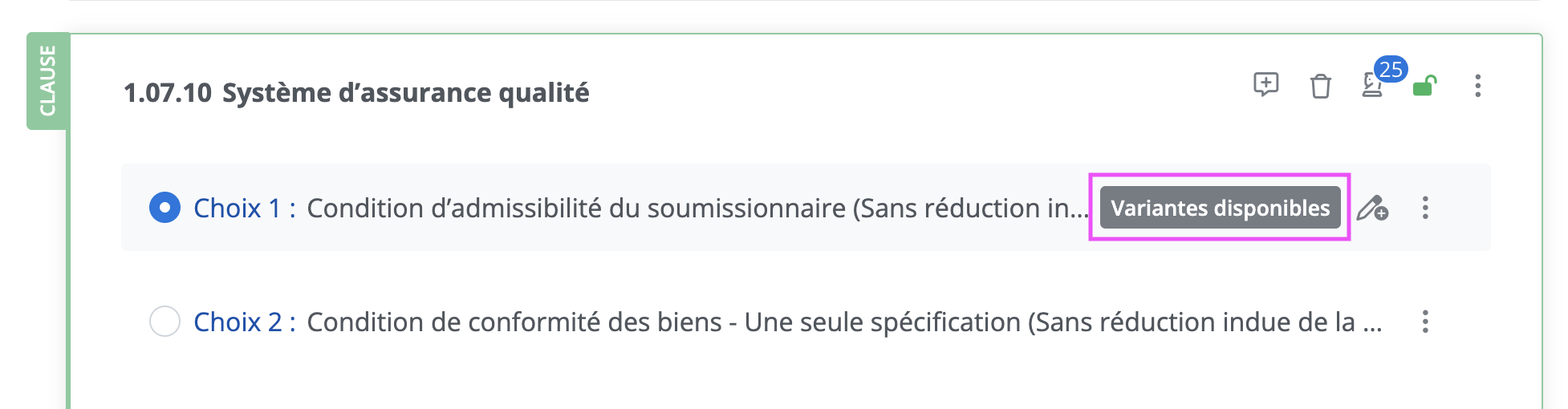
When content is selected, an Available variants button is displayed if there are one or more variants available for this content:
Modify a variant
Modify a project variant
A project variant can only be modified from within a project.
To modify a project variant, whether published or not, click Edit (solid pencil icon) to its right:
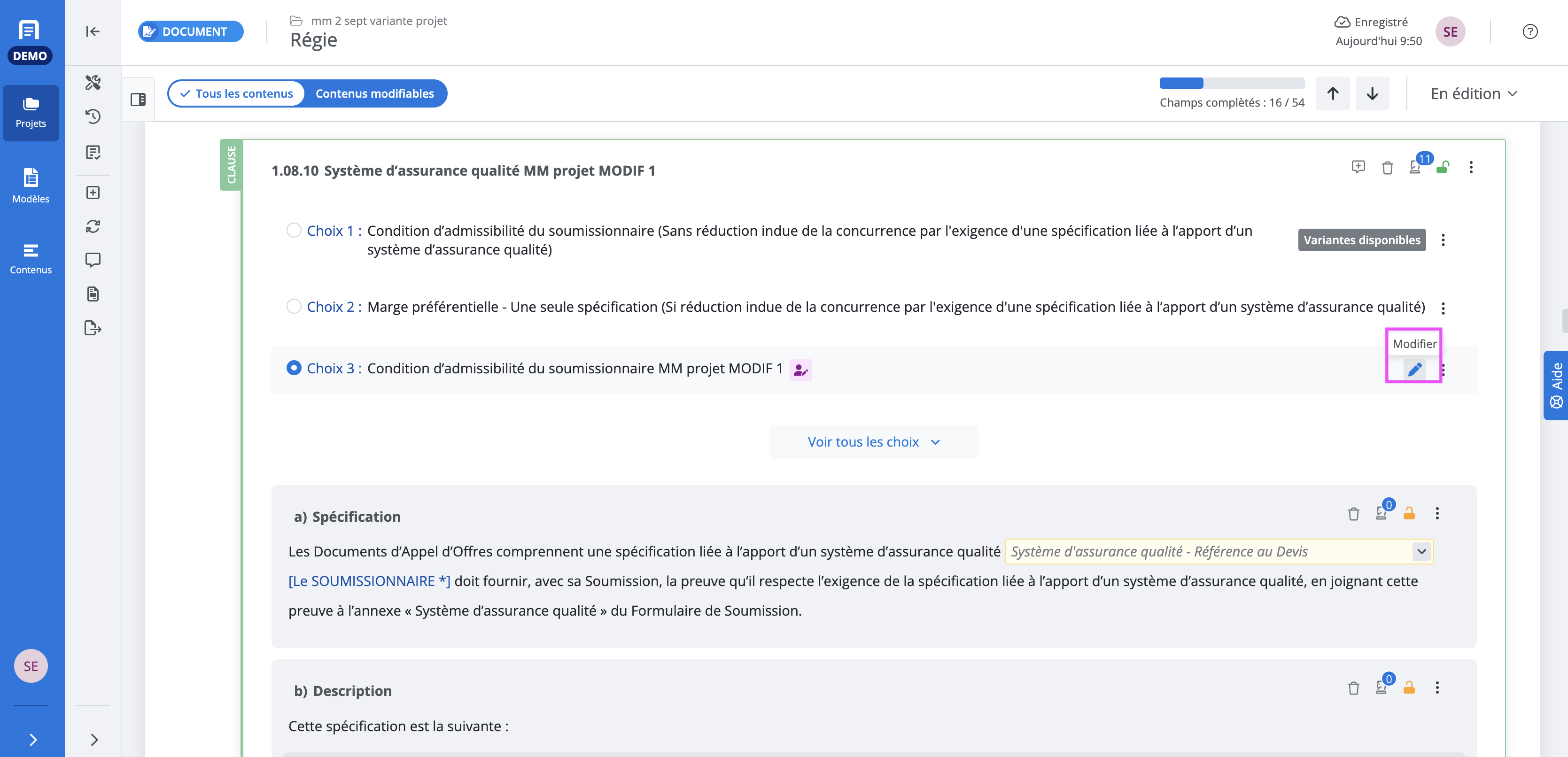
The content editing modal opens. Make your changes, then click Save.
Modify an organization variant
There are two ways to modify an organization variant:
From a project
To modify an organization variant from a project, click Edit (solid pencil icon) to the right of the variant:
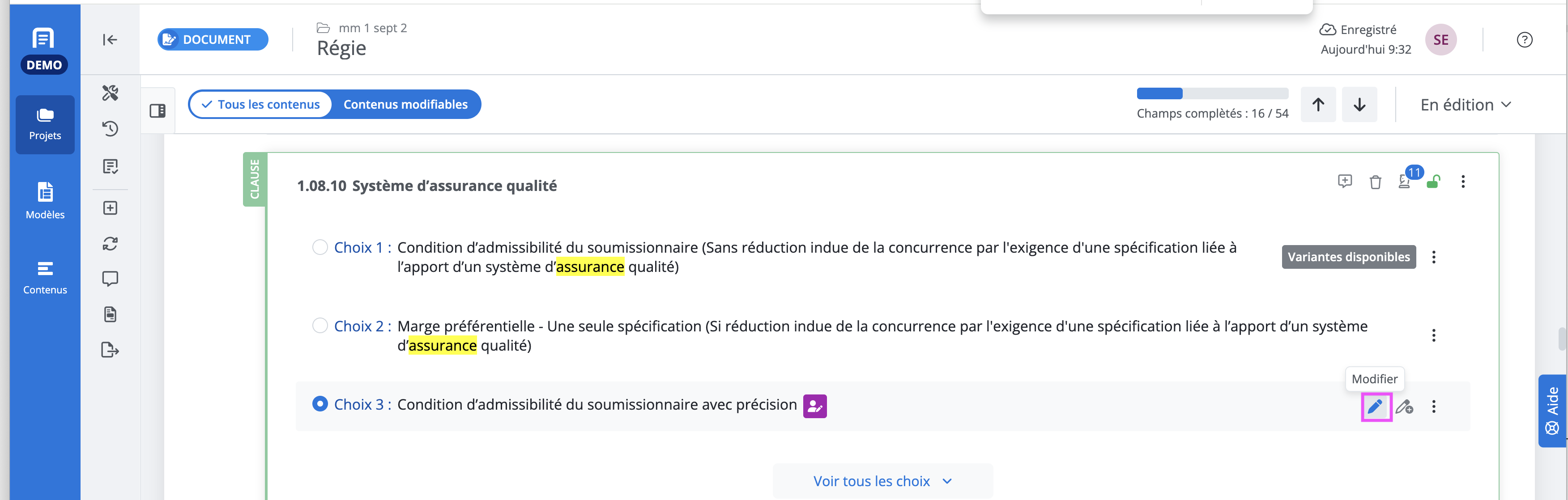
The content editing modal opens. Make your changes, then click Save.
From the content library
To modify an organization variant from the content library:
-
In the main blue menu on the far left, click Contents
-
Open the variant
-
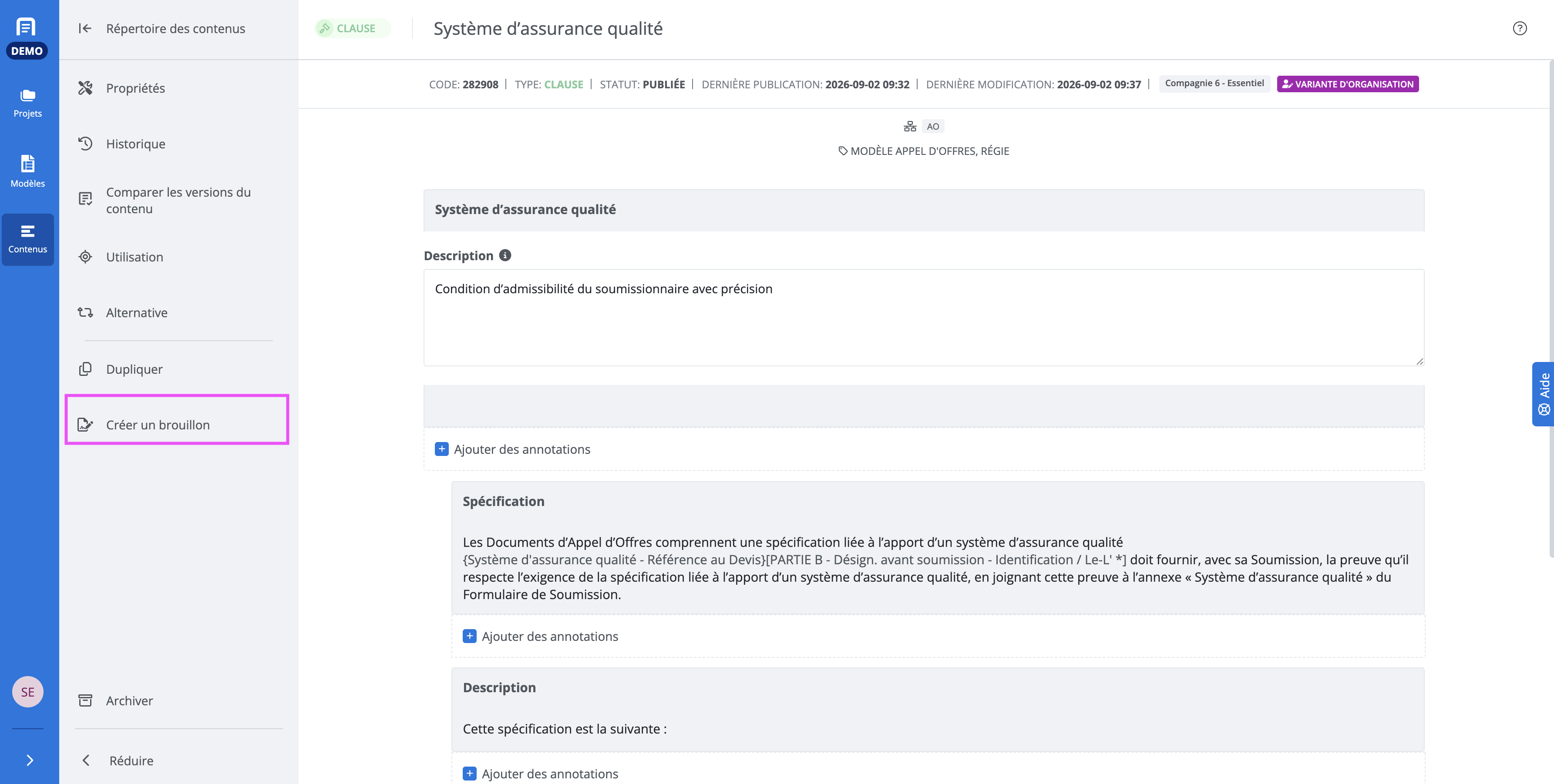
In the secondary menu, click Create draft
-
Make your changes to the variant
-
Click Save at the top right
-
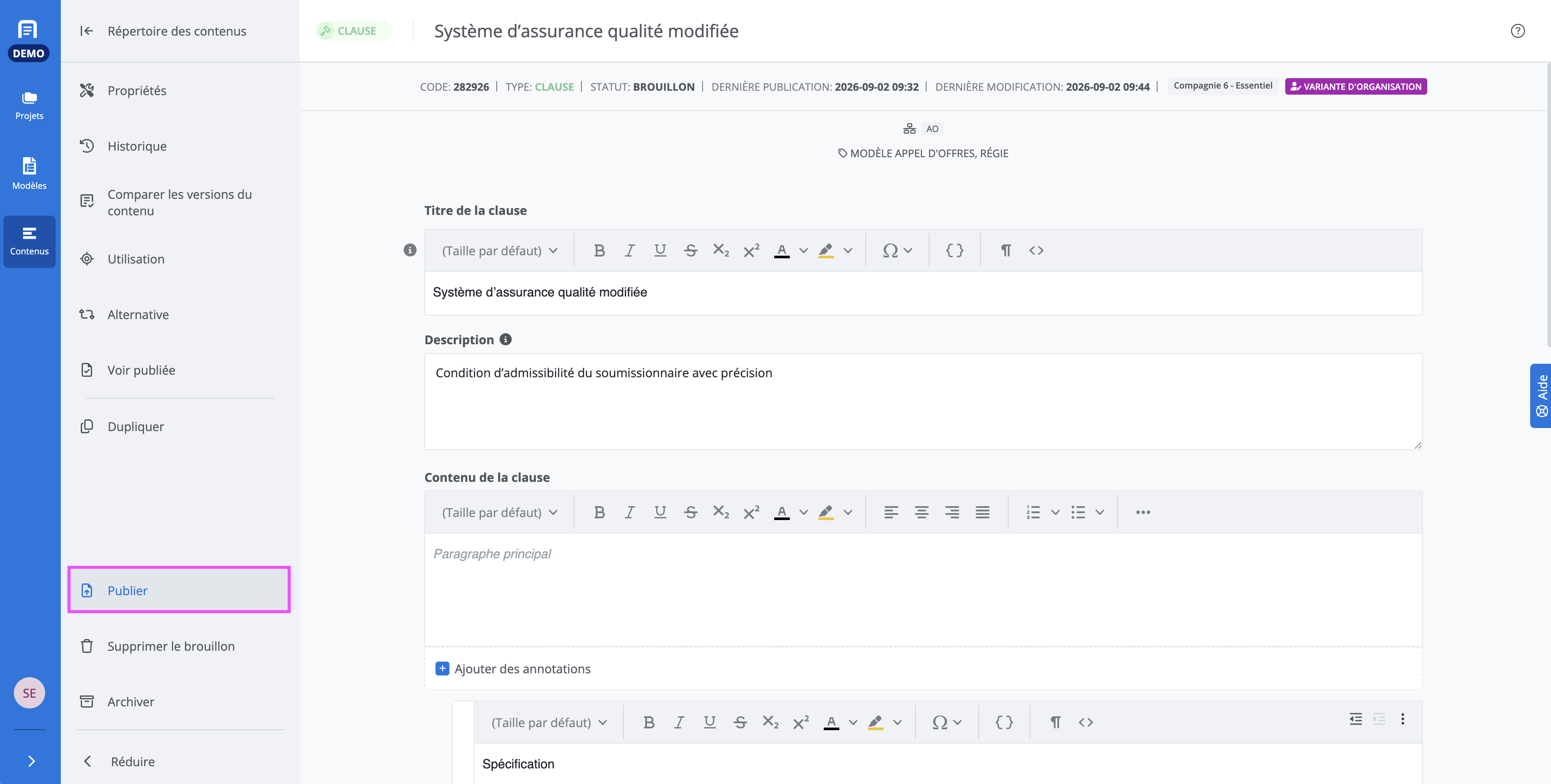
In the secondary menu, click Publish
Archive a variant
It is possible to archive a published variant in order to remove it from the content library as well as from Available variants.
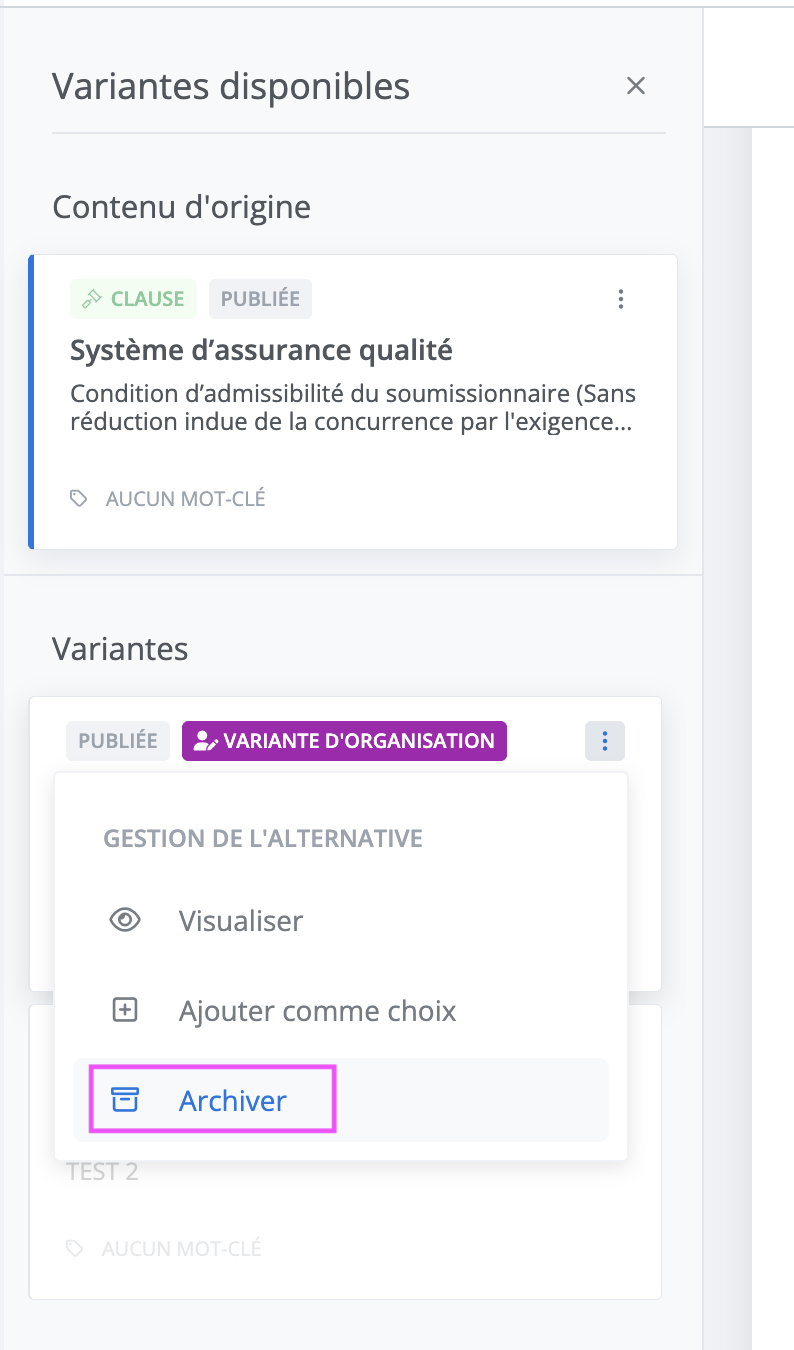
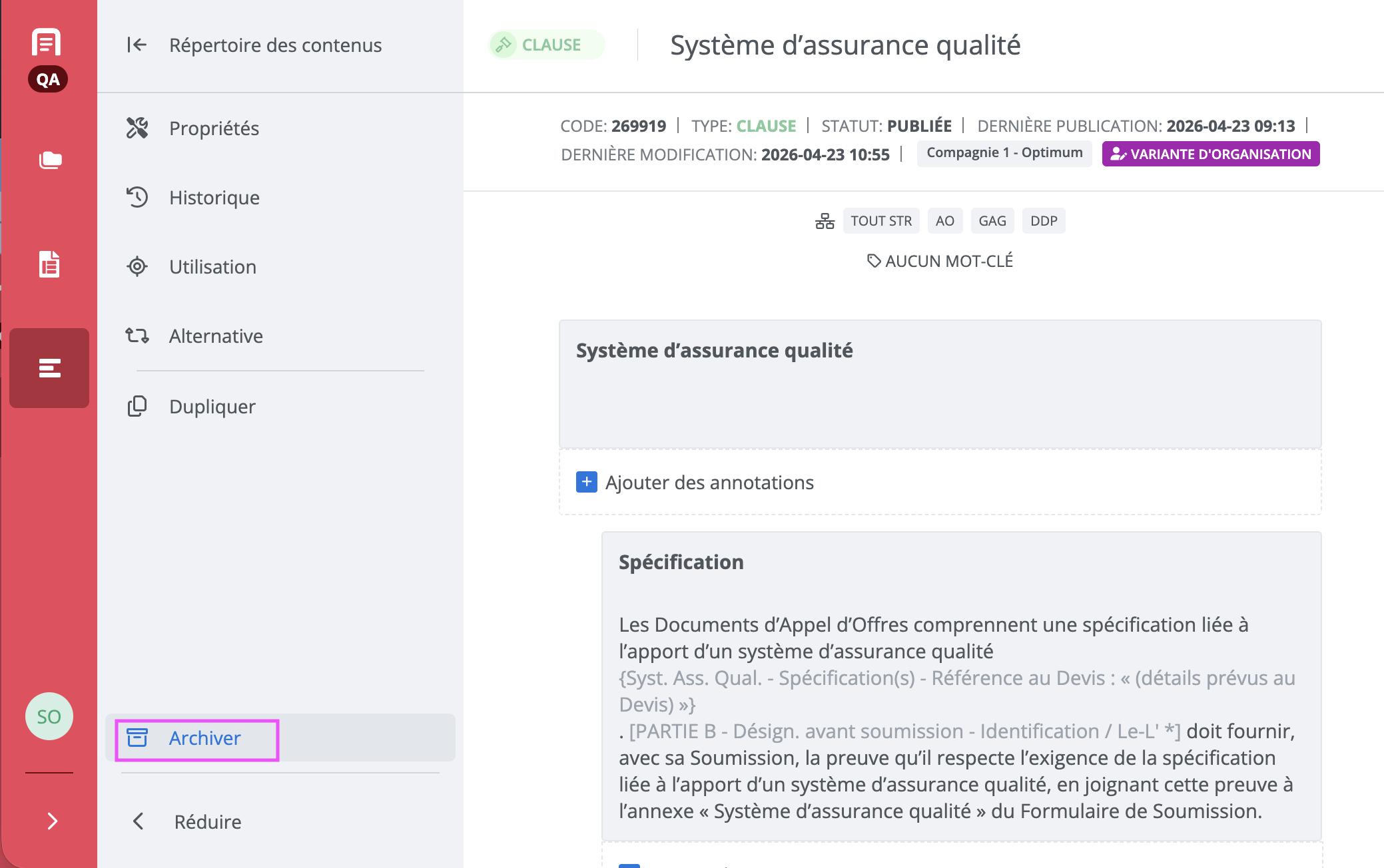
A published variant can be archived in these two ways:
-
From the variants panel
-
From the contents library
Note: An archived variant no longer appears as an available variant, but it remains in place in any project in which it is already used.
View archived variants
To display archived variants, enable the View archived variants filter located at the bottom of the variants panel.
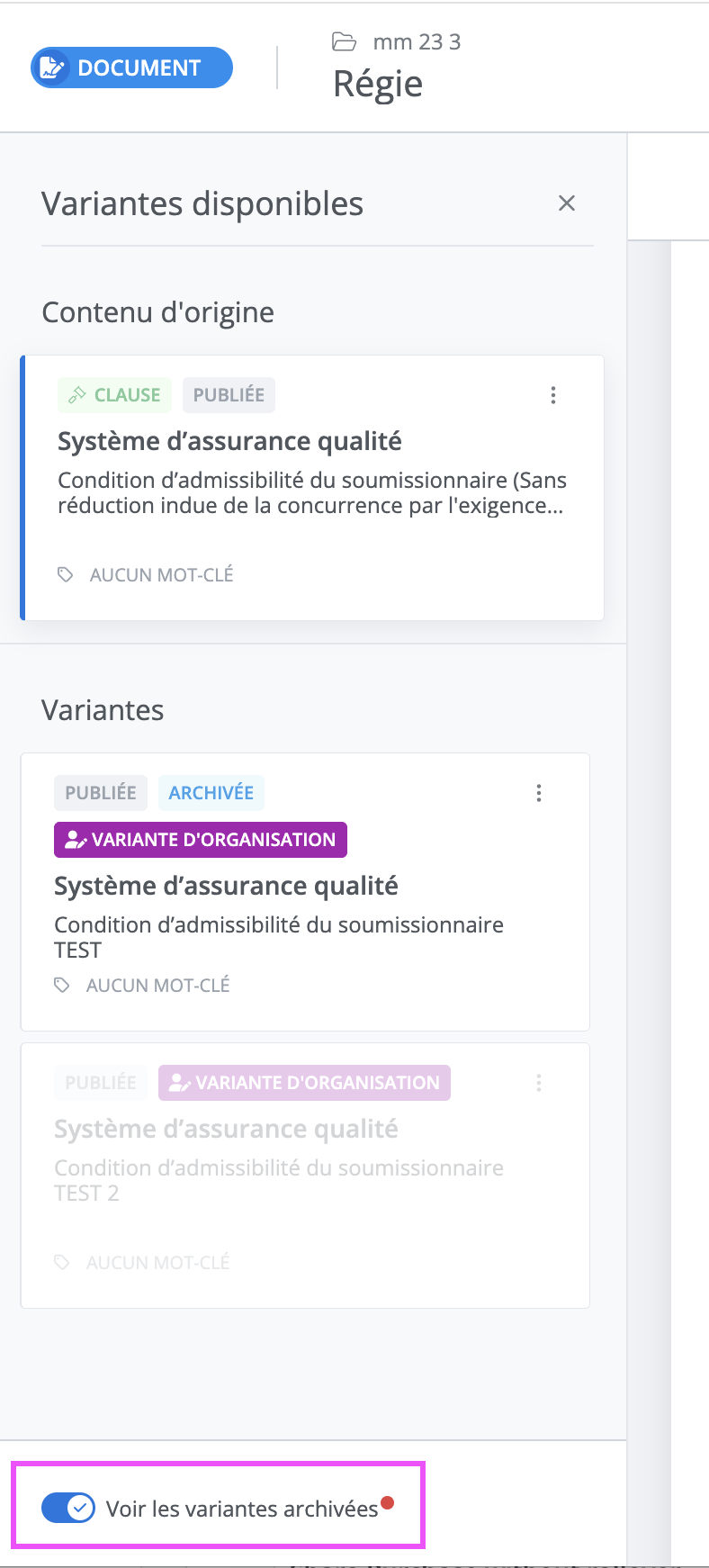
Restore a variant
Restoring a variant makes it appear again as an available variant.
-
Enable the View archived variants filter
-
Click the archived variant's menu;
-
Click Restore.
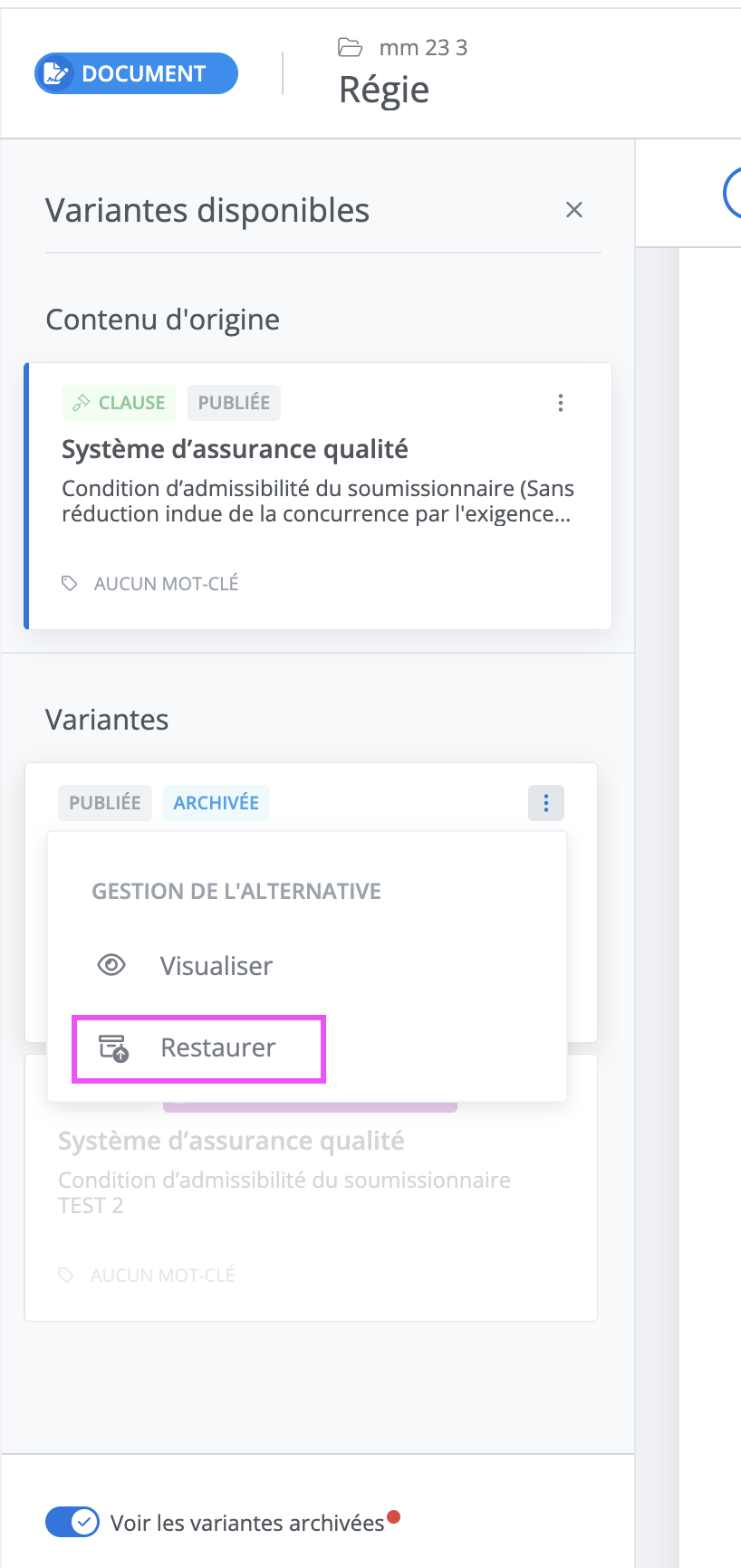
Variants in the contents library
-
Only published variants are accessible in the contents library.
-
With the Content scope filter, you can search by project content to display project variants, or by organization content to display organization variants.
-
For now, a variant cannot be edited from the content library. It is only possible to view it.