
What customizations are saved when saving a custom template?
The term content includes the sections, clauses, and schedules of a project document.
The basic customizations saved in the custom template are as follows:
-
Template title,
-
Document title,
-
Deletion of a document,
-
Fixed field values,
-
Free field values, except for dates,
-
Variants.
-
All actions on alternatives:
-
Select an alternative (will become the alternative selected by default),
-
Move an alternative,
-
Add an alternative,
-
-
Add clauses from the contents library,
-
Create new content: sections, clauses, and schedules,
-
Modify content in a document:
-
Modify text,
-
Insert a table,
-
Delete a paragraph,
-
Add or remove a field,
-
Add or remove a cross-reference,
-
Insert a signature line,
-
Add an annotation,
-
The target of a cross-reference (upcoming feature),
-
-
Remove or restore content,
-
Modify content properties:
-
Remove or restore a title,
-
Remove of restore numbering,
-
Change relevance,
-
-
Move content.
Customizations that are not saved in the custom template
-
The values of date fields,
-
The addition, modification, or deletion of a rule.
Where can I find custom templates in the software?
-
Custom templates are found in the list of available templates when creating a new project.
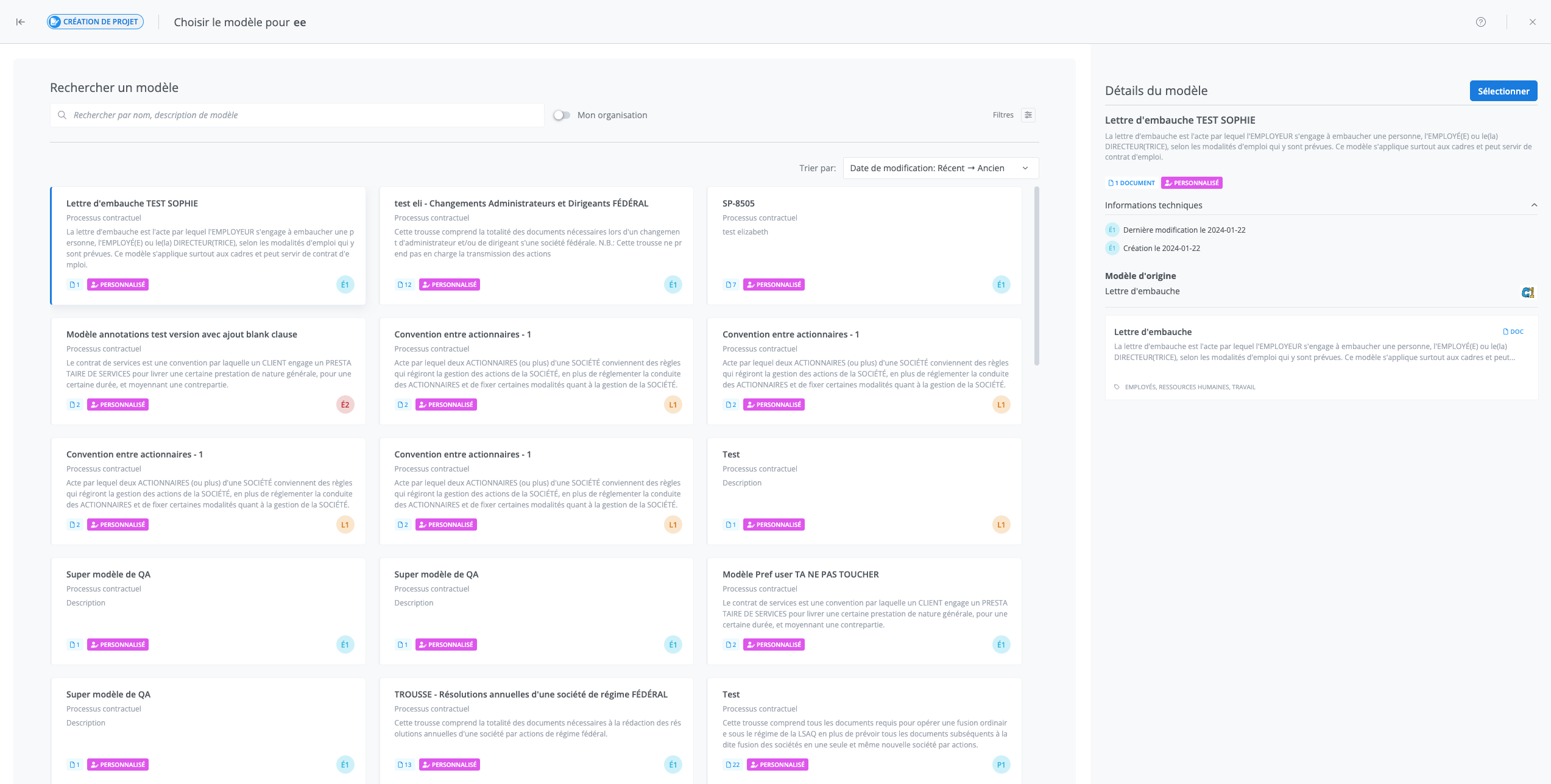
-
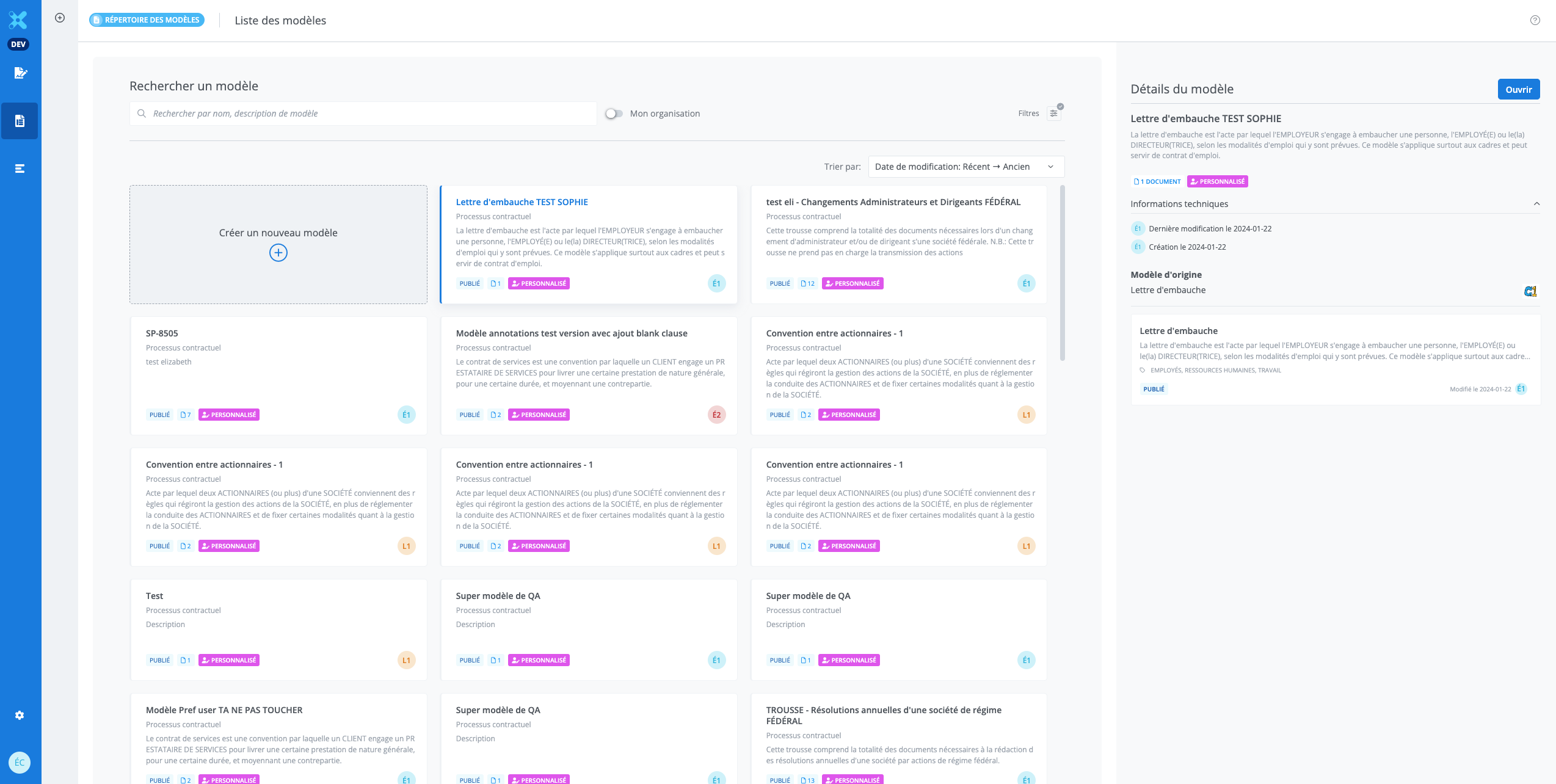
Custom templates are also found in the list of templates in the Templates library.
How do I change the title and description of a custom template?
-
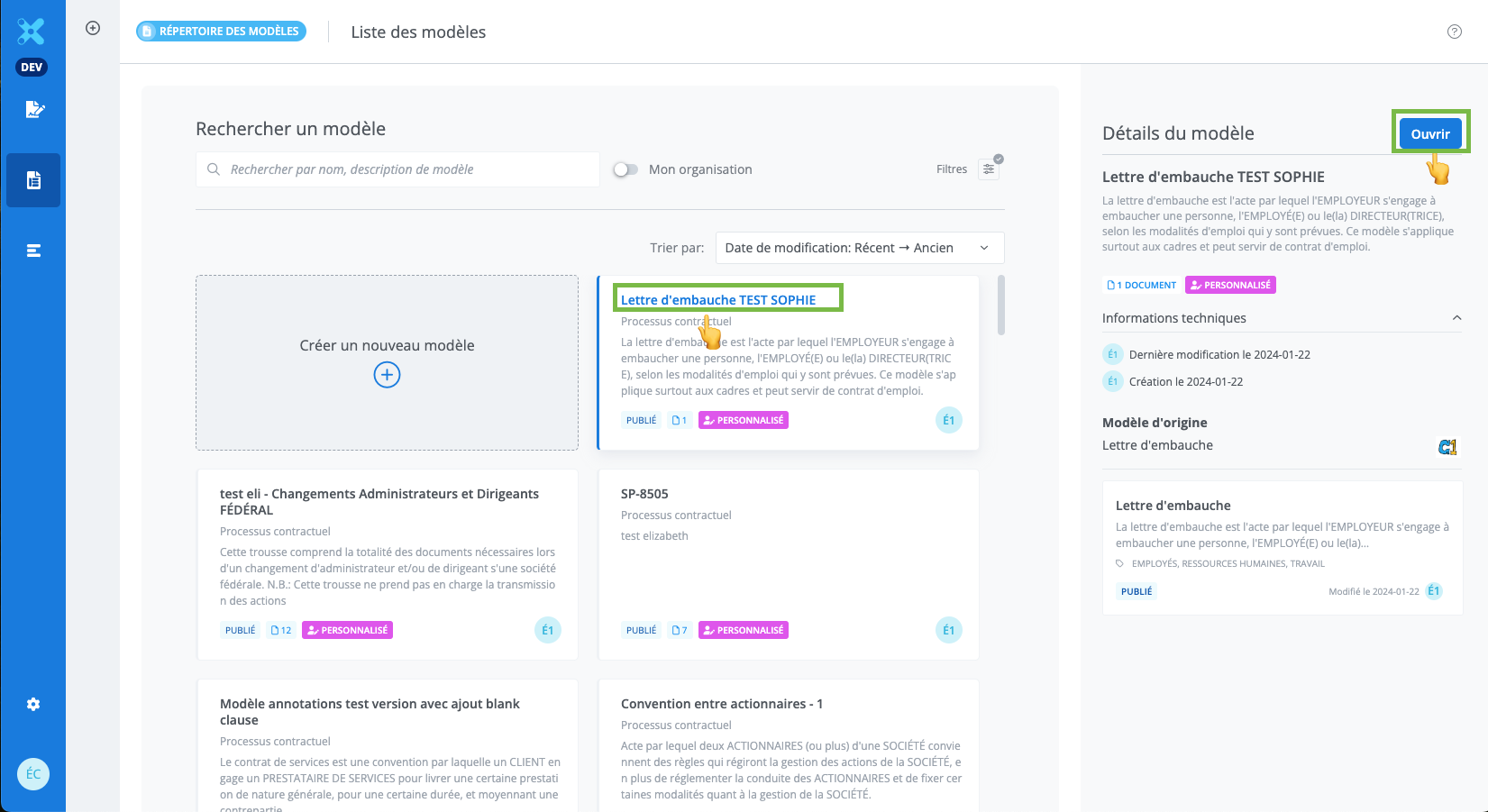
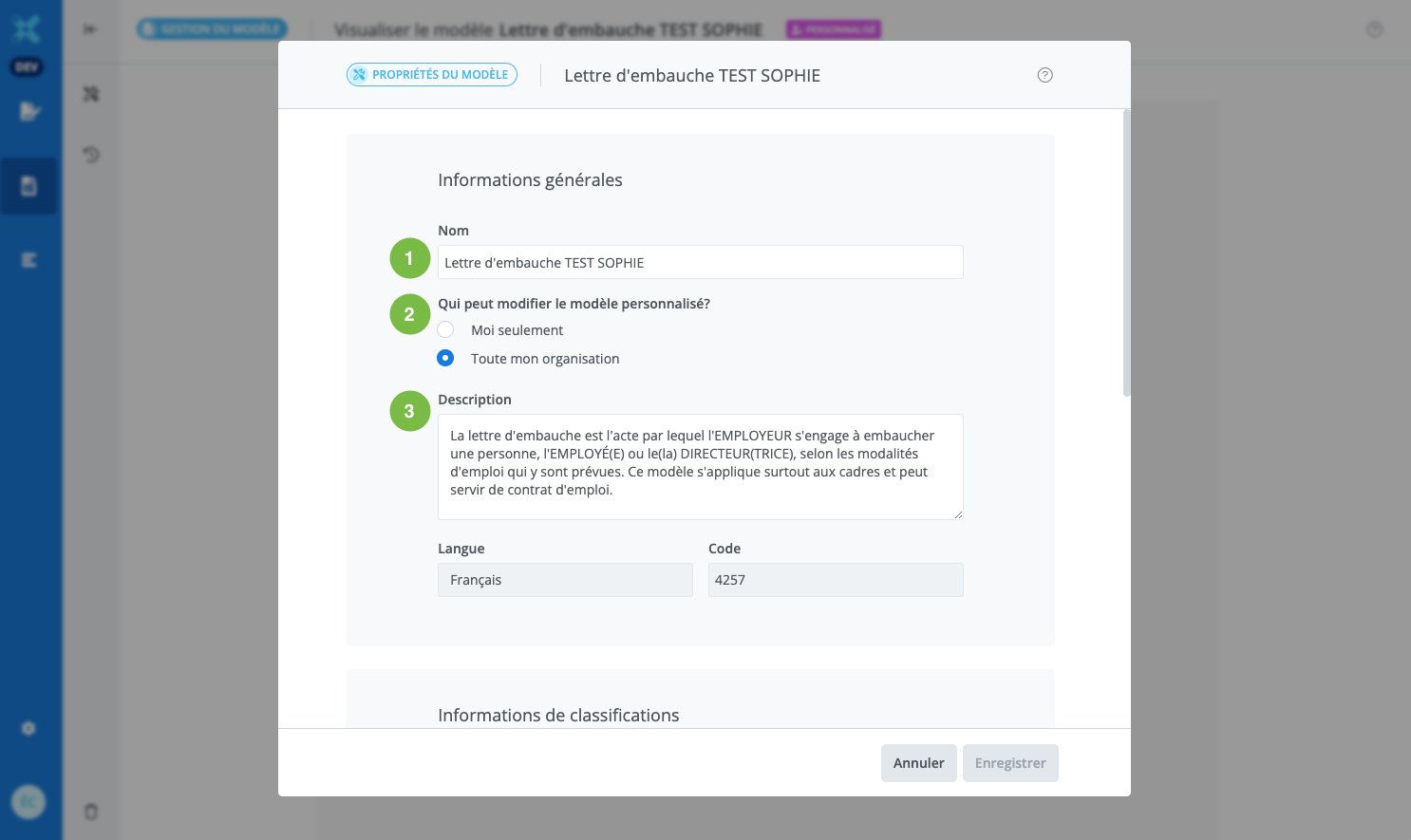
Go to the Templates library;
-
Locate the custom template and click Open;
-
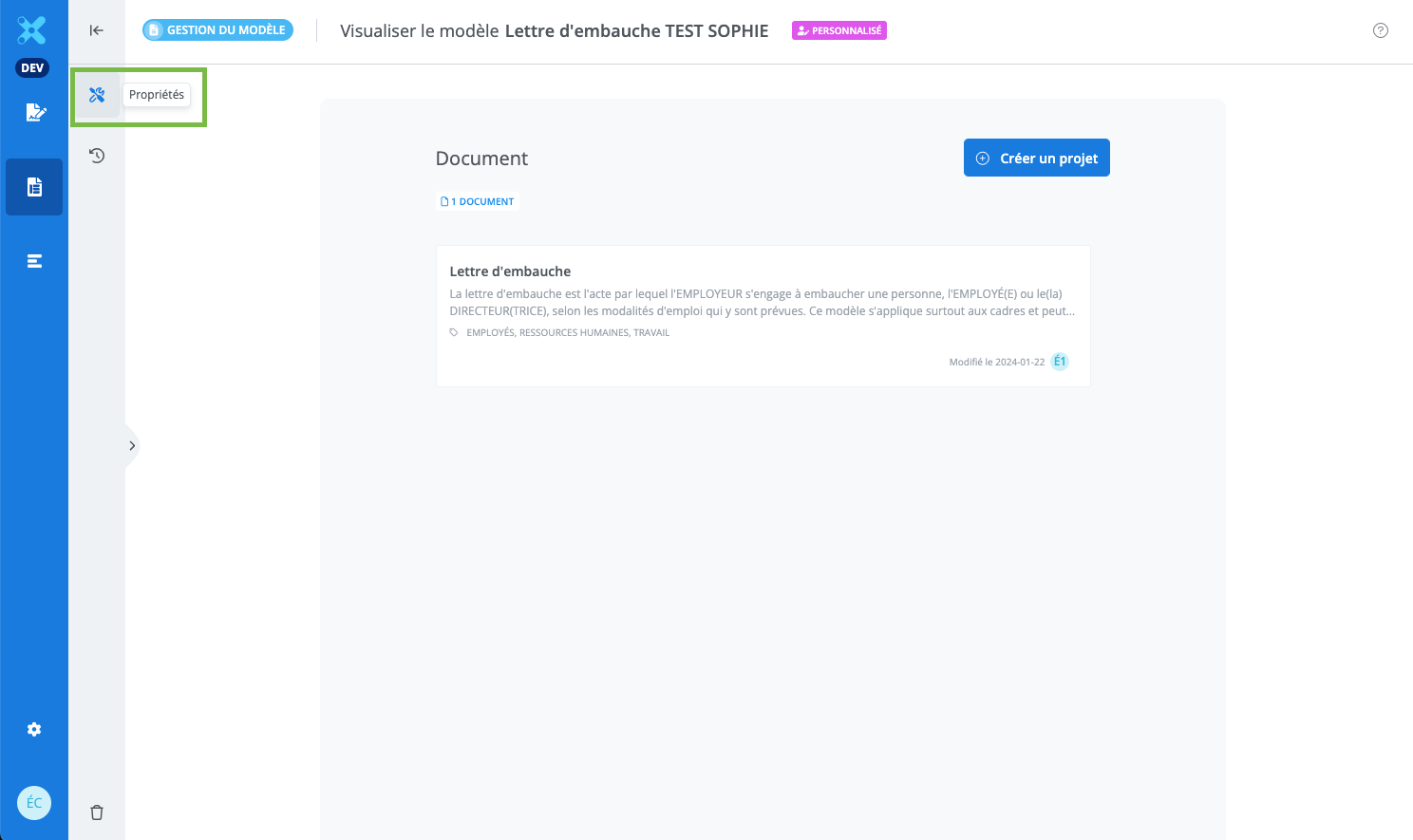
In the template management window, click Properties available in the menu;
-
Modify the title (1), the modification permission of the custom template (2), and the description (3);
How do I modify a custom template?
To update a custom template, access it from the templates library, put it into draft mode, modify it, then publish it.
Is the link maintained between a project and the custom template from which it was created?
No, once the template has been selected, if the selected template is a custom template, the link is not maintained. This means that:
-
For a project created from a CT (custom template), the original template displayed is the original template of the CT, not the CT itself.
-
A project created from a CT can be subject to an update directly from its original template (the CT update is, in a way, bypassed).
-
From the page of a project created with a CT, it is not possible to save another version of the CT. It is only possible to save another custom template.
Can a custom template be updated?
Yes, a custom template can be updated from its original template. For example, if the original template of the custom template is an Edilex template and it is modified by Edilex, the custom template will display the Update available tag.
Why is it only possible to save as a template from project management (and not in the drafting workspace)?
The Save as template button is only found in the Project management window because it is the entire project—that is, the full set of documents it contains—that is saved when it is saved as a template, including in the case of a subsequent save.