
Description of the Feature
Allows you to add both fixed * and free * fields in content; once added, these fields may be modified as follows:
-
view information on the field
-
copy the field’s numerial code
-
copy-paste,
-
cut-paste,
-
put in bold,
-
put in italics,
-
underlign,
-
delete.
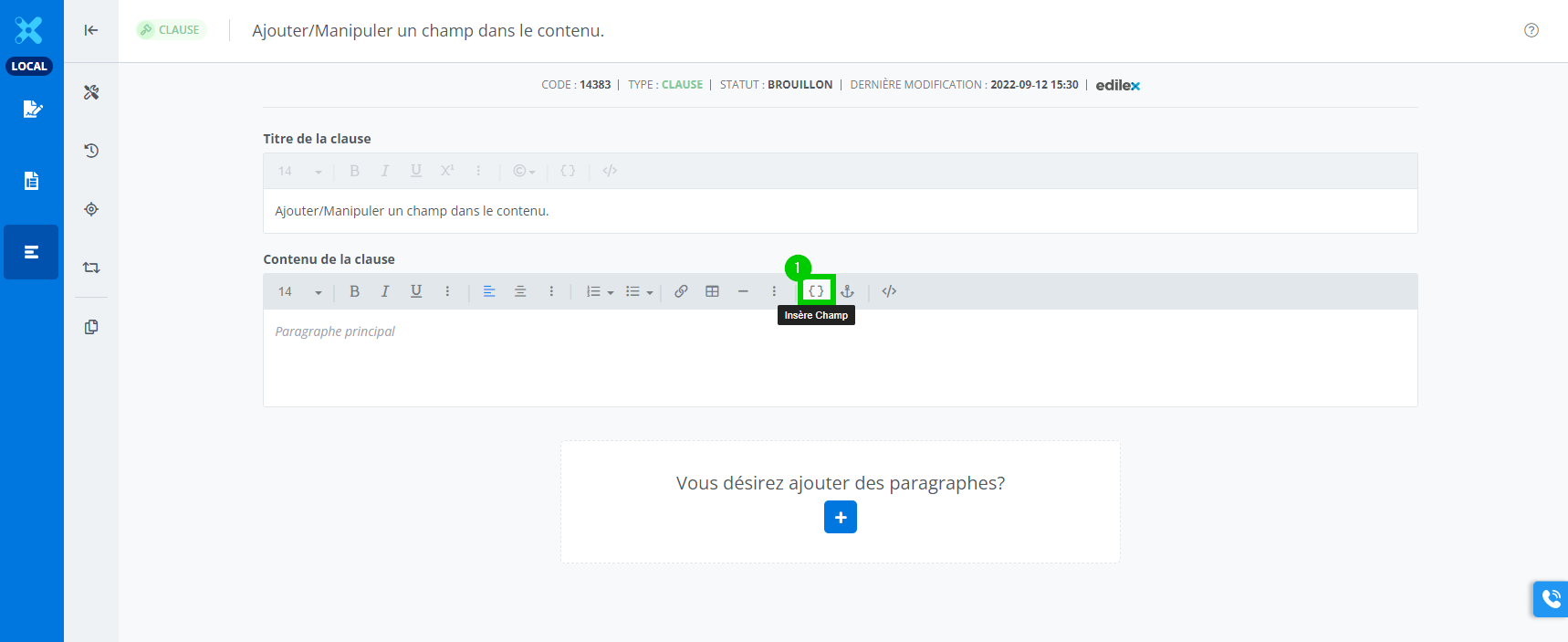
First step, add a field in the content.
-
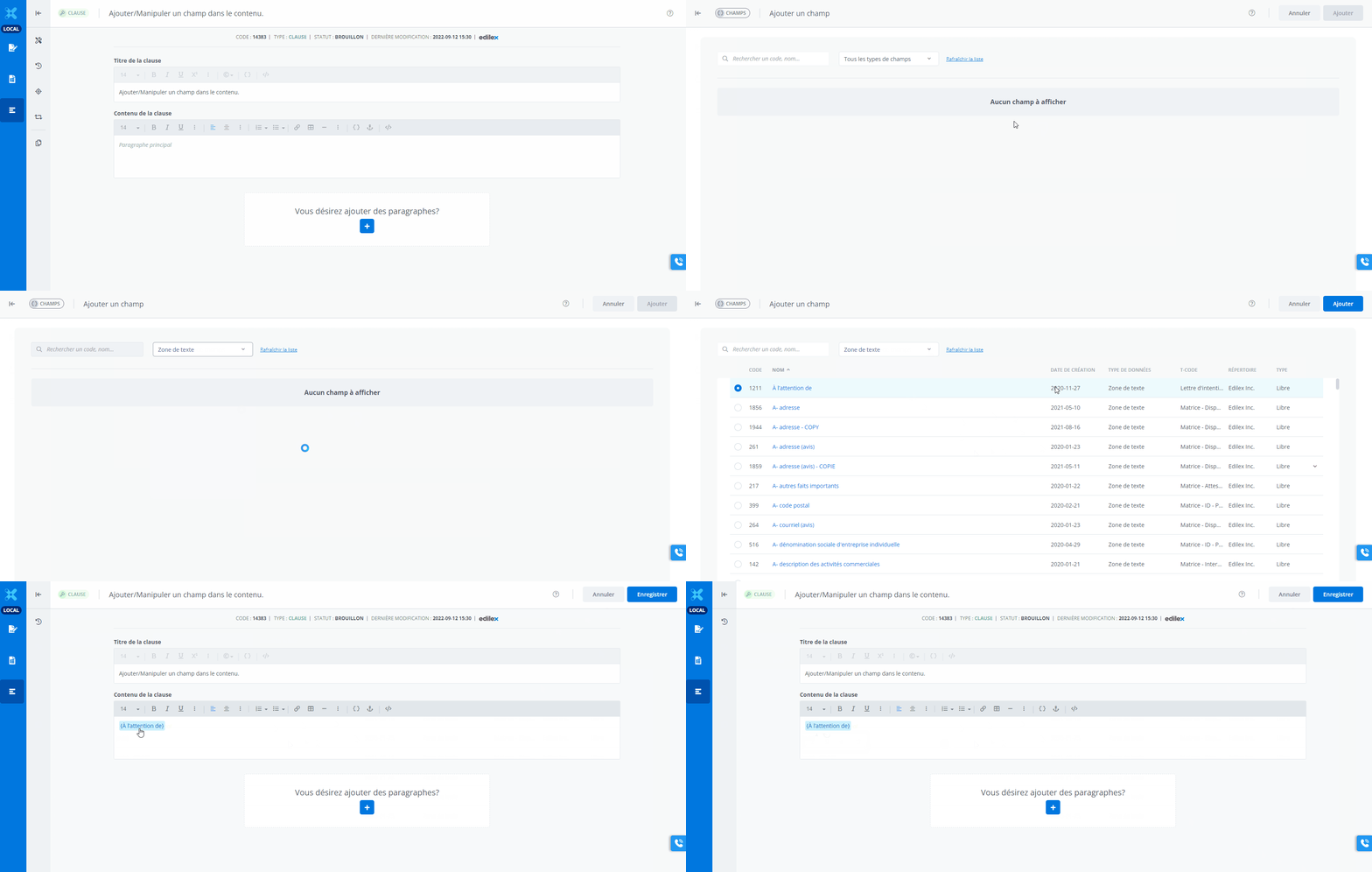
To demonstrate how to modify a field in the content, we add a field.
A modal window to add fields opens. No field appears for now, as no filter has been applied yet.
Click on the filters scroll-down menu to select which filter to apply.
(refer to print screen above)
Second step, modify a field in the content.
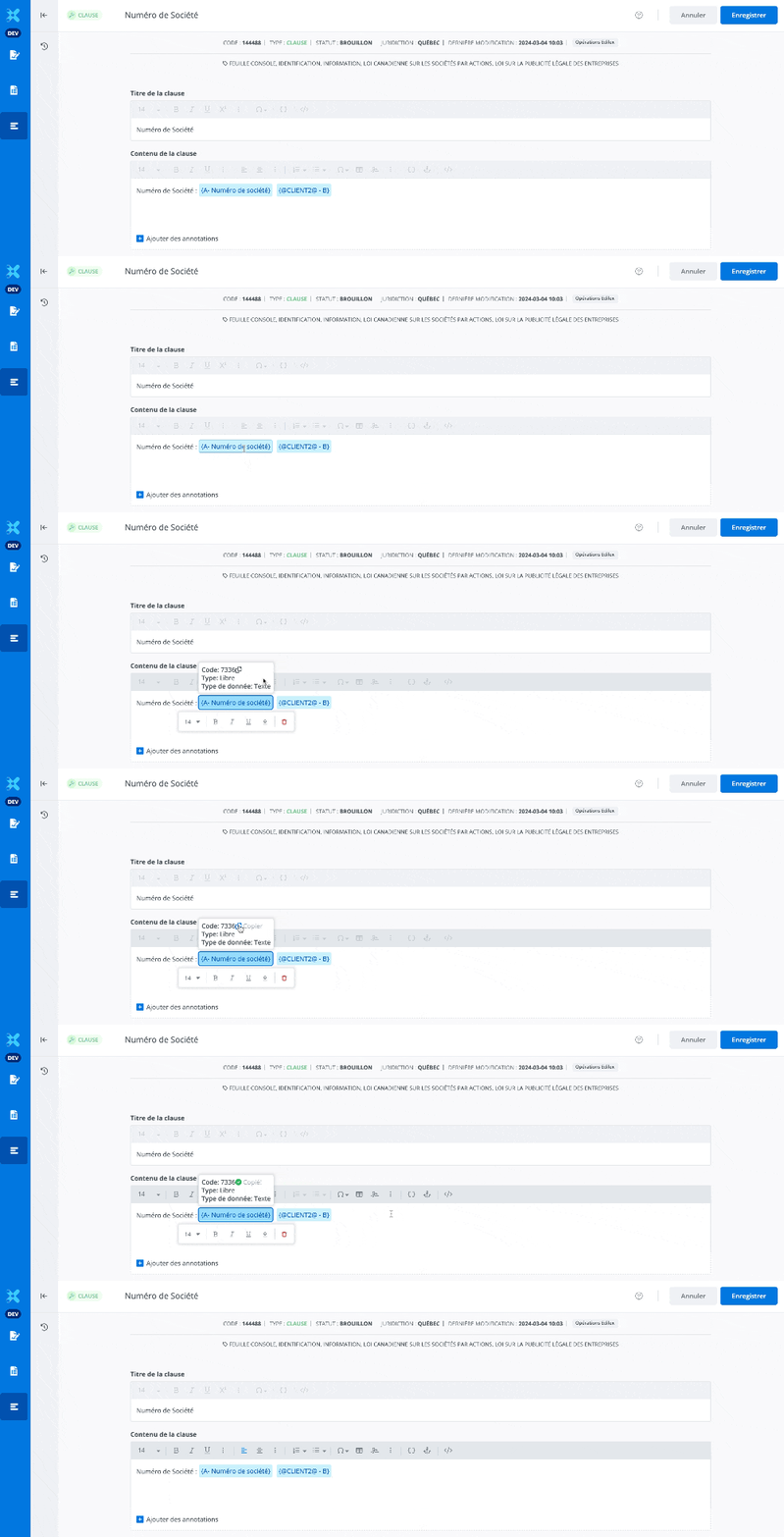
View information on the field and copy its identifying numerical code
Click on the field in the content editor to obtain more information on it, such as:
-
its identifying numerical code
-
the type of field (free or fixed)
-
the type of data it contains (text, scroll-down meny, calendar, etc.)
There is a shortcut option located to the right of the identifying numerical code to allow you to quickly copy it to facilitate its retrieval in the list of all the fields.
Copy-Paste
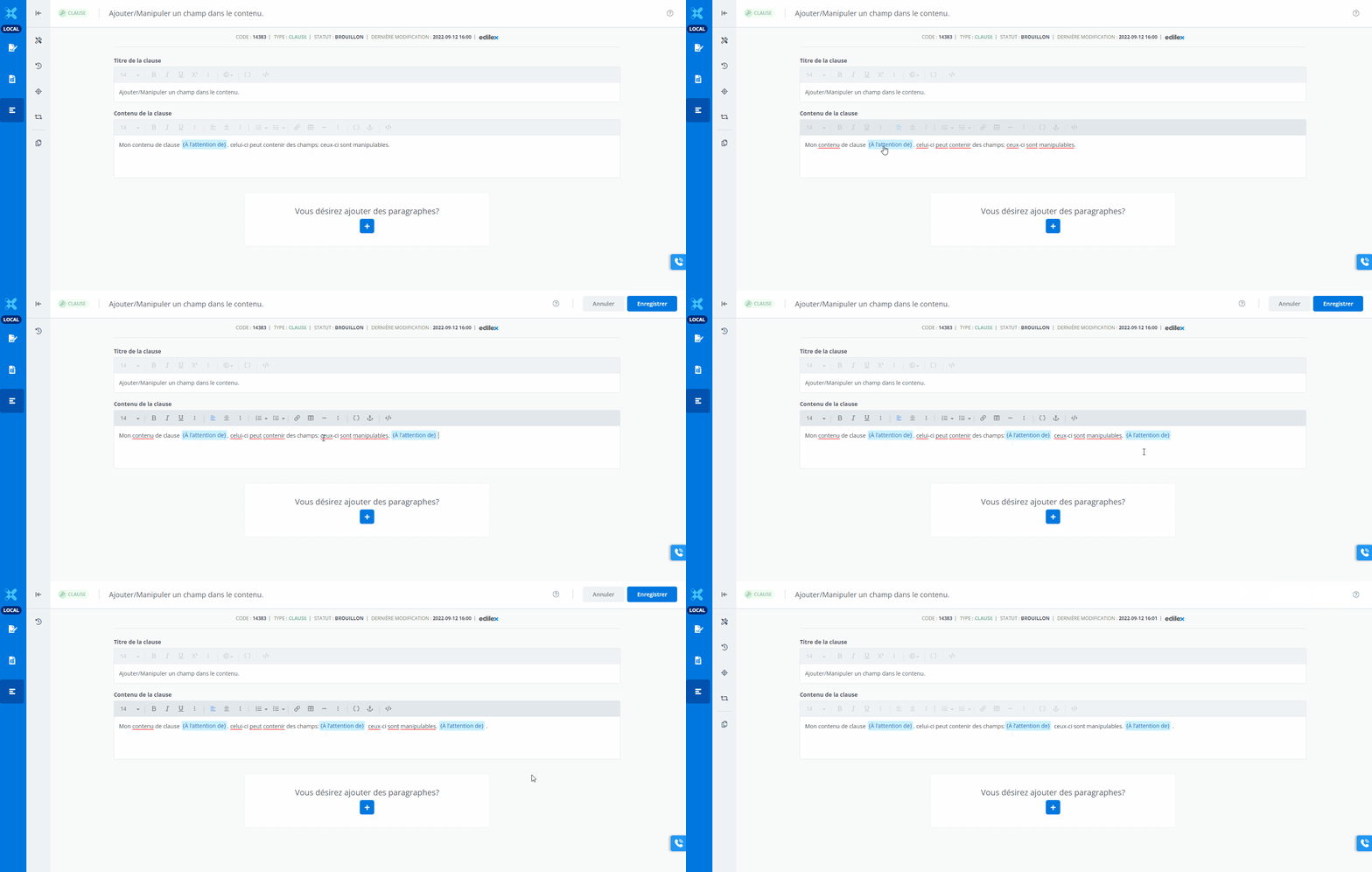
Using the following keybord shortcuts:
-
Select the field in the content.
(a contextual menu will appear) -
Cut → CTRL + C
(press down the keys simultaneously) -
Position the cursor in the exact position where the field should be pasted.
-
Paste → CTRL + V
(press down the keys simultaneously; the copied field will appear once the operation has been completed)
Note that a field may be copy-pasted as often as necessary.
Cut-Paste
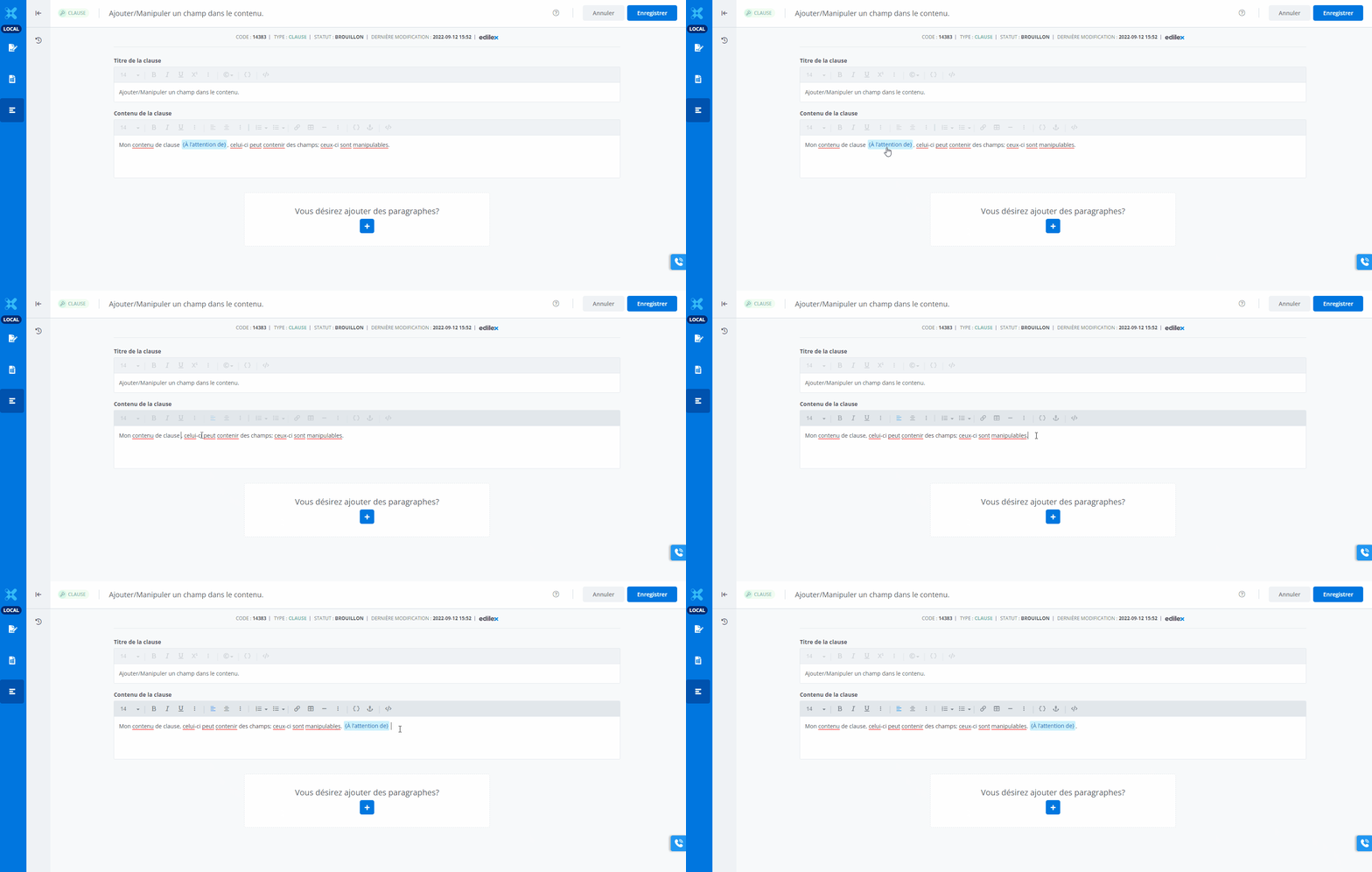
Using the following keybord shortcuts:
-
Select the field in the content.
(a contextual menu will appear) -
Cut → CTRL + X
(press down the keys simultaneously; the field will disappear once the operation has been completed) -
Position the cursor in the exact position where the field should be pasted.
-
Paste → CTRL + V
(press down the keys simultaneously; the field will appear once the operation has been completed)
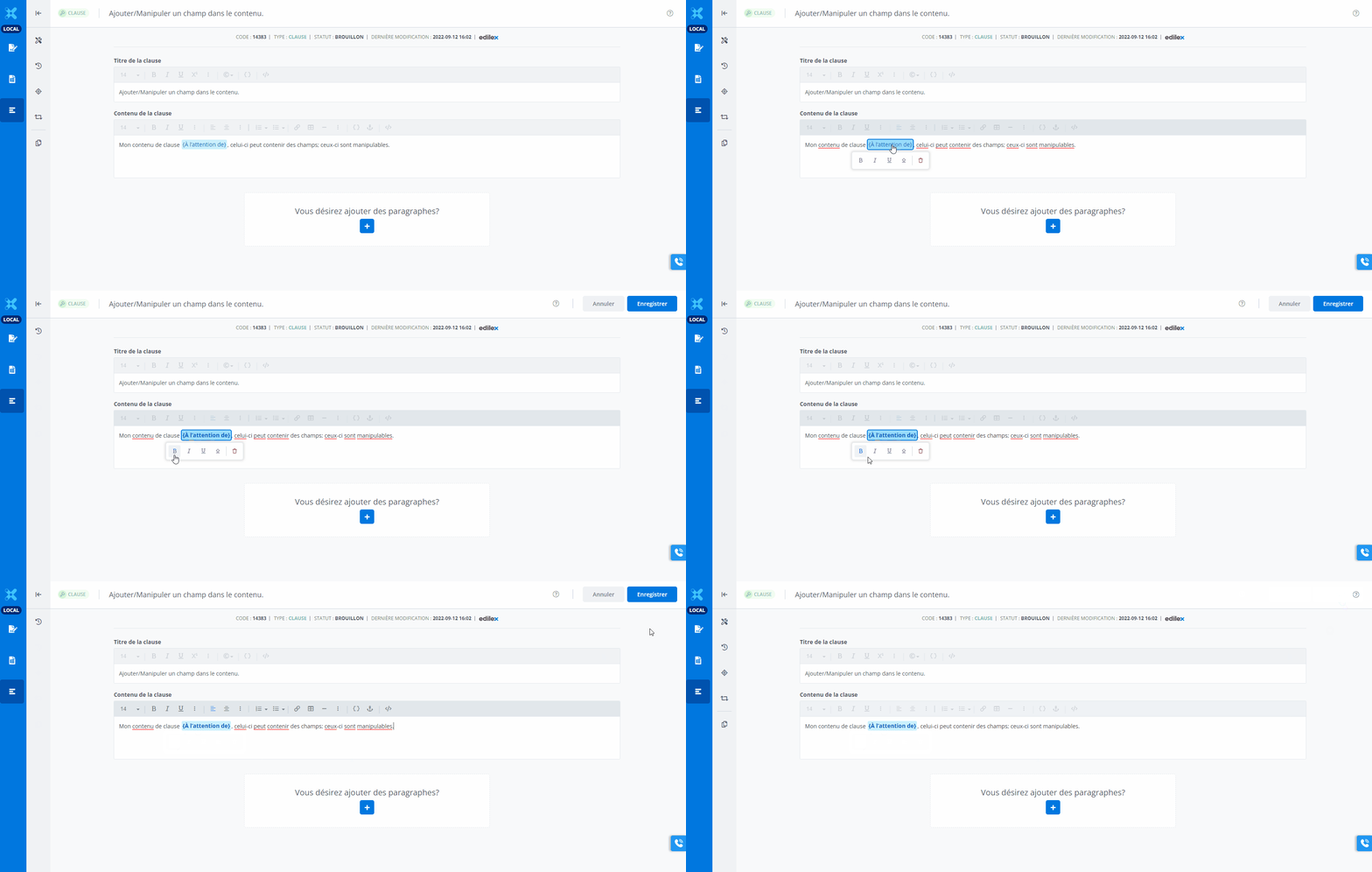
Put the field in bold
-
Select the field in the content.
(a contextual menu will appear) -
Click on the B (gras / bold) icon.
-
The field is now in bold.
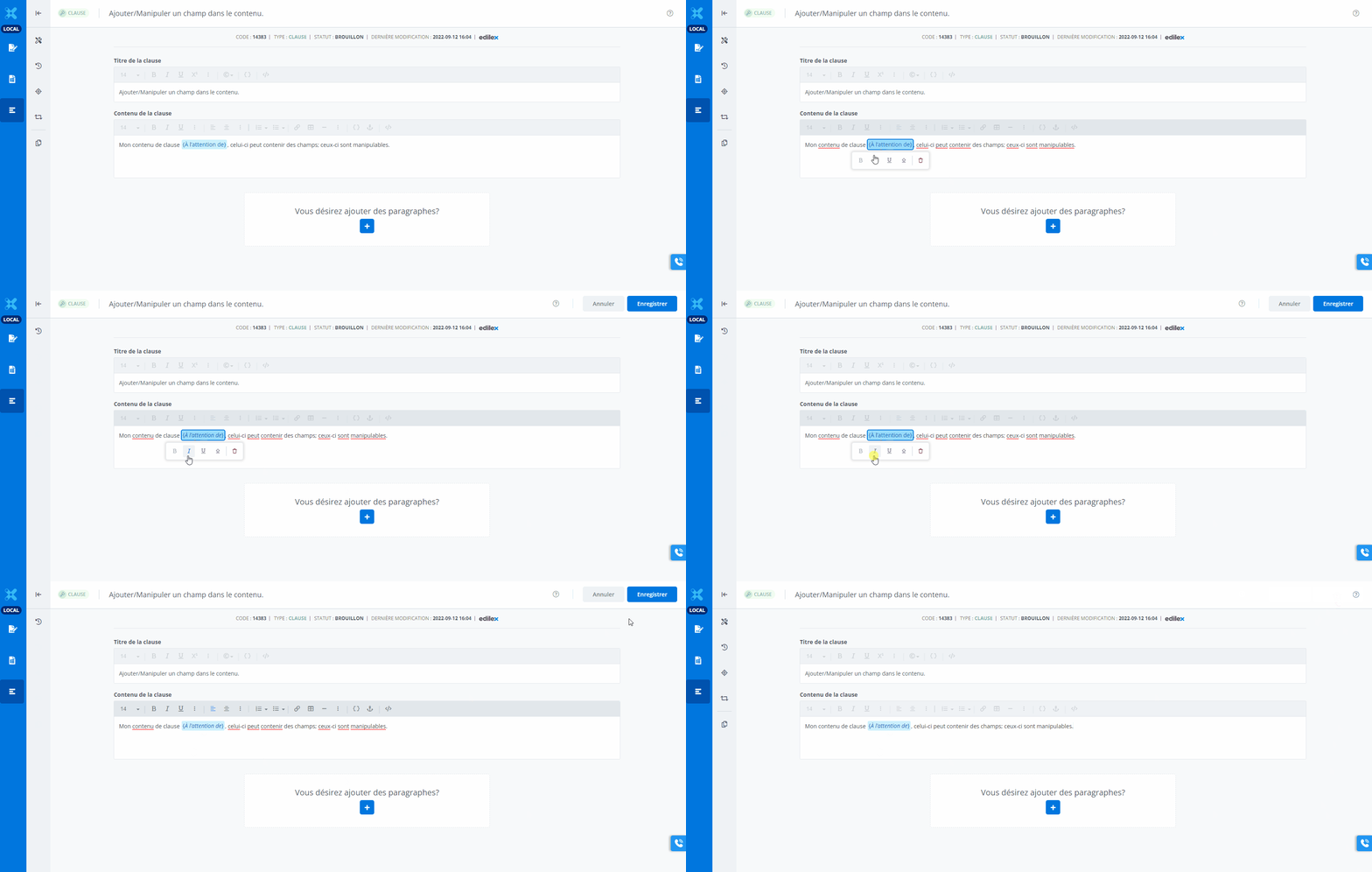
Put the field in italics
-
Select the field in the content.
(a contextual menu will appear) -
Click on the i (italique/italic) icon.
-
The field is now in italics.
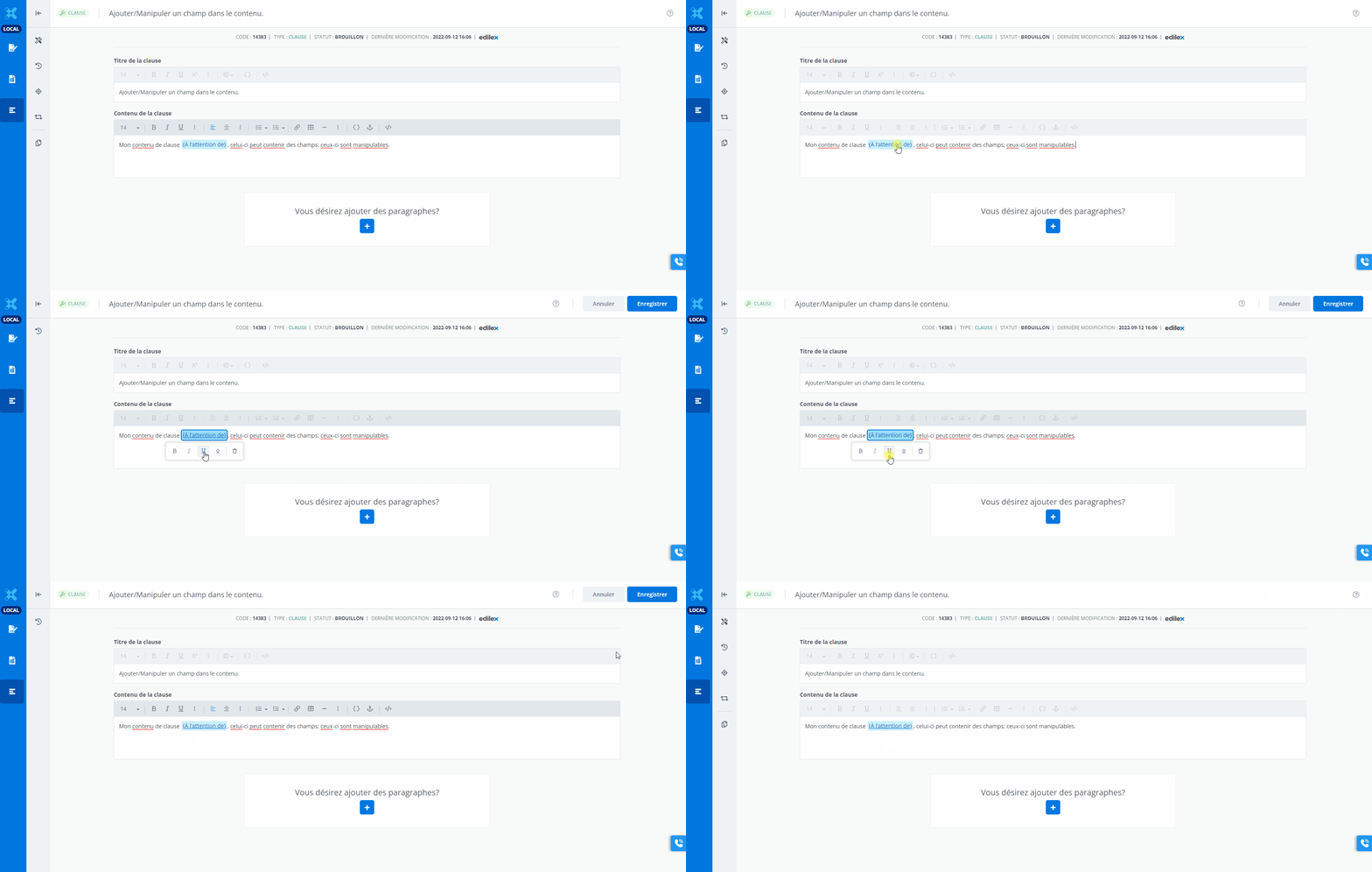
Underlign the field
-
Select the field in the content.
(a contextual menu will appear) -
Click on the U (souligner/underline) icon.
-
The field is now underligned.
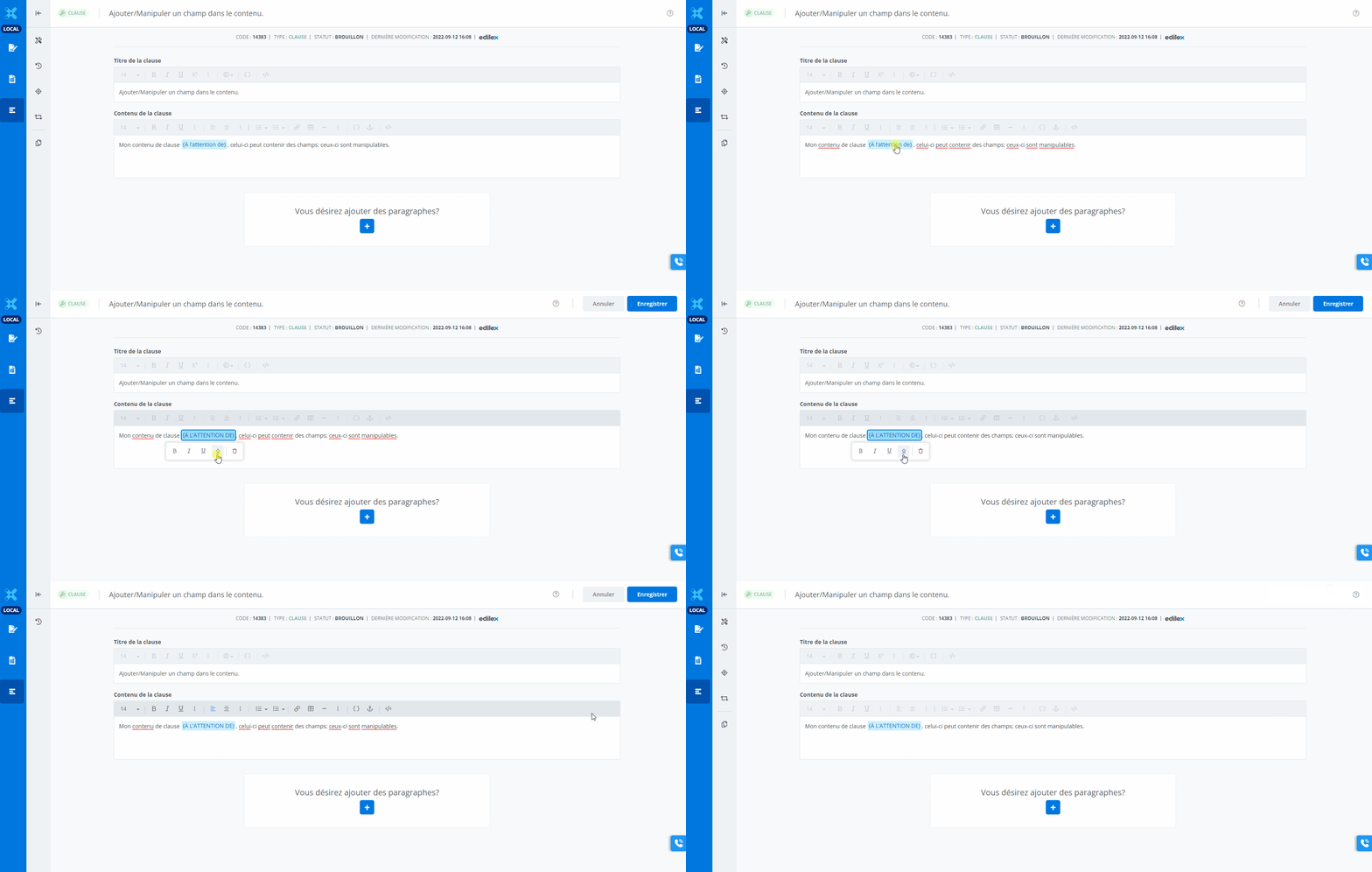
Put the field in uppercase
-
Select the field in the content.
(a contextual menu will appear) -
Click on ↑ (majuscule / uppercase) icon.
-
The field is now uppercase.
Delete the field
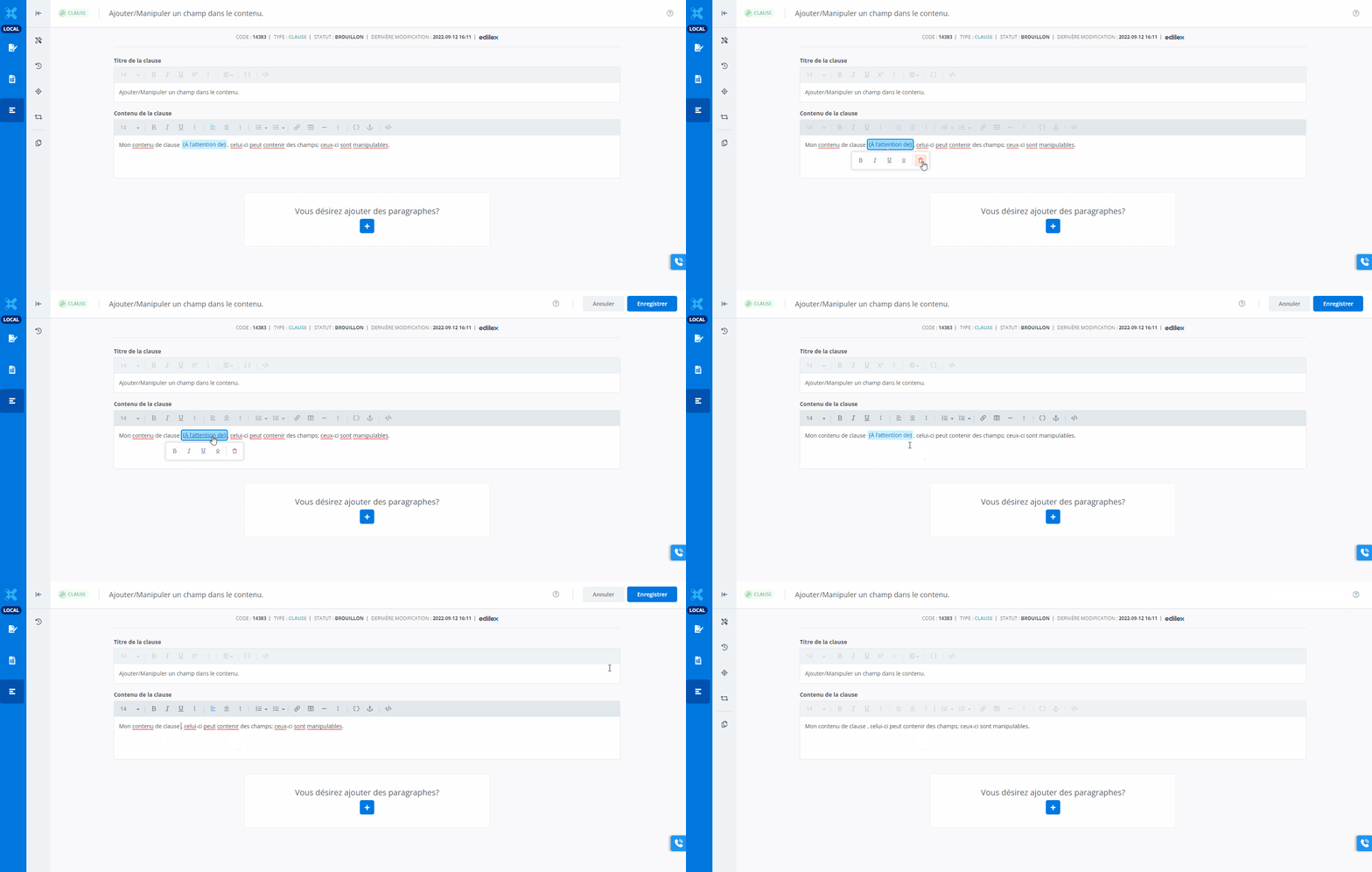
using the contextual menu
-
Select the field in the content.
(a contextual menu will appear) -
Click on the Garbage (supprimer / delete) icon.
(Note that in the example above, this action is manually cancelled using the CTRL + Z keyboard shortcut) -
The field has now been deleted.
using the keyboard shortcuts
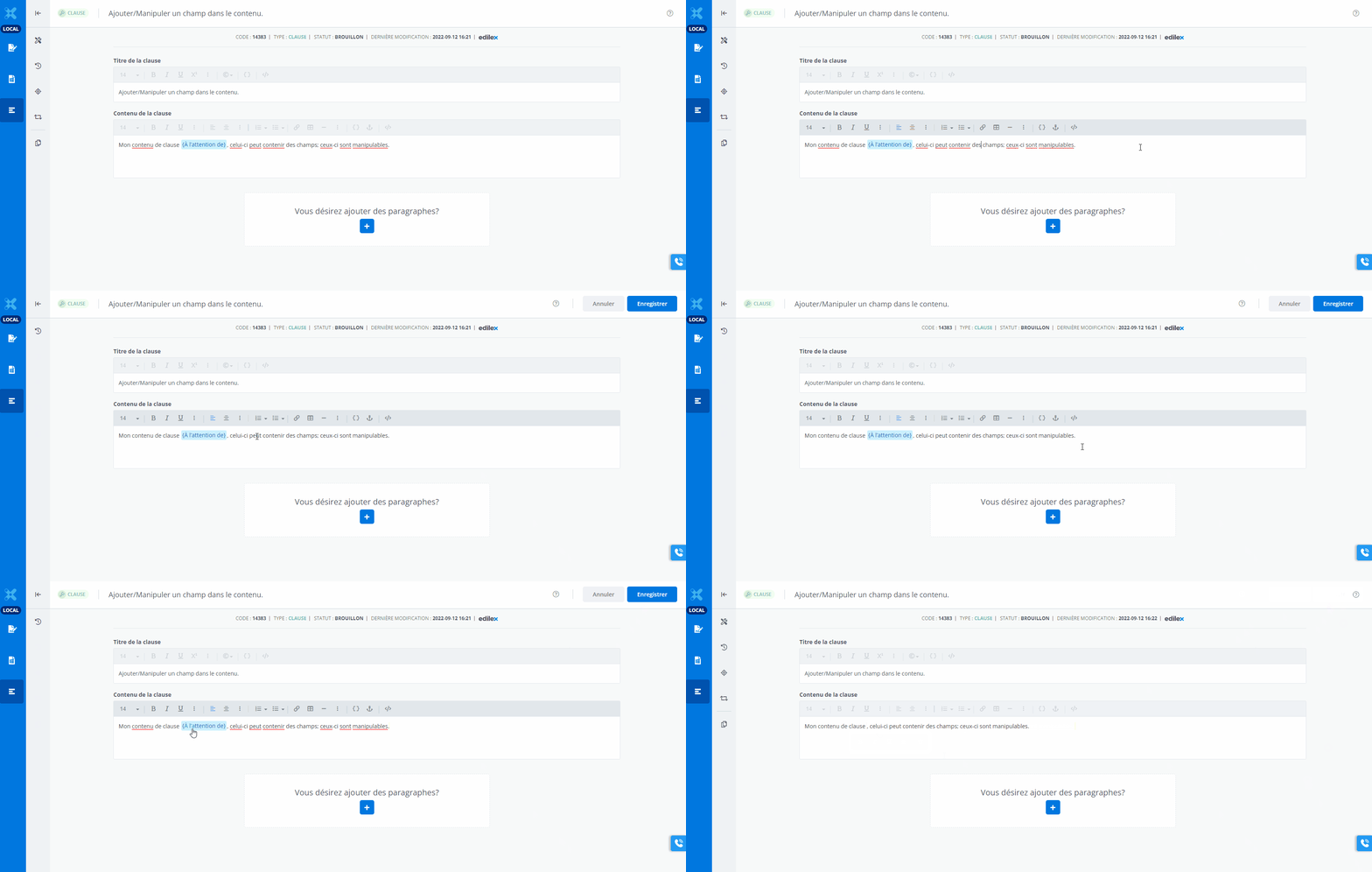
“ ← “
-
Place the cursor just after the field in the content.
(a contextual menu will appear) -
Press once on the ← key.
The field has been selected. -
Press a second time on the ← key.
The field has been deleted.
(Note that in the example above, this action is manually cancelled using the CTRL + Z keyboard shortcut)
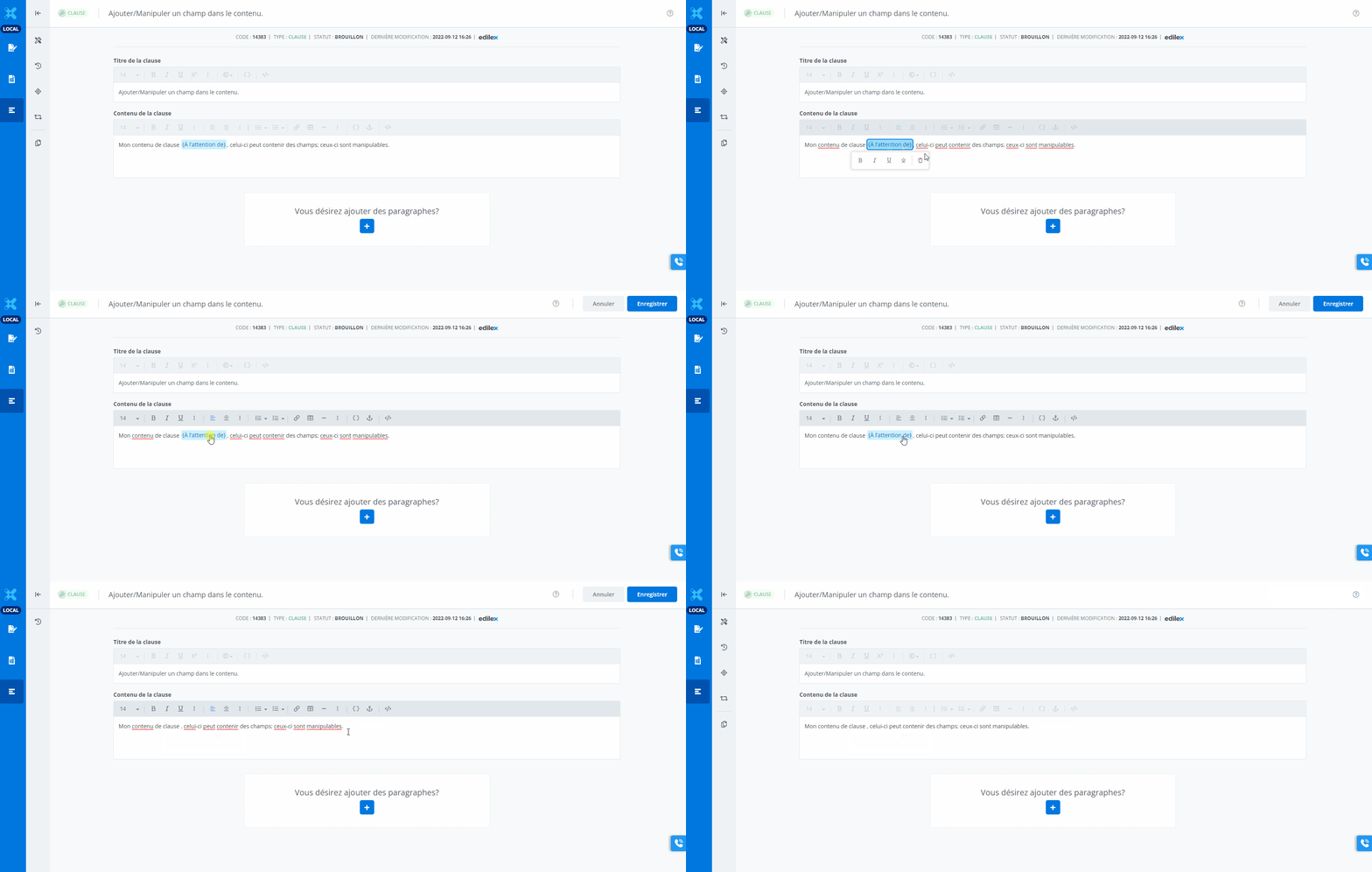
using the keyboard shortcuts
DEL
-
Place the cursor just after the field in the content.
(a contextual menu will appear) -
Press once on the ← key.
The field has been selected. -
Press a second time on the ← key.
The field has been deleted.
(Note that in the example above, this action is manually cancelled using the CTRL + Z keyboard shortcut)