
Create a table
-
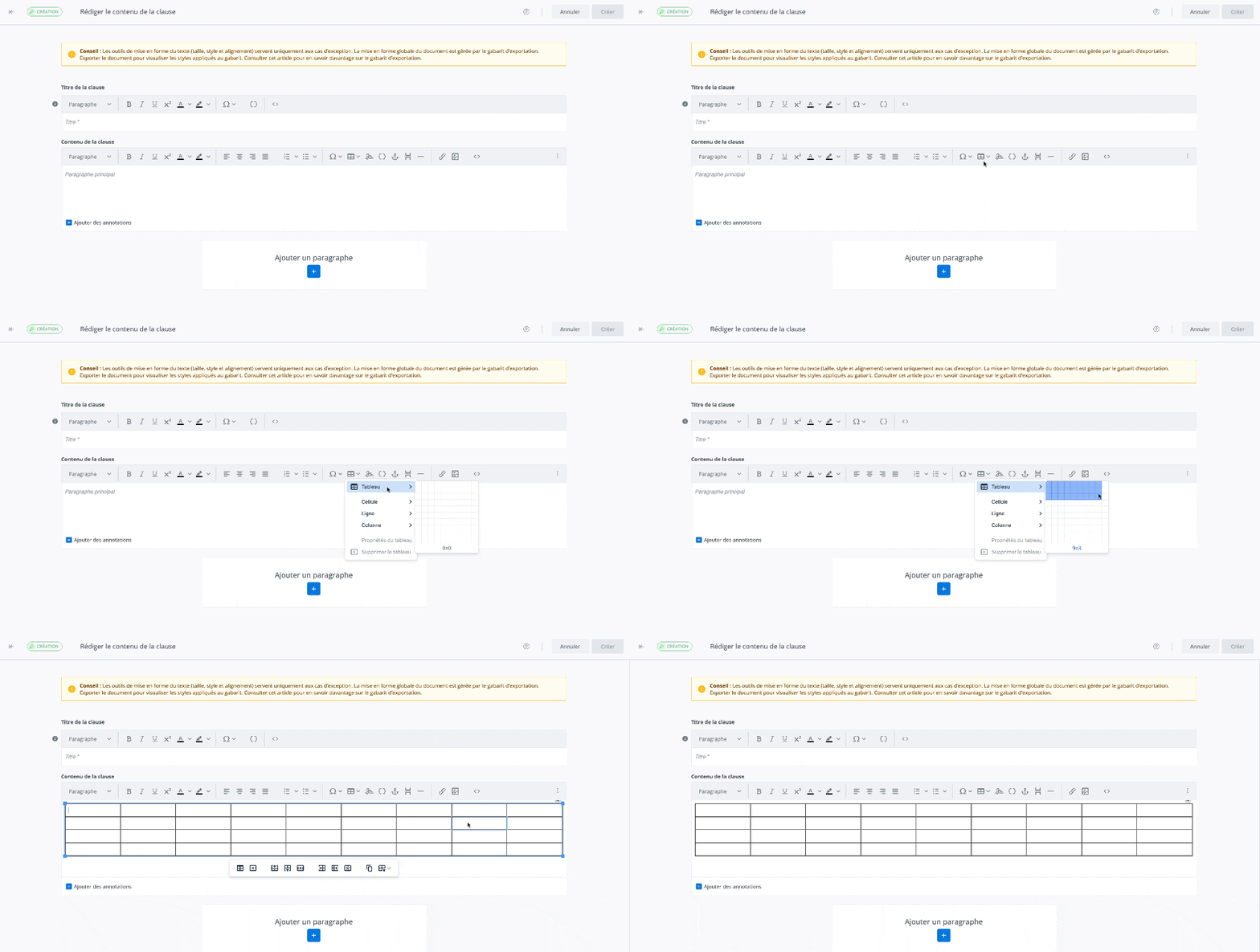
In the text editing tool, click on Table

-
In the dropdown menu, hover over Table

-
In the grid, hover over the squares to set the number of columns and rows you want to apply to the table.
-
To confirm the table insertion, click inside the grid.
Once added in the content, you can do the following to the table:
-
modify cell properties;
-
merge cells;
-
split cells;
-
insert a row before or after;
-
delete, cut, copy and paste a row before or after;
-
modify row properties;
-
insert a column before or after;
-
delete, cut, copy and paste a column before or after;
-
modify the table properties;
-
create a table
Some of these actions can be performed from 2 locations:
-
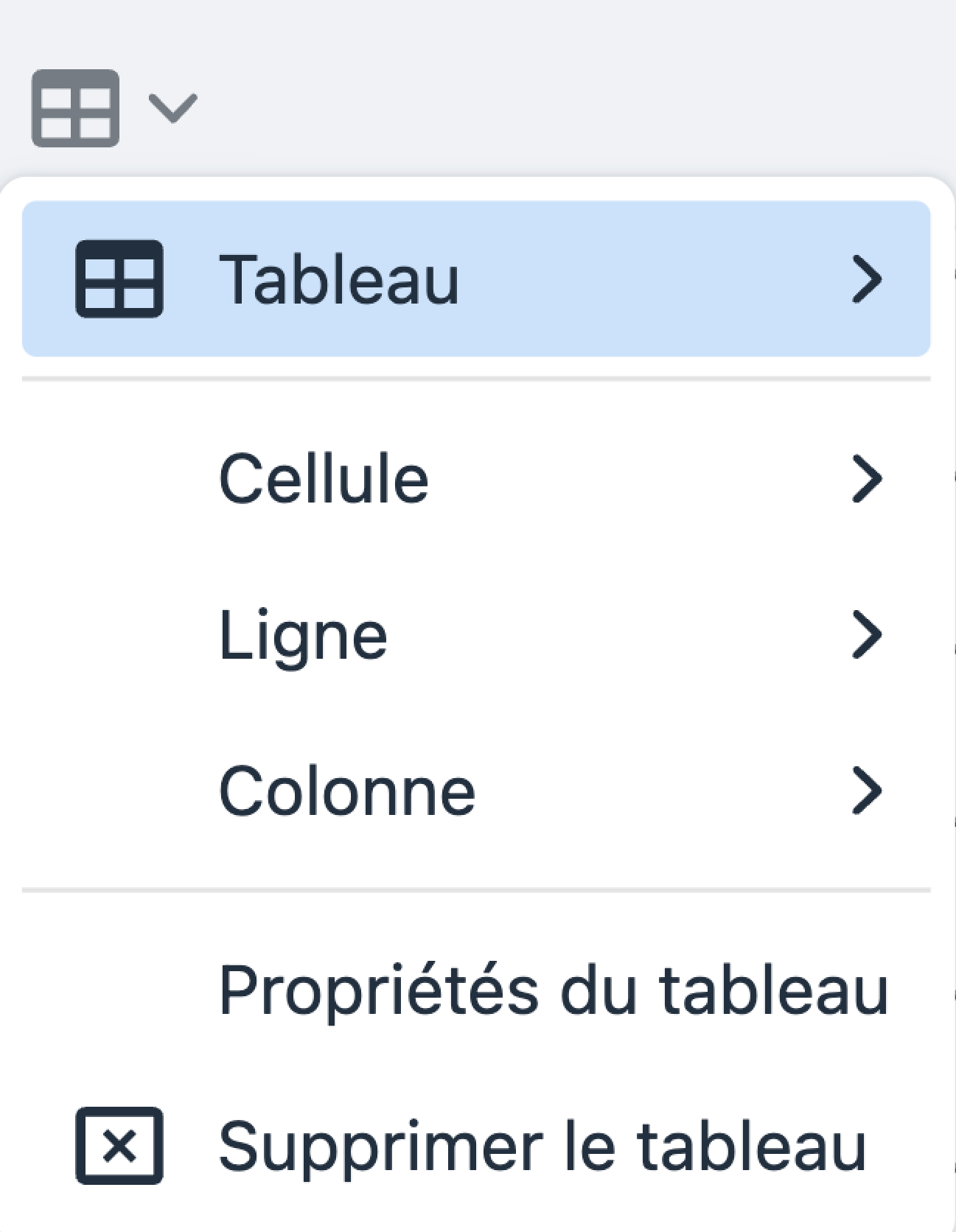
From the table's dropdown menu.
-
From the table's toolbar.

Modify a cell
Modify a cell’s properties
-
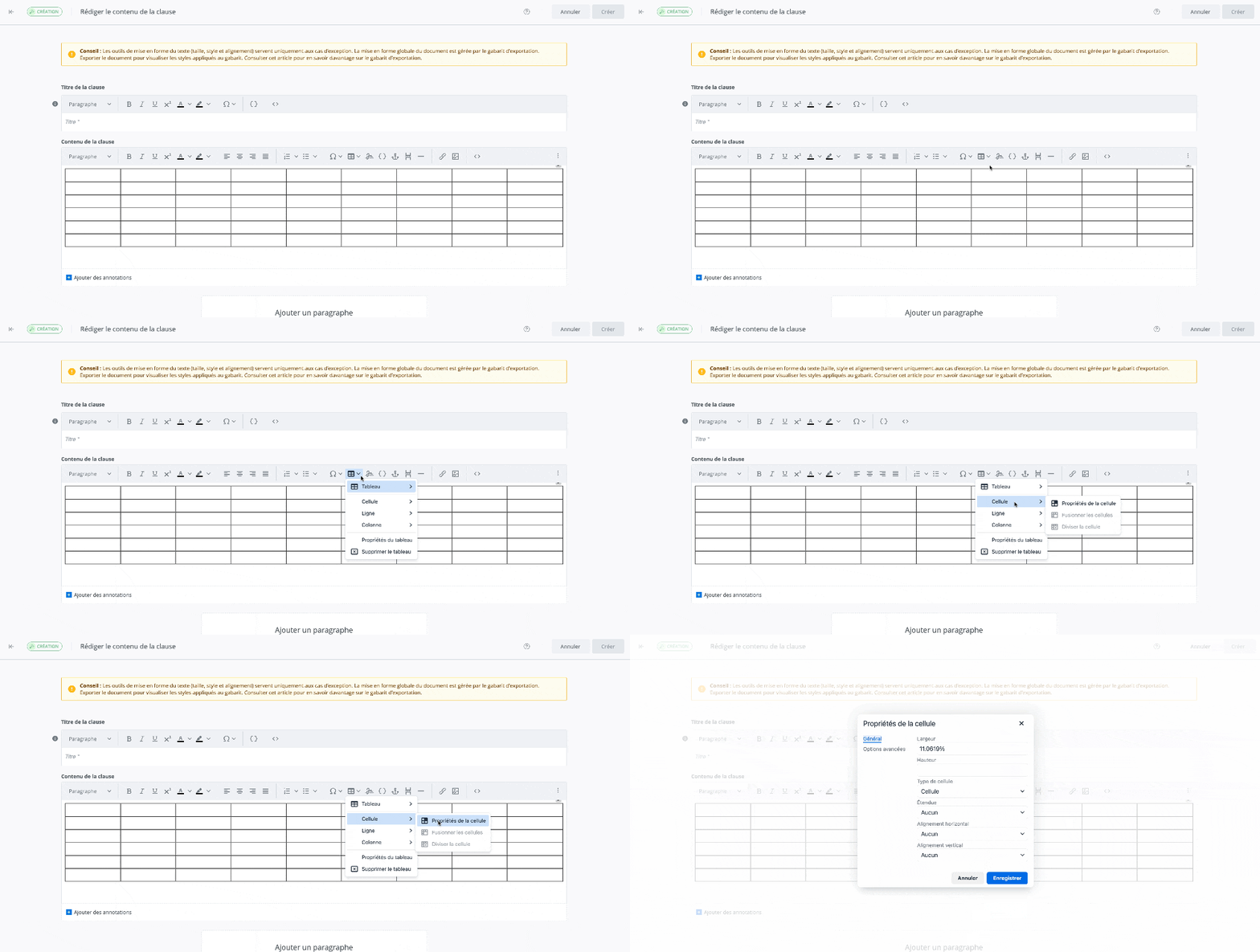
In the text editing tool, click the Table
-
In the dropdown menu, hover over Cell

-
In the dropdown submenu, click on Cell properties

-
The cell properties window opens.
Cell properties
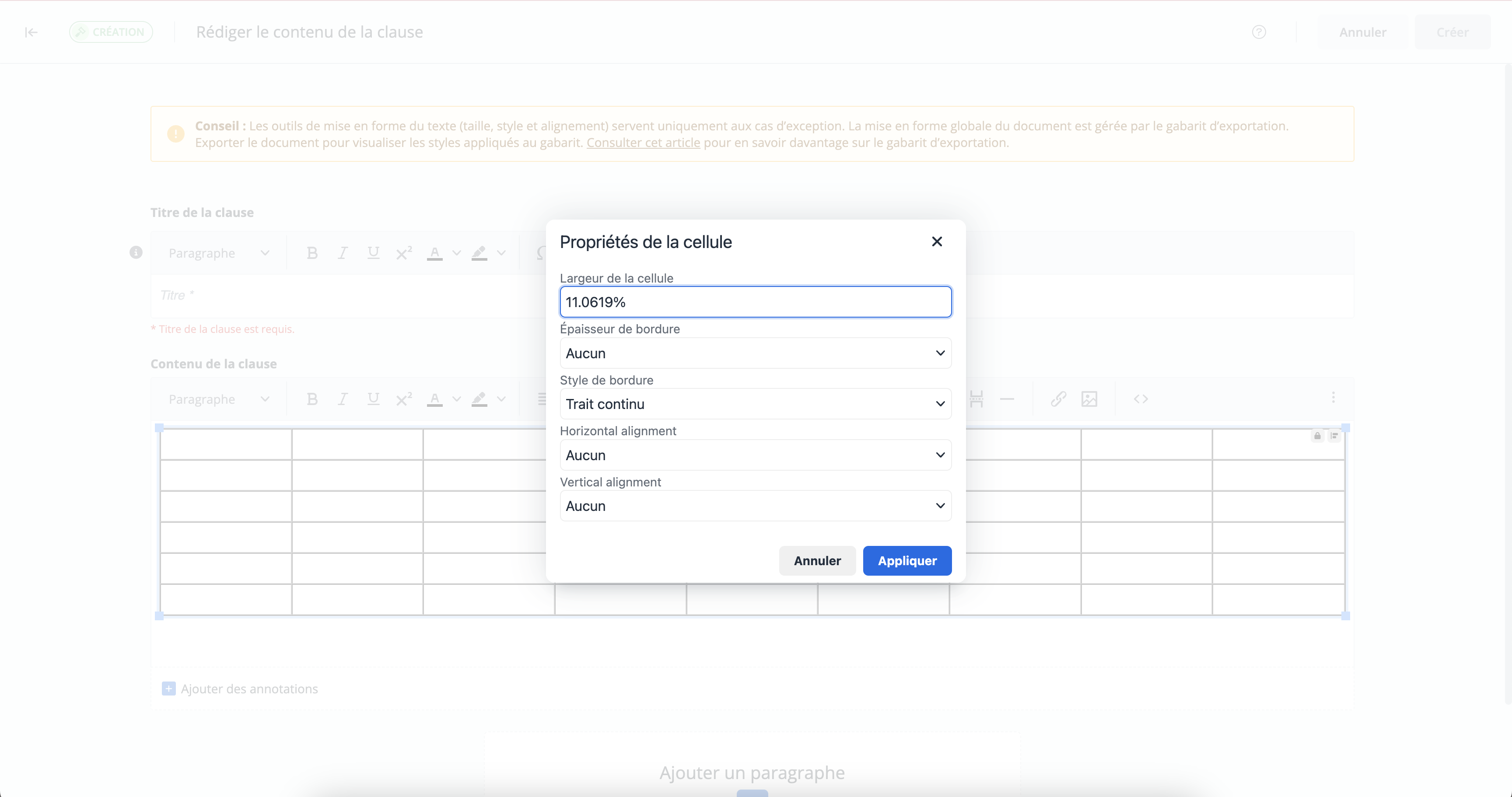
In the cell properties window, you can:
-
modify cell width
-
modify border width (thin, medium, thick)
-
modify border style (solid, dashed, dotted)
-
modify horizontal alignment (none, left, center or right)
-
modify vertical alignment (none, top, center, bottom)
Merge cells
-
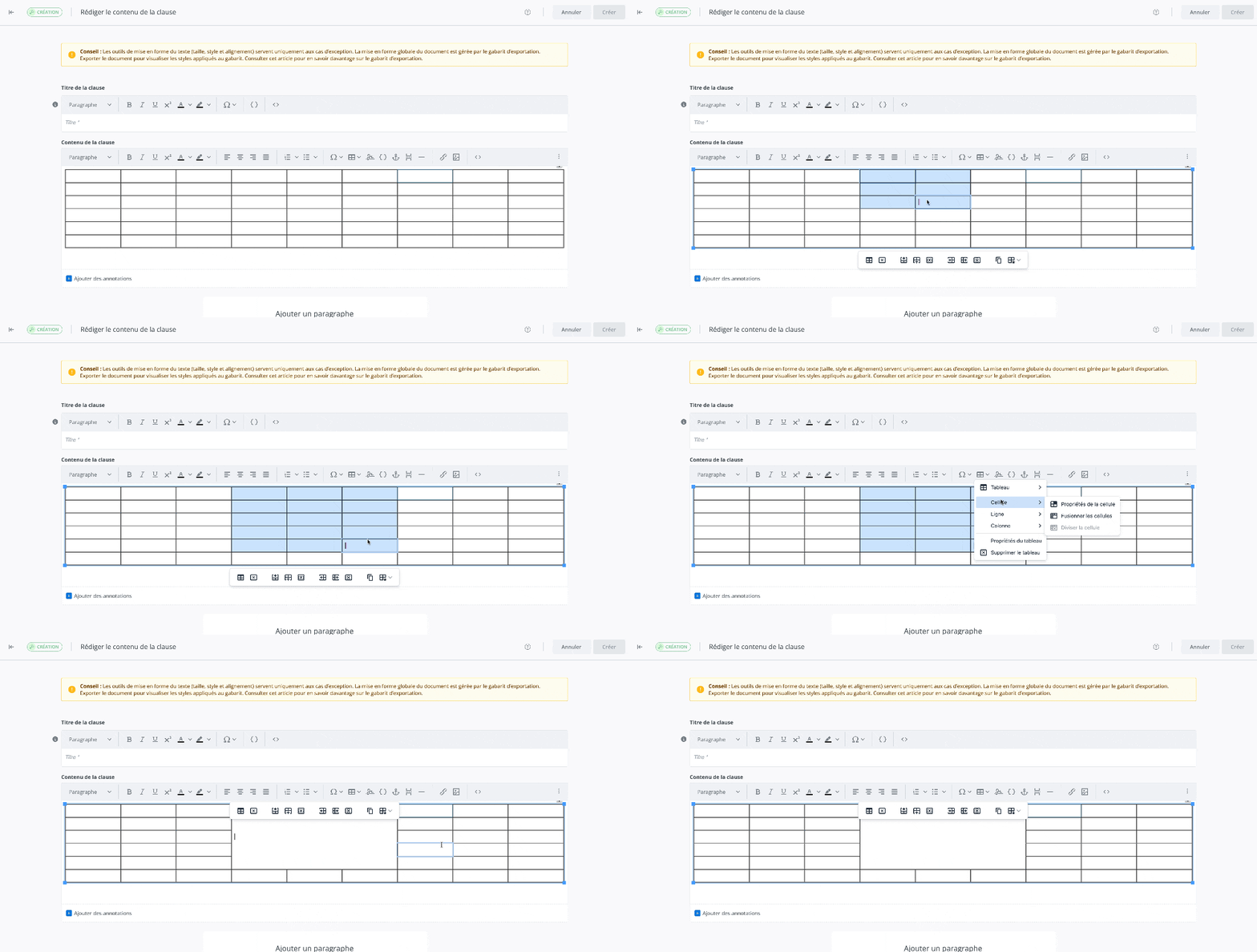
In the table, press down with your cursor and drag over the cells you want to merge.
-
In the text editing tool, click on Table
-
In the dropdown menu, hover over Cell
-
In the dropdown submenu, click Merge cells

-
The selected cells merge.
Split cells
-
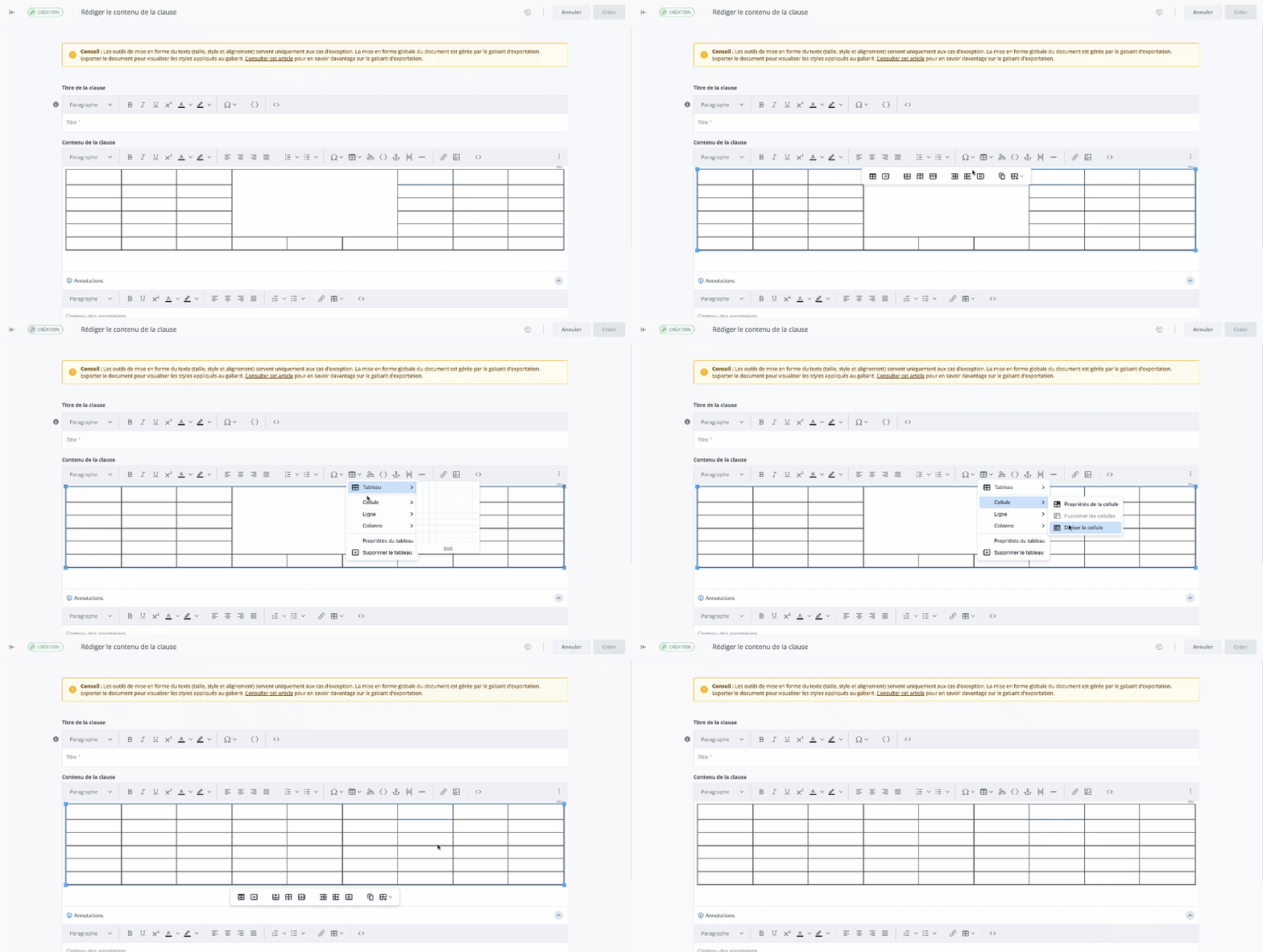
In the table, select the merged cell.
-
In the text editing tool, click on Table
-
In the dropdown menu, hover over Cell
-
In the dropdown submenu, click on Split cell

-
The selected cells split.
It is only possible to split a cell that was previously merged.
Modify a row
Modify row properties
-
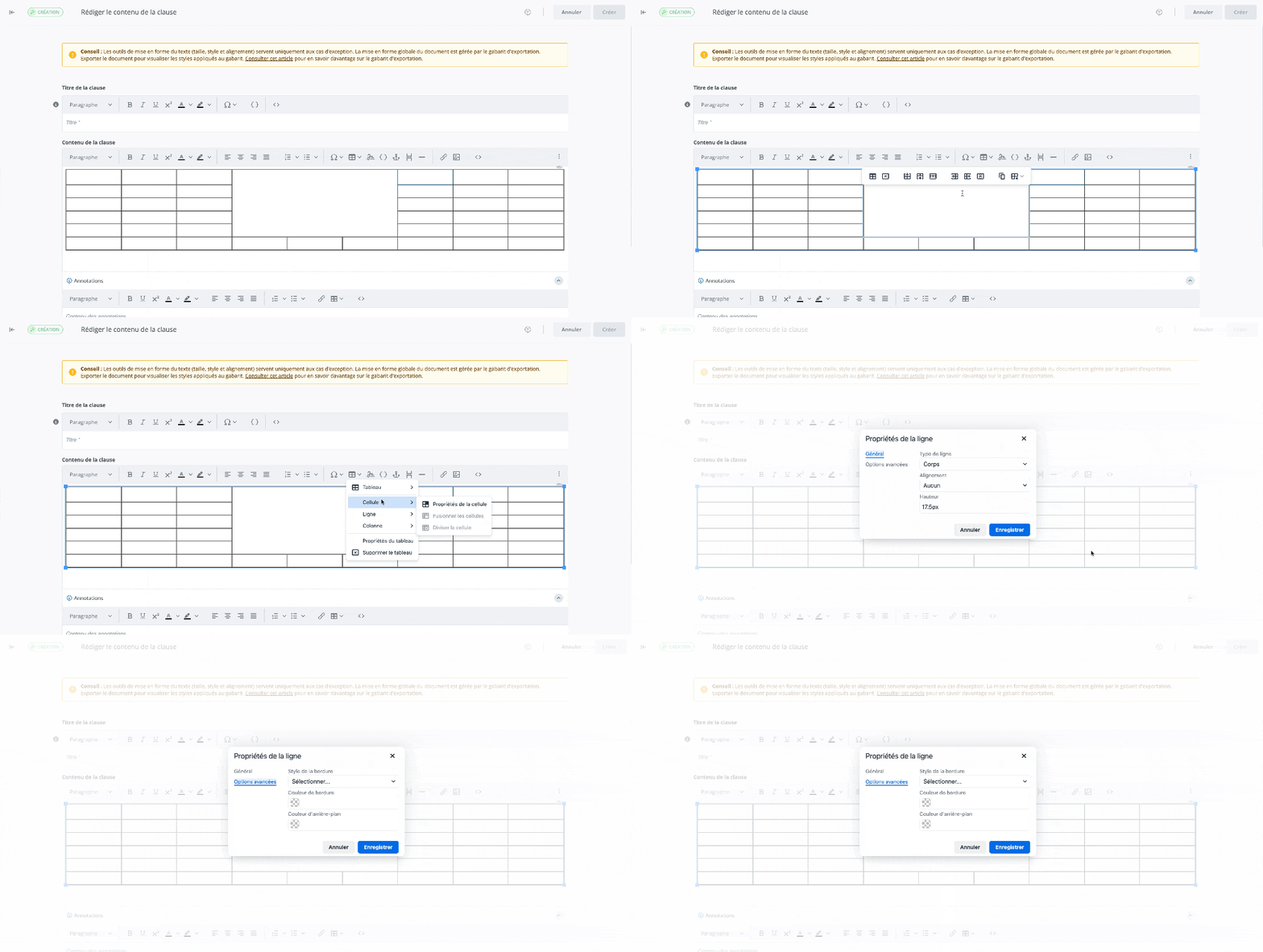
In the table, click a cell in the row you want to modify.
-
In the text editing tool, click on Table
-
In the dropdown menu, hover over Row

-
In the dropdown submenu, click on Row properties

-
The cell properties window opens.
Row properties
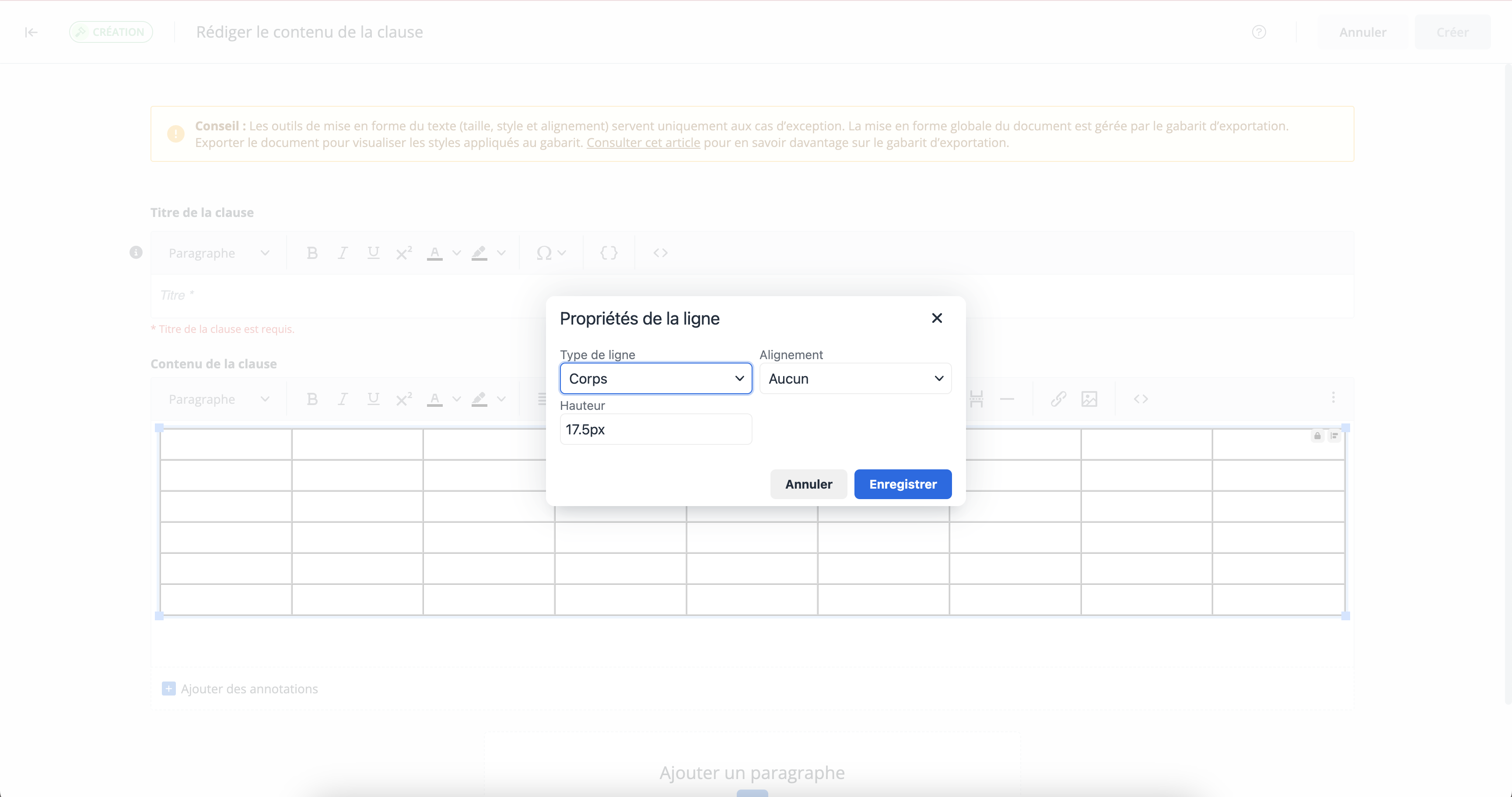
In the cell properties window, you can:
-
modify the row type (body, header or footer)
-
modify alignment (none, left, center, right)
-
modify height
Insert a row
-
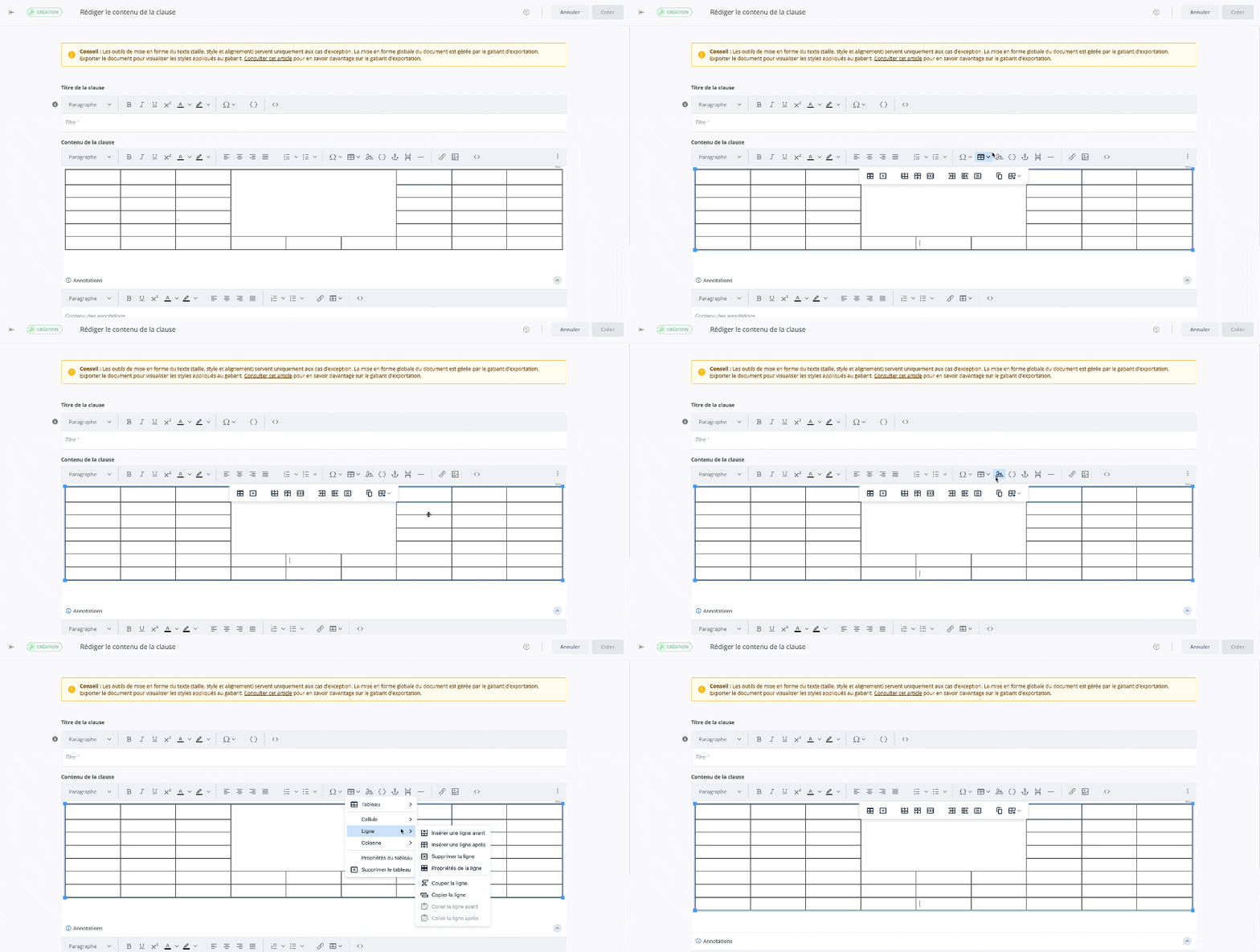
In the table, click a cell in the row before or after which you want to add a row.
-
In the text editing tool, click on Table
-
In the dropdown menu, hover over Row
-
In the dropdown submenu, click on Insert row before


-
A row will be added before or after.
It is also possible to insert a row from the toolbar that appears when you select the table:
-
In the table, click a cell in the row before or after which you want to add a row.
-
In the toolbar, click the


-
A row will be added before or after.
Delete a row
-
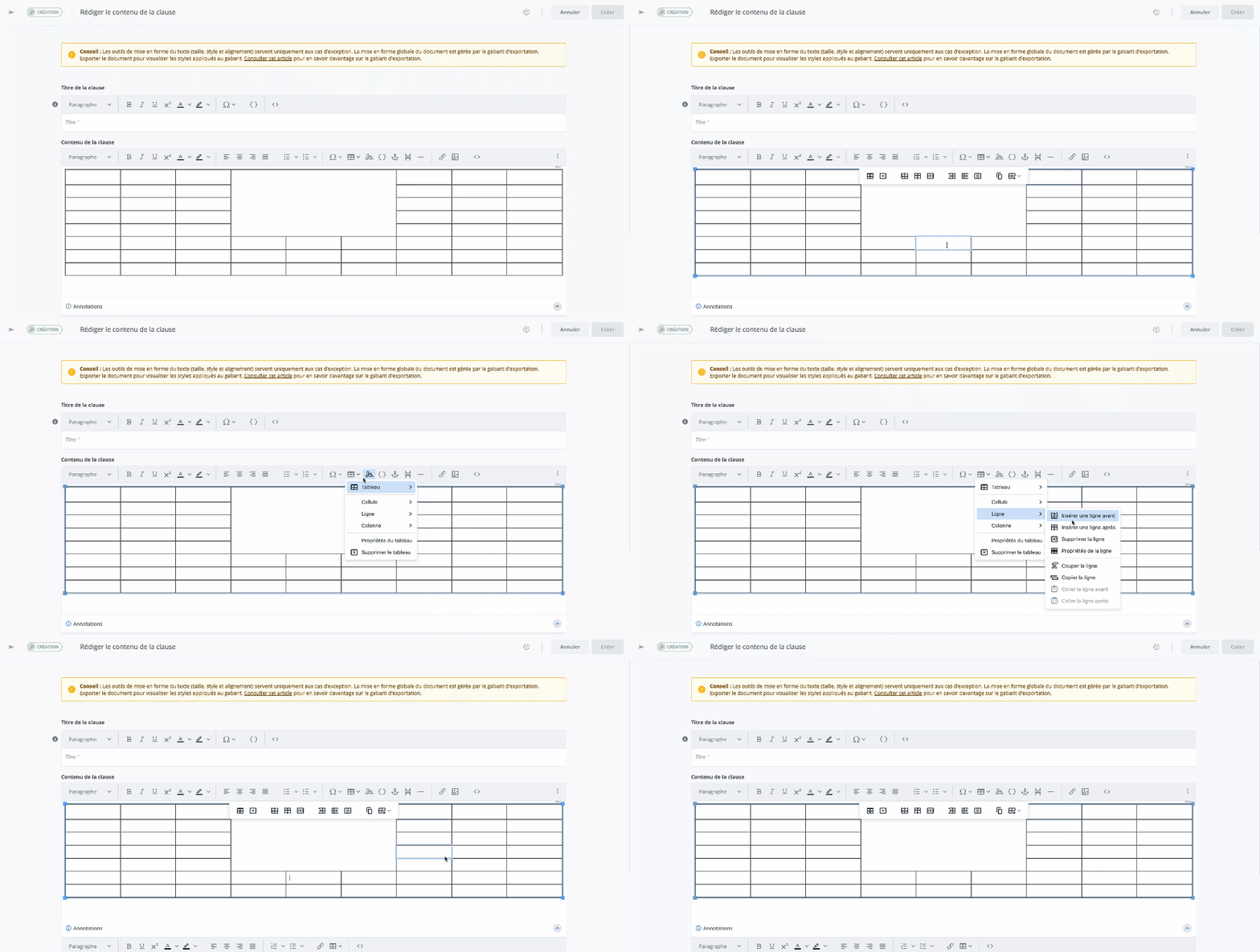
In the table, click a cell in the row you want to delete.
-
In the text editing tool, click on Table
-
In the dropdown menu, hover over Row
-
In the dropdown submenu, click on Delete row

-
The row will be deleted.
It is also possible to delete a row from the toolbar that appears when you select the table:
-
In the table, click a cell in the row you want to delete.
-
In the toolbar, click on

Cut the row
-
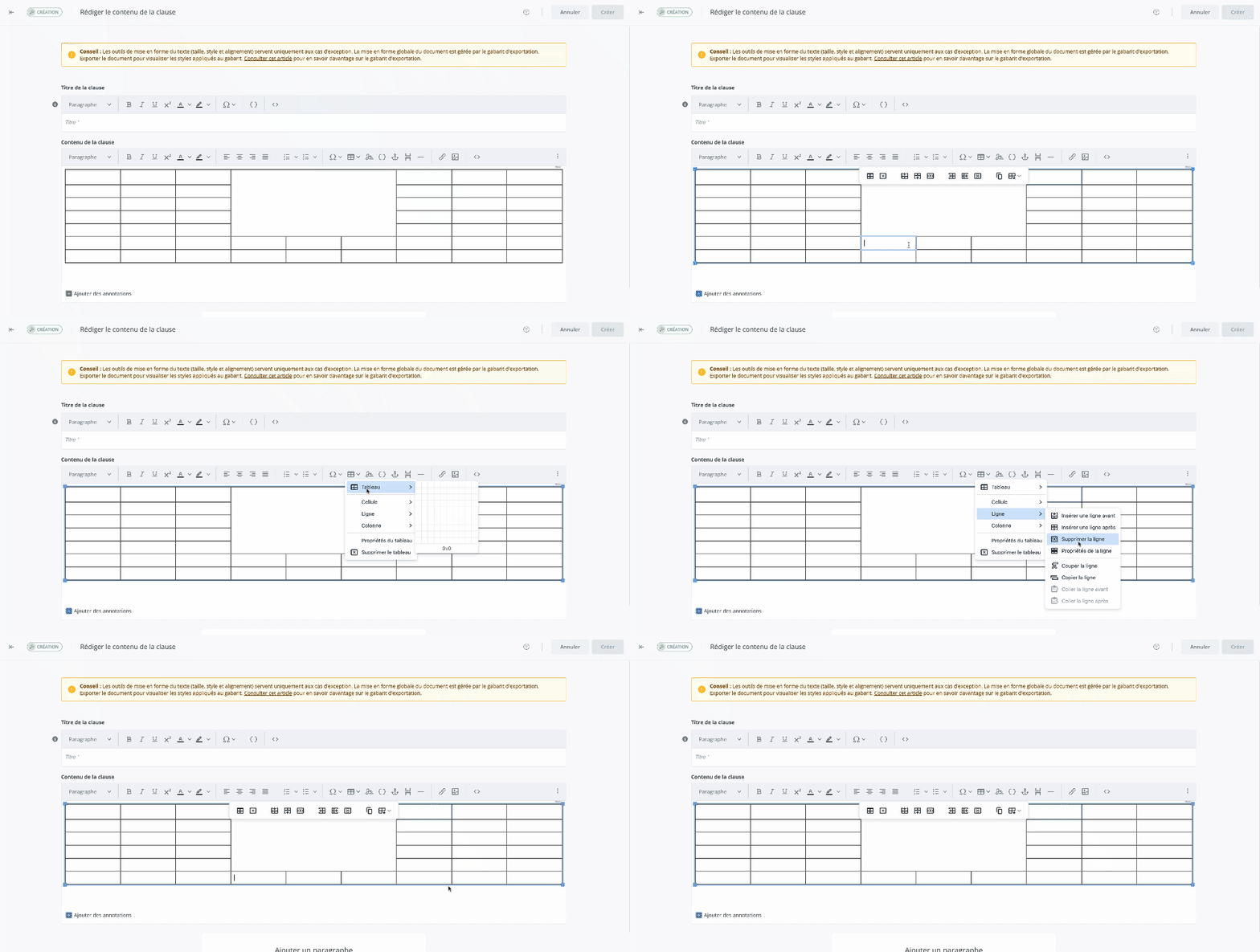
In the table, click a cell in the row you want to cut.
-
In the text editing tool, click Table
-
In the dropdown menu, hover over Row
-
In the dropdown submenu, click Cut row

-
The row will be cut.
Copy the row
-
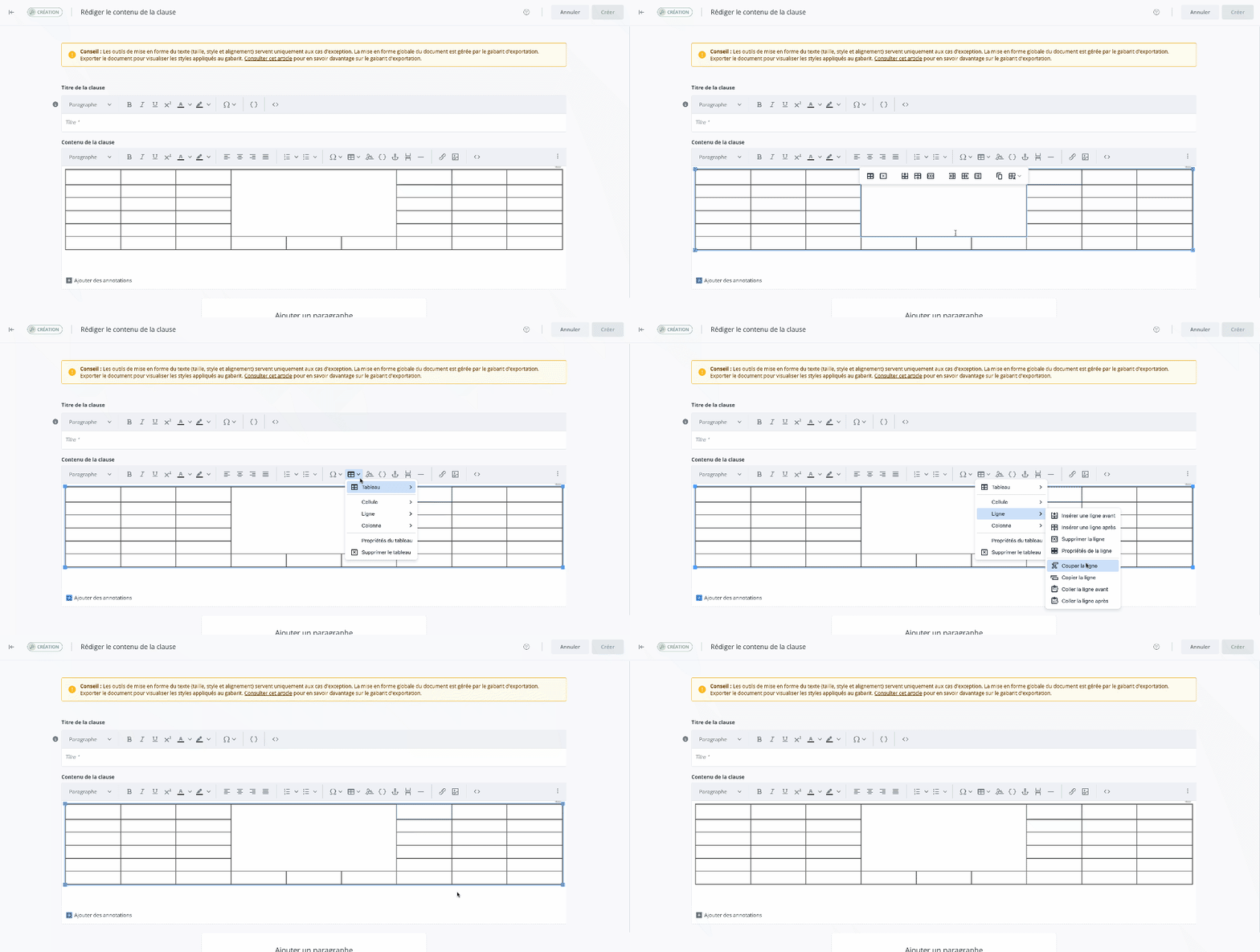
In the table, click a cell in the row you want to copy.
-
In the text editing tool, click Table
-
In the dropdown menu, hover over Row
-
In the dropdown submenu, click Copy row

-
The row will be copied.
Paste row
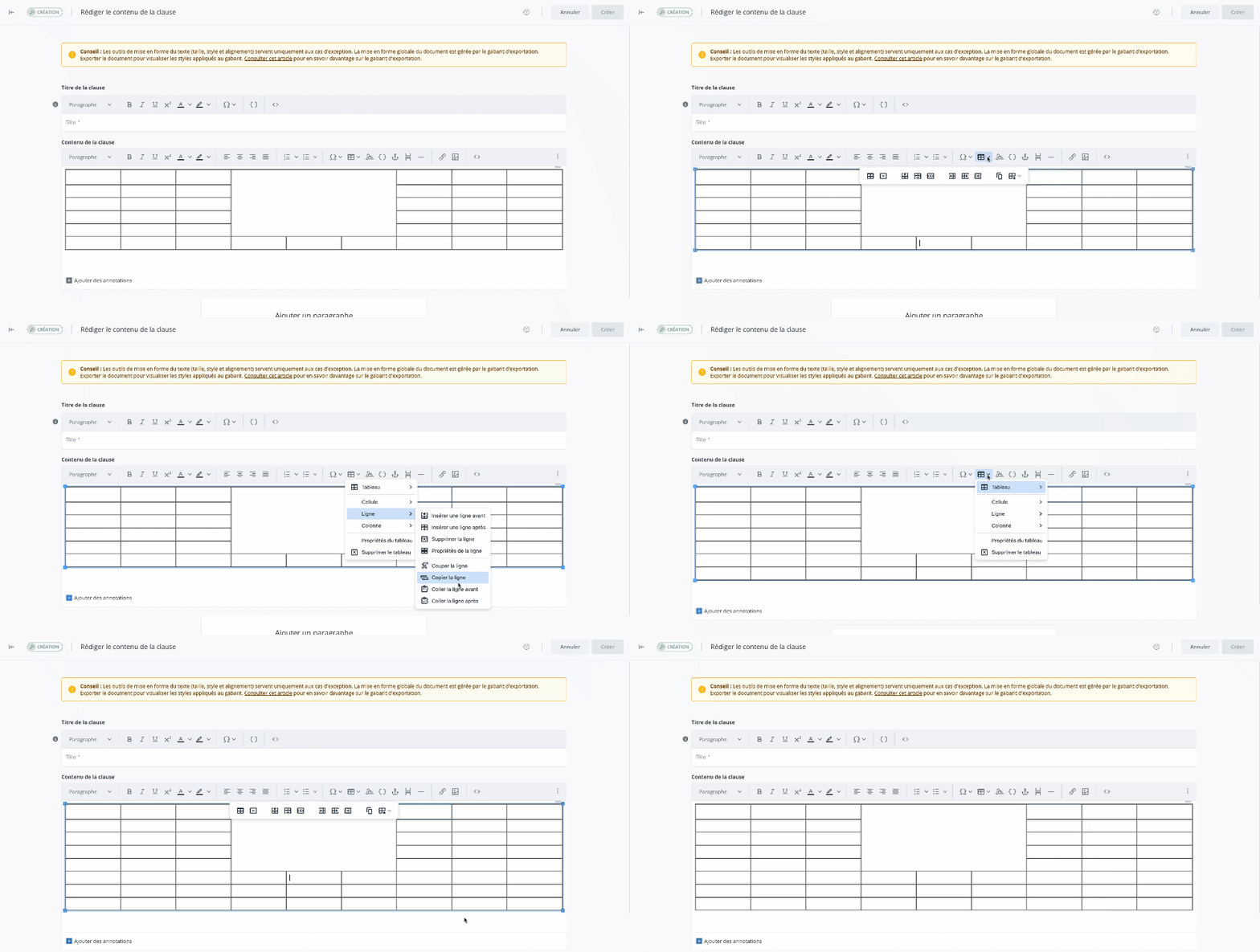
-
In the table, click a cell in the row you want to paste.
-
In the text editing tool, click Table
-
In the dropdown menu, hover over Row
-
In the dropdown submenu, click Paste row before


-
The row will be pasted.
Modify a column
Insert a column
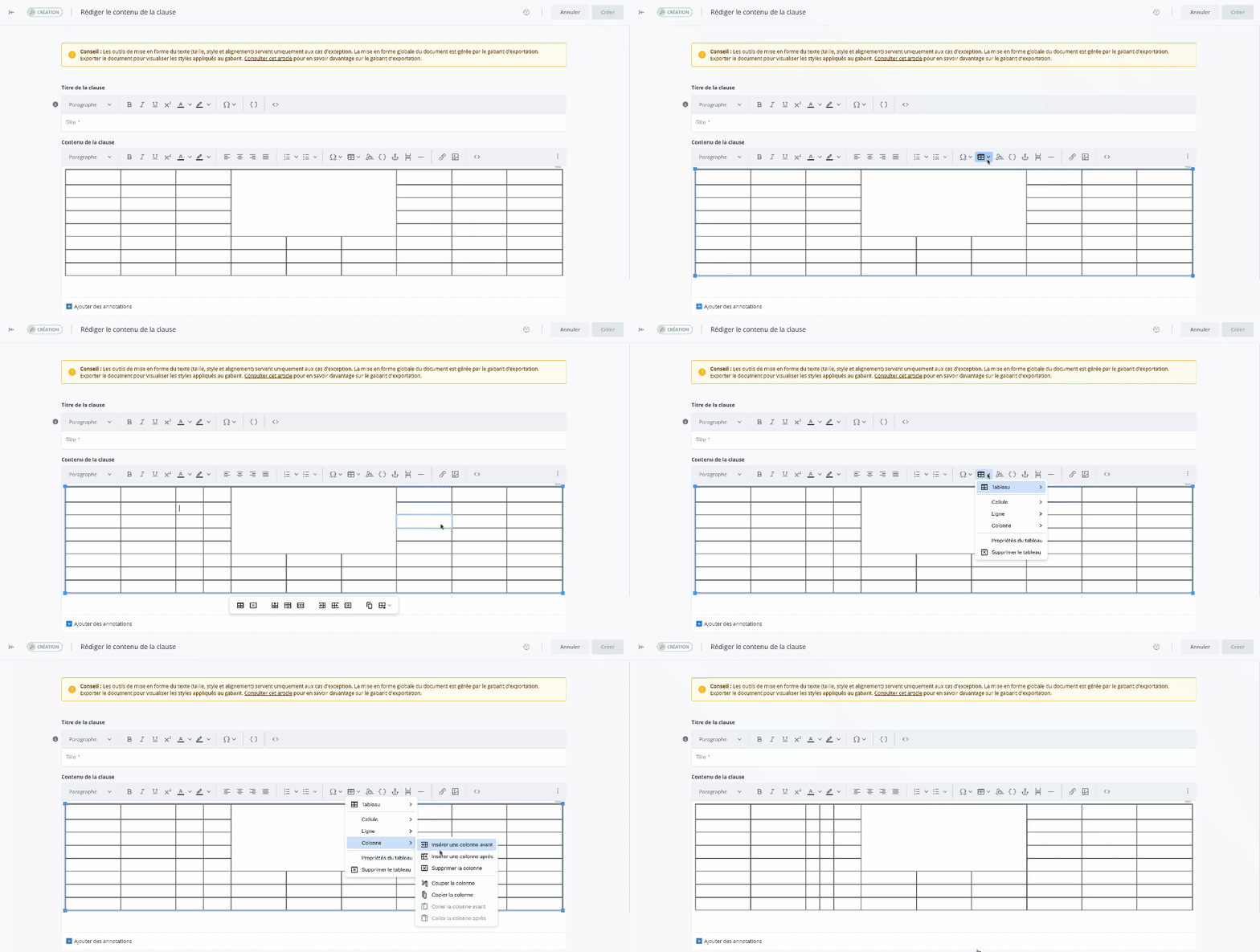
-
In the table, click a cell in the column before or after which you want to add a column.
-
In the text editing tool, click Table
-
In the dropdown menu, hover over Column

-
In the dropdown submenu, click Insert column before


-
A column will be added before or after.
It is also possible to insert a column from the toolbar that appears when you select the table:
-
In the table, click a cell in the column before or after which you want to add a column.
-
In the toolbar, click


-
A column will be added before or after.
Deletre a column
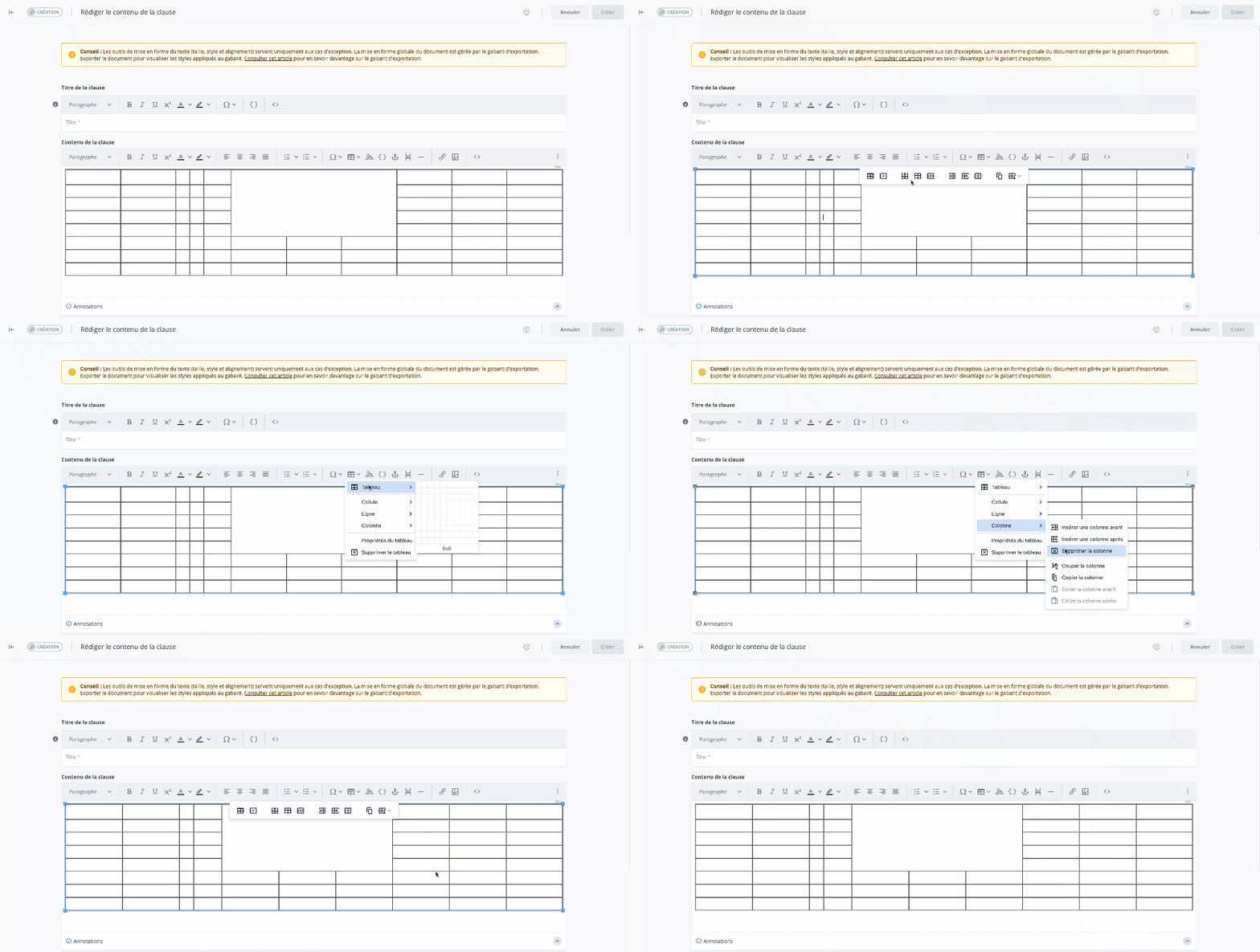
-
In the table, click a cell in the column you want to delete.
-
In the text editing tool, click Table
-
In the dropdown menu, hover over Column
-
In the dropdown submenu, click Delete ciolumn

-
The column will be deleted.
It is also possible to delete a column from the toolbar that appears when you select the table:
-
In the table, click a cell in the column you want to delete.
-
In the toolbar, click

-
The column will be deleted.
Cut the column
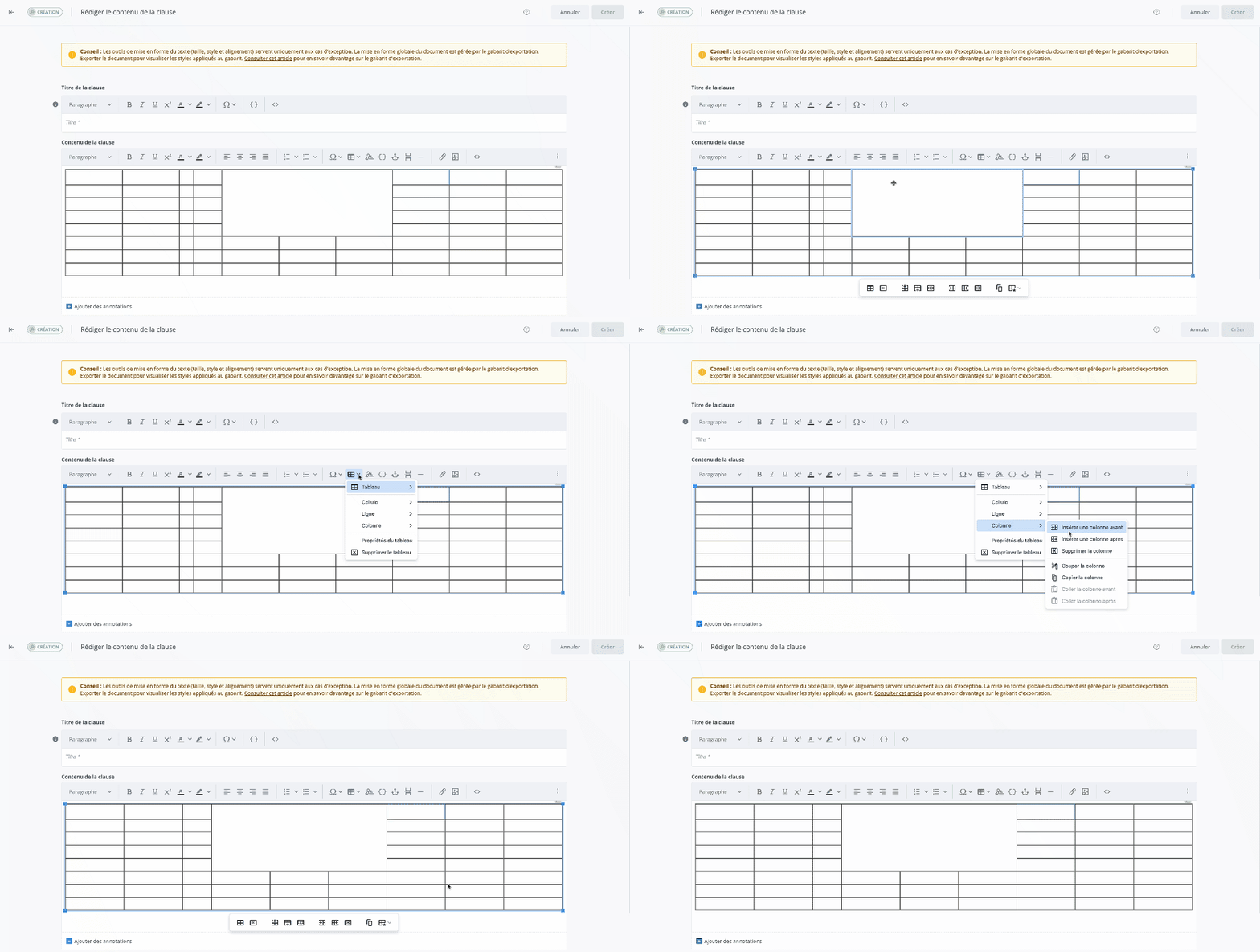
-
In the table, click a cell in the row you want to cut.
-
In the text editing tool, click Table
-
In the dropdown menu, hover over Column
-
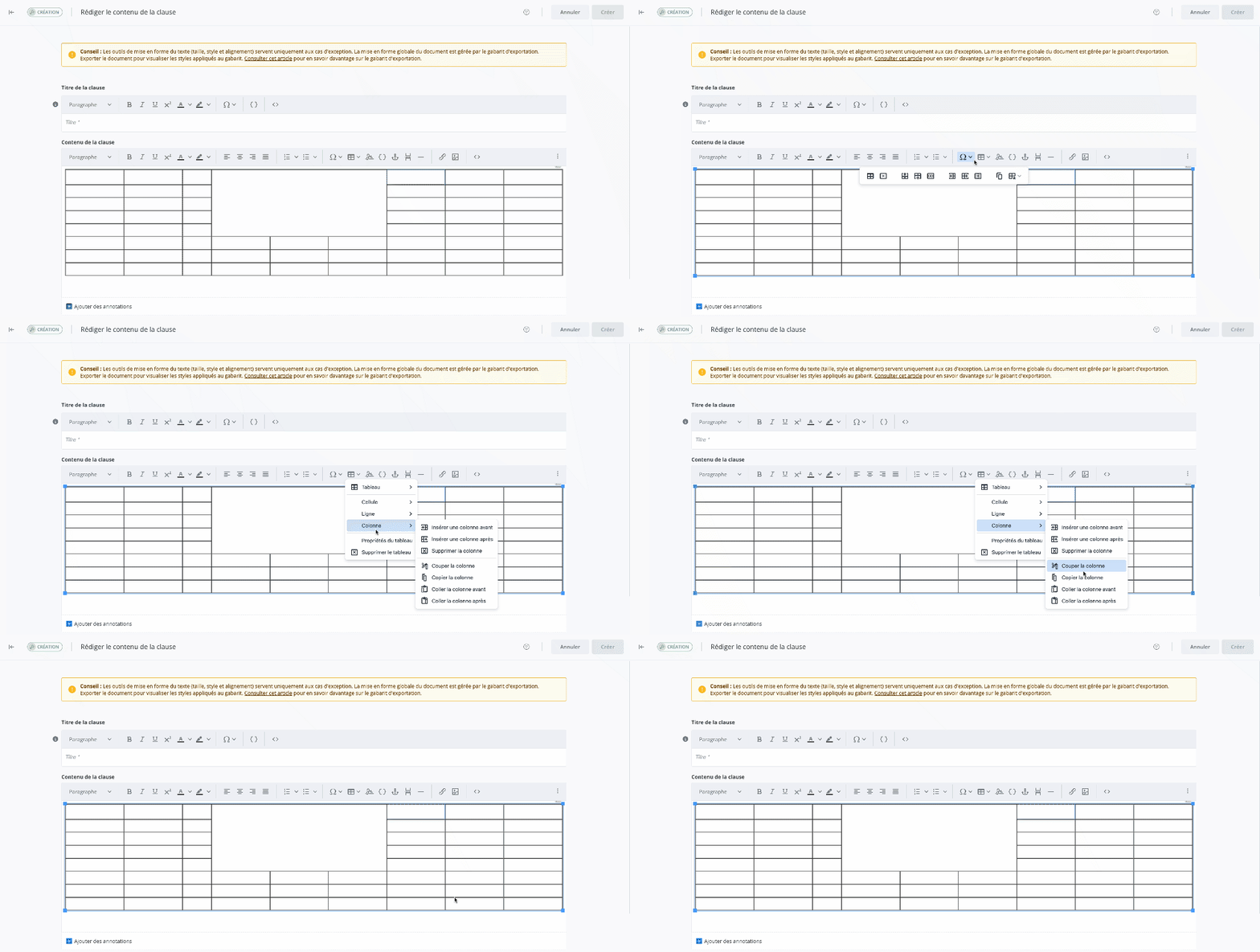
In the dropdown submenu, click Cut column

-
The column will be cut.
Copy column
-
In the table, click a cell in the row you want to copy.
-
In the text editing tool, click Table
-
In the dropdown menu, hover over Column
-
In the dropdown submenu, click Copy column

-
The column will be copied.
Paste column
-
In the table, click a cell in the column you want to paste.
-
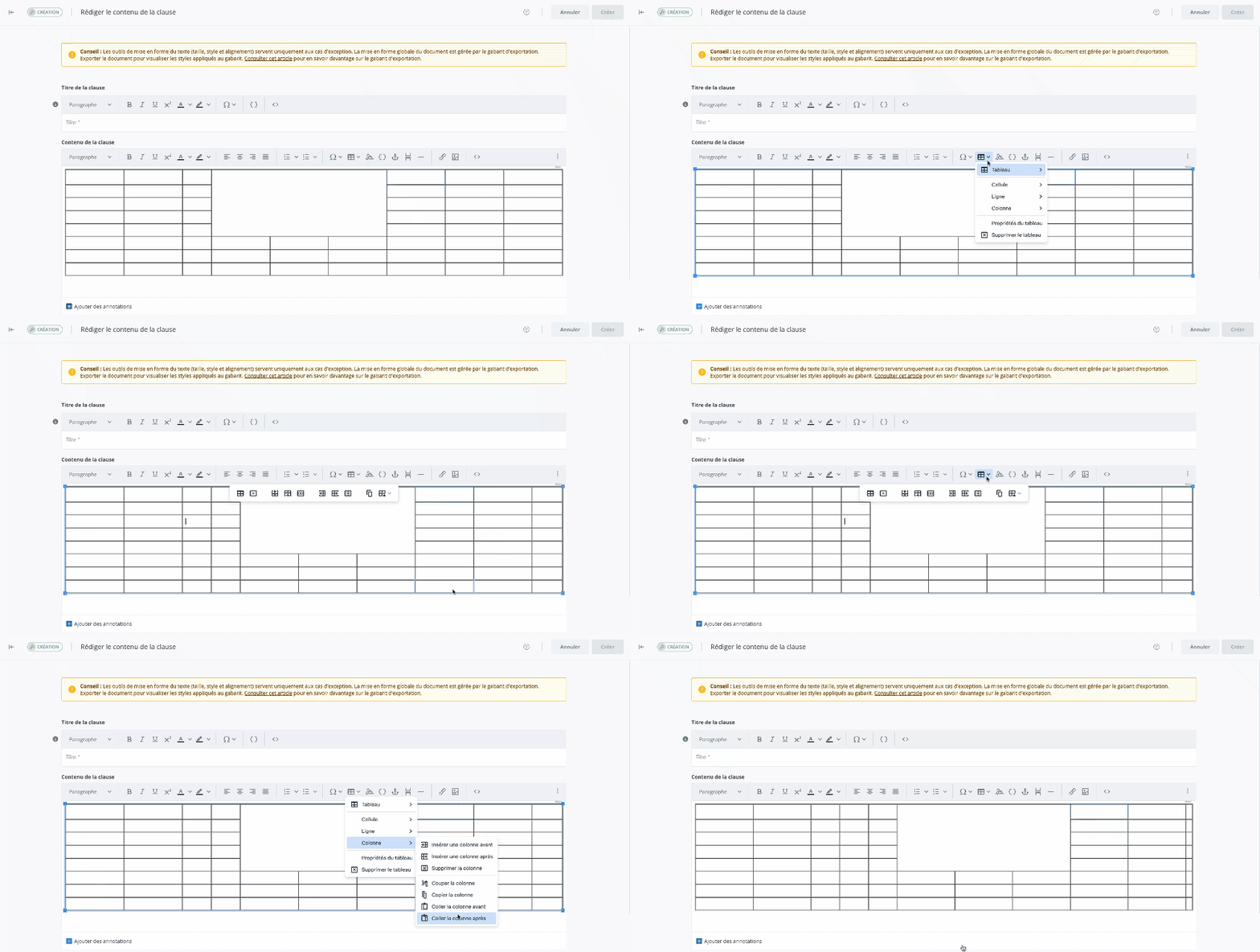
In the text editing tool, click Table
-
In the dropdown menu, hover over Column
-
In the dropdown submenu, click Paste column before


-
The column will be pasted.
Modify the entire table
Delete a table
-
Select the table by clicking any cell.
-
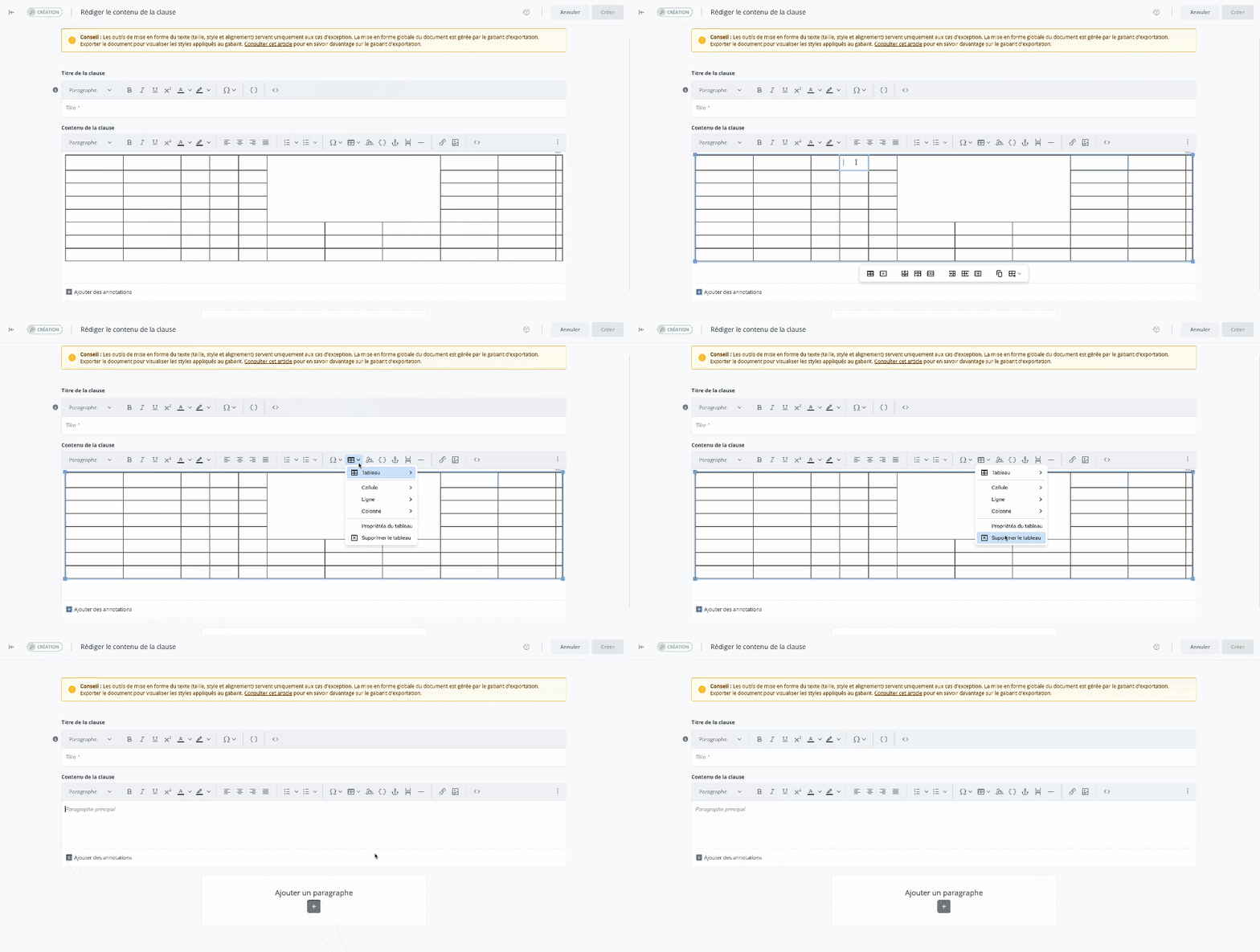
In the text editing tool, click Table
-
In the dropdown menu, hover over Delete table

-
The table will be deleted.
It is also possible to delete a table from the toolbar that appears when you select the table:
-
In the table, click any cell.
-
In the toolbar, click

-
The table will be deleted.
Modify table properties
-
In the table, click any cell.
-
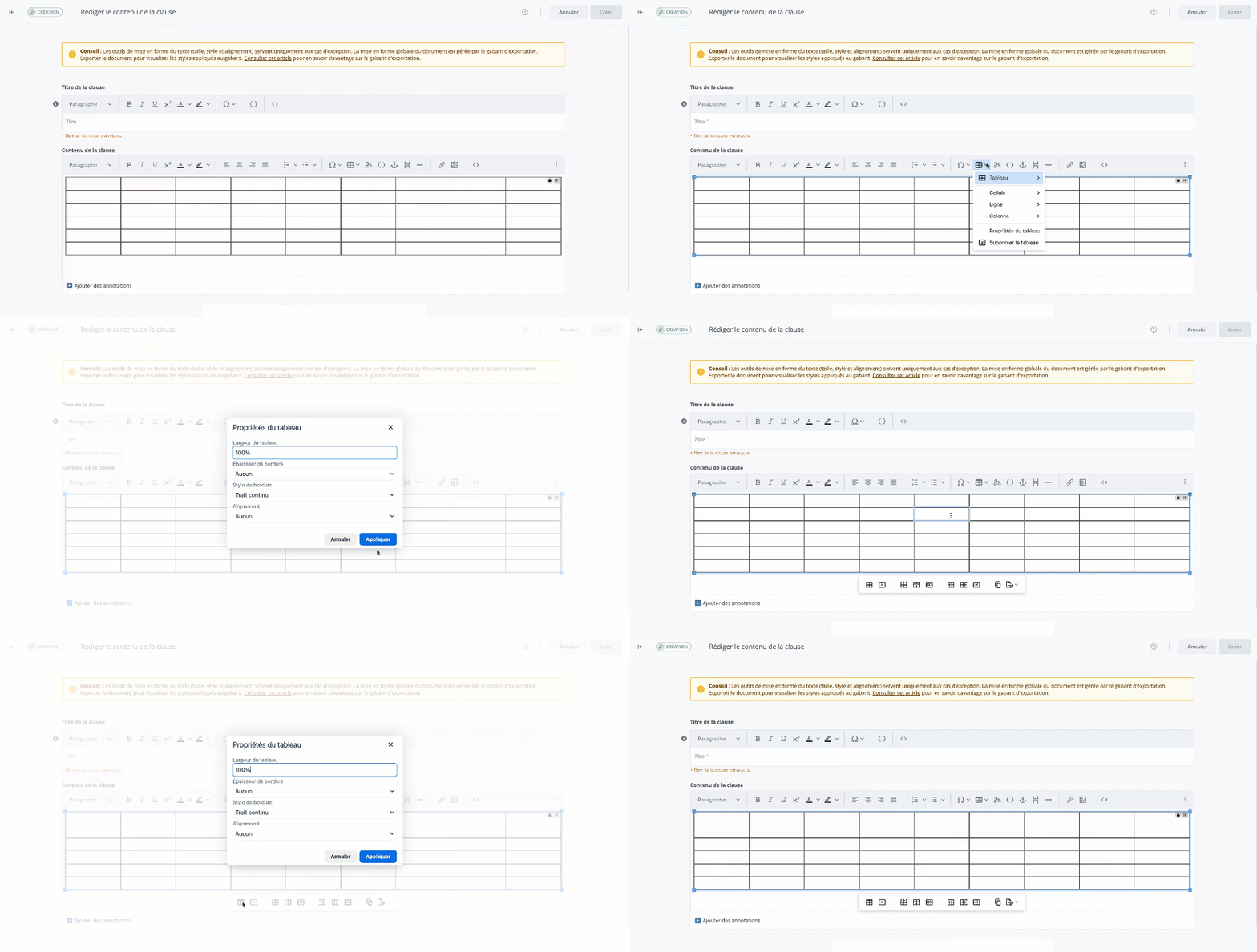
In the text editing tool, click Table
-
In the dropdown menu, click Table properties

-
The cell properties window opens.
It is also possible to access the table properties from the toolbar that appears when you select the table:
-
In the table, click any cell.
-
In the toolbar, click the on

-
The cell properties window opens.
Copy/paste table
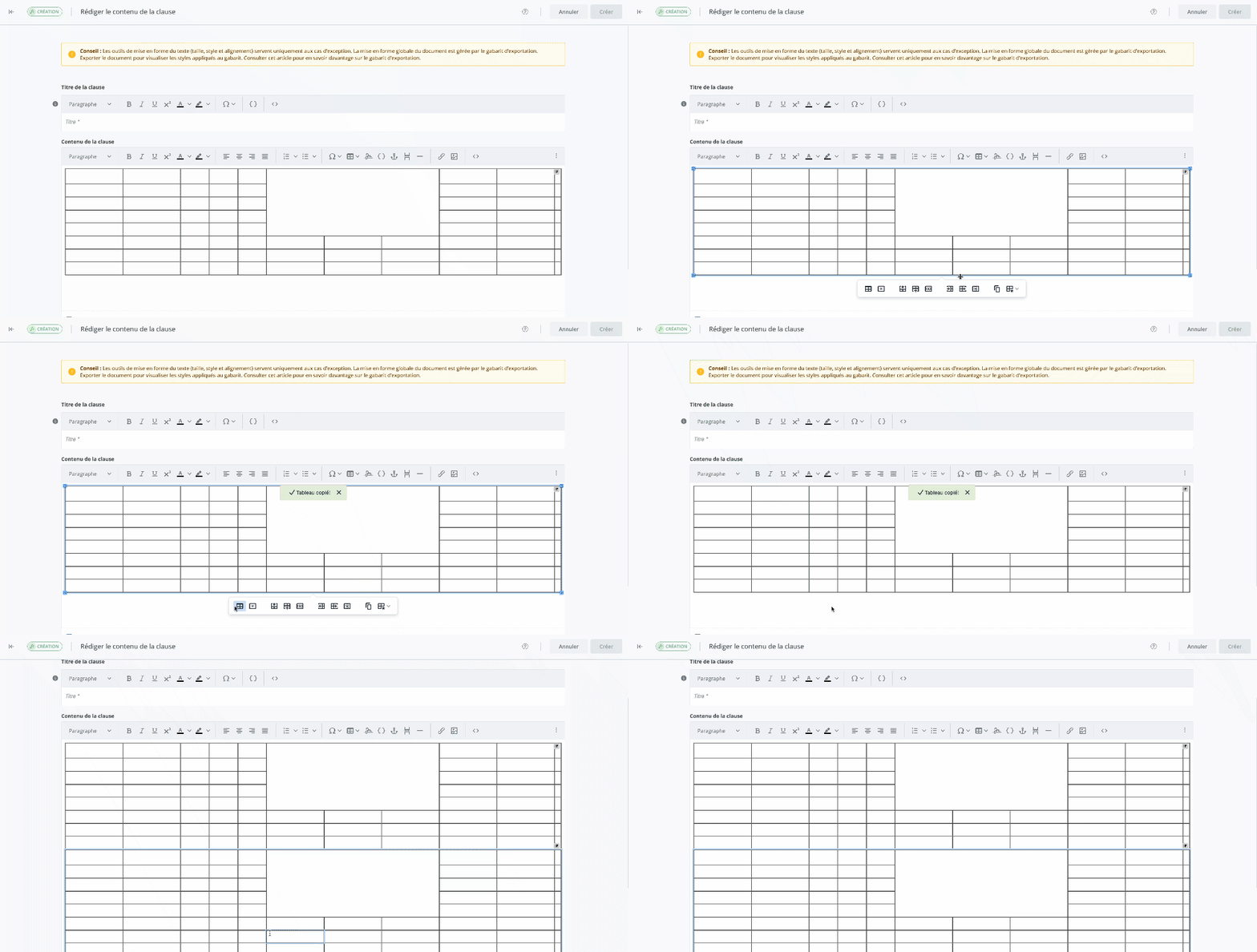
-
Select the table by clicking any cell.
-
In the table toolbar, click

-
On your keyboard, press CTRL + V to paste the table at the desired location, OR right-click your mouse and click Paste in the dropdown menu.
Apply export options
Indent table at export
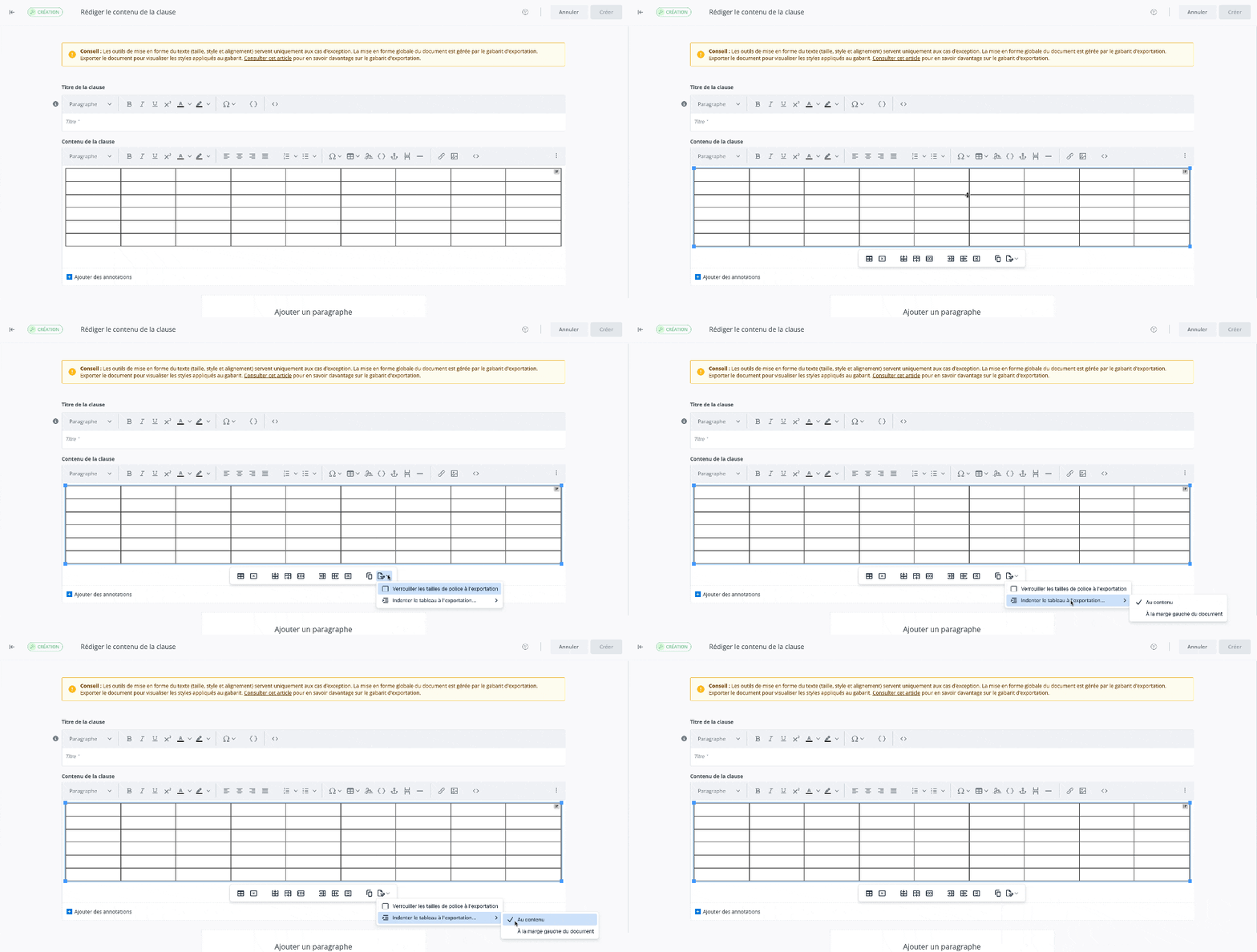
-
Select the table by clicking any cell.
-
-
In the dropdown menu, hover over Indent table at export

-
If you want to indent the table to the document's left margin, click With document left margin

-
If you want to indent the table to the content, click With content

-
By default, at export, the table is indented with the content.
Lock font size on export
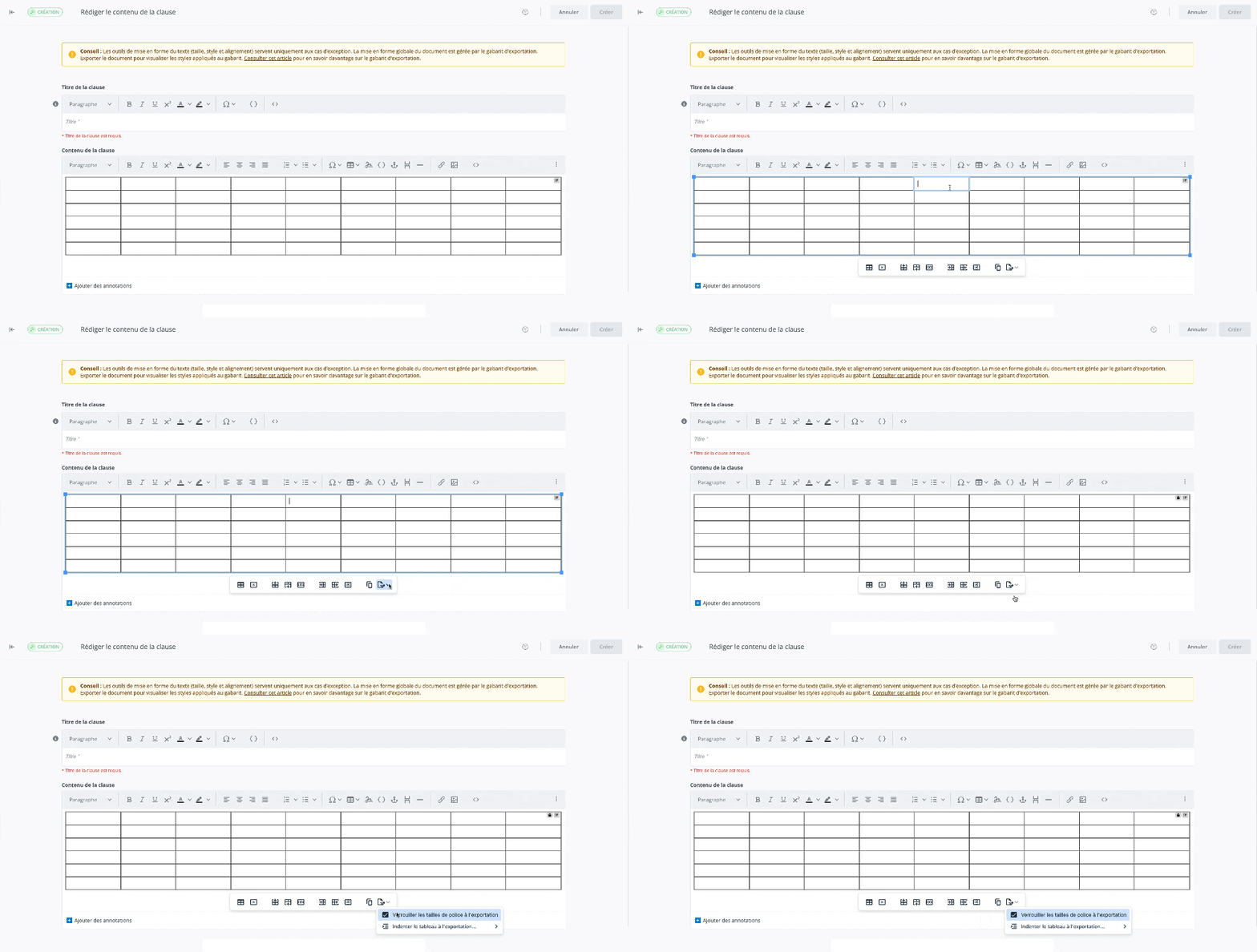
-
Select the table by clicking any cell.
-
In the table toolbar, click Export options

-
In the dropdown menu, click Lock font sizes on export

-
The font size will be locked on export.