
Description of the Feature
Allows you to add a cross-reference in the content; once added, these cross-references may be modified as follows:
-
copy-paste,
-
cut-paste,
-
put in bold,
-
put in italics,
-
underlign,
-
delete.
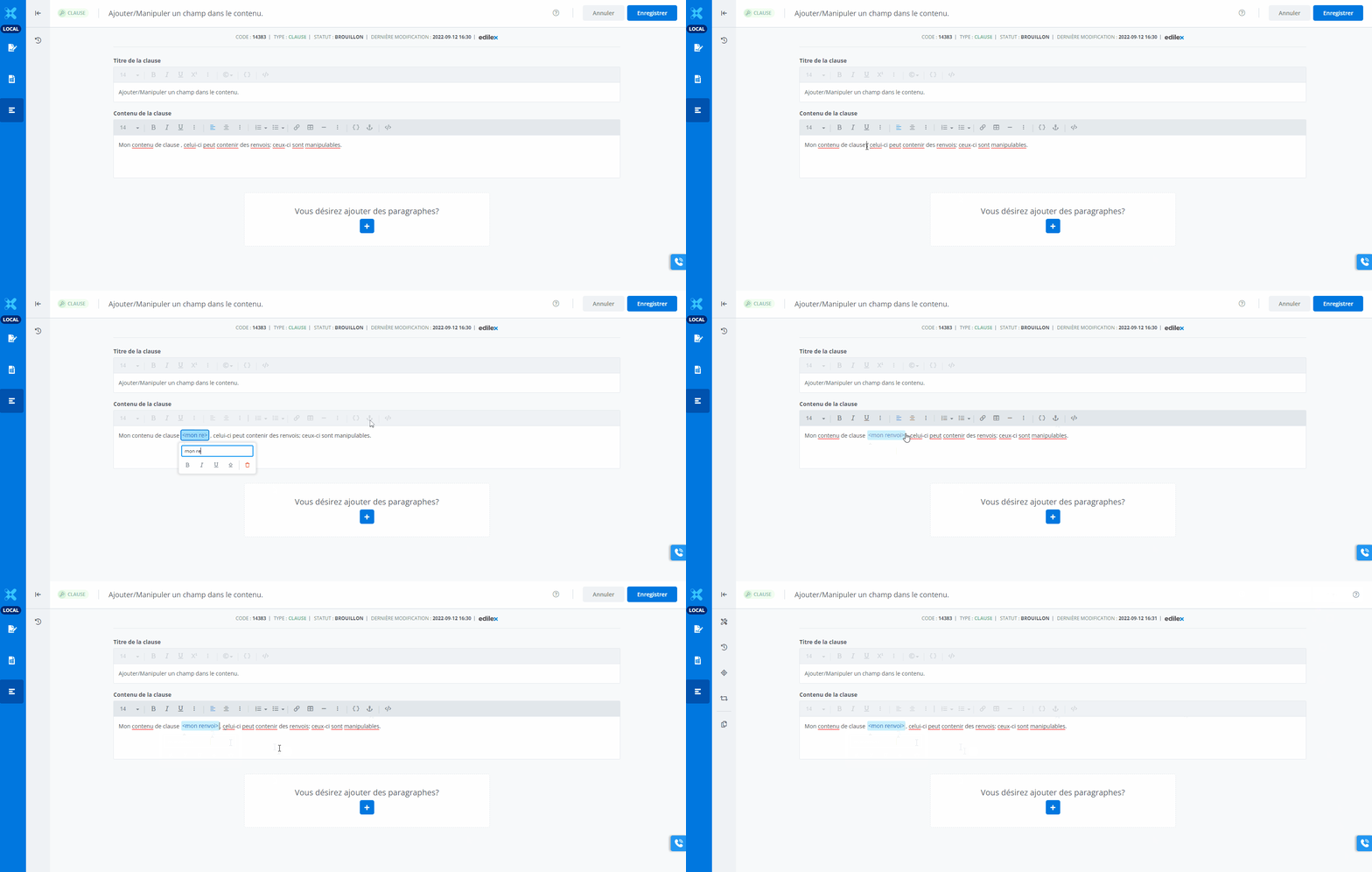
Unlike fields, cross-references do not open a new modal window; they are created directly in the content.
Copy-Paste
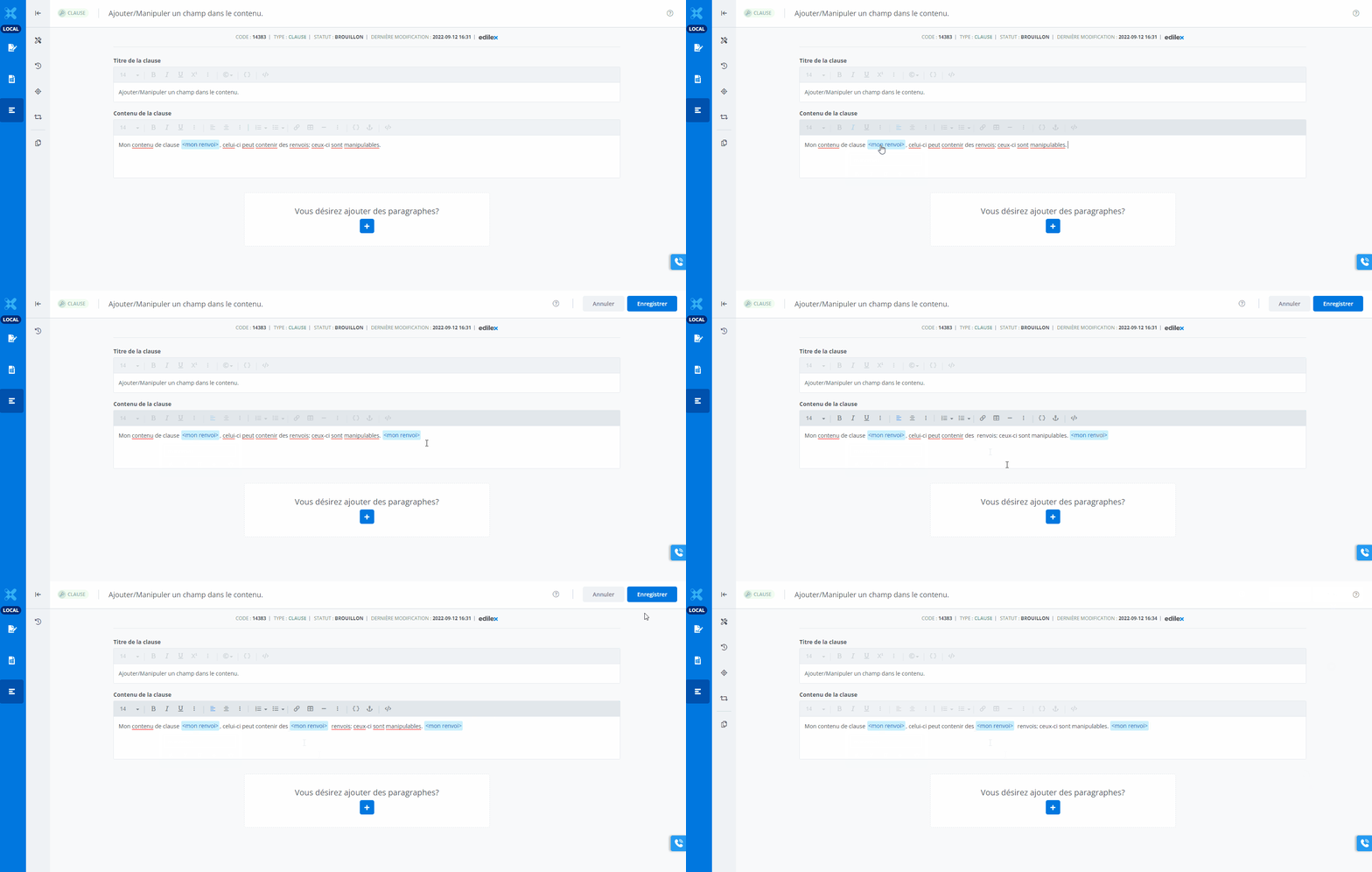
Using the following keybord shortcuts:
-
-
Cut → CTRL + C
(press down the keys simultaneously) -
Position the cursor in the exact position where the cross-reference should be pasted.
-
Paste → CTRL + V
(press down the keys simultaneously; the copied cross-reference will appear once the operation has been completed)
Note that a cross-reference may be copy-pasted as often as necessary.
Cut-Paste
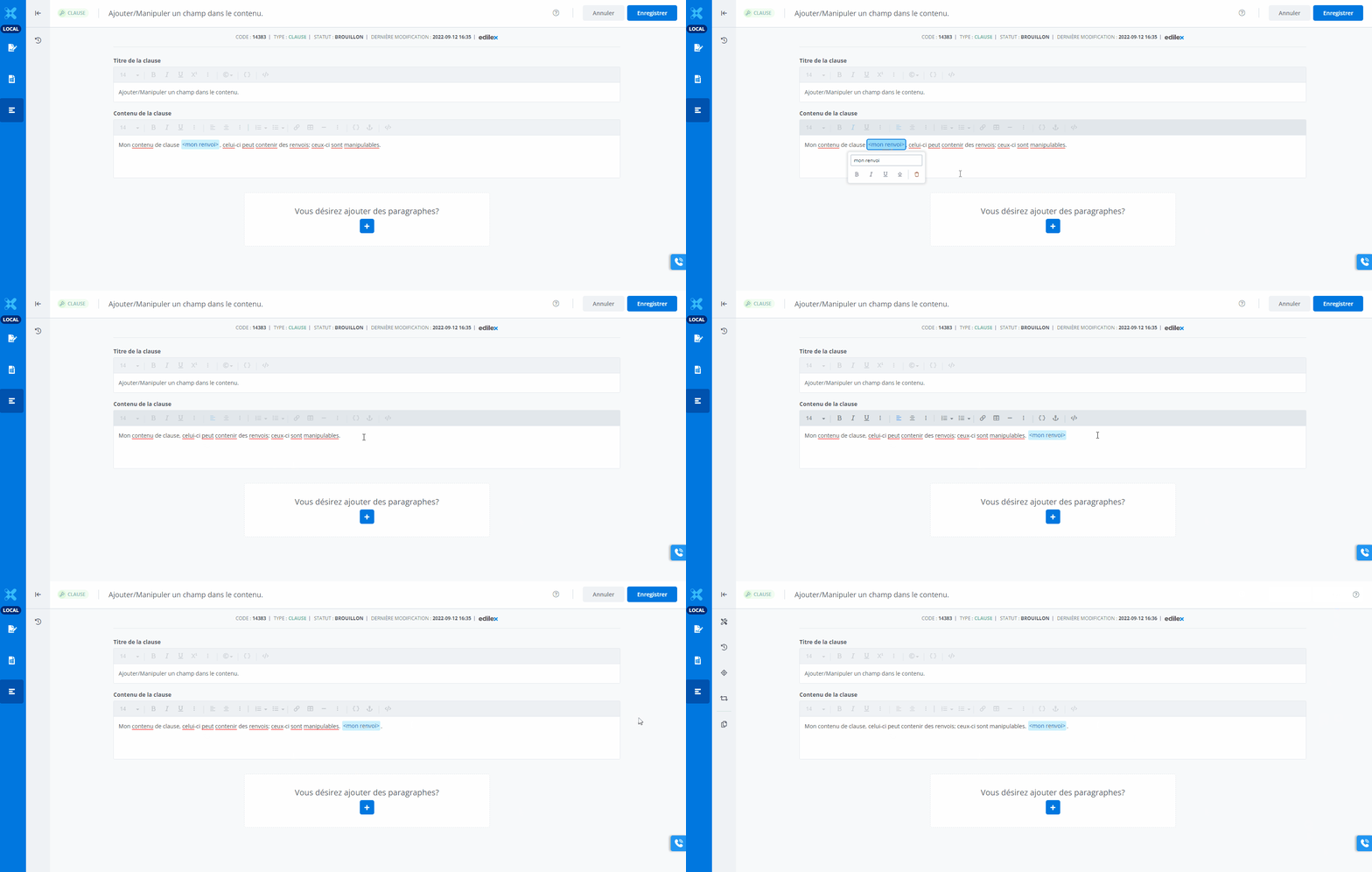
Using the following keybord shortcuts:
-
-
Cut → CTRL + X
(press down the keys simultaneously; the field cross-reference disappear once the operation has been completed) -
Position the cursor in the exact position where the cross-reference should be pasted.
-
Paste → CTRL + V
(press down the keys simultaneously; the cross-reference will appear once the operation has been completed)
-
-
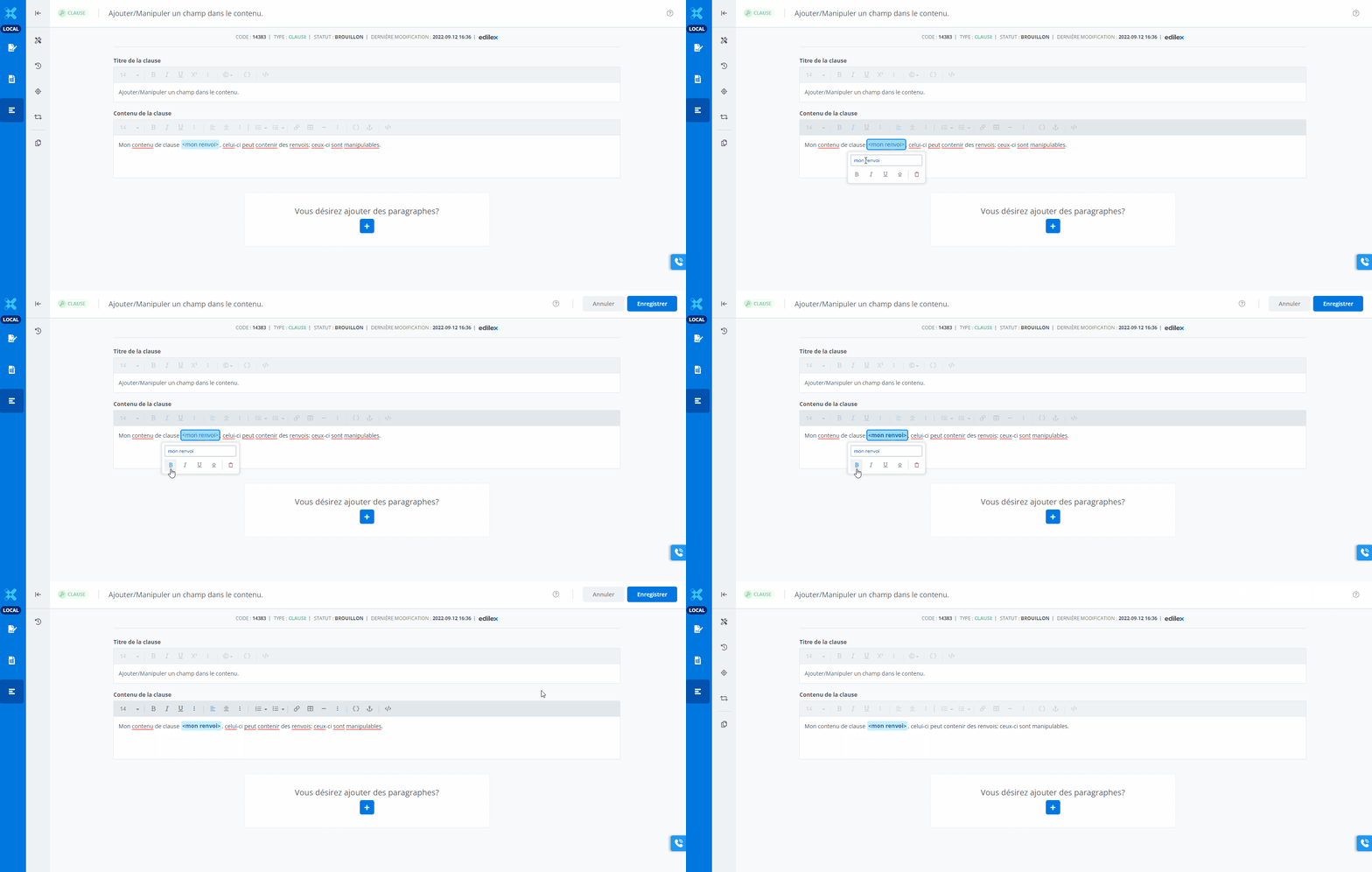
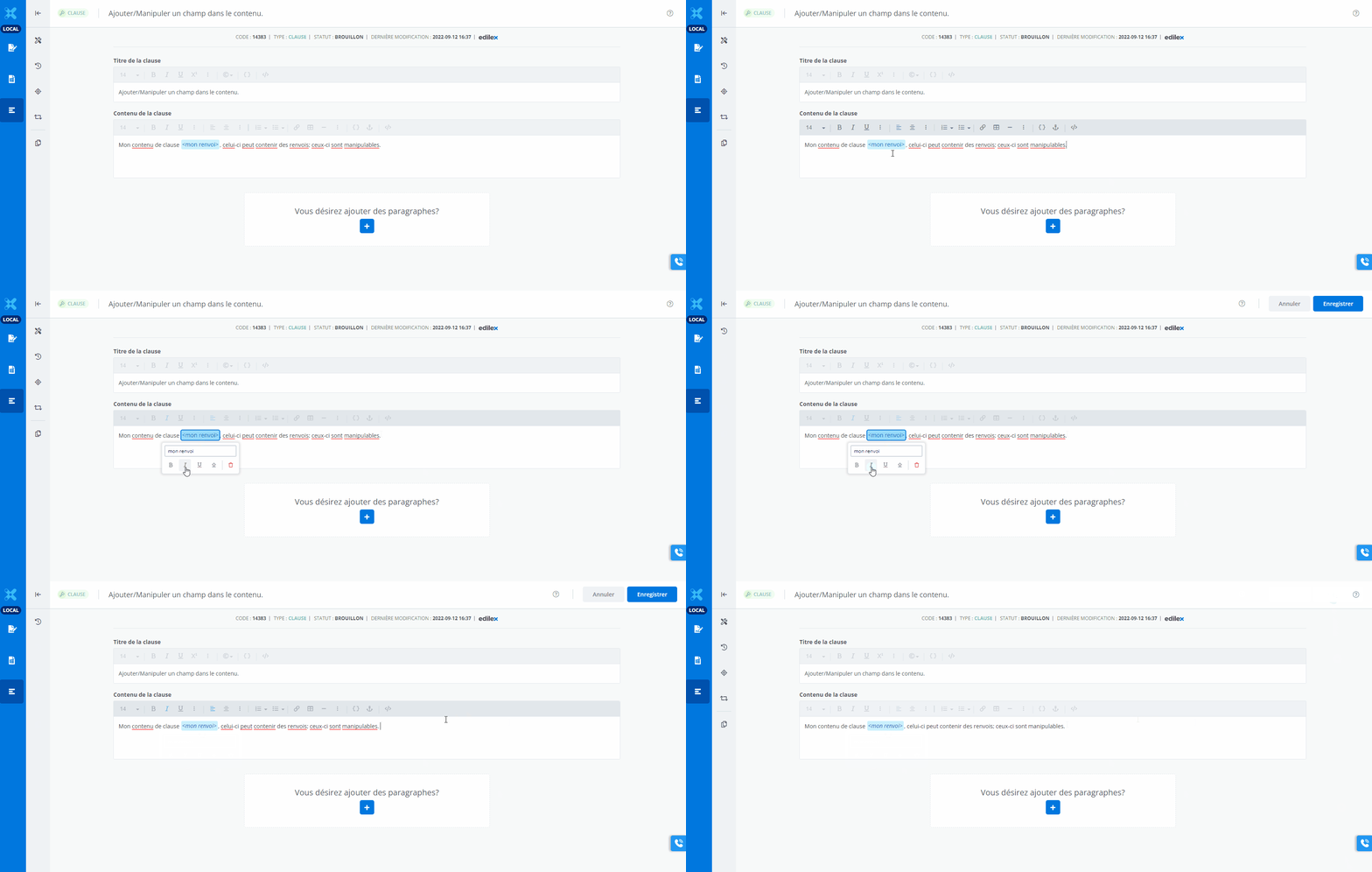
Click on the B (gras / bold) icon.
-
The cross-reference is now in bold
-
-
Click on the i (italique / italic) icon.
-
The cross-reference is now in italics.
Underlign the cross-reference
-
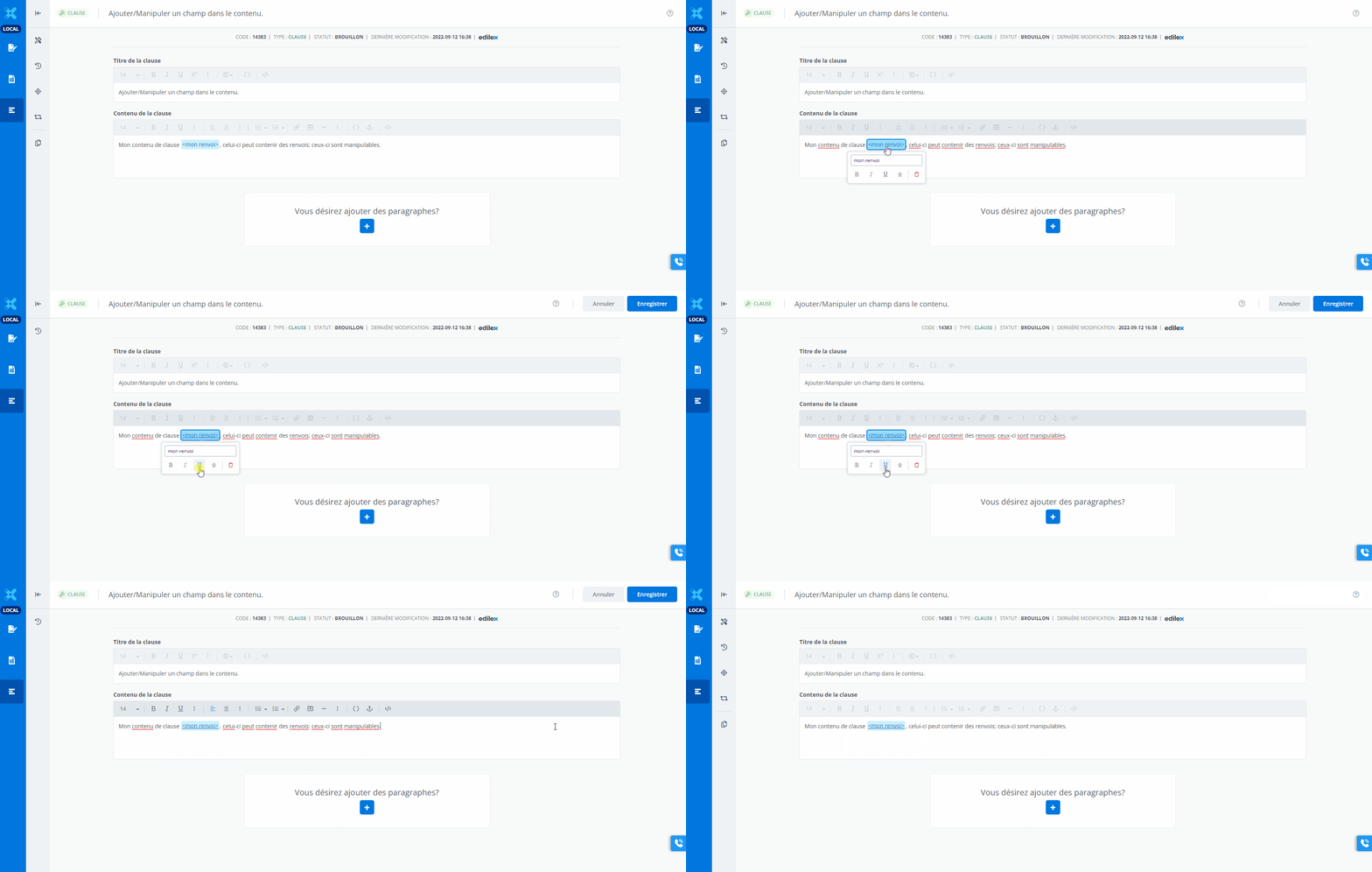
Select the cross-reference in the content.
(a contextual menu will appear) -
Click on the U (souligner / underline) icon.
-
The cross-reference is now underligned.
-
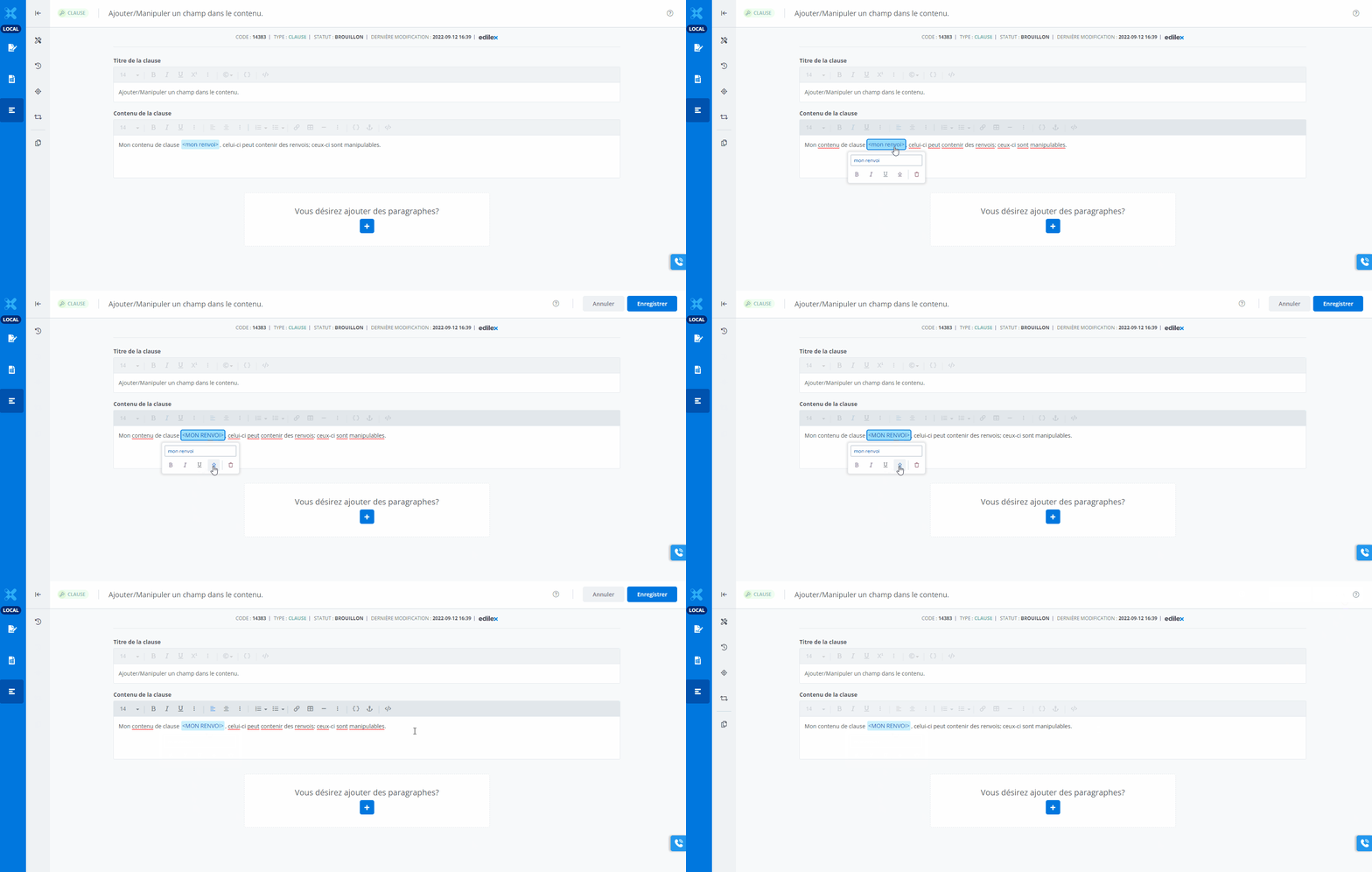
Select the cross-reference in the content
(a contextual menu will appear). -
Click on the ↑ (majuscule / uppercase) icon.
-
The cross-reference is now in italics.
-
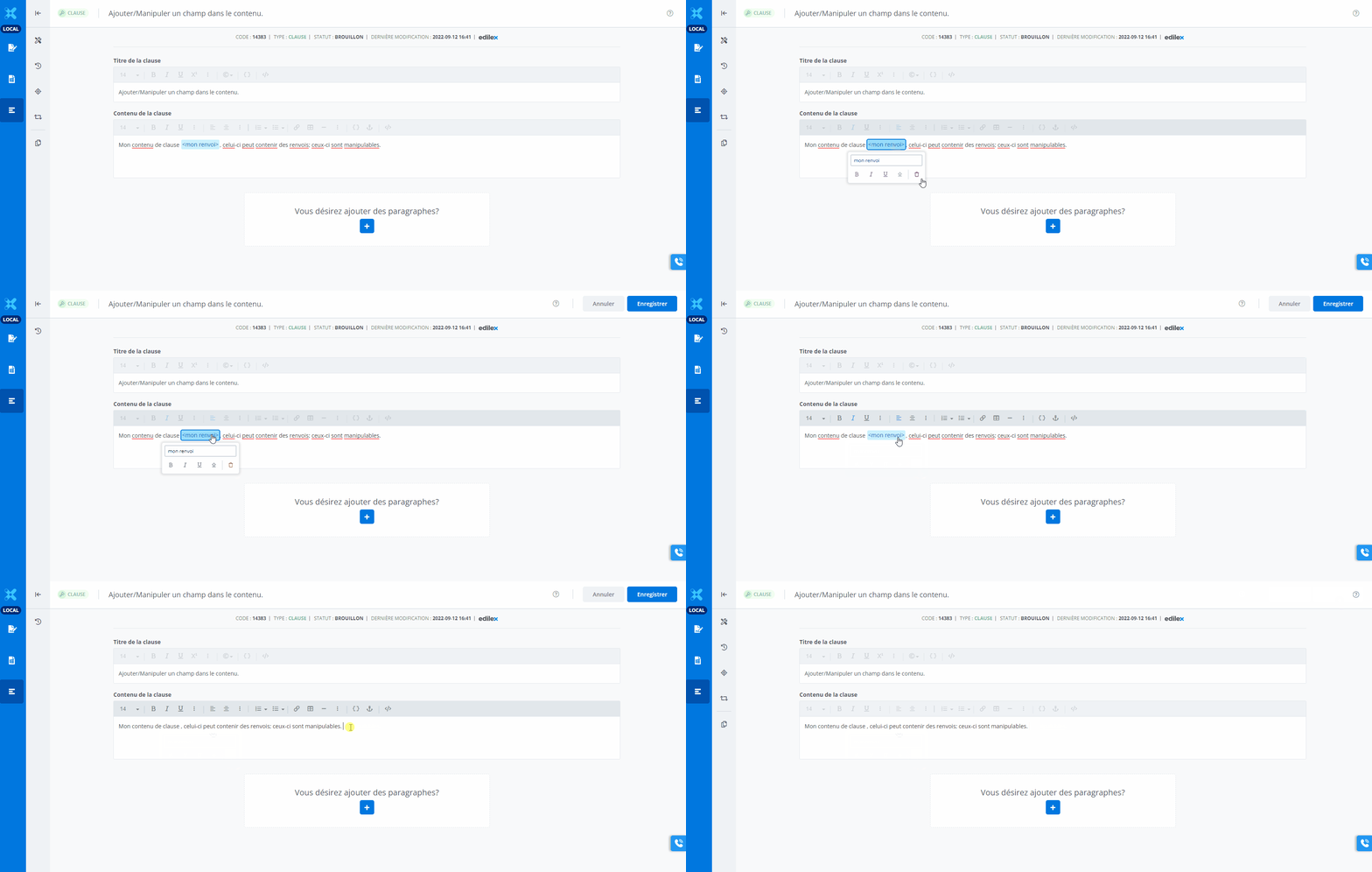
Select the cross-reference in the content
(a contextual menu will appear). -
Click on the Garbage (supprimer / delete) icon.
(Note that in the example above, this action is manually cancelled using the CTRL + Z keyboard shortcut) -
The cross-reference has now been deleted.
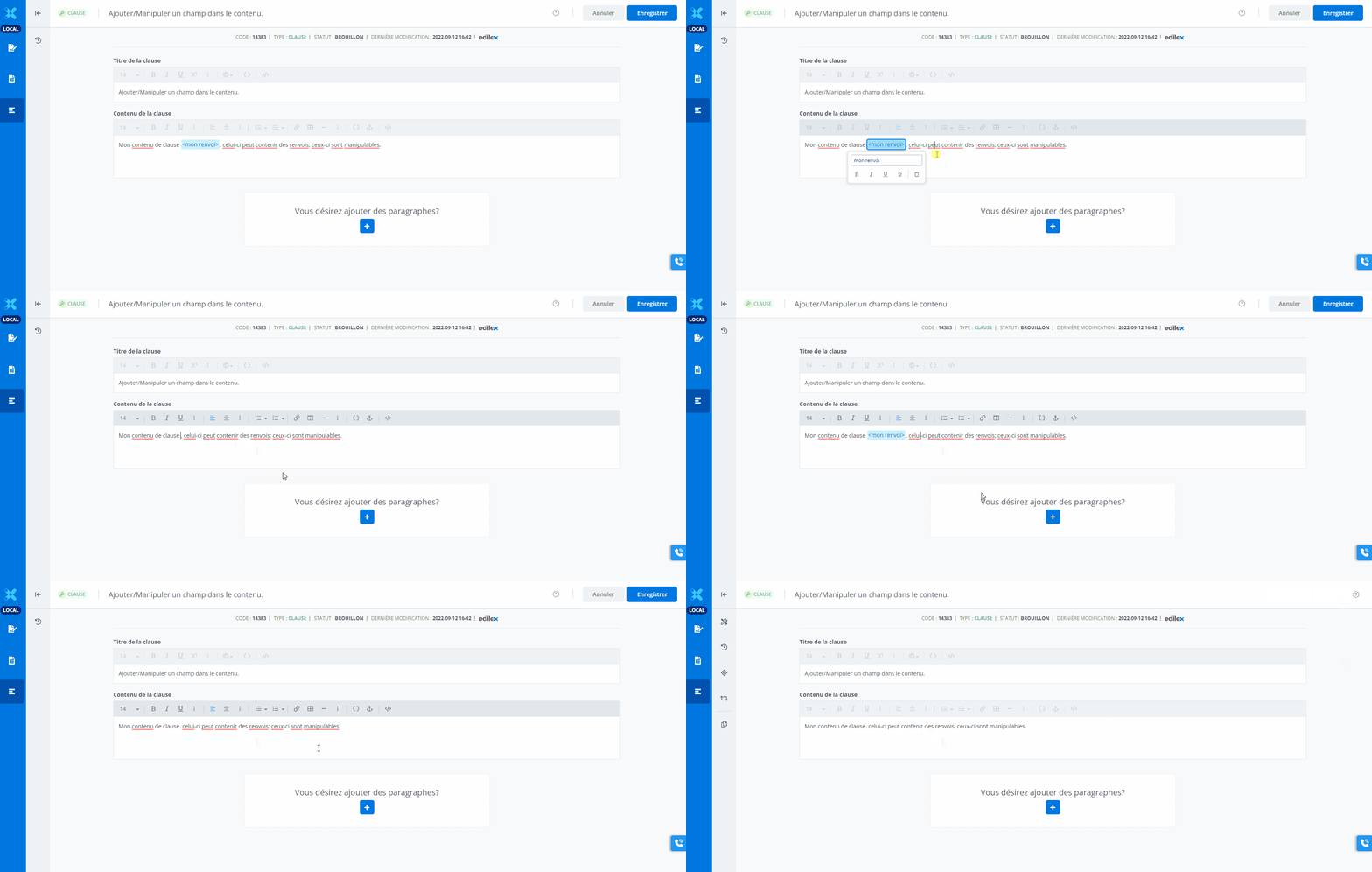
using the keyboard shortcuts
“ ← “
-
Place the cursor just after the cross-reference in the content.
(a contextual menu will appear) -
Press once on the ← key.
The cross-reference has been selected. -
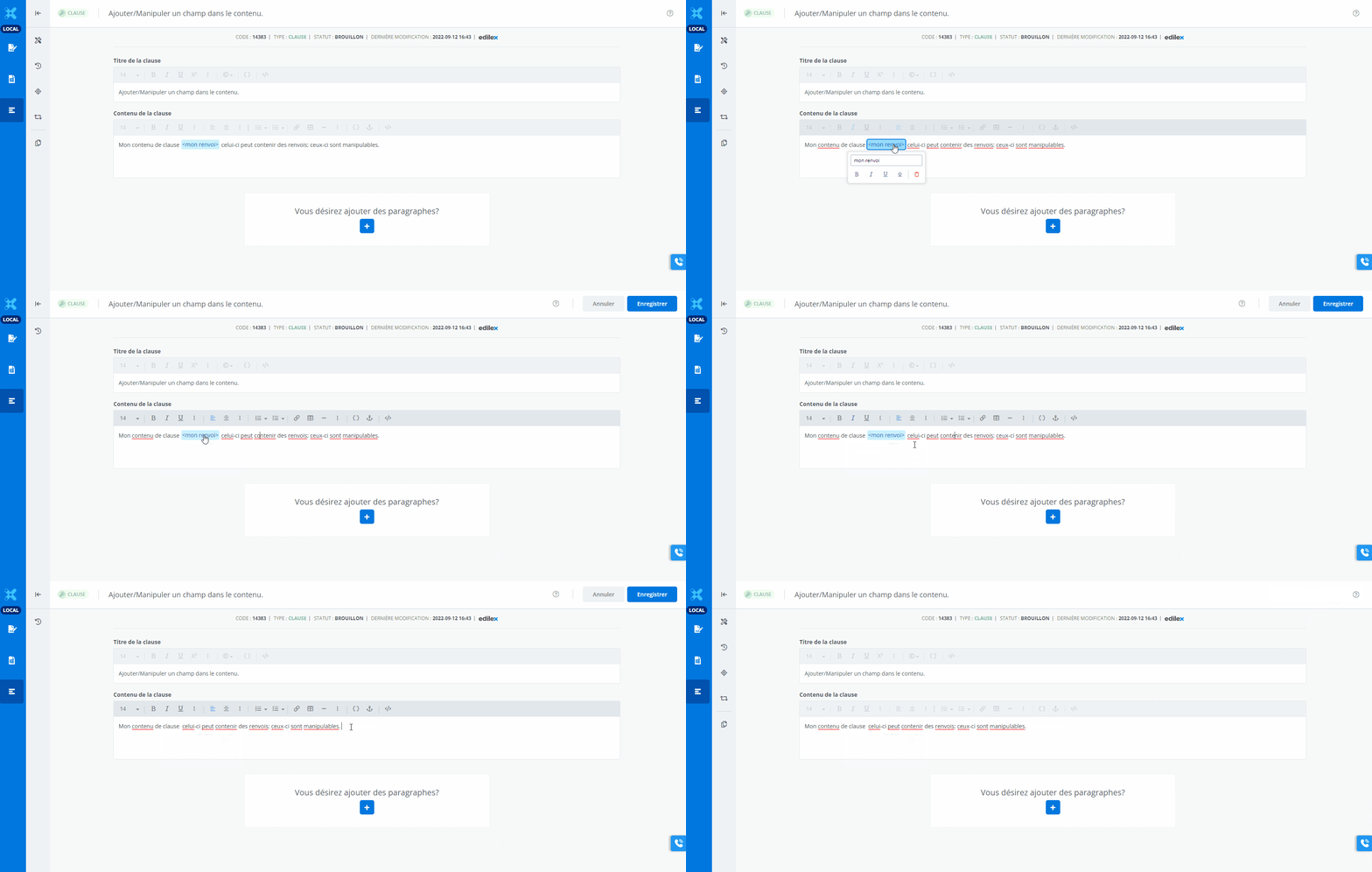
using the keyboard shortcuts
DEL
-
Place the cursor just after the cross-reference in the content
(a contextual menu will appear). -
Press once on the ← key.
The cross-reference has been selected. -