
Description of the Feature
This feature allows users with access to validate, update and publish several templates simultaneously, and to schedule their publication for a later time.
Access to Feature
In the template library, the Batch management button allows you to use this feature.
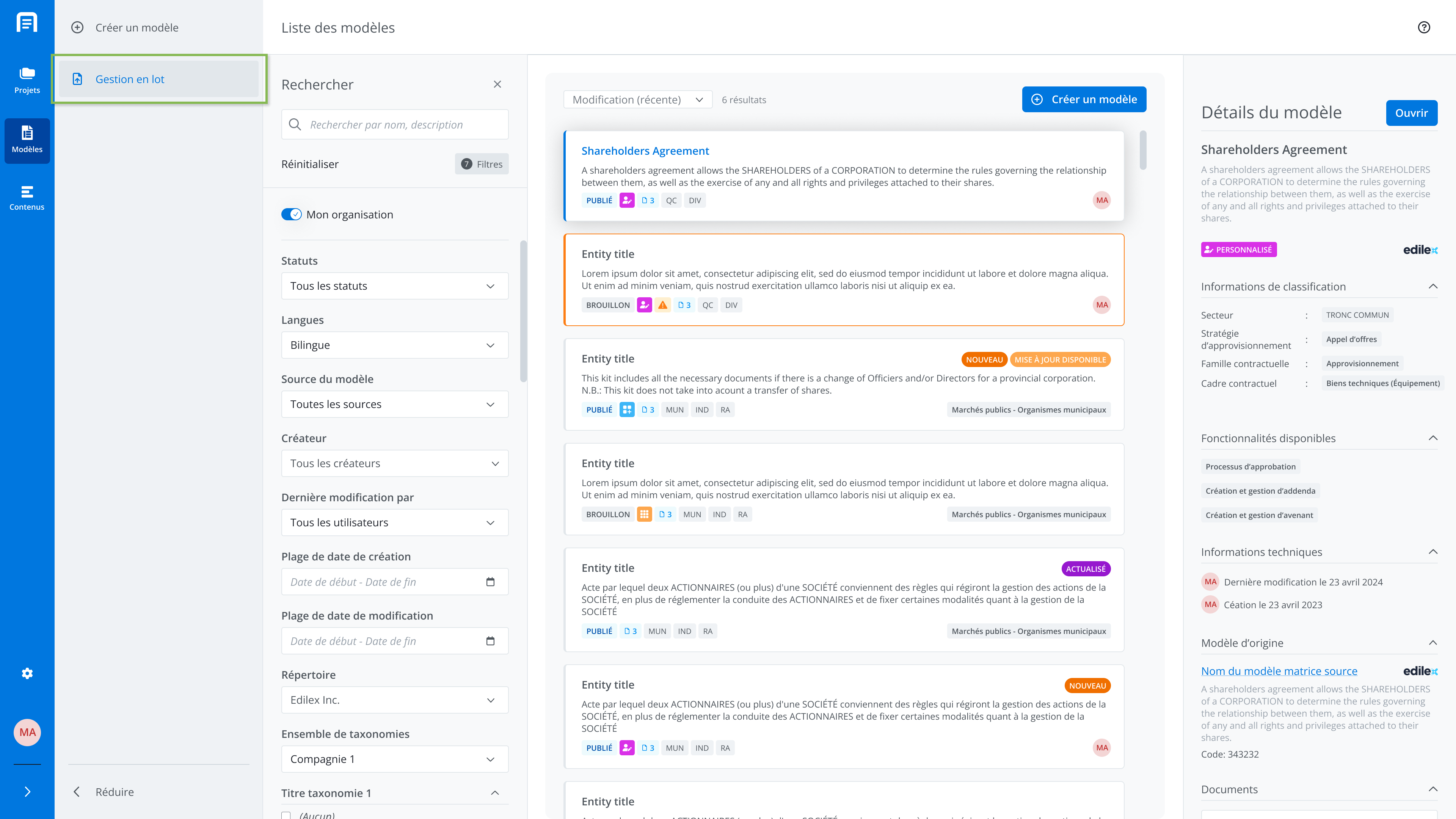
Batch management list
The batch management feature shows you all existing template batches from which batches can be created.
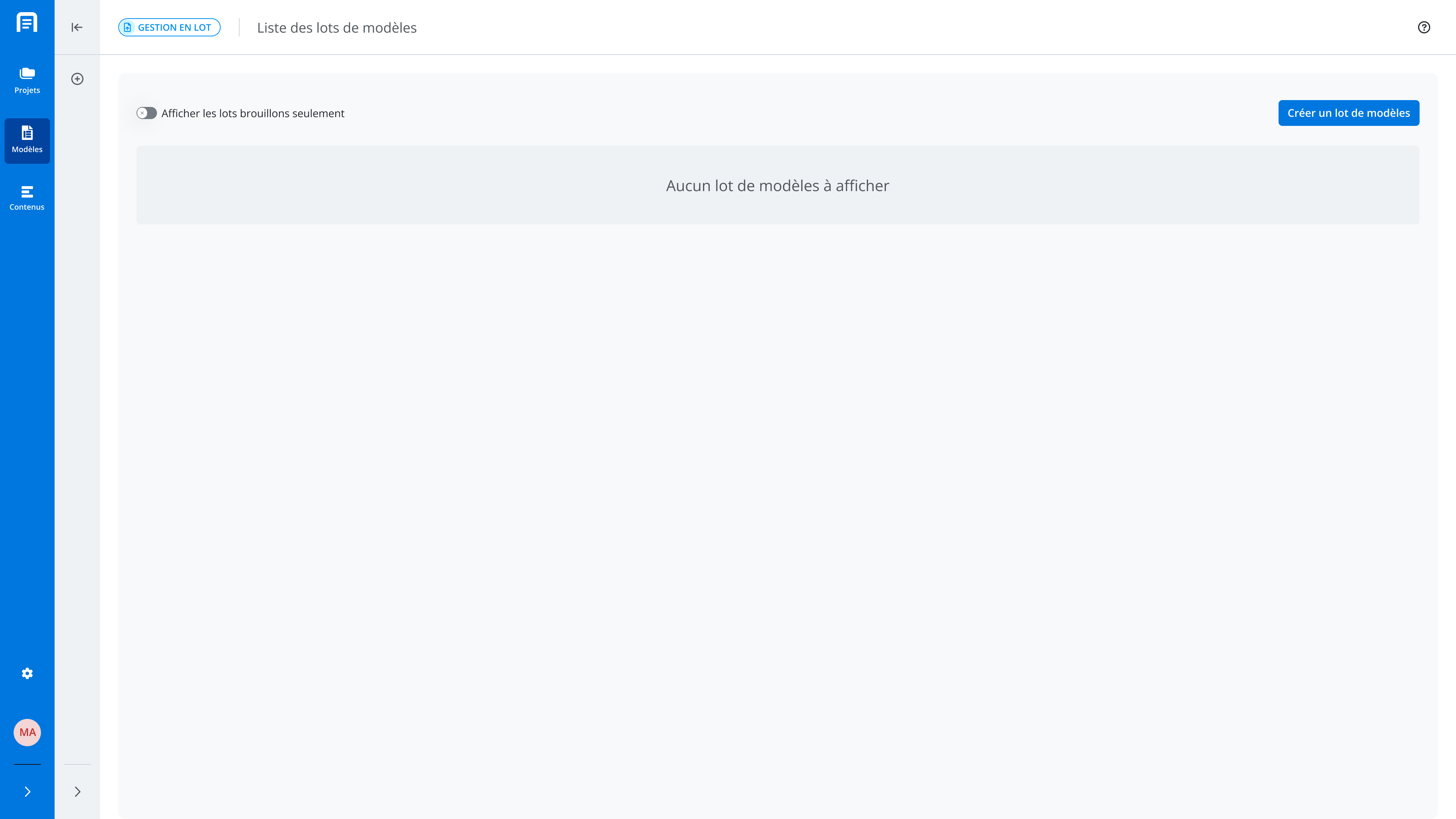
Template batch creation
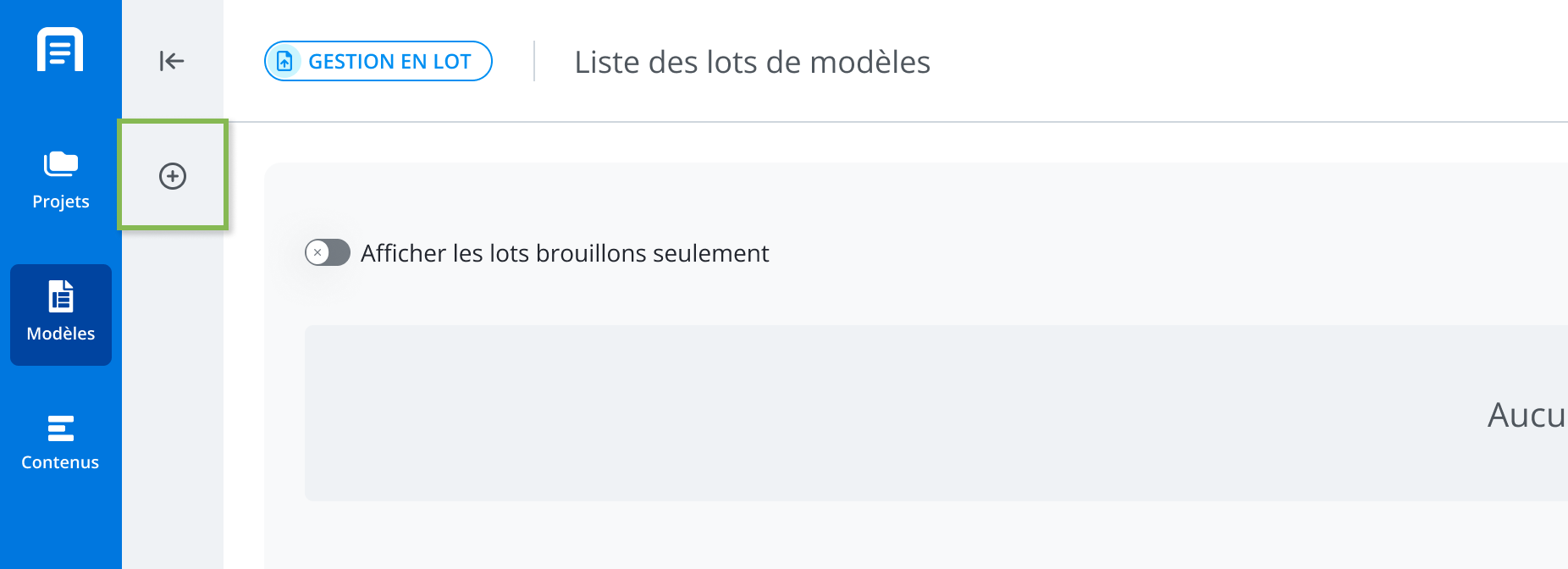
To create a batch, click Create a template batch in the features menu or by using the action button provided for this purpose.
-
Enter the information in the window, which includes the following fields:
-
Name: name of batch.
-
Description: allows you to enter useful information about the batch.
-
Repository: presents the choices in a drop-down menu of the repositories to which the user has access. It is used to select the repository in which the templates to be added to the template batch are located.
-
Once the fields are filled in, click Create.
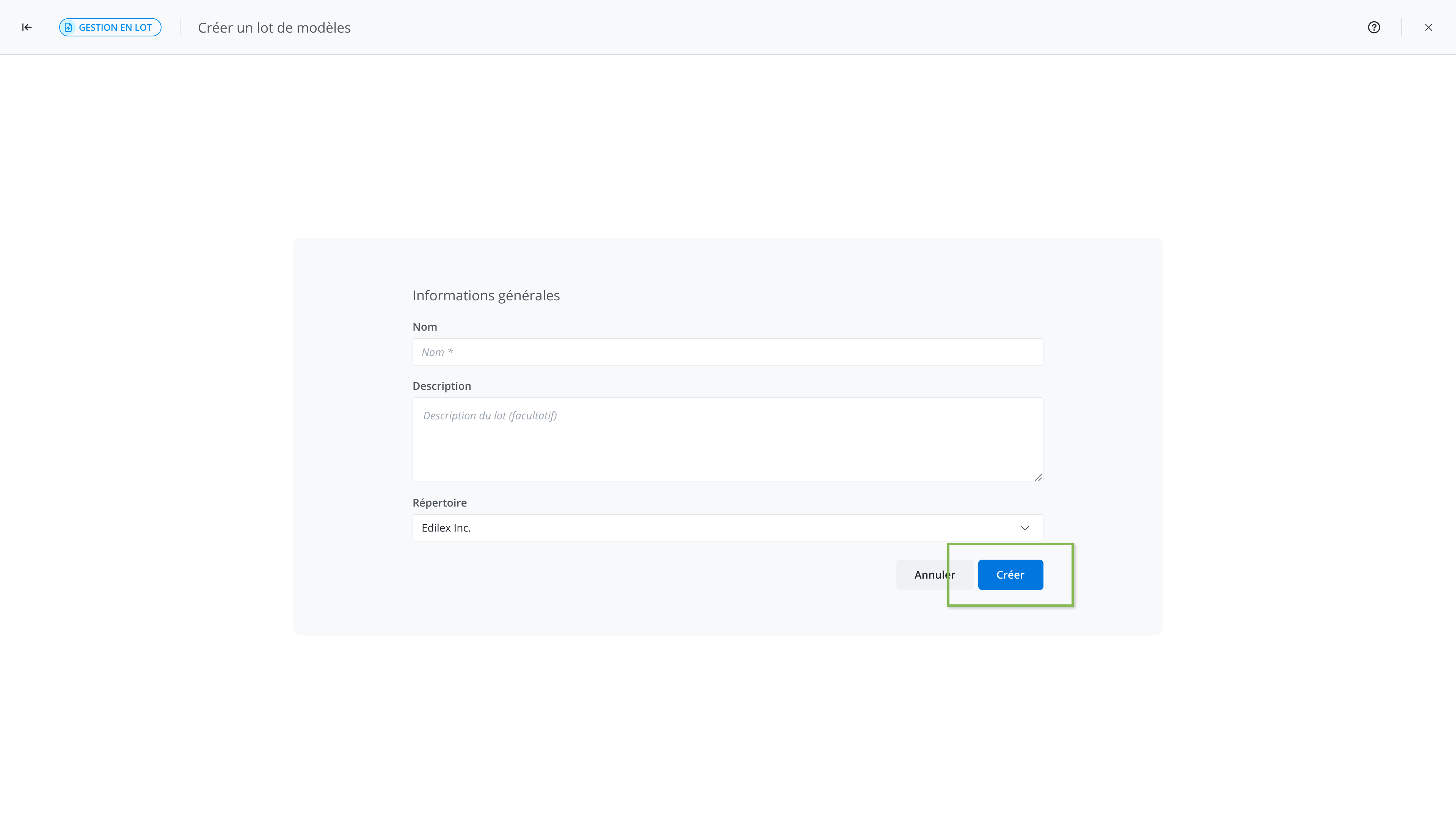
Template batch interface
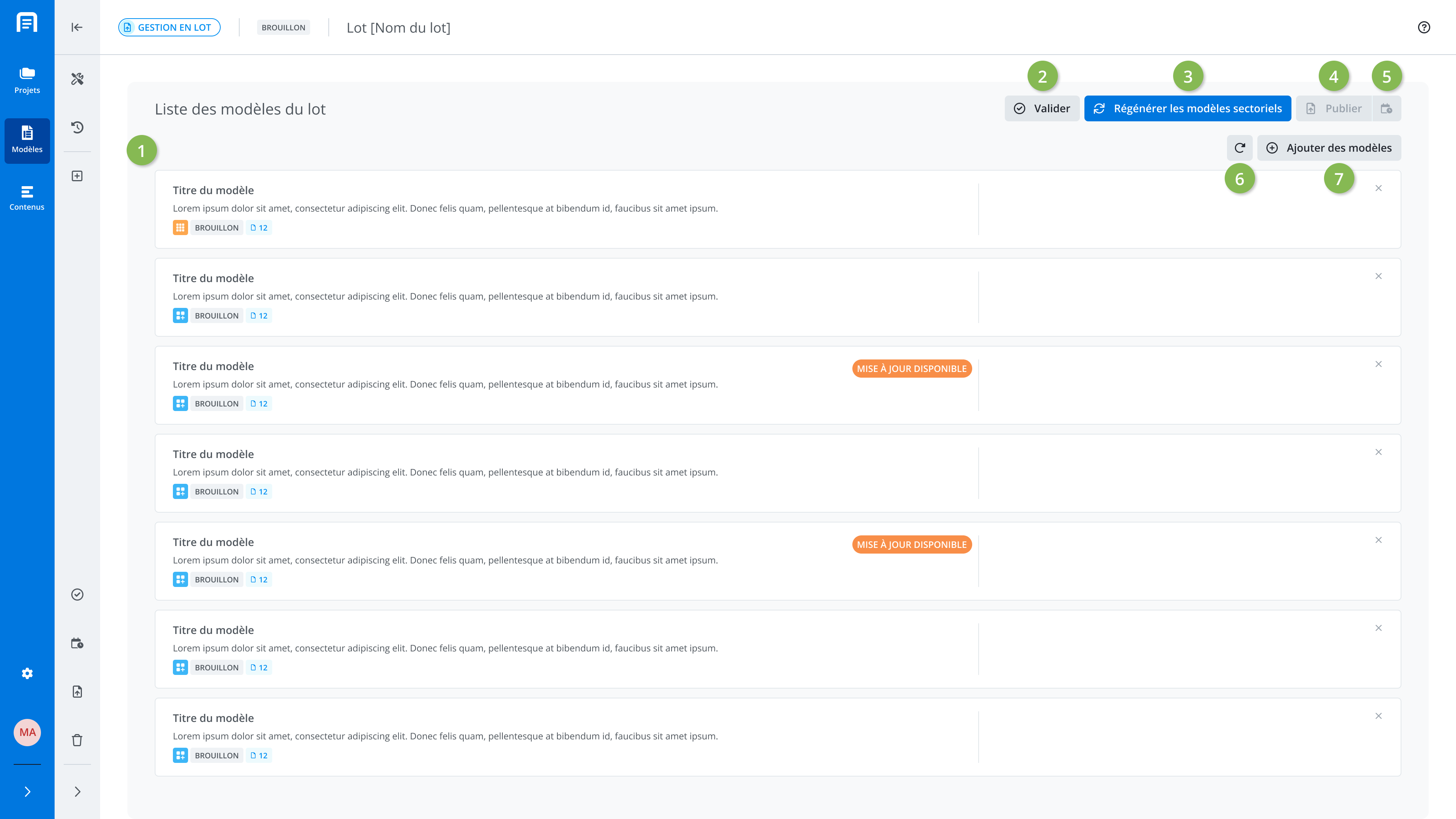
Several actions are available on the template batch screen. The main actions (buttons) are:
-
List of templates in the batch
-
Validate the batch: prepares the batch for publishing
-
Regenerate the sectorials templates: updates the templates that need it
-
Publish: launches the publication immediately
-
Schedule: allows you to choose a later date/time to publish batch
-
Refresh the page
-
Add templates: selection of templates to add to the batch
Add templates to the batch
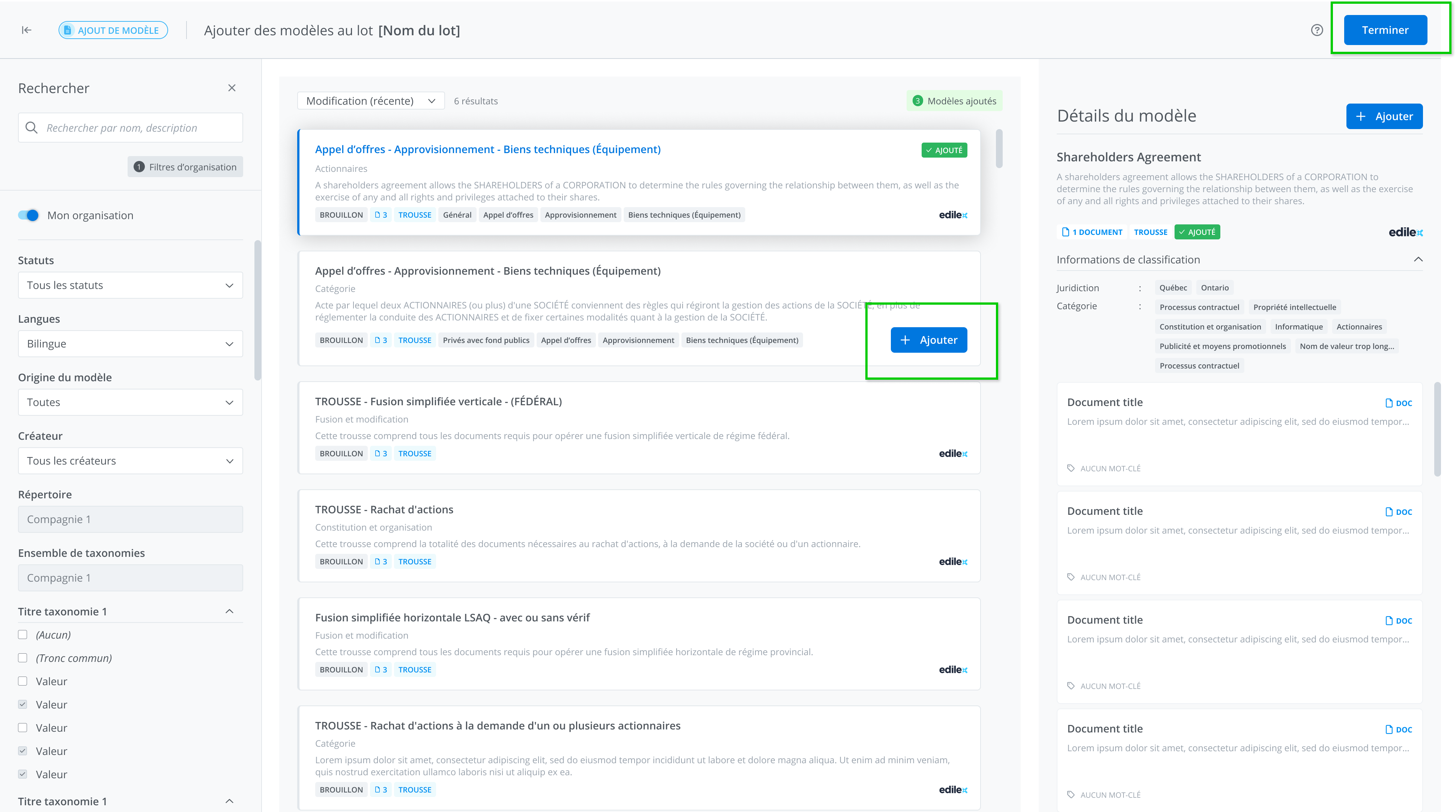
Search for templates using the search filters available in the left-hand panel.
To add a template to the batch, click Add on the template tile. You can also add several templates in a single action.
When you are done, click Finish to return to the template batch screen.
Validate a batch

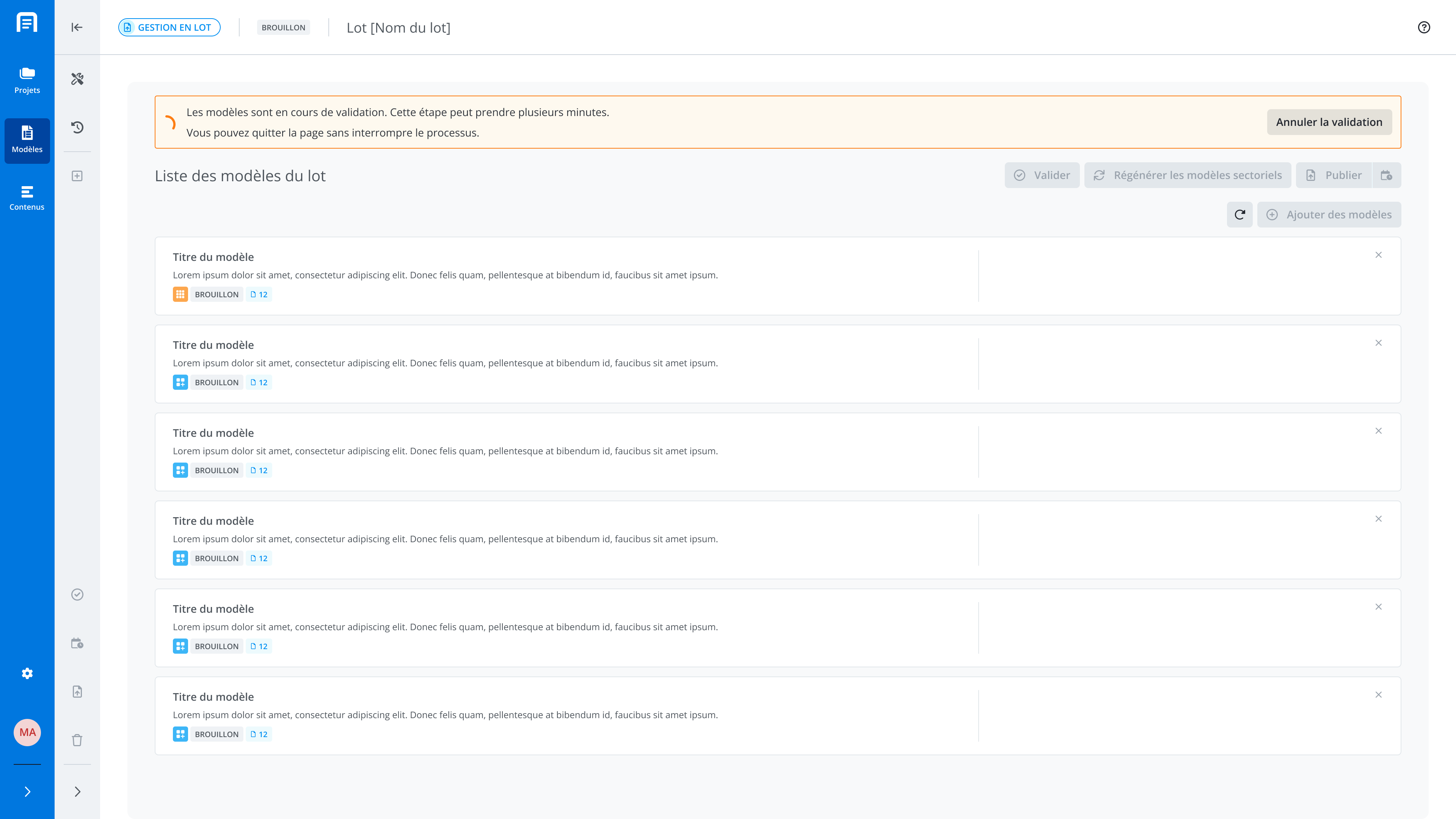
Use validation to ensure a successful publication. Validation is particularly important when scheduling a delayed publication. It checks that there are no errors and that the templates in your list can be published on the chosen date.
Please note that batch validation happens in the background, meaning you can leave and navigate within the application during batch validation without interrupting this process.
Regenerate the sectorials templates

Regenerating sectoral templates updates them to reflect the most recent version of their source content. This should be performed prior to publication only if models within the batch are not up to date.
Publish the batch
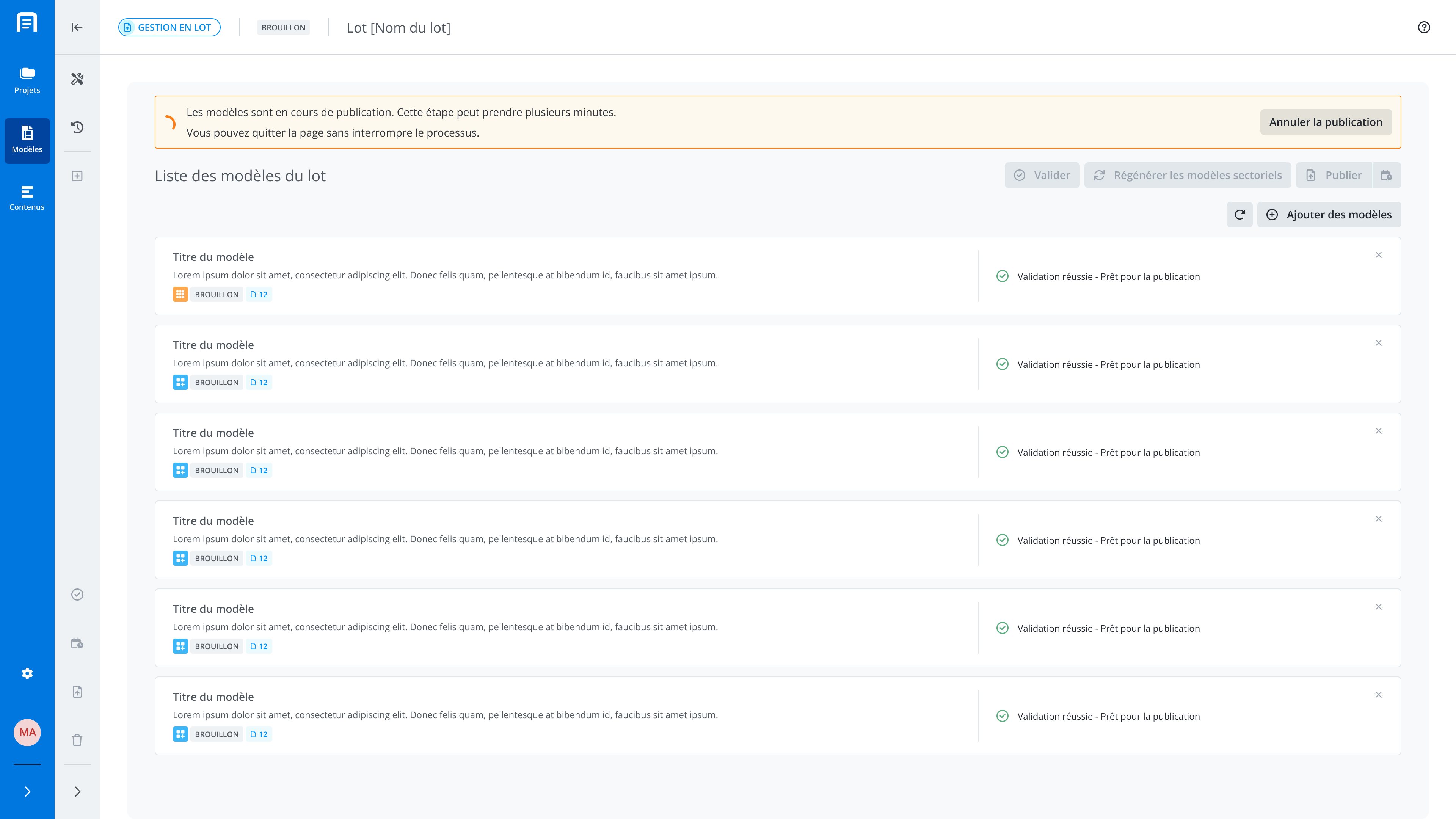
Once the templates have been added and the validations carried out, publish the batch by clicking Publish the batch.

The process may take several minutes depending on the quantity and size of the templates in the batch list.
Please note that batch publishing happens in the background, meaning you can leave and navigate within the application during batch publishing without interrupting this process.
Plan a differed publication

Scheduling a publication, as the name suggests, allows you to schedule a publication that will be carried out automatically by the system on the date you have chosen.
To do so, click Schedule a delayed publication and choose the desired date and time.
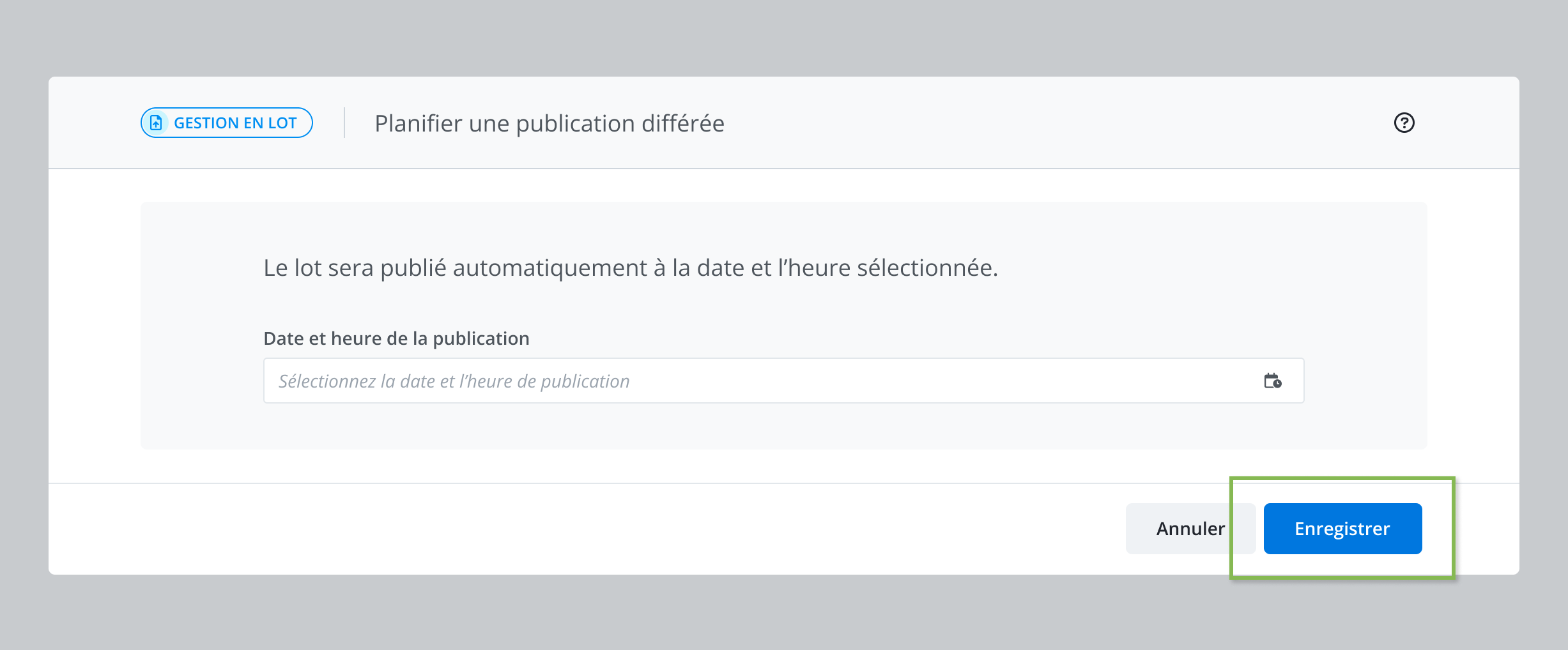
You will be able to come back and modify or cancel the delayed publication after saving.
View the publication of sectoral templates of clients

Once the batch is published, the sectoral templates of clients linked to the batch are automatically updated and published as well. To view the list of affected templates and their status, click View updated sectoral templates of clients to open the template table.
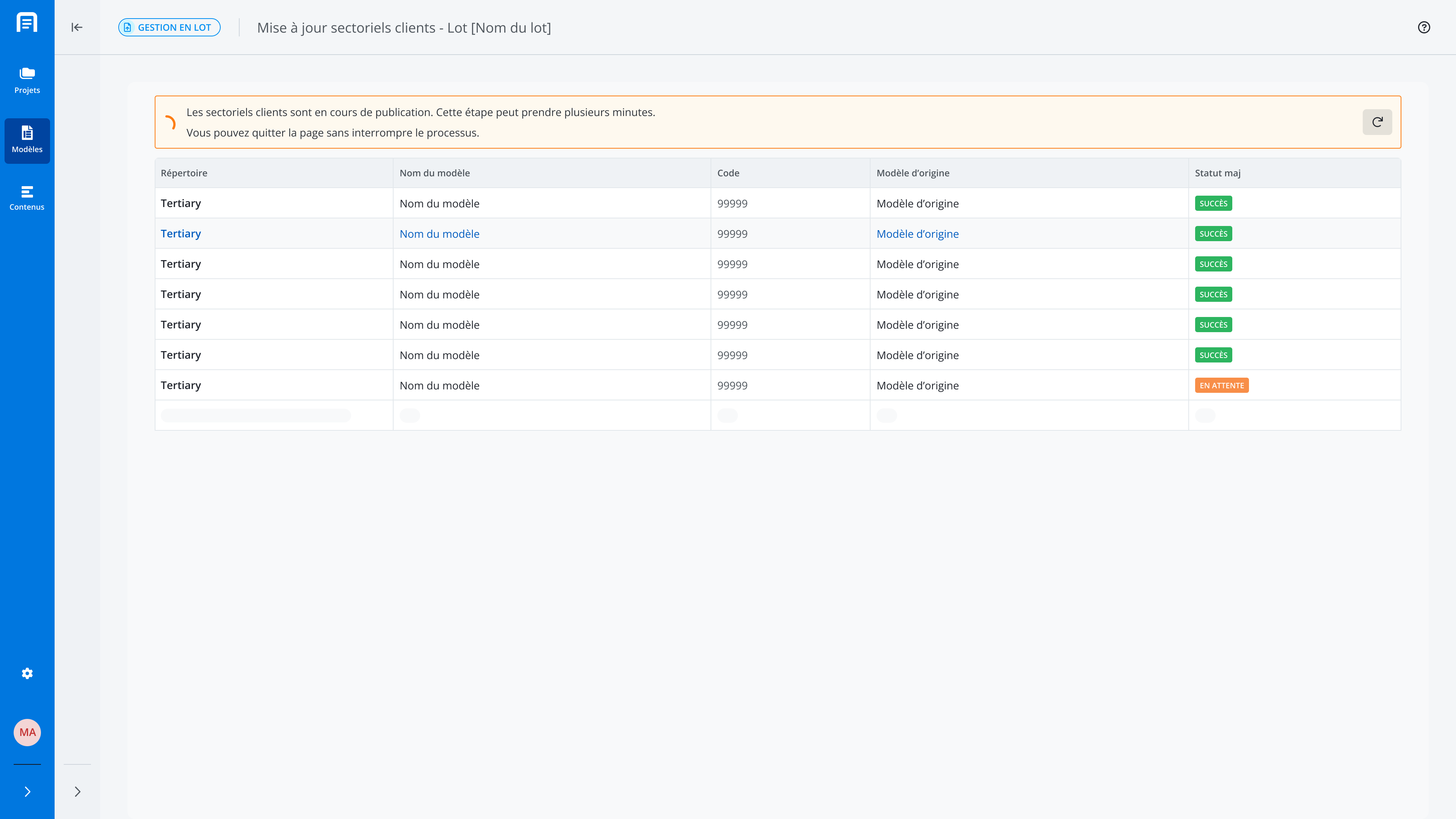
Please note that batch publishing of the sectoral templates of clients happens in the background, meaning you can leave and navigate within the application during batch publishing without interrupting this process.