
Summary Description of the Feature
The template management window allows the template programmer to manage several aspects related to editing the draft template or kit.
Access to Feature
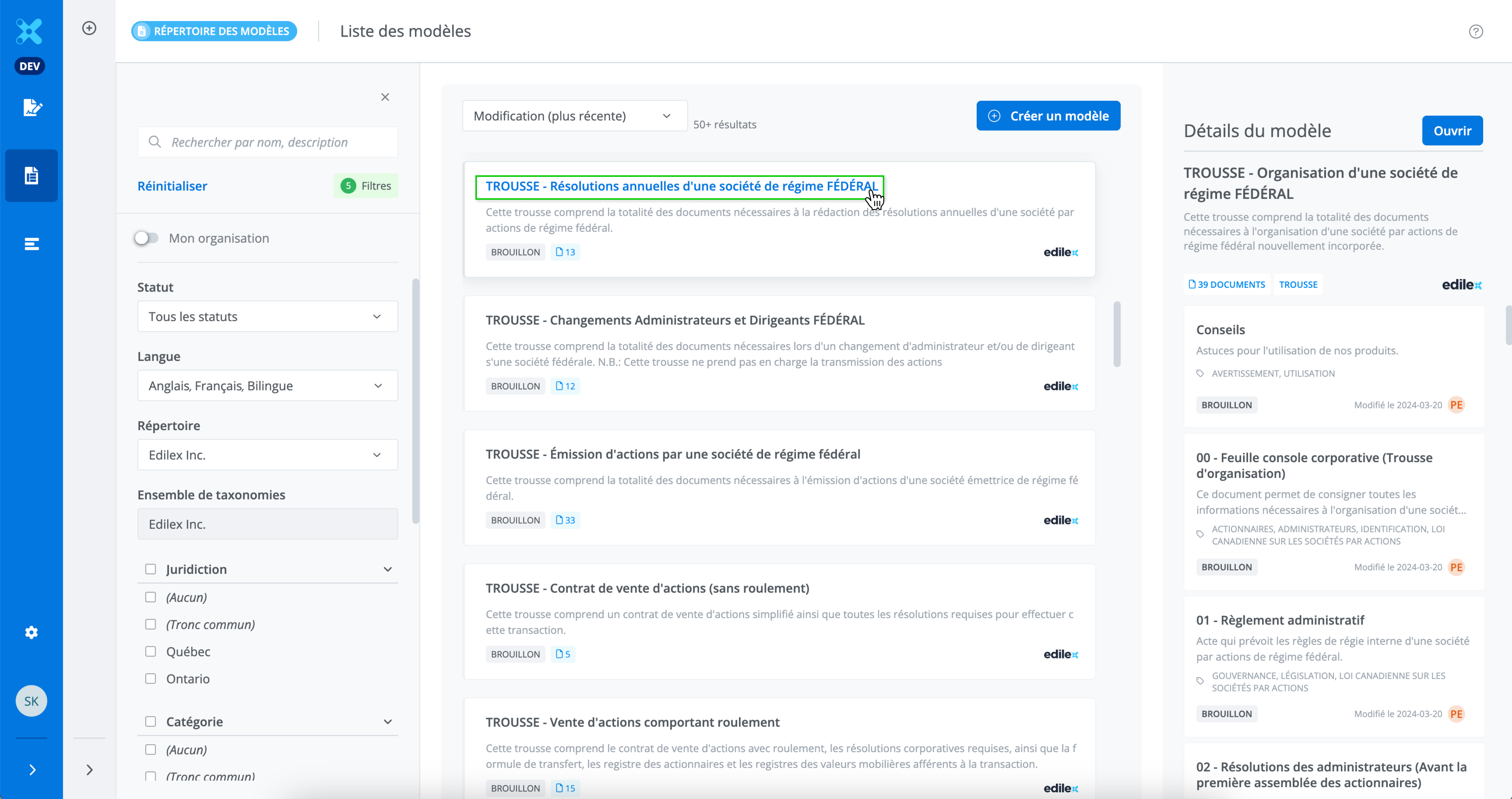
Access the document management window by clicking on a template's title or the Open button in the details panel.
Detailed Description of the Feature
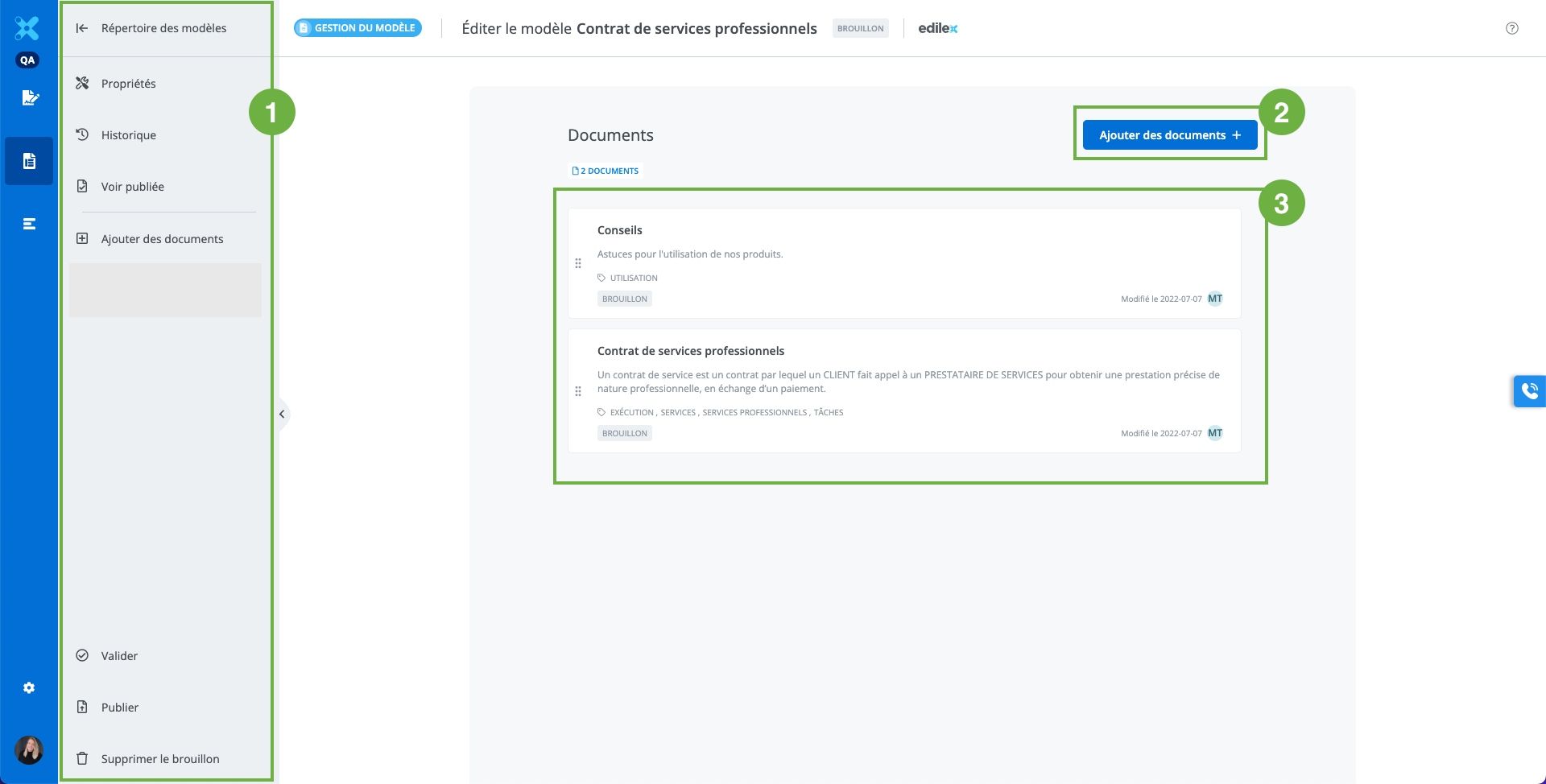
The document management window contains:
-
The features menu with:
-
The ability to view the published template (if the template is a draft made from a published template),
-
The ability to add one or more documents to the template,
-
Validate a template before publishing,
-
Publish a template,
-
Completely delete a draft template;
-
The button for adding documents to the template (same functionality as in the menu);
-
The list of all documents included in the template or kit.
Related articles
Customized template management | Accéder à la fonctionnalité
Change the order in which documents appear in the template
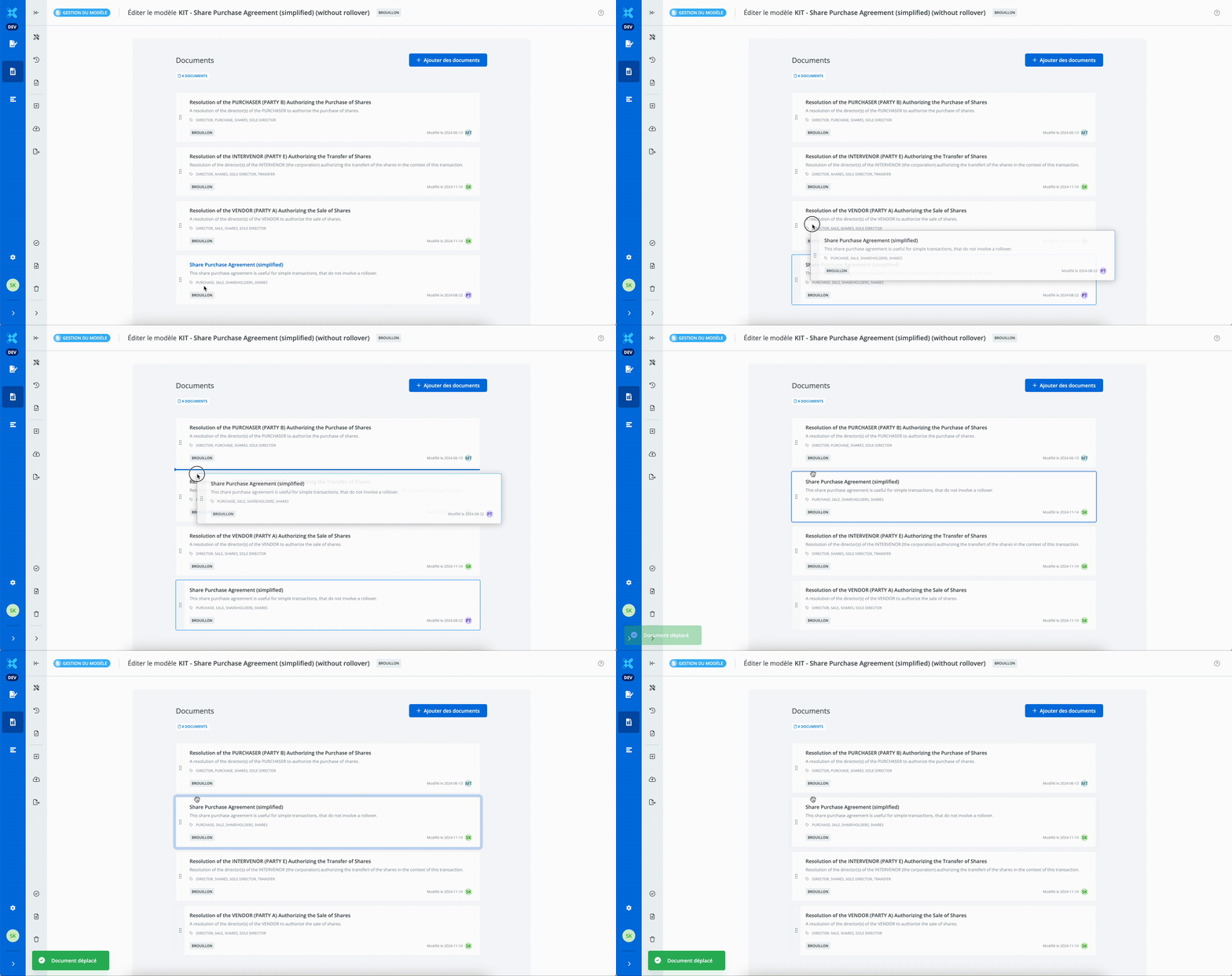
It is possible to change the order in which documents appear in the template. This way, the order established will be the same for all documents drafted from this template. Move the document tiles using drag-and-drop.
Validate the template before publishing
It is recommended to validate the template before publishing. Validating the draft template allows you to:
-
Check whether all specified fields have been entered;
-
Check whether all cross-references are targeted;
-
Check whether all content is up to date.
An instruction message is sent for each action to be taken in order to publish the template. Once all conditions have been met, the template can be published.
Publish a template
Publishing the template makes it available to the entire organization for document creation. Documents can then be created from the published template.
Requirements for publishing a template
The following conditions are required to publish a template:
-
All fields must be completed;
-
All cross-references must be targeted;
-
All content (sections/clauses/schedules) must be up to date.
Delete a template or kit
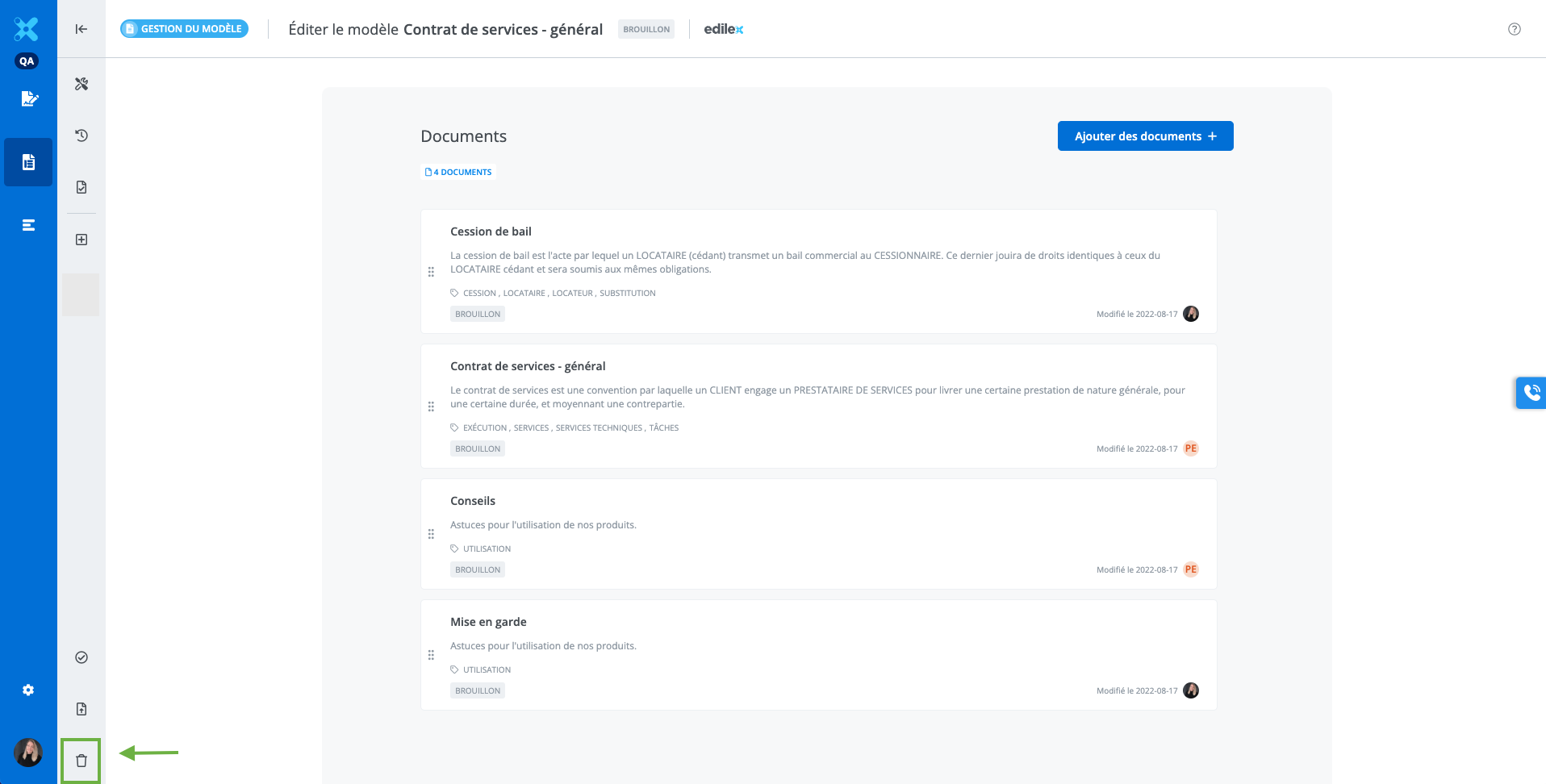
The Delete Draft button allows you to delete the entire template, meaning it deletes all documents included in it. This is a permanent action and may have serious consequences.
Delete a single document from the kit
.gif)
To delete a single document from the kit:
-
Click on the title of the document to delete;
-
In the document drafting and programming window, click Delete Document.