
Access to Feature
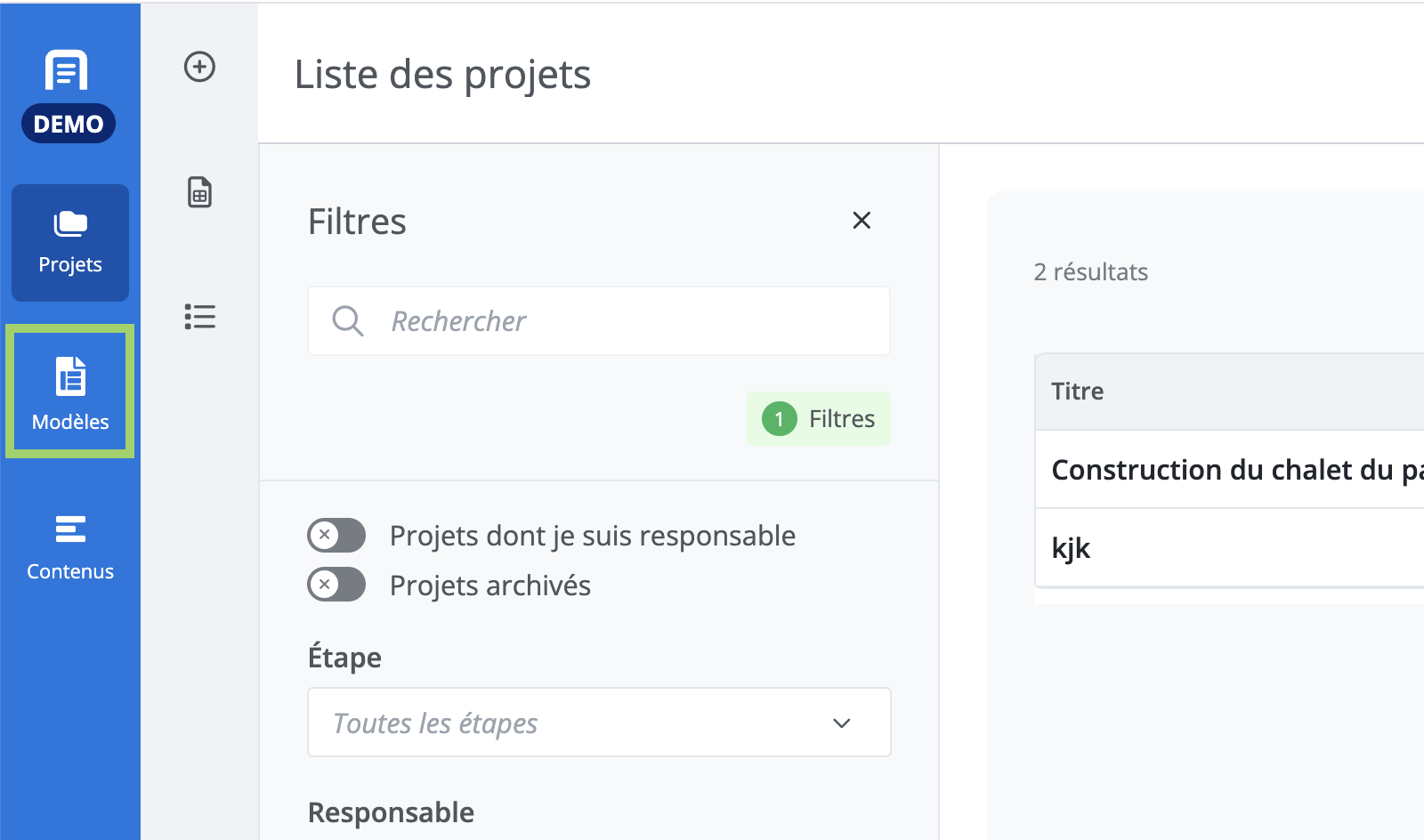
Click on Templates in the main menu (in blue, on the far left).
Description of the Feature
This feature allows you to search for and create templates.
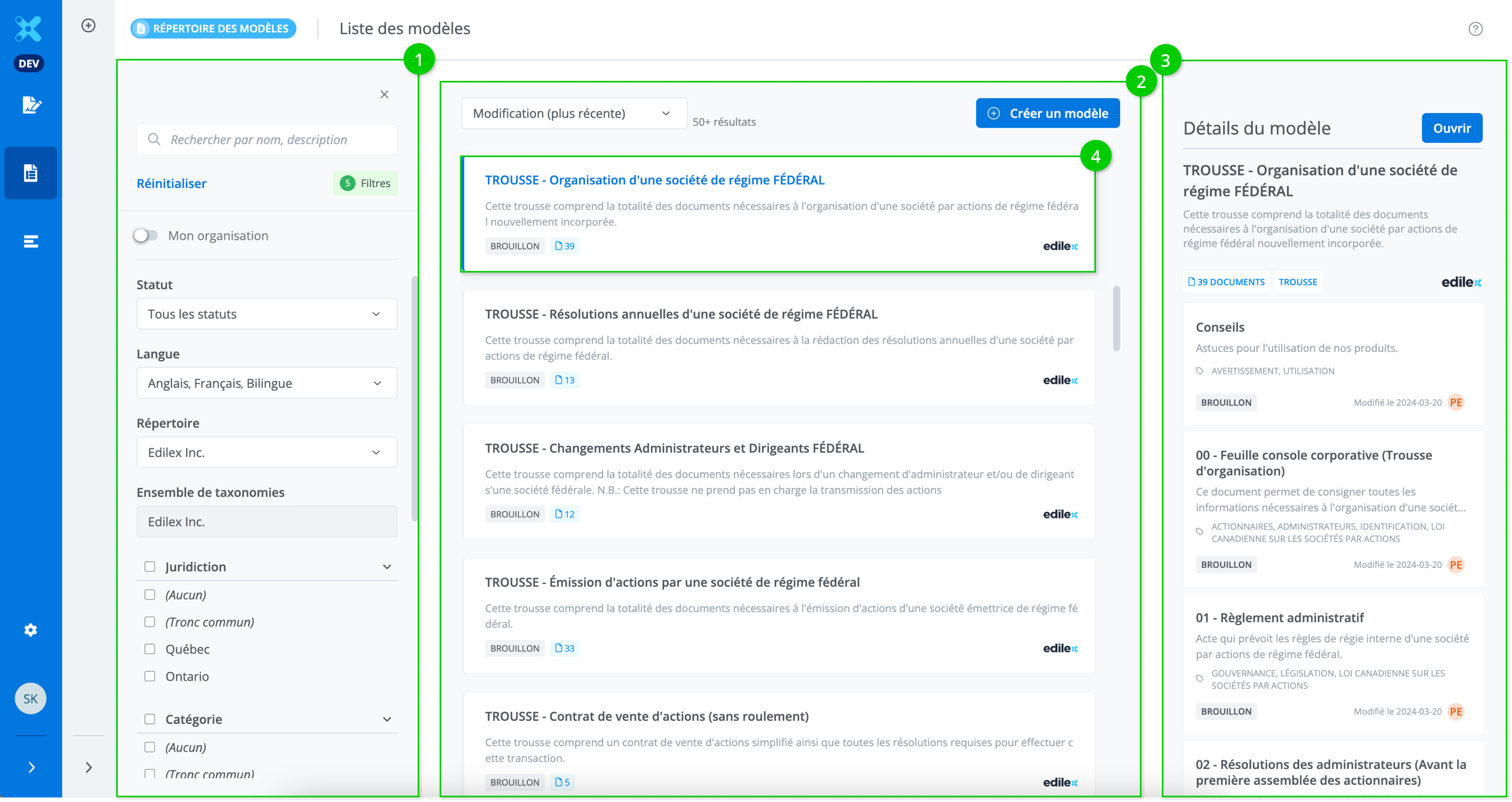
The template library page is divided into three main sections: the filter and search panel (1), the search results list (2), and the template details panel (3). The latter is accessible when the template tile is selected with a click (4).
Search a Template
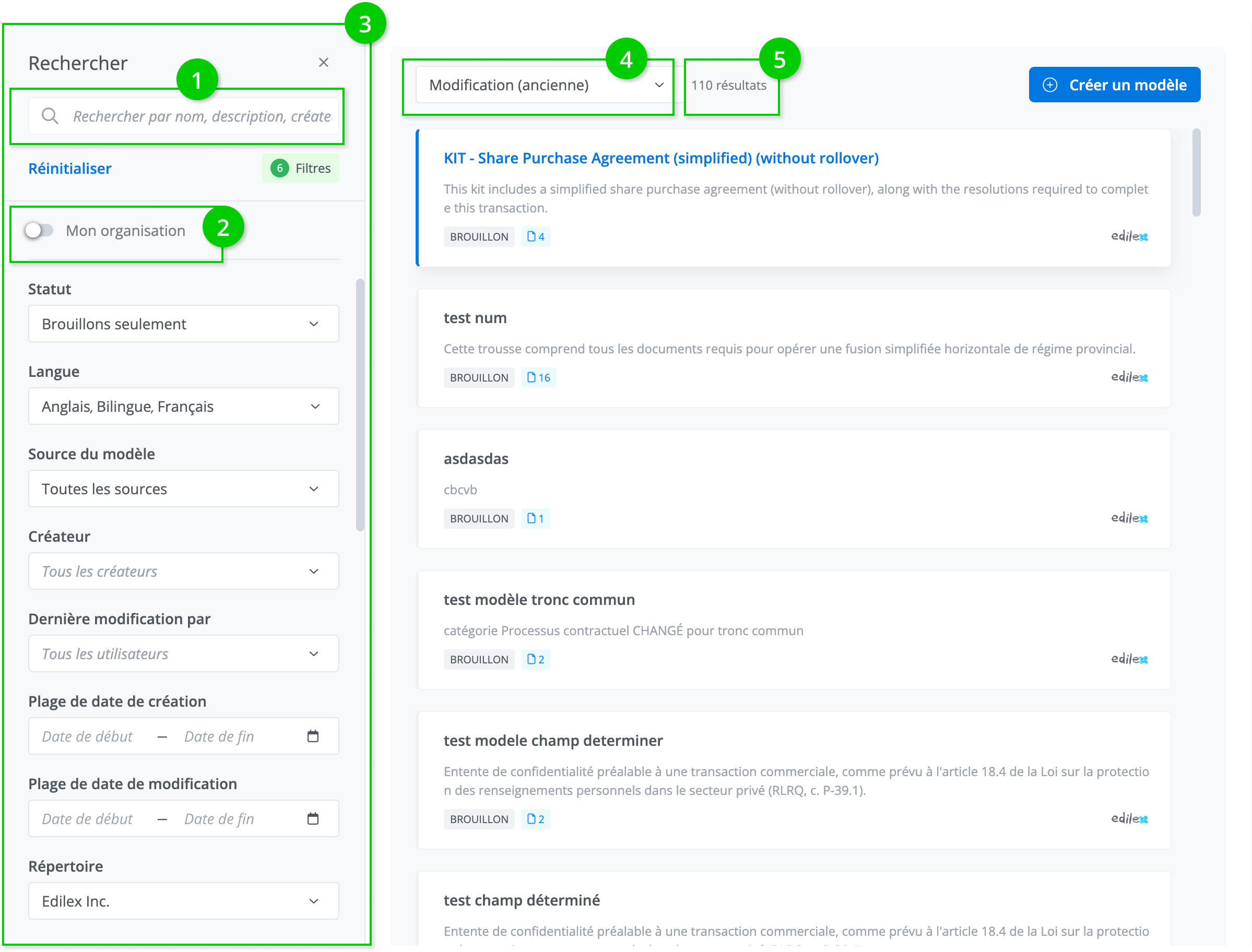
When creating a template, you can search by template name or description in the search bar (1). The My organization filter displays only the organization's templates (2). Other filters are available in the filter and search panel (3). Templates can be sorted by name and by modification date (4). Finally, the number of search results is displayed and updated with each filter selection (5).
The filter and search panel
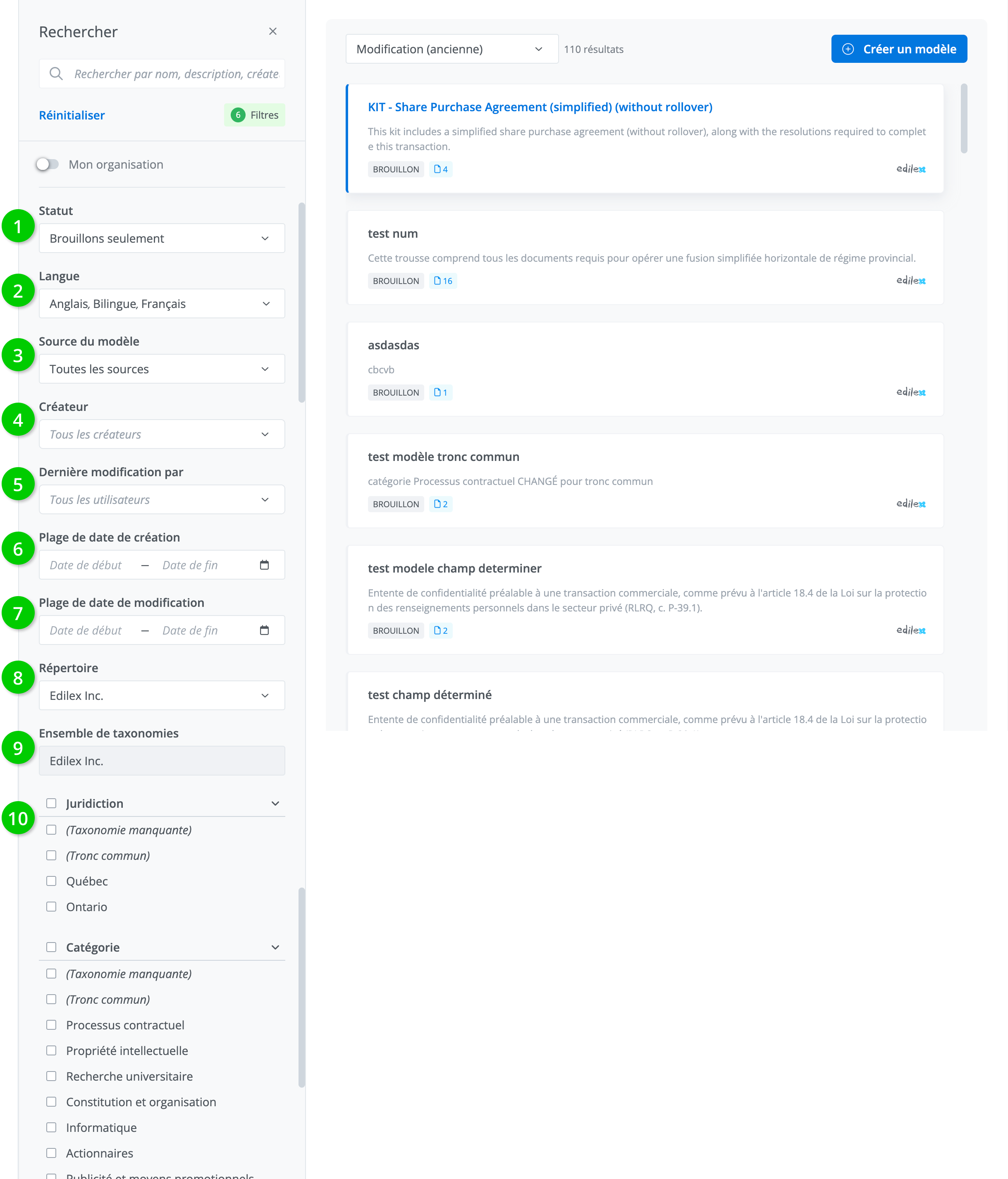
The filter and search panel allows you to search by status (1), language (2), template type (3), creator (4), last modifications by (5), creation date range (6), modification date range (7), repository (8), taxonomy set (9), and taxonomy (10).
The "Repository" filter allows you to filter the template list for all repositories or a single parent/sub-repository to which the user has read access.
The list of repositories to which the user has read access includes:
-
All repositories of the organization to which the user belongs.
-
All repositories made visible to this same organization with "write" or “read” access.
Refer to the Repository Management page for more information on repository management.
1. Status
Templates can be filtered by their status: draft or published.
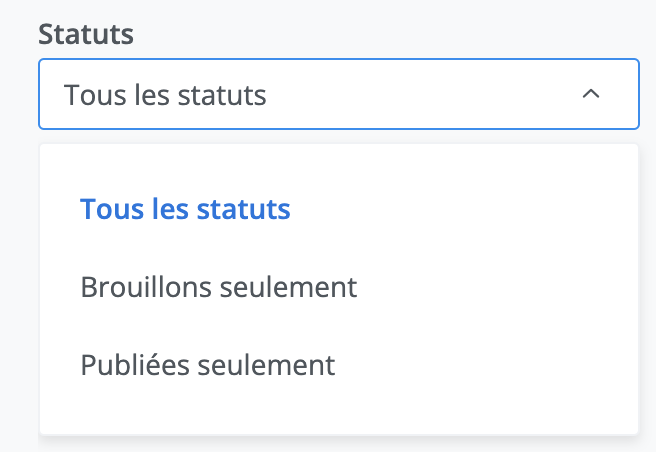
Draft: A draft template is editable and can be added to a template.
Published: A published template is not editable (read-only) and can be added to a template as well as to a document (or kit).
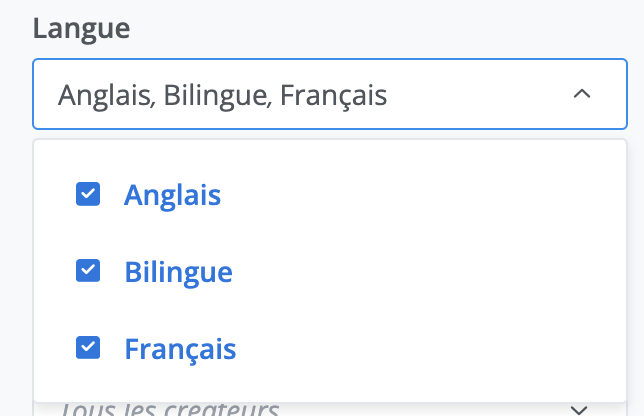
2. Language
The choices are English, French, or "Bilingual" (French AND English).
5. Template type
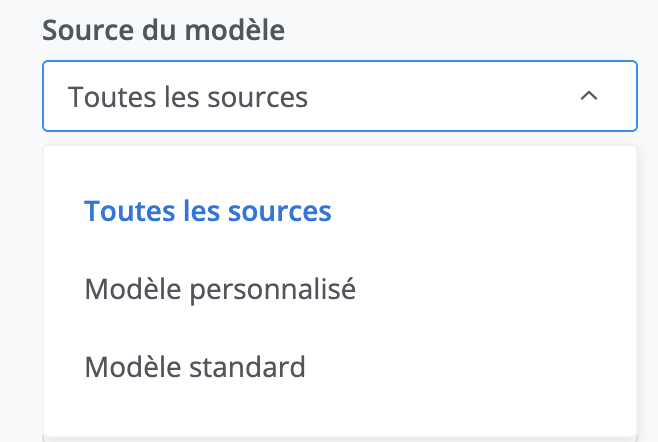
The templates library contains all the templates from the repositories you have access to; these are identified as "Standard” template.
Custom templates are those you have adapted yourself from the repository templates. To find them, select the "Custom" template filter.
By default, search results display all types of templates.
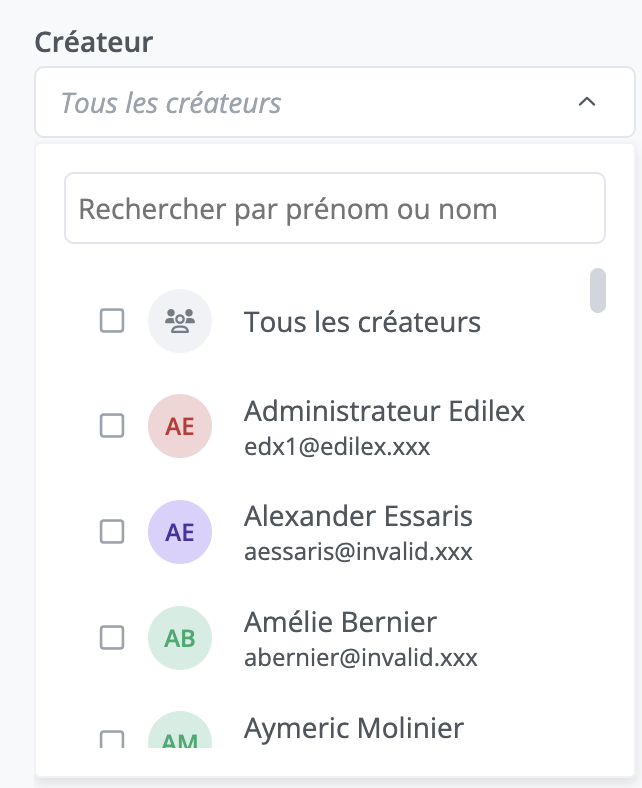
4. Creator
Search for templates using the technical creation information. Users in your organization who have created templates can be selected from this drop-down menu.
Example: Technical information for a template.
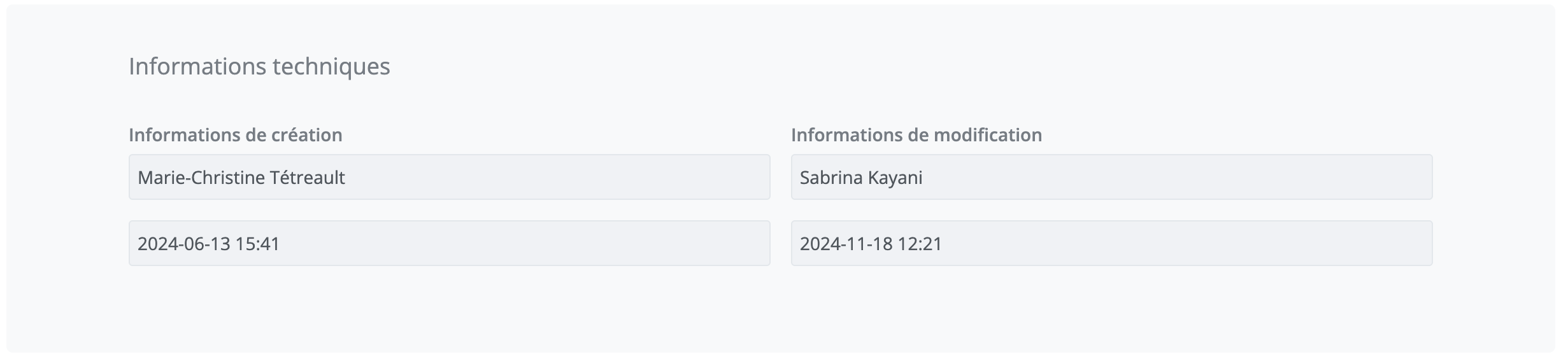
Access a template's properties if you want to view its technical information.
5. Last modifications by
Search for templates using the technical modification information. Users in your organization who have modified templates can be selected from this drop-down menu.
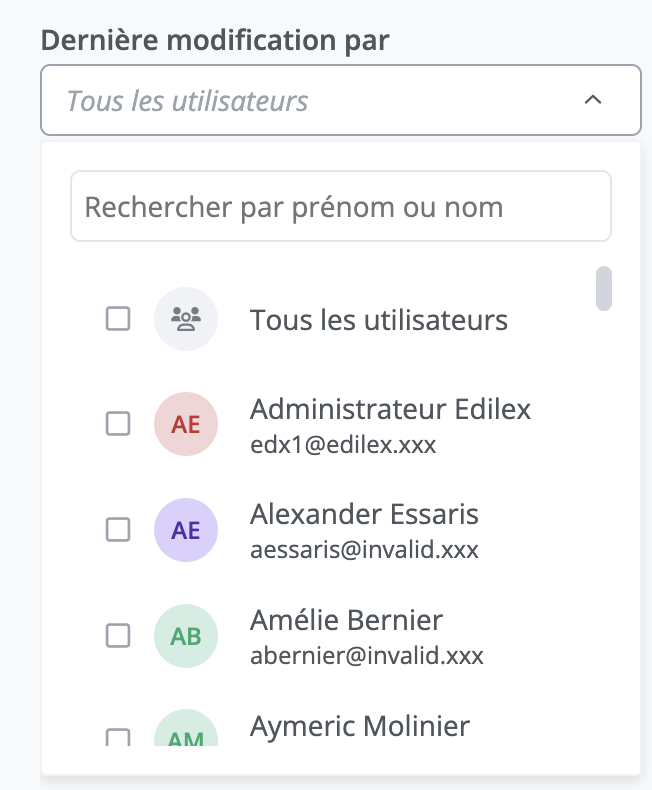
Example: Technical information for a template.
Access a template's properties if you want to view its technical information.
6. Creation date range
Search for templates using the technical creation information.
Select a start date and an end date to obtain, in your results, the list of templates created during that period.
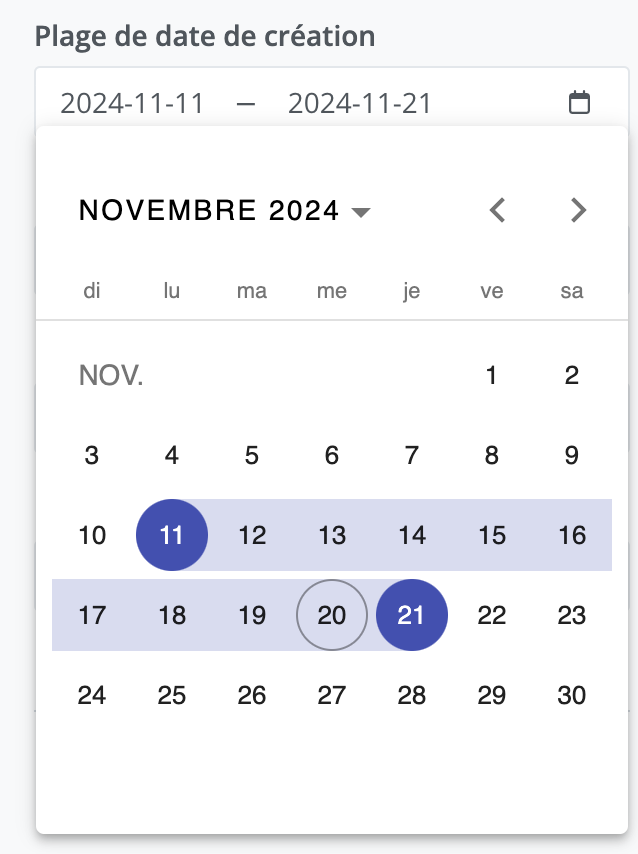
Example: Technical information for a template.
7. Modification date range
Search for templates using the technical modification information.
Select a start date and an end date to obtain, in your results, the list of templates that were modified during that period.
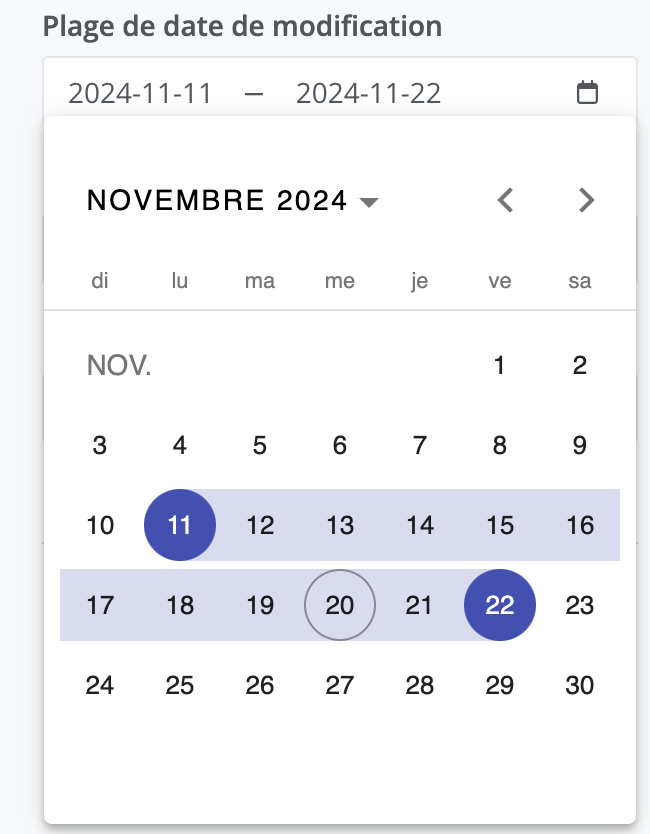
Example: Technical information for a template.
8. Repository
The "Repository" filter allows you to filter the template list for all repositories or a single parent/sub-repository to which the user has read access.
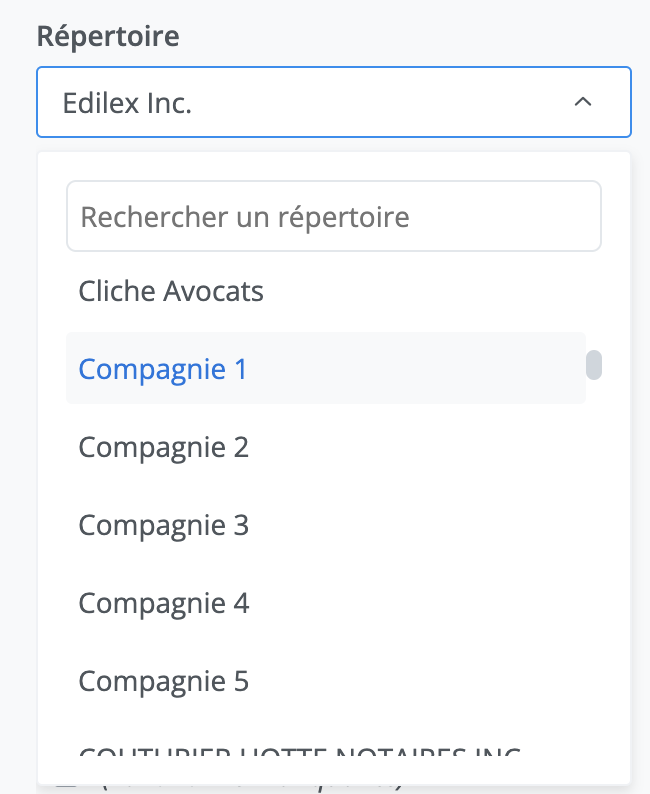
The list of repositories to which the user has read access includes:
-
All repositories of the organization to which the user belongs.
-
All repositories made visible to this same organization with "write" or “read” access.
Refer to the Repository management page for more information on repository management.
9. Taxonomy set
1. What is a taxonomy?
A taxonomy is a classification system that efficiently organizes your content, templates, and projects into specific categories, such as Contract Type or Legal Field.
Why use taxonomies ?
-
Simplify search: Quickly access relevant content or templates using advanced filters.
-
Structure data: Organize your projects consistently with standardized categories.
-
Facilitate collaboration: Ensure a shared understanding across the team through consistent classification.
Taxonomies turn a complex database into a clear, navigable tool, improving your productivity and organization.
Taxonomy set
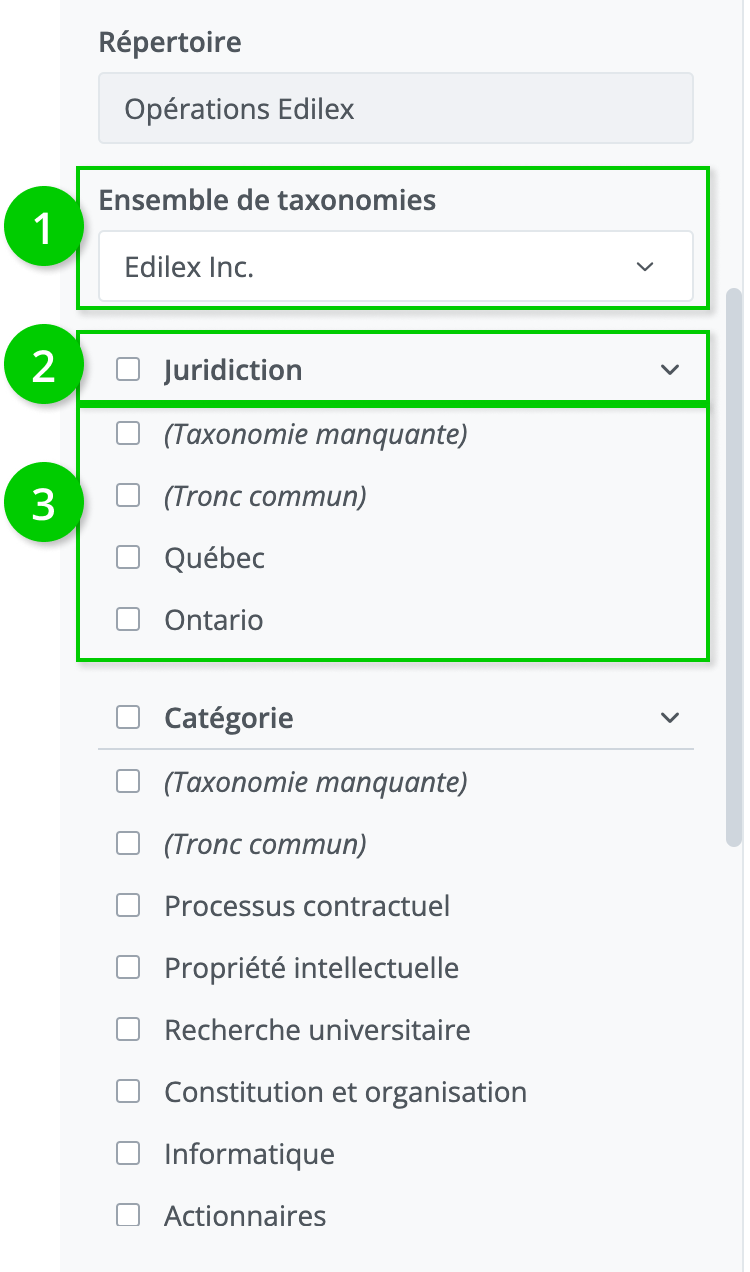
A taxonomy set (1) is made up of taxonomies (2), each of which contains taxonomy values (3).
2. Search and filter using taxonomies
Where to use filters?
Filters based on taxonomies are available in several sections of the application, allowing you to search for and organize your content, templates, and projects efficiently.
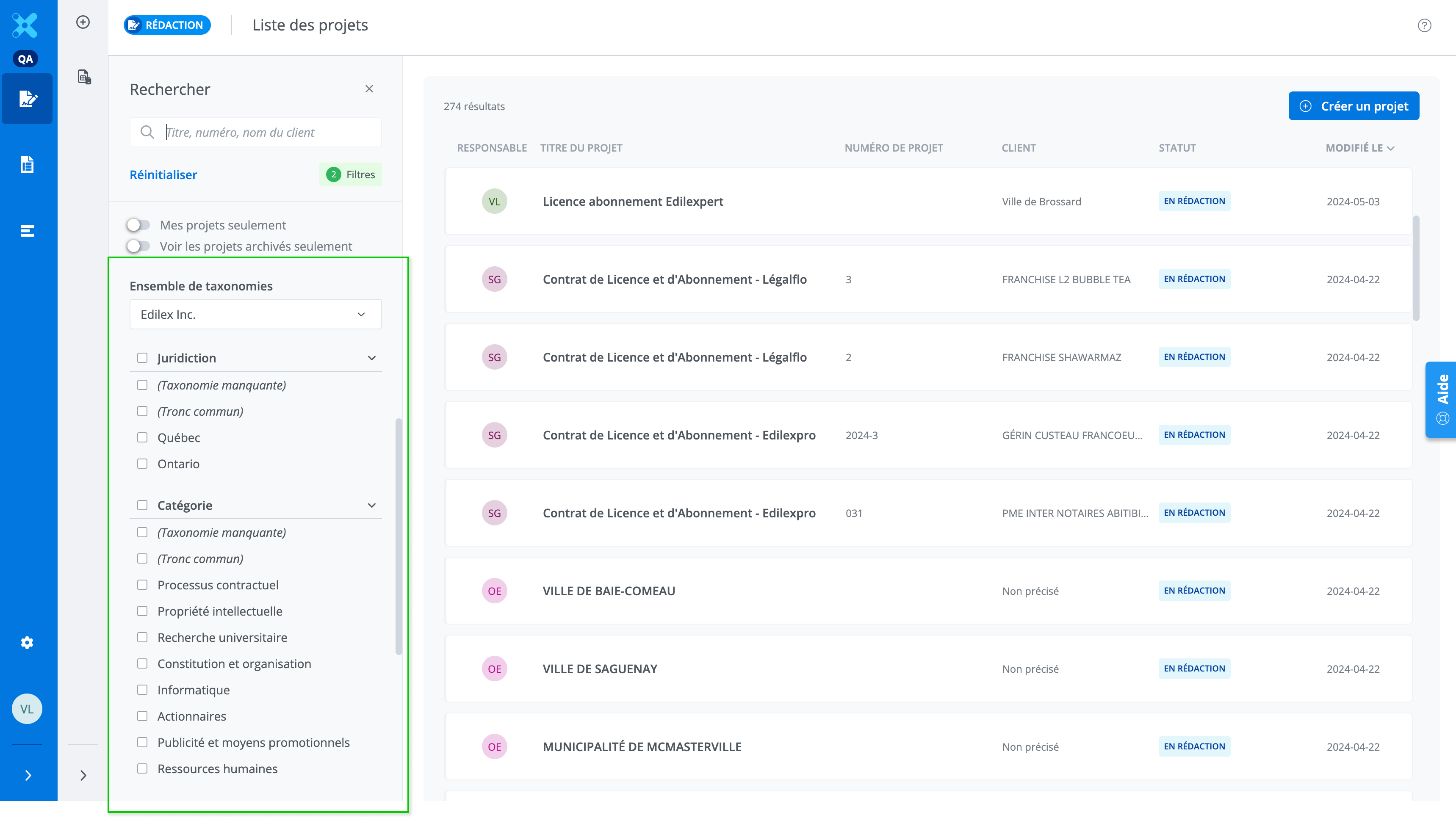
a. List of projects
Apply filters to view projects that meet specific criteria, such as a field of application or a document type.
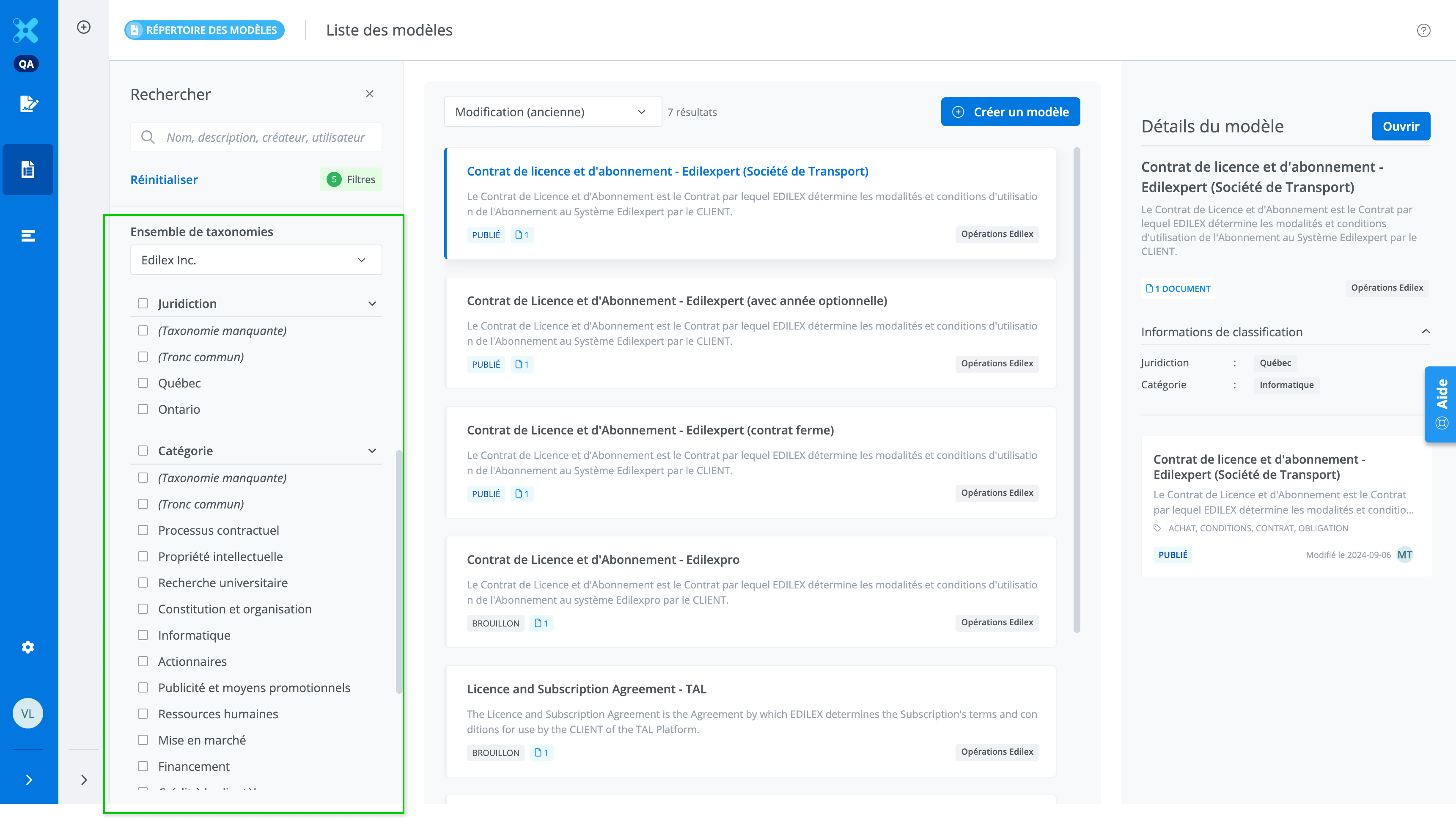
b. List of templates
Refine your searches to display only the templates relevant to the defined criteria, using a permanent filter panel on the right side of the screen.
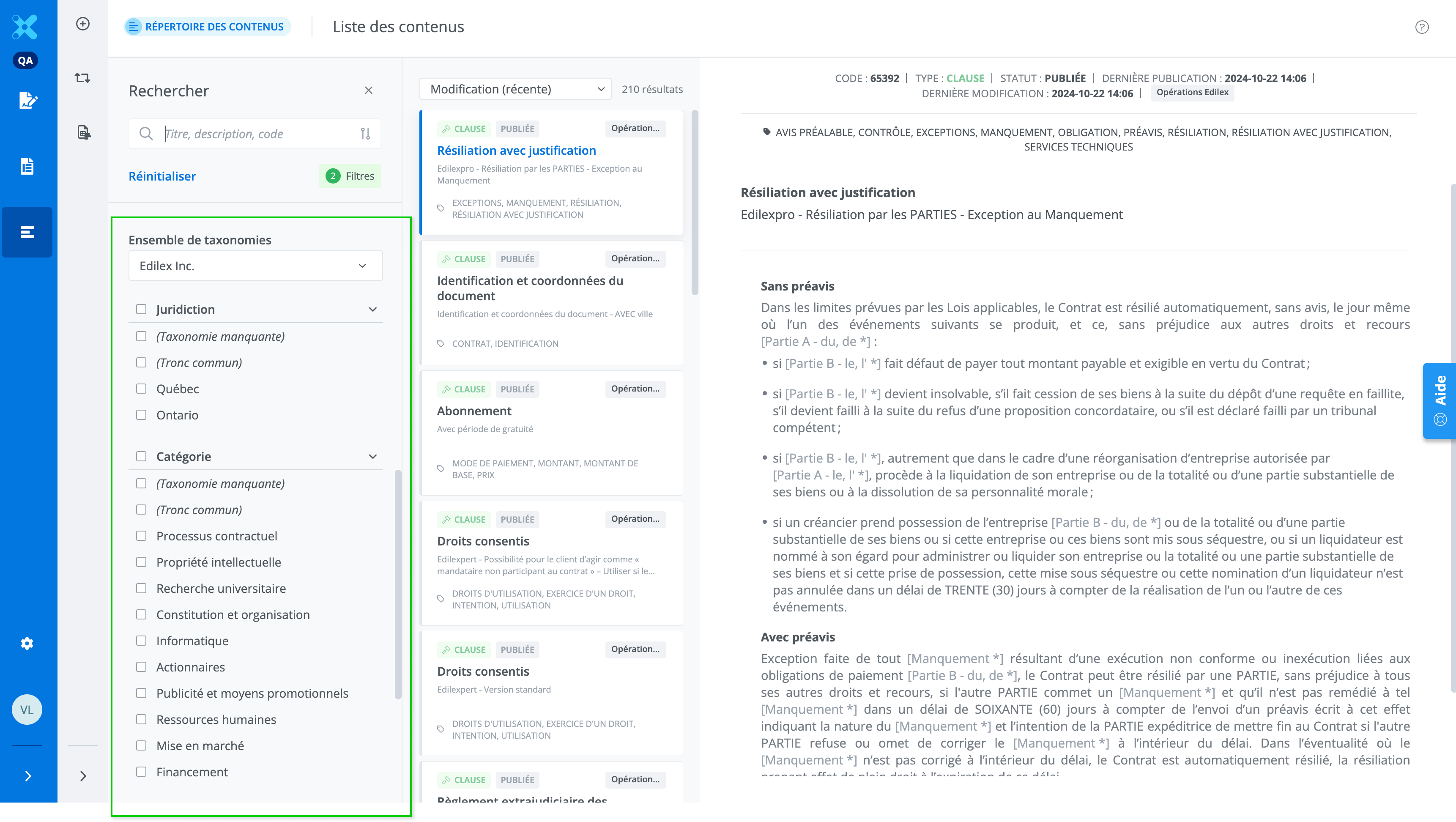
c. Contents library
Use the filters to quickly find specific sections, clauses, or schedules based on the associated taxonomies.
Filter features
Filters based on taxonomies offer powerful flexibility for searching, organizing, and displaying your content, templates, and projects in a targeted way. Here are their main features:
a. Filter by taxonomy
Select one or more taxonomy values to refine your searches (e.g., Contract Type or Legal Field). You can also combine multiple criteria to display precise results that meet complex needs.
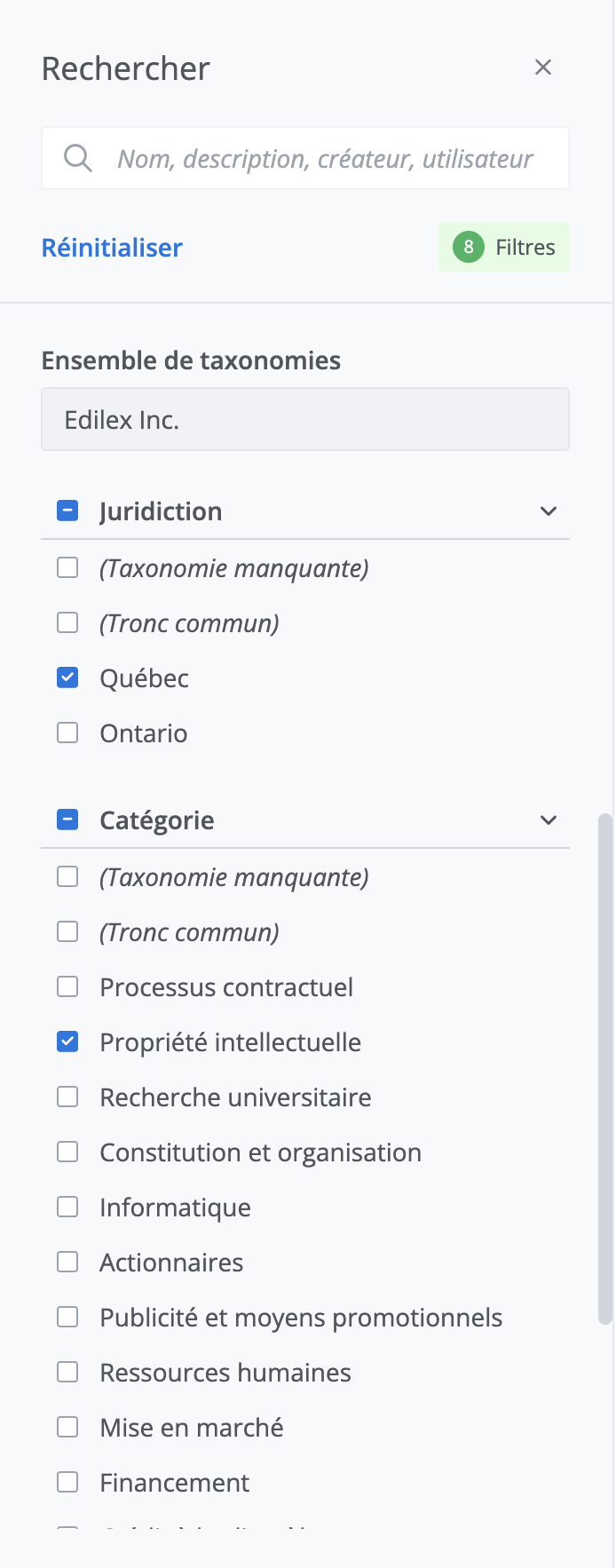
b. Option Missing taxonomy
Accessible only to users with the appropriate permissions.
The Missing taxonomy option is used to identify content or templates to which no taxonomy value has been assigned. This option allows you to find, for example, content for which no Jurisdiction taxonomy value has been associated.
c. Option Common core
This option allows you to find content identified as core content, meaning it is general enough that all values of the taxonomy are associated with it. Filter items containing the Common core value, either alone or in combination with other values, for broader or more targeted searches.
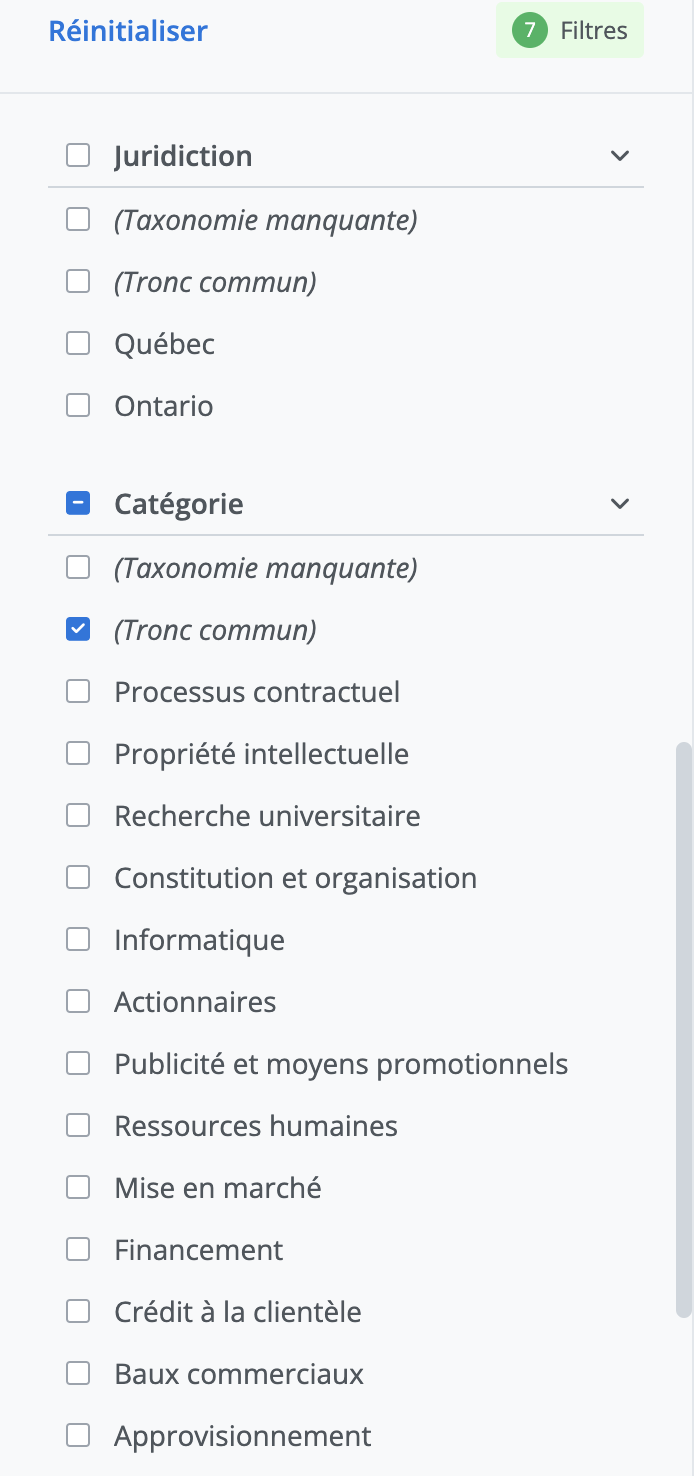
Example of classification of returned results
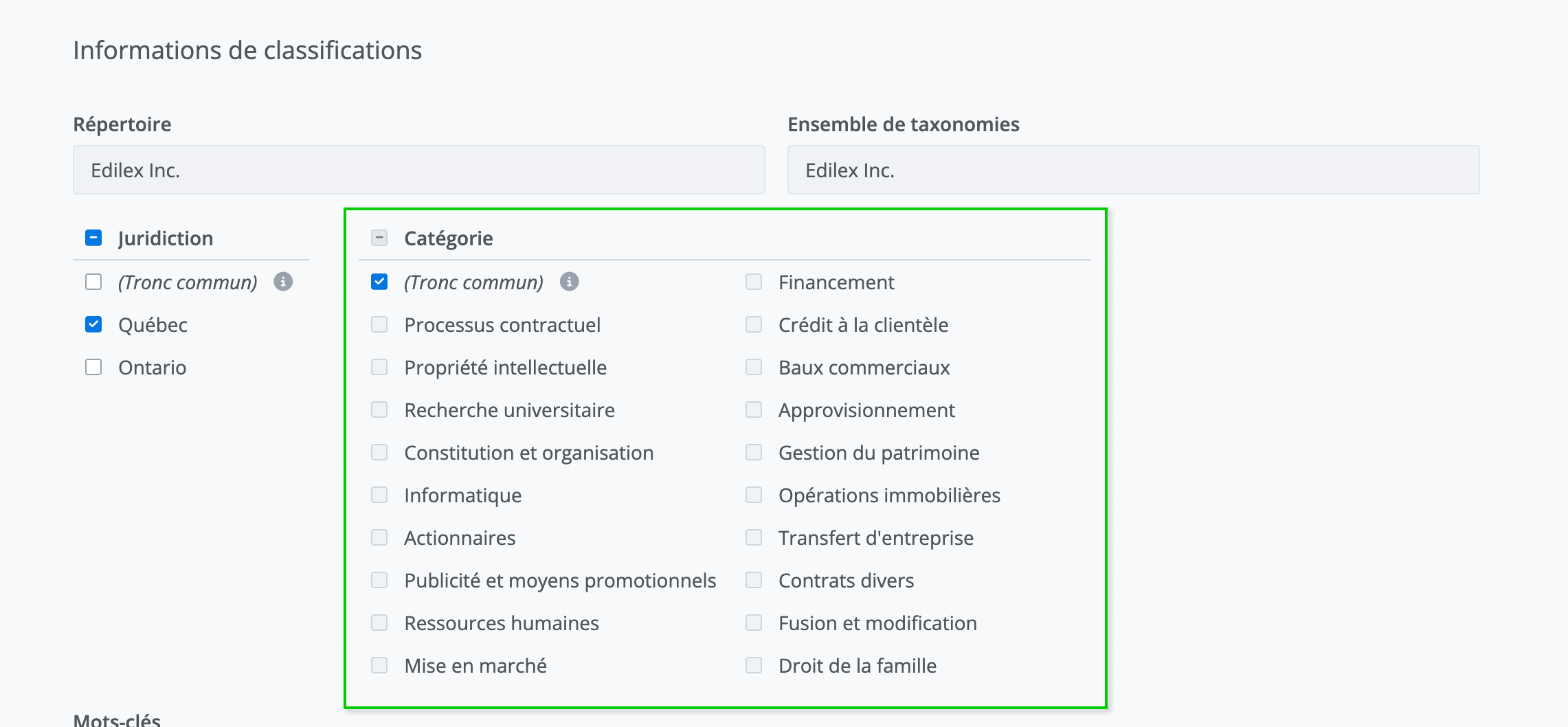
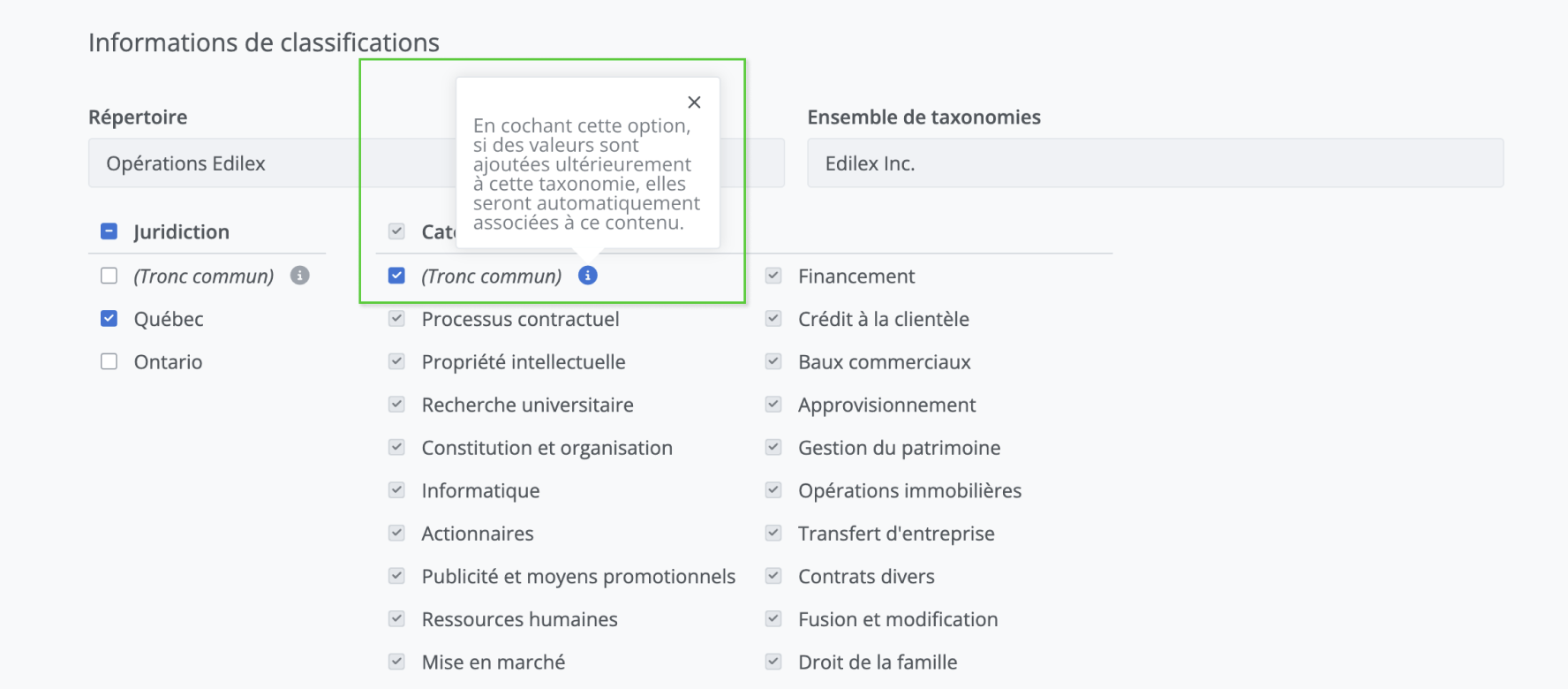
The Common core classification of a taxonomy also means that any new value added to the taxonomy will automatically be selected as well.
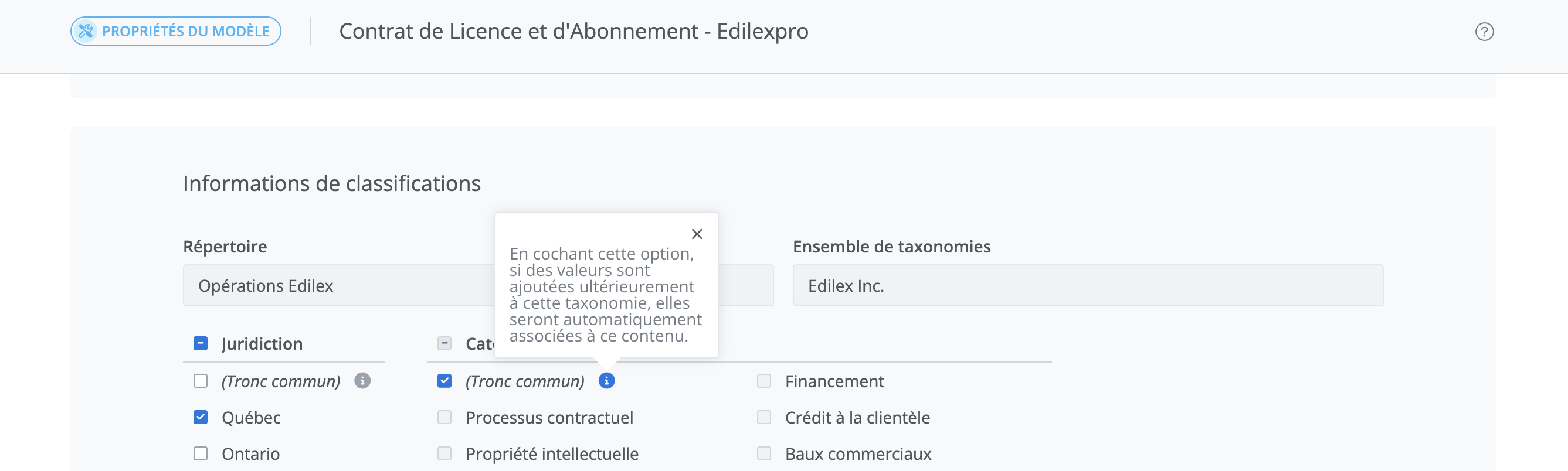
Example of filter usage and search results
When you select a single taxonomy value (e.g., Contractual Process), the results correspond to content that has at least the associated taxonomy value, meaning the results returned may contain the selected value, but also several other values.
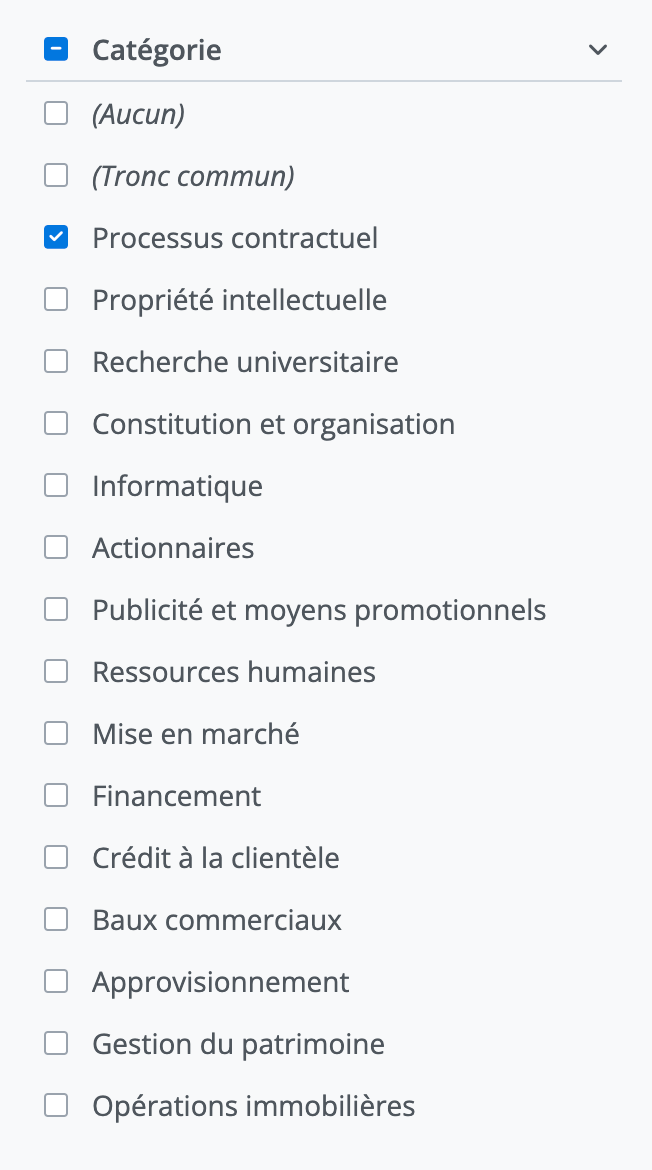
Here are the content classification cases returned by selecting the Contractual Process value:
Case 1 : only the Contractual Process value is associated with the content.
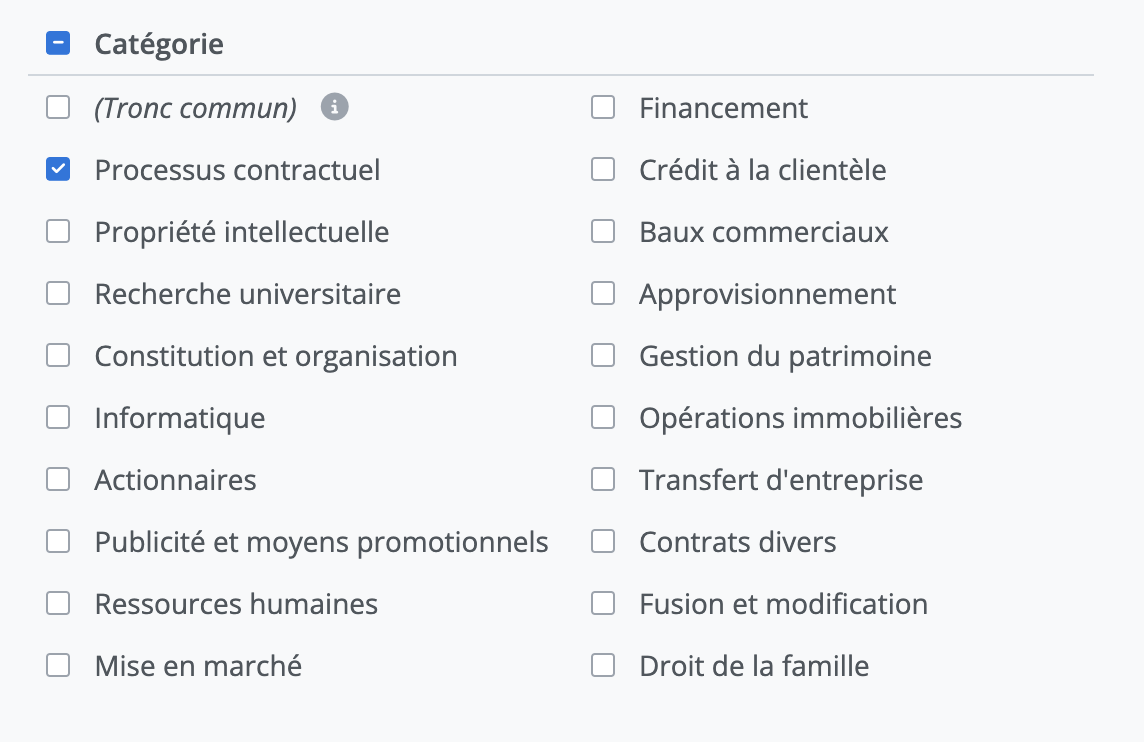
Case 2 : the Contractual Process value is associated with the content, but also to two other values.
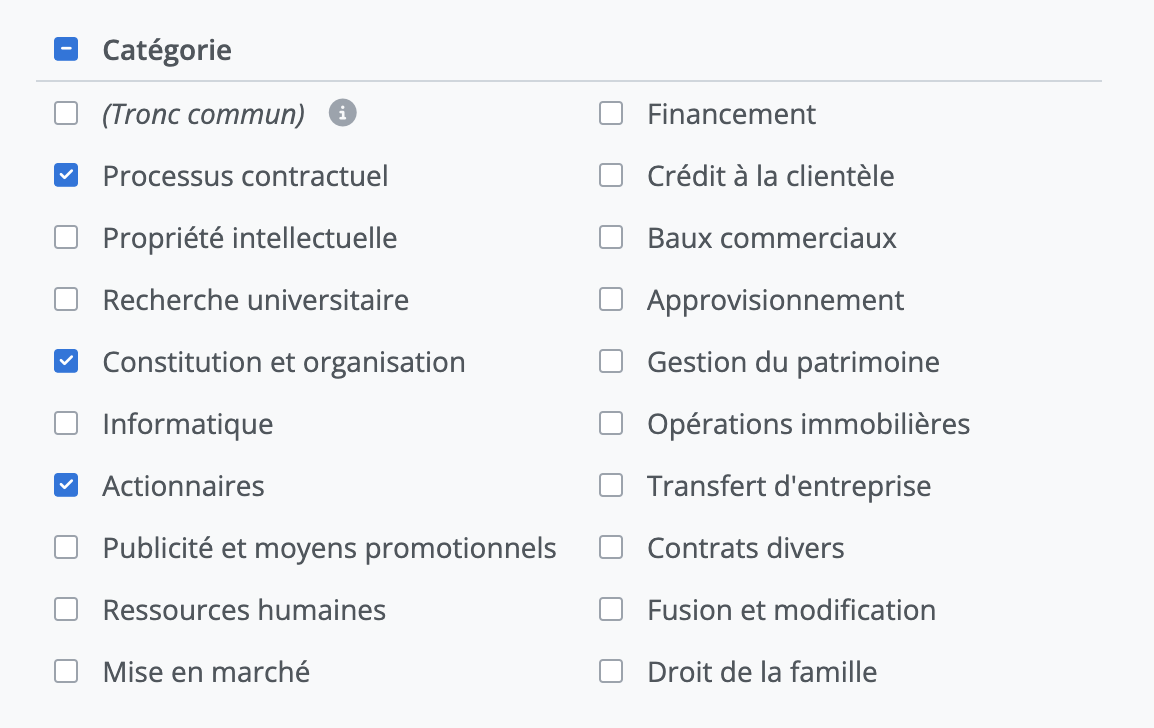
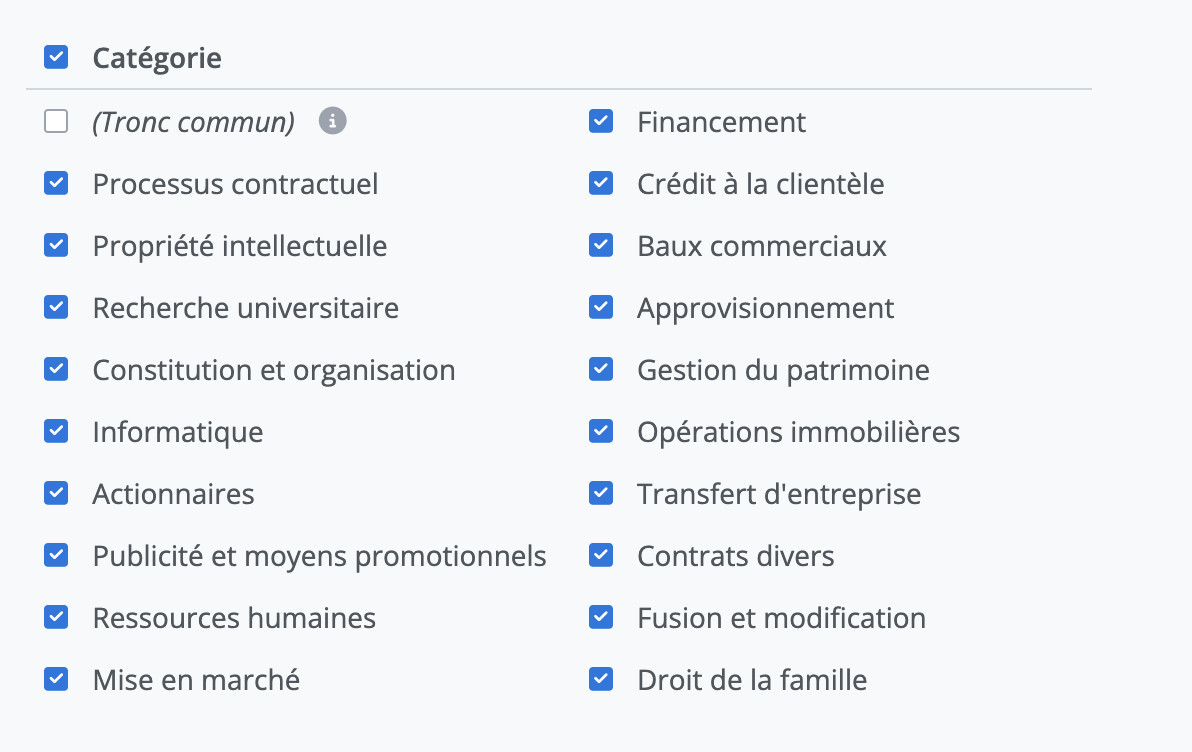
Case 3 : the Contractual Process value is associated with the content as well as all other values.
3. Assigning taxonomies
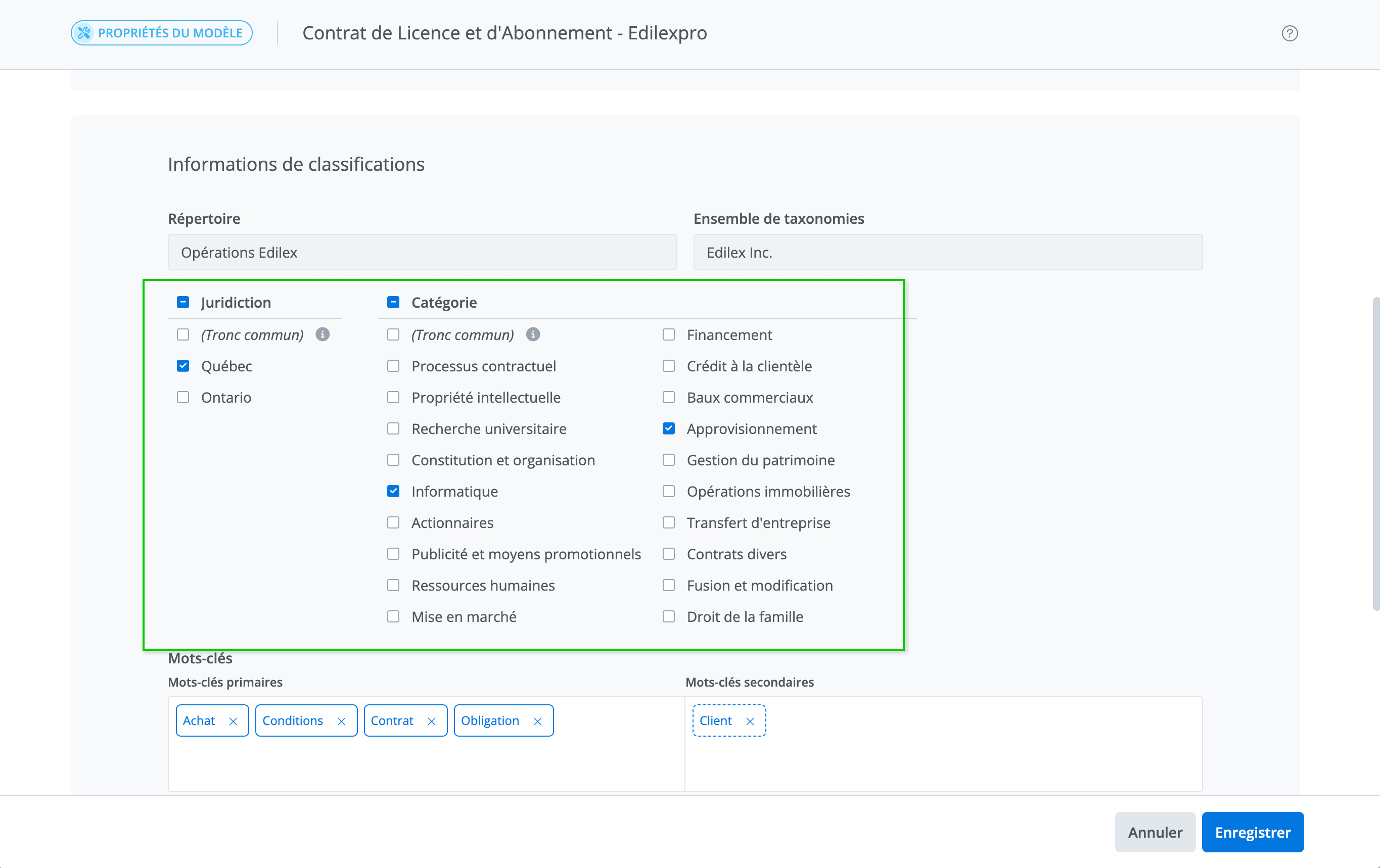
Assigning taxonomies allows you to classify your content, templates, and projects by assigning them specific categories, making it easier to organize and search for them.
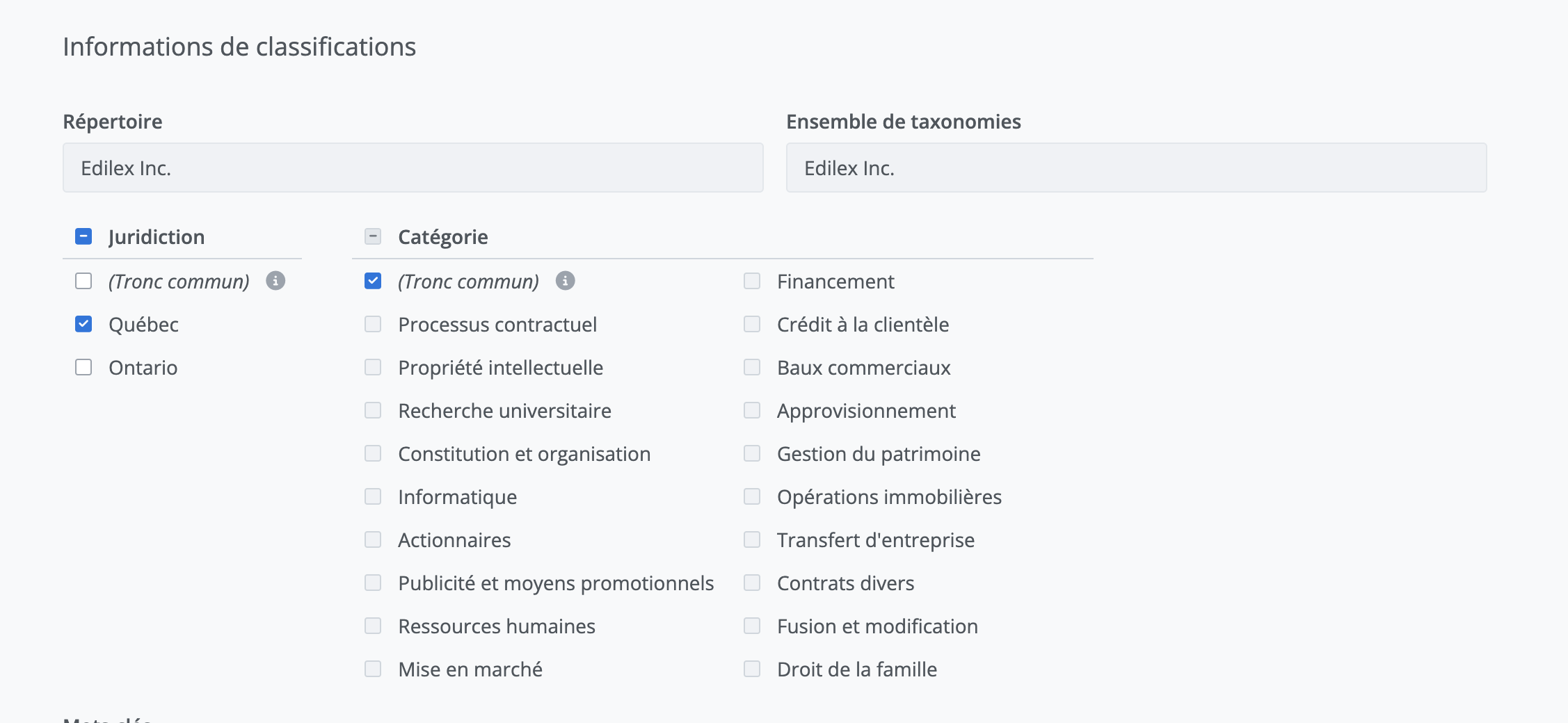
Steps to assign a taxonomy:
Be sure to assign relevant values to optimize the management and use of taxonomies.
-
Access the item you want to configure (content, template, or project).
-
Open the Properties tab from the features menu.
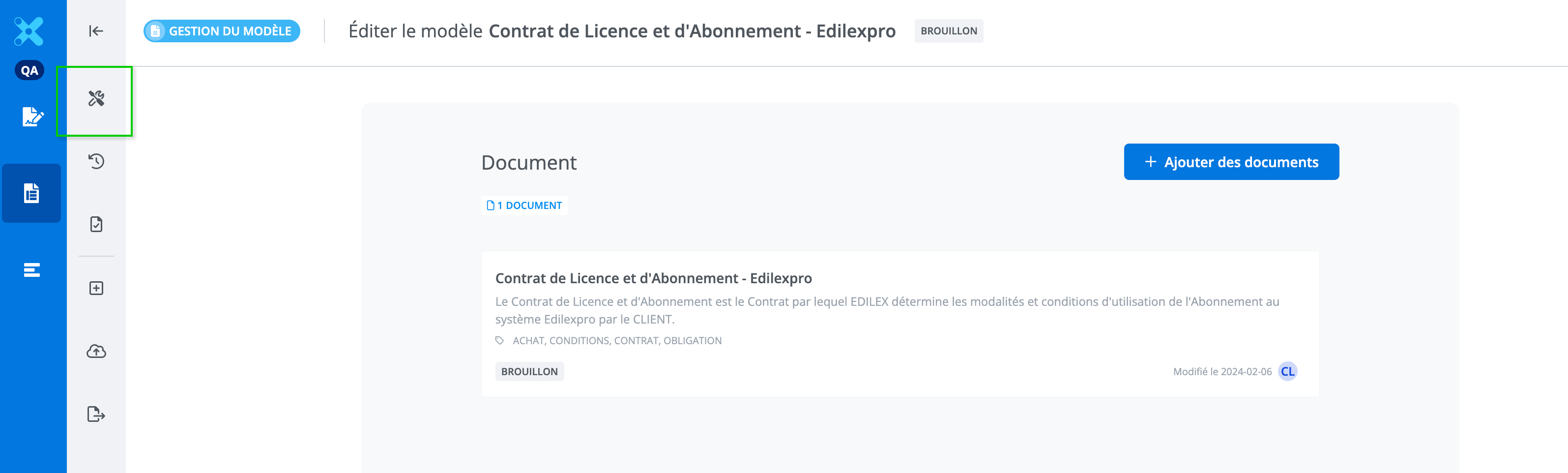
-
Select a taxonomy and choose one or more appropriate values.
Specific cases:
a. Value: Common core:
-
Automatically assigned for new content.
-
Can be used to ensure universal compatibility between content and a template.
b. Modify taxonomy of published content
Broaden the coverage of a piece of content.
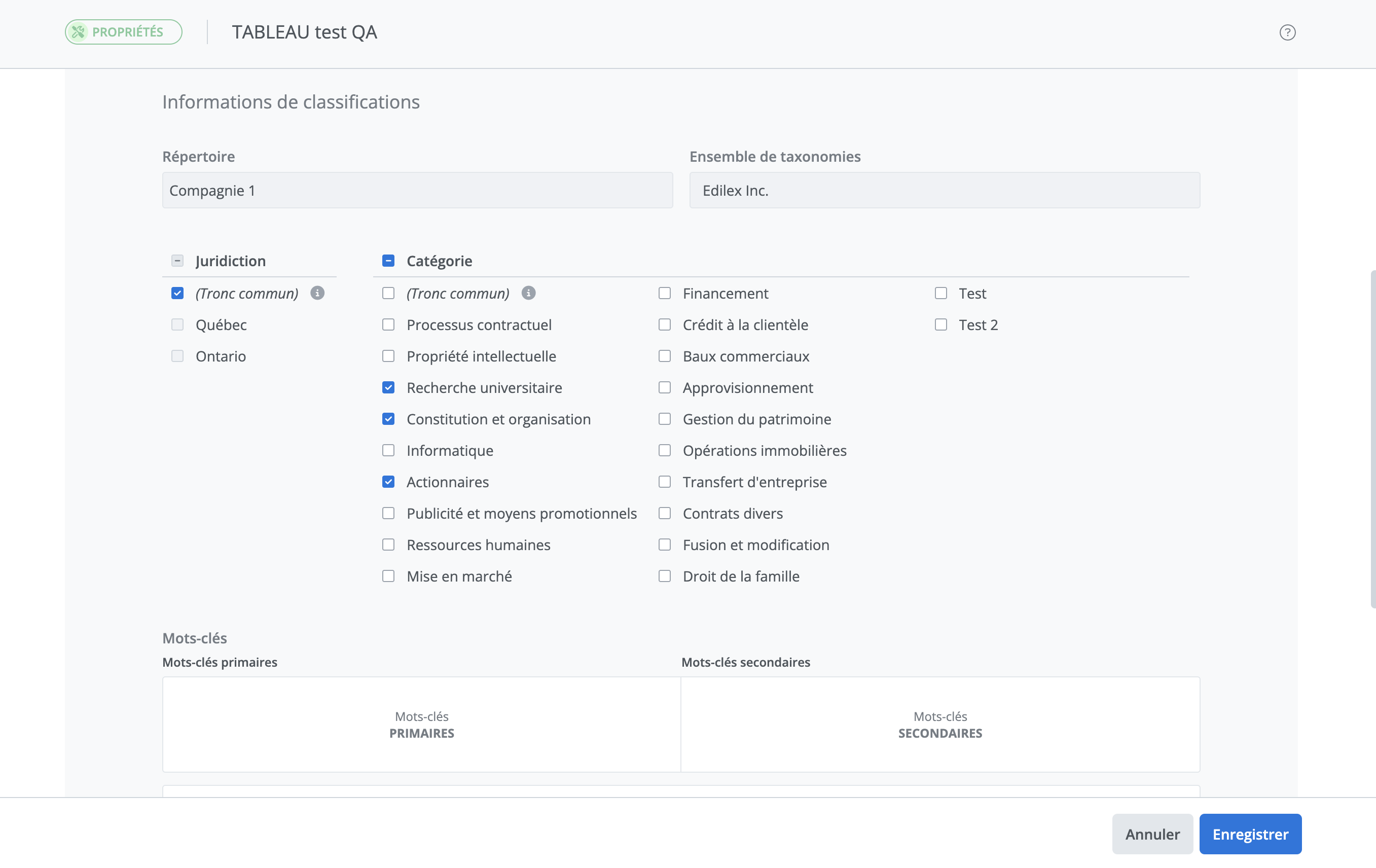
In order to maintain compatibility between published content and templates, published content can only be modified in a way that broadens the scope of its coverage.
Accordingly, when you modify the taxonomy of published content, only the selection of additional values is permitted.
In the following example, the three values of the selected Category taxonomy (University Research, Incorporation and Organization, and Shareholders) must remain selected, but you could add Human Resources, which would preserve what is already in place while broadening the scope of the content.
c. Remove Common Core value from published content
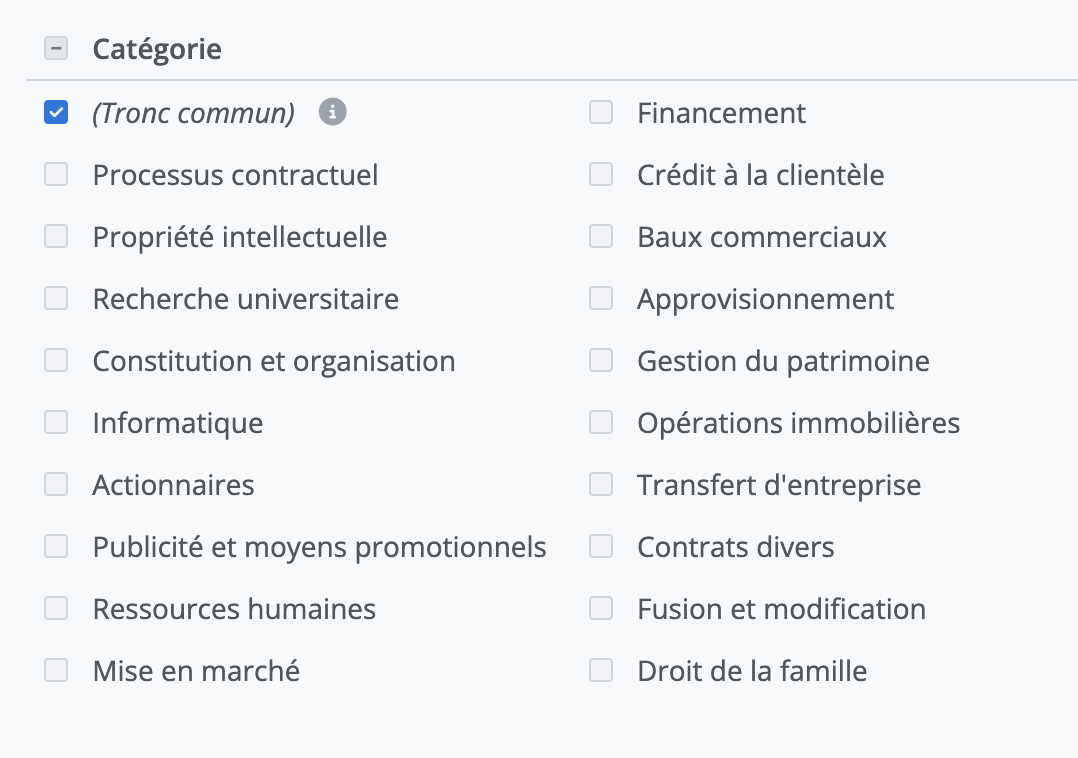
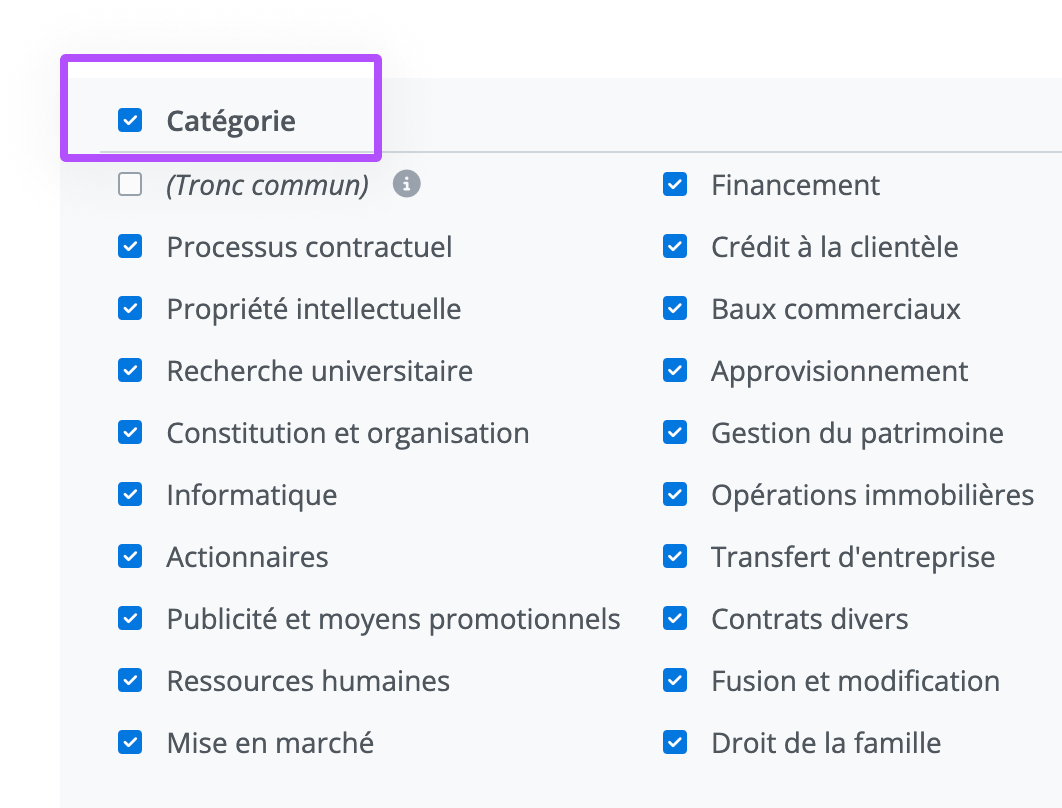
This exception case allows the coverage to be reduced while maintaining content compatibility. As a result, new taxonomy values created for the taxonomy in question will no longer be automatically added to the content.
To do this, first deselect the Common core value of the taxonomy.
Then, select all the values using the selector next to the taxonomy's name. You can then save your changes.
Mandatory permissions:
-
perm_template_edit: Necessary to modify templates and their taxonomies. -
perm_org_manage: Required to manage organizational settings, including the creation and modification of taxonomies.
Who can configure taxonomies?
-
The organization’s administrators.
-
Lawyers or authorized users with the permissions mentioned above.
How to check or assign permissions?
-
Go to the Administration settings.
-
Check or assign the necessary permissions to users from the List of Users section.
Only authorized users can ensure that taxonomies remain consistent and aligned with the organization's needs.
a. Creating new taxonomies
Creating a taxonomy allows you to add a custom classification criterion to structure your content, templates, and projects.
Steps to create a taxonomy:
-
Go to the Manage taxonomies section in the application.
-
Click on Add a taxonomy.
-
Give the taxonomy a name (e.g., Contract Type).
-
Add specific values (e.g., Employment Contract, Non-Disclosure Agreement).
-
Click Save to finalize its creation.
Advice:
-
Use clear, descriptive names.
-
Avoid duplicates to maintain consistent organization.
Once created, the taxonomy can be applied and used in your projects, content, and templates.
b. Adding values to a taxonomy
Adding values to a taxonomy allows you to enrich its classification criteria and adapt its structure to your specific needs.
-
Go to the Manage taxonomies section in the application.
-
Select the taxonomy to modify (e.g., Contract Type).
-
Click Add a taxonomy value.
-
Enter the name of the new value (e.g., Partnership, Subcontracting).
-
Save the modifications.
Advice:
-
Use relevant, clear names to avoid any confusion.
-
Validate the new values with your team to ensure their usefulness and consistency.
Once added, these values will be immediately available for classification, filtering, and searching in the application.
5. Configuring aliases and displaying taxonomies
An alias acts as an abbreviation. Its purpose is to allow quick identification of an entity and to display and reveal a greater amount of information at a glance. Even when several entities share the same name, displaying taxonomy aliases in the application's various lists makes it possible to clearly distinguish them.
The taxonomies are linked to several types of entities, such as:
-
Content items;
-
Templates;
-
Projects;
a. How taxonomy display works
The display of taxonomies in lists relies on the presence of an alias defined in the organization's settings. If an alias is defined for a taxonomy or a taxonomy value, it will be displayed in the lists.
An alias always has the following characteristics:
-
8 characters maximum.
-
Entries can be typed in lowercase or uppercase letters.
-
The display follows the format entered.
Example: Display in content:

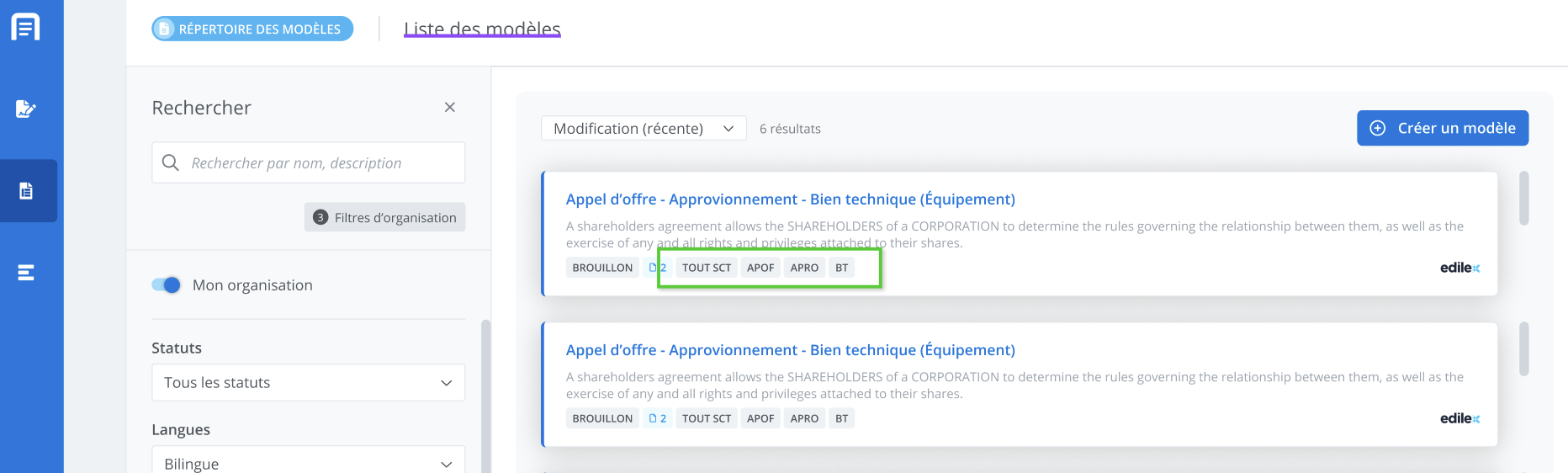
Example: Display in templates:
b. Configuration steps
-
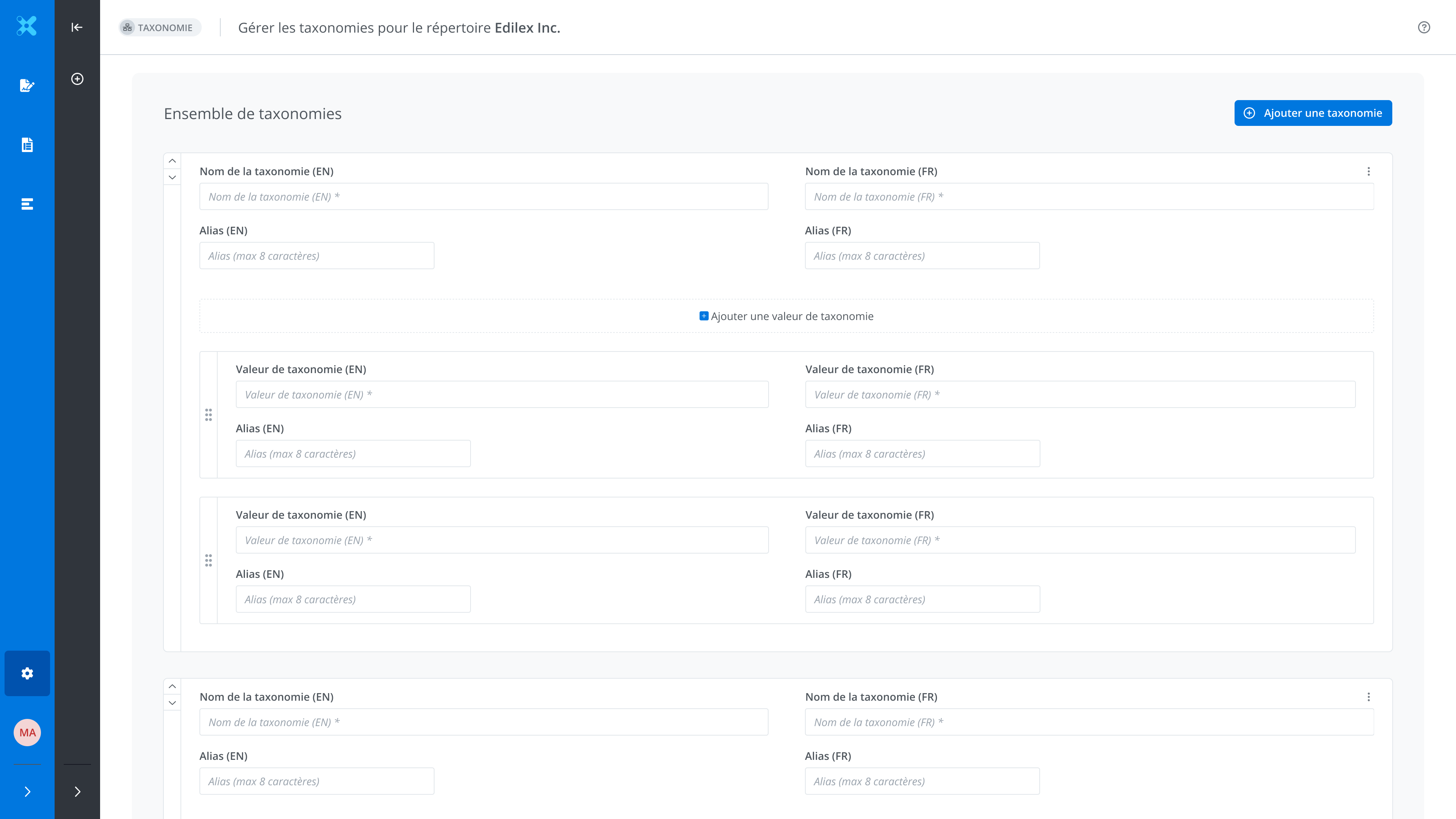
Go to Administration Settings > Taxonomies.
-
For each taxonomy and taxonomy value, it is possible to define an alias field.
-
If no alias is defined → no badge will be displayed in the lists for it.
Special rule: common core
-
For the “Common core” taxonomy, ainstead of displaying a "Common core" badge, the lists will display the "ALL+alias" badge.
-
This is particularly useful when there are multiple core-content taxonomies within the same piece of content, making it easier to tell them apart.
Example: For the Sector taxonomy, the alias SCT is defined and it is classified as Common core; the sector taxonomy will therefore be displayed as follows:

Open and close the filter and search panel
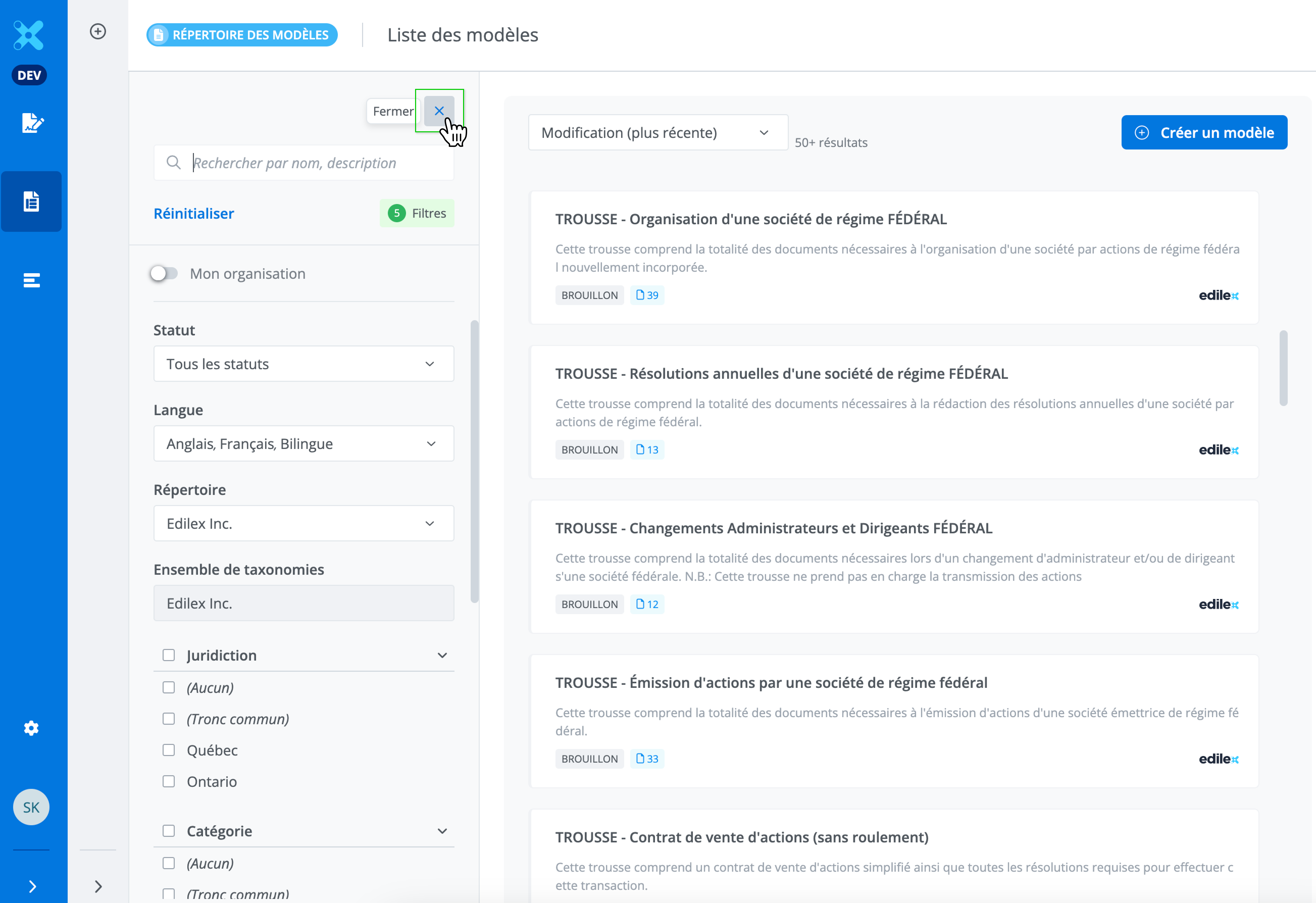
It is possible to open and close the filter and search panel to leave more room for the template list in the display area.
To close the filter and search panel, click the X on the panel.
Search results
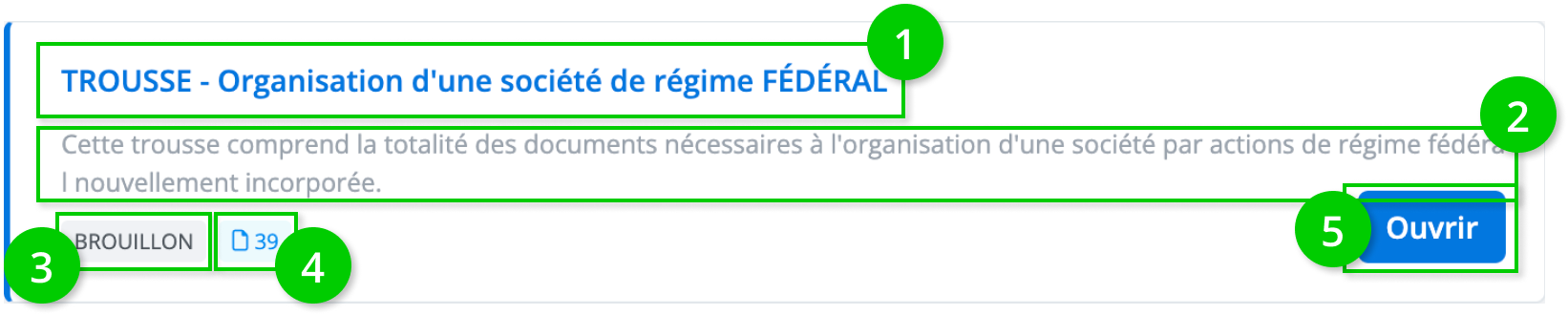
Each tile represents a template and contains several pieces of information:
-
Template title
-
Template description
-
Template's status (draft, draft of published, published)
-
Number of documents
-
The "Open" button if the tile is selected
Open a Template
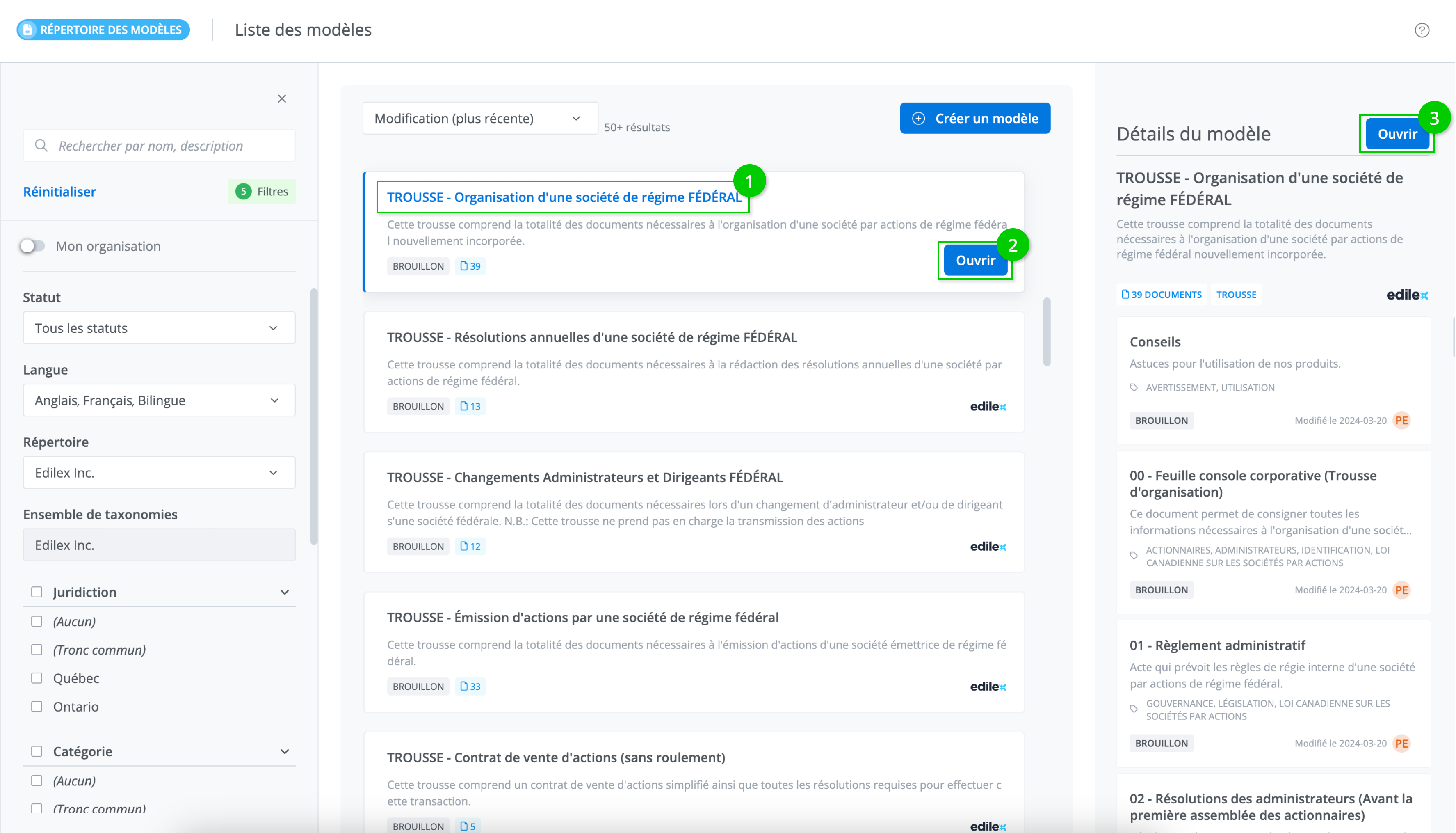
To open a template, click the title (1) or press the "Open" button (2) on the template tile or in the template details panel (3).
Related articles