
Description of the Feature
Allows you to create a section that can be used in a template or in a document.
Access to Feature
-
Access the contents library module;
-
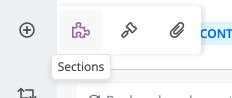
Click on Create in the features bar;
-
Select the Sections icon;
Draft the content of the section
-
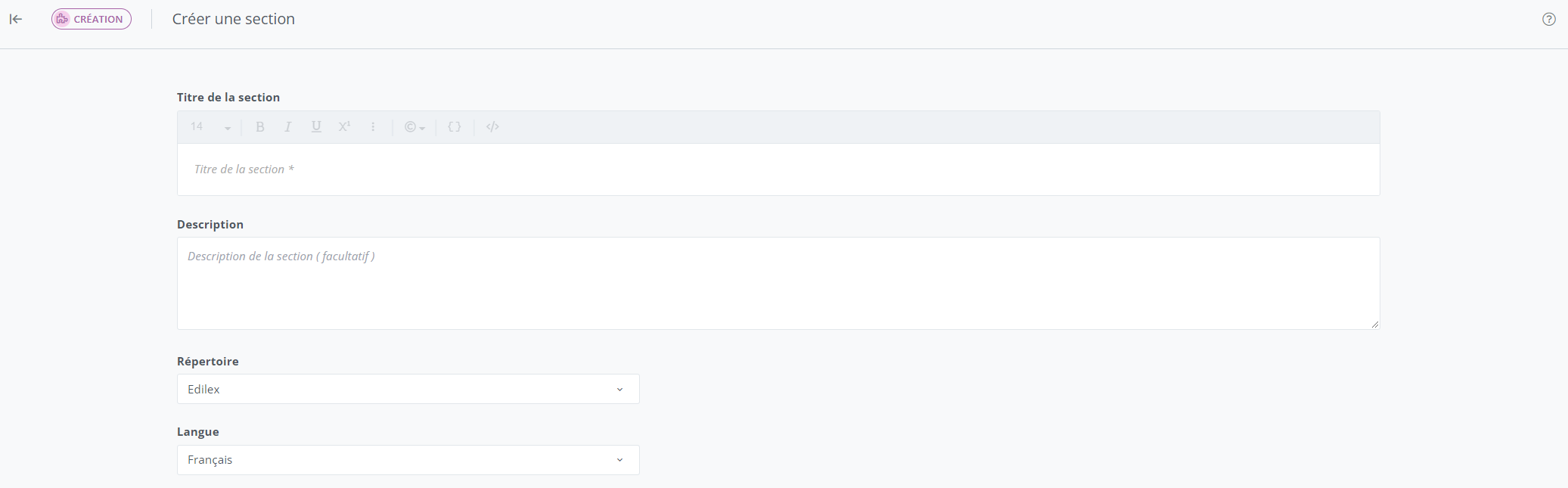
Enter a title in the Section title box;
-
Add a description;
-
Select the drafting language;
-
Select a directory or subdirectory;
-
Click Create. (Note: the buttons appear once the mandatory information has been entered.)

Important Notice
Repository:
-
The repository displayed by default in the drop-down list is the user's preference, if one exists; otherwise, the main repository is that of the user's organization.
-
The repositories available in the drop-down list are those for which the user has write access:
-
All directories of the organization to which the user belongs.
-
All directories made visible to this same organization with "write" access.
-
-
It is not possible to modify the directory and drafting language of a section after its creation.
Refer to the Repository Management page for more information on repository management.
Tags:
-
Add tags and a description to the section after its creation.
-
Tags are automatically displayed in the drafting language of the created section.
-
There can be up to four primary tags and about a hundred secondary tags.
Drafting:
-
Only published sections are available in the drafting module.
-
Each content item has a unique identification code. It is possible to search for content using this code. To view this code, access the content viewing screen or the viewing window for the content selected in the content directory module.
Who can use this feature?
Template Programmer Profile
Template Programmer Profile - Customized
❌ Legal Drafter Profile
❌ Legal Drafter Profile - Customized
❌ Corporate Drafter Profile
❌ Reader Profile