
Description of the Feature
Allows you to copy a section, including its properties (tags and description). Draft sections and published sections can be duplicated.
Steps to duplicate a sections
-
Click on the title of the sections to duplicate;
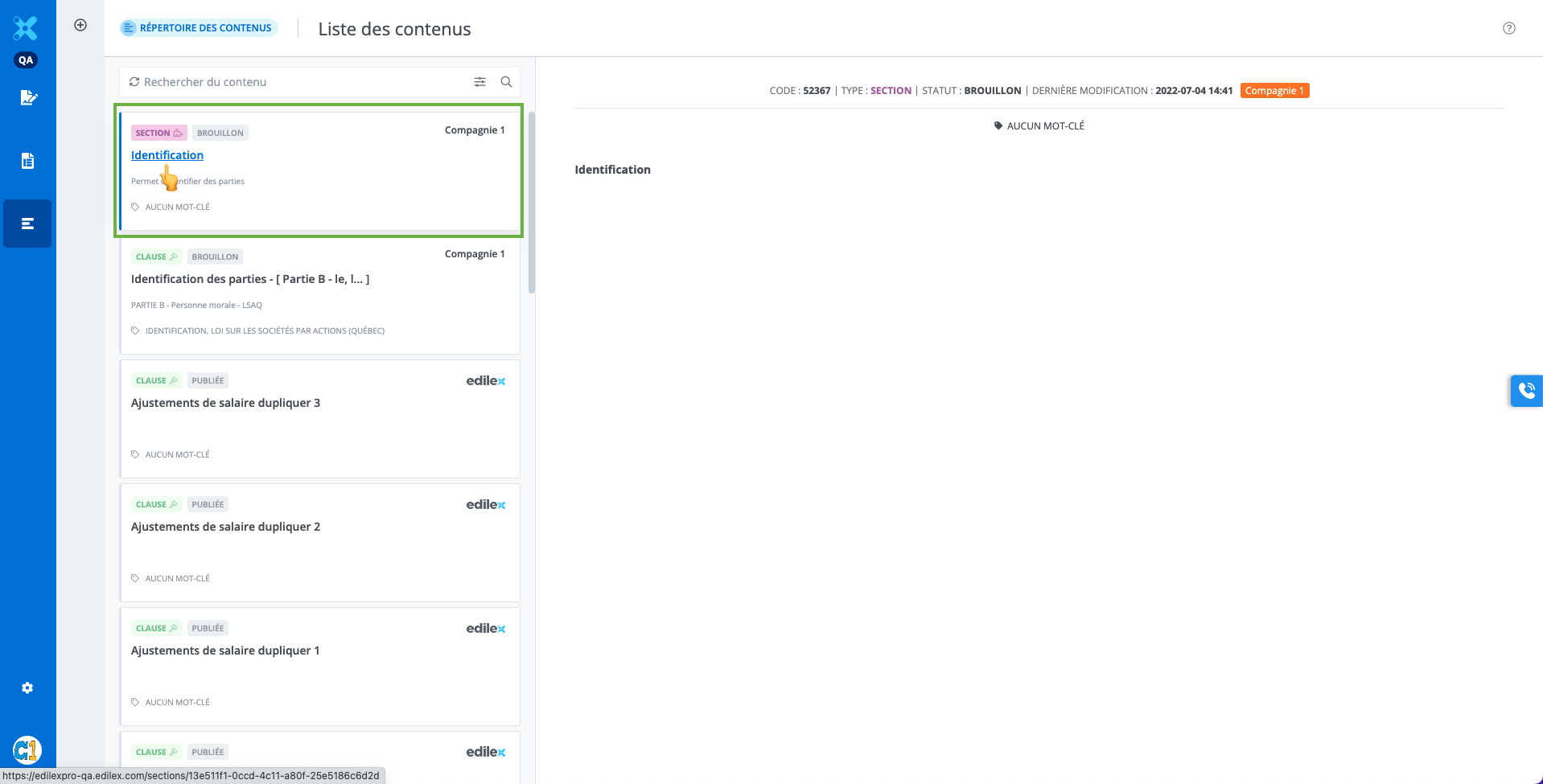
-
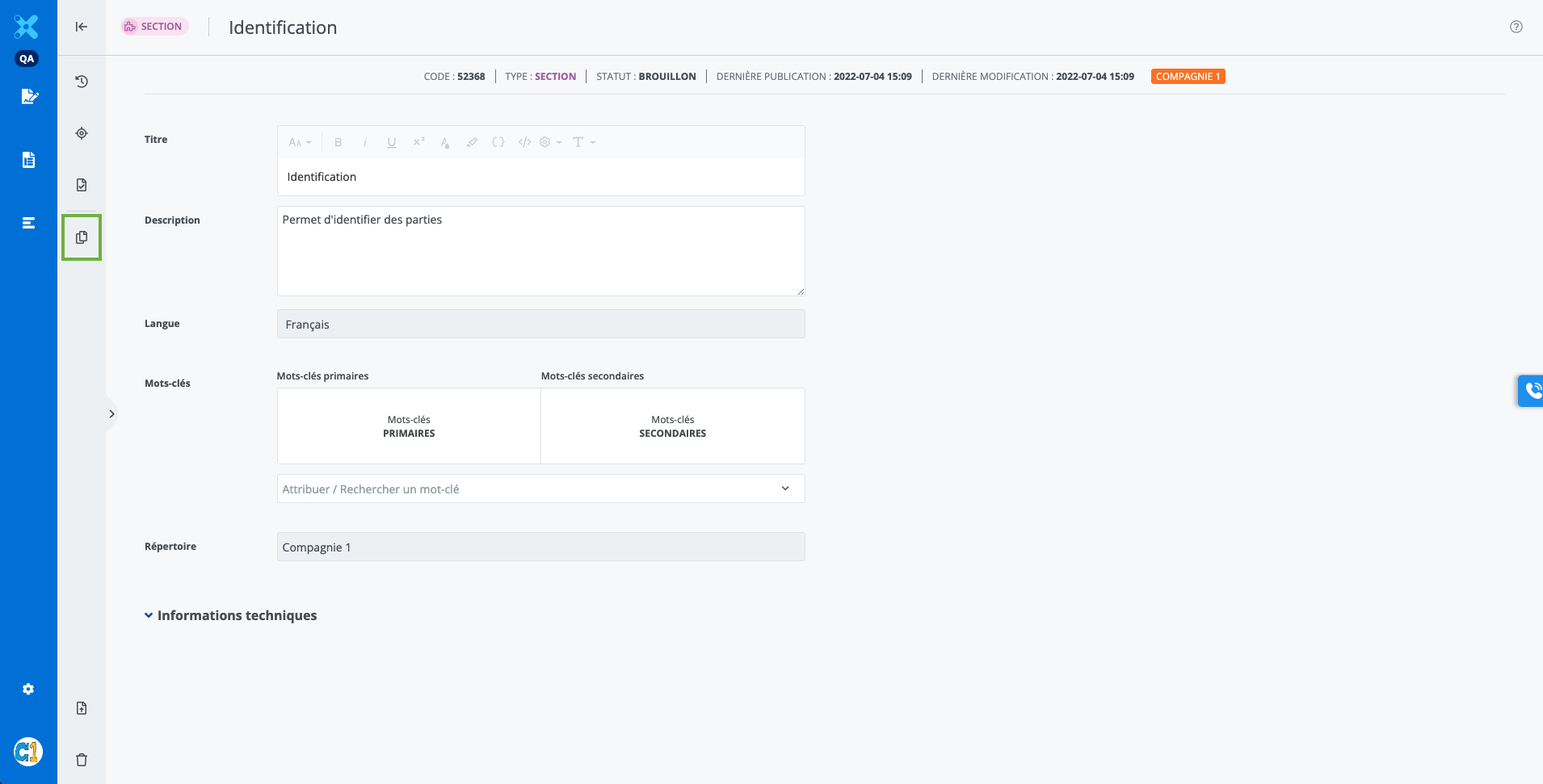
-
Select a directory or subdirectory;
-
Select the drafting language;
-
Click on Next ;
-
Modify the duplicated section as desired;
-
Click Create. (Note: the buttons appear when a change is made to the content or properties of the section.)

Important Notice
Repository:
-
The repository displayed by default in the drop-down list is the user's preference, if one exists; or the directory of the source section if the user's organization has "write" access, or a default value as a last resort.
-
The directories available in the drop-down list are those that have "read" or "write" access to the source section and for which the user has "write" access.
-
It is not possible to modify the directory and drafting language of a section after its creation.
Refer to the Repository Management page for more information on repository management.
Tags:
-
Add tags and a description to the section after its creation.
-
Tags are automatically displayed in the drafting language of the created section.
-
There can be up to four primary tags and about a hundred secondary tags.