
Description of the Feature
Allows a section and its properties (tags and description) to be modified after it has been created.
Access to Feature
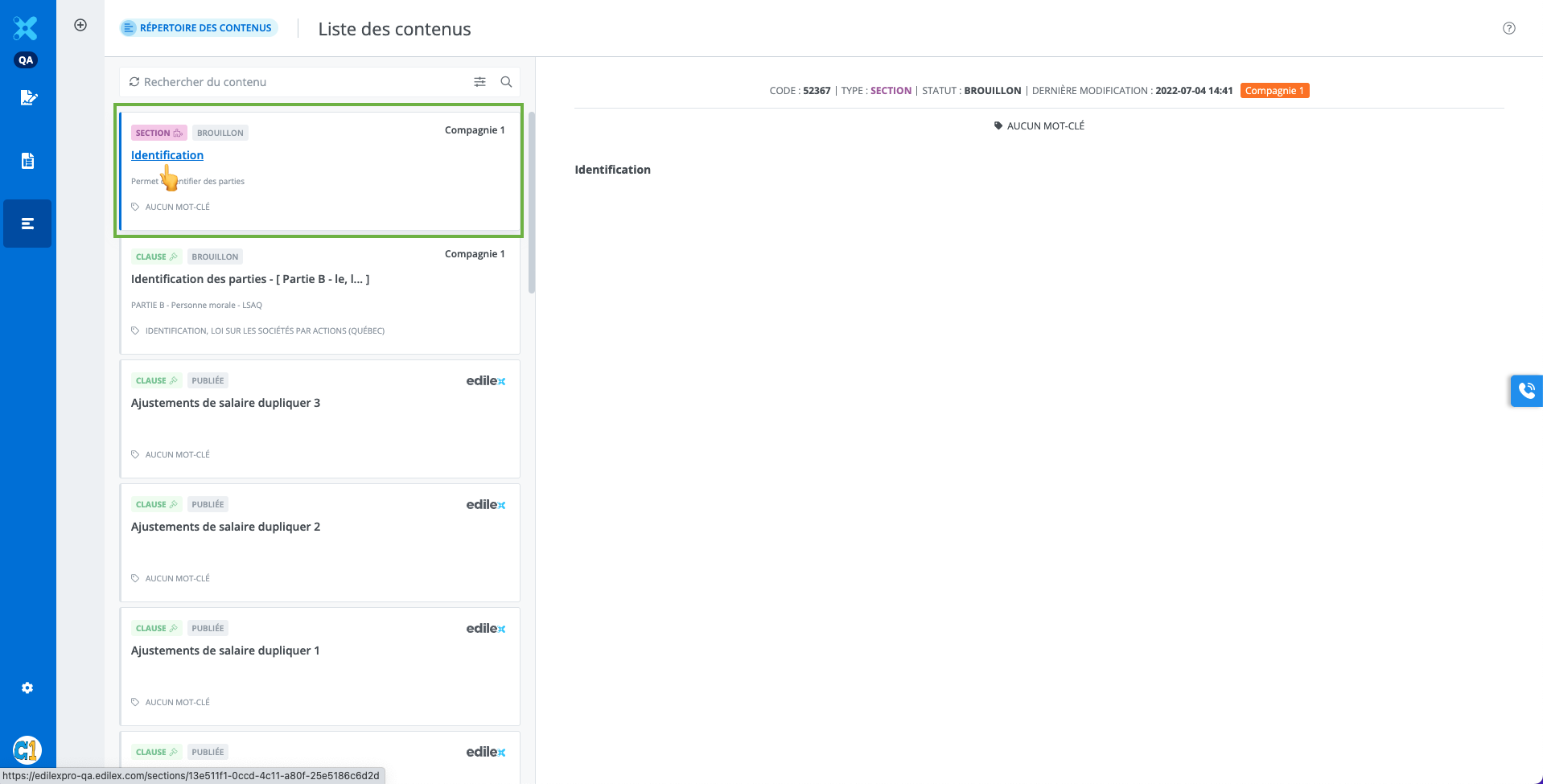
Access the section to be edited by clicking on its title from the Contents Library;
Section editing window
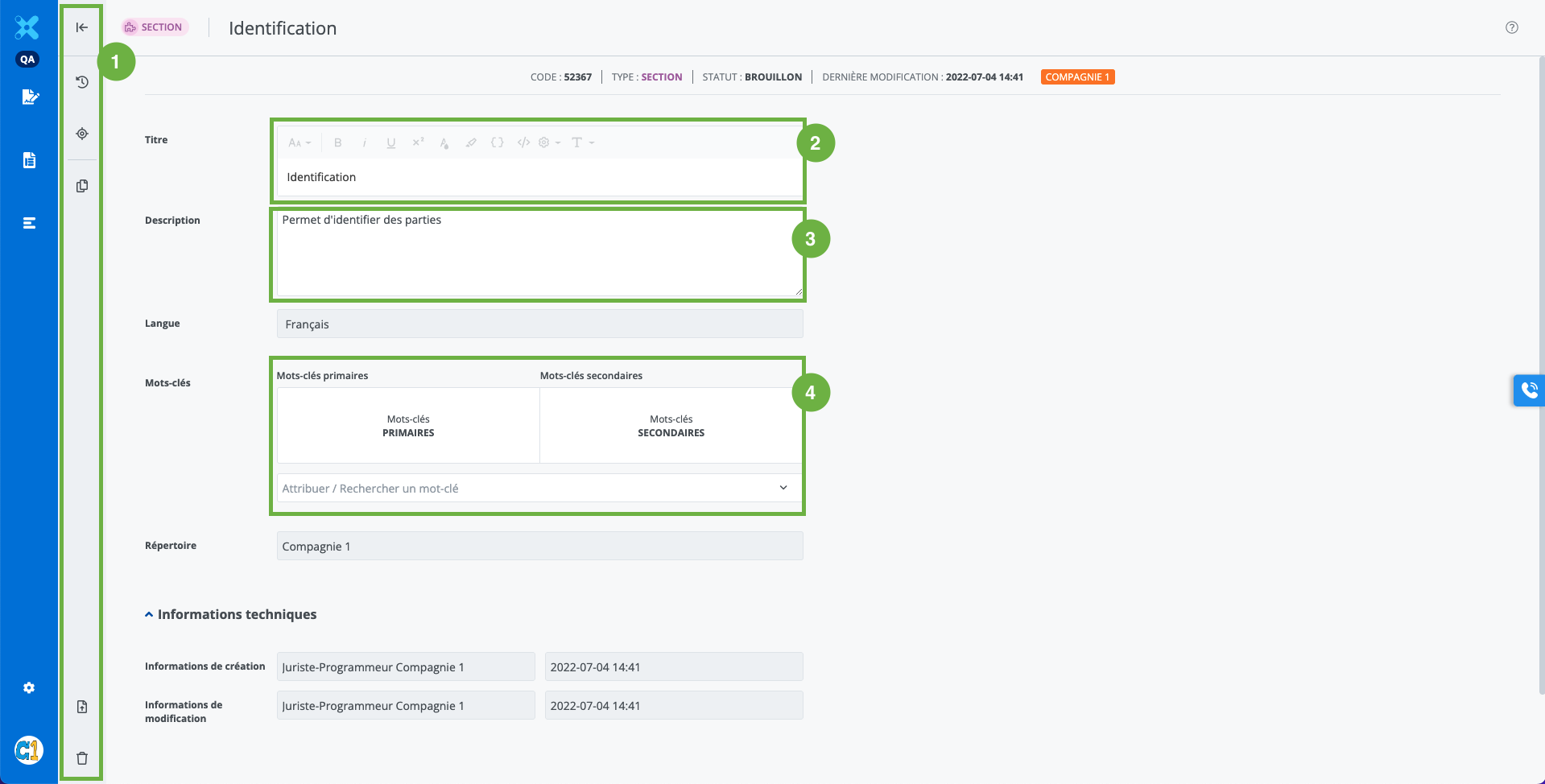
-
The features toolbar
-
The History of changes made to the section's content and properties;
-
The Usage of the section in templates;
-
The option to duplicate the section;
-
The option to publish the section;
-
The option to delete the section;
-
-
The title of the section that will be displayed in the template.
-
The description of the section that provides context for the content.
-
The tags that categorize the section.
Modify a section in draft
-
Edit the section title as desired;
-
Click Save. Note: The Save button appears when a change is made to the section's content or properties.
Add and move tags
-
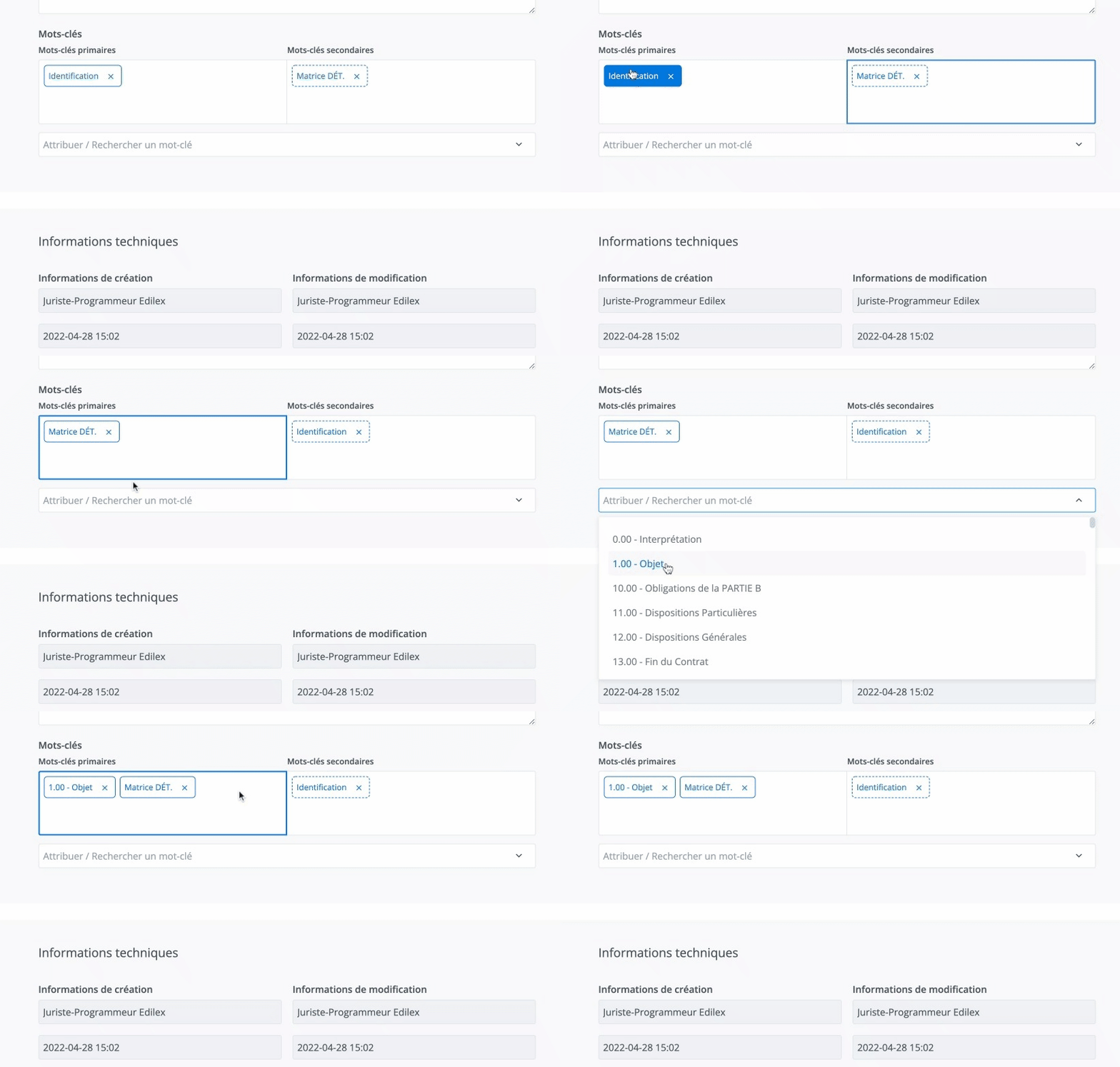
Tags are automatically displayed in the drafting language of the created section.
-
There can be up to four primary tags and about a hundred secondary tags.
-
It is possible to move primary or secondary tags using the drag-and-drop function.
Modify a published section
If the section is published: Click Create a Draft in the toolbar
Important Notice
-
If the edited section is published, it is essential to replace the old version with the new one in all templates where it appears. See the section Updating Content in a Template.
-
It is possible to delete the draft version of a section without affecting the published version