
Description of the Feature
Allows you to draft the content of a clause.
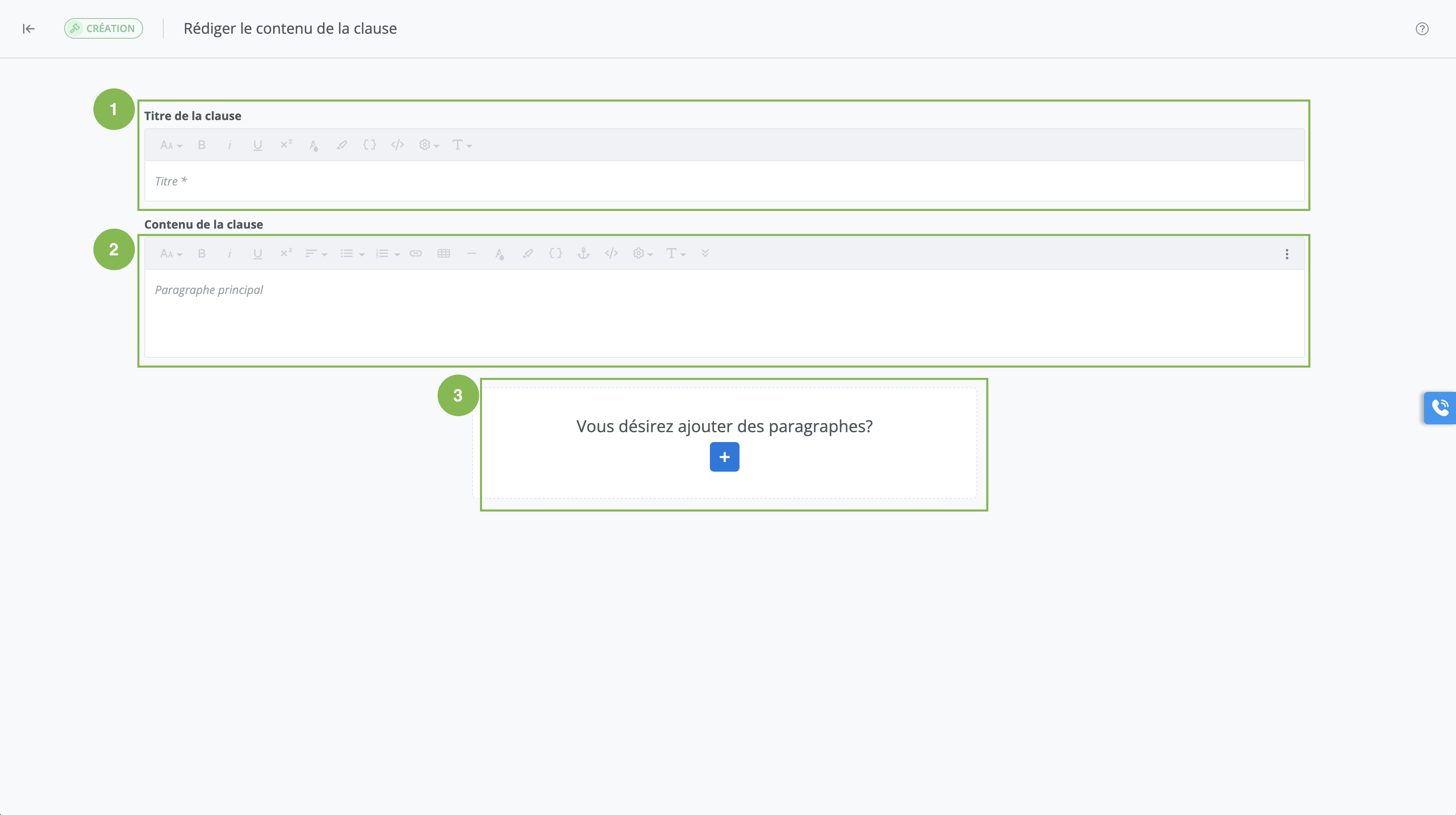
Steps for creating a clause
-
Enter a title in the Title of the clause box;
-
Draft the content of the clause in the Content of the clause box;
-
To add paragraphs, click Add a paragraph. A new drafting block appears, allowing you to write the paragraph. Click + to add an additional paragraph.
-
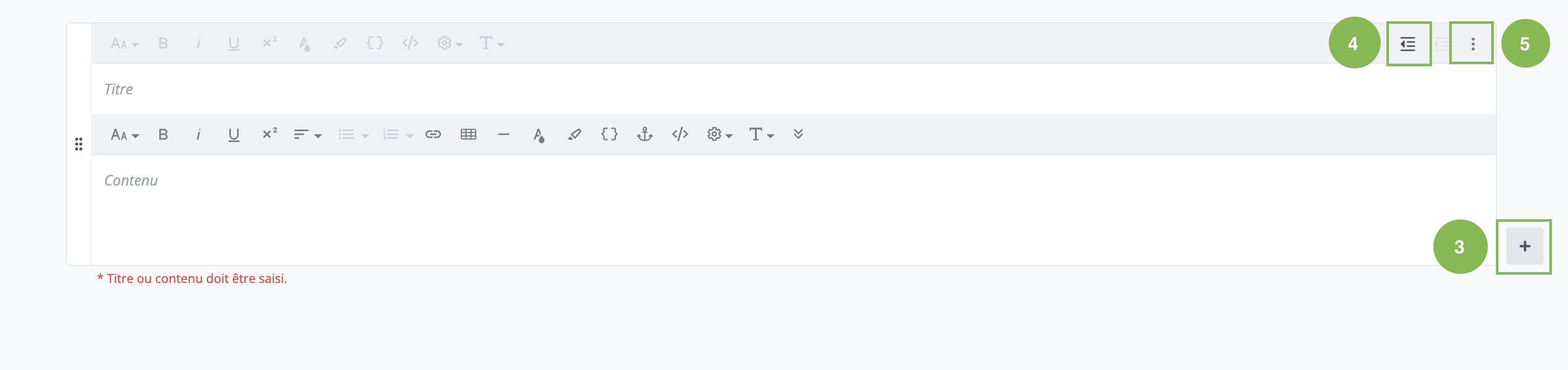
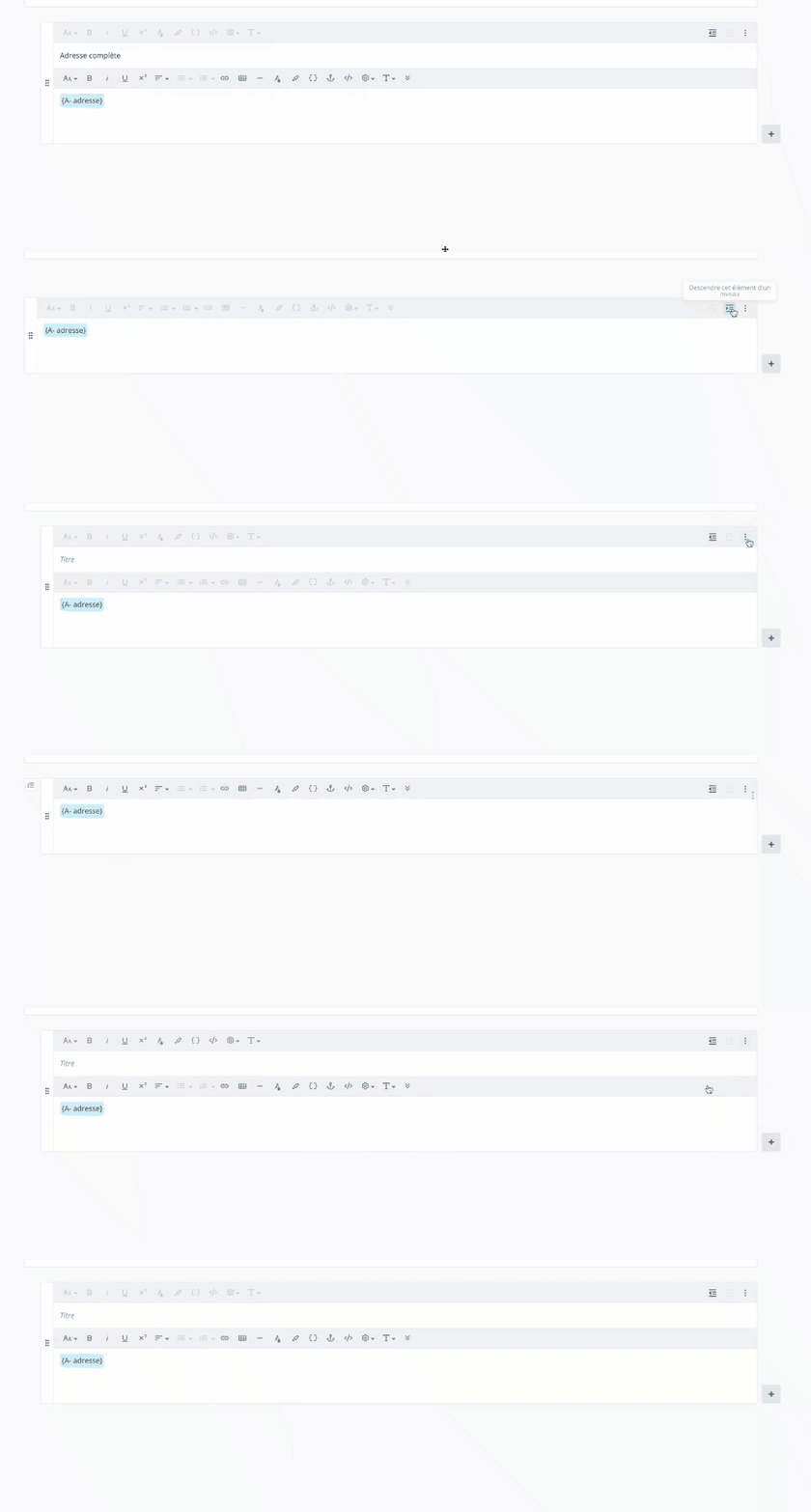
To indent or return to the margin, click Indentation;
-
To add numbering to a paragraph, click Manage clause content, then click Set as numbered paragraph.
-
To remove numbering from a paragraph, click Manage clause content, then click Set as paragraph.
-
Click on Create.
Important Notice
-
A clause must always have a title. This is the first element that will be taken into account when searching for content. However, it will be possible to hide this title in a document.
-
document. It is possible to obtain different numbering levels depending on the structure of the clause and where it will be added within the template or document.
-
Each content item has a unique identification code. It is possible to search for content using this code. To view this code, access the content viewing screen or the viewing window for the content selected in the contents library module.
-
Add tags and a description to the clause following its creation by clicking on Properties.
Who can use this feature?
Template Programmer Profile
Template Programmer Profile - Customized
❌ Legal Drafter Profile
❌ Legal Drafter Profile - Customized
❌ Corporate Drafter Profile
❌ Reader Profile
To learn more about drafting features
Read the following articles to learn more about the drafting features available to draft a clause.
Modify a clause in draft mode in the content editor