This feature is only available on certain plans. Please contact Edilex customer service to learn more about activating this feature.
Access to Feature
Approval groups allow you to configure the user groups that will be involved in project approval processes.
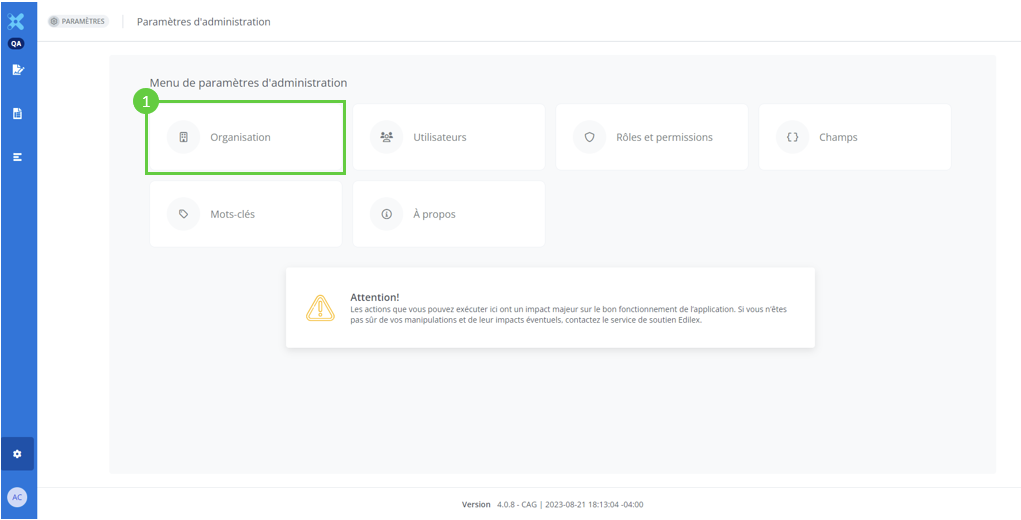
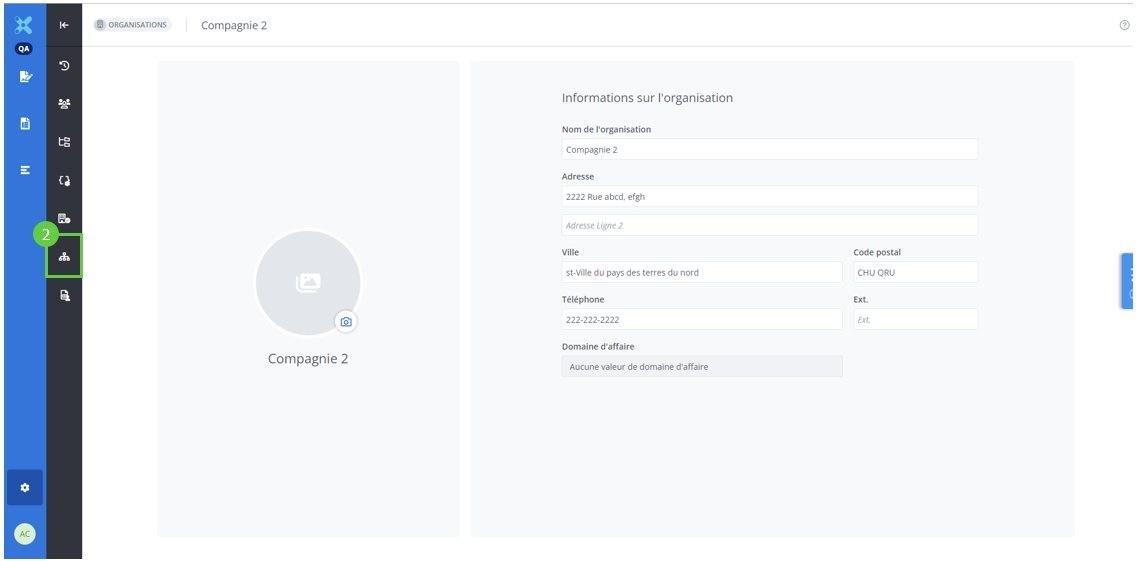
In the Administration settings menu, click on Organizations, then on Approval Group:
Description of the Feature
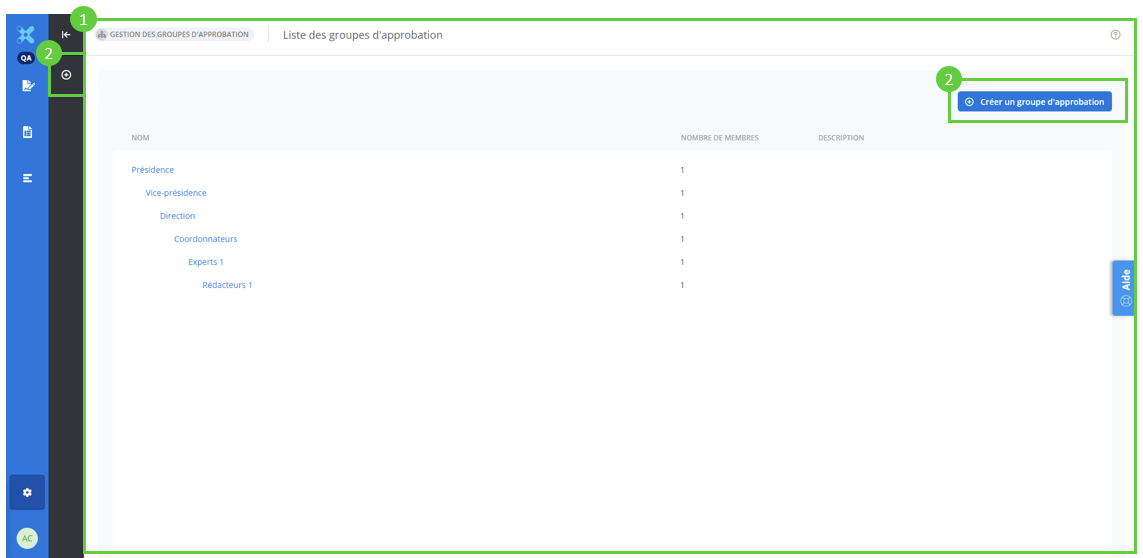
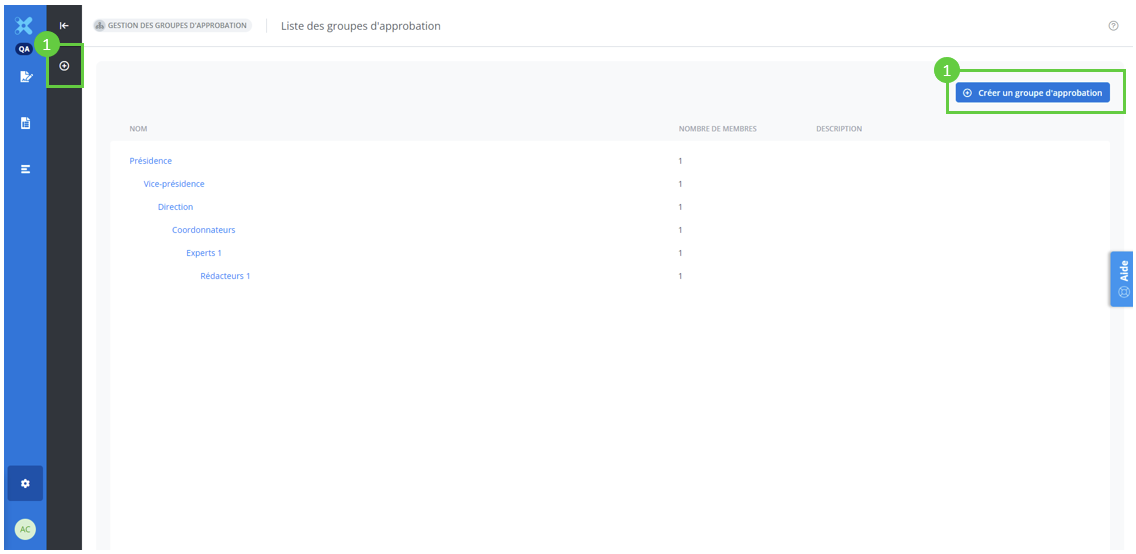
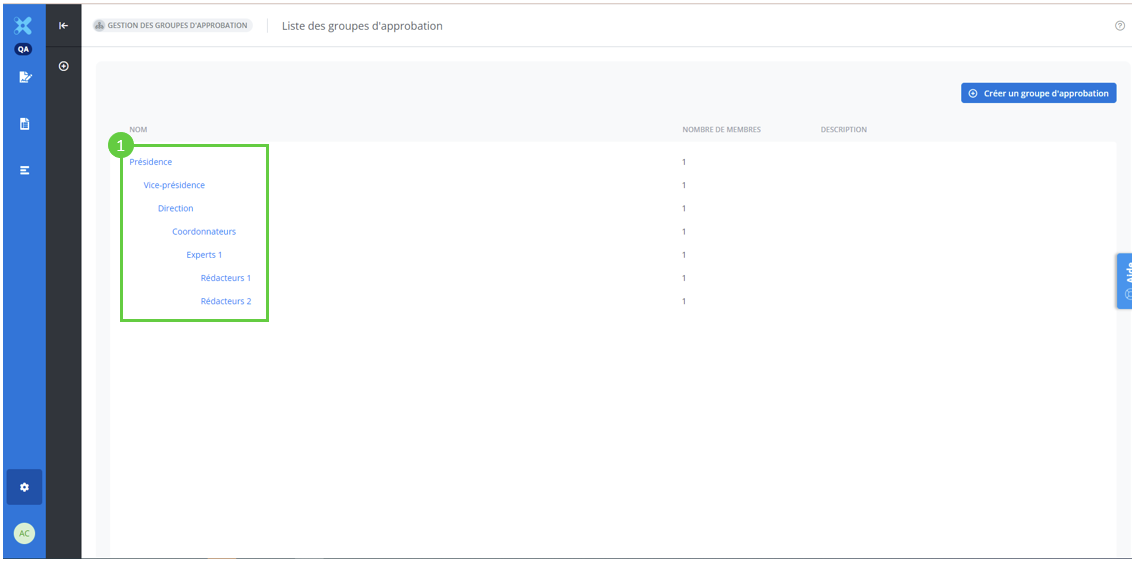
This window displays the list of approval groups (1) for your organization. Here you will find the list of your approval groups, and this is also the window from which you can create new groups (2).
Create an approval groups
Click Create an approval group (1) to create a new group.
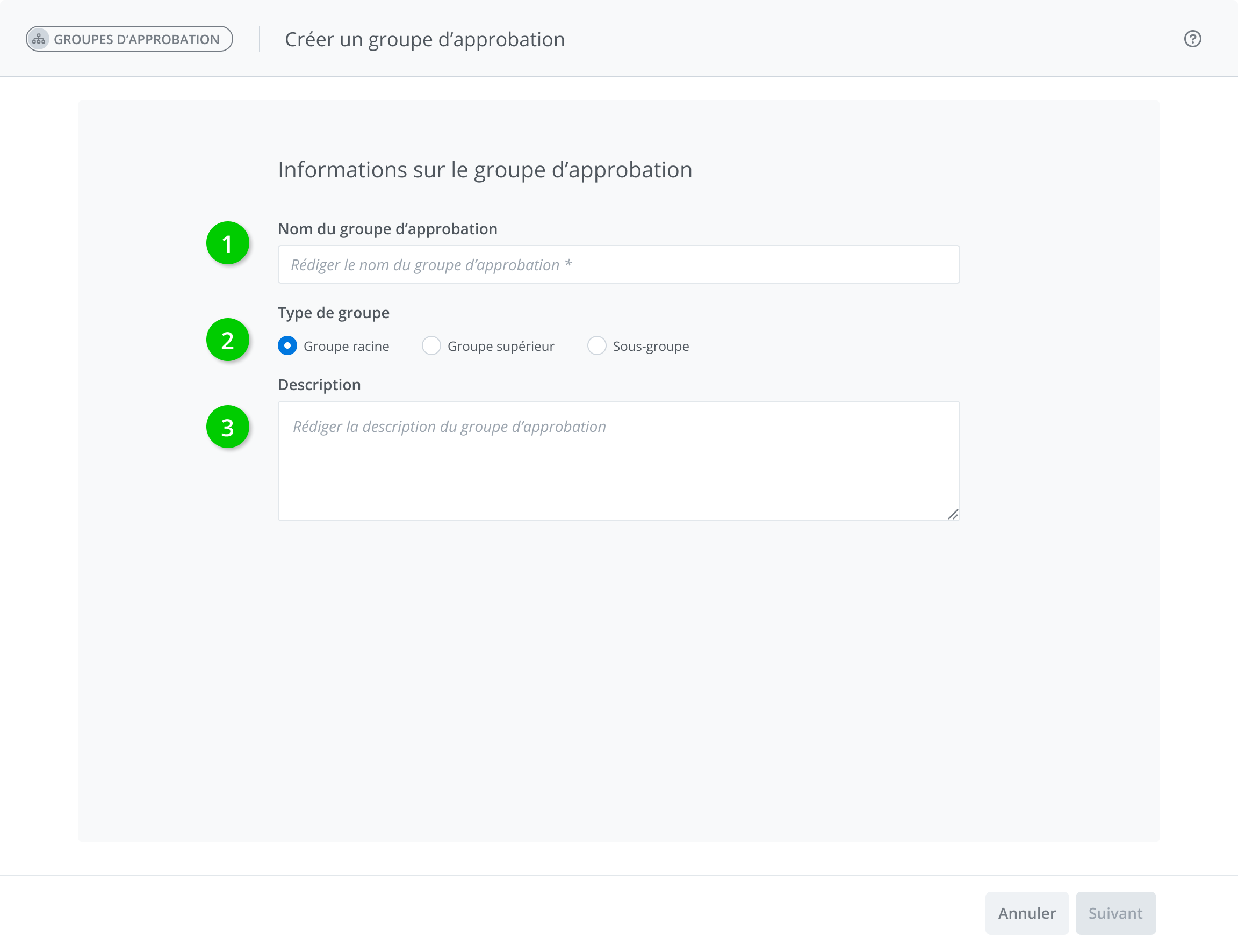
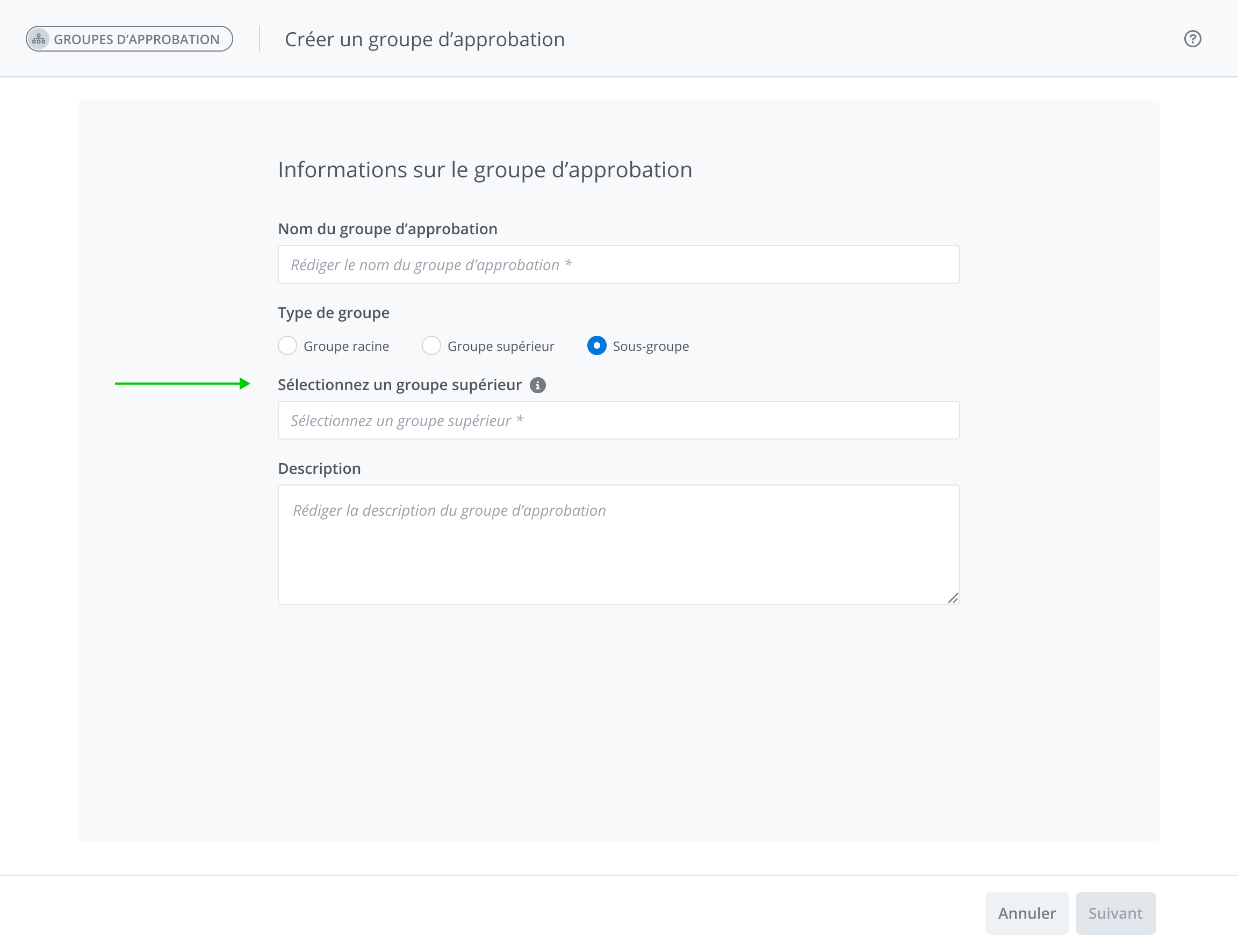
Then complete the requested information:
-
Approval group name (required field);
-
Type of group (required field);
-
Root group
-
Parent group
-
Subgroup
-
-
A description of the approval group (optional field).
Type of approval group
-
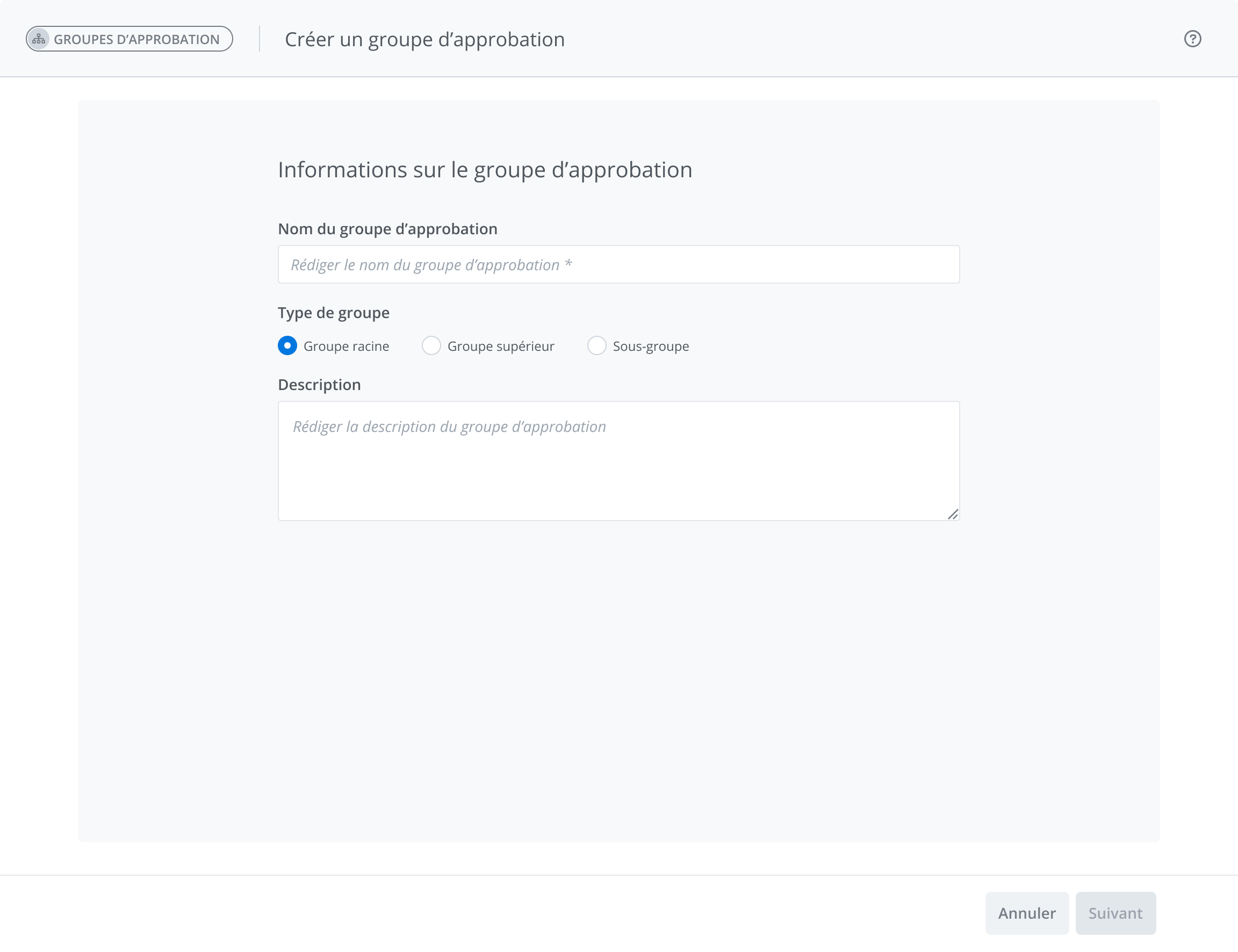
Root group: a root group allows you to create a new approval hierarchy; other groups can be associated with it to complete the approval chain.
-
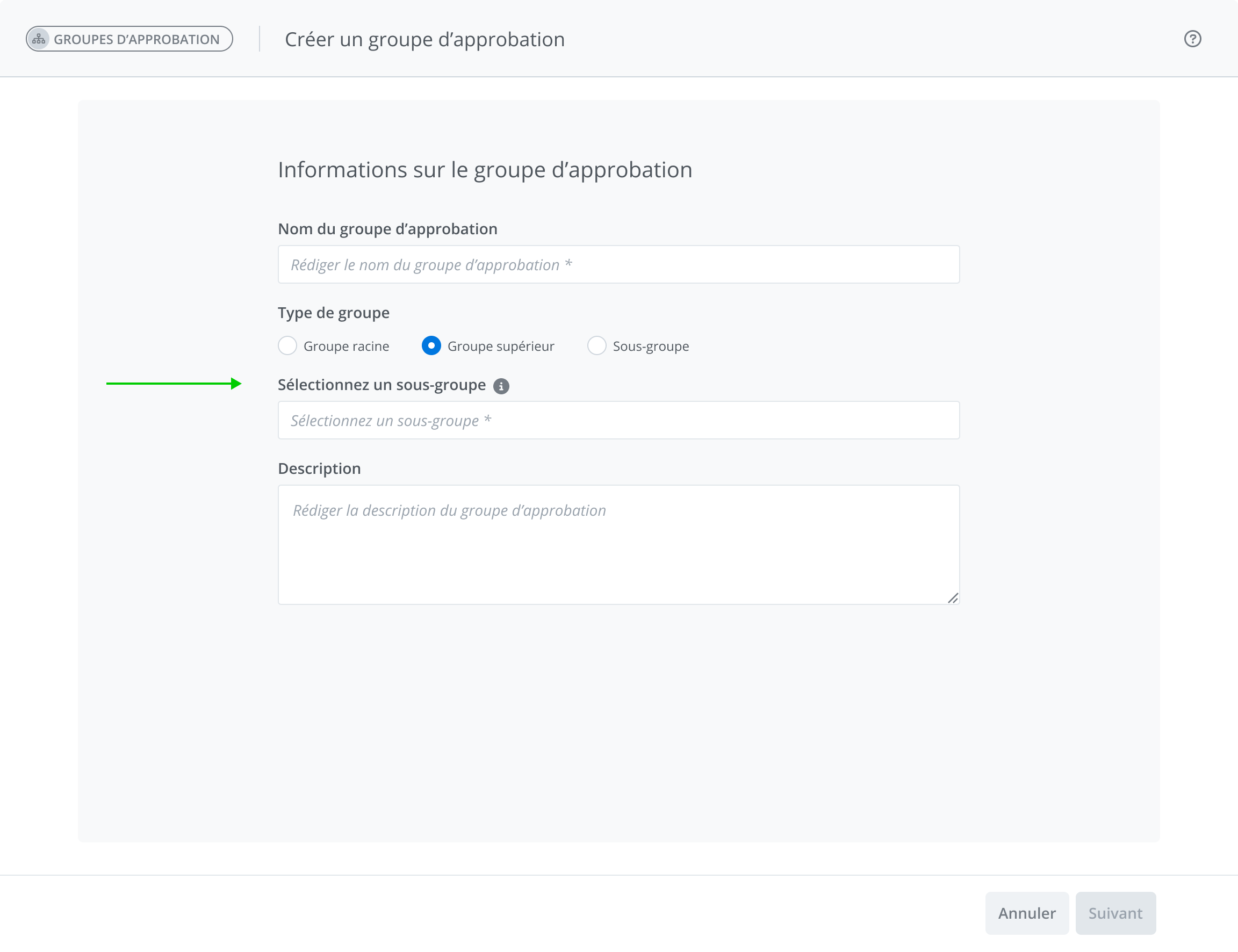
Parent group: a parent group is a group that can be placed above another one in order to extend the approval hierarchy upward. A parent group will always be linked to a subgroup or a root group.
-
A drop-down menu is used to select to which approval group (subgroup or root) the parent group is linked (required field);
-
-
Subgroup: a subgroup is a group that can be placed below a root group or a parent group in order to extend the approval hierarchy downward. A subgroup will always be linked to a parent group or a root group.
-
A drop-down menu is used to select to which approval group (subgroup or root) the subgroup is linked (required field);
-
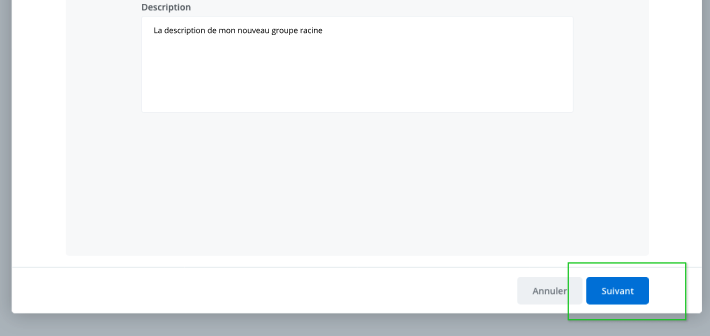
Click Next to continue the creation process.
Add members to a group
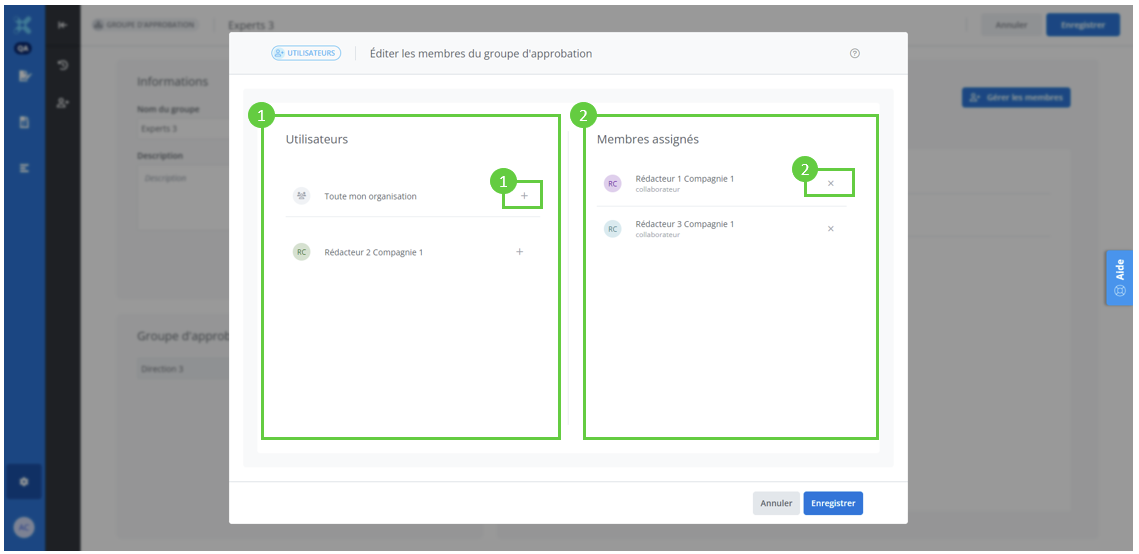
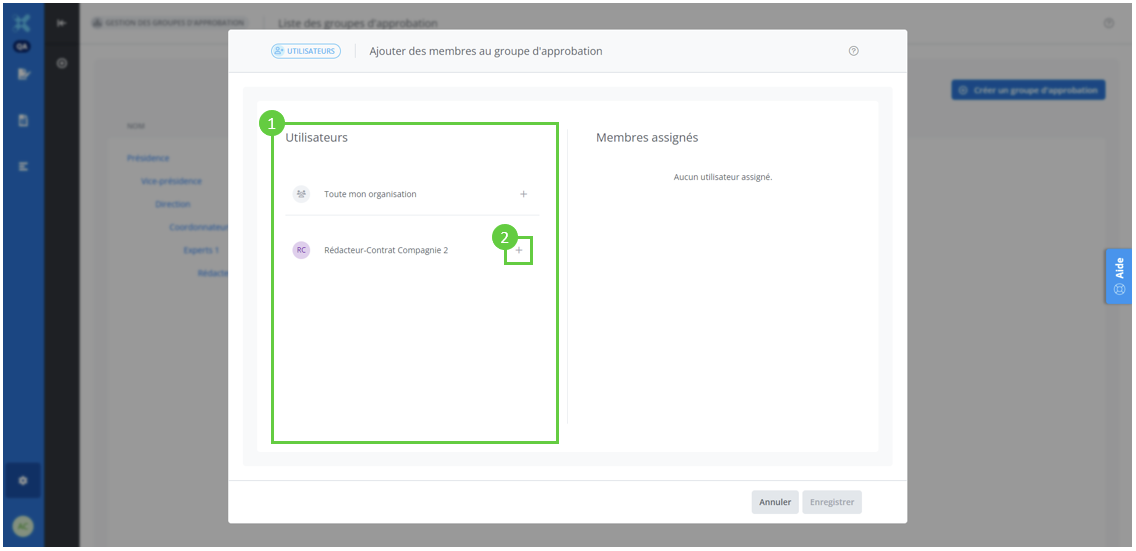
Click +(1) located to the right of a user's name in the users column(2) to assign them to the approval group.
Please note that only users who are not already part of an approval group will be visible.
Users who are assigned to parent approval groups (linked to subgroups) will automatically receive permission to approve projects from those subgroups.
Modify a group
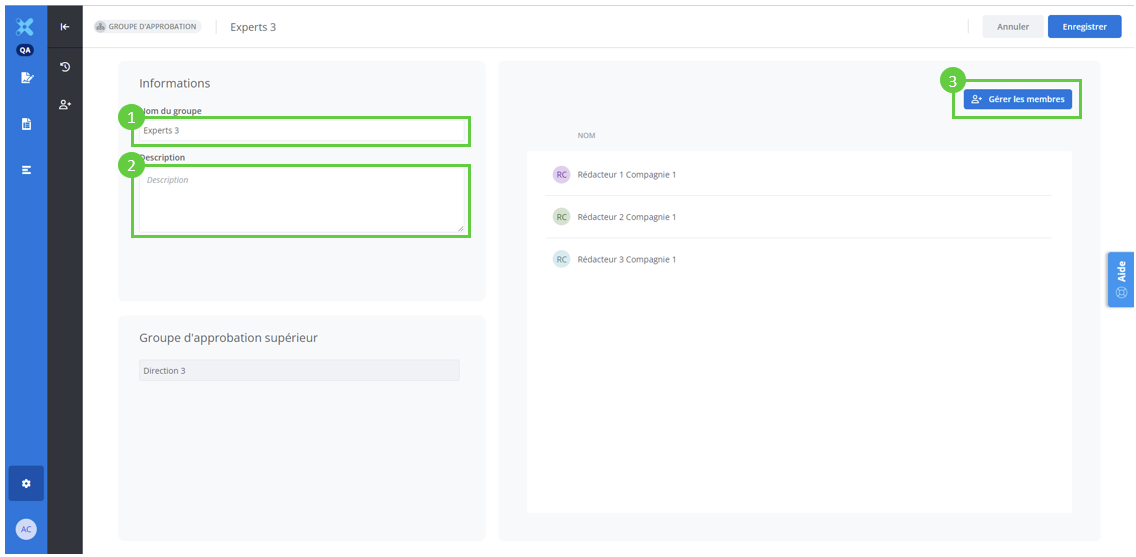
Click the name of the group(1) you wish to modify to access the edit window.
The information for a group that can be modified is as follows:
-
Approval group name;
-
Group description;
-
The group members: to do so, click "Manage members".
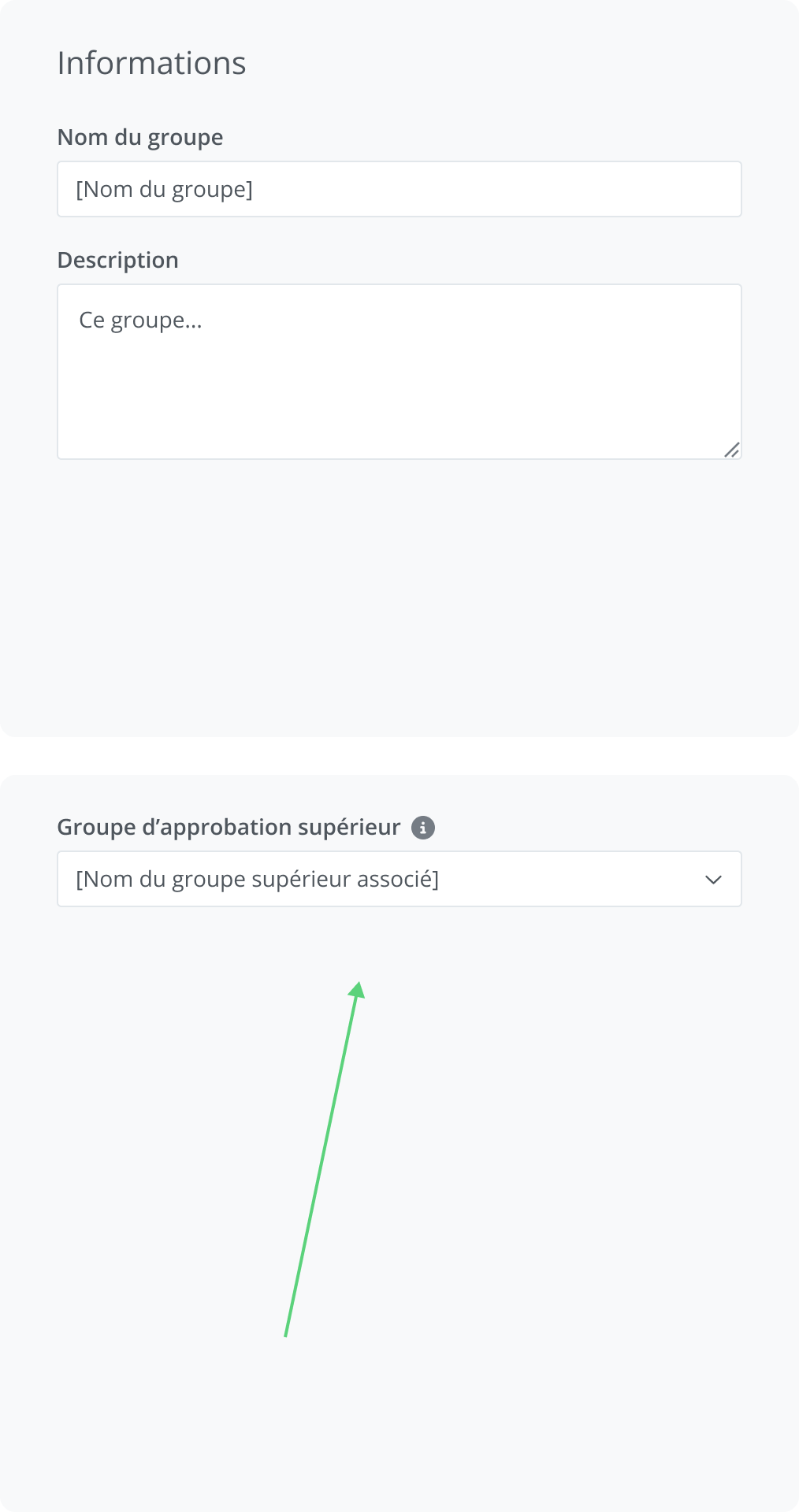
An approval group (or set of groups) whose topmost group is not associated with a parent group can be linked to a branch by selecting the parent approval group under which to move it.
Once this selection has been made, the drop-down menu will become read-only and it will no longer be possible to change the selection.
Add and remove members from a group
-
Add a member by clicking the +(1) icon located to the right of the names in the "Users" column;
-
Remove a member by clicking the x(2) icon located to the right of their name in the "Assigned members" column;