
Description of the Feature
The fields list displays all fields available for viewing or editing. You can search using the search bar, filter, or sort the fields. You can also create a new field from this page.
Search and Filters
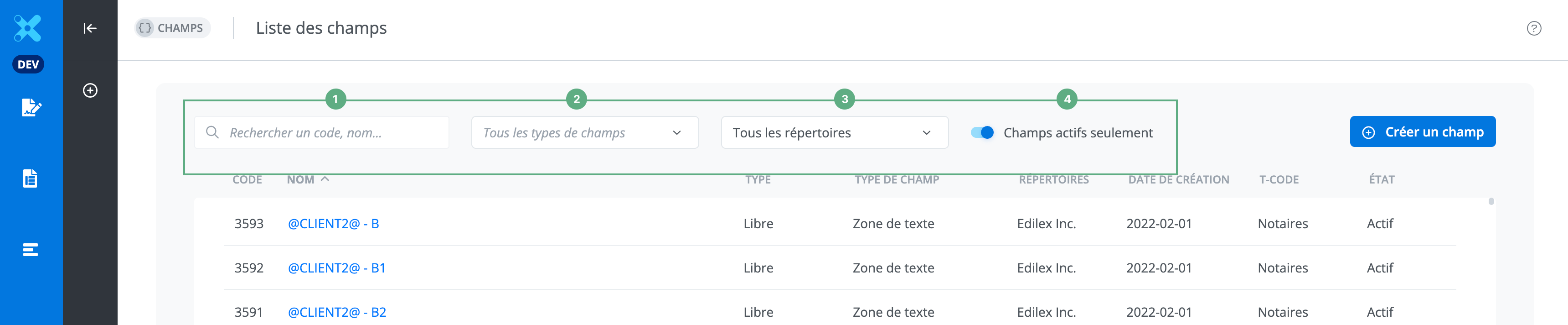
Use the search bar (1) to search for a field by its name, numerical code, or technical code (T-CODE).
Filter the fields by data type in the dropdown menu (2). By default, all fields are displayed. Filter the fields by the directories you have access to (3). Active fields only (4) lets you limit the display to active fields.
Sorting Fields
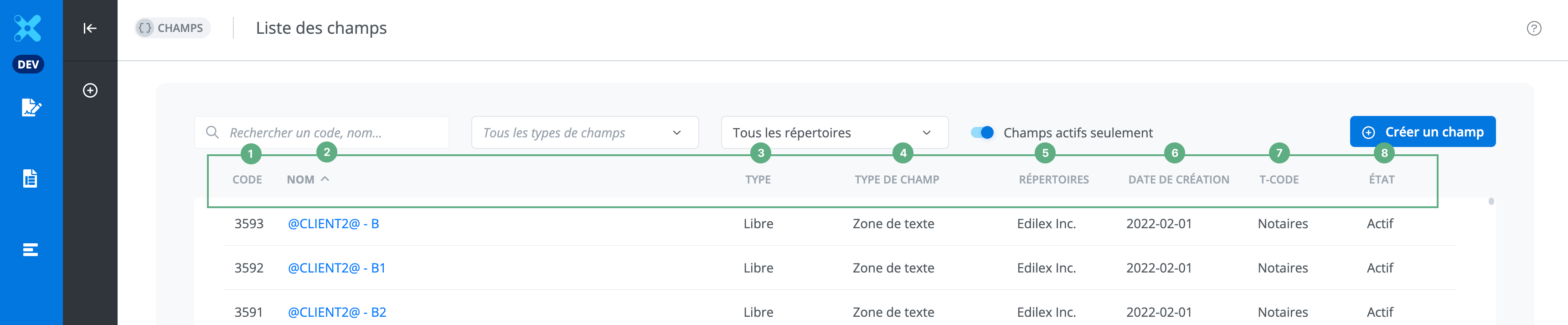
Each column represents a property of a field: its code (1), its name in the session language (2), its input mode (free or fixed) (3), its field type (4), the repository it is located in (5), its creation date (6), its technical code (T-CODE) (7), and its state (active or inactive) (8).
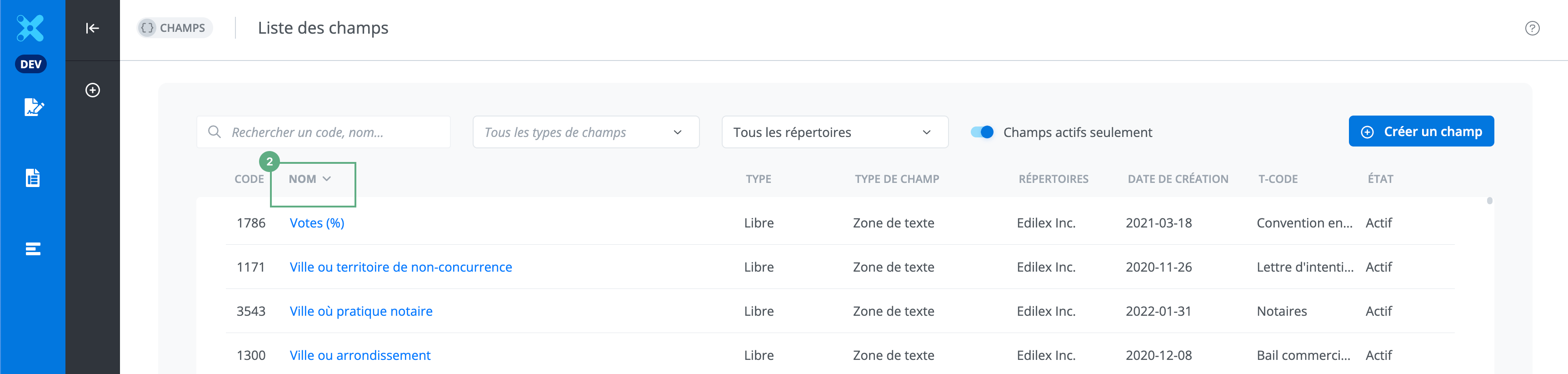
Sort the fields in ascending (1) or descending (2) order for each column.

View or Edit an Existing Field
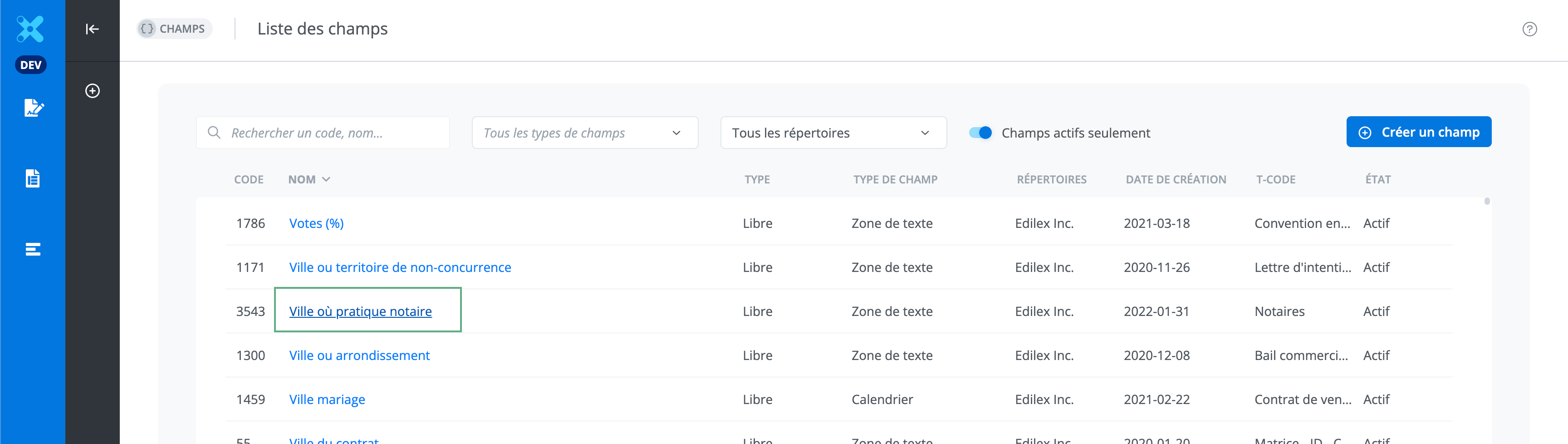
To view or edit an existing field, click the field name.
Create a field
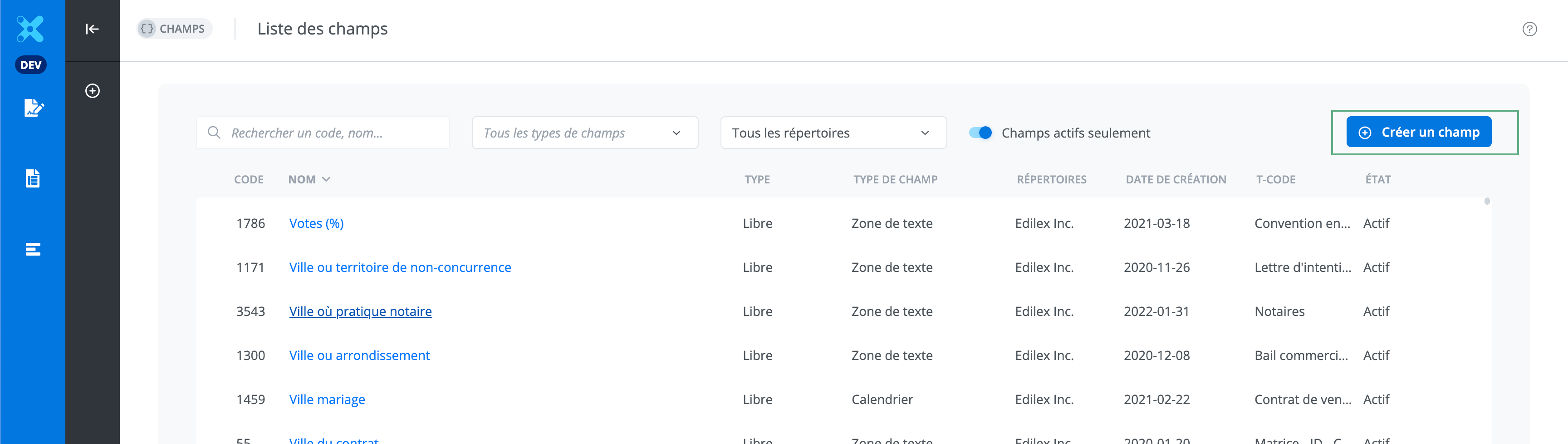
Click Create a field to create a new field.
Important Note
Filters and search bar entries are applied simultaneously: only results matching both the filters and the items entered in the search bar will be displayed.
Related articles