
Summary Description of the Feature
Field preferences make it possible to pre-select and pre-fill recurring fields in order to later associate them with a template; these are defined at the organization and user levels.
Field preferences come in three forms.
-
Definition: the preference itself is made up of categories, which in turn group together fields.
-
Assignment: the fields present in the categories are assigned a default value.
-
Association: the field preference is associated with a template through the template's properties.
Access to Feature
1. Definition of a field preference
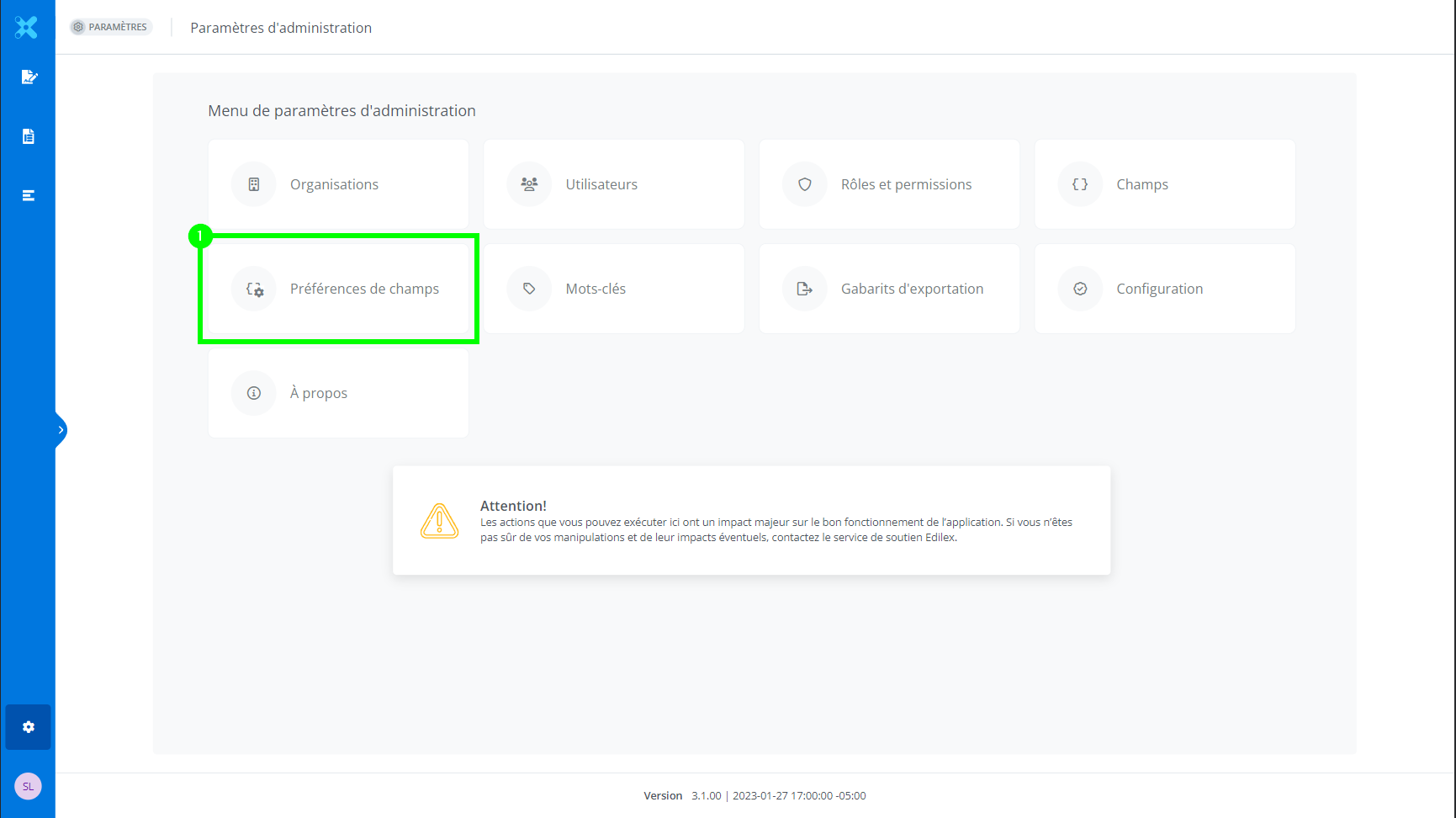
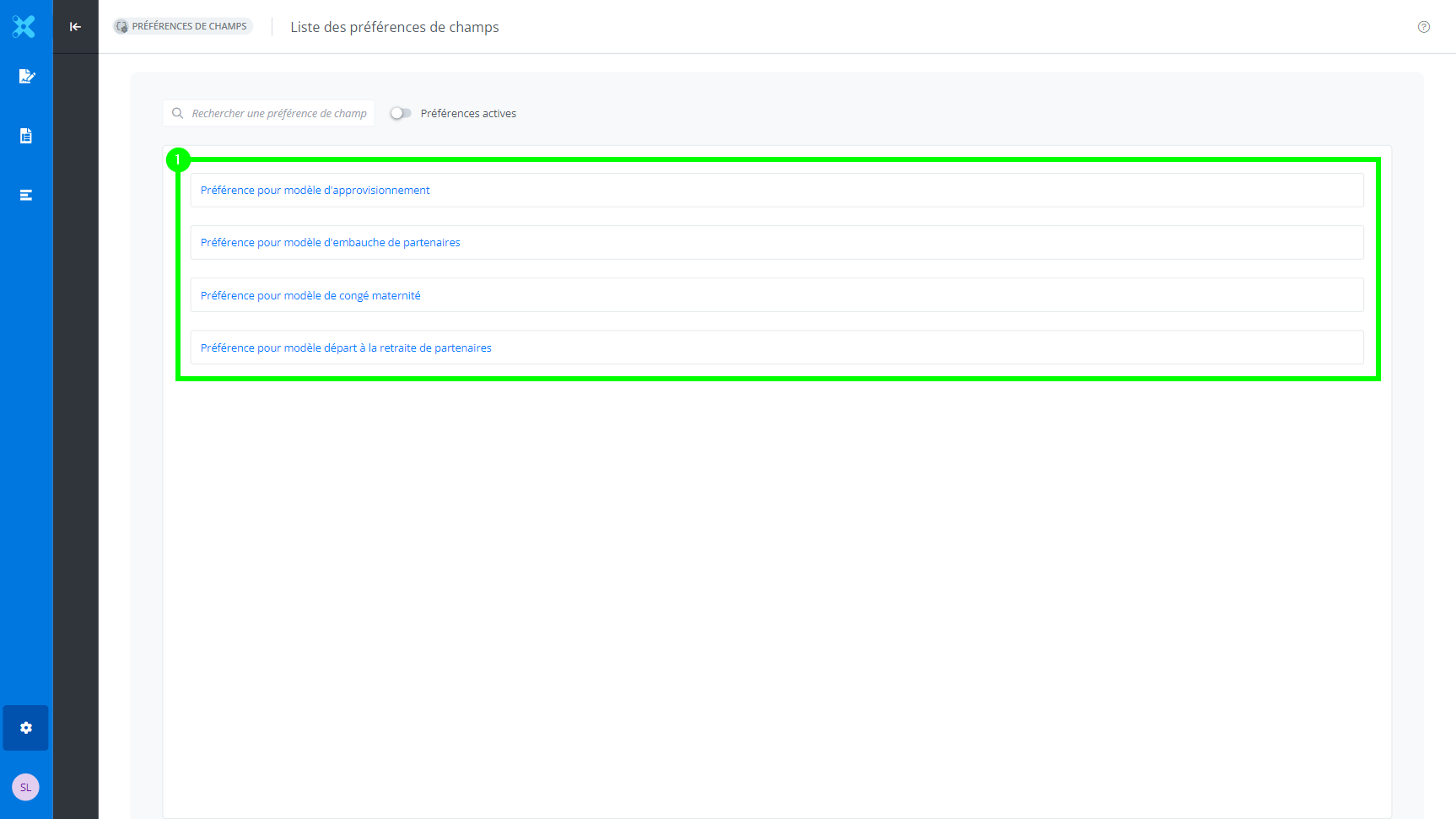
This feature is accessible in the application's administration settings. Click the Field preferences option.
This window contains all the field preferences.
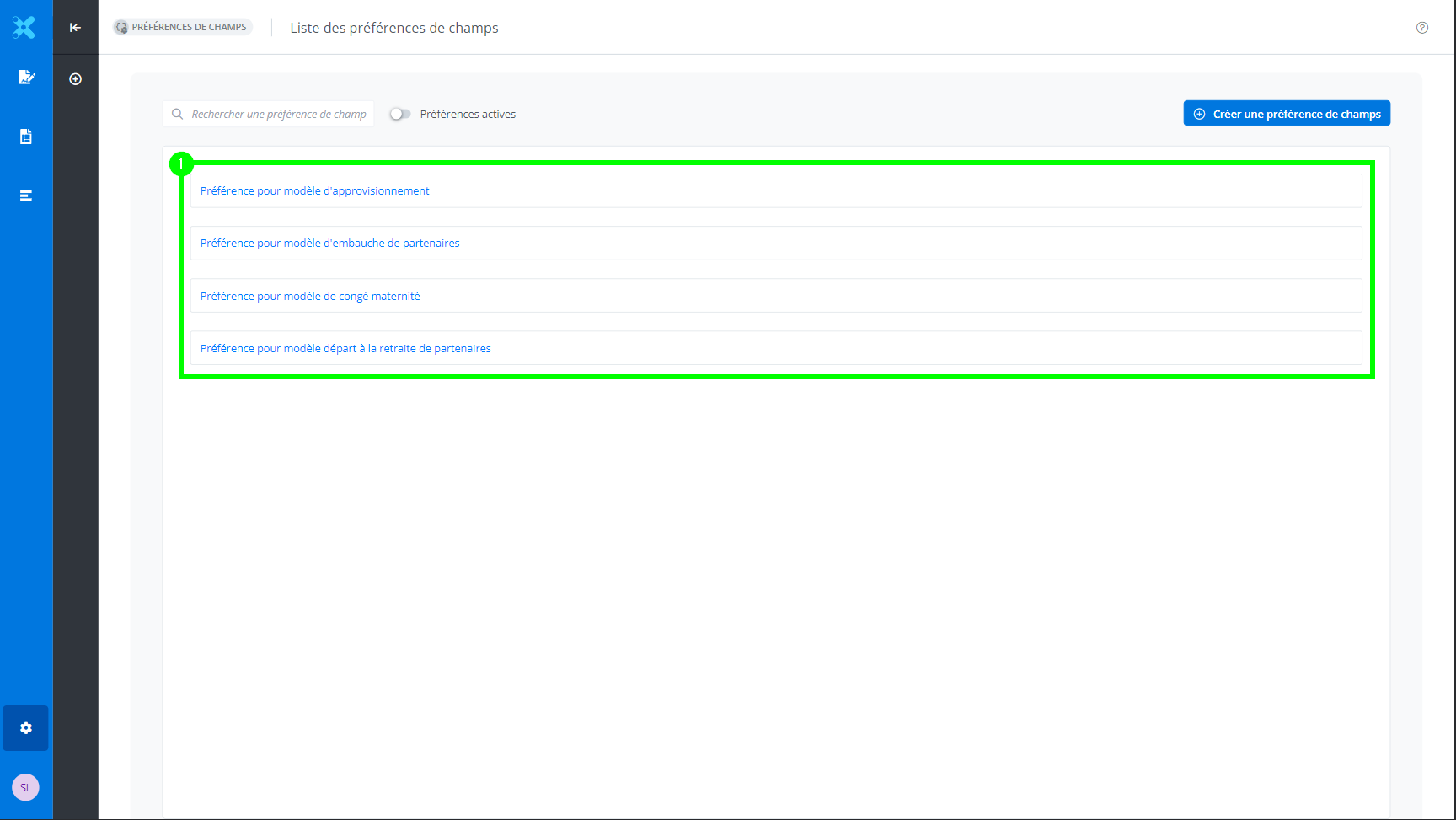
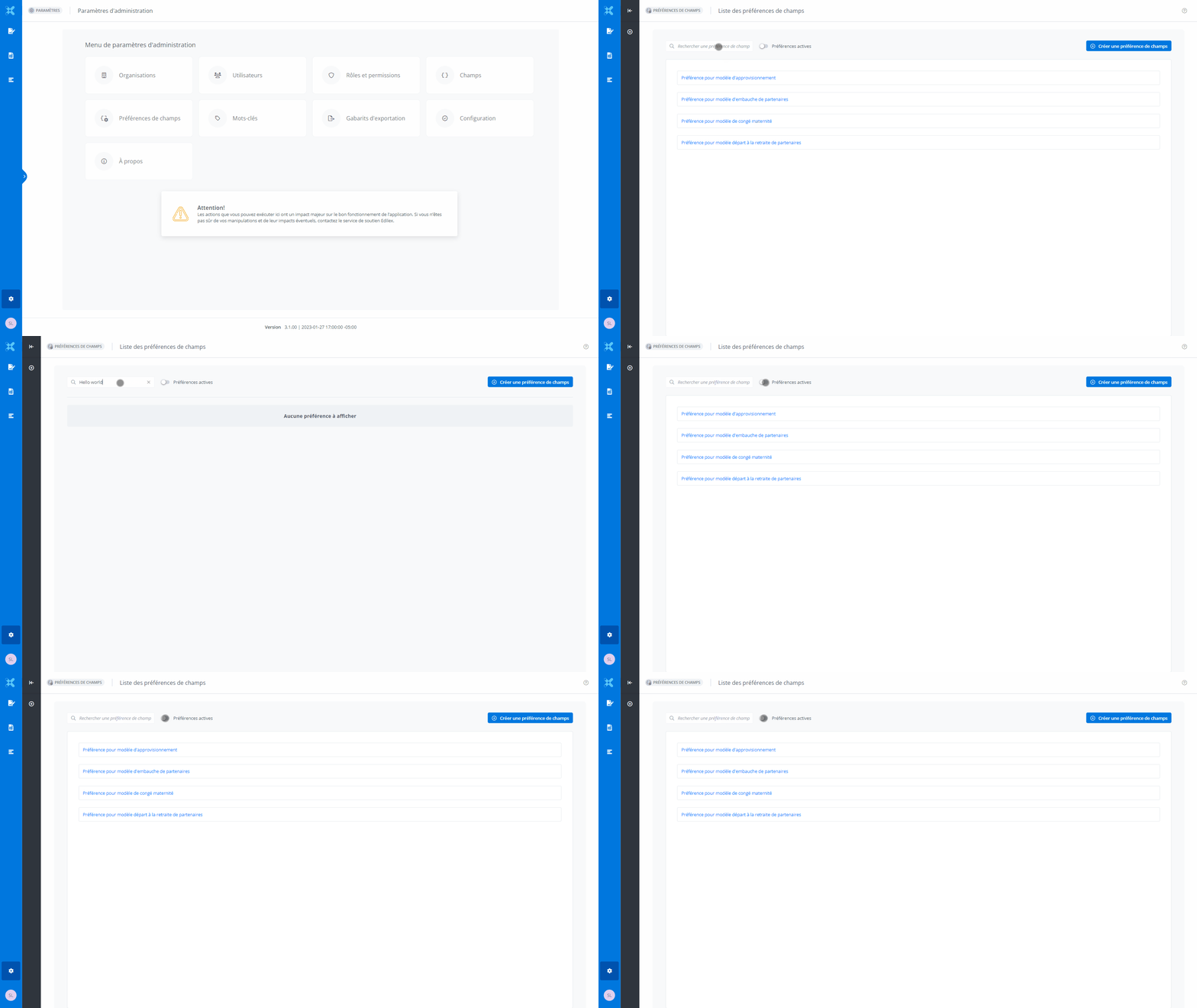
Please note that if no preference has been created, or if the search or filter does not match any preference, the list will be empty.
2. Assignment of values to a field preference
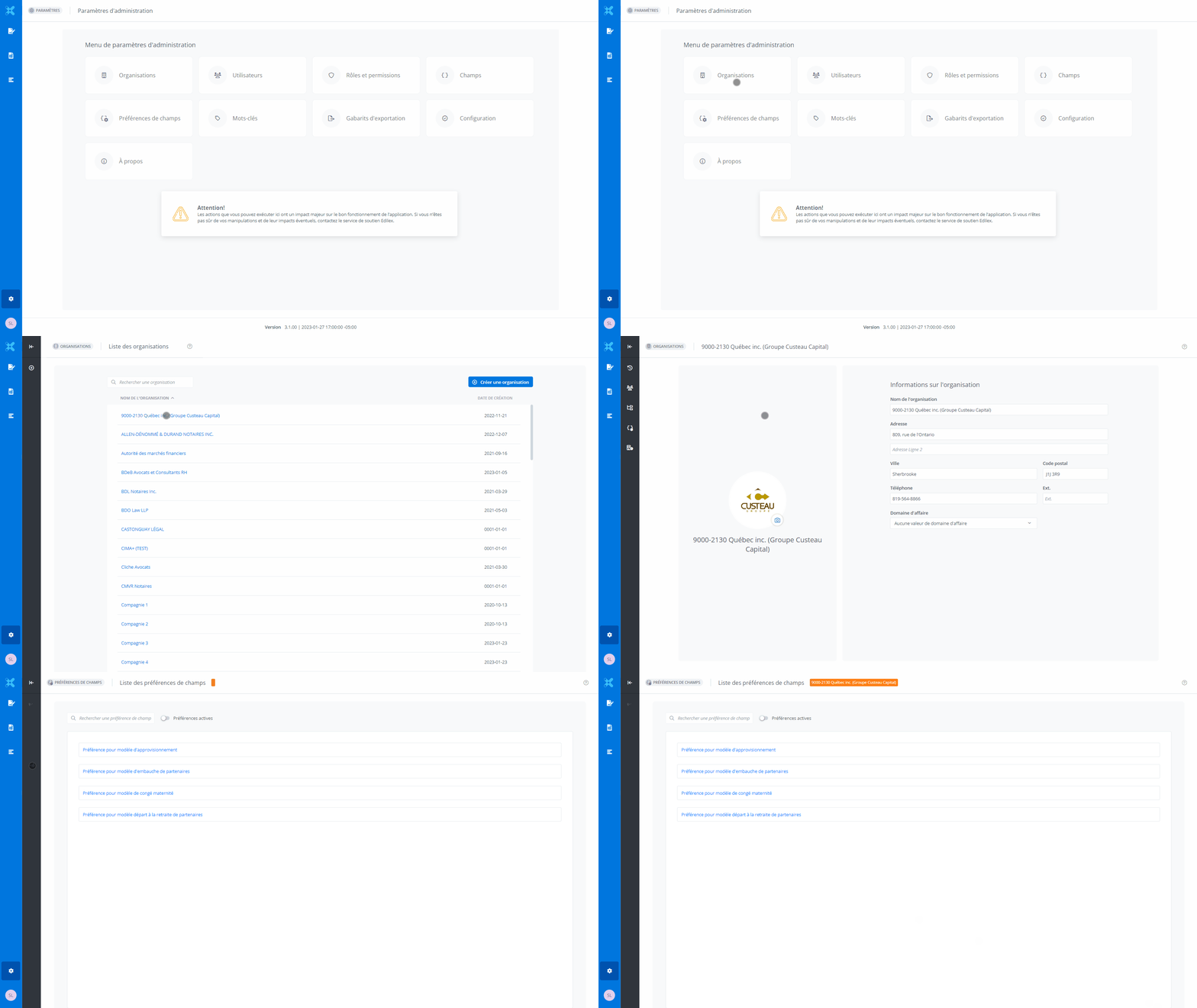
Assigning values to a preference for: organization.
-
click on “organizations“, and the list of organizations appears.
-
select an organization, the application navigates to the organization information.
-
click the Field preferences option in the menu; the list of assignable field preferences appears.
-
click on a field preference; information about it appears, and it is possible to assign a default value to the fields.
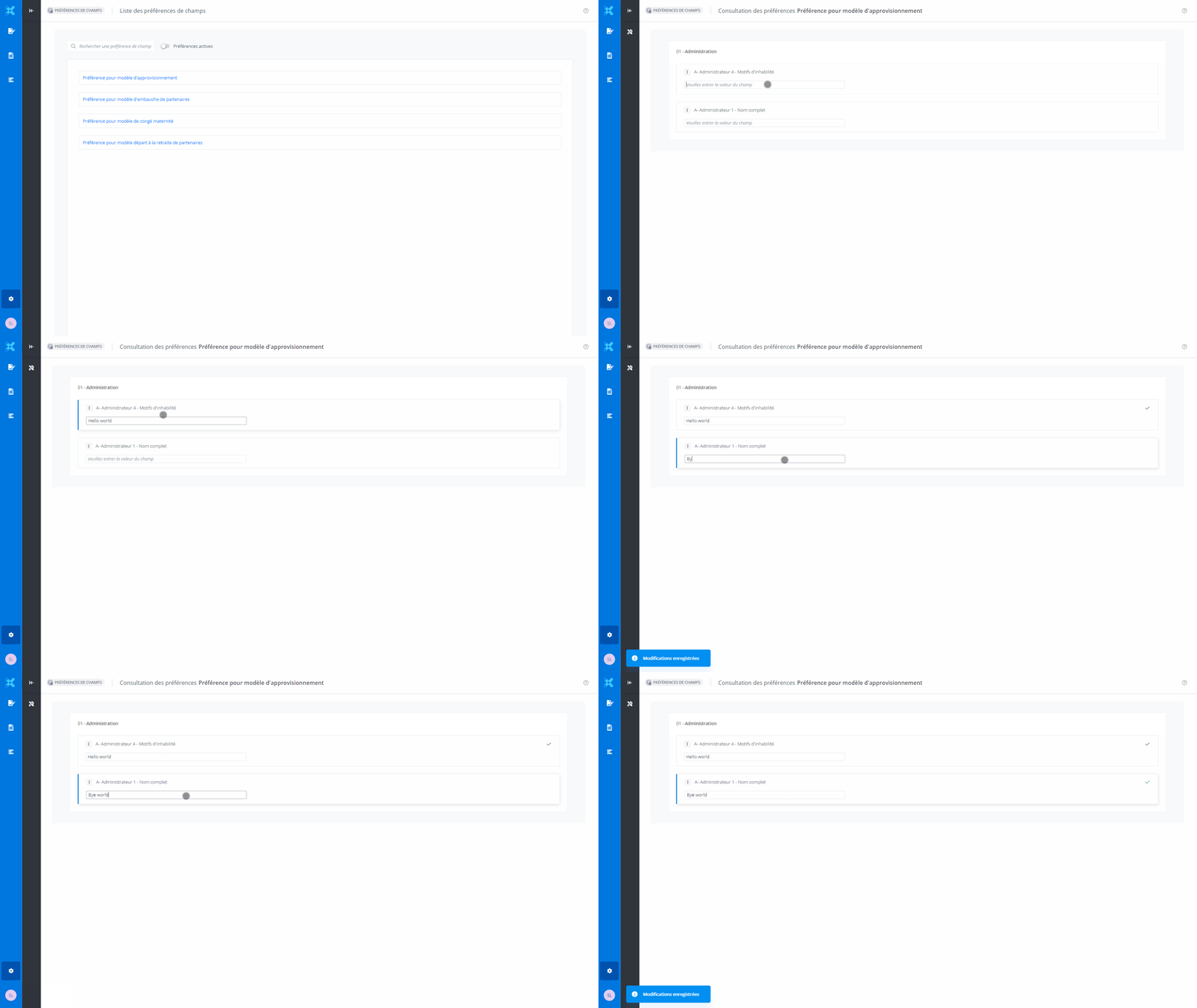
Assigning values to a preference for: user.
This feature is accessible in the user's profile:
-
click the My profile option; the user's profile information appears.
-
click the Field preferences option in the menu; the list of assignable preferences appears.
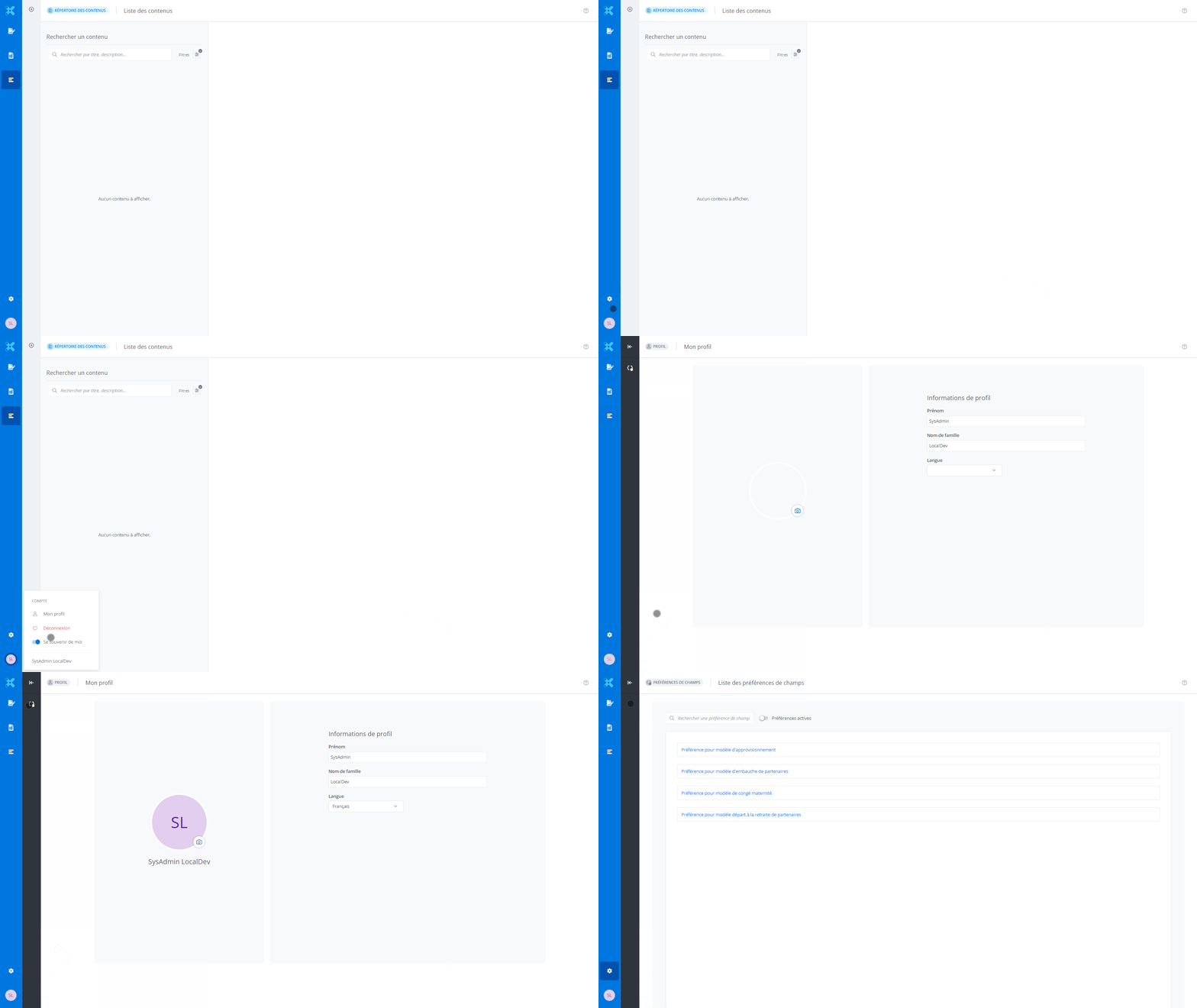
From the field preferences list, it is possible to navigate to the preference to be assigned.
Finally, within the preference, it is possible to assign values.
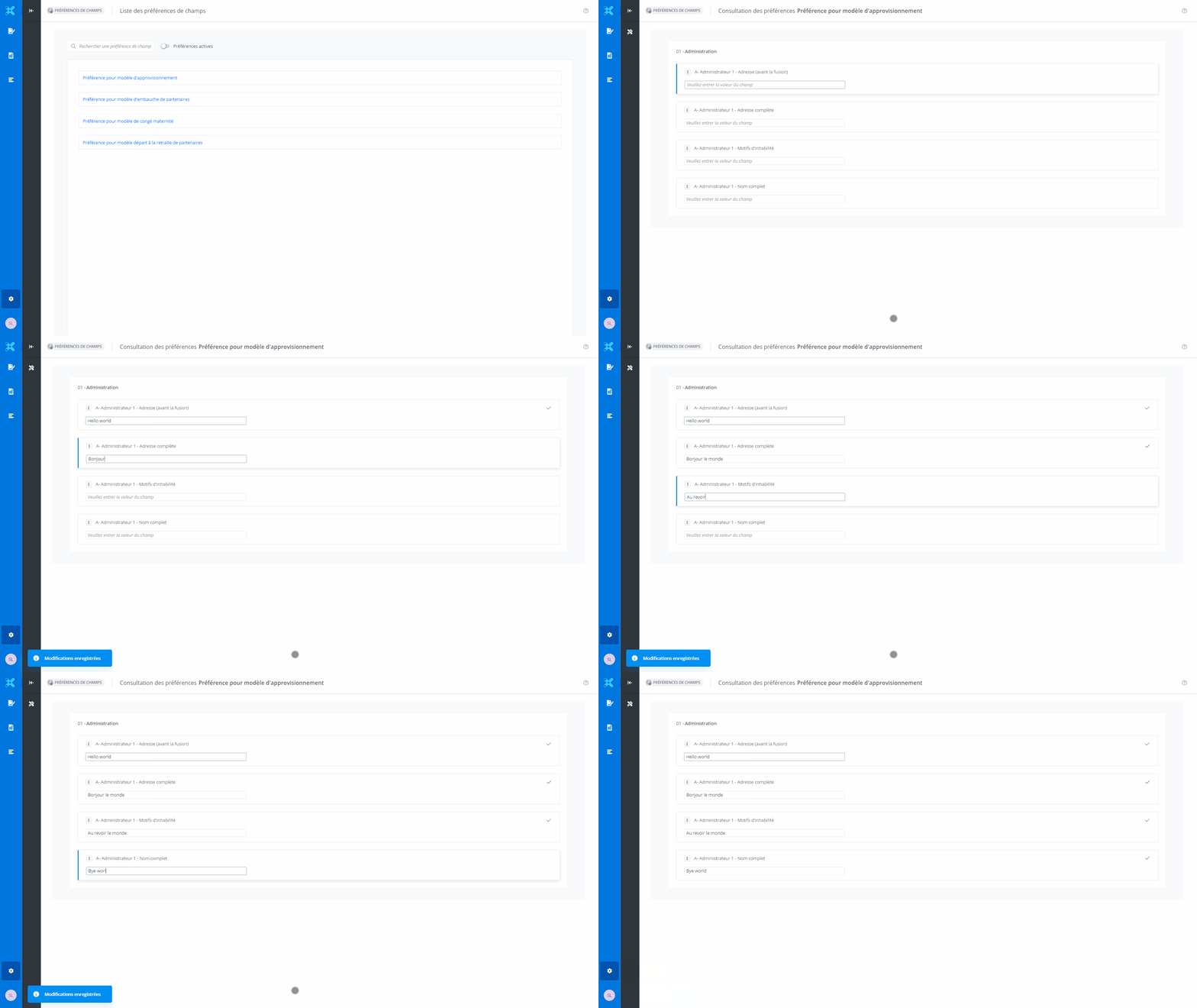
Note that the value assignment is saved automatically, meaning the value is saved directly once the selected field is deselected (blurOut).
3. Associating a field preference with a template
This feature is accessible in a template's properties:
-
click on a template; the template information is displayed.
-
click the Template properties option in the menu; the properties are displayed.
-
click the drop-down menu; the list of associable preferences is displayed.
-
choose the appropriate preference, then click Save.
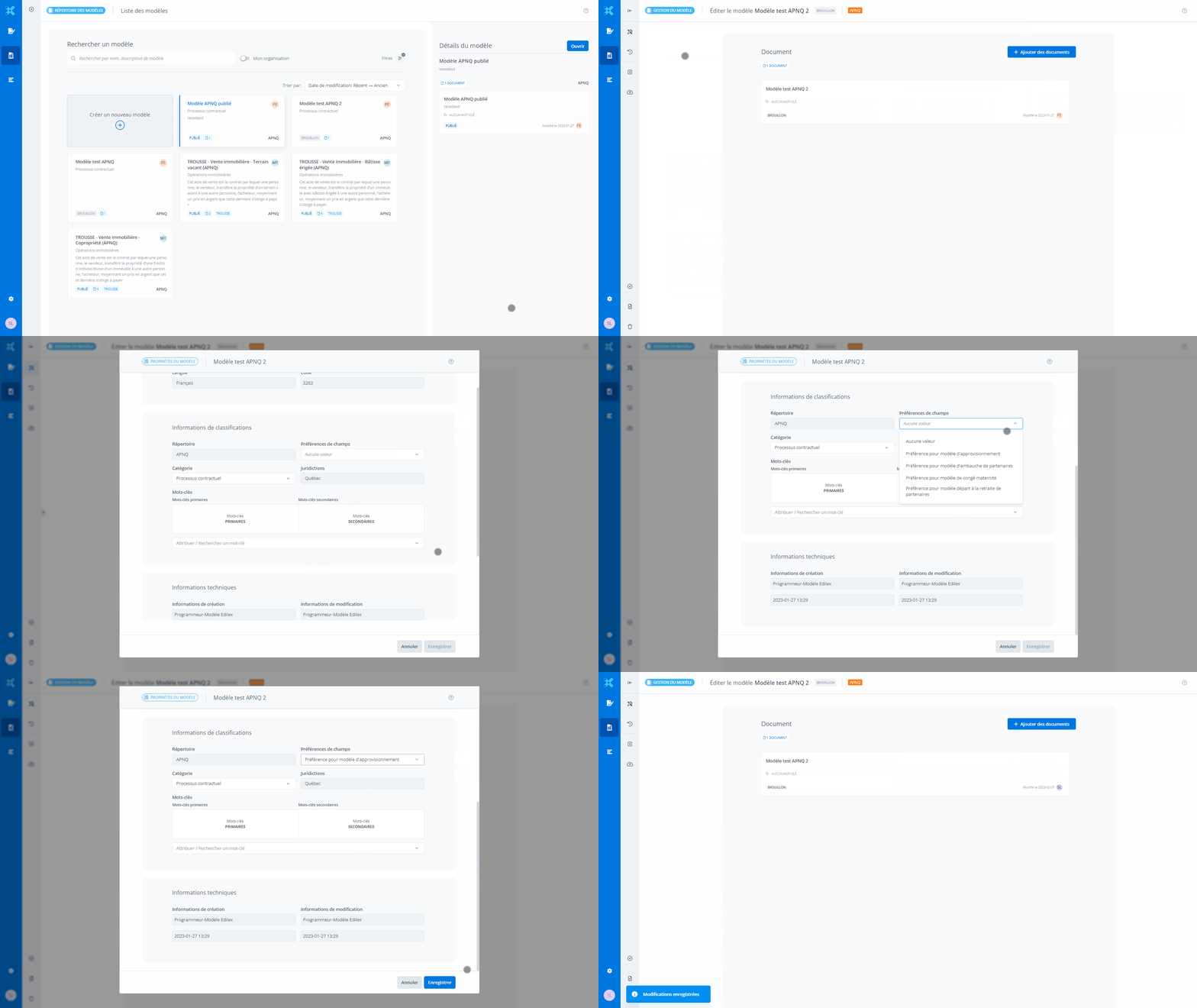
Note that the association can only be made on a template in draft mode.