
Description of the Feature
The review tool allows you to compare the draft version of the published template with its original template. You can therefore see all the modifications made to it by you and by all collaborators on the document, compared with the previous version.
Usage Case
The review feature is useful for reviewing a collaborator's work before finalizing the document.
How do you access the document review feature?
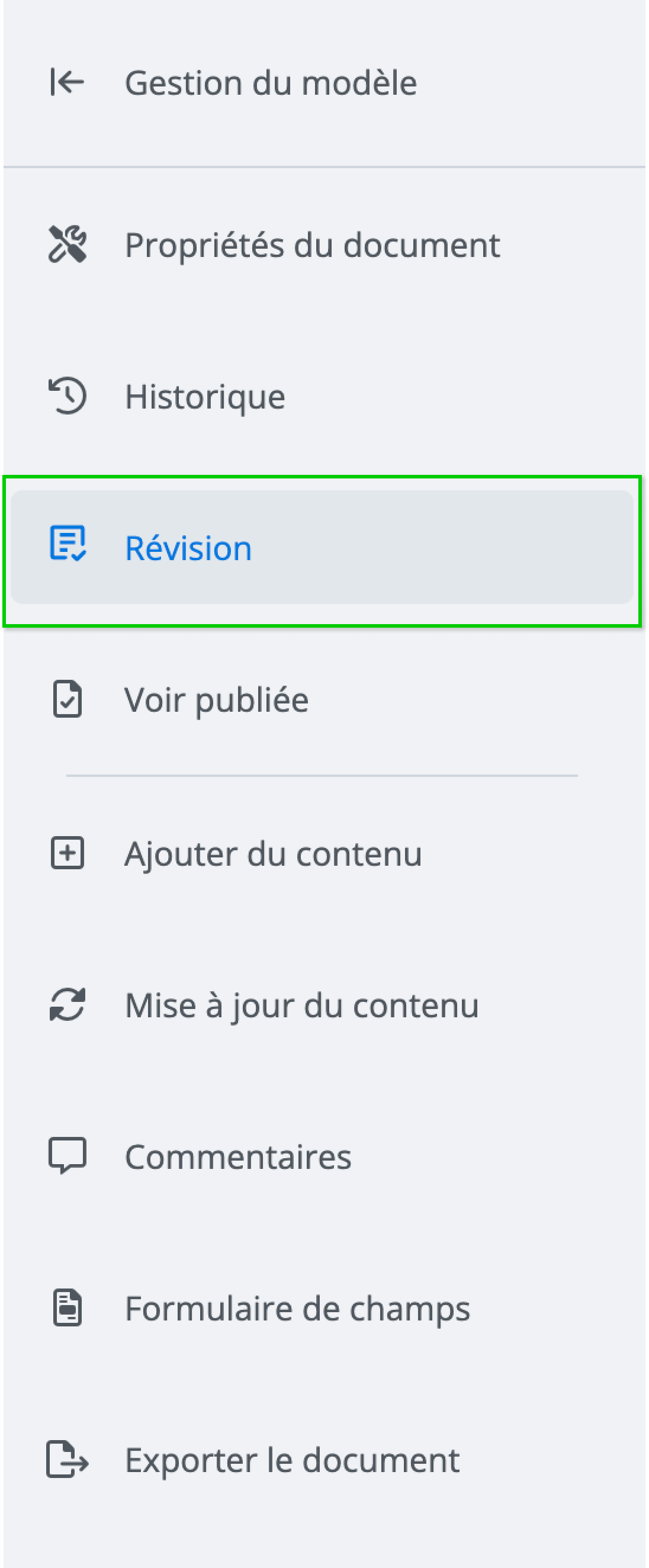
Review mode is accessible from the features menu by clicking Review.
Description of the Window
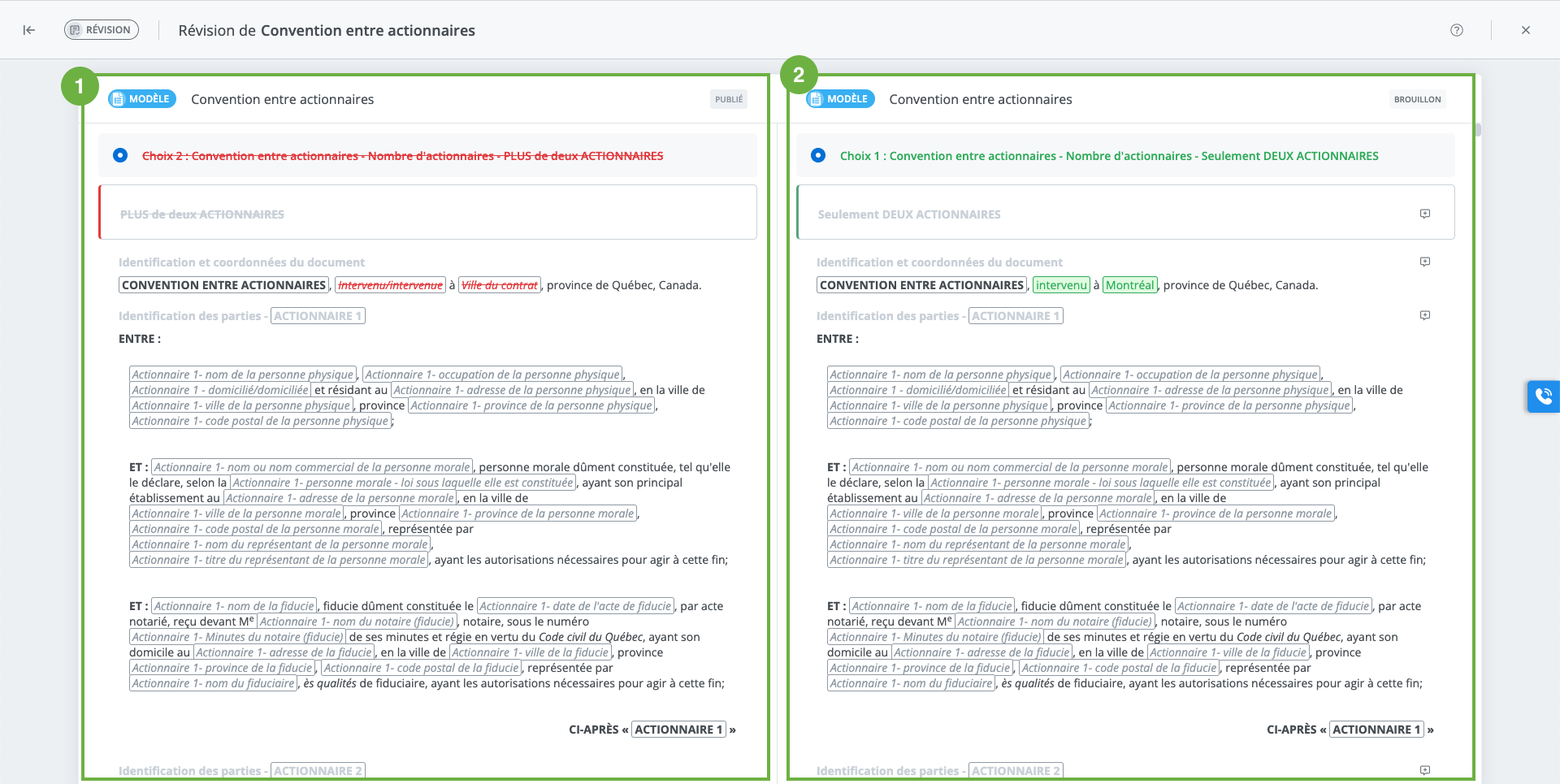
The review interface is made up of two main sections:
-
Left area: the original template from which the draft was created.
-
Right side: the current draft version of the document.
Comments Panel
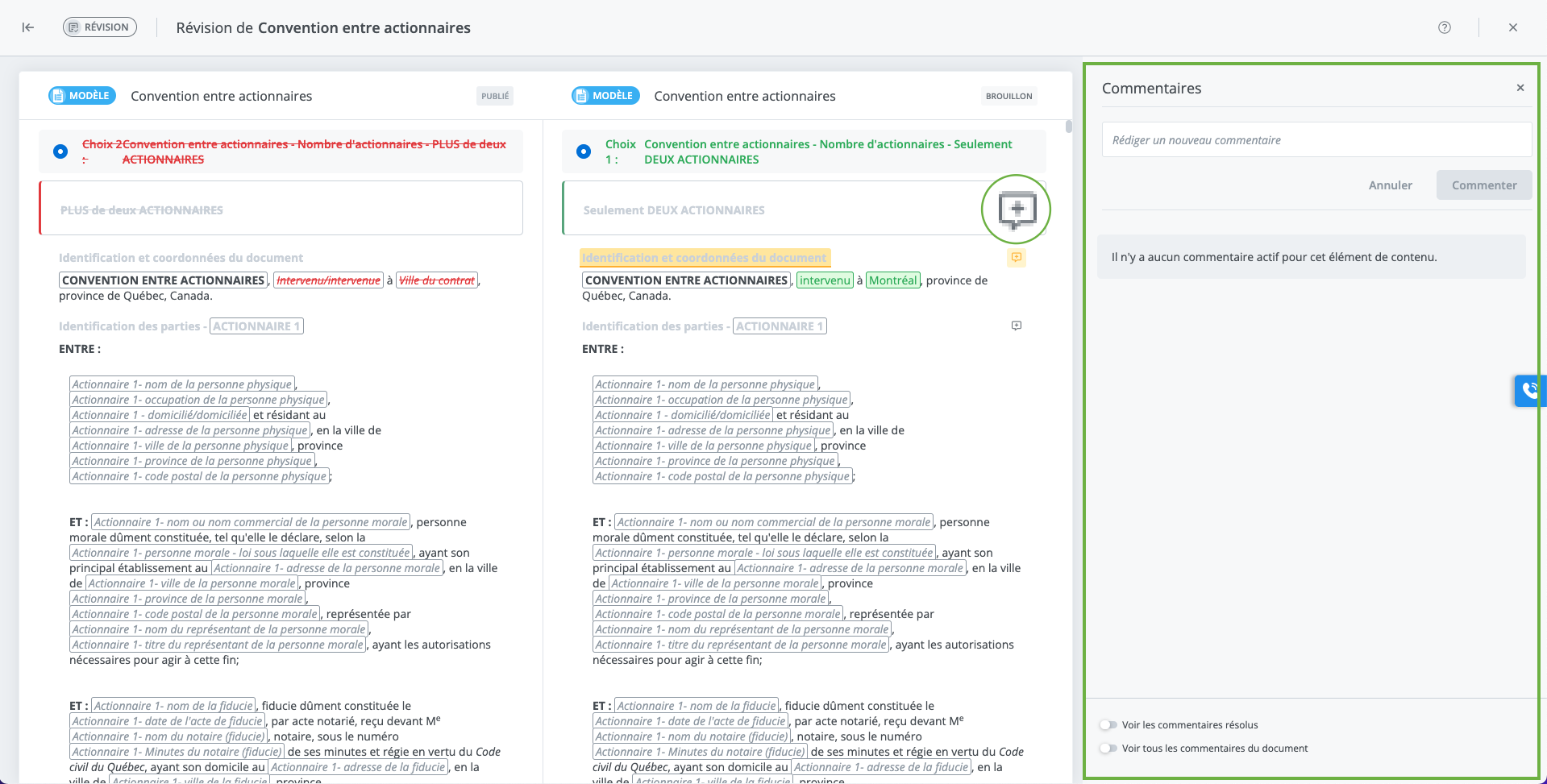
Open the comments panel by clicking on the comments button associated with a content item. The comments panel works the same way as in the document.
Note
The comments you make using the version comparison tool will also be found in the document.
Displaying modification made to the document
Colour Codes
Here are the colours representing the different types of modifications indicated in the document:
Red = Removed or deleted content
Green = Added content
Orange = Moved content
Displaying Removed Content
Removed content items are displayed in the original template (on the left). Since they are no longer present in the current document, they are represented by a grayed-out space (on the right).

The system displays the following removed items:
-
Sections,
-
Clauses,
-
Schedules,
-
Paragraphs of clauses,
-
Paragraphs of schedules.
Displaying Added Content
Added items are displayed in the current document (on the right). Since they are not present in the original template, they are represented by a grayed-out space (on the left).

The system displays the following added items:
-
Sections,
-
Clauses,
-
Schedules,
-
Paragraphs of clauses,
-
Paragraphs of schedules.
Displaying Moved Content
-
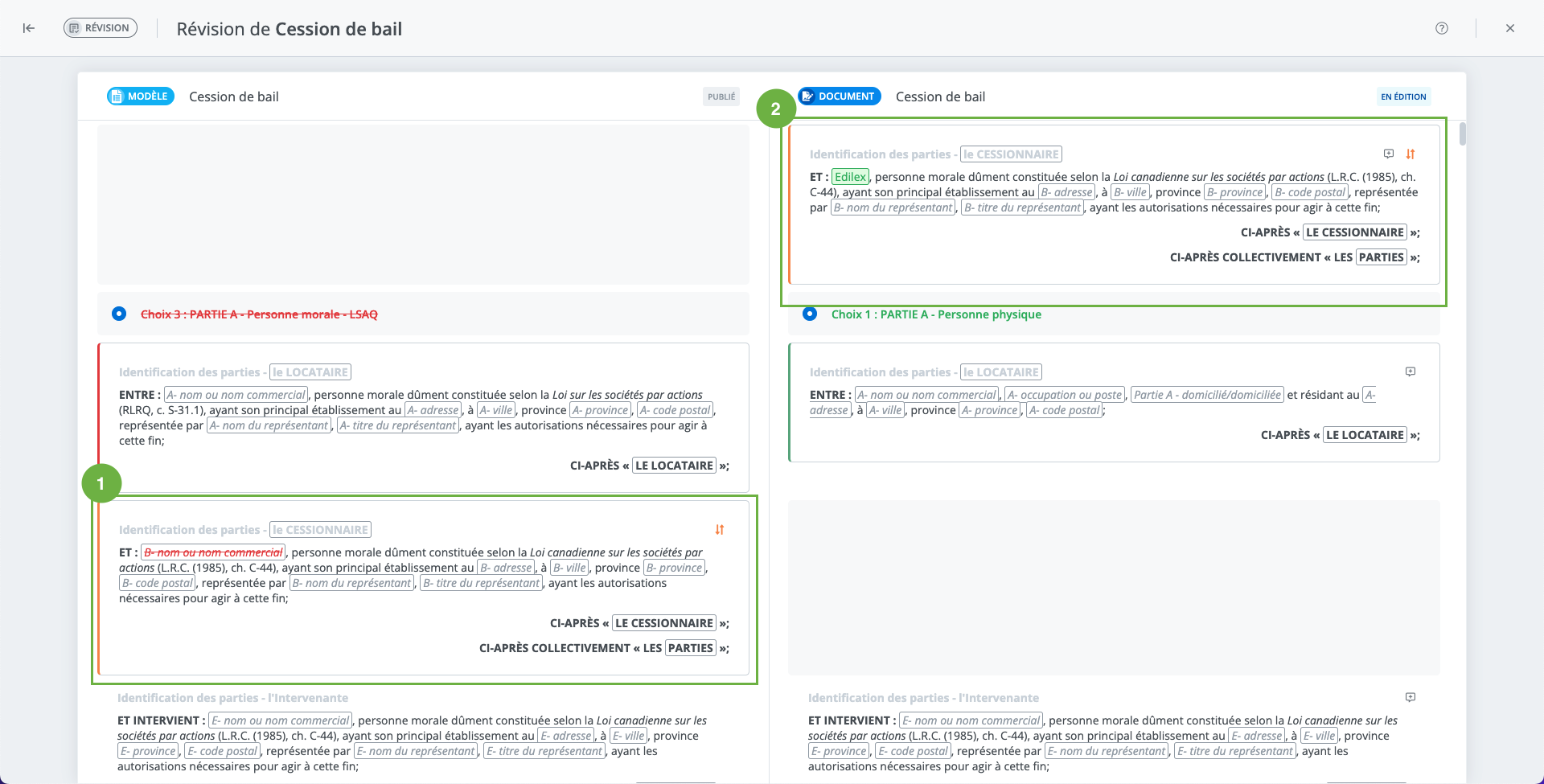
The moved content is displayed in its initial location in the original template (on the left);
-
The moved content is also displayed in its new location in the current document (on the right).
Navigating Between Moved Content
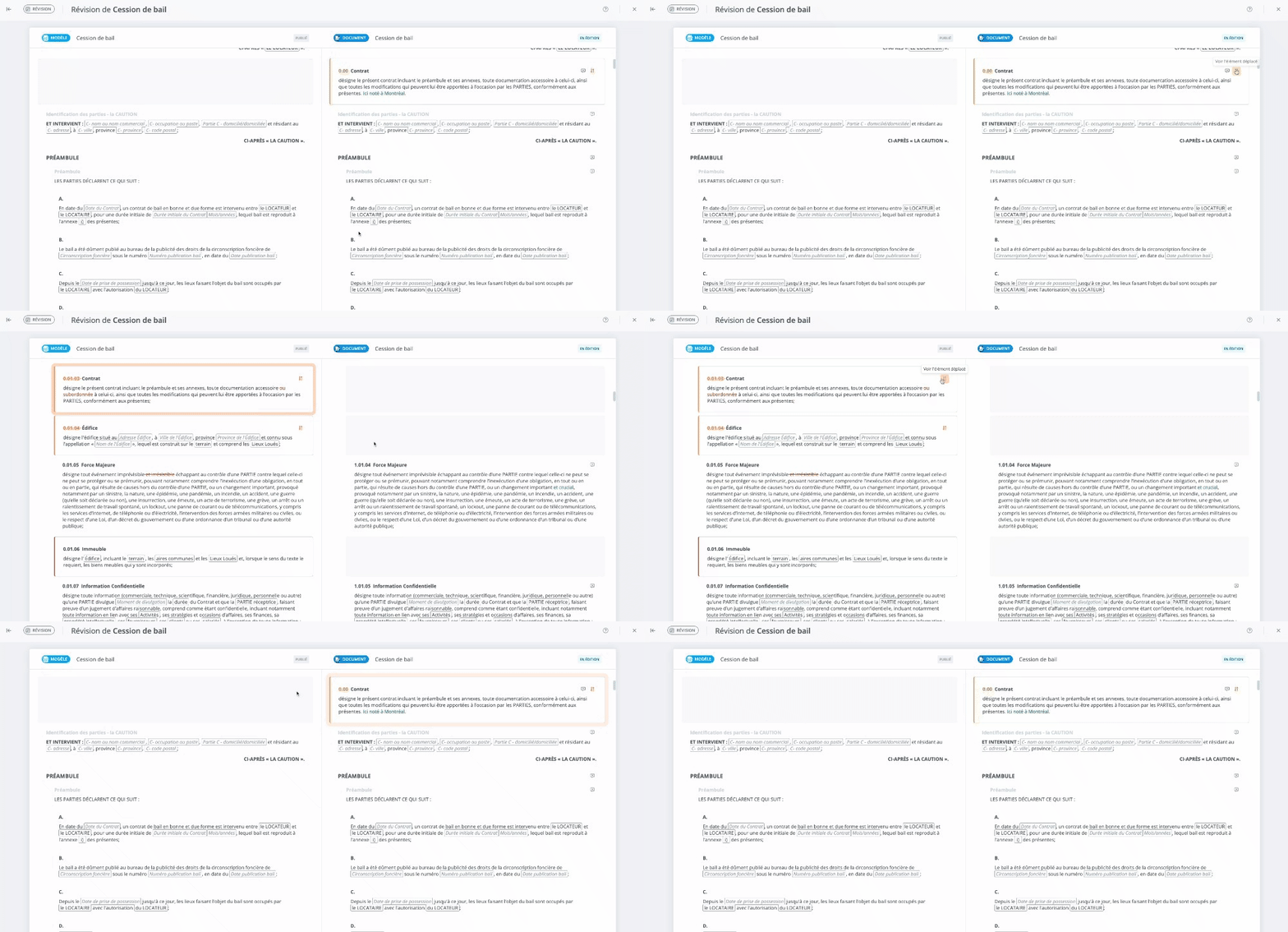
Click on View Moved Item to navigate between the content’s initial location in the original template and its new location in the current document on the right.
Display Selected Alternatives in the Document
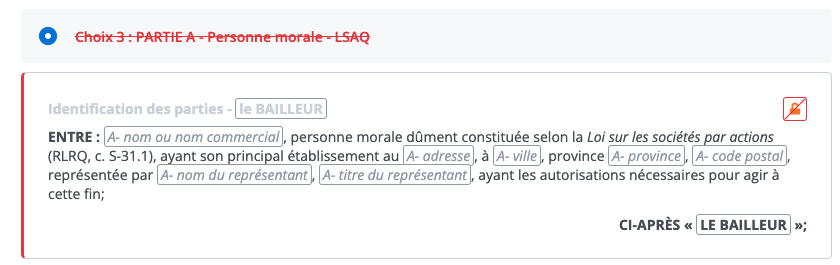
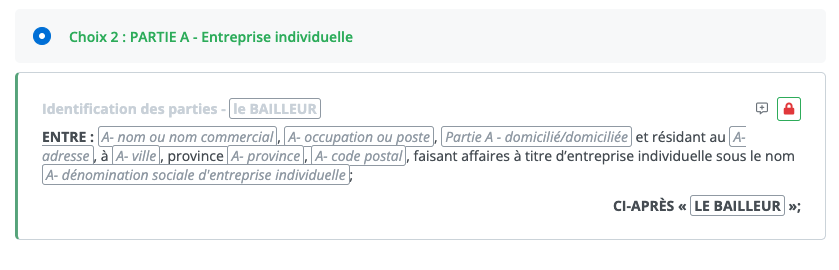
The selection of an alternative is displayed as follows:
-
Struck-through description in red: content of the alternative initially selected (on the left);
-
Description in green: content of the newly selected alternative in the current document (on the right).
|
Initial alternative (template) |
Selected alternative (document) |
|---|---|
|
|
Displaying Changes Made to the Text
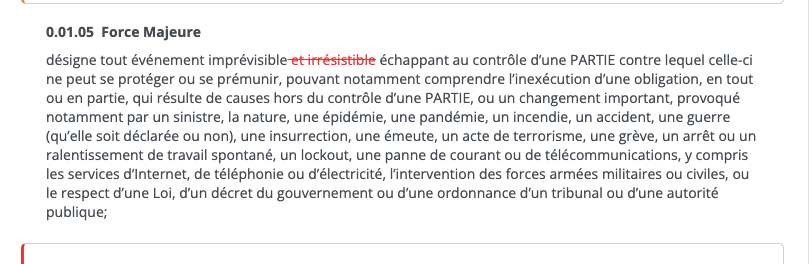
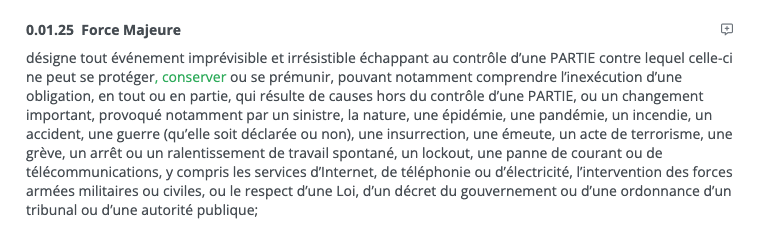
All changes made to the text using the Create a variant tool are displayed within the text.
-
Deleted text: in red and struck through in the original version (on the left),
-
Text added in the document being drafted: in green in the current document (on the right).
|
Deleted text |
Text added |
|---|---|
|
|
Displaying Filled Fields
When fields are filled in the document:
-
Field labels are struck through and in red in the original template (on the left).
-
Field values entered in the document are displayed in green in the current document (on the right).
|
Original Wording (template) |
New field values (document) |
|---|---|

|

|
Displaying a Change in Content Relevance
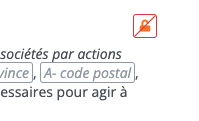
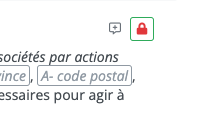
When the relevance (lock icon) of content has been changed, the system displays:
-
Initial relevance: red, struck-through border (on the left),
-
New relevance: green border (on the right)
|
Original relevance (template) |
New relevance (document) |
|---|---|
|
|
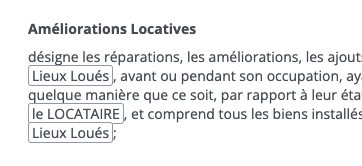
Displaying Removal of Content Numbering
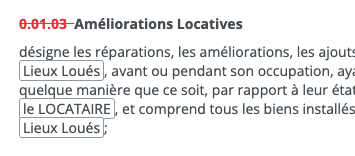
When you remove the numbering associated with content, it is displayed:
-
In red in the original template,
-
Does not appear in the current document.
|
Initial numbering (template) |
|
|---|---|
|
|
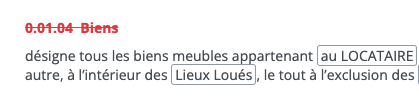
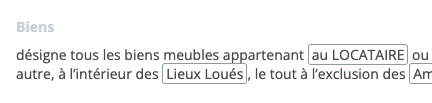
Displaying Removal of a Content Title
When you remove a content title, it is displayed:
-
In red and struck through in the original template (on the left),
-
Shaded in the current document (on the right).
|
Display removed title (template) |
Display removed title (document) |
|---|---|
|
|