
The alternative management window is used to view the list of all available alternatives for the clause or schedule.
It is also possible to add alternatives to the document from the list of alternatives available for the clause or schedule.
The alternatives present in Edilex documents were selected by in-house legal experts based on the context of the document. It is recommended not to add alternatives that are not already present by default in the Edilex template, as they could be out of context for the document.
Access to Feature
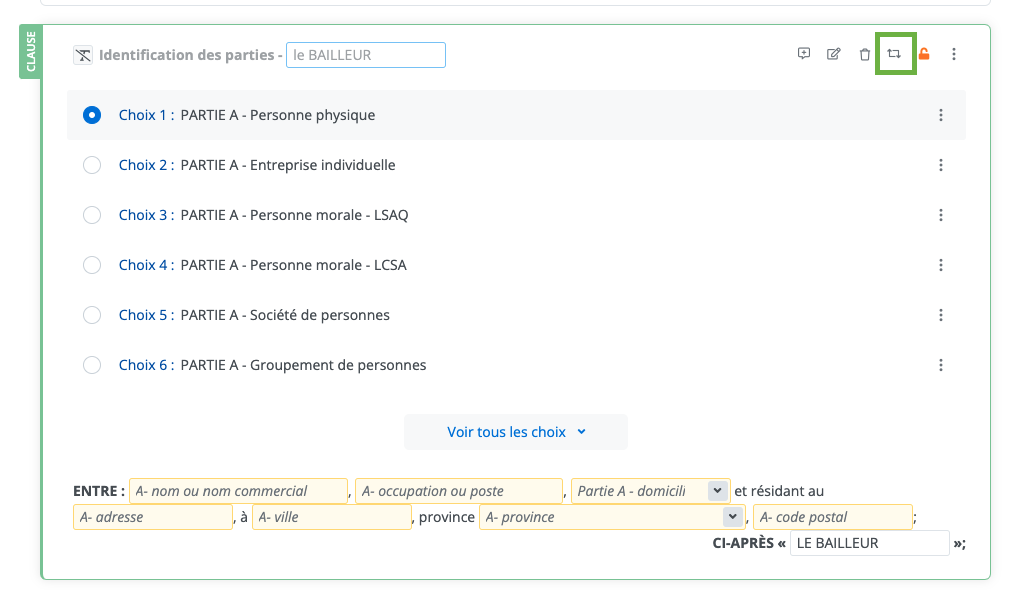
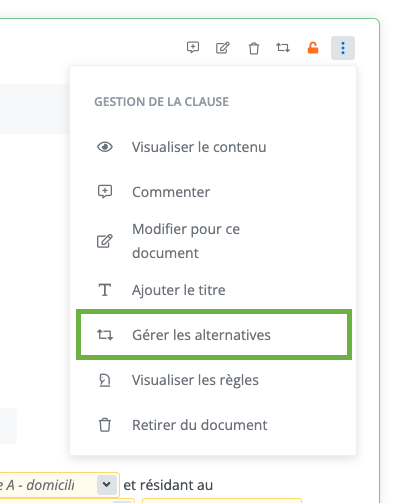
After selecting a clause, you can access alternative management either from the button in the quick access toolbar on the clause or appendix, or from the button in the context menu.
Description of alternative management
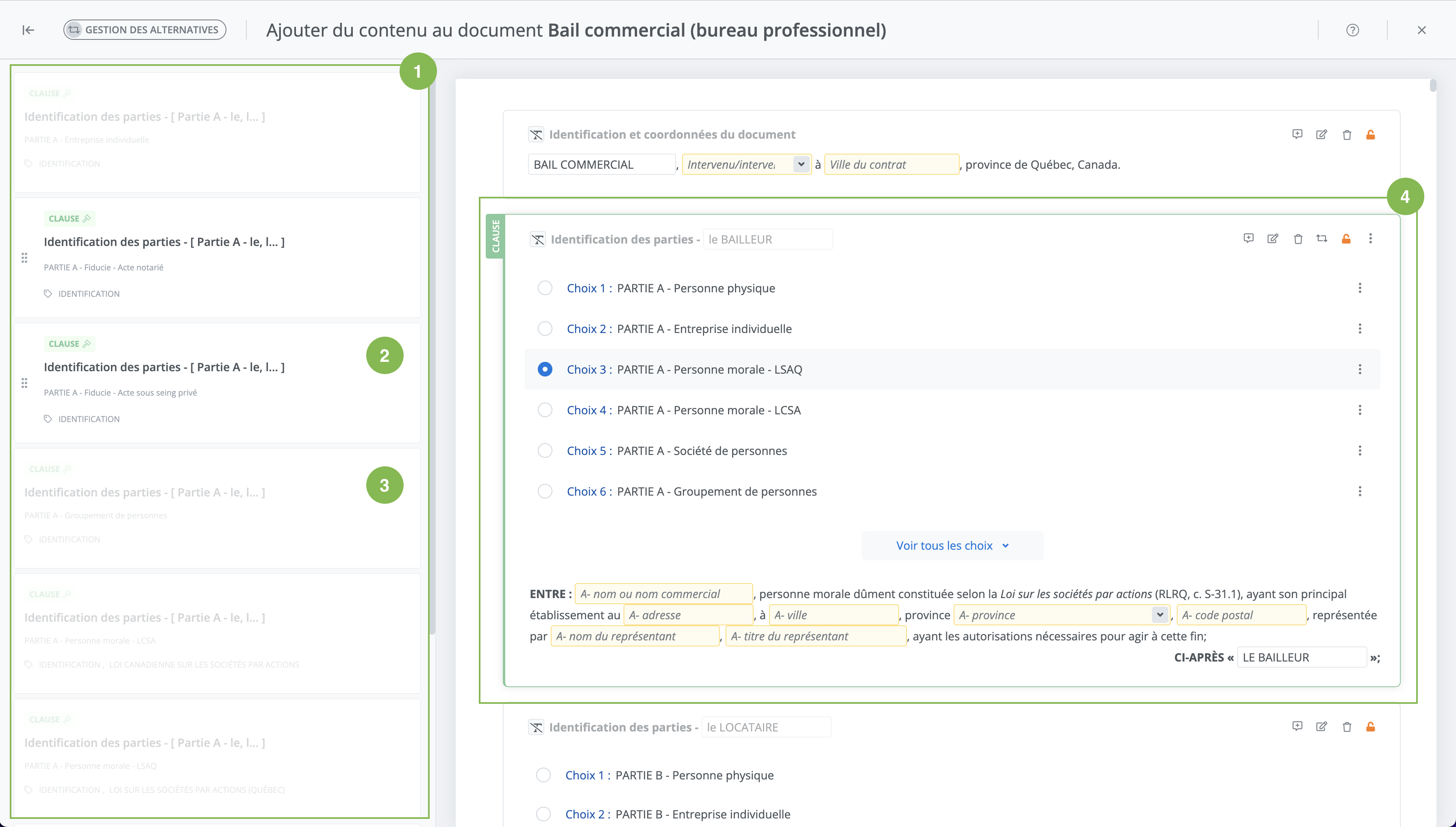
The following elements are present in the alternative management window:
-
The list of all alternatives associated with the clause or schedule, whether or not they are present in the document.
-
The non-greyed-out alternatives are not present in the document. See warning above;
-
The greyed-out alternatives are already in the document, associated with the highlighted clause (4).
View the alternative's content
To view the text content of the alternative, click the eye icon.
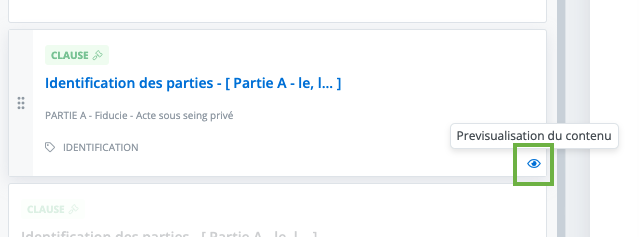
The preview window opens. Close it by clicking the “x“ to return to the document screen.
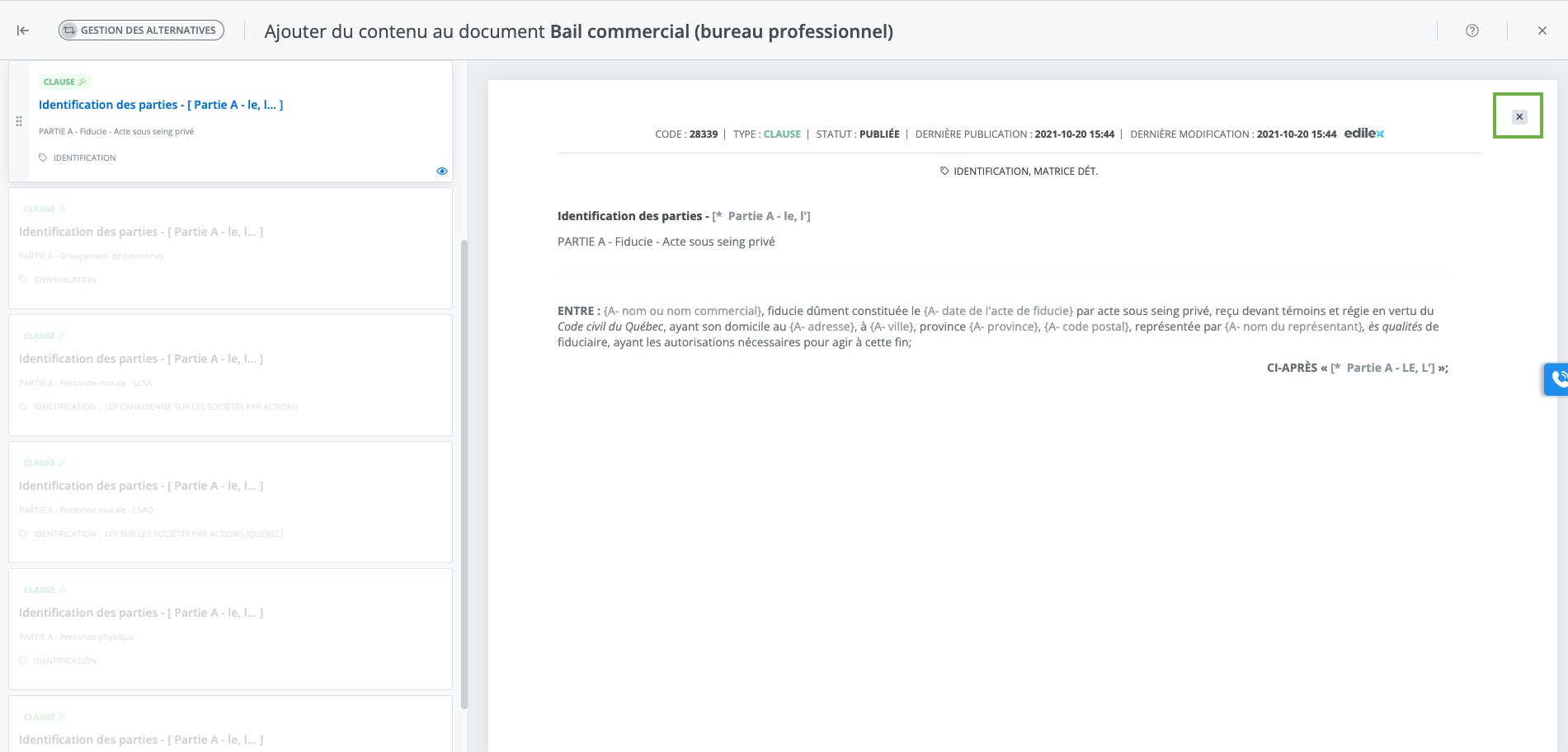
Add an alternative in a document
To add an alternative to the clause from the list, select the non-greyed-out tile and use drag-and-drop to place it in the list at the desired location.
.gif?cb=9f767e3d33bf2d385896bc6798fba49e)
Move an alternative
Use drag-and-drop to move an alternative and place it in the list at the desired location.
.gif?cb=7a9a866b797aa5c46033eba72b601bb4)
Create an alternative from another alternative
The feature is designed to allow a user to quickly create a new alternative based on an existing alternative, without having to go through the repository, thereby speeding up programming work in templates and simplifying content customization in projects.
Note that the feature will behave differently in the context of drafting a project than in the context of programming a template.
When a user uses this feature within a project, the created alternative is of the "custom" type and will not be available in the contents library, nor linked to the original alternative in the content's alternative management.
When a user uses this feature within template programming, the created alternative is a full-fledged alternative — that is, it will be directly available in the contents library and linked to the original alternative in the content's alternative management.
The "Create an alternative from this choice" feature allows you to:
-
Duplicate an existing alternative (content, properties and rules);
-
Create a draft version directly in the document without returning to the repository;
Steps:
-
In the menu of an alternative, click on Create a custom alternative from this choice.
-
A complete copy of the source alternative (content, properties and rules) will be created.
-
The user can then adjust this version according to their needs.
-
-
Update an alternative of the clause or schedule
You can update an alternative from this window. For example, if the Edilex team has updated and published a new version of one of the alternatives in the list, that new version will appear non-greyed-out in the list. You can use drag-and-drop to drag the alternative into the document to insert the new version.