
Description of the Feature
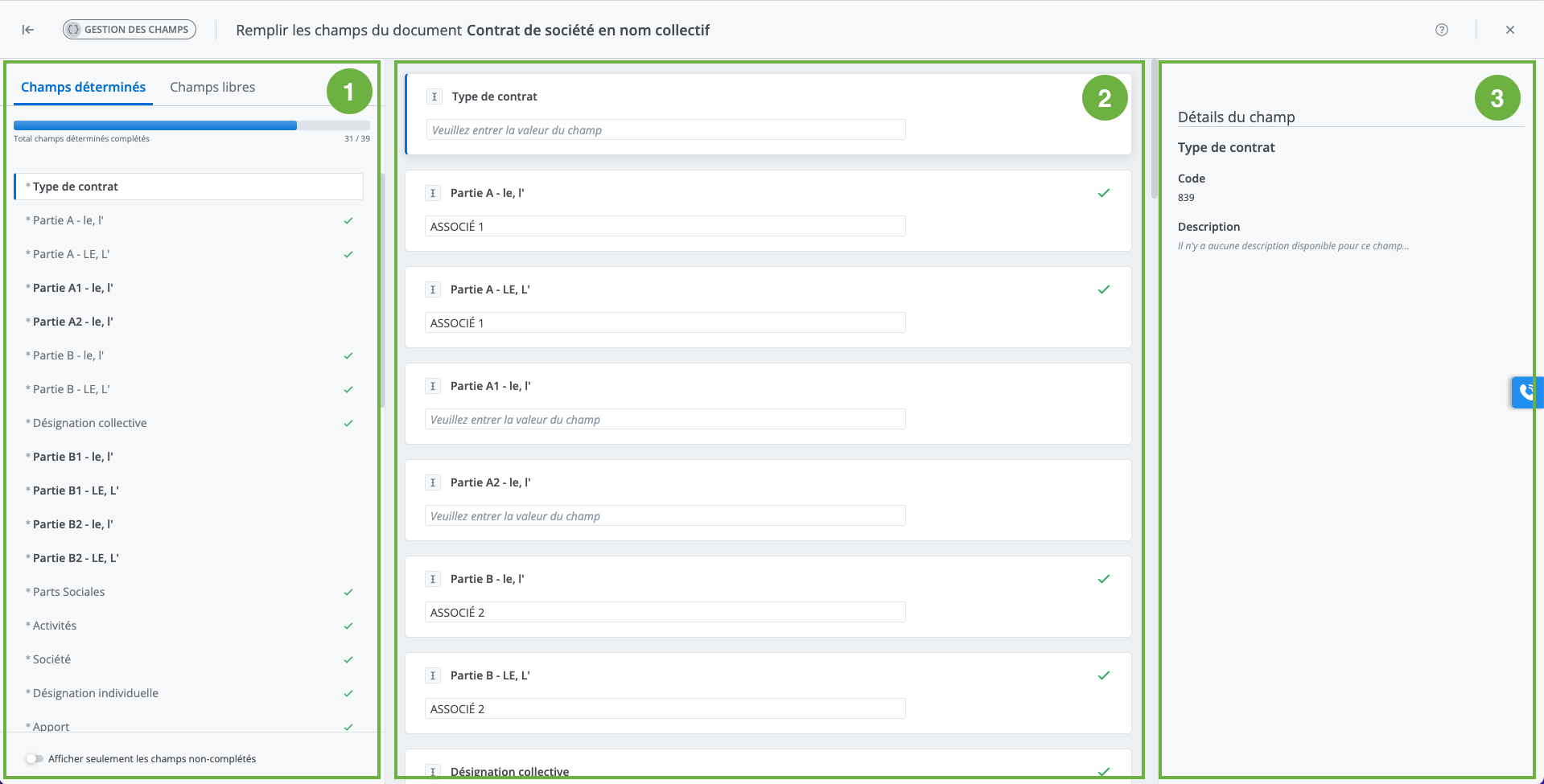
The window allows all fields in a document to be edited from a single location.
The field form window includes the following elements:
-
A navigation panel;
-
The input form area;
-
A field details panel.
Navigation panel
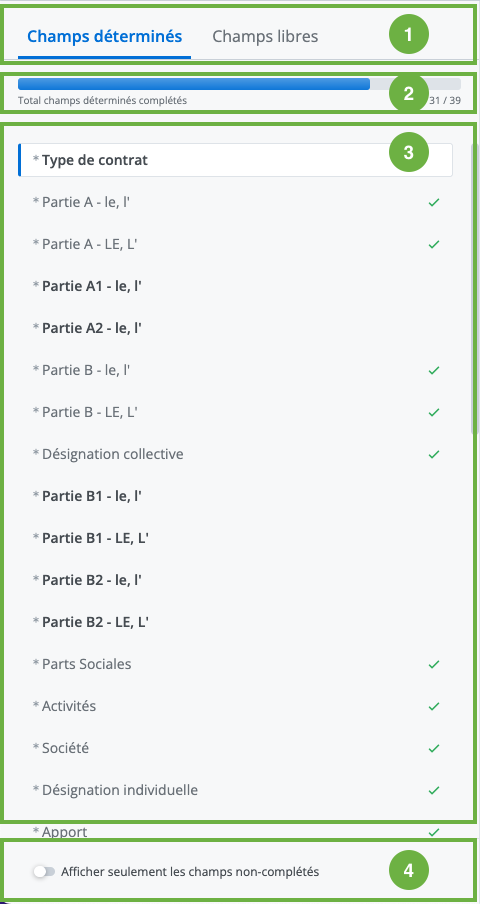
This panel allows you to quickly view the status of the fields in the document
-
The field type tabs;
Allow switching between the visible field types (free or fixed) for editing.
-
The progress bar; Indicates the total number of fields completed for the selected tab.
-
The field list;
Highlights the selected field.
A green arrow indicates a completed field.
-
A toggle button for displaying incomplete fields;
Allows filtering of the field list to reduce the number of fields displayed by showing only those that have not been completed.
Editing fields
-
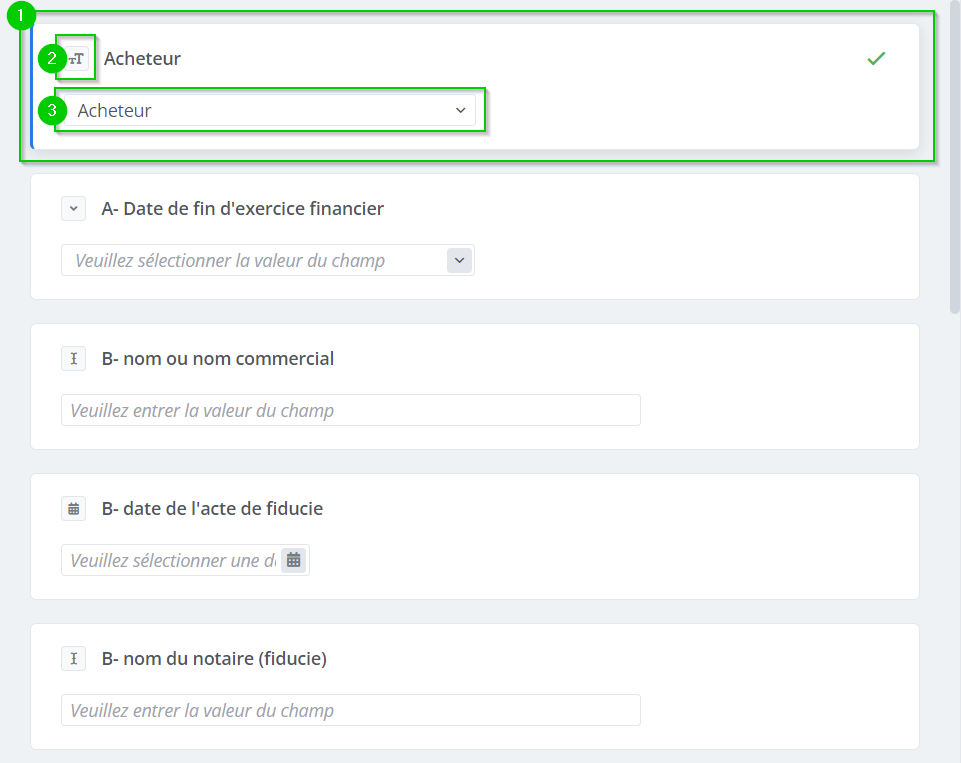
The field tile; The selected field is identified by a blue line on the left side. A completed field is identified by a green arrow on the right side.
-
The field type indicator;
-
The field to be filled in;
A field details panel
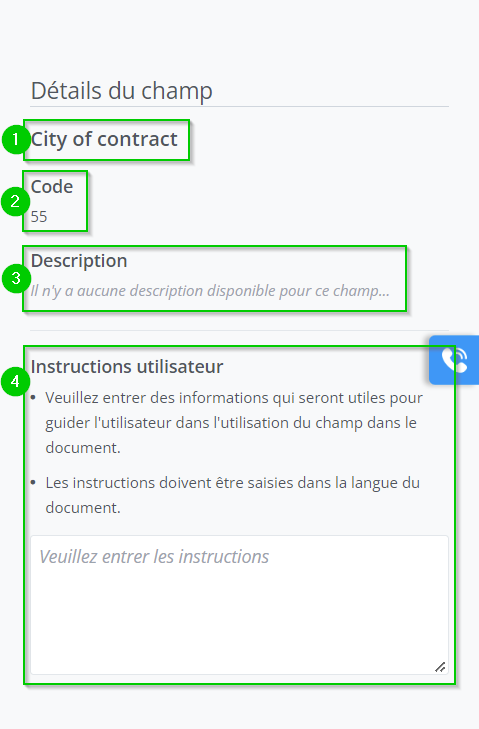
This panel displays additional details about the currently selected field.
-
The field name;
-
The field code;
-
A Description section;
-
A User instructions section; When accessing the field form from a contract document, the User instructions field in the details panel is read-only.