
Summary Description of the Feature
This window allows you to modify information on a user.
Access to Feature
Start from the User Profile window.
Detailed Description of the Feature
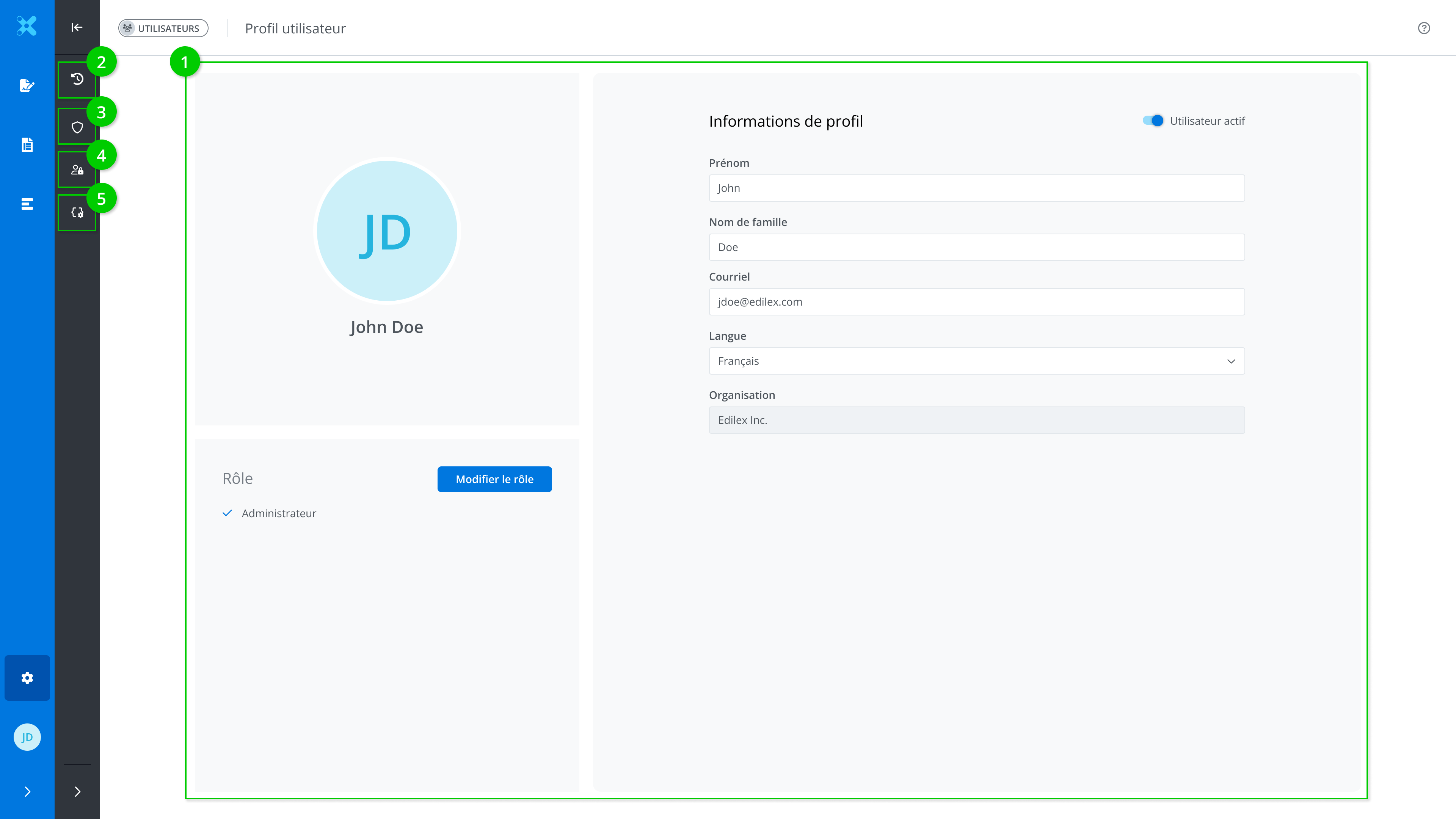
This window allows you to view and edit various information on a user. It is made up of the following tabs:
-
Modify information on the user
-
View the user’s history
-
Modify the user’s role
-
View permissions
-
View the field preferences list
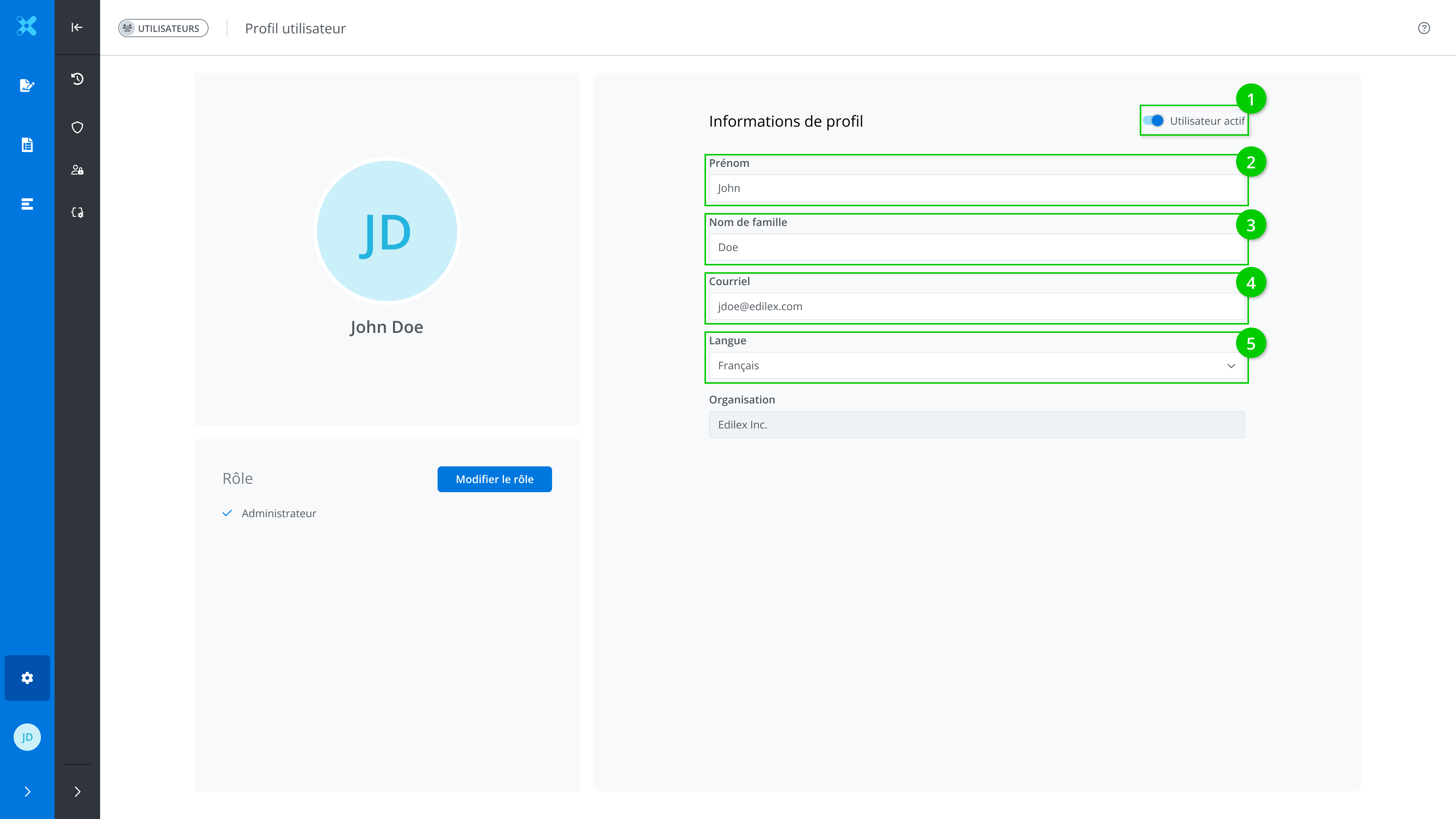
Modify information on the user
The following information can be edited directly in the box:
-
User's status
-
User’s first name
-
User’s last name
-
User’s email address
-
User's language preference
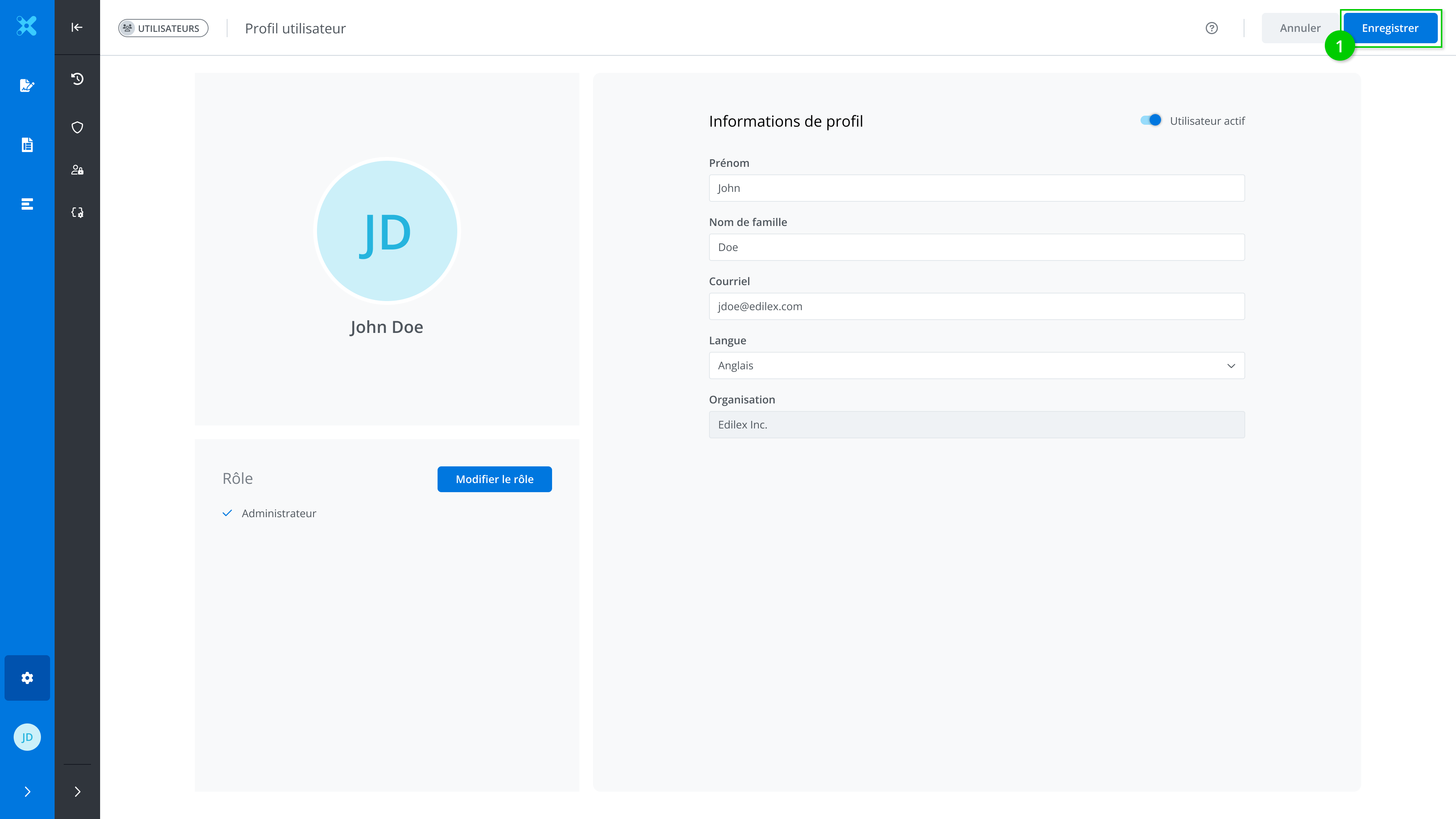
Edit the desired fields and click Save (1).
Deactivate a user
To deactivate a user, toggle the User active button, then click Save. The following window is displayed:
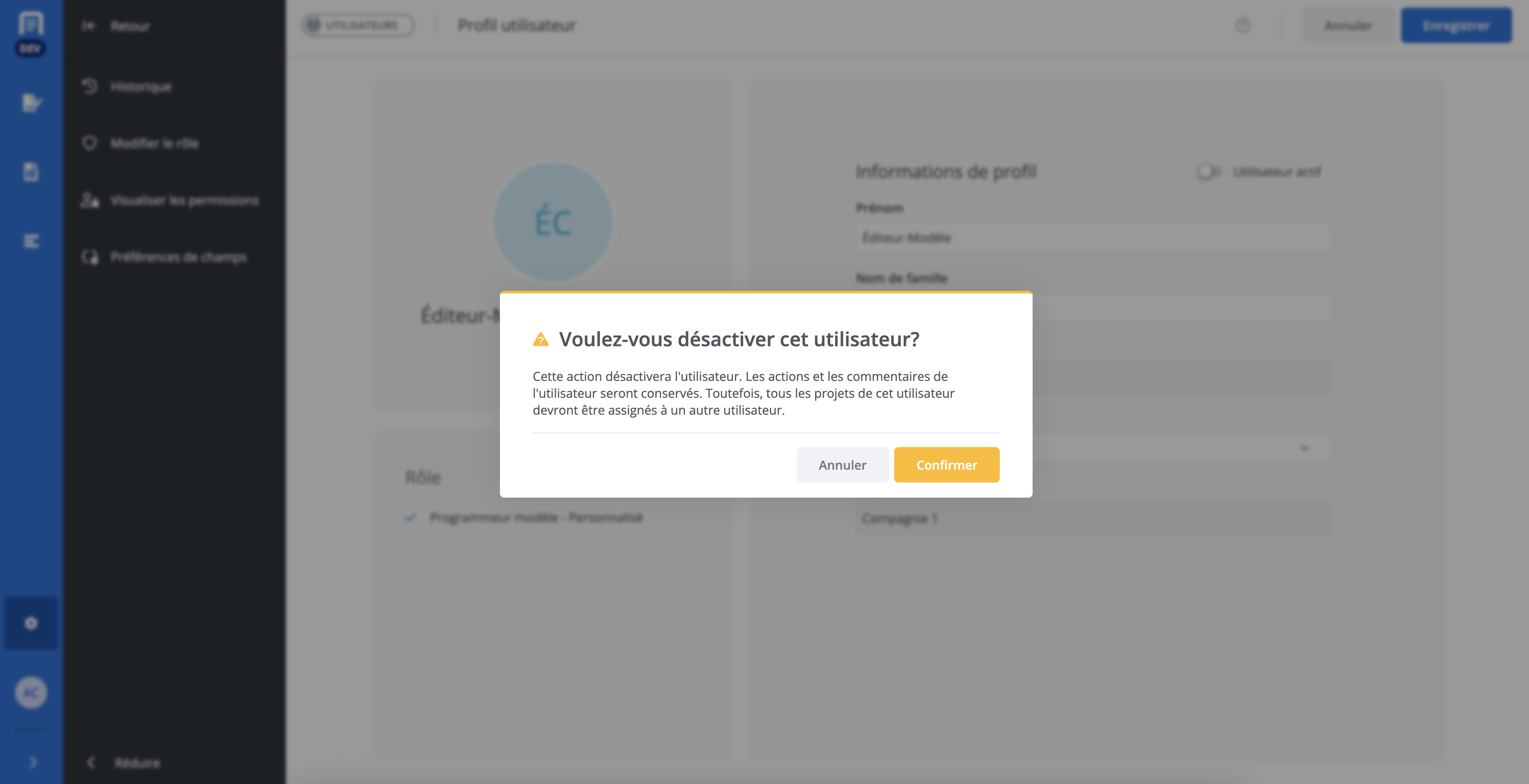
Click on Confirm.
If the user is the creator of certain projects, those projects will need to be transferred to another user using the following window:
When a user is deactivated, all custom templates they created that were previously visible only to them automatically become accessible to the entire organization.
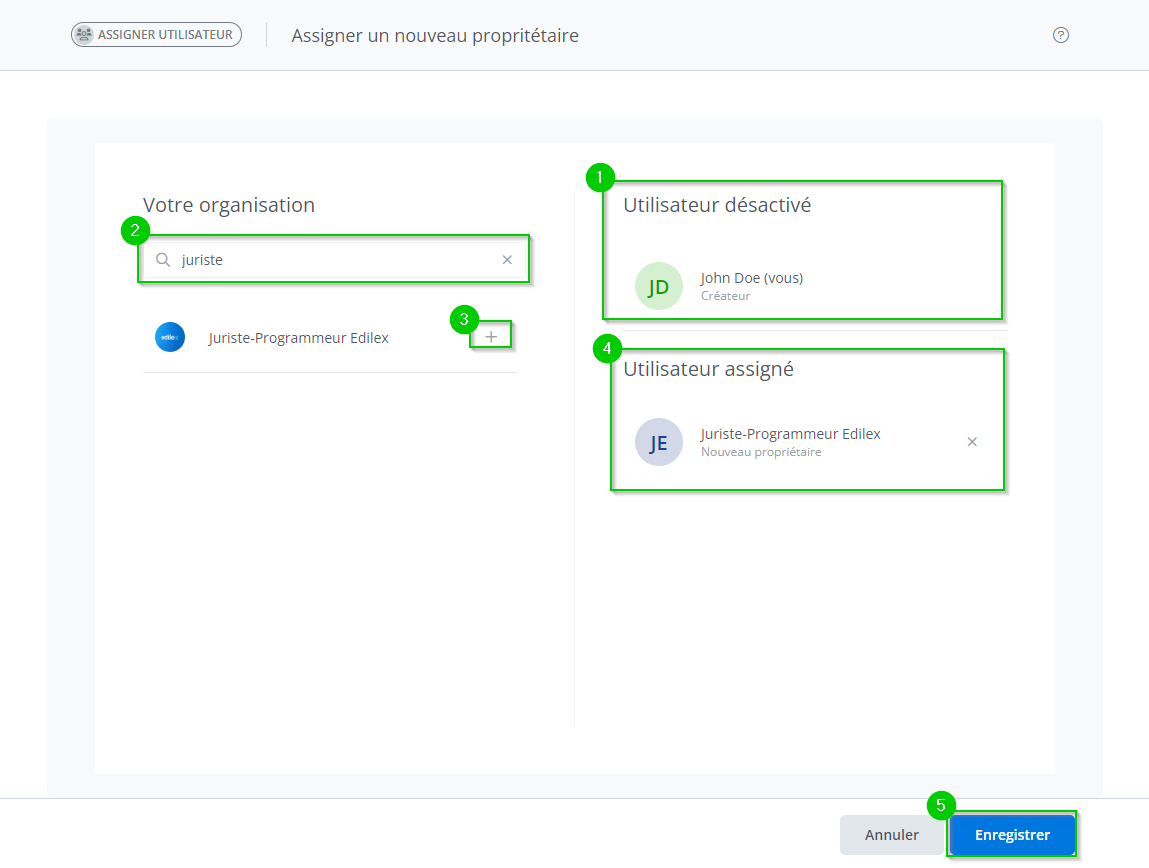
-
Information about the user to be deactivated;
-
Search bar for finding a user;
-
Click on + to select a user;
-
Information about the new owner;
-
Save.
Modify the user’s role
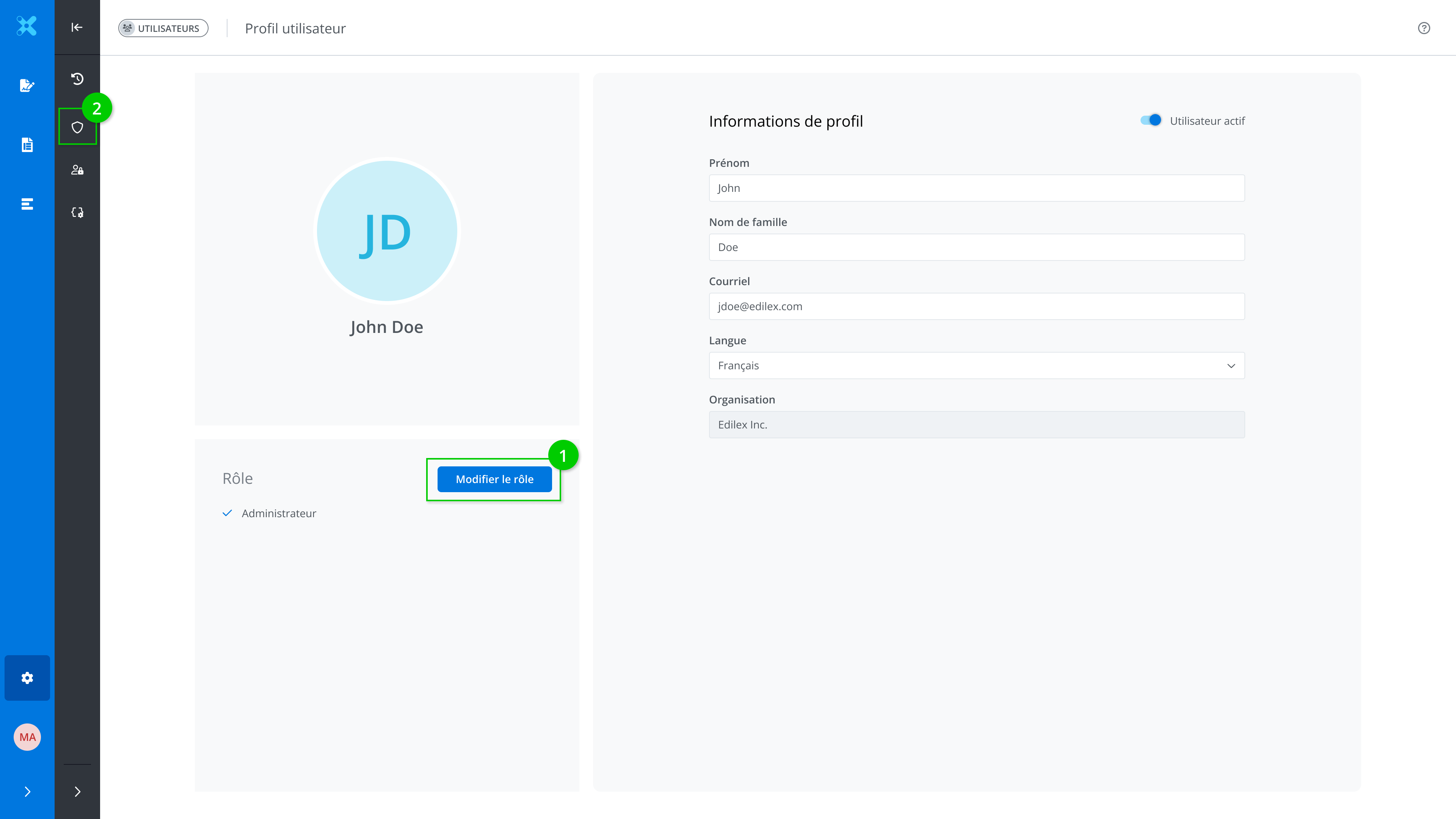
To change the user's role, click Edit Role (1) or the Edit Role button in the menu (2).
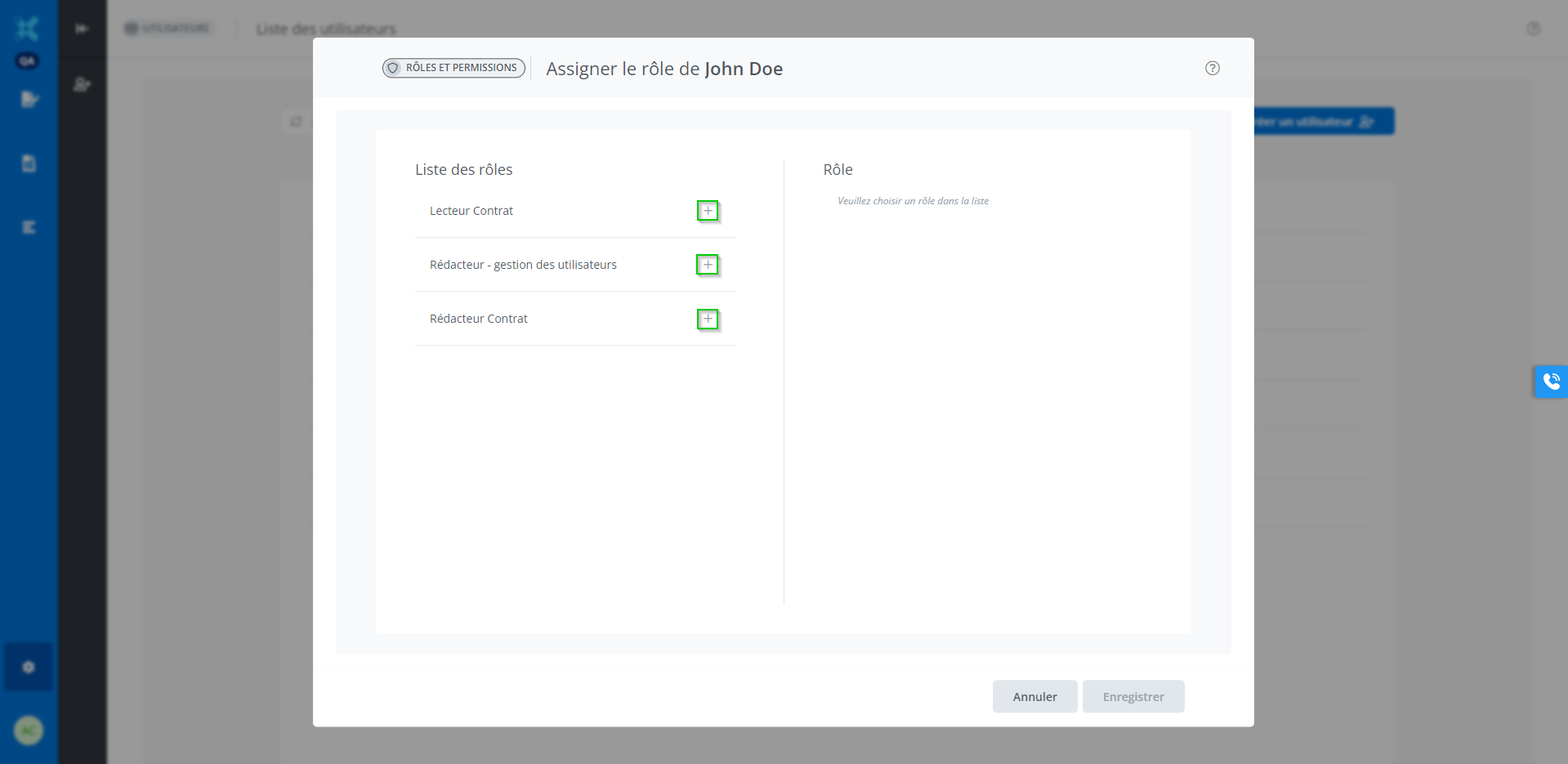
The role assignment window will then appear; click the + corresponding to the appropriate role for the user.
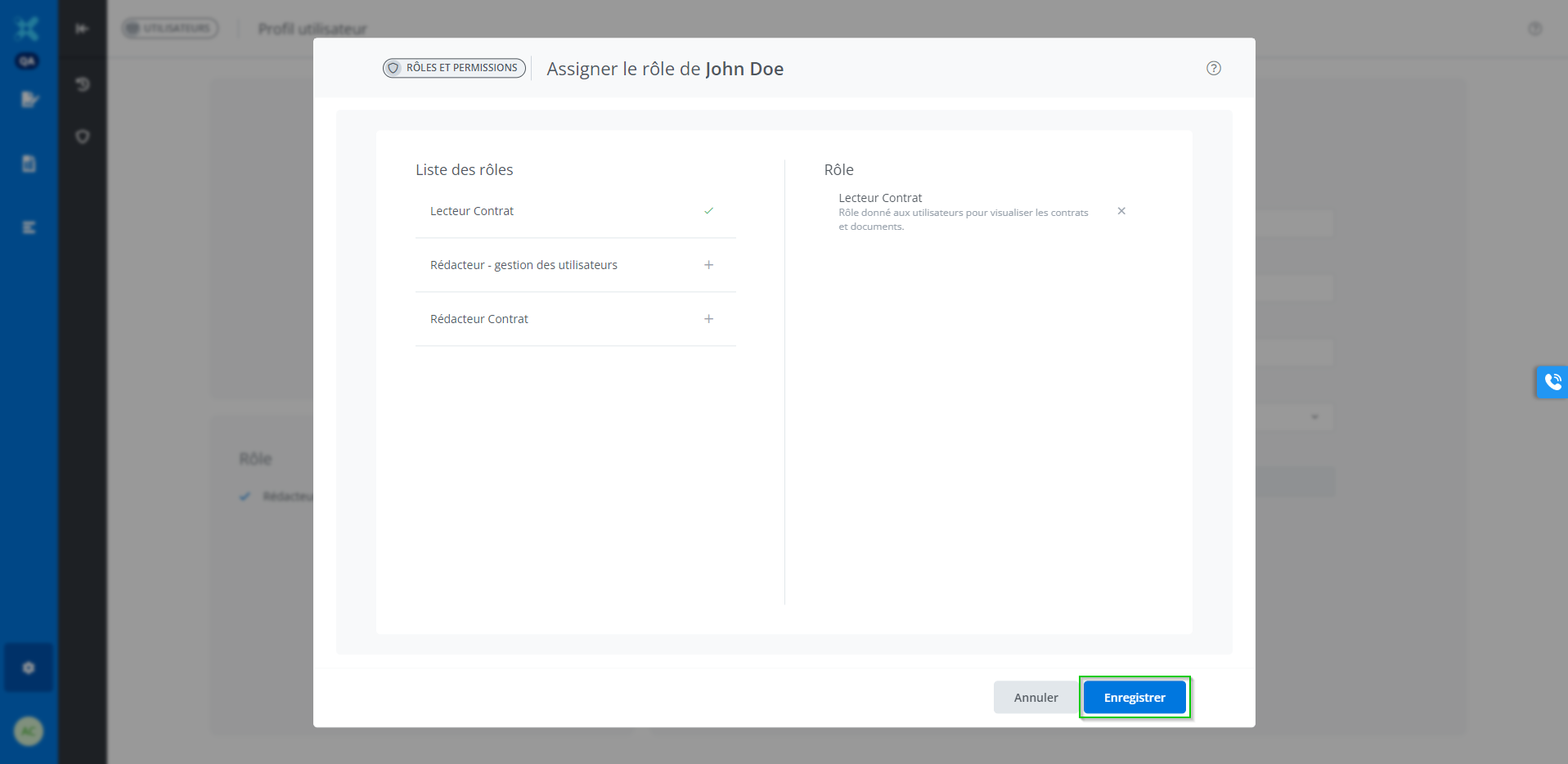
The selected role with its description will appear on the right. Click Save.
Who can use this feature?
Available only to system administrators.