
Description of the Feature
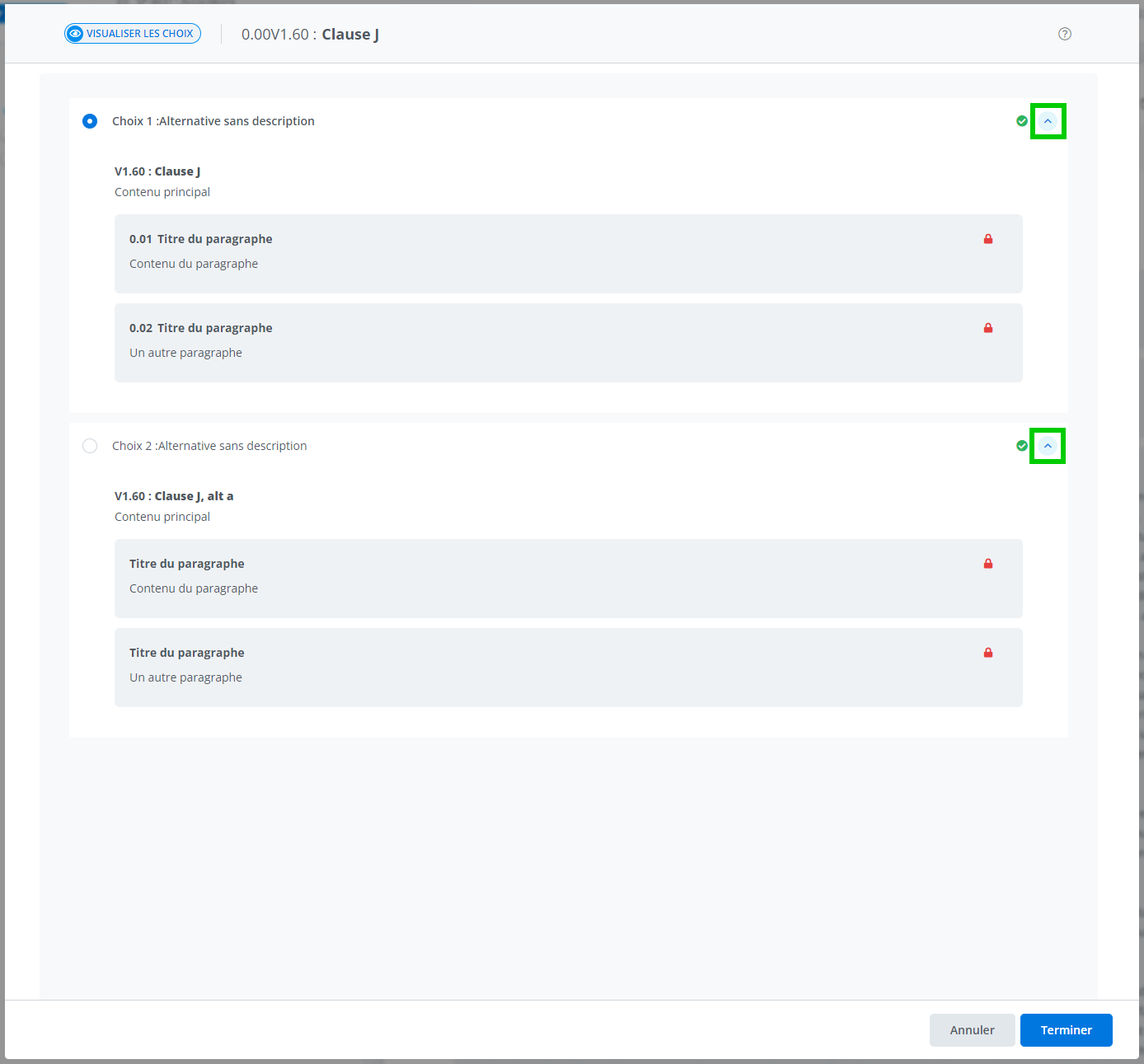
Allows you to view or choose between different alternatives in a document. The accordion view offers more detail and better readability of the content; it also makes it easier to compare two alternatives, since you can collapse or expand the drawer containing the clause or schedule.
First step to access it.
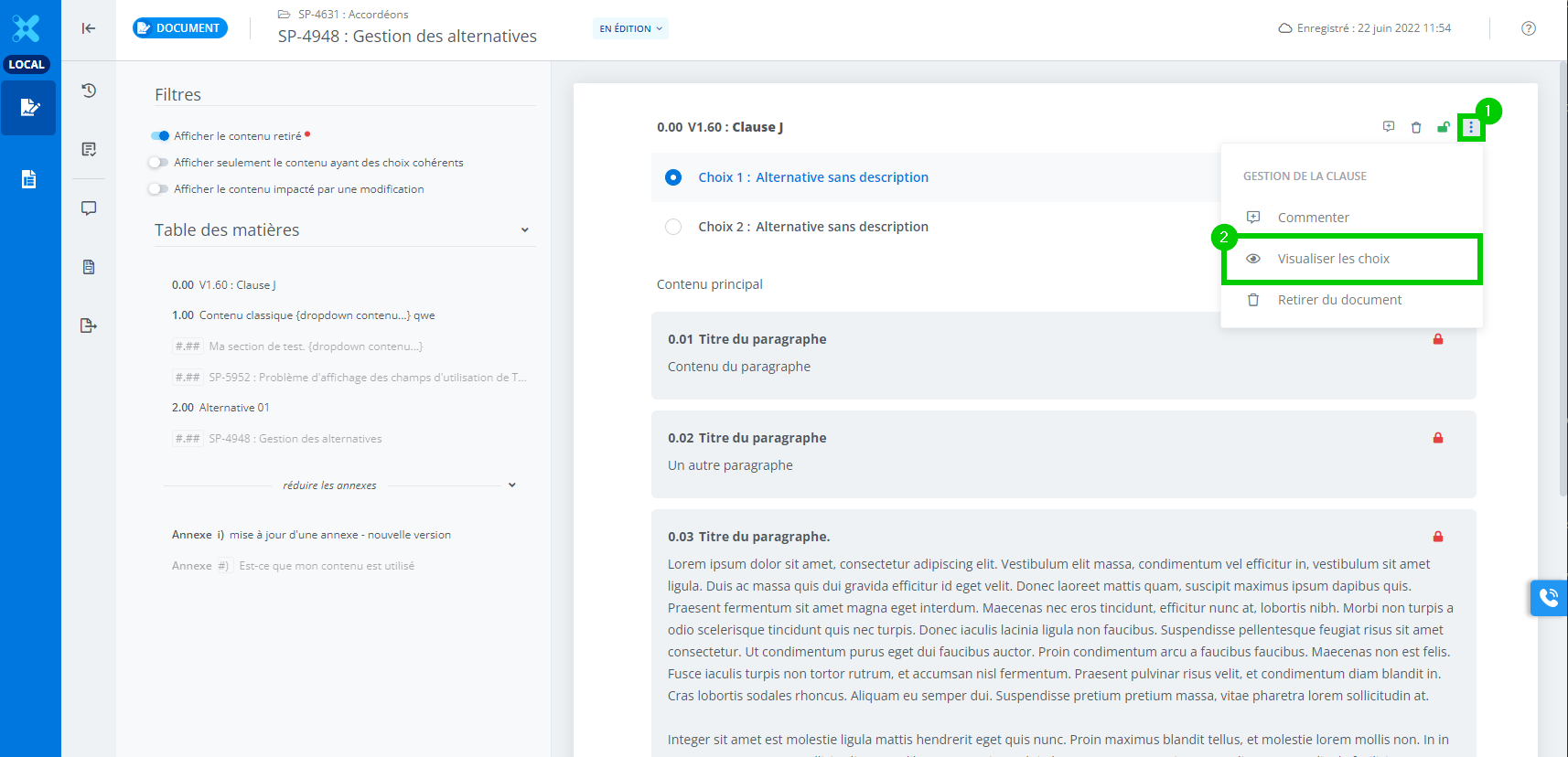
From a document, simply select the clause or schedule to display the quick-action “hamburger” menu.
-
Click the quick-action “hamburger” menu to open it.
-
Click the Manage Alternatives option.
Second step, opening the modal window.
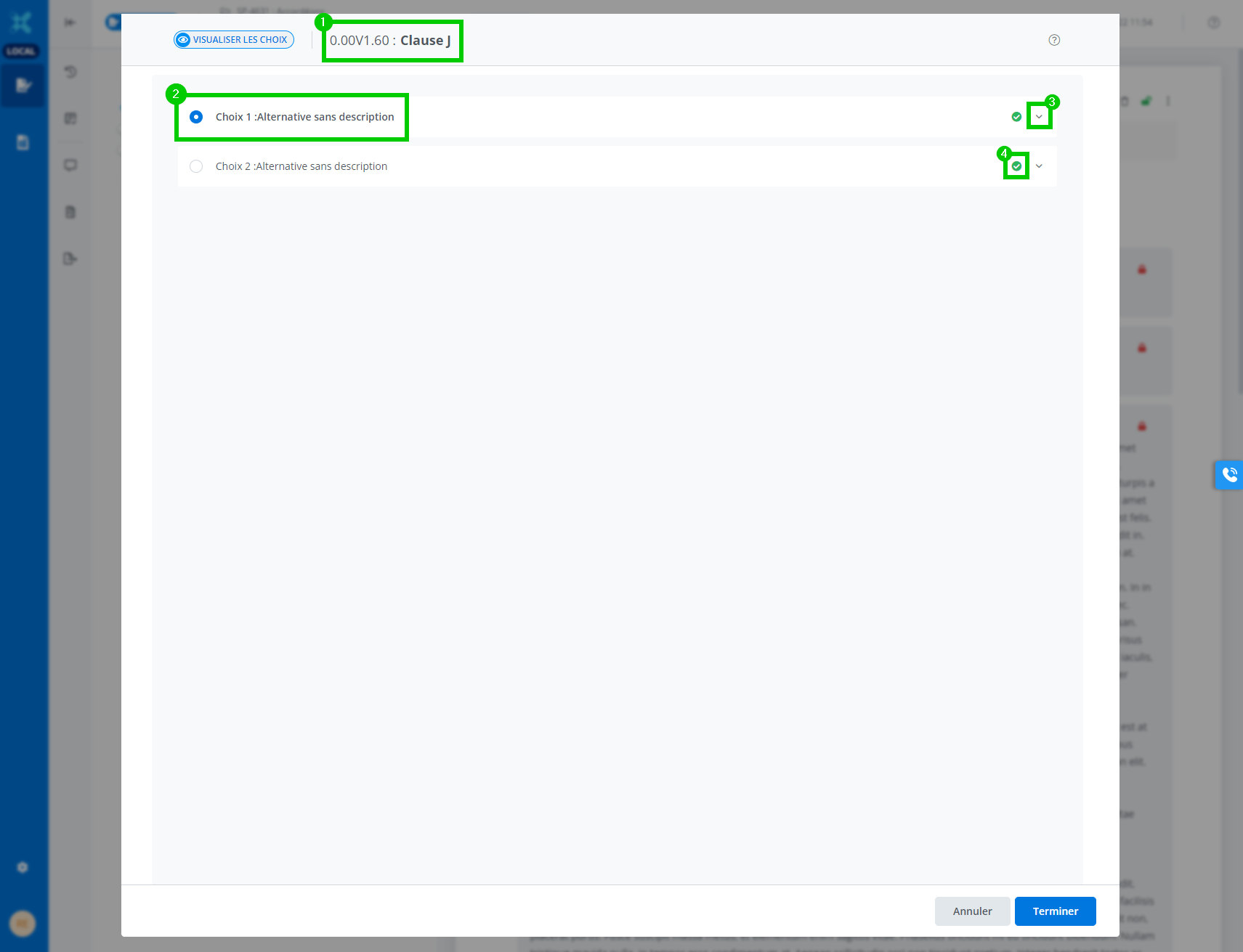
A modal window opens. It contains several levels of information to make it easy to find your way around.
-
The content's title along with its corresponding number in the table of contents.
-
The alternative currently selected in the document (the active state is indicated by the blue radio button).
-
The button to open and close the drawer for the clause or schedule.
-
The consistent choices icon, which lets you make sure the selected and selectable content is consistent with previous choices made in the document.
Third step, view and compare.
Note that opening and closing the drawer does not select the alternative; it only allows you to view relevant information.
Fourth step, confirming your choice.
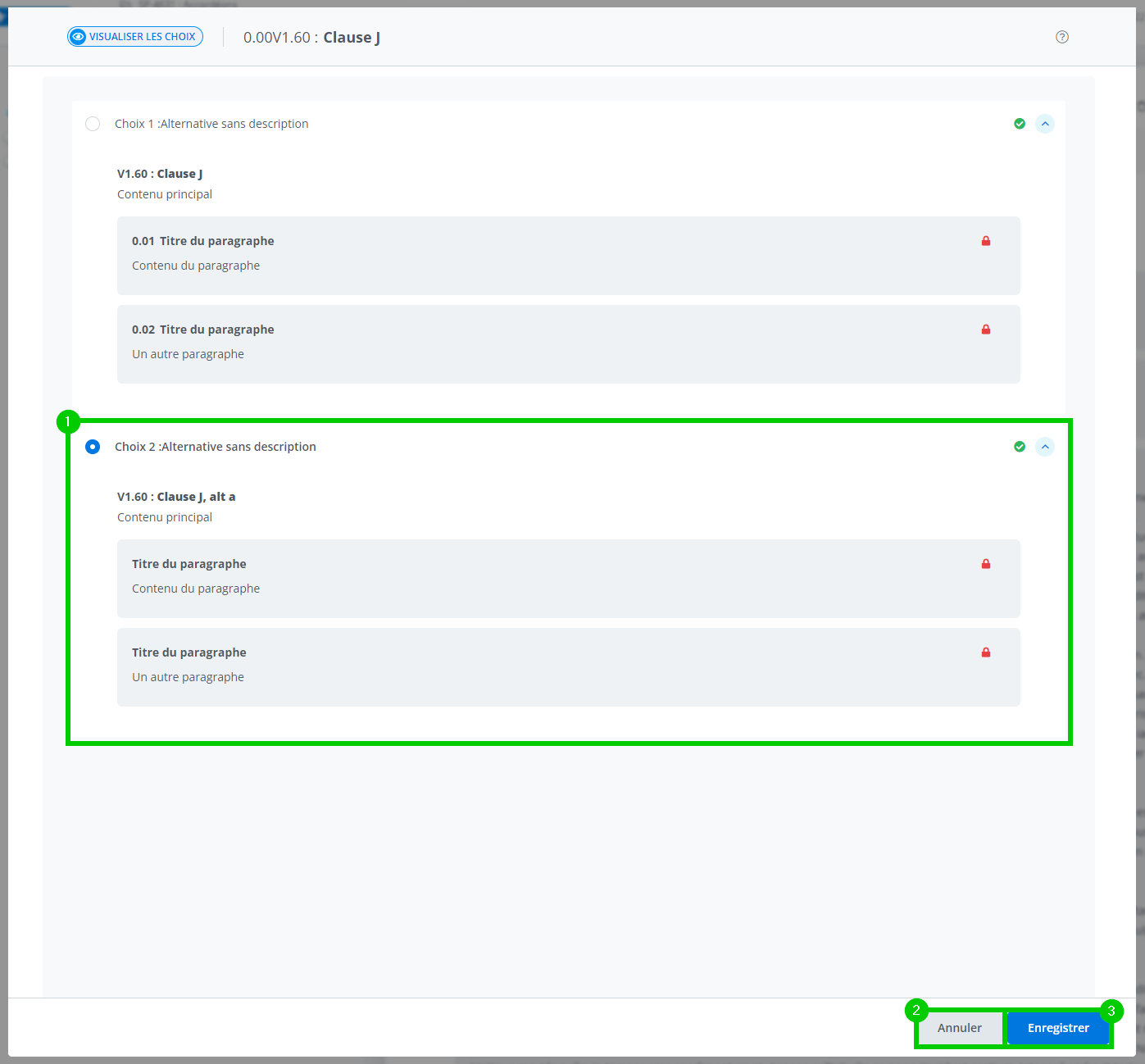
After selecting an alternative or simply viewing all the different ones available, you can select among the following choices:
-
In the image above, the selected alternative in the document has been modified (choice 1 is no longer active, choice 2 is).
-
Click Cancel to cancel all the actions performed in the modal window.
-
Click Save to save all actions performed in the modal window.
Fifth step, return to the document.
After cancelling or saving the actions performed in the modal window, it will close automatically.
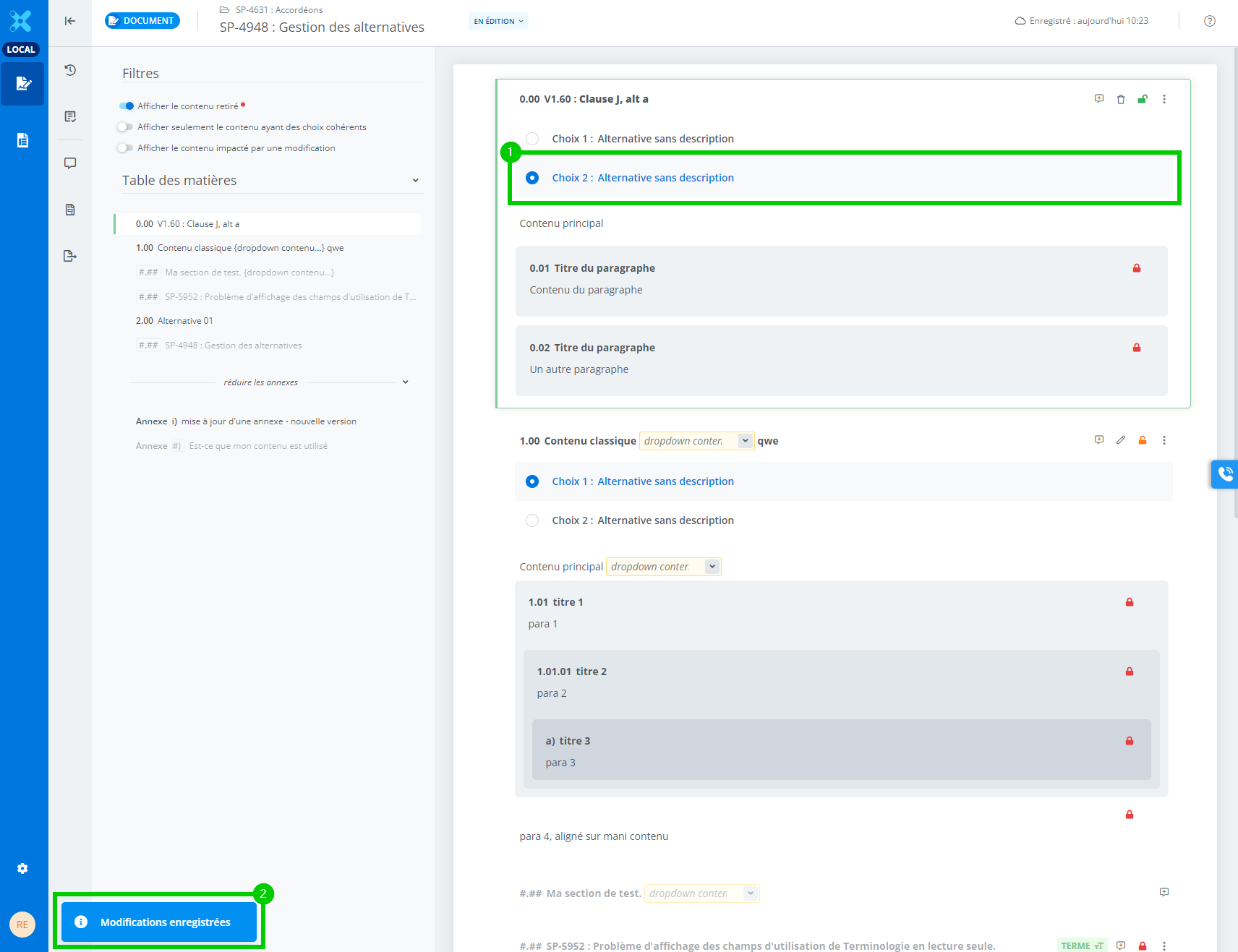
The document view will appear once again.
-
In the example above, Choice 1 alternative is no longer active/selected in the document. Instead, Choice 2 is.
-
A toast message will confirm that all actions have been applied.
Important Notice
For more information on consistent/inconsistent choices:
See consistent choices in a document