
Description of the feature
Drafting a project document involves adapting it to the client's or project's context by choosing alternatives, filling in fields, and adding or removing content. This view also allows the document to be exported in Word or PDF format once drafting is complete.
Access to feature
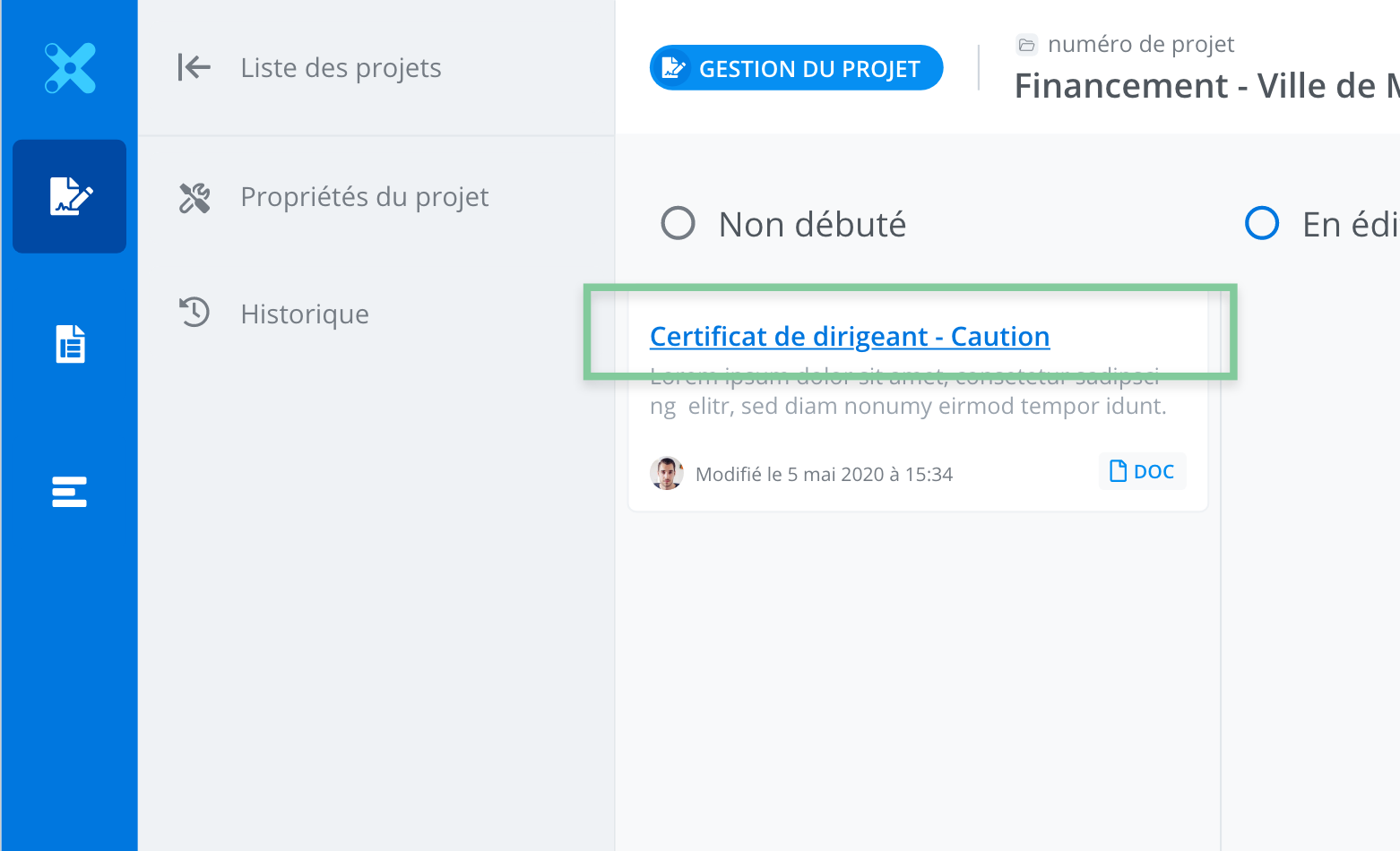
A project document is accessible from Project Management, by clicking on its tile.
Description of the feature
-
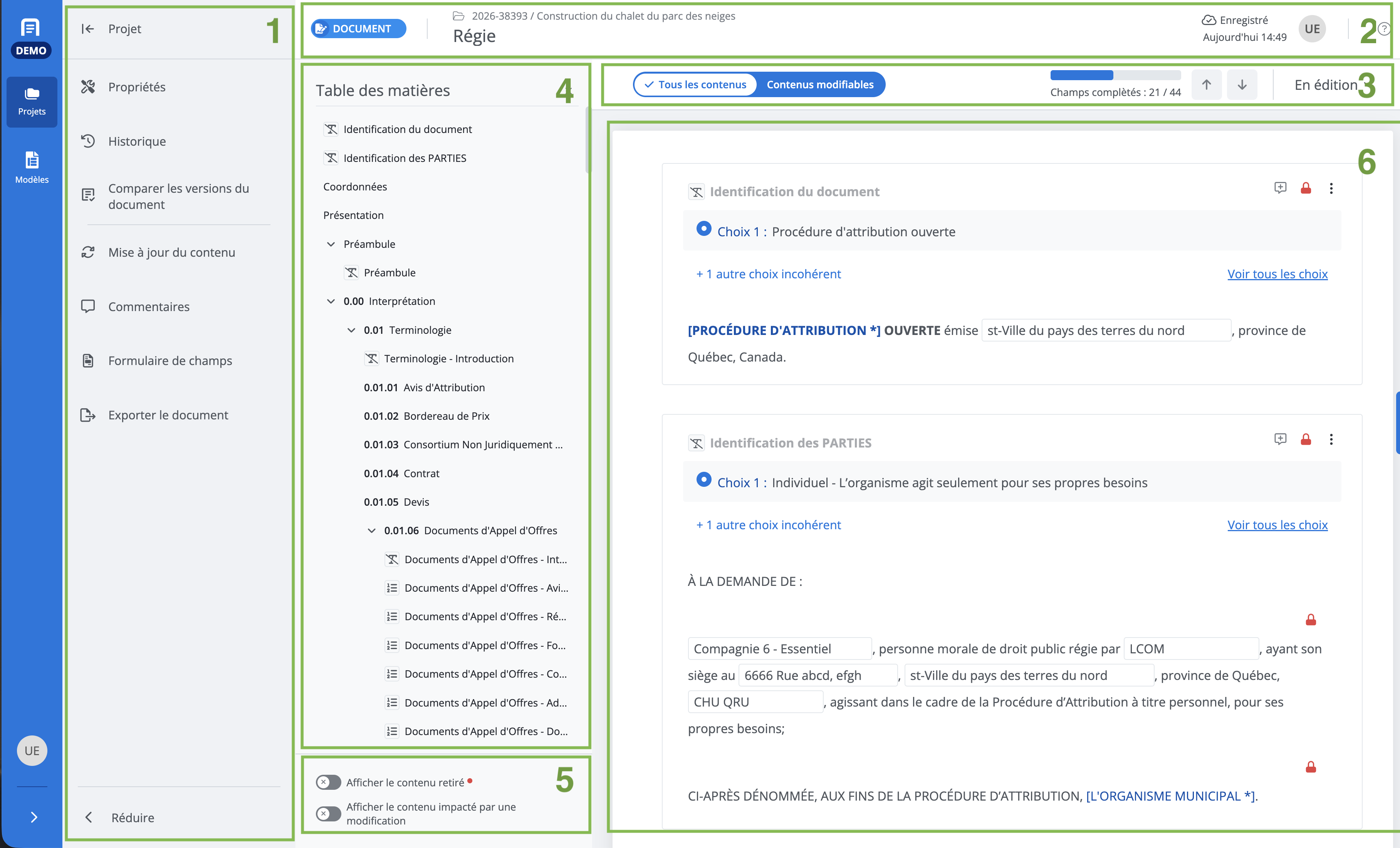
The features menu
-
Heading
-
Drafting options
-
Table of contents
-
Display filters
-
Edit content window
The features menu
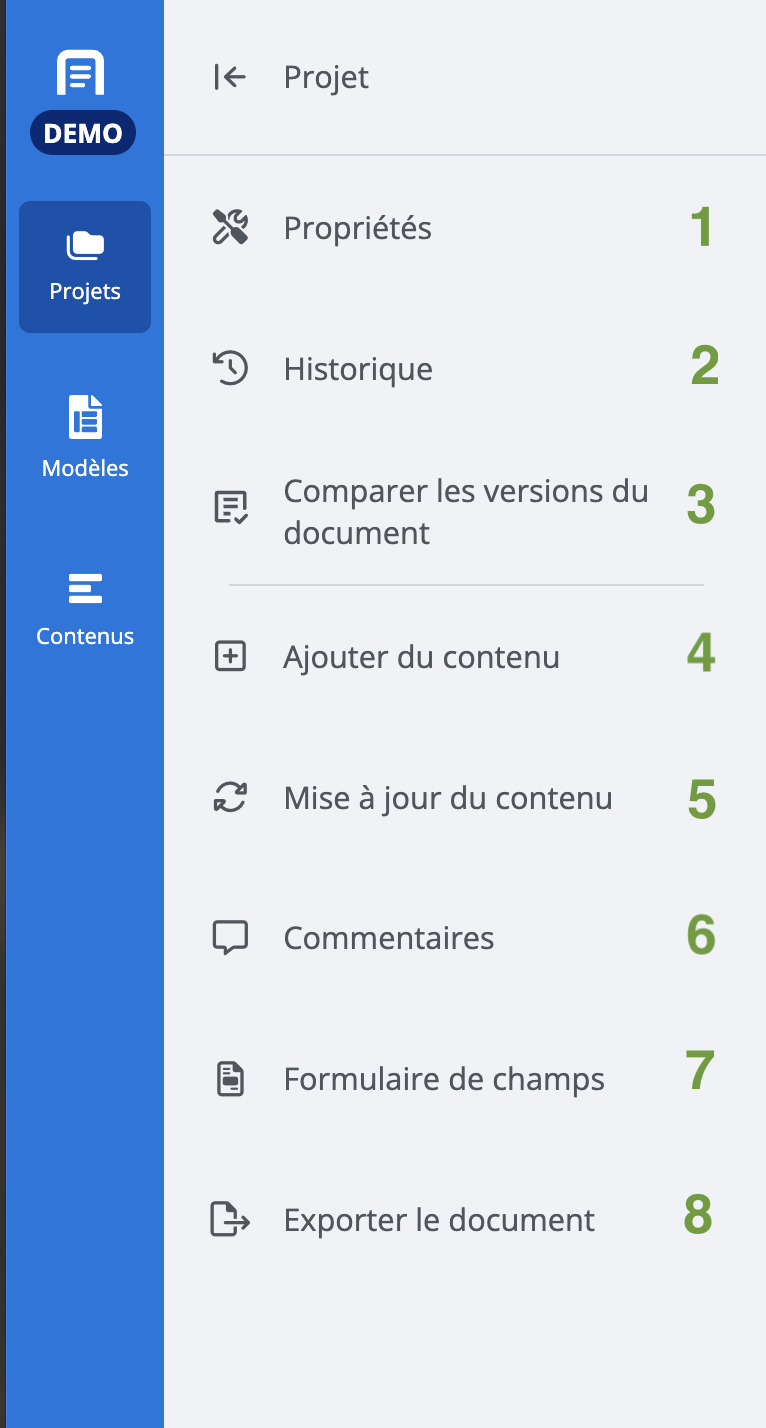
The features menu allows you to perform the following actions:
-
View document properties
-
View the history of modifications made to the document;
-
Add content (sections, clauses, schedules) to the document;
-
Update content;
-
Comment on clauses, sections, and schedules,
-
-
Export the document.
Heading

The project document heading contains the following:
-
The project title and numbers
-
The project name
-
-
Information about last time it was saved
-
The avatars of the users who have the document open.
Drafting options

Drafting options are as follows:
-
The toggle to display only editable content. By default, the active mode is All Content. If you enable Editable Content mode, only content that meets one of these criteria will be displayed:
-
That has fields to complete
-
That has options to select
-
The relevance of which is optional (can be removed)
-
-
The progress bar for completed fields
-
The navigation arrows for fields to complete
-
The document status
It is possible to change the document status from here
Table of contents
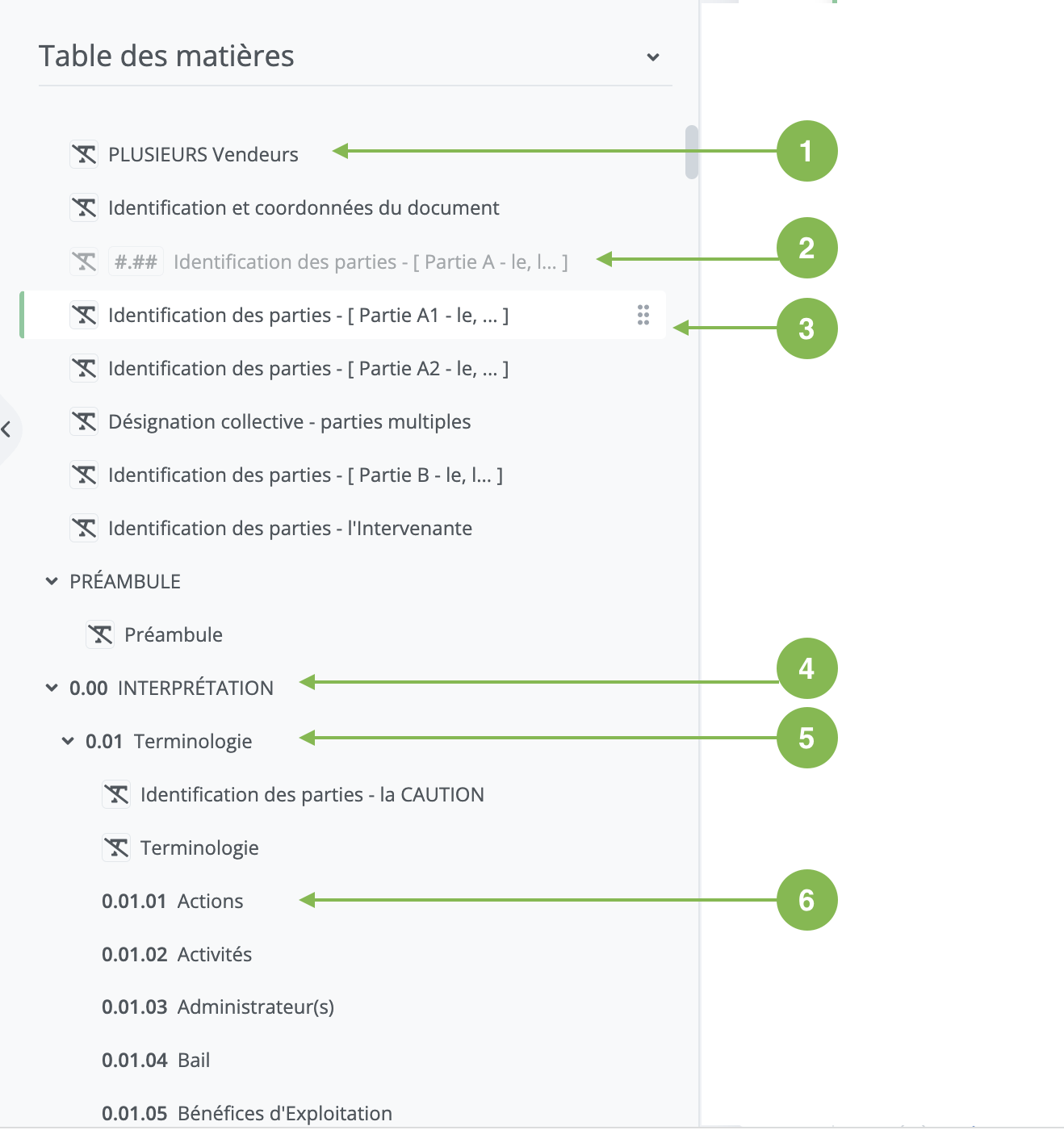
The table of contents displays the titles of the sections, clauses, and schedules included in the document.
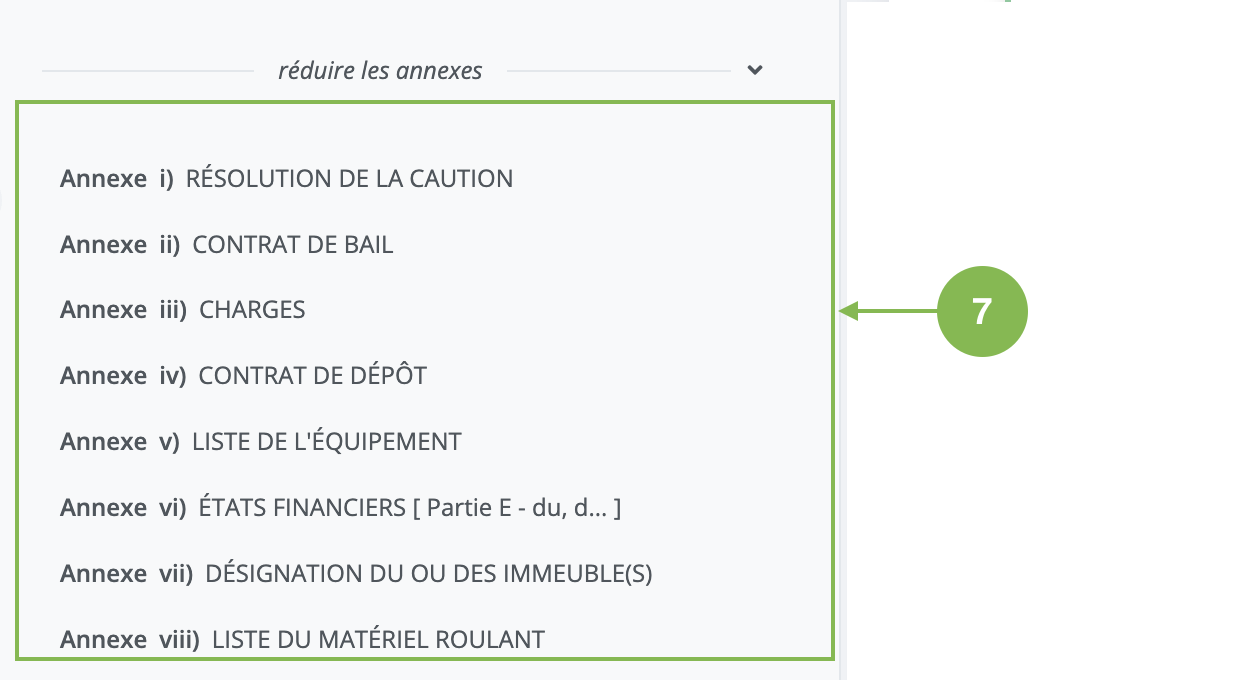
-
Clause with a removed title,
-
Removed clause whose title is removed,
-
Selected clause whose title is removed,
-
Section at the first indentation level,
-
Section at the second indentation level (included under the previous section (4)),
-
Third-level clause, indented under the Terminology section, itself indented under the Interpretation section,
-
Table of schedules.
Hide and display the table of contents
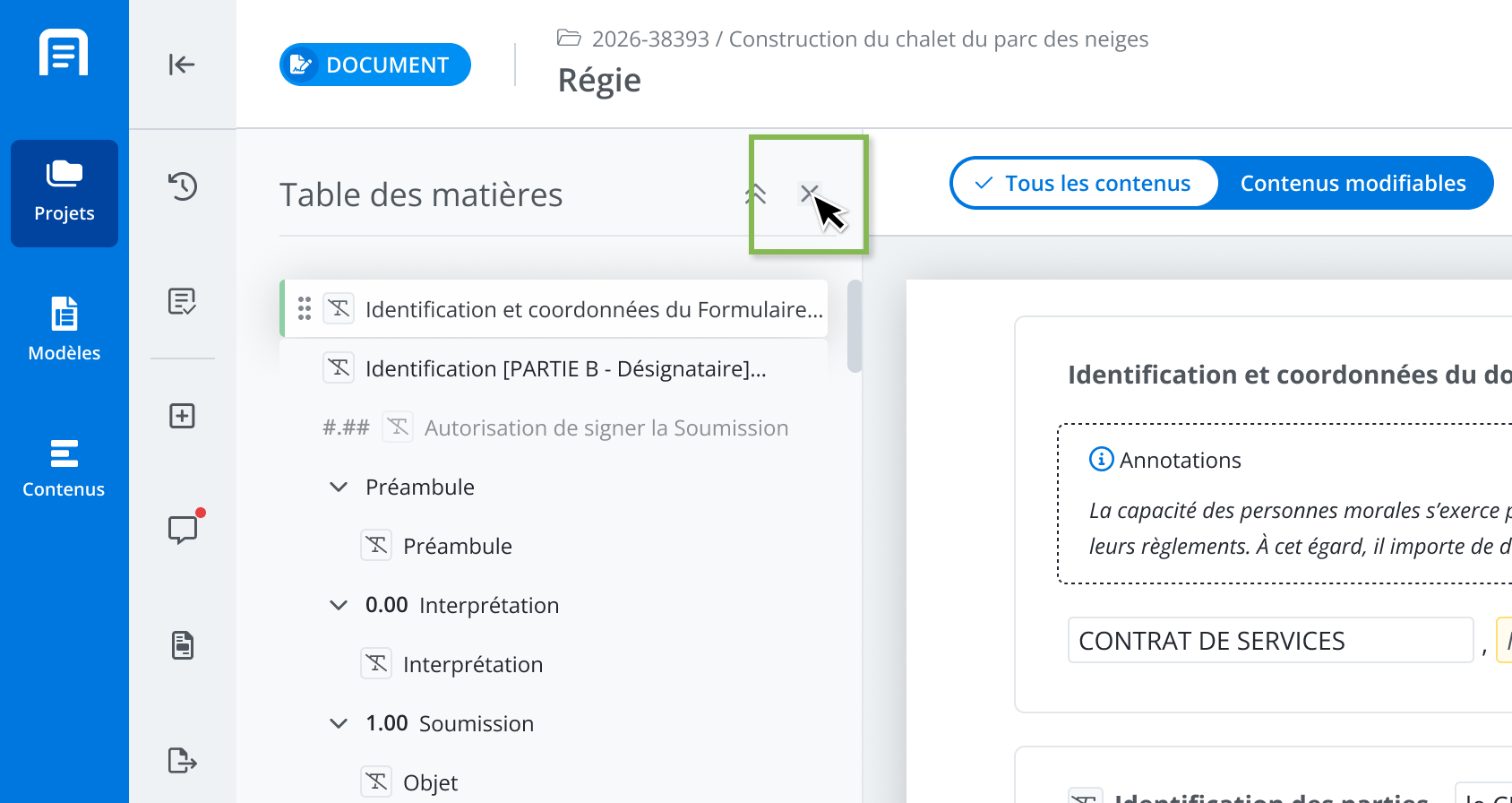
To hide the table of content, click the X in the panel.
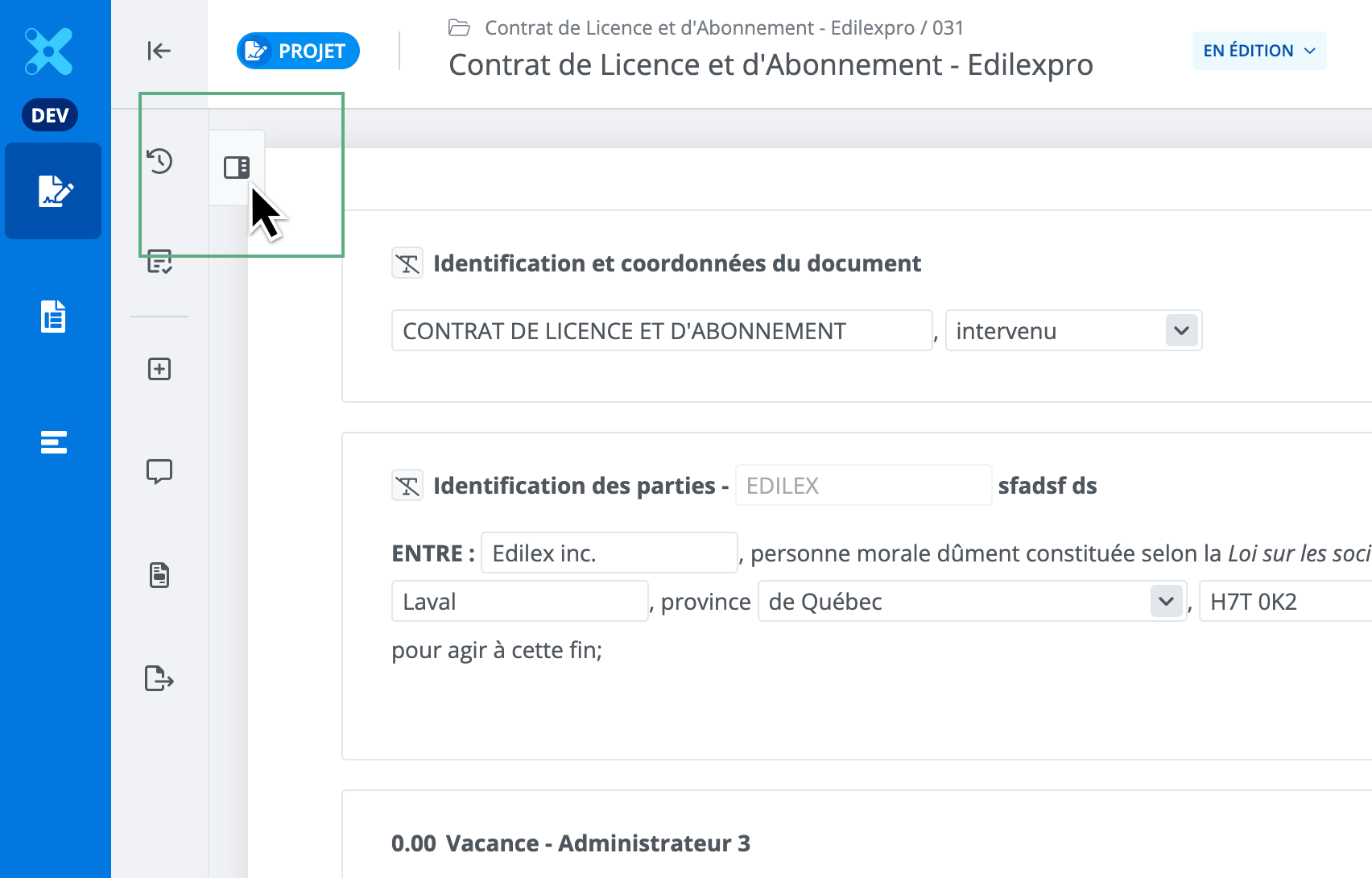
To display the table of contents, click the table of contents button next to the features menu.
Collapse and expand the table of contents
To collapse all the accordions in the table of contents and display only the top-level sections, click the double-chevron icon on the panel.
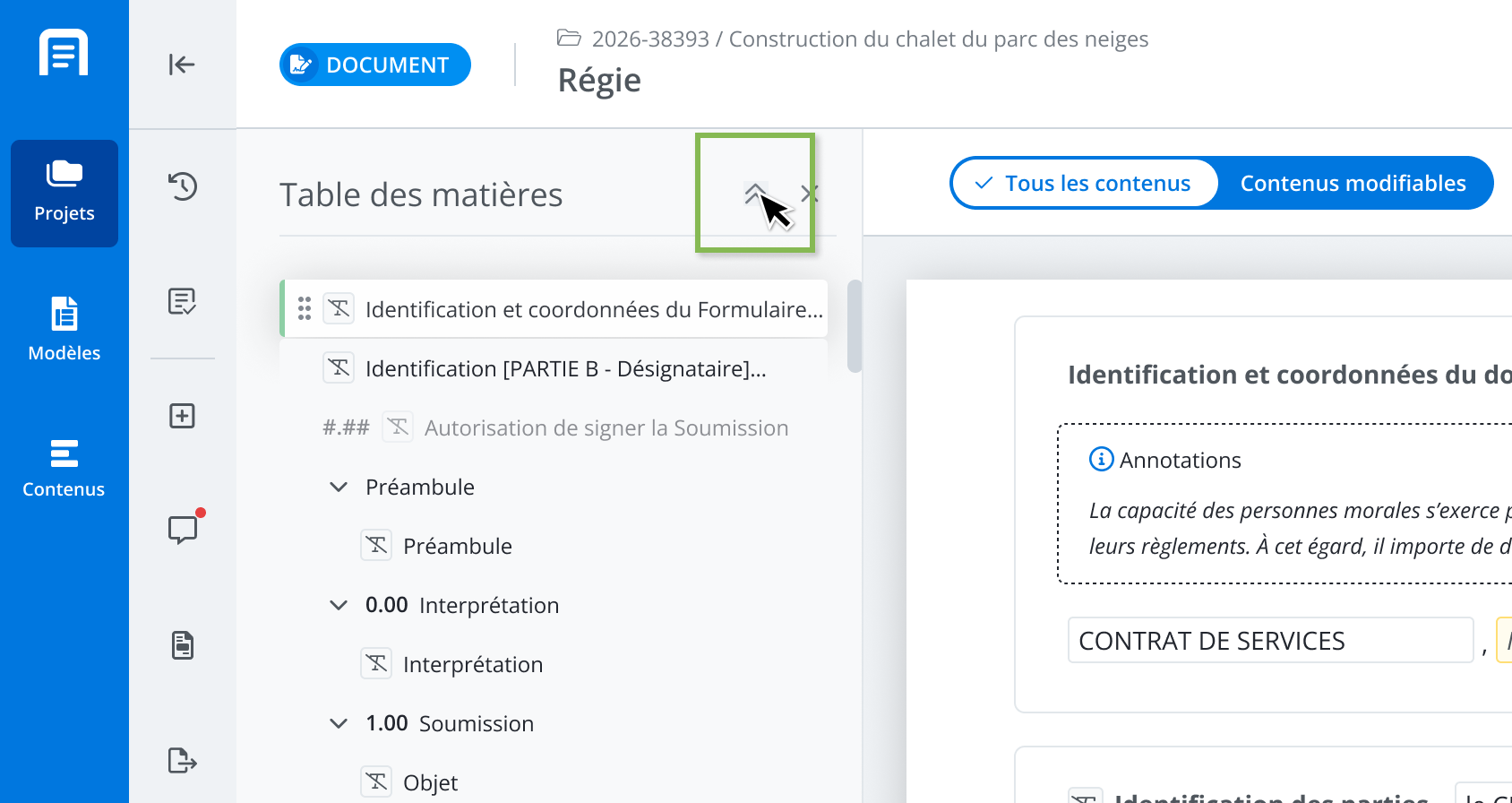
When everything is collapsed, click this same icon to expand everything with a single click.
Move content
Use drag-and-drop to move content within the table of contents
Note: When content is moved, the numbering of the entire document adjusts automatically.
Steps
-
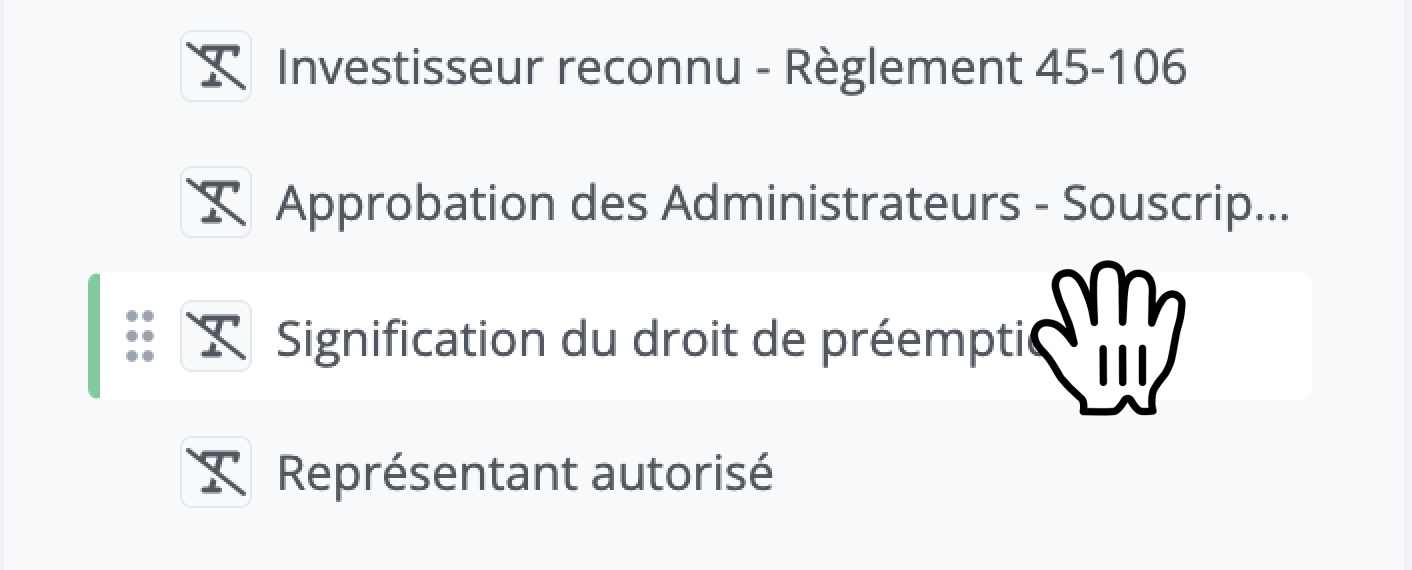
Hover over a title in the table of contents.
-
When the hand-shaped cursor appears, click, hold down the mouse button, and drag the content above the location where it should be placed.
-
Drop it in the desired area by releasing the mouse button.
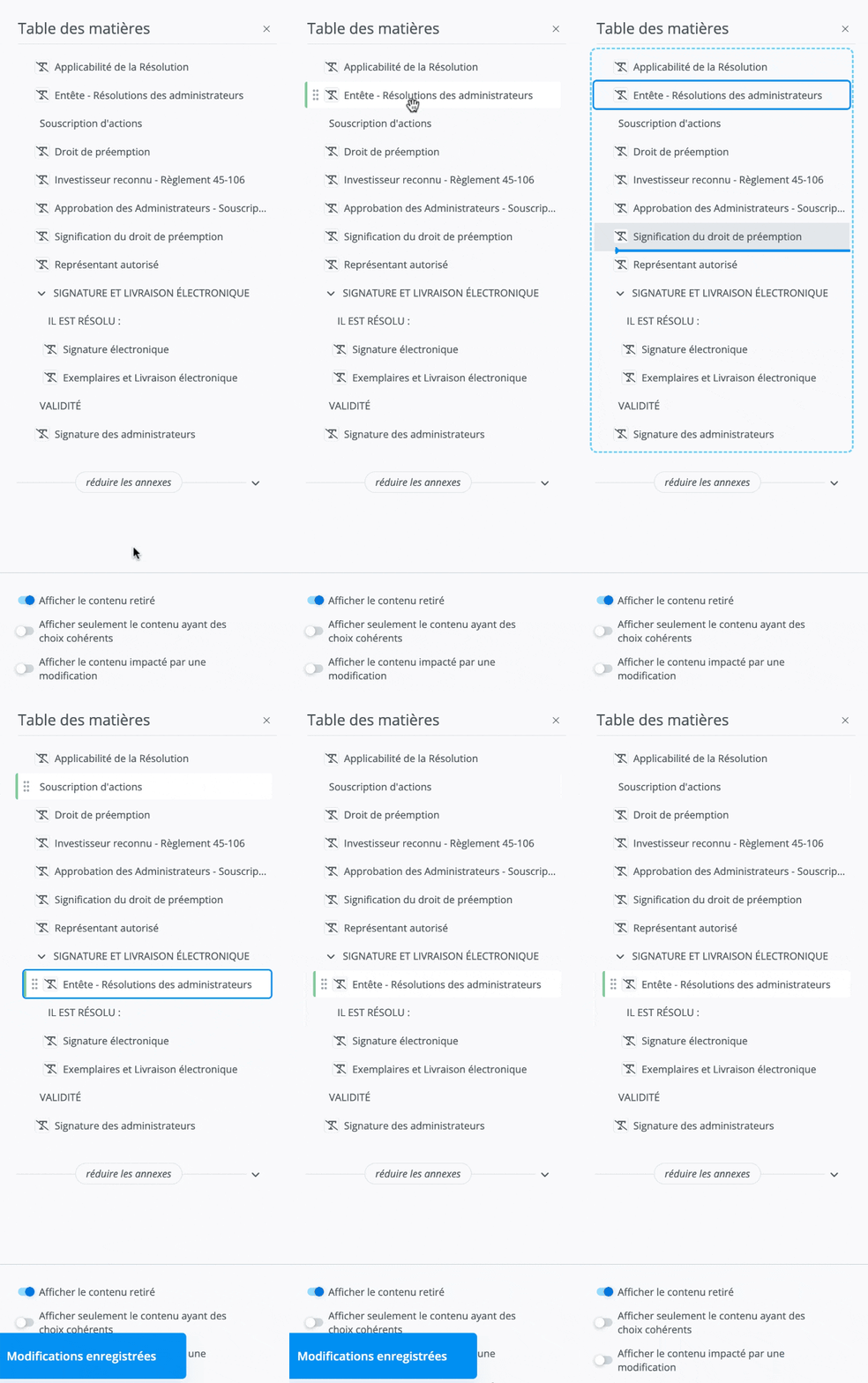
For more information on the rules for using drag-n-drop in the table of contents, read the following article: Use drag-and-drop to move content within the table of contents
Display filters
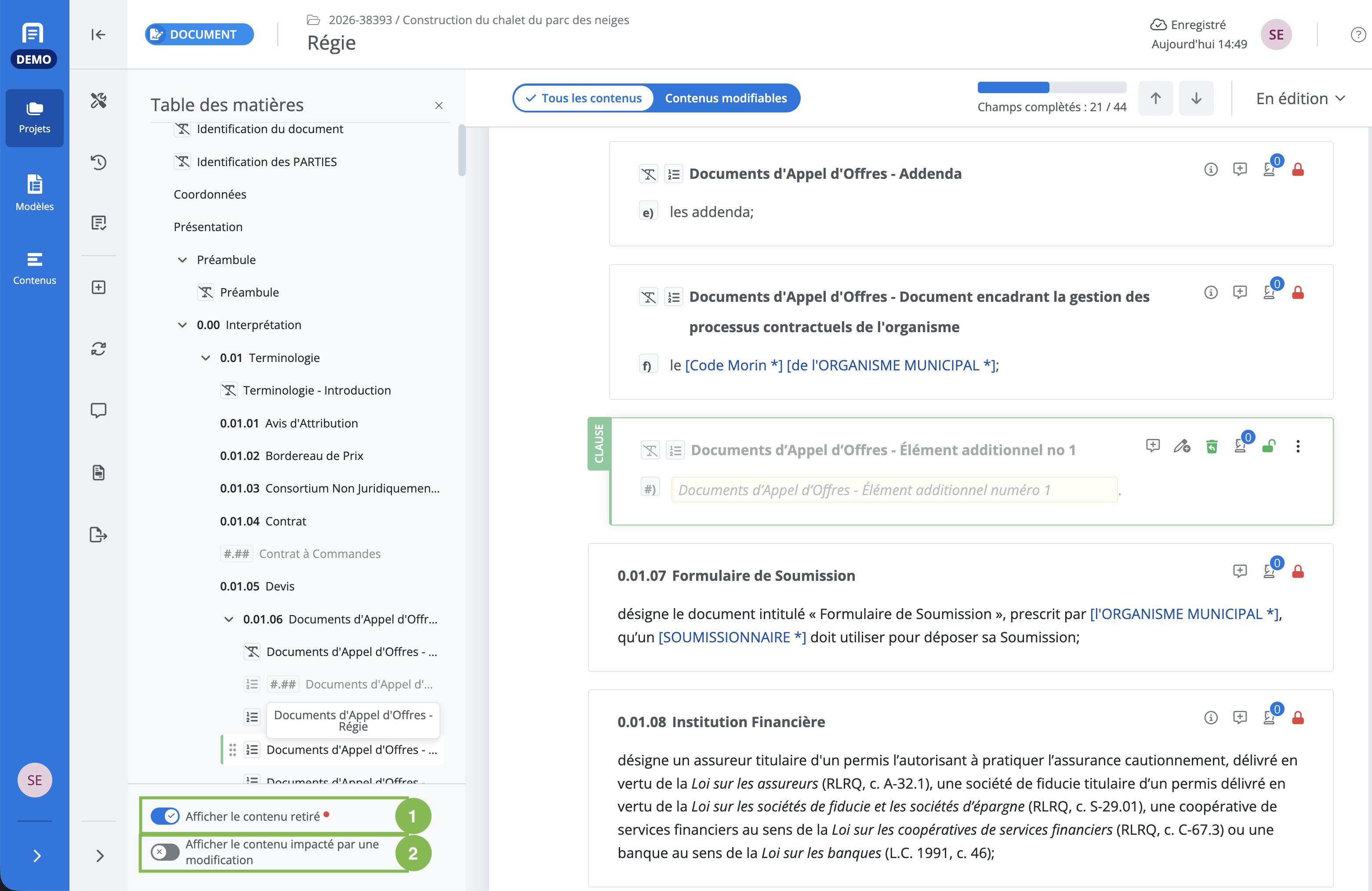
The display filters area allows you to configure the display of:
-
Removed content — If this filter is enabled, you can see content that has been removed, indicated by the trash icon.
-
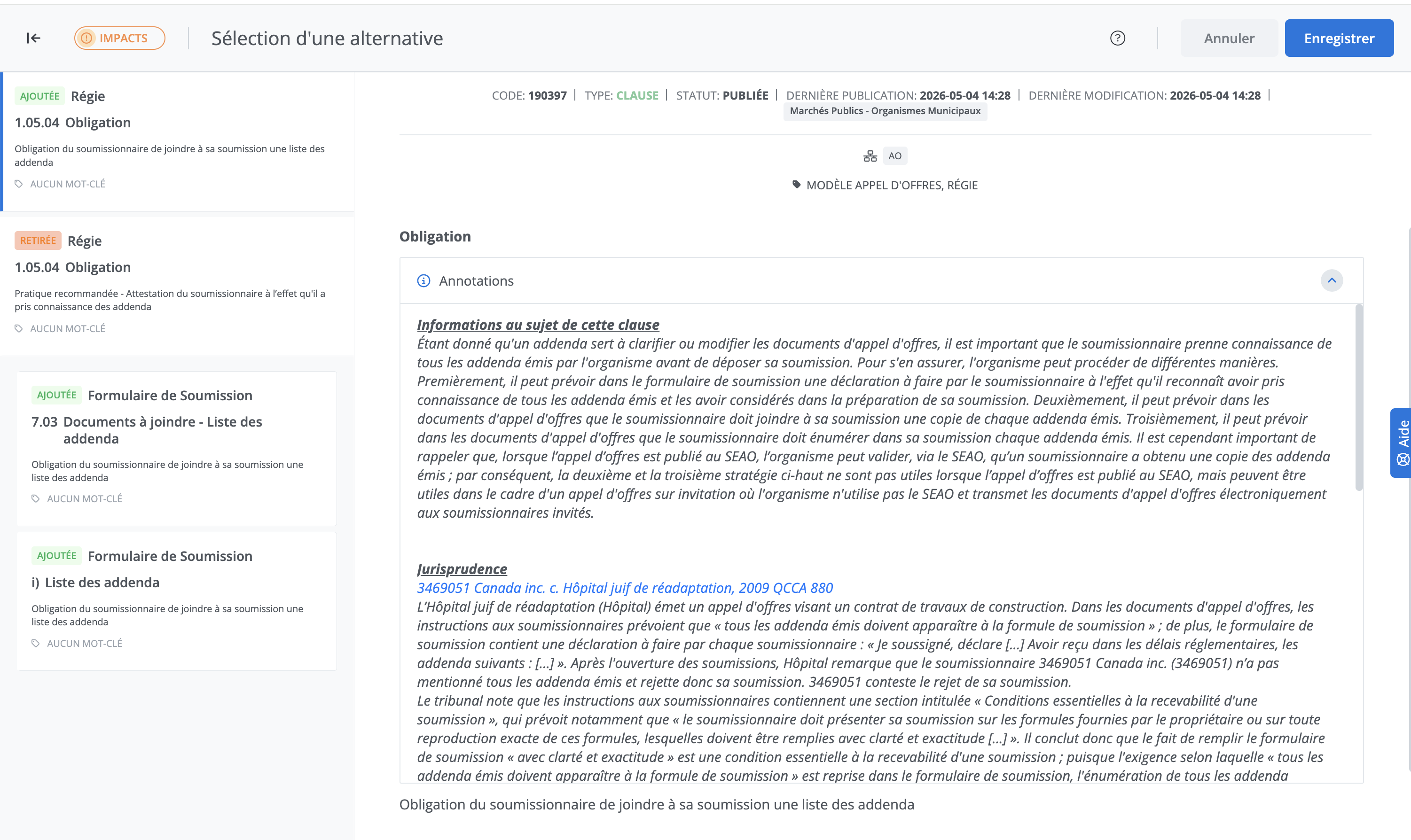
Impact of changes — If this filter is enabled, when you change an alternative choice and it affects other content due to rules, a window detailing the impacts is displayed:
Edit content window
Types of content
The drafting window displays all the sections, clauses, and schedules that make up the document.
Sections are identified by the colour purple and the label SECTION.

Clauses are identified by the colour green and the label CLAUSE.
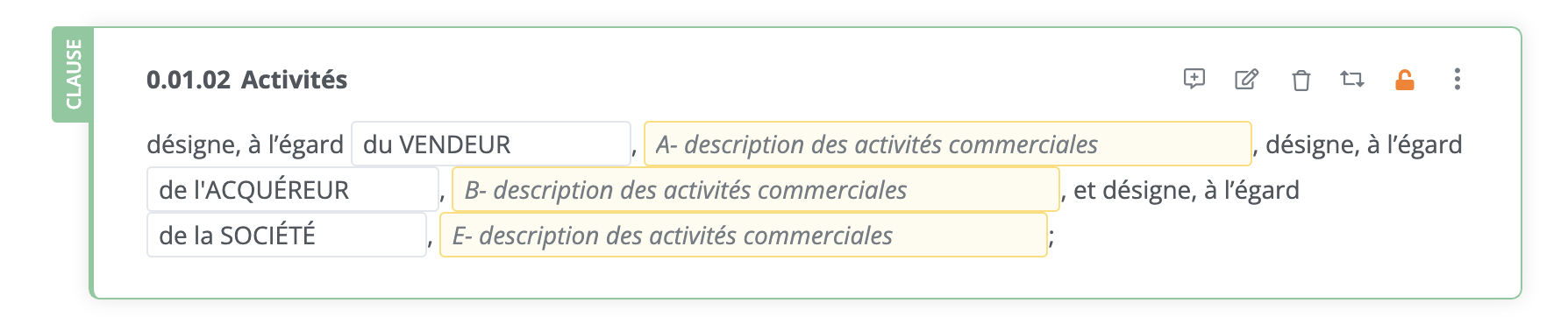
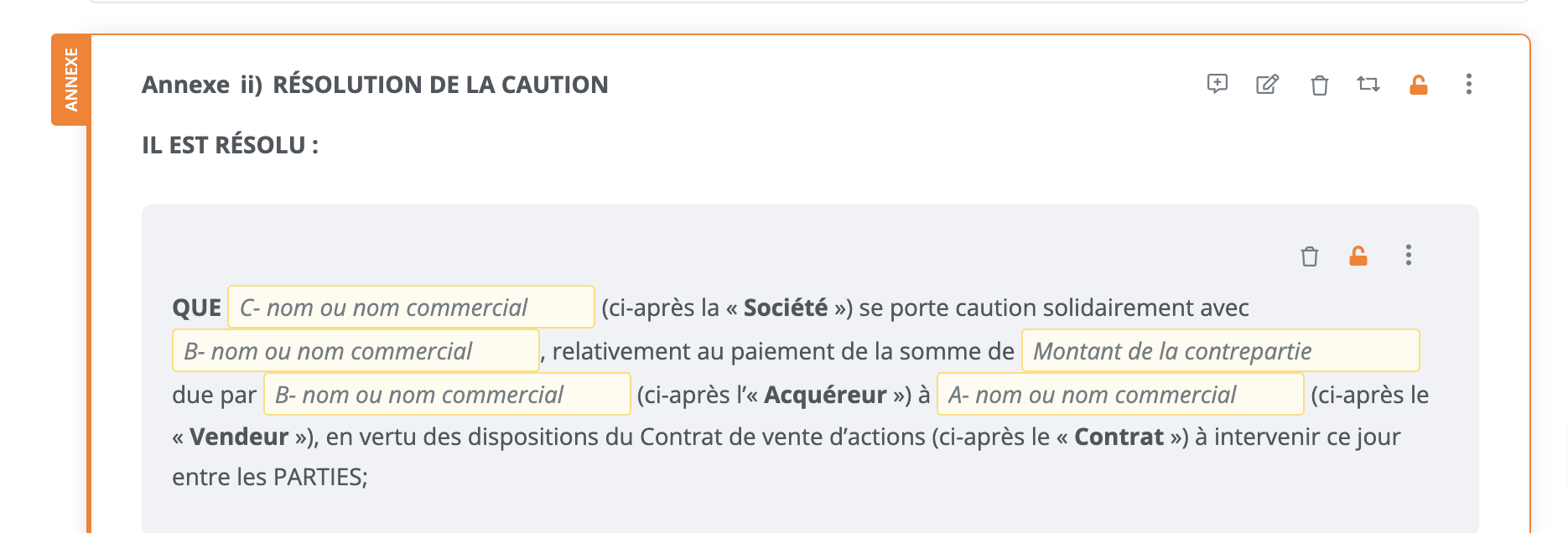
Schedules are identified by the colour orange and the label SCHEDULE.
Elements present in a content block
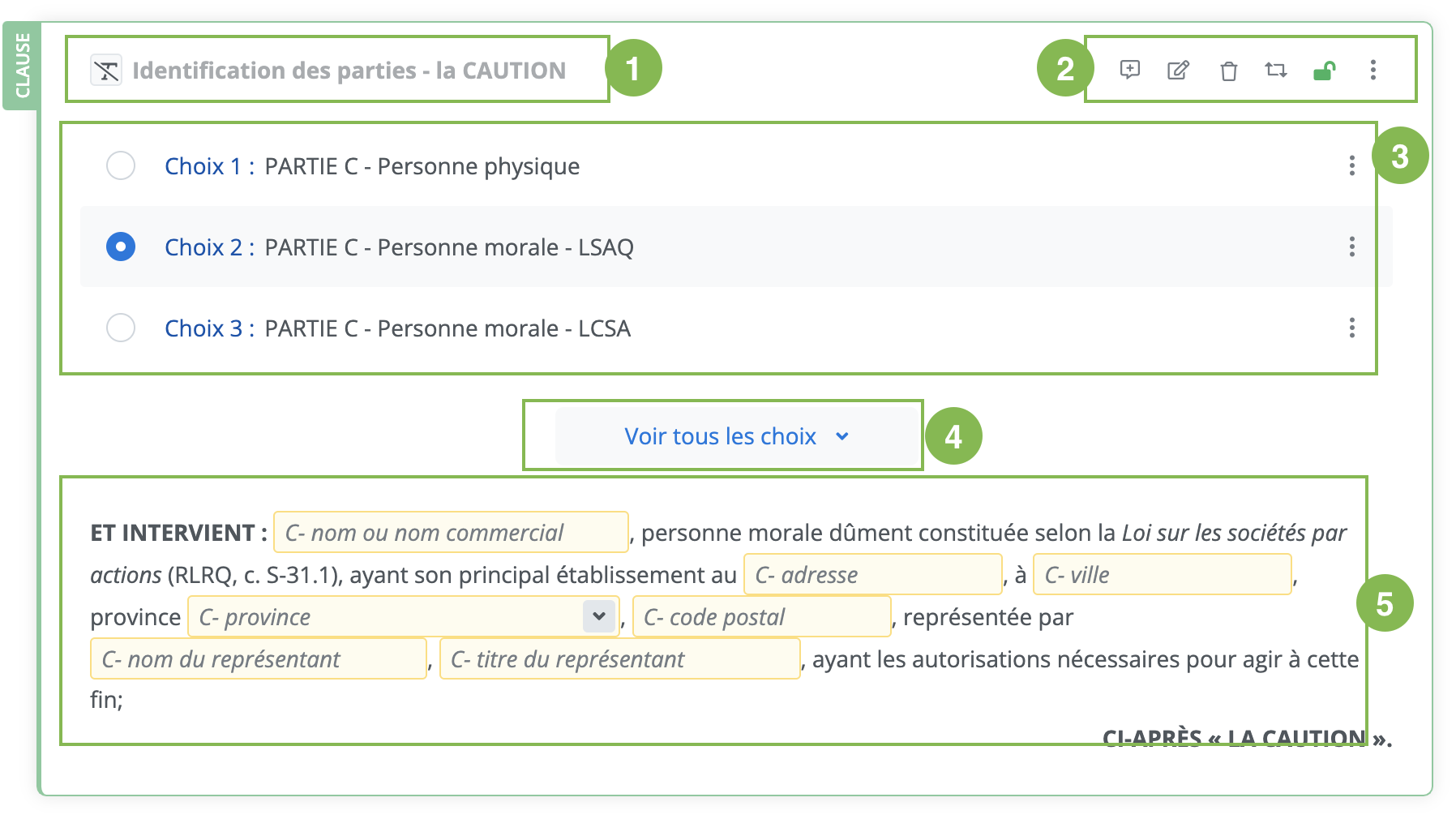
The clause and schedule block is composed of the following elements:
-
The content title,
-
The quick access toolbar for content management tools,
-
The options (alternatives) proposed for this content,
-
The button to See all options,
-
The content of the selected clause (the one found in the document).
Important Notice
-
Not all clauses and schedules have alternatives.
-
The available tools for the content differ depending on the user's role and permissions.
The quick access toolbar for content management tools
-
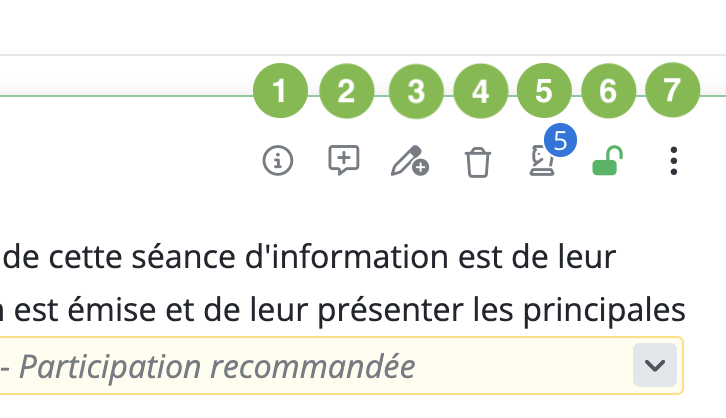
View annotations
-
Comment or view comments
-
Create a variant
-
Remove content
-
View rules
-
Clause management context menu.
Note: The tools available in the quick access bar differ depending on the content type and the user's role and permissions.
Context menu
The context menu offers additional content editing tools and also includes the tools from the quick access bar.
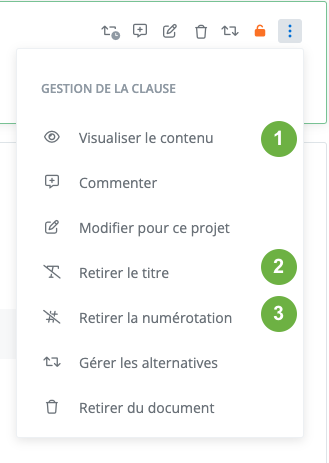
The additional tools offered in the context menu are:
-
Open in a new tab: allows you to open the published version of the clause in another tab.
-
Remove title of the content: allows you to remove the title and numbering. Note: The title will remain displayed on screen, but will not be visible once the document is exported.
-
Remove numbering of the content: allows you to remove the numbering, but not the title.
Note: The tools available in the quick access bar differ depending on the content type and the user's role and permissions.
Remove content
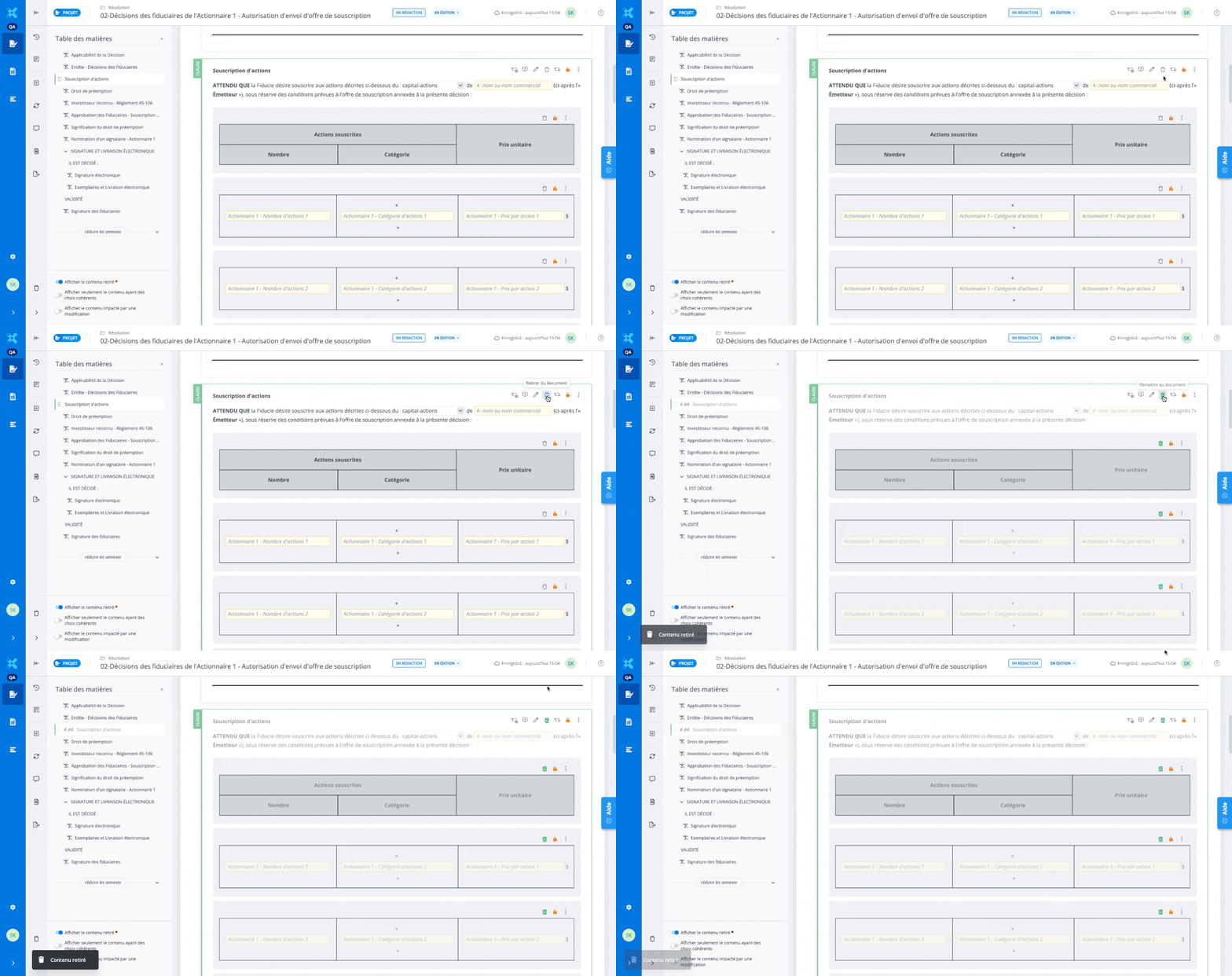
Remove content from the document by clicking Remove (trash icon) in the quick access bar or in the context menu.
When the Show removed content filter is disabled, removed content is hidden.
A removed content will not be present in the document exported in Word or PDF format.
Add back content
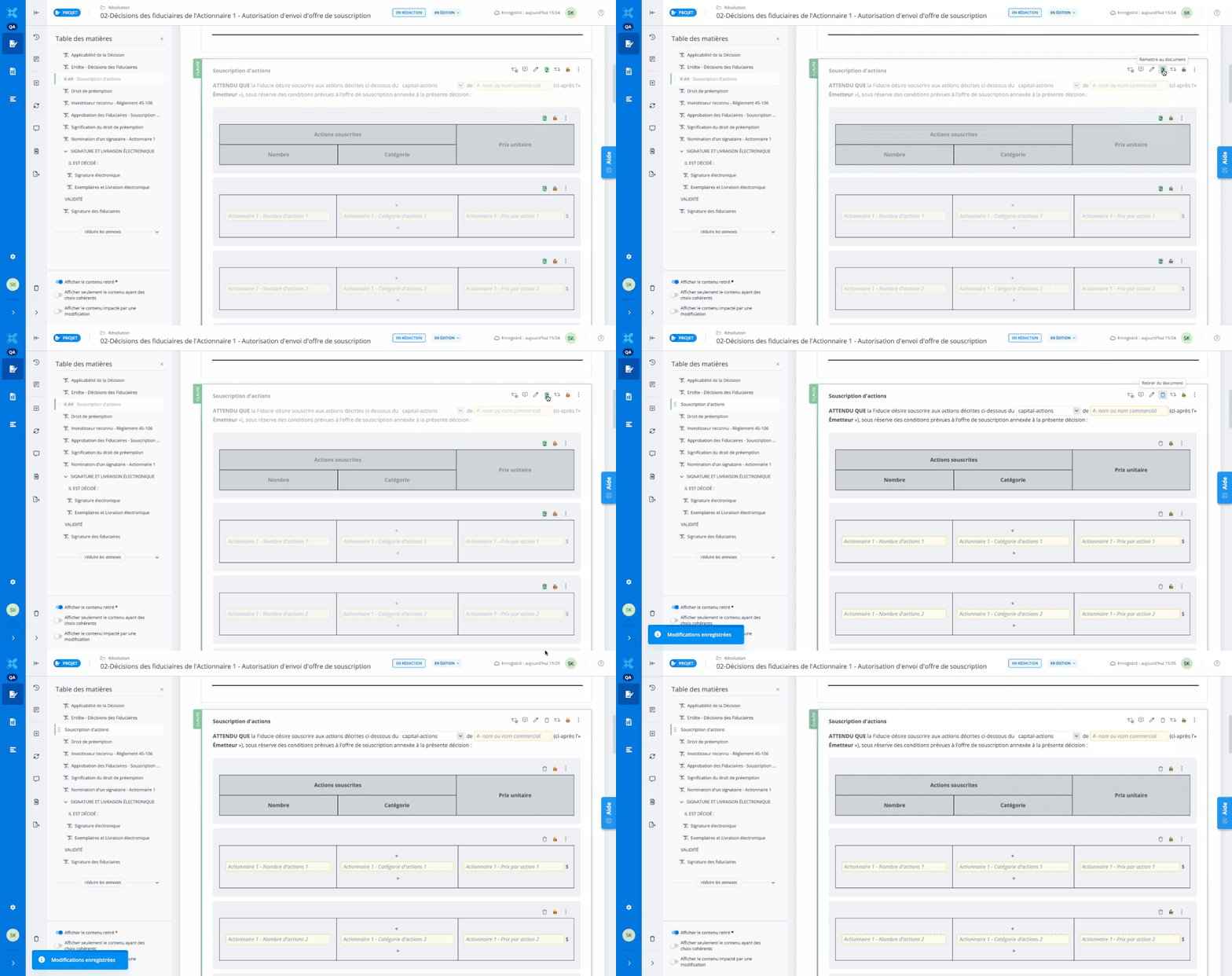
Restore content to the document by clicking Add back (green trash icon with arrow).
Select an option (alternative)
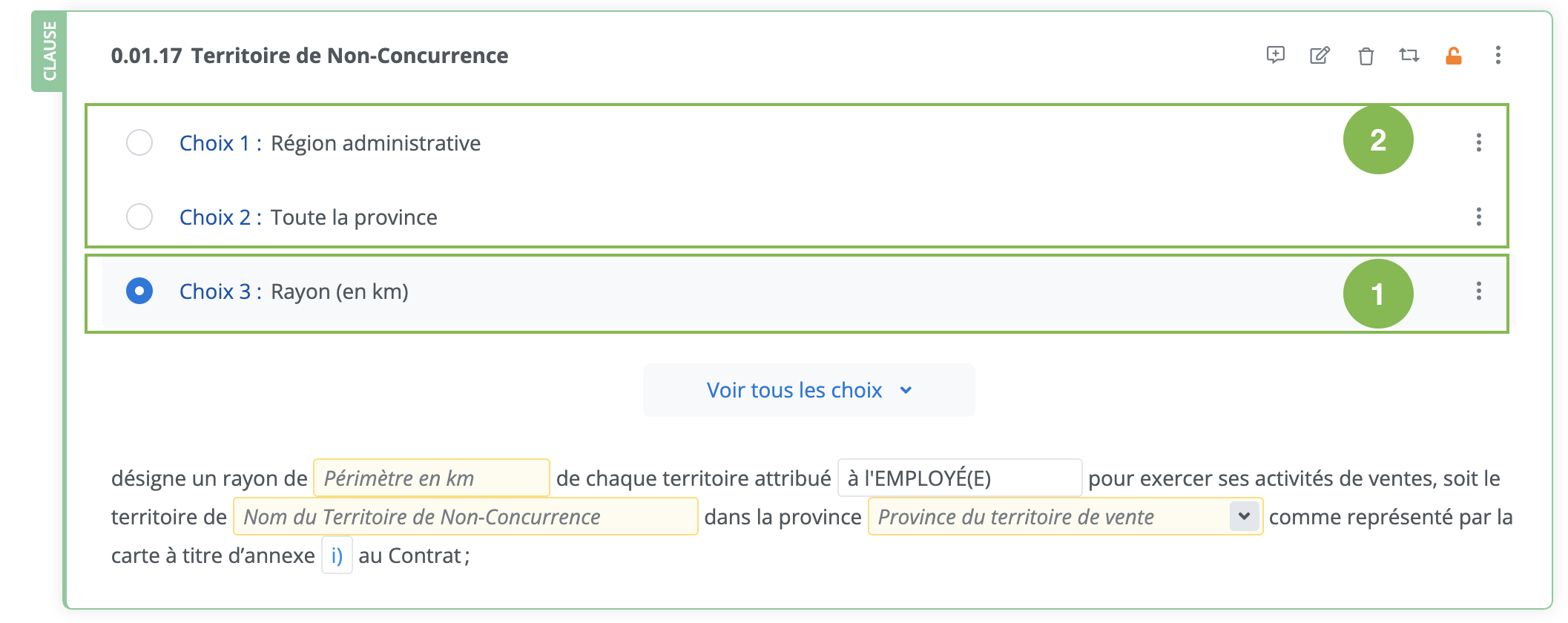
Some clauses or schedules have several alternatives. These choices represent different options for the same content item.
-
Selected alternative;
-
Unselected alternatives.
Important Notice
Selecting an alternative can result in content being added or removed, or other alternatives being selected, either in the same document or in other documents within a kit. These actions are triggered by rules that link the content together.
Fill in fields in the document
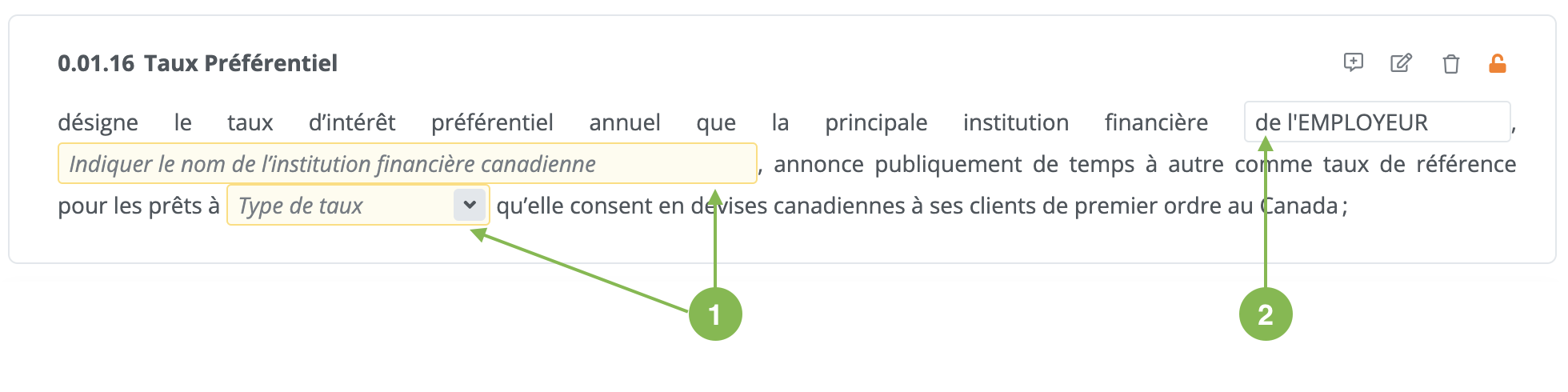
Fields that have not yet been filled in the document are highlighted in yellow (1). Filled fields appear in normal state (2).
Fields Form
It is possible to review the fields in the fields form (accessible from the features menu). Learn more by reading this article: Fields Form.
Export the document in Word or PDF format
To learn more about this feature, see the following article: