
Move content from the table of contents
It is possible to move sections, clauses, and schedule from the table of contents using drag-and-drop.
Note: When content is moved, the numbering of the entire document adjusts automatically.
Steps to use drag-n-drop:
-
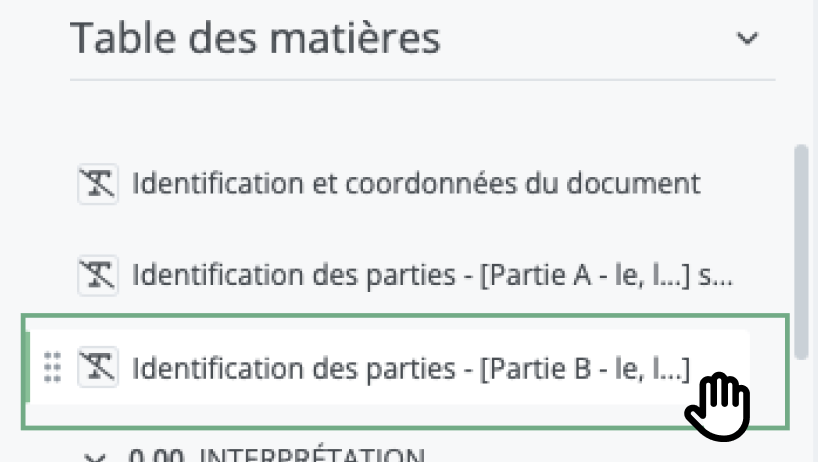
Hover over a title in the table of contents.
-
When the hand-shaped cursor appears, click, hold down the mouse button, and drag the content above the location where it should be placed.
-
Drop it in the desired area by releasing the mouse button.
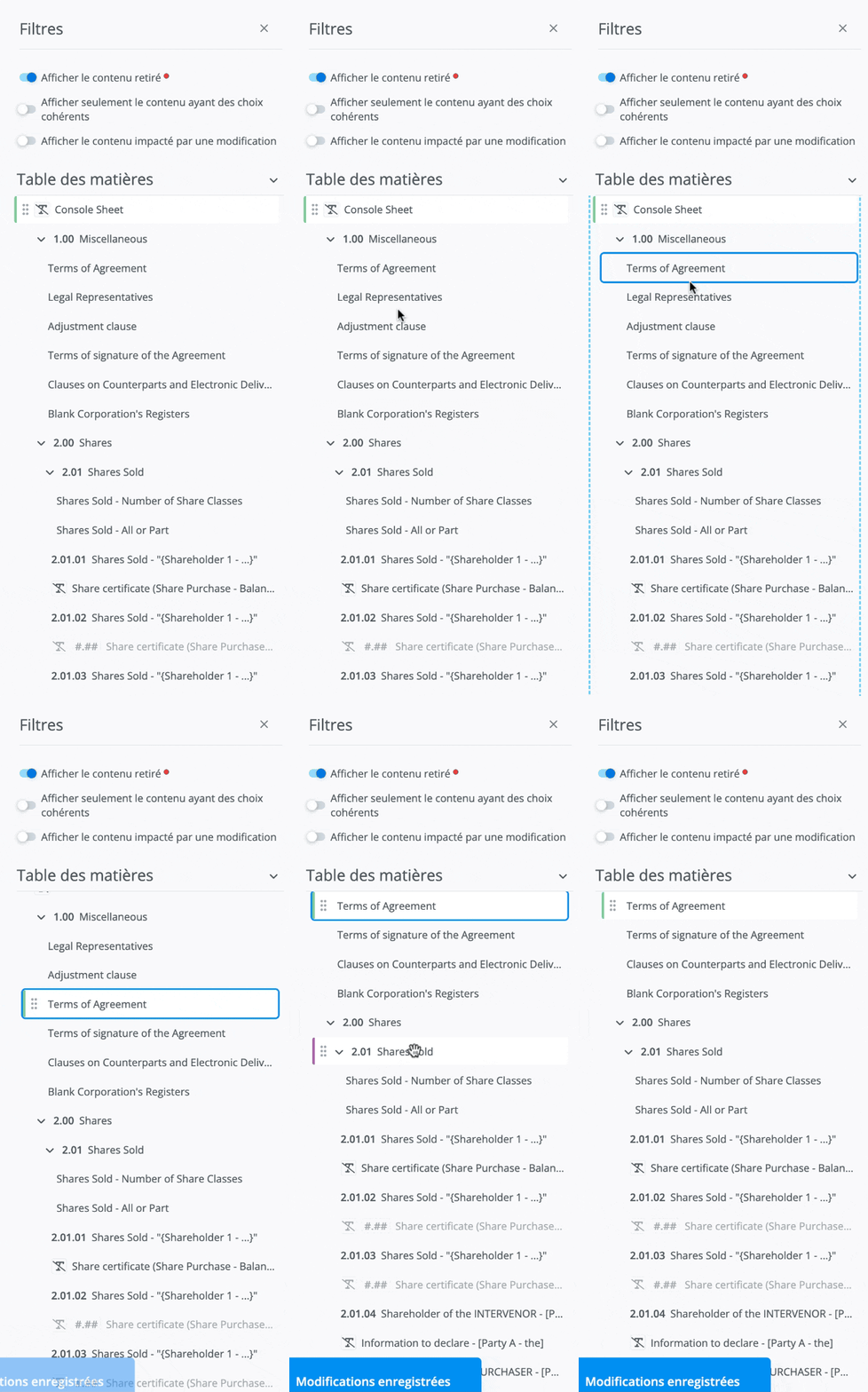
Move a a Section
-
All content (sections and clauses) indented under the section is moved along with the section.
-
It is possible to move a section before or after a clause.
-
It is possible to drop the section inside another section. In this case, the section and its content are indented directly below it.
-
It is possible to drop the section after another section. In this case, the section and its content are moved completely to the end of the section, at the same hierarchical level.
-
It is possible to drop the section before another section. In this case, the section and its content are moved just before, at the same hierarchical level.
Move a clause
-
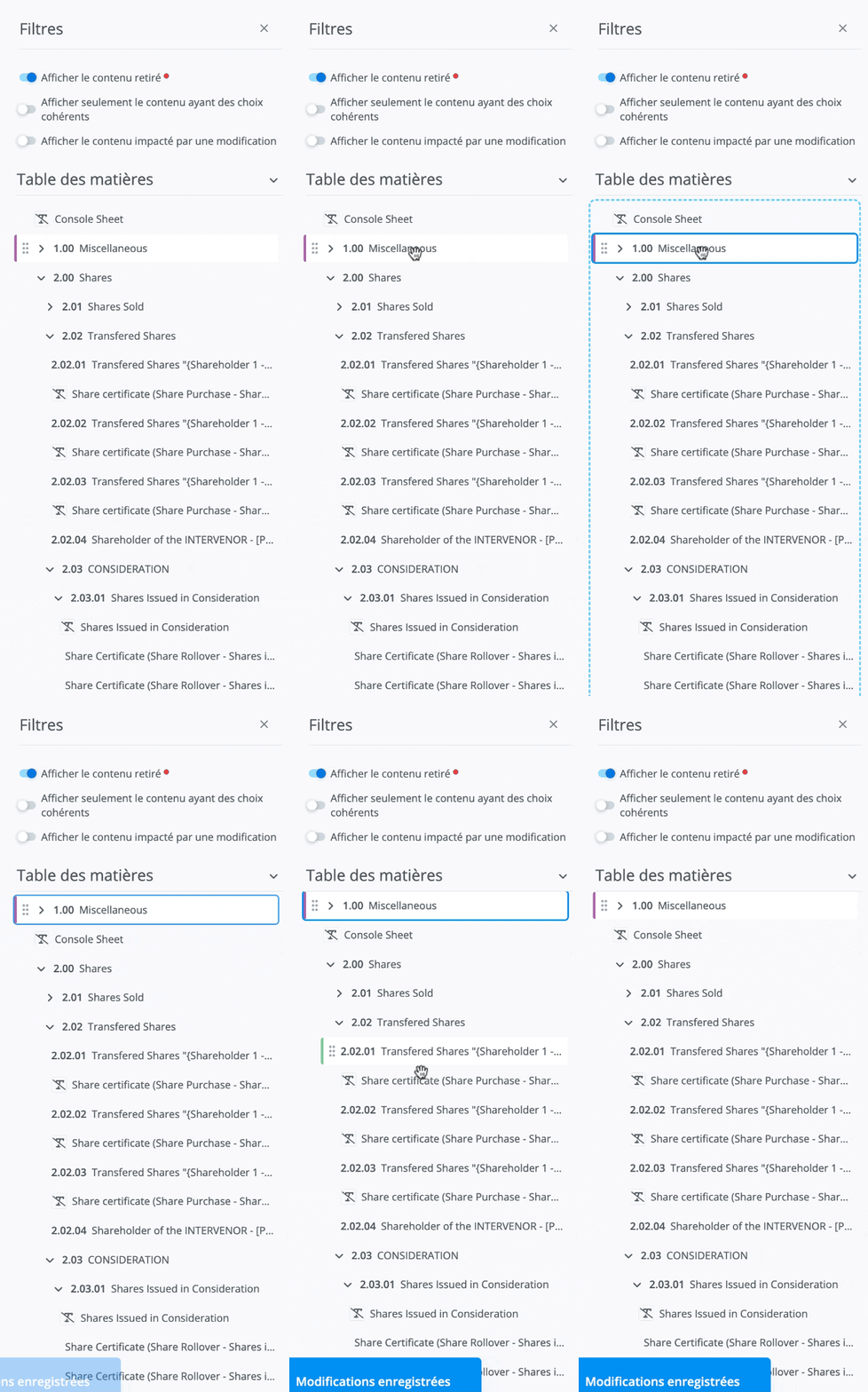
A clause moves on its own, independently of the section under which it is located.
-
It is possible to drop a clause before or after another clause.
-
It is possible to drop a clause inside a section. In this case, the clause is indented directly under the section.
-
It is possible to drop a clause after a section. In this case, the clause is moved completely to the end of the section, at the same hierarchical level.
-
It is possible to drop a clause before a section. In this case, the clause is moved directly above the section, at the same hierarchical level.
Move a Schedule
-
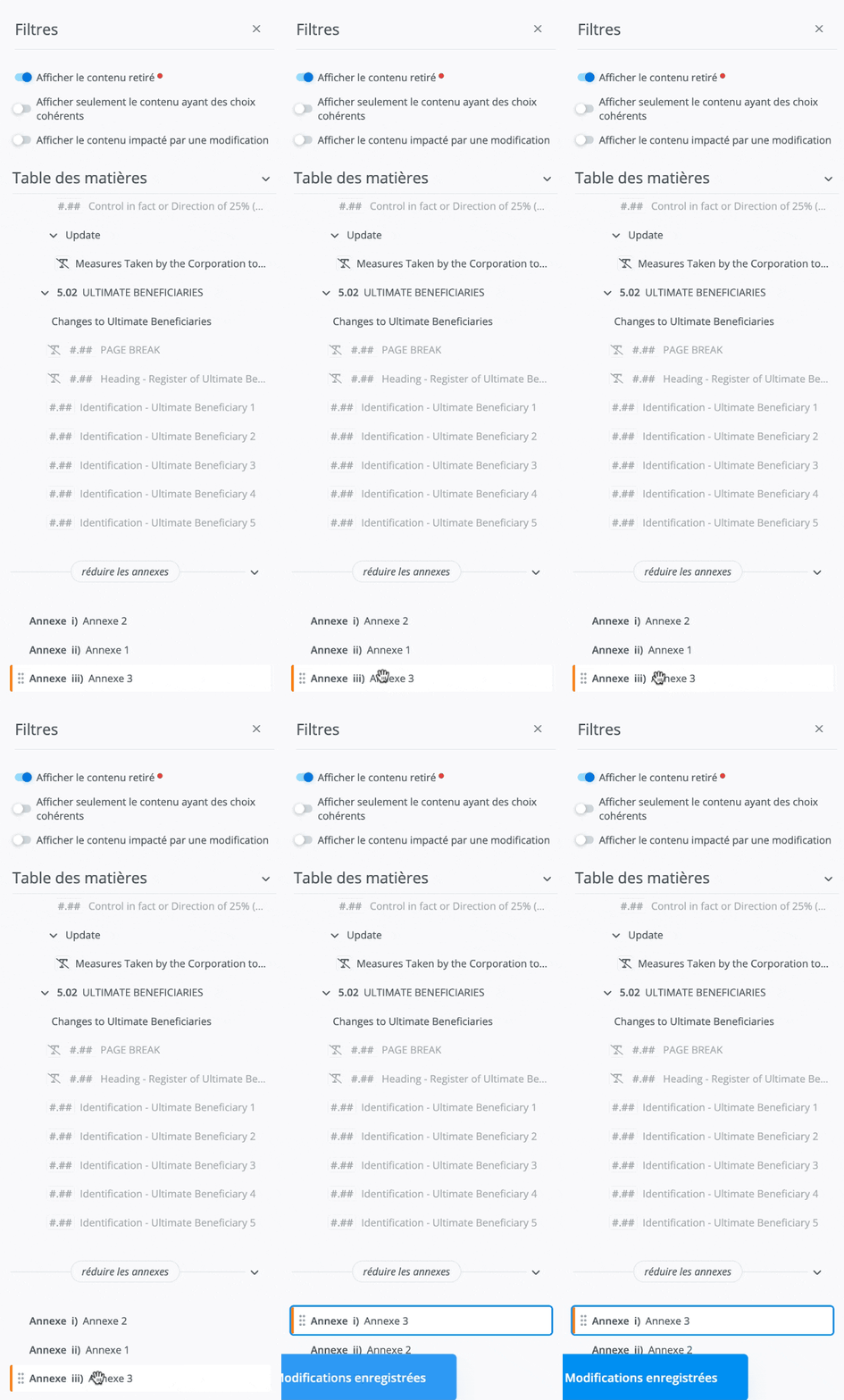
Schedules can only be moved within the schedule section, at the very end of the document.
-
It is possible to move a schedule before or after another schedule.