
Exporting is used to download the document as a Word or PDF file.
Access to Feature
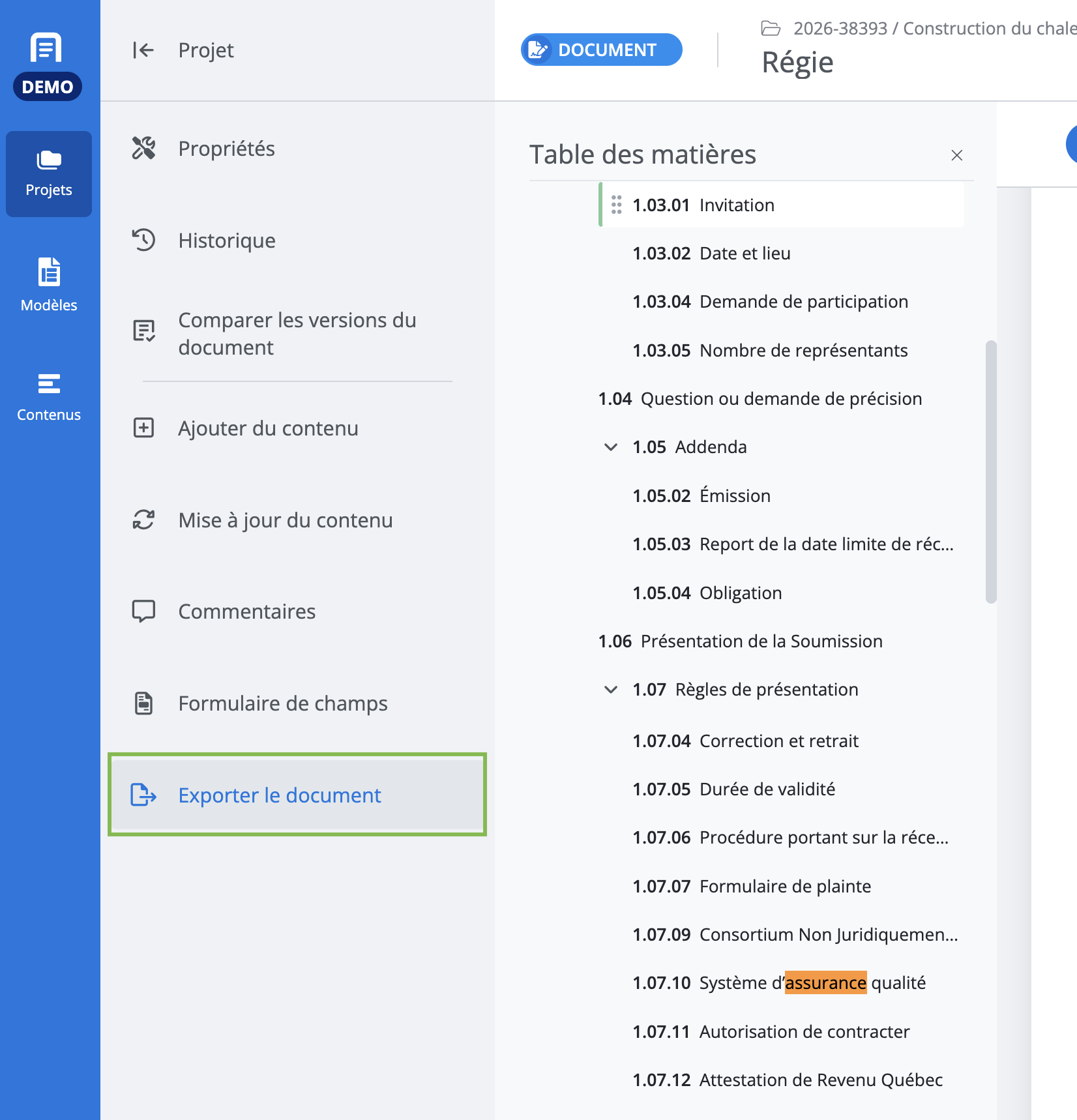
To export a project document, at the document level, click Export document in the features menu.
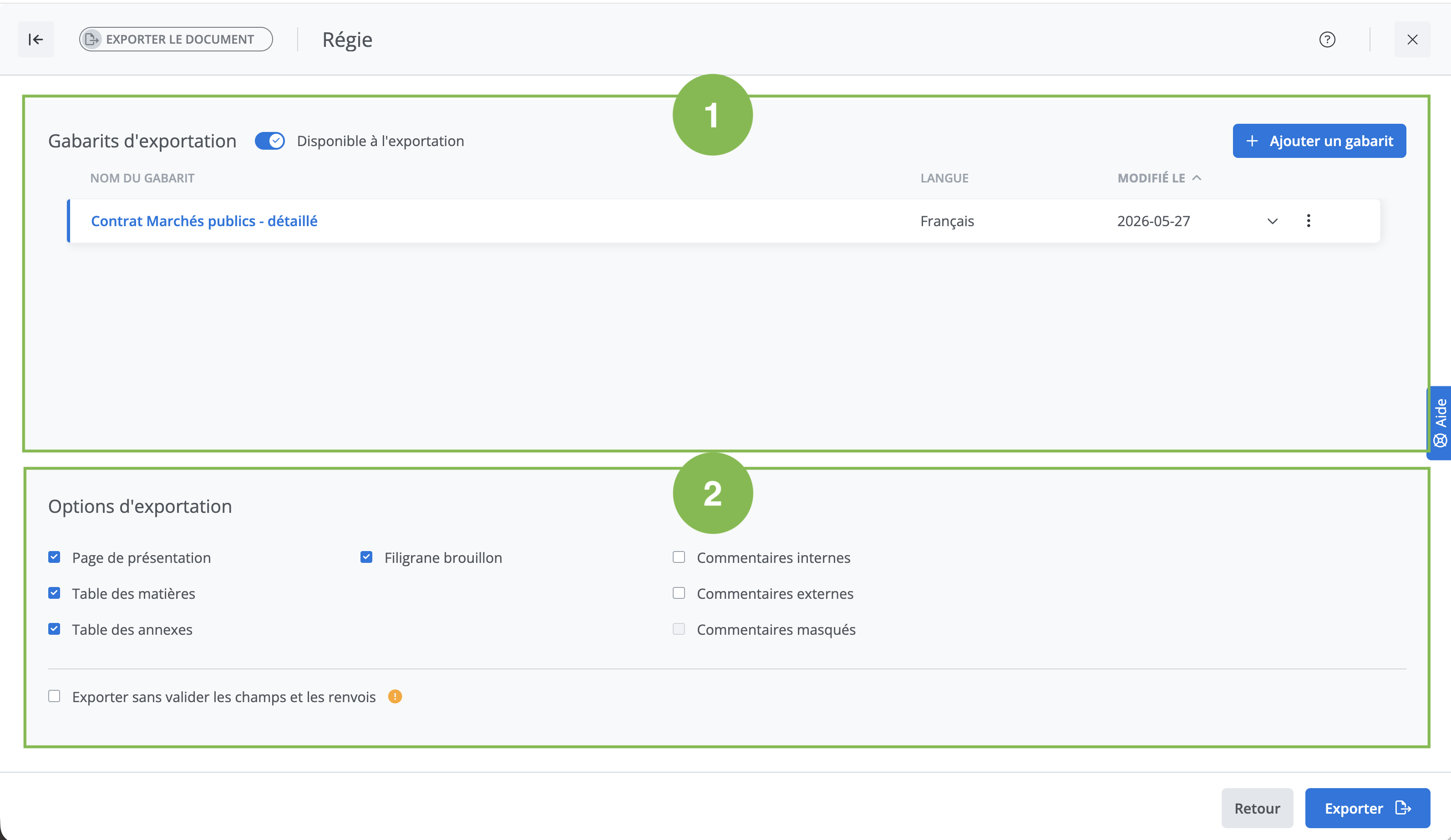
Description de la fenêtre d’exportation
The export window is made up of two main sections:
-
List of export templates associated with the document.
-
Export options.
In this window, regarding the export templates, here are the two possible situations:
a) One or more export templates are already associated with this document. These will be visible in the export templates list.
b) No export template is associated with this document. Click on Add an export template (in the top right corner). The list of all available export templates will appear.
View details of the export template
It is possible to view the template's characteristics by clicking the arrow.

Export options.
You can choose whether or not to export these elements:
-
Presentation page
-
Table of contents
-
Table of schedules
-
Draft watermark
-
Internal and external comments
You can also choose to export without validating all fields and cross-references.
When not all fields are filled in, it is important to select the Export without validating all fields and cross-references option, otherwise the export will not be possible.
Export Preferences
With the exception of the option concerning field and cross-reference validation, which is never checked by default, the export options are configured the same way as during the user's last export (provided they are valid for the selected template).
Export Format
A project document can be exported in the following formats:
-
Word
-
PDF
-
Locked PDF
The Locked PDF option blocks editing of the PDF and only allows printing, editing comments, and filling in dynamic fields.