
Summary Description of the Feature
The export preferences feature allows you to adapt the platform's export templates so that they match and comply with the various presentation standards of organizations.
The customization options allow you to control certain layout and styling elements, such as:
-
the presentation page,
-
the footer,
-
the header,
-
the font sizes and typefaces,
-
the display and location of the logo,
-
the margins,
-
the table of contents,
-
the table of schedules.
Important Notice
Changes made to an export template from a project apply, in principle, to that project only. To make permanent changes to an export template, these changes must be made from the organization's export preferences or, depending on your role and permissions, saved as the default preference for the organization.
Access to Feature
The export template customization options are available in the document export mode. Simply click Export the document in the features menu.
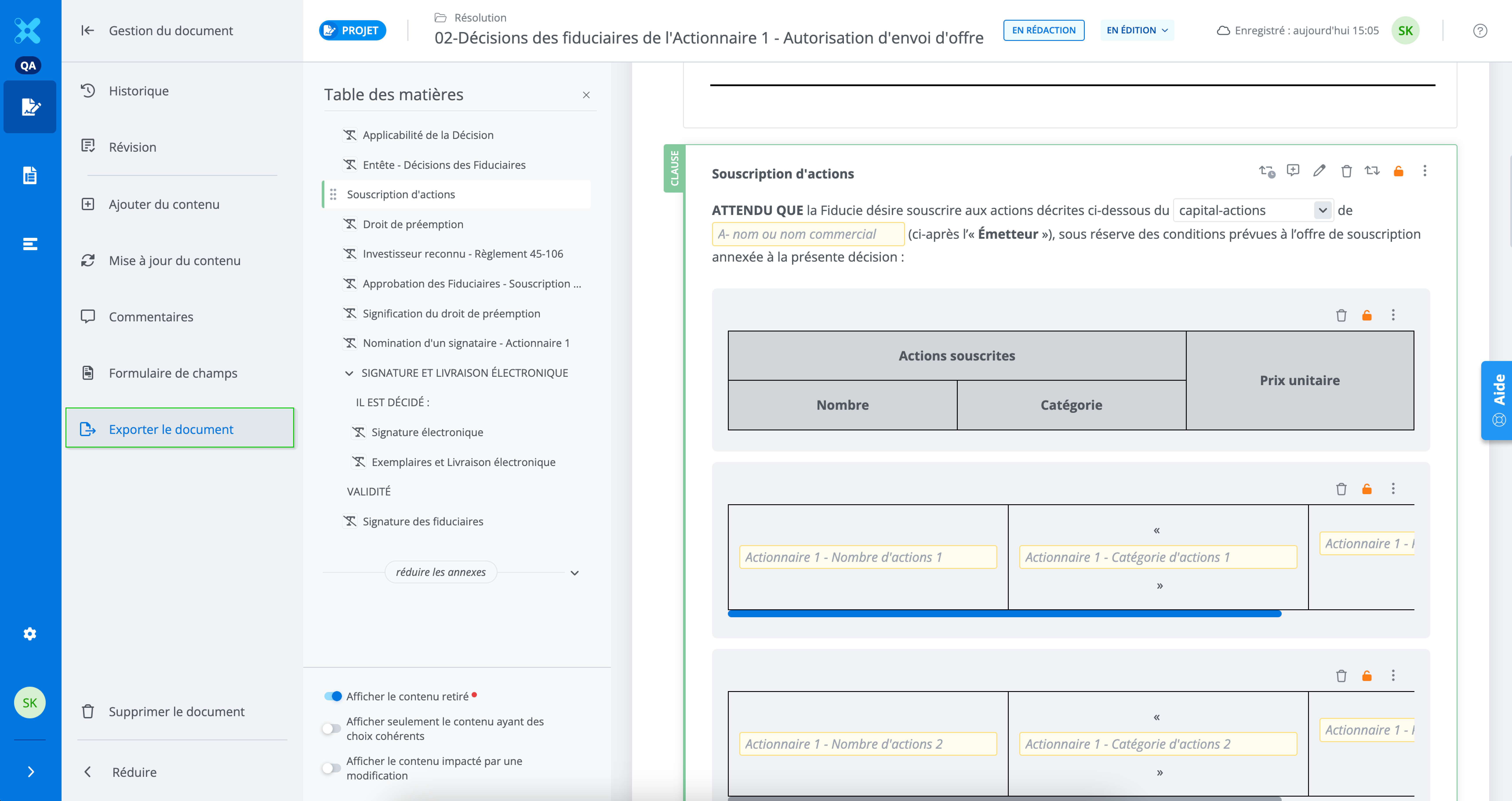
In export mode, view the list of available export templates and choose the template to customize by clicking the corresponding Template name.
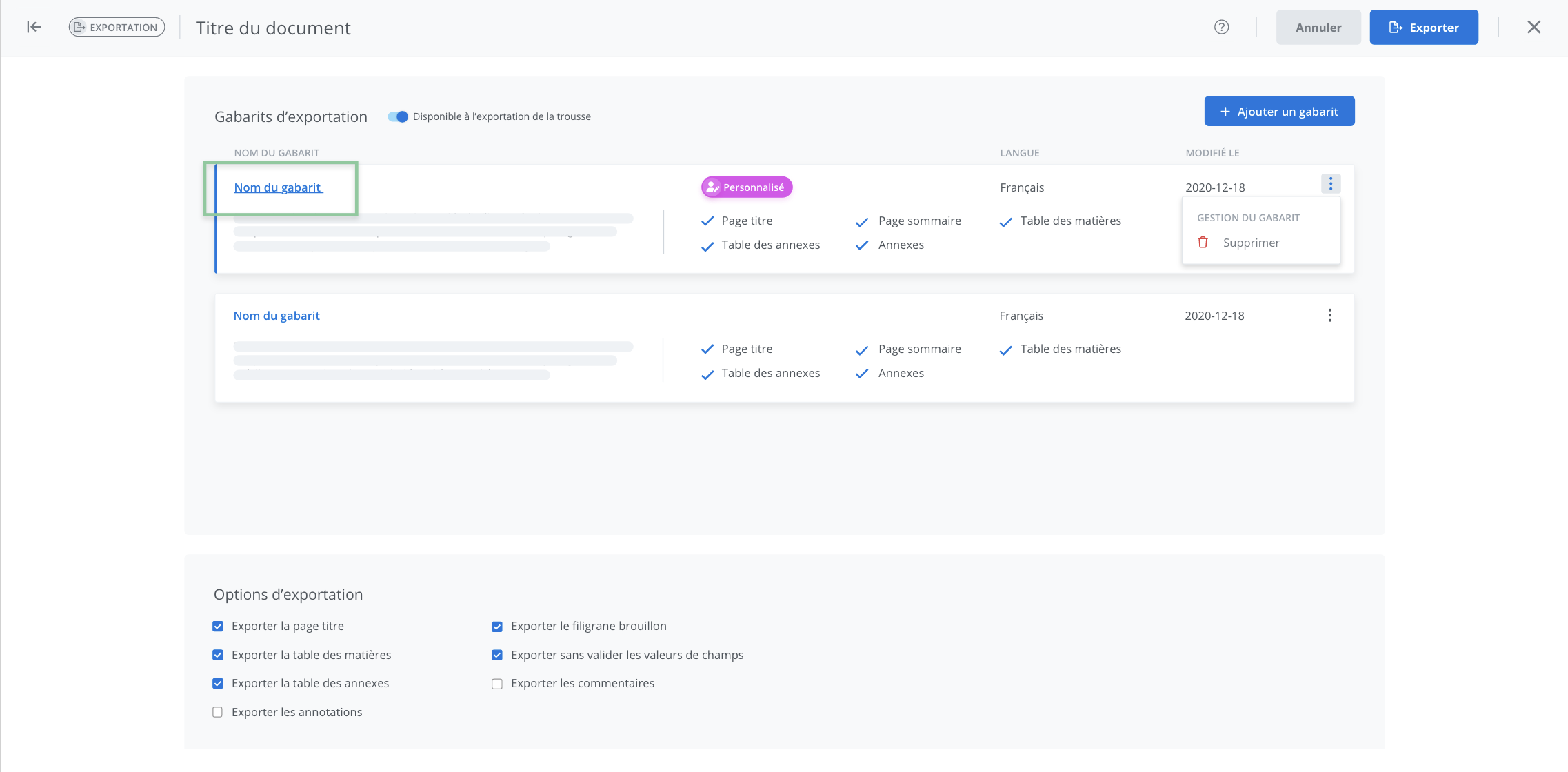
The customization module then appears and allows you to configure the formatting and styling of the selected template.
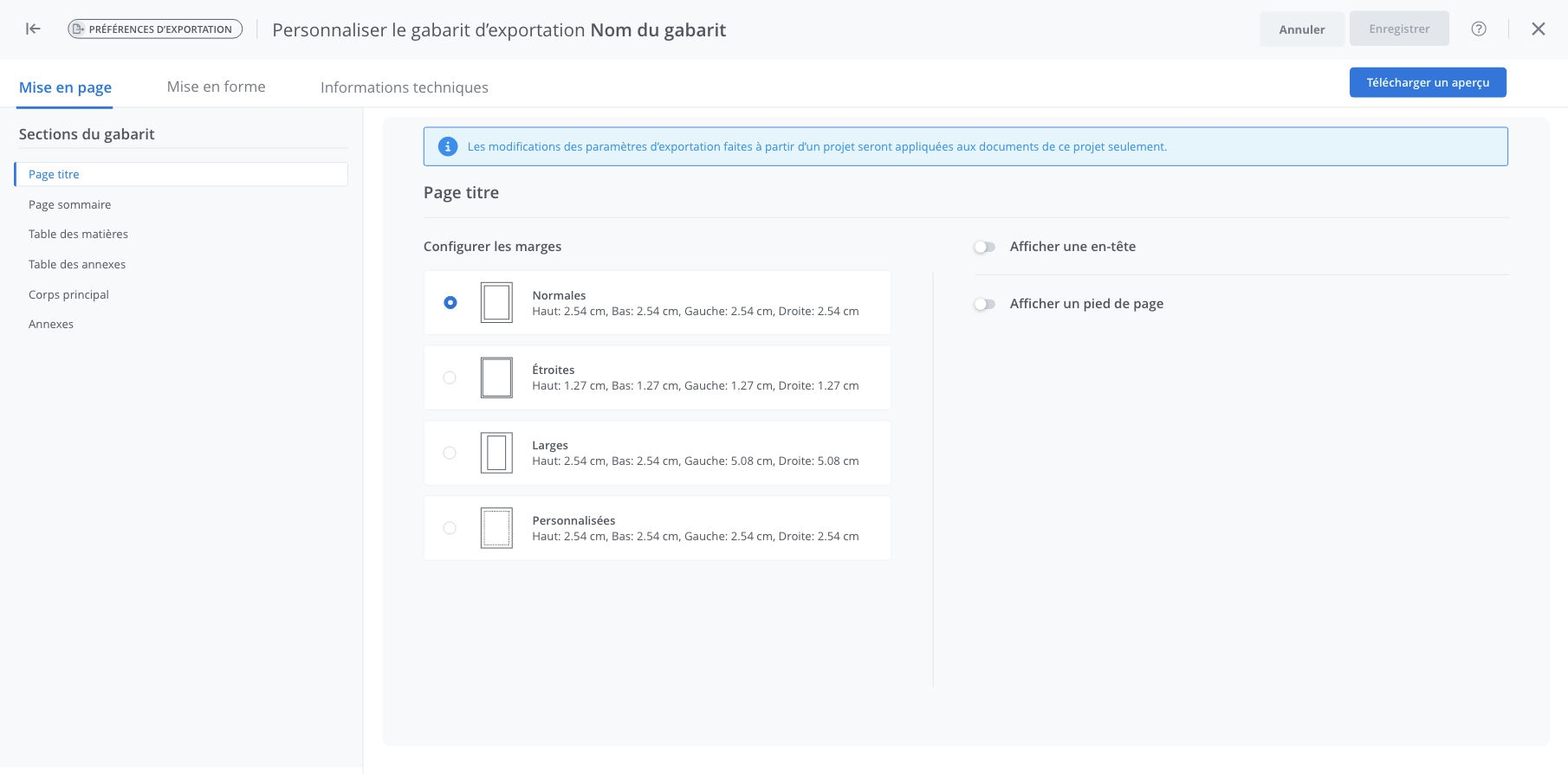
Customize a template
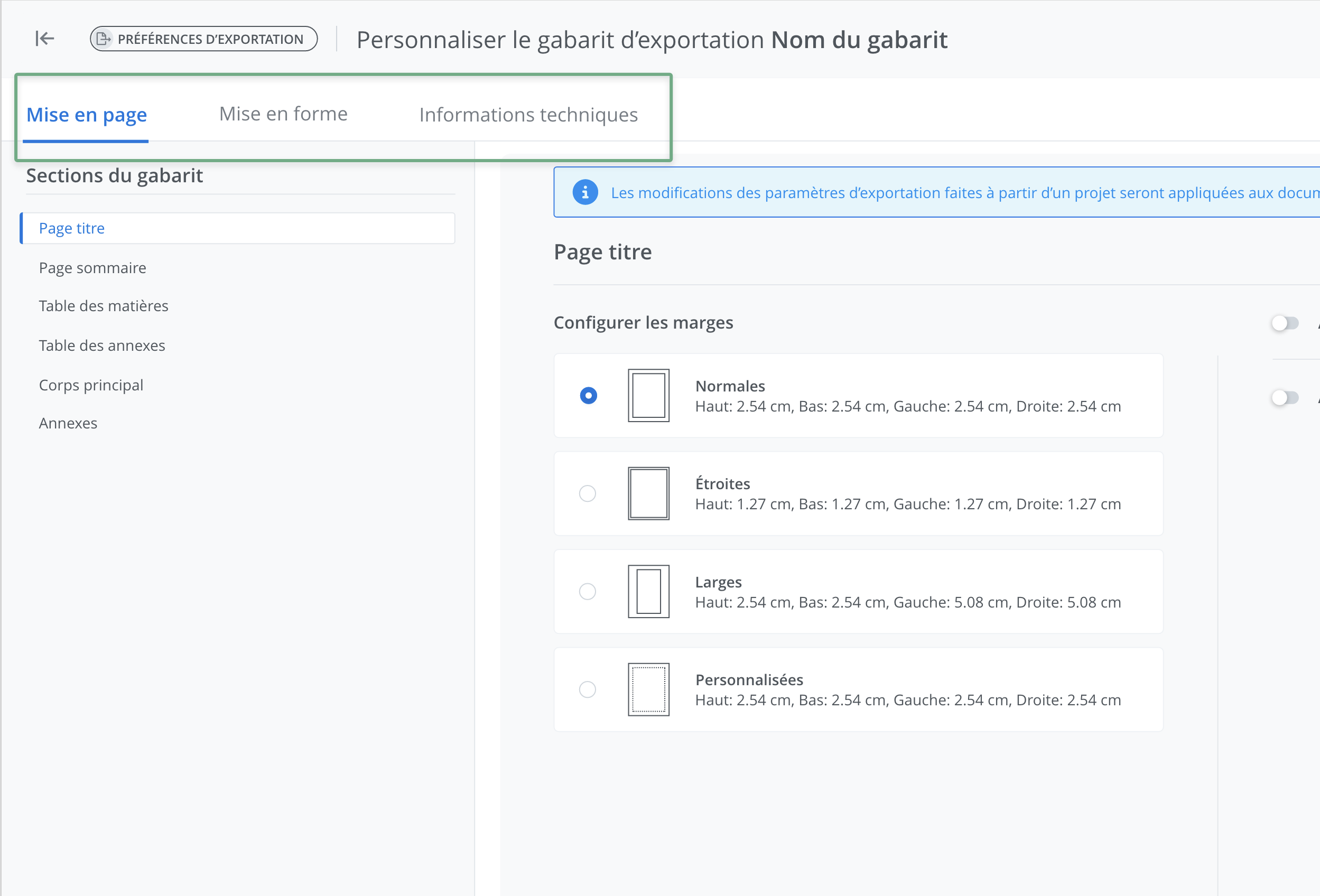
Navigate through the template customization option tabs
In the export preferences feature, the layout options tab is selected by default. To choose a different tab, for example the formatting tab, simply navigate from the header.
Save the modifications
Warning
After making any changes to an export template, it is important to save the new settings in order to apply them to the current export.
Changes made to the template from a document do not modify the settings applied to the saved template model.
Changes made to the template settings from a document should therefore be one-time only. To apply new settings permanently, these changes must be made from the organization's settings (accessible depending on the user's role and permissions).
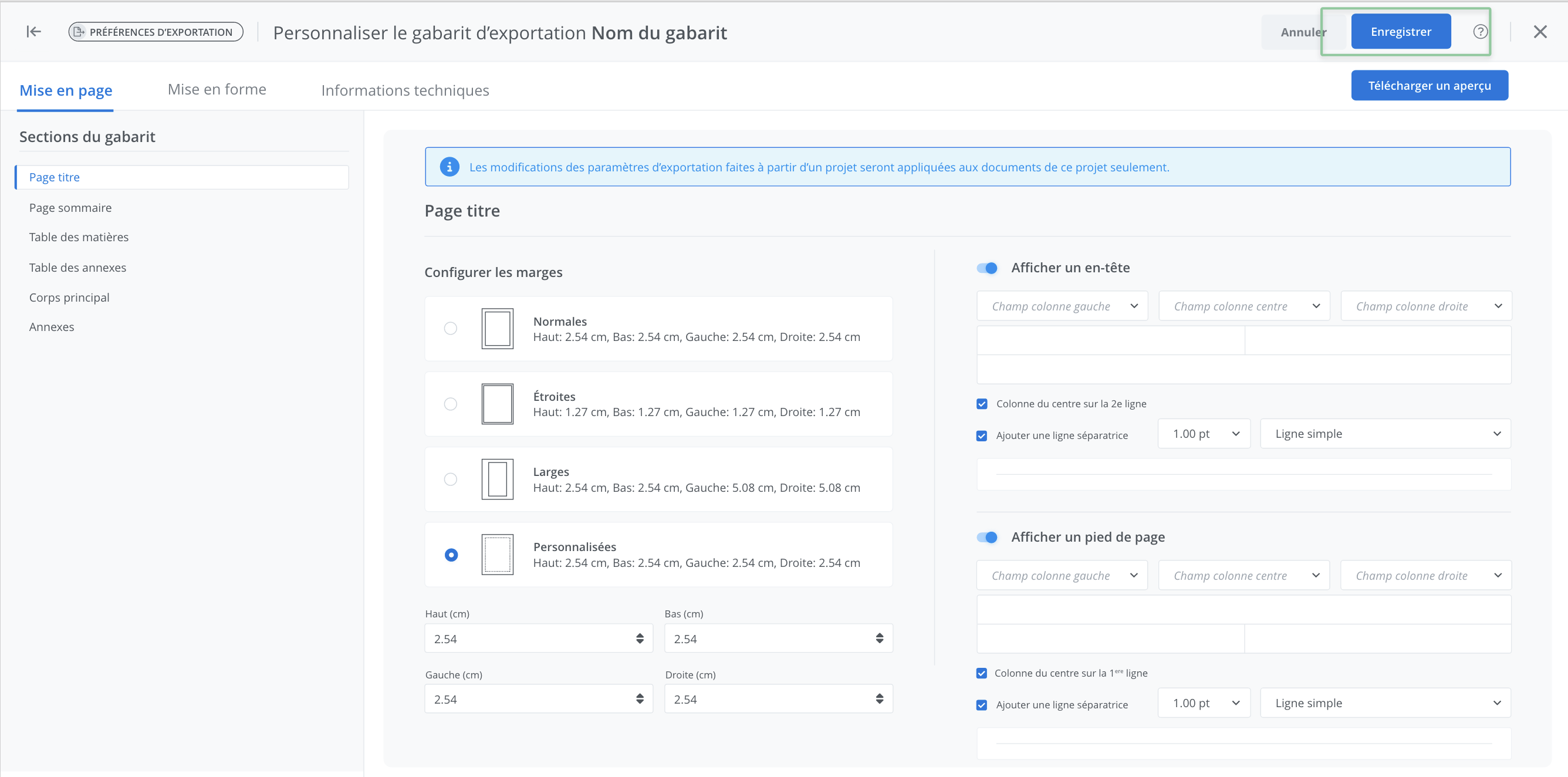
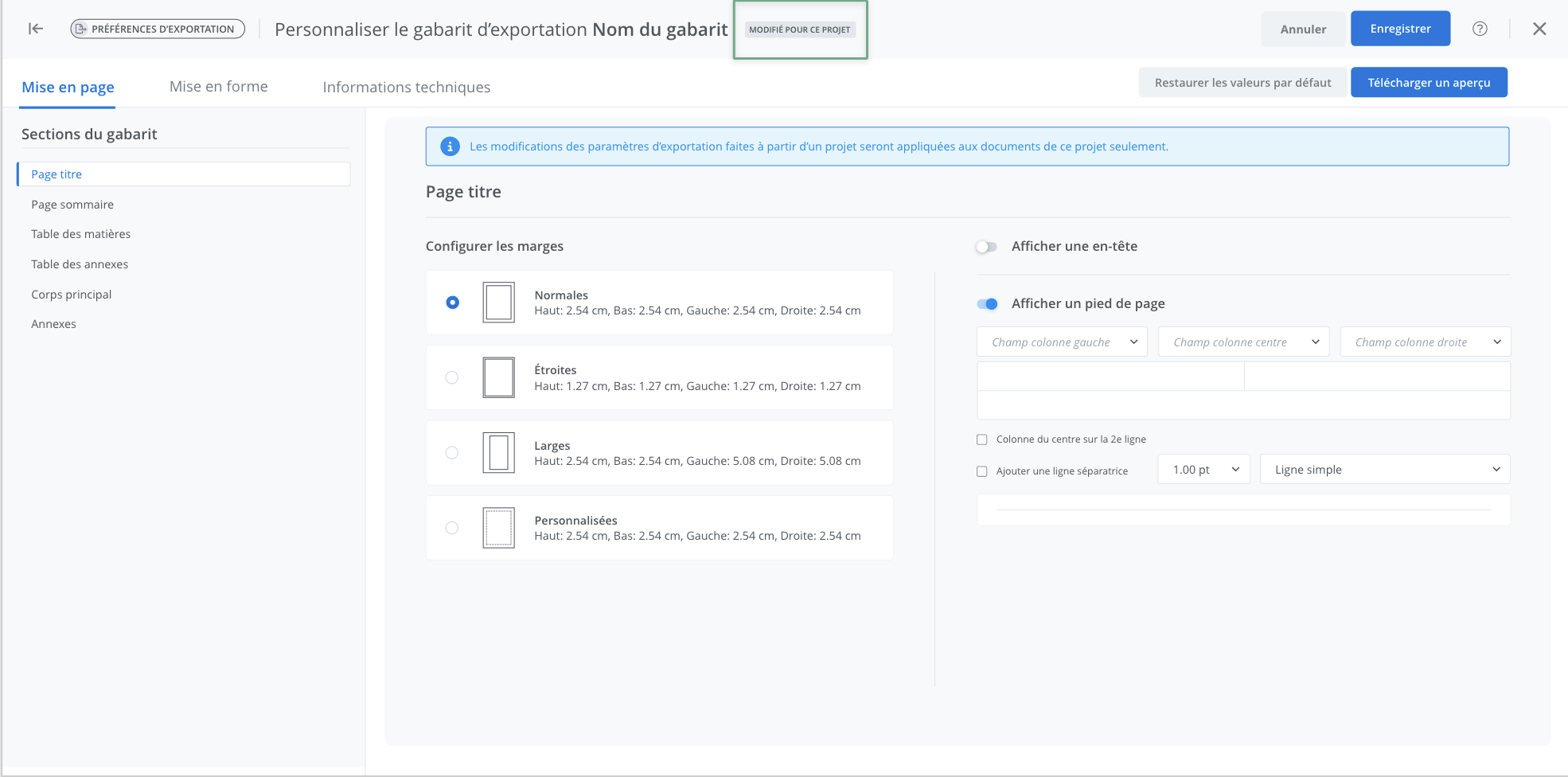
One-time modification indicator
Once saved, the modified settings will automatically apply to all documents in the project to which the template is associated. In addition, the one-time change to the template settings will be identified with an indicator to make it easier to spot templates with project-specific values.
The One-time modification indicator will be visible in two places:
In the template lists.

In the template editor.
Modify the organization's export preferences from document export
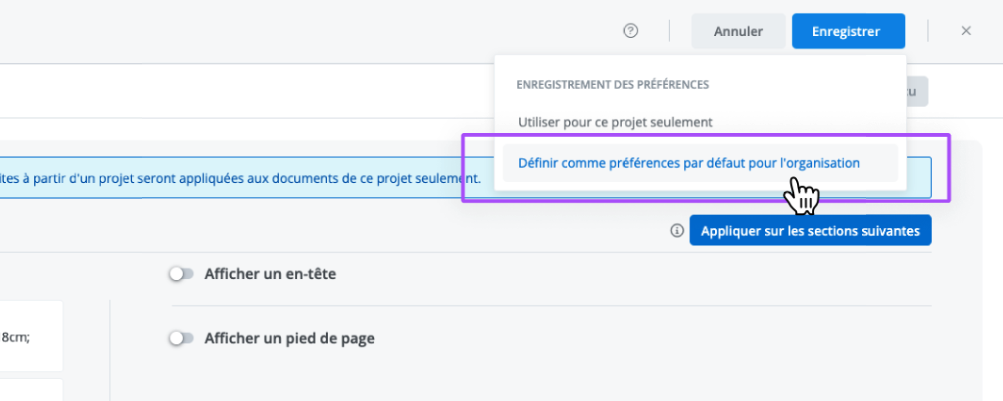
If the user's role and permissions allow it, the additional option to Set as default preferences for the organization is displayed when clicking Save.
This option allows you to set the project's selected export settings as the default settings for all documents in the organization that use the template currently being customized.
This is therefore a shortcut for converting settings that were originally intended to be one-time only into new default settings for all projects, as if they had been set from the organization's settings.
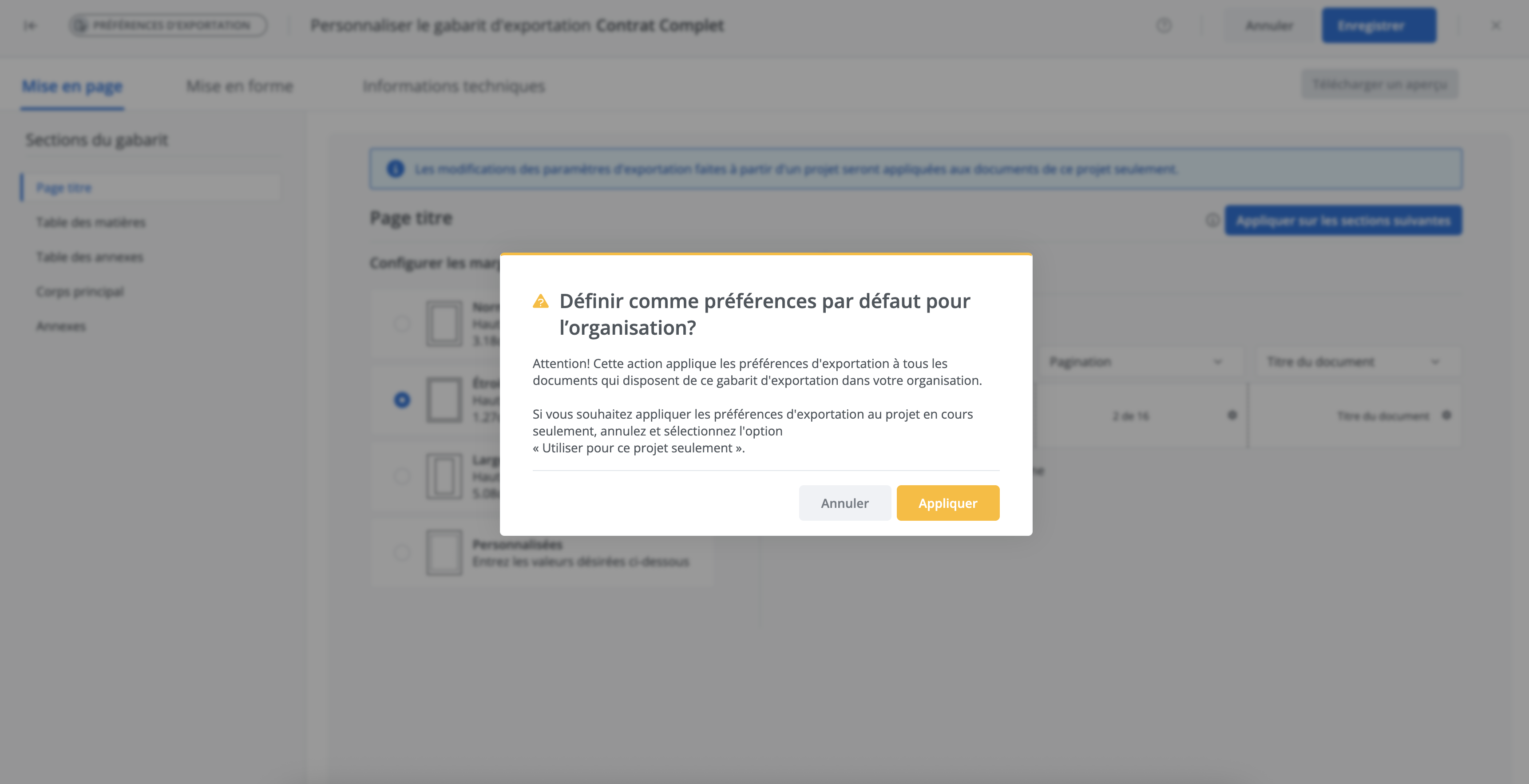
To do so, click Save, then Set as default preferences for the organization. A confirmation window appears. To complete the action, then click Apply.
Restoring default values
It is possible at any time, after making a change to a template, to revert to the default values or to its customized values, as applicable.
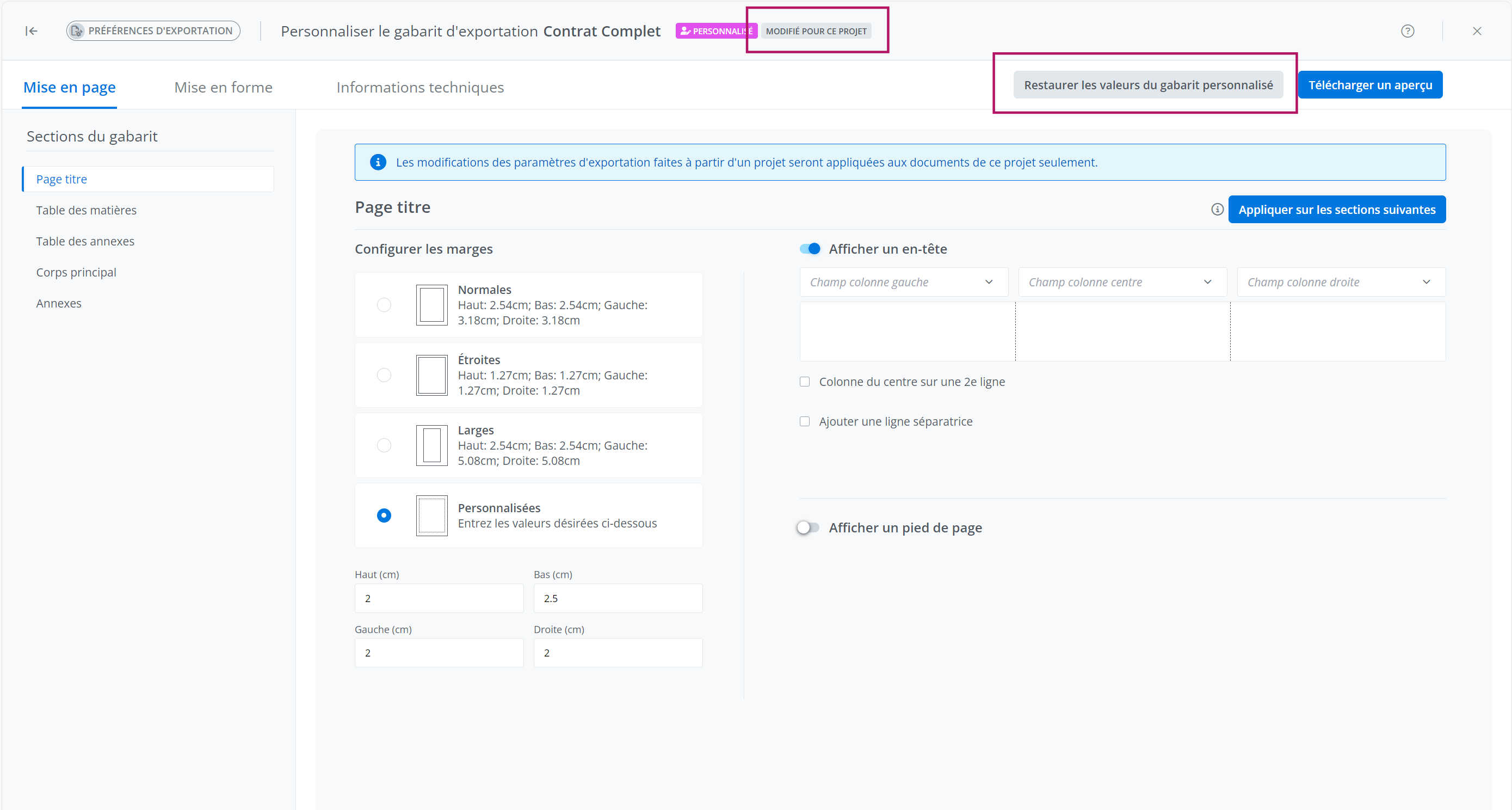
Case 1 - The template already had customized settings before the one-time modification
To do so, click Restore customized values in the top right corner. The template will then revert to the organization's customized values.
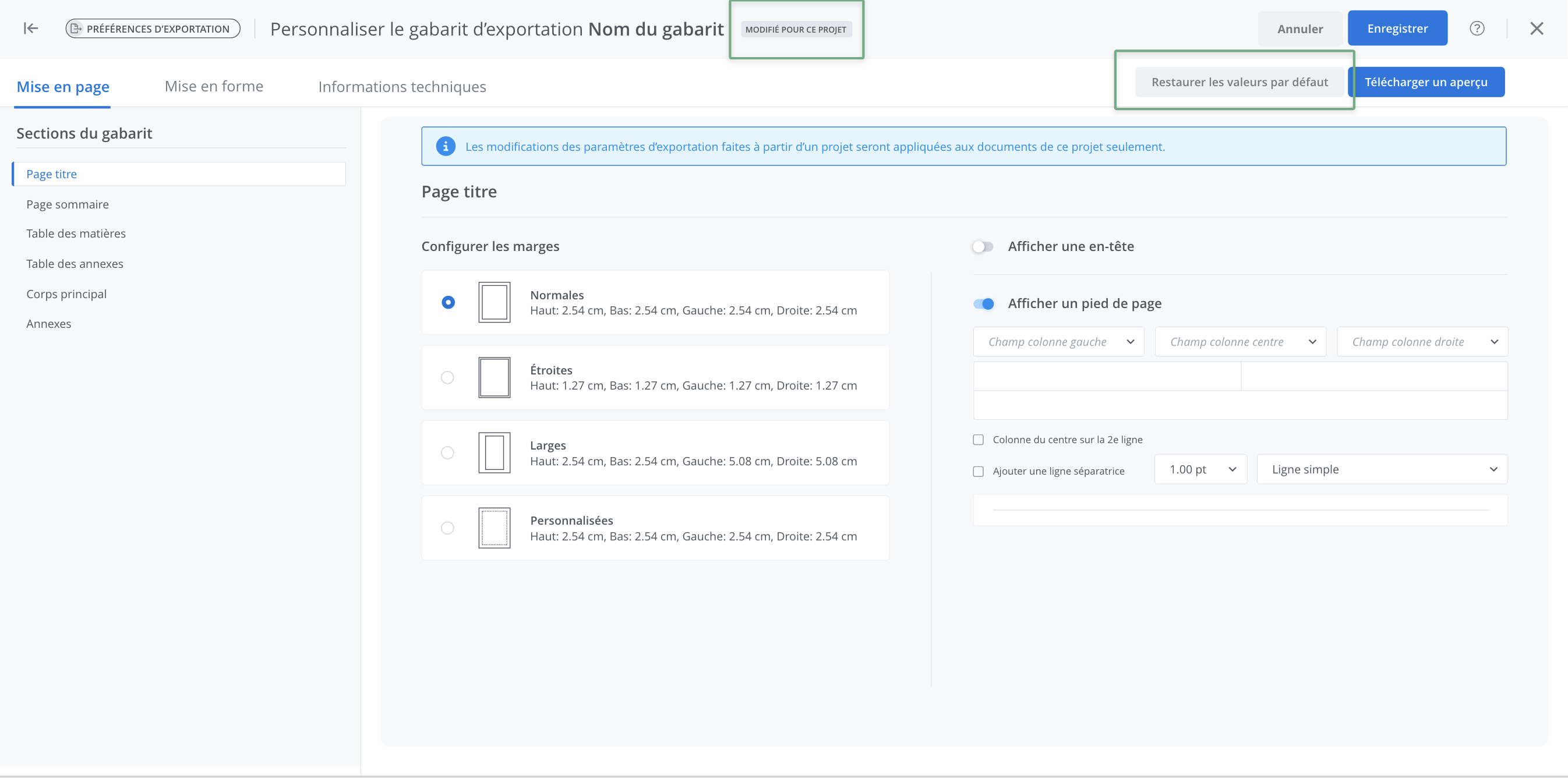
Case 2 - The template did not have customized settings
To do so, click Restore default values located in the top right corner. The template will then revert to its original default values.
Download a preview
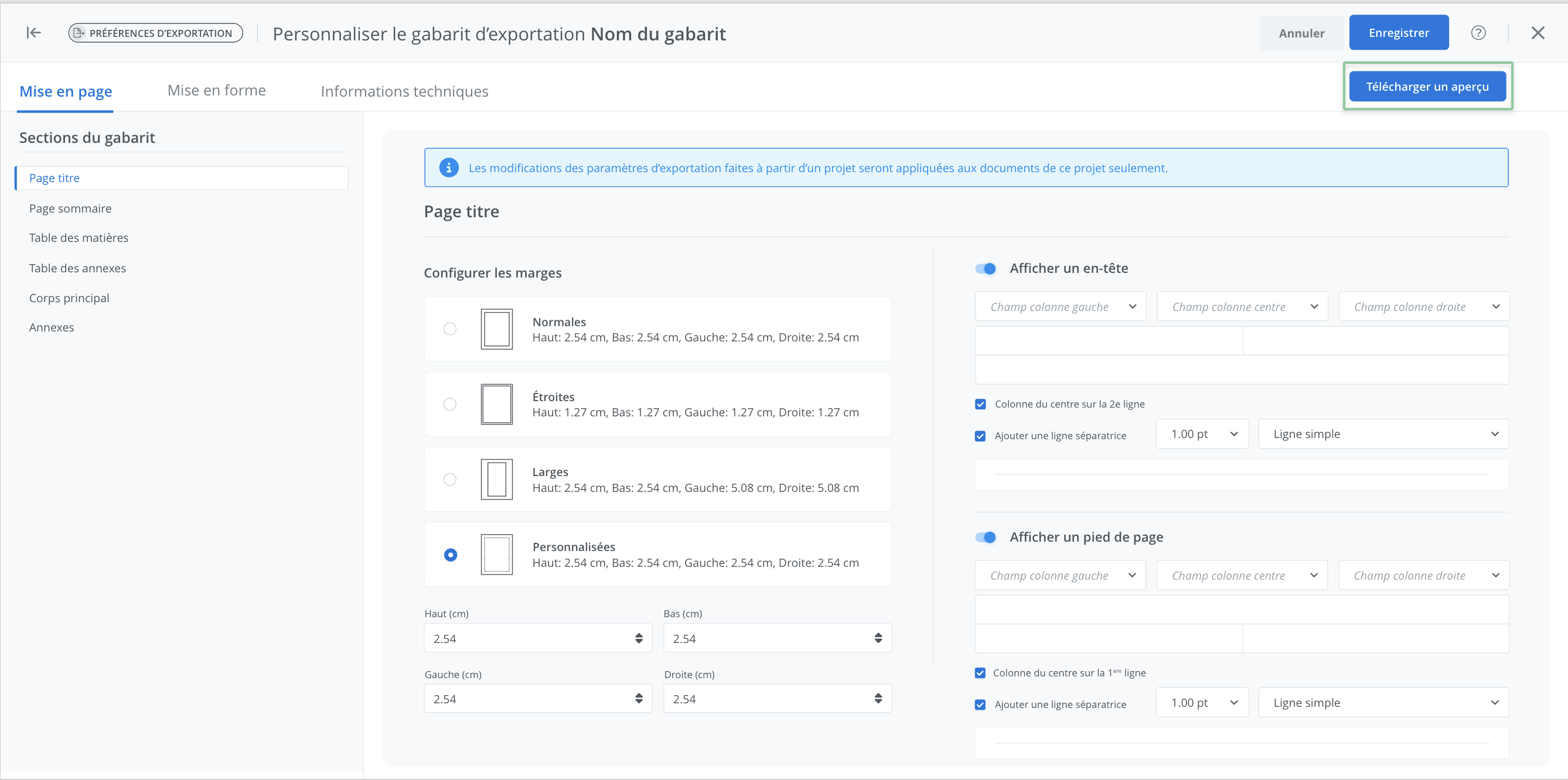
It is possible at any time to download a document preview that reflects the options chosen in the template currently being customized.
To do so, click Download preview. The system then starts a download in .pdf format, which allows you to view the impact of the selected settings on an exported document.
Modify a template's layout
Navigate through the sections of the template
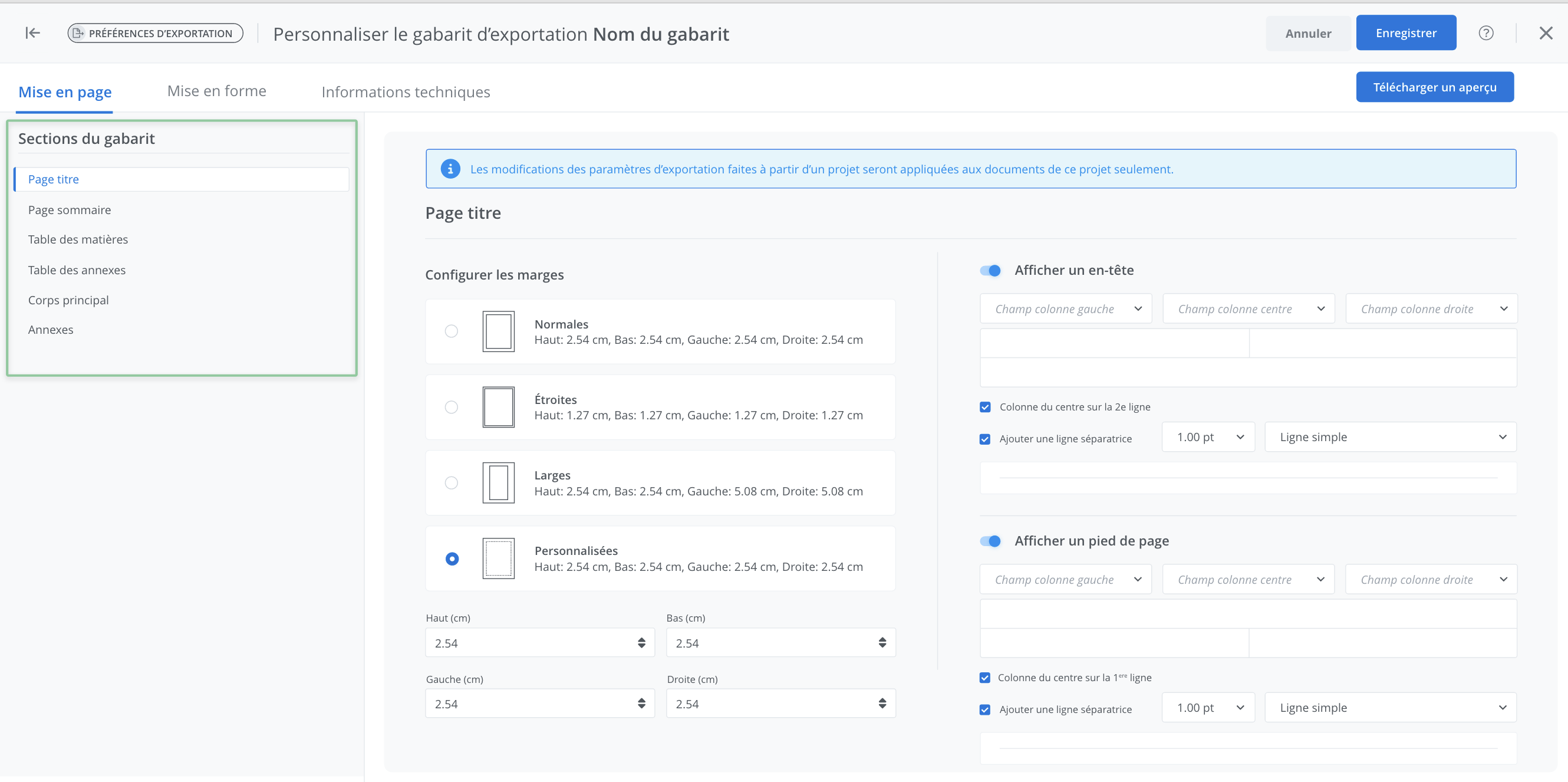
The layout options offered are segmented by section of the document. Each section allows you to configure a different layout.
To modify the options for a particular section, click the desired section found in the list on the left.
Modify the layout options
Three types of customization options are offered per template section:
(1) margin configuration,
(2) header configuration,
(3) footer configuration.
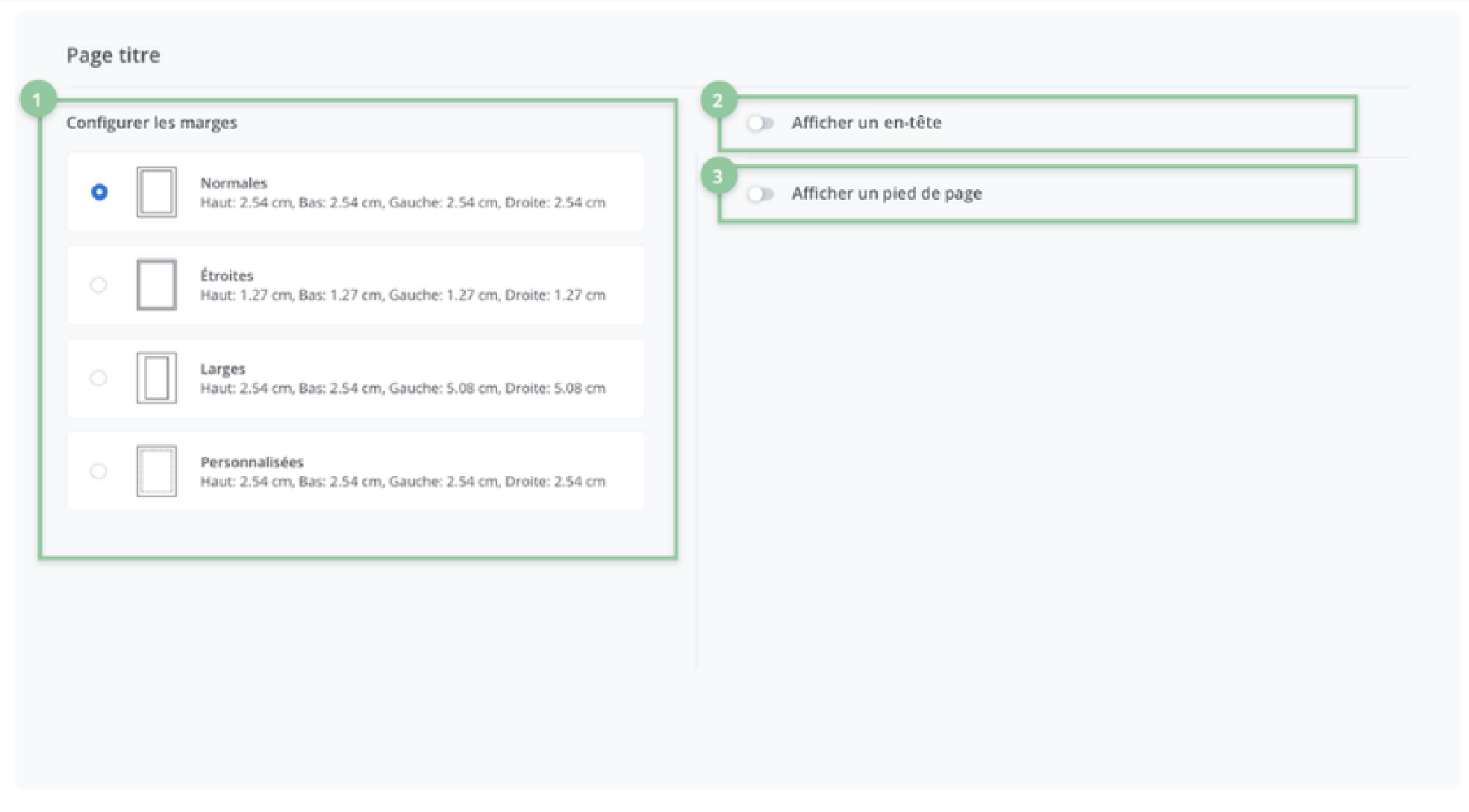
(1) margin configuration
Four margin configuration options are offered and can be selected by clicking the corresponding selector button on each tile.
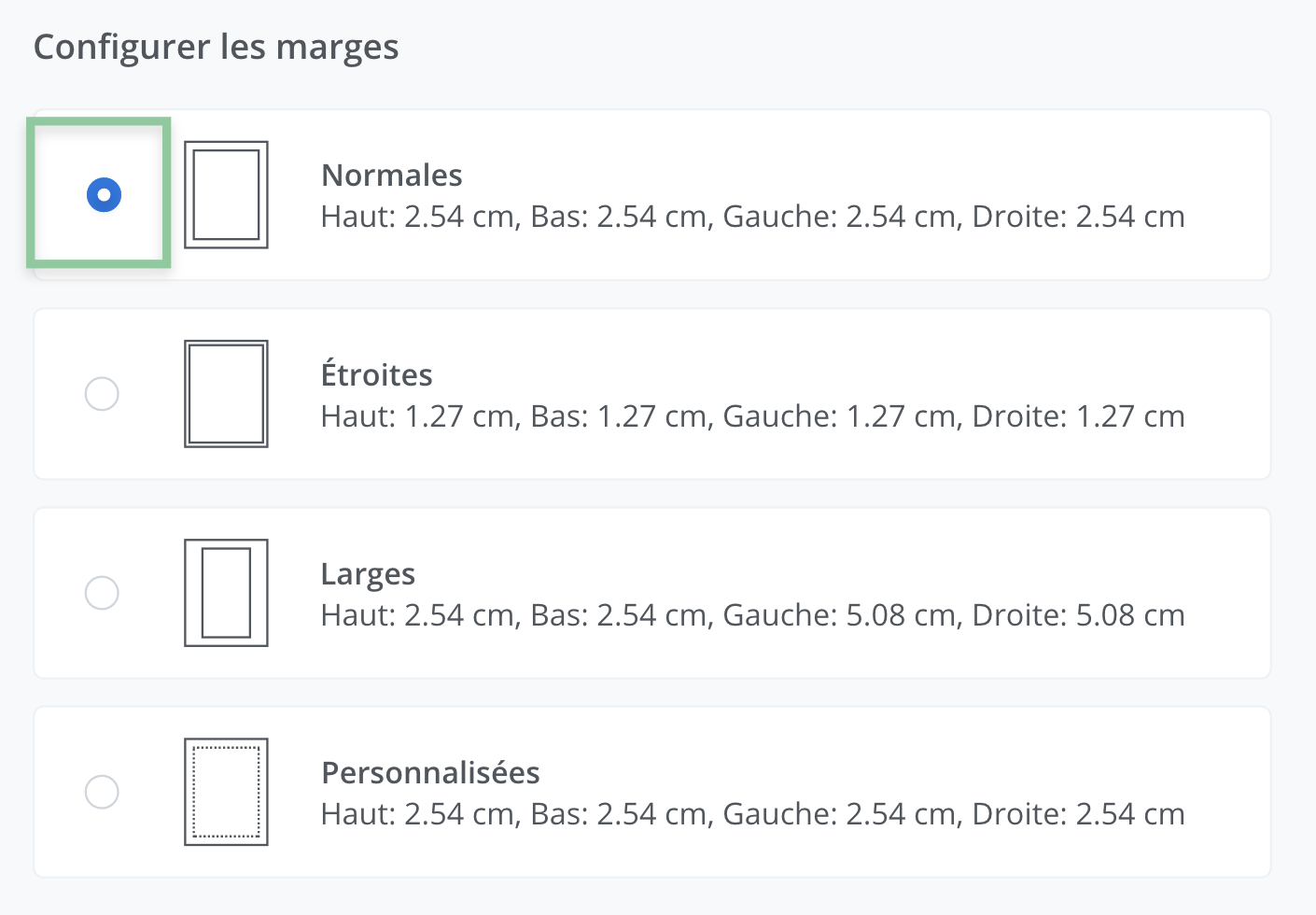
The dimensions of the first three options are predefined and correspond to the various measurements indicated on each tile.
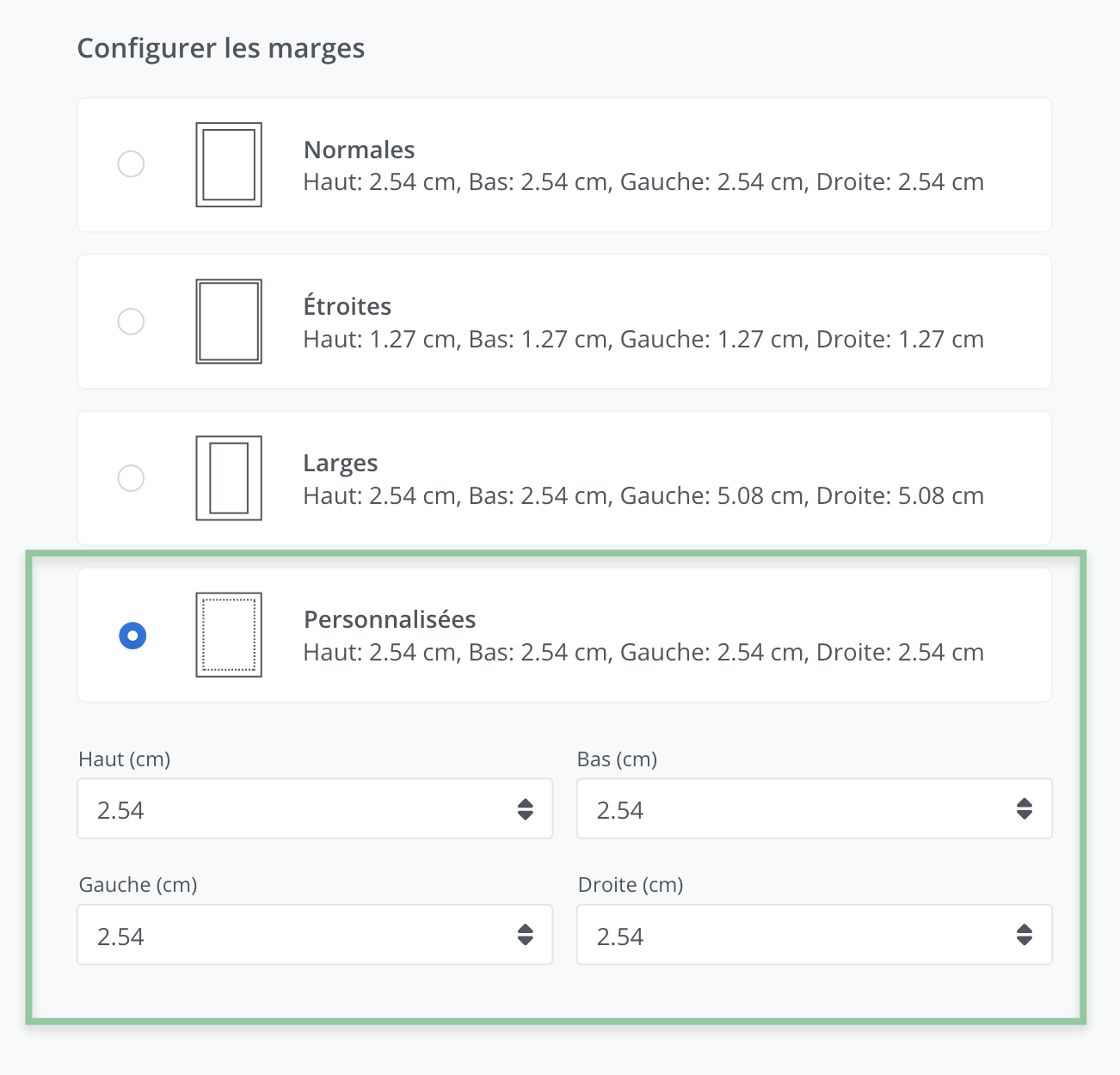
The fourth option, on the other hand, allows for a custom configuration of the dimensions. To specify them, select the tile by clicking the corresponding selector button.
The system then displays fields that allow you to configure the margin dimensions as desired. The dimensions must be indicated in centimeters.
(2) Header configuration
The template configuration offers the possibility of displaying a header for each section of the document.
To display a header in the selected section, click Display a header.
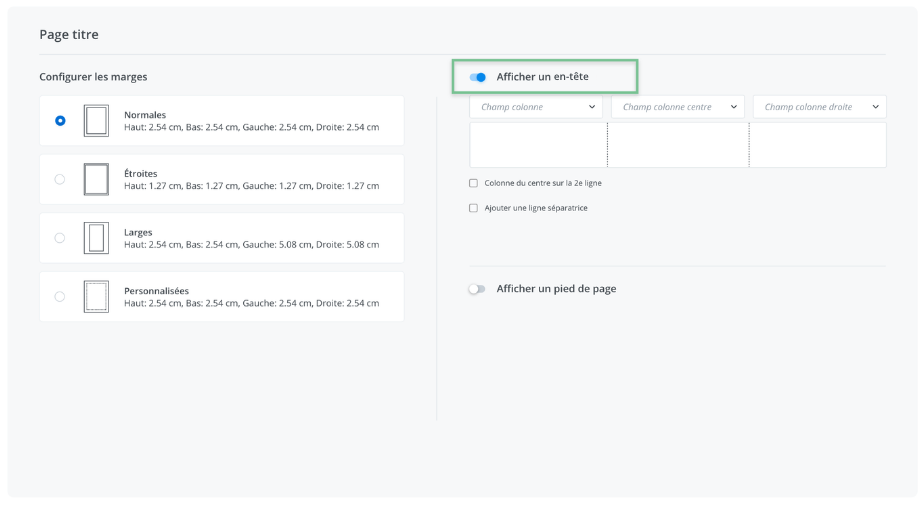
Configure the header columns
A document header is made up of a maximum of three columns. Each column can be filled in using a field, through which data will be displayed automatically when the document is exported.
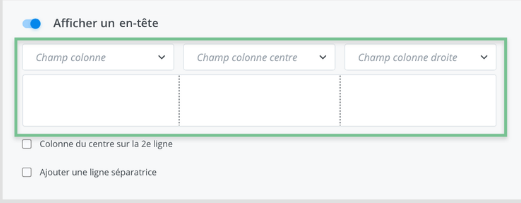
To display information there, select the desired information field using the corresponding drop-down menus for the columns (left column field, center column field, right column field).
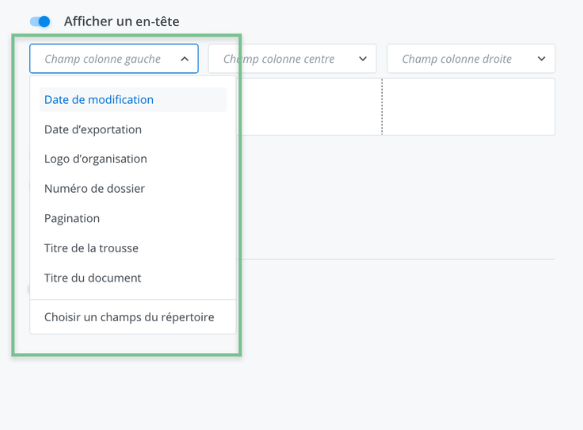
The selected information will then be automatically inserted in the desired location when the document is exported.
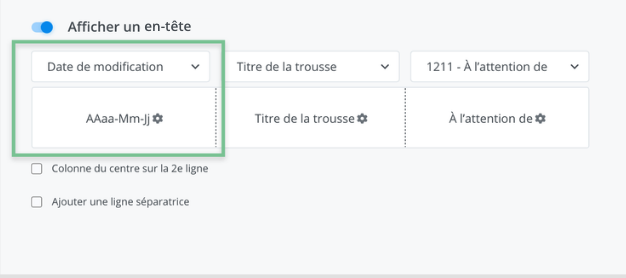
Configure the style of the data contained in the header
It is possible to modify the style of the information selected for a given column. To do so, click the settings button adjacent to the selected information.
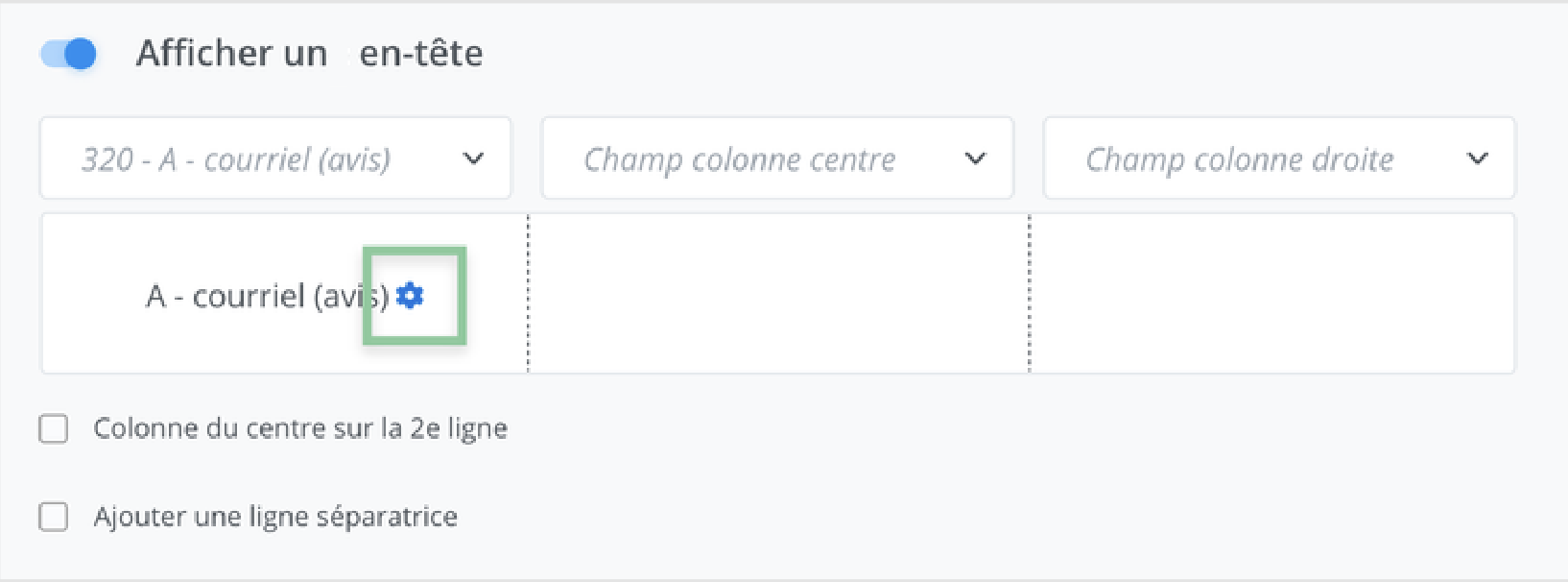
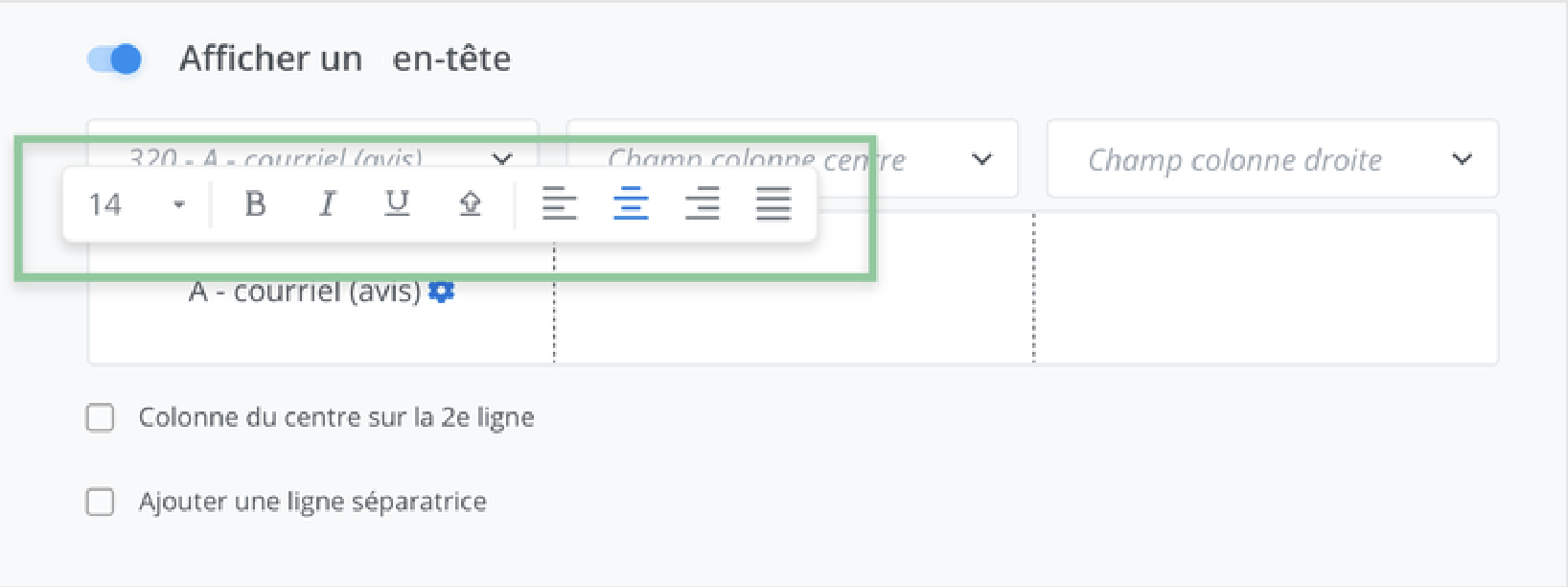
A toolbar that allows you to modify the style then appears and allows you to customize:
-
font size,
-
font style,
-
uppercase and lowercase,
-
alignment.
Configure the column dimensions
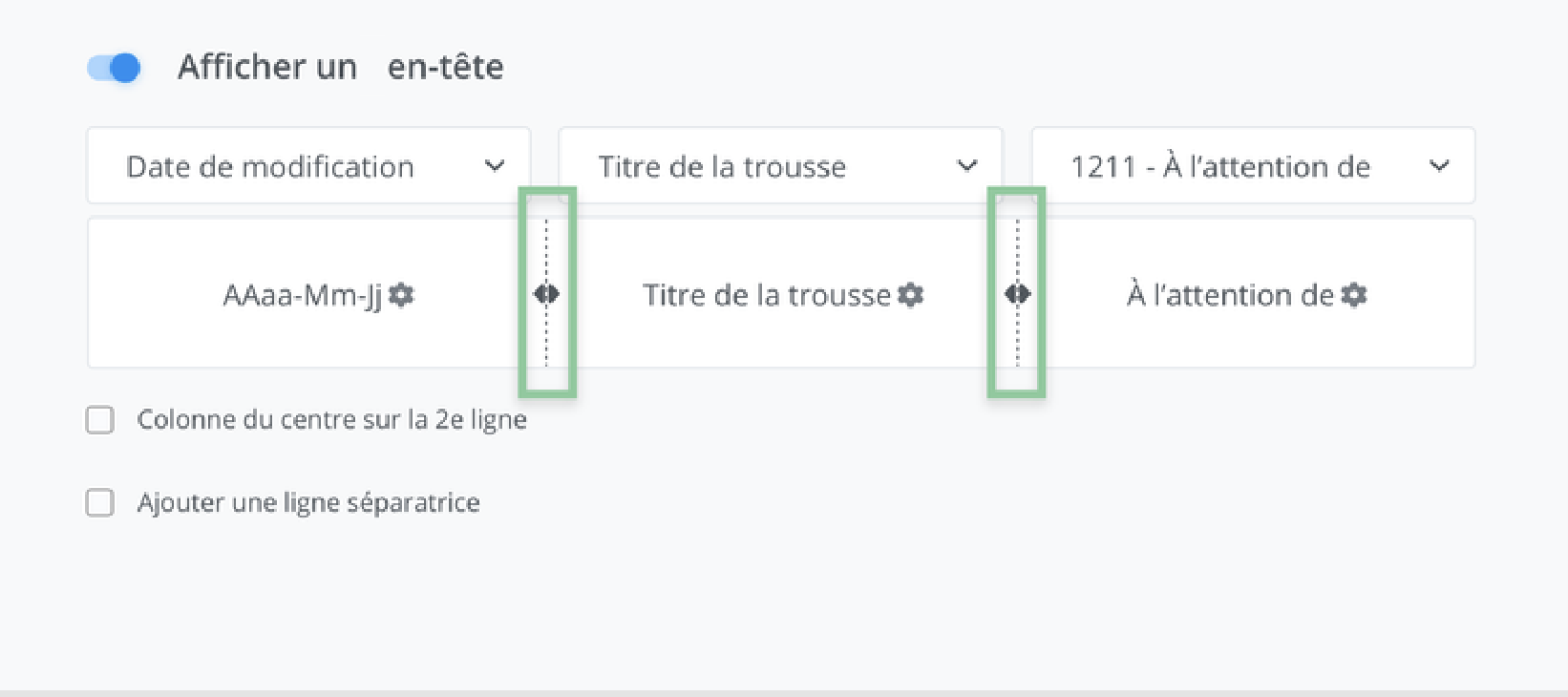
It is possible to adjust the size of the columns by directly manipulating the dotted lines located between each column.
Display the header information on two lines
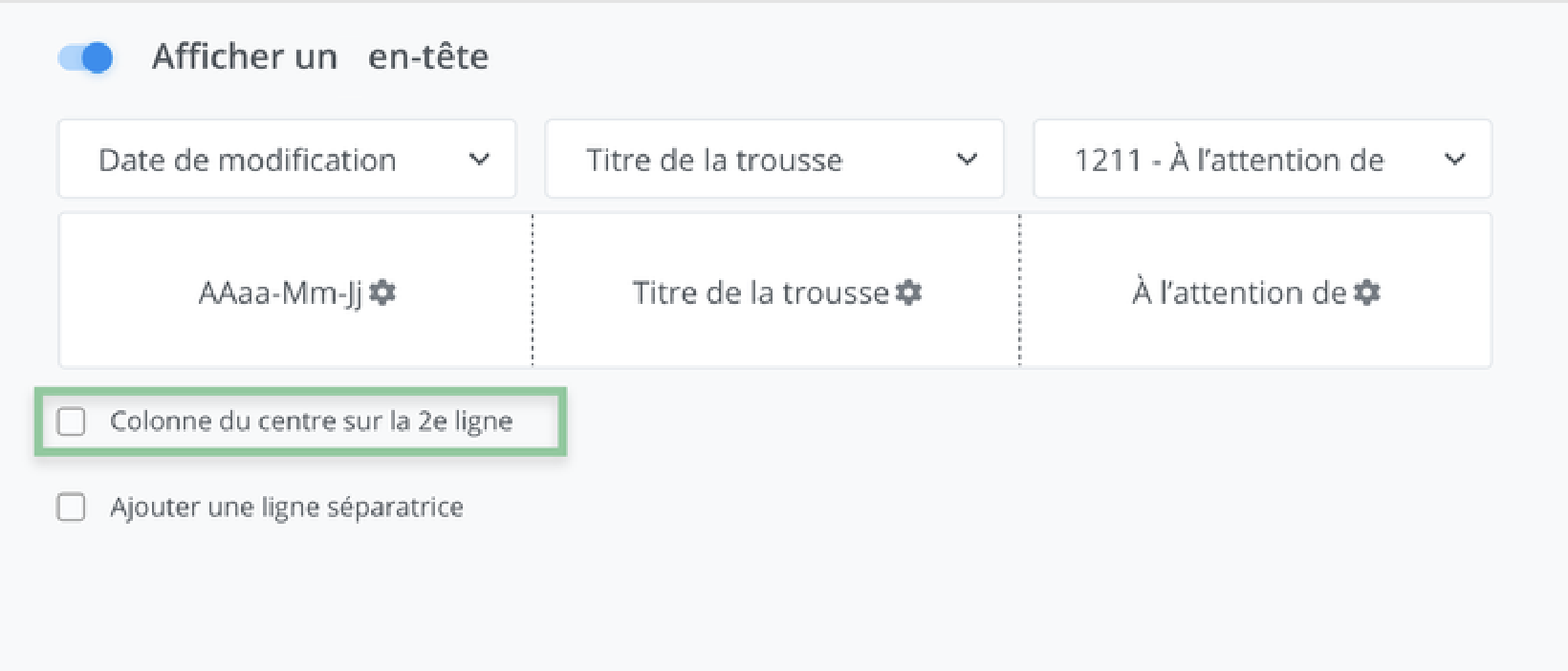
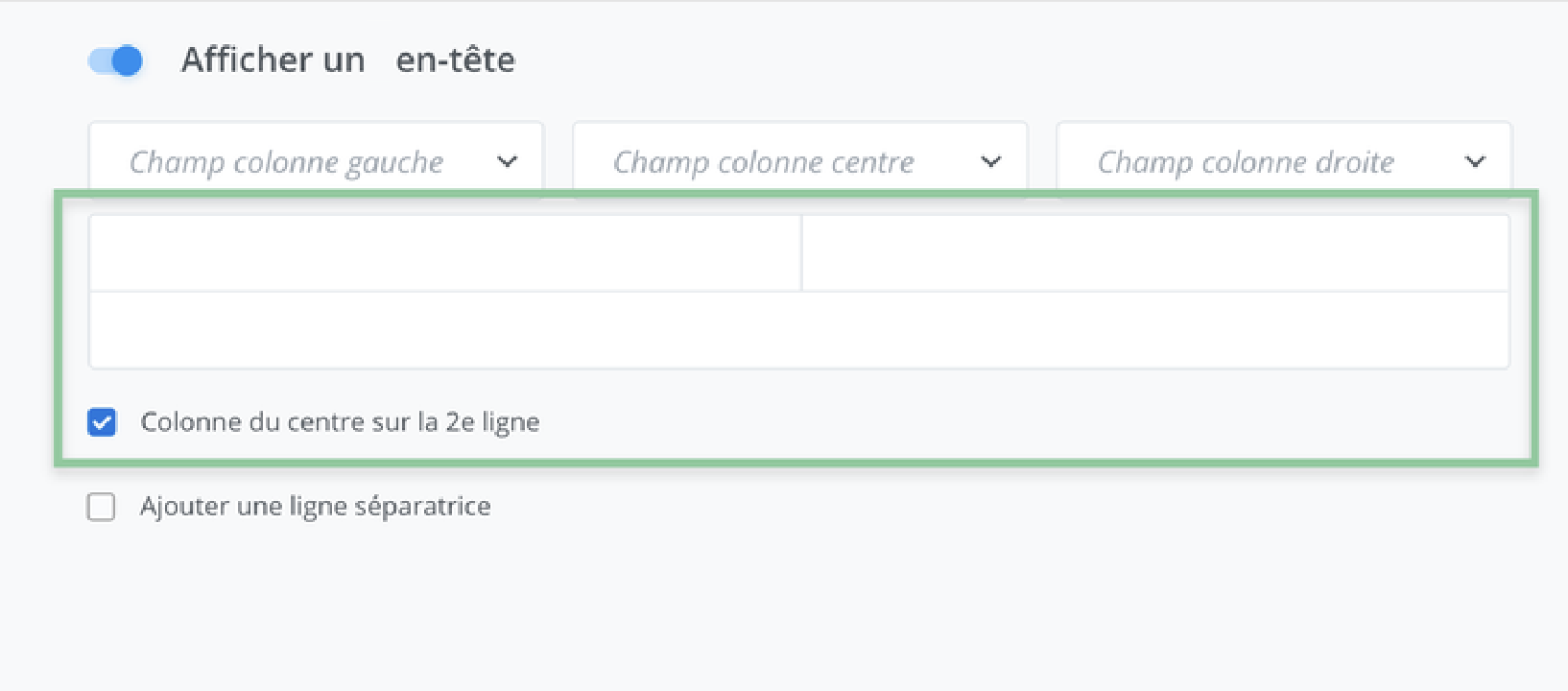
To display the header data on two lines, it is possible to move the information from the center column to the next line.
This allows longer data to be displayed while maintaining sufficient spacing between them.
Important Notice
After moving the information from the 2nd column to a 2nd line, it becomes impossible to adjust the column dimensions. The alignment is fixed, with the 1st column aligned from the right, the 3rd column aligned from the left, and finally, the center column on the 2nd line aligned from the right.
Add a separator line between the header and the body of the document
It is possible to insert a separator line to delimit the header. To do so, click Add a separator line located in the header settings.
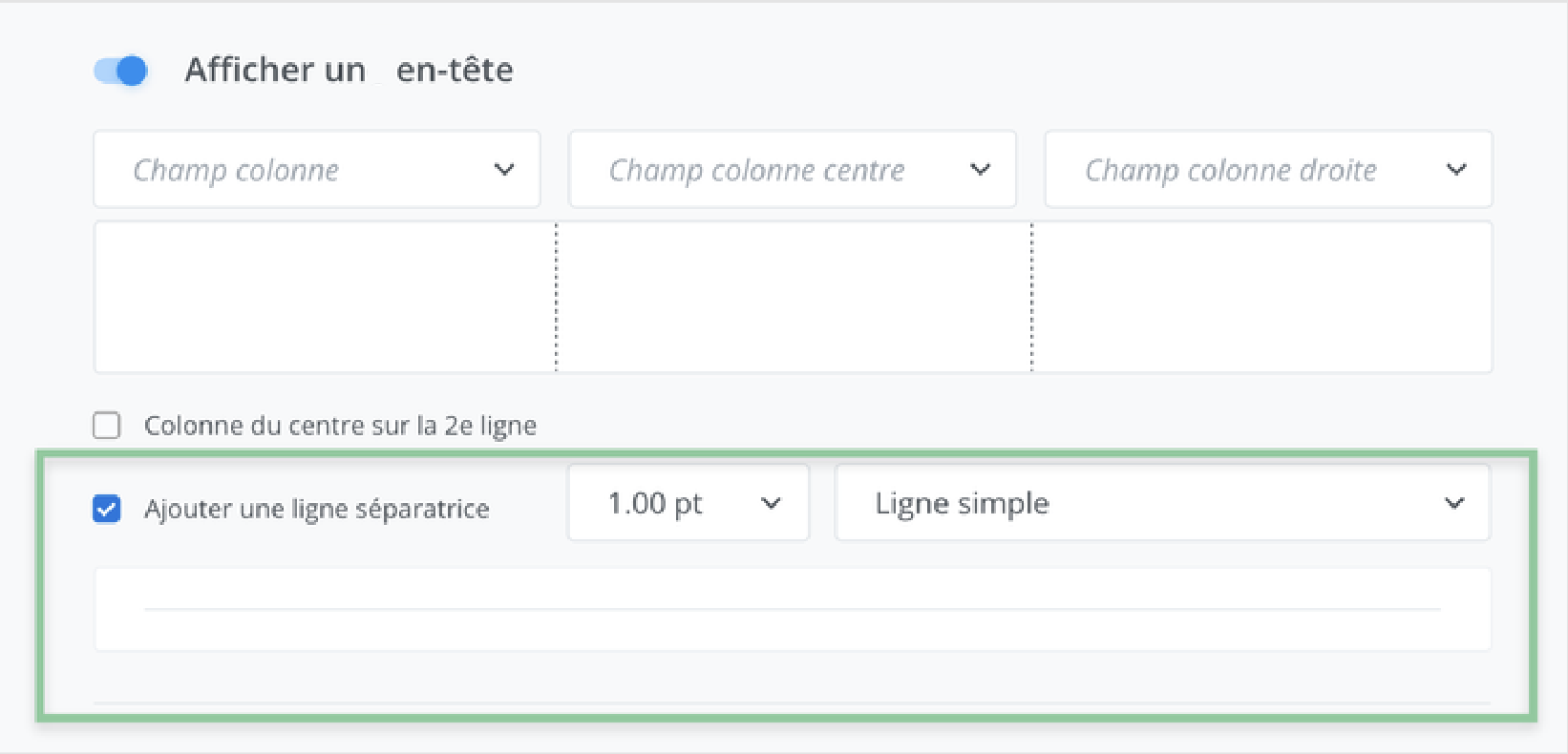
When selected, the option allows you to choose different line styles and dimensions using the drop-down menu options.
(3) footer configuration
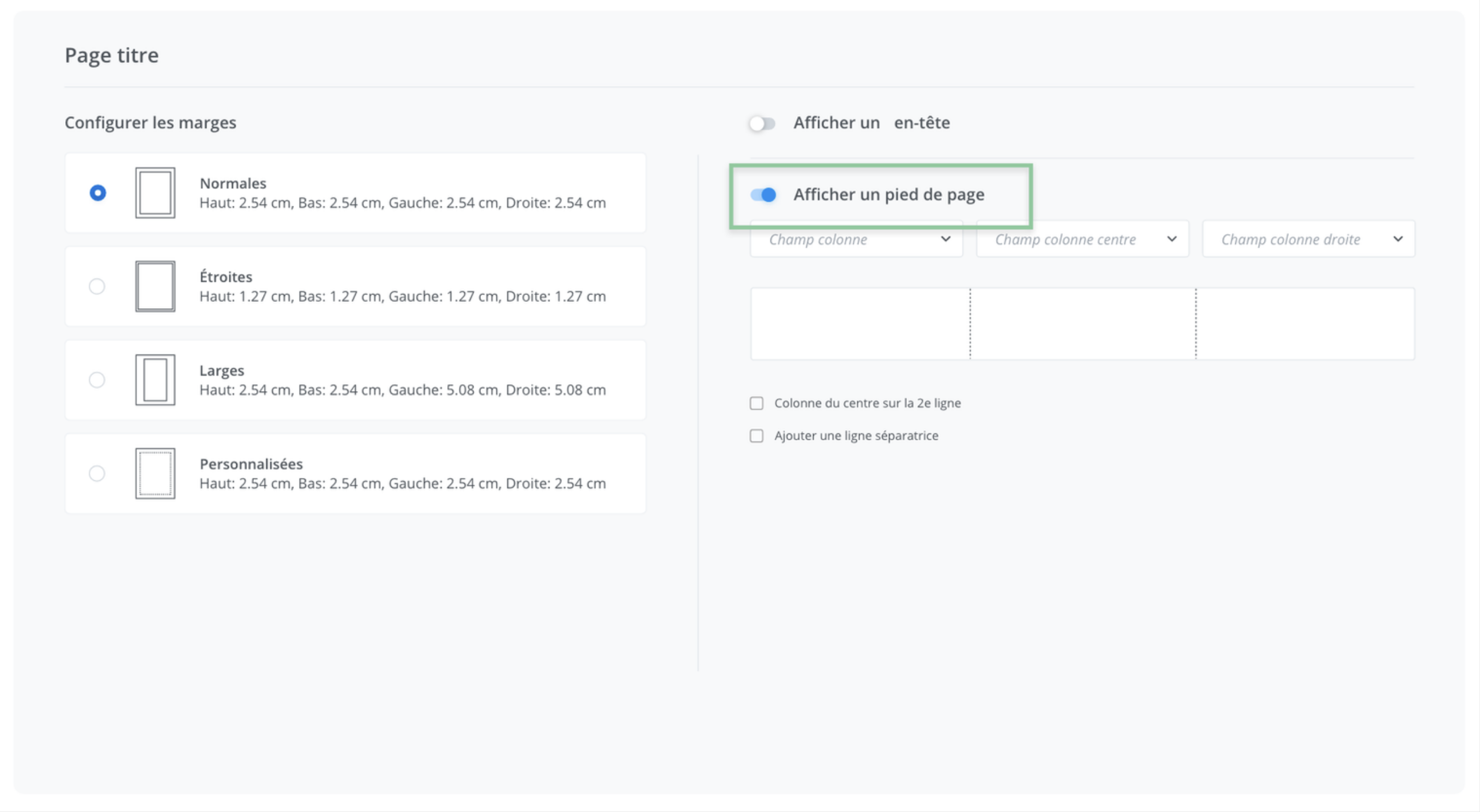
The template configuration offers the possibility of displaying a footer for each section of the document. To display a footer in the selected section, click Display a footer.
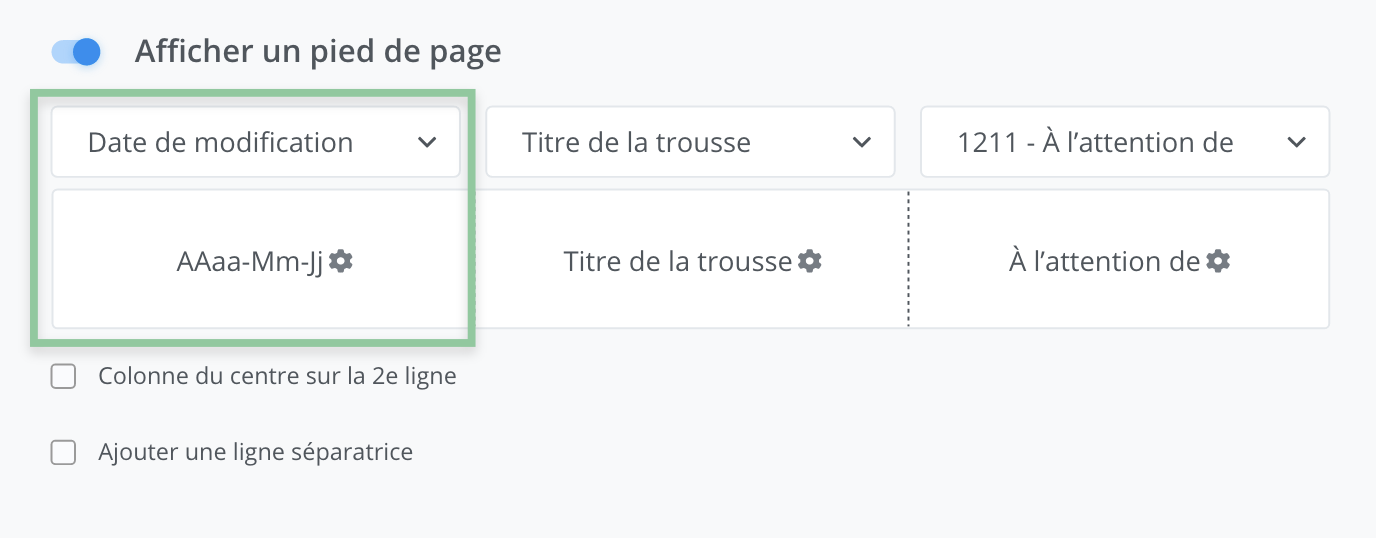
Configure the footer columns
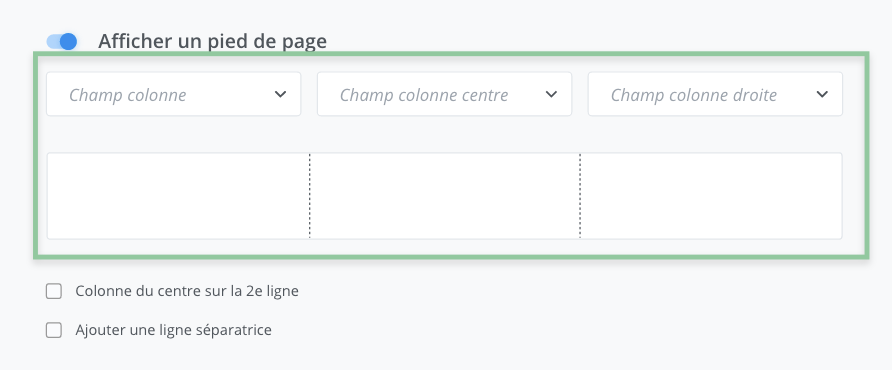
A document footer is made up of a maximum of three columns. Each column can be filled in using a field, through which data will be displayed automatically when the document is exported.
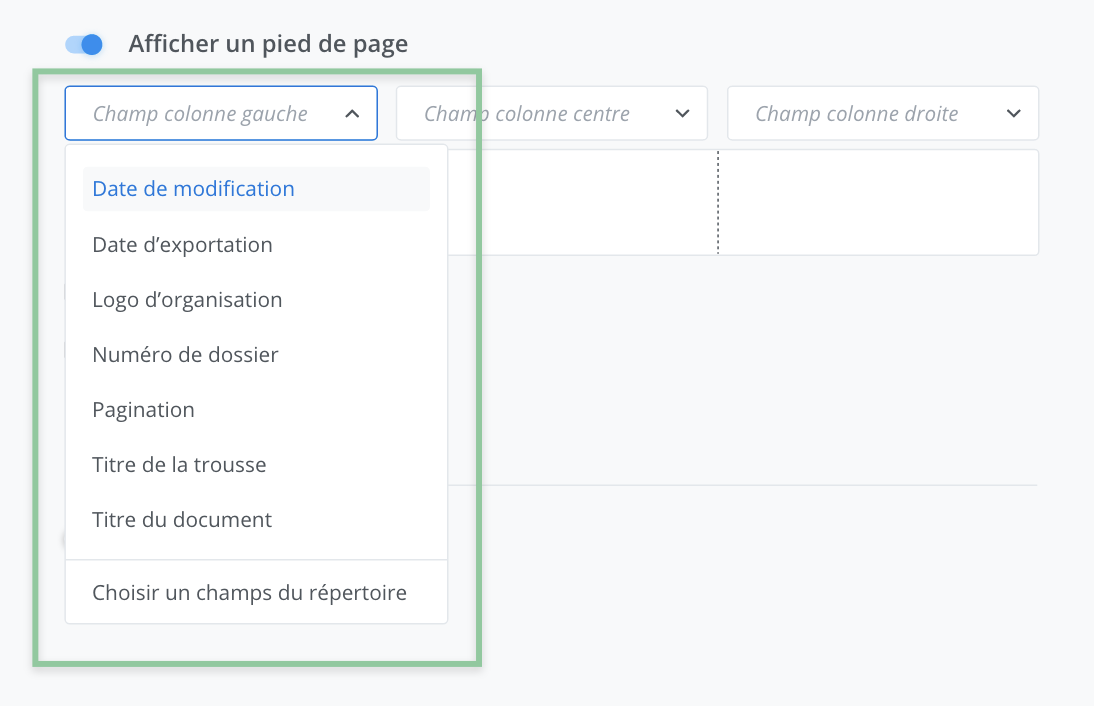
To display information there, select the desired information field using the corresponding drop-down menus for the columns (left column field, center column field, right column field).
The selected information will then be automatically inserted in the desired location when the document is exported.
Configure the style of the footer columns
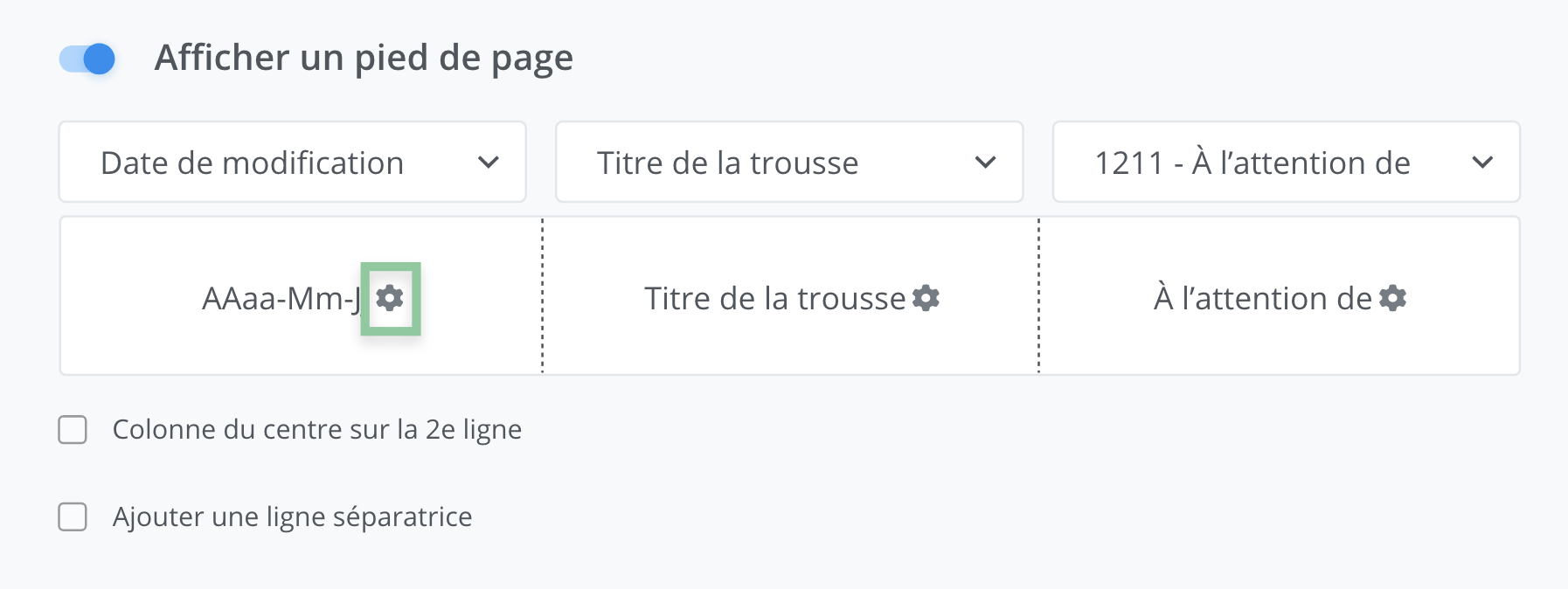
It is possible to modify the style of the information selected for a given column. To do so, click the settings button adjacent to the selected information.
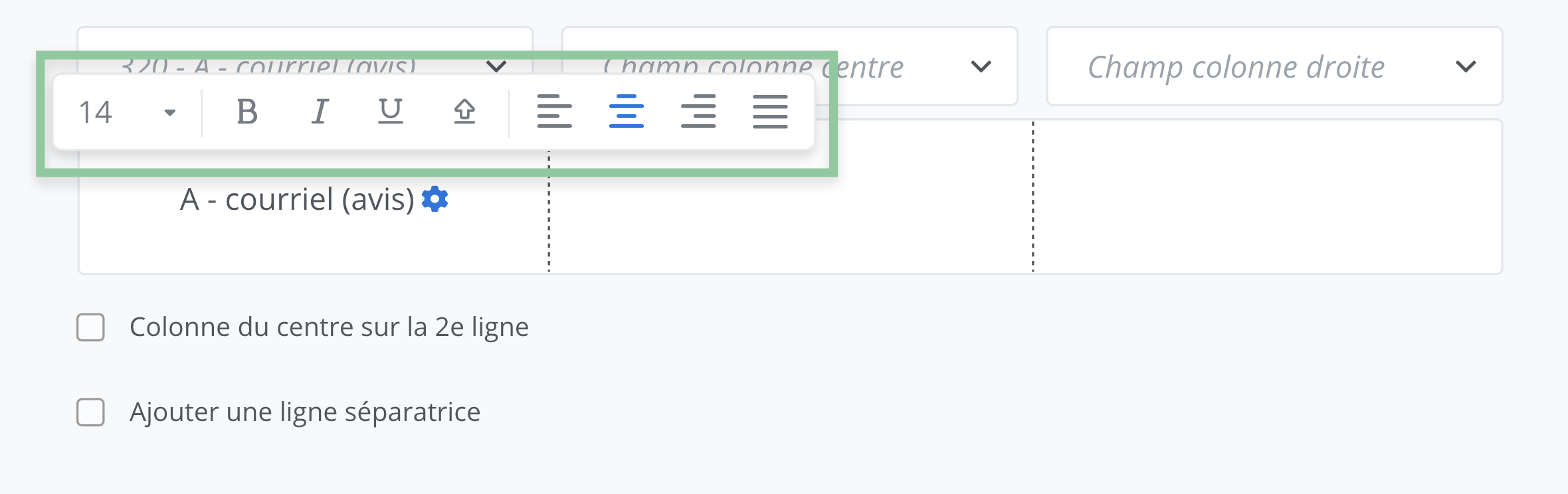
A toolbar that allows you to modify the style then appears and allows you to customize:
-
font size,
-
font style,
-
uppercase and lowercase,
-
alignment.
Configure the column dimensions
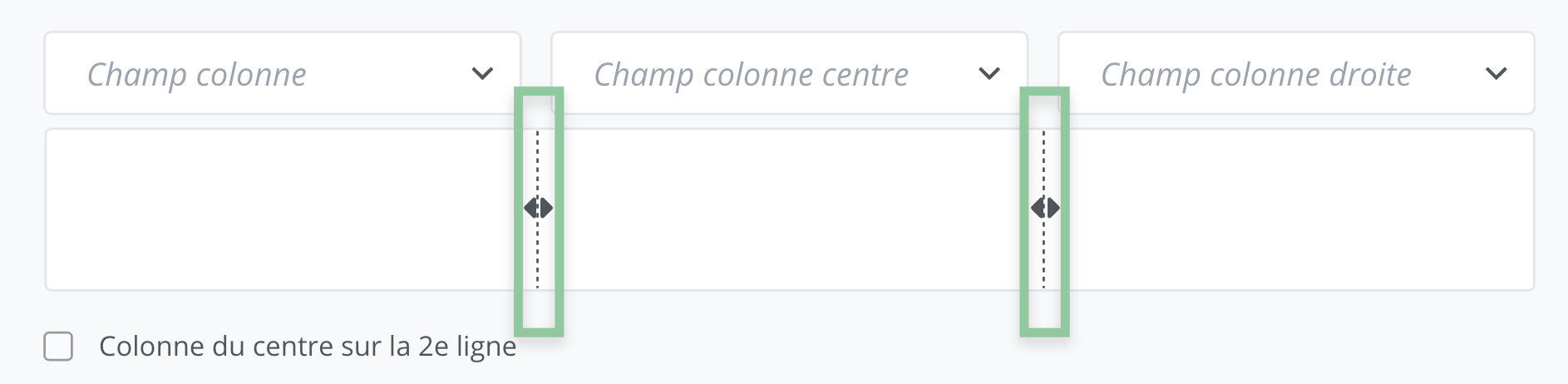
It is possible to adjust the size of the columns by directly manipulating the dotted lines located between each column.
Display the footer data on two lines
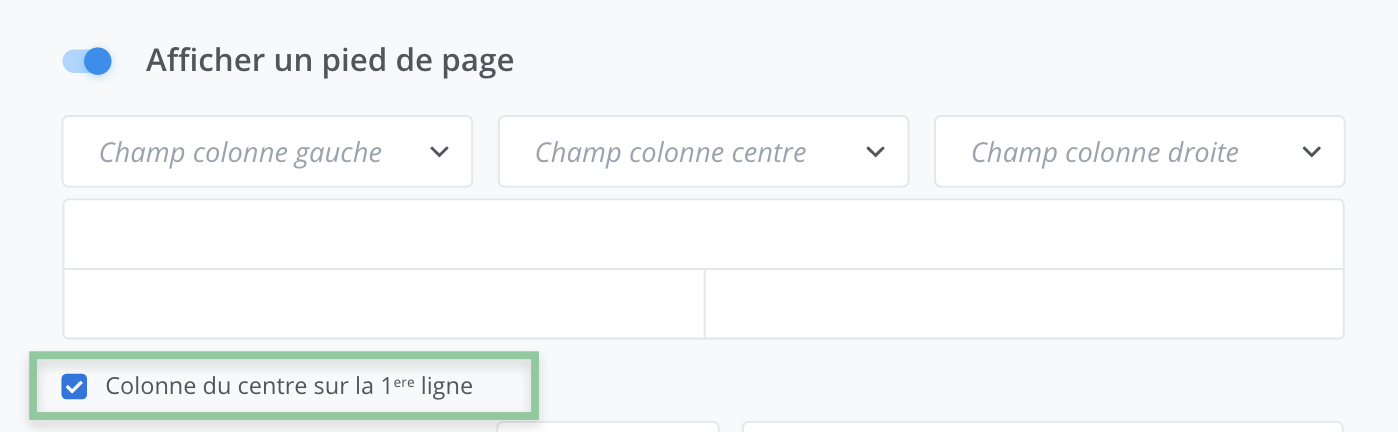
To display data on two lines, it is possible to move the information from the center column to the first line of the footer.
This allows longer data to be displayed while maintaining sufficient spacing between them.
Important Notice
After moving the information from the 2nd column to a first line, it then becomes impossible to adjust the column dimensions. The alignment is fixed, with the 1st column aligned from the right, the 3rd column aligned from the left, and finally, the center column on the first line aligned from the right.
Add a separator line between the footer and the body of the document
It is possible to insert a separator line to delimit the footer. To do so, click Add a separator line located in the footer settings.
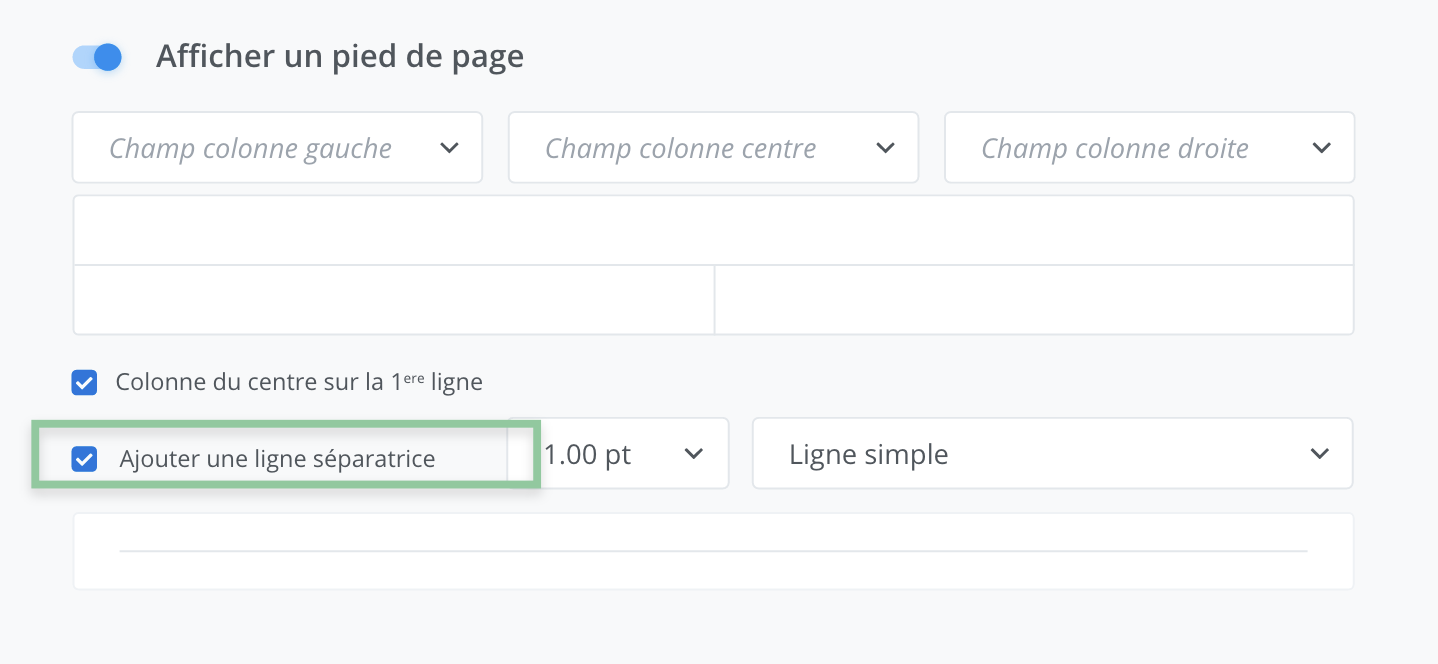
When selected, the option allows you to choose different line styles and dimensions using the drop-down menu options.
Modify the formatting of a template
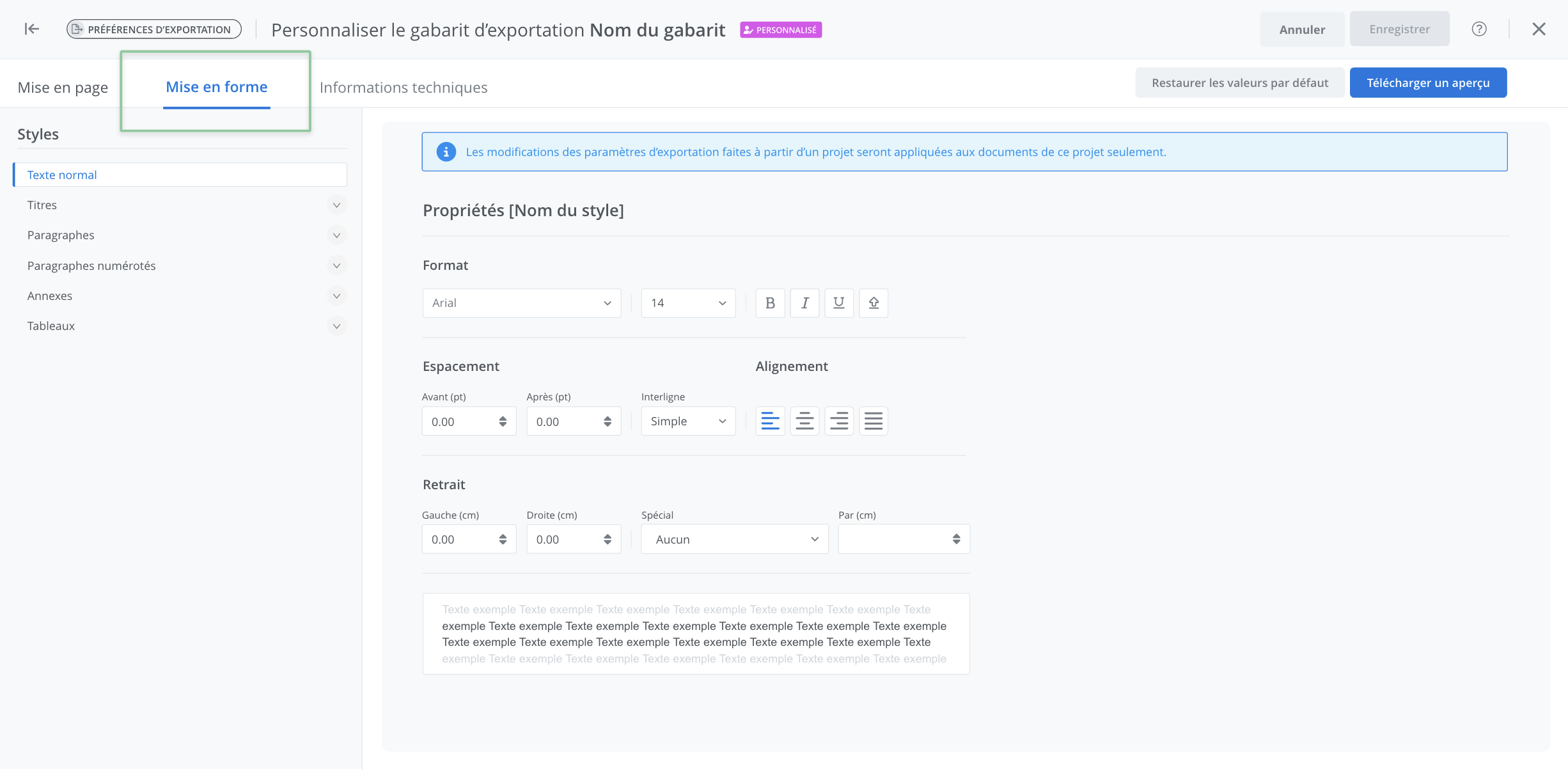
Navigate and configure the document elements
It is possible to configure the formatting of several elements of the document, such as:
-
normal style,
-
headings,
-
paragraphs,
-
numbrered paragraphs,
-
table of contents,
-
table of schedules,
-
tables,
-
watermark.
To access and modify each option for a particular element, click the name of the desired element in the list on the left.
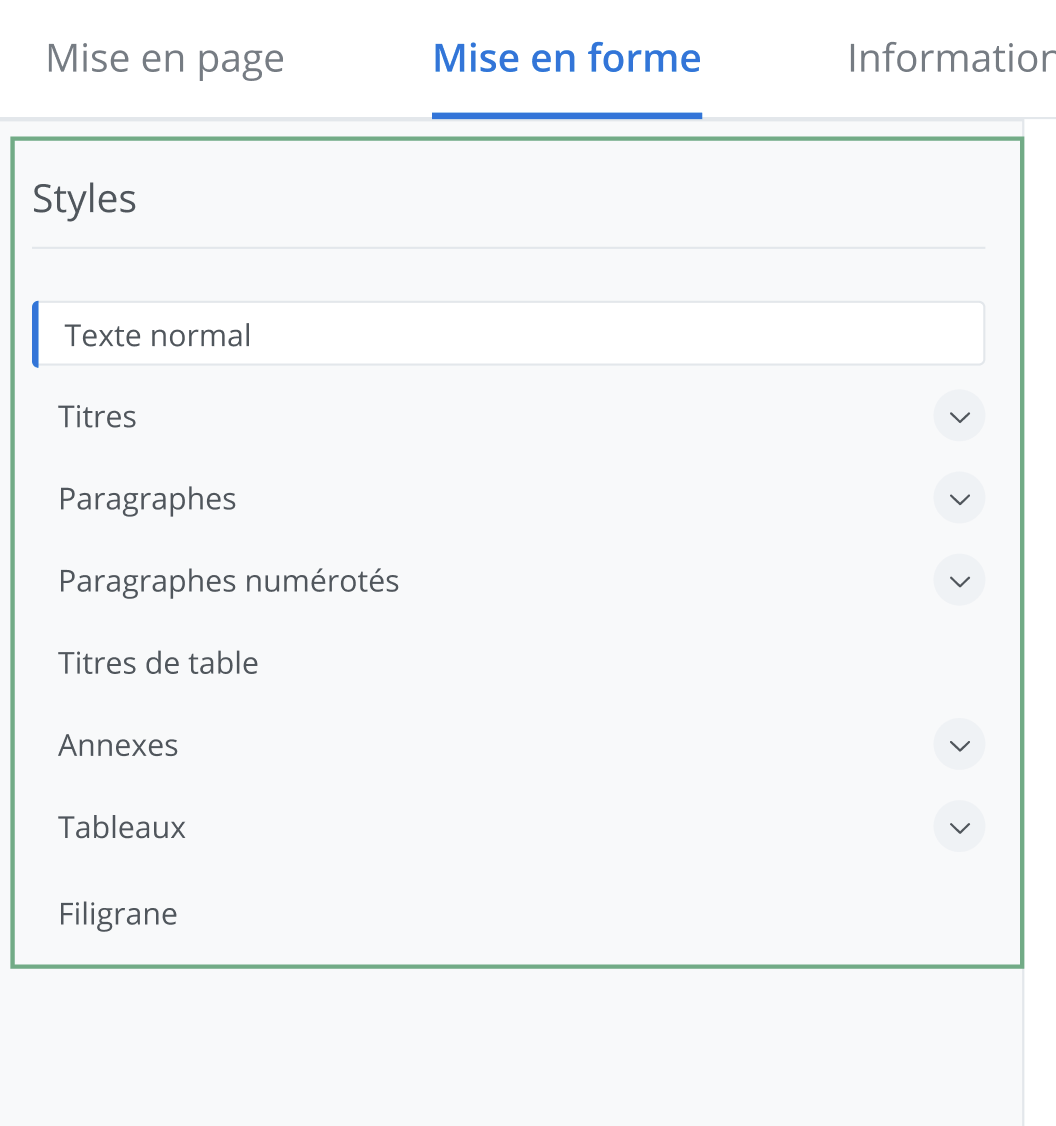
It is possible to display more elements by clicking the chevron buttons located to the right of each element.
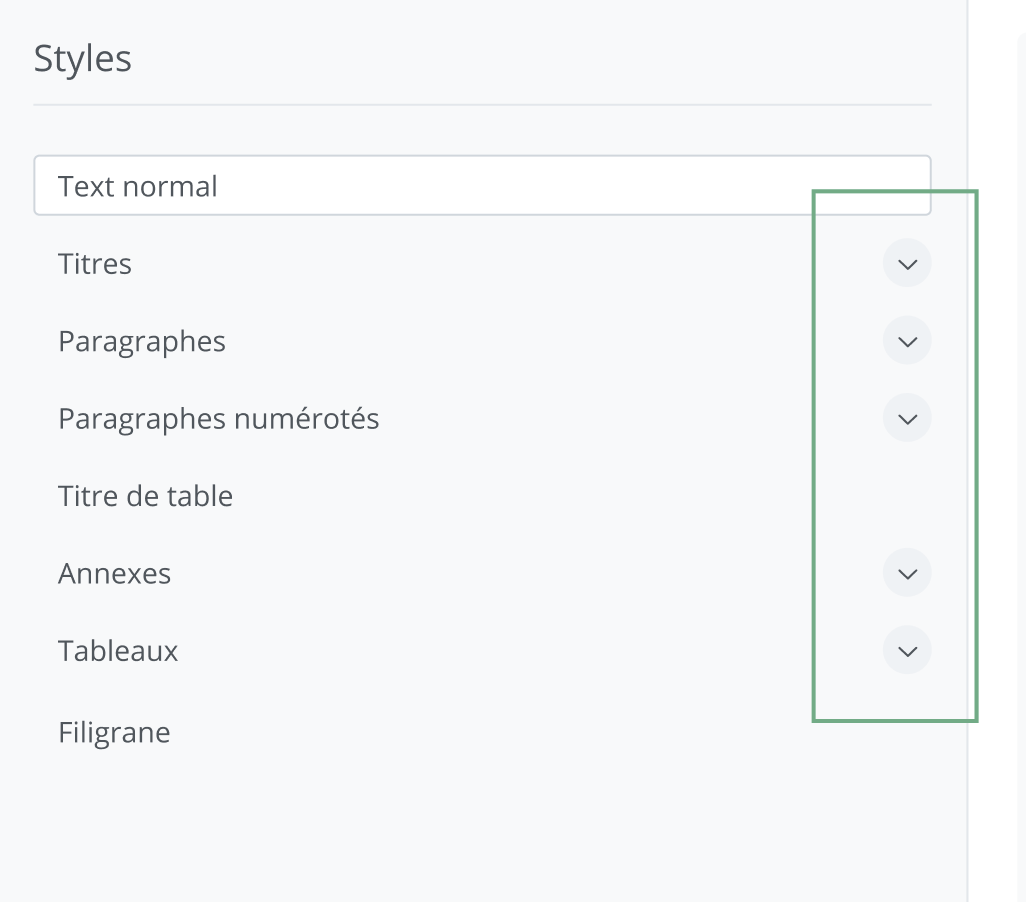
This has the effect of displaying the complete list of each customizable element of the document.
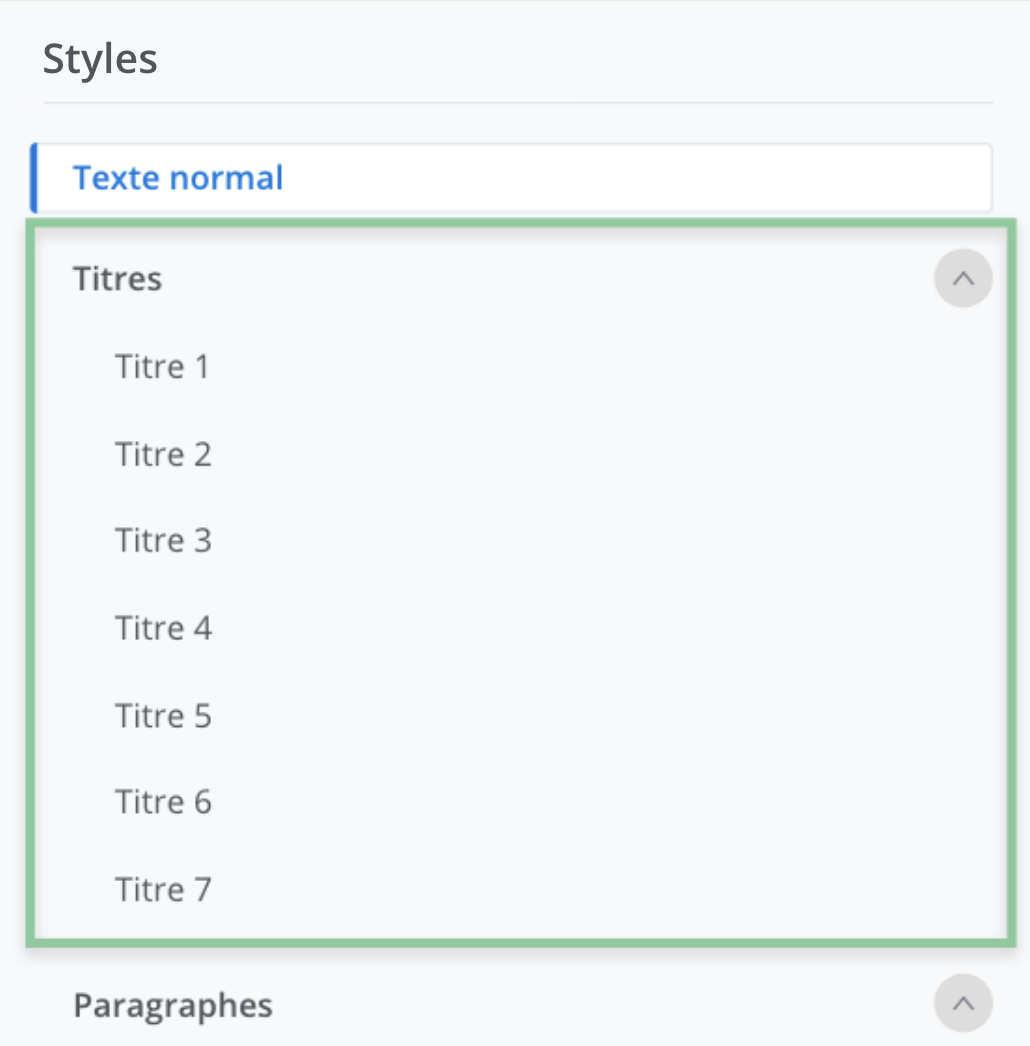
Customize the style of the document elements
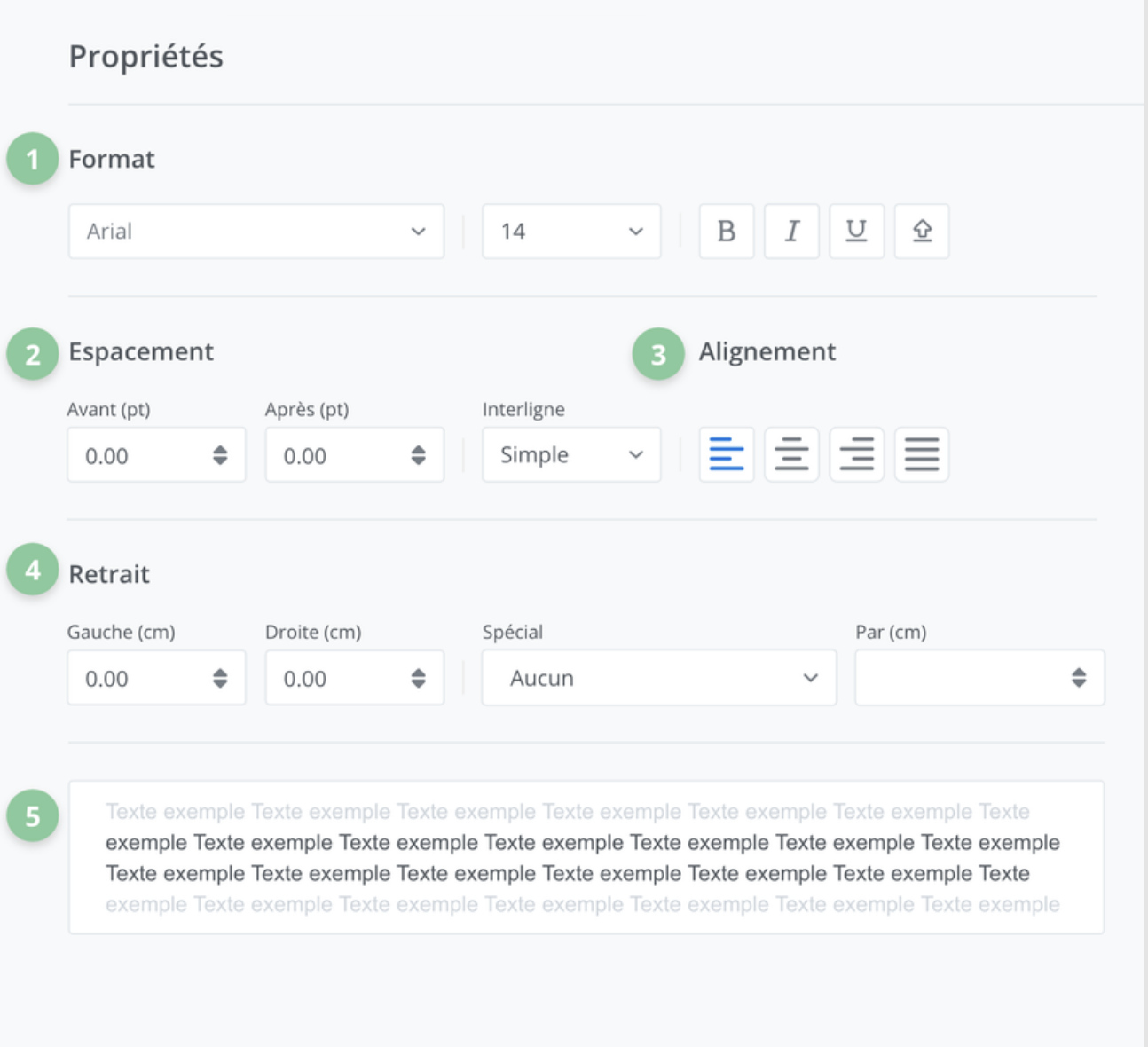
Five tools are offered to customize the style:
(1) format settings,
(2) spacing settings,
(3) alignment settings,
(4) indent settings,
(5) a preview window.
Important Notice
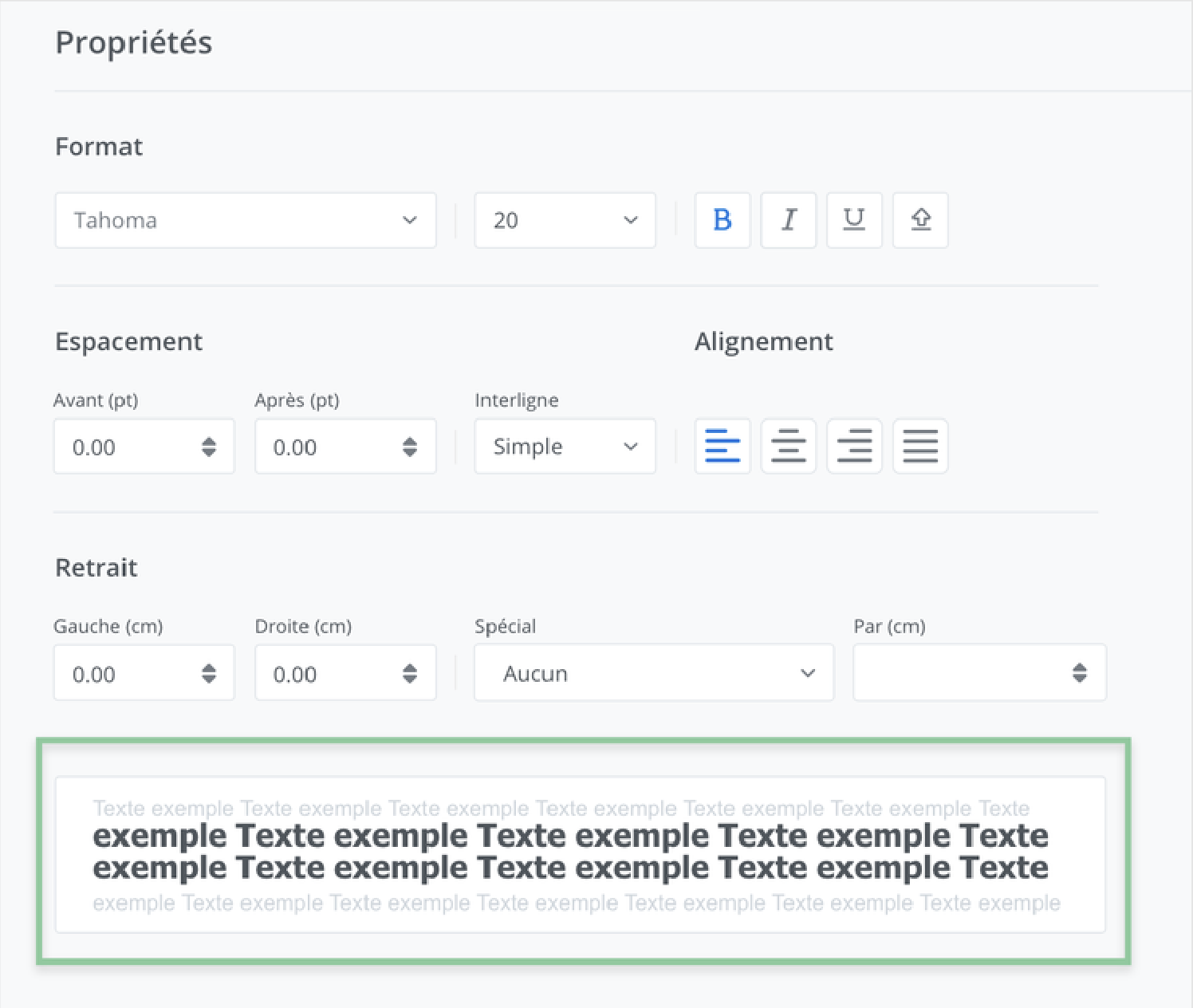
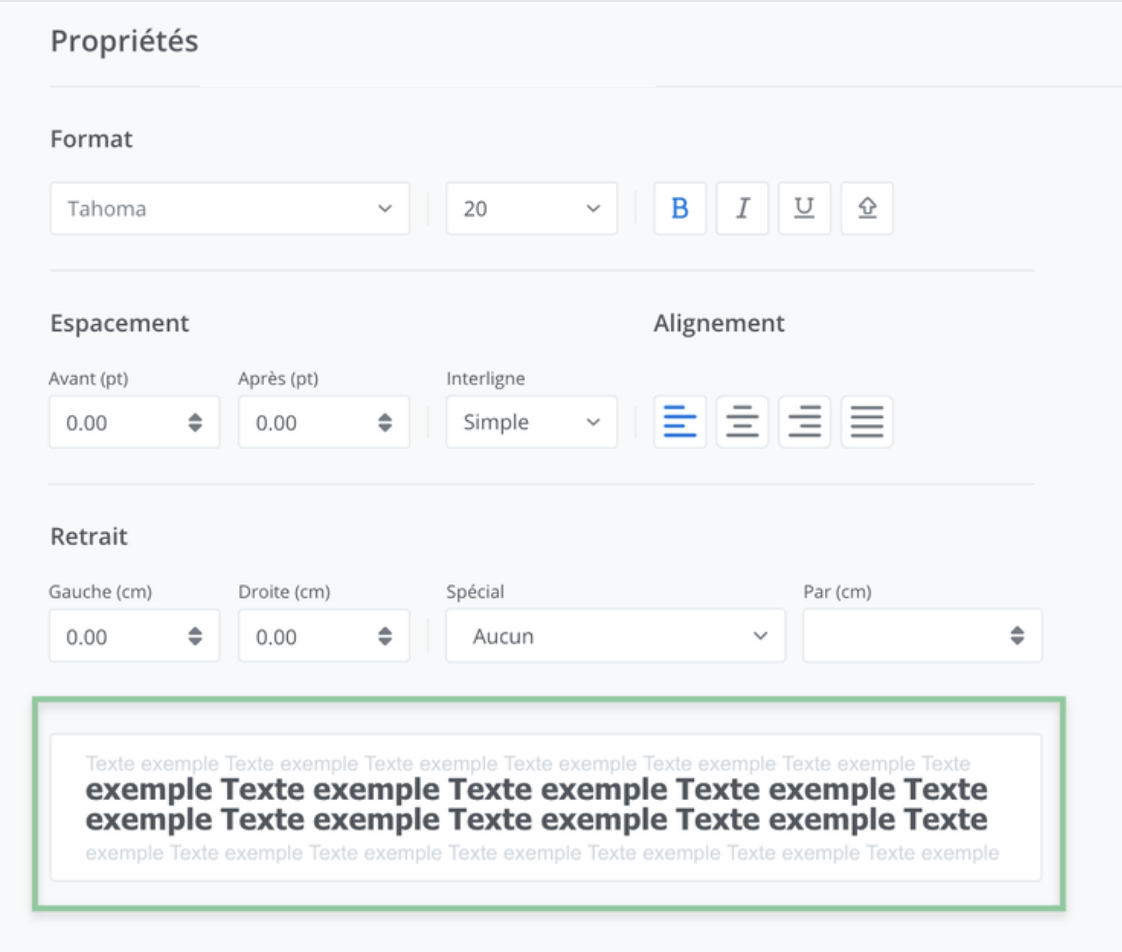
The preview window (5) provides an approximate preview of the selected style settings. For a more accurate preview, it is possible at any time to download a preview of the complete document by clicking Download preview, available to the right of the header.
Exception
(1) Modify the format settings

The parameters available for format customization are, in reading order, the font, the text size, the bold, italic, and underline styles, and the uppercase/lowercase option.
To make a change, use the corresponding drop-down menus or click the corresponding buttons to activate them, as applicable.
See the preview window to view the effect of these changes.
(2) Modify the spacing settings
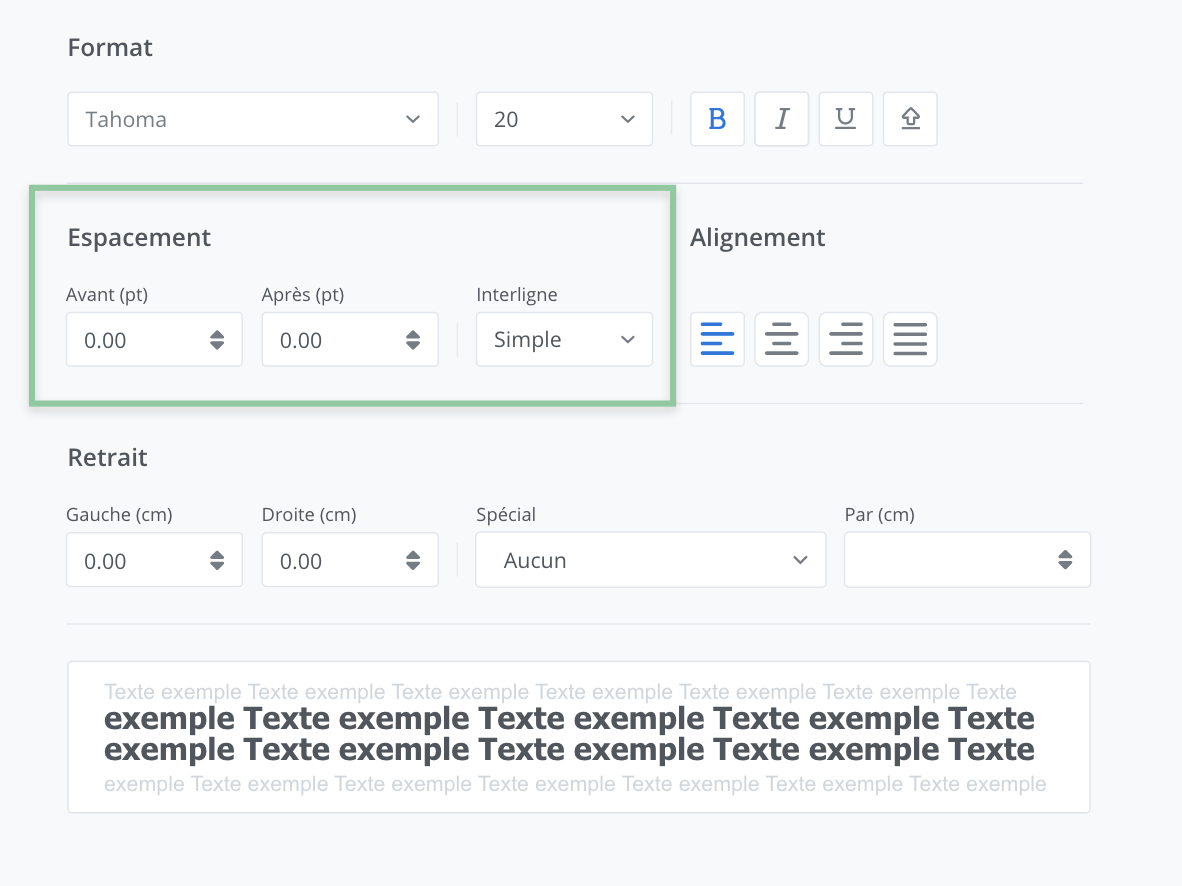
The parameters available for spacing customization are, in reading order, spacing before, spacing after, and line spacing.
To make a change, use the corresponding drop-down menus. Note that all measurements are indicated in points (pt).
It is possible to adjust the measurements precisely using the control buttons provided for this purpose. They allow automatic increments of one-tenth (0.10pt).
See the preview window to view the effect of these changes.
(3) Modify alignment settings
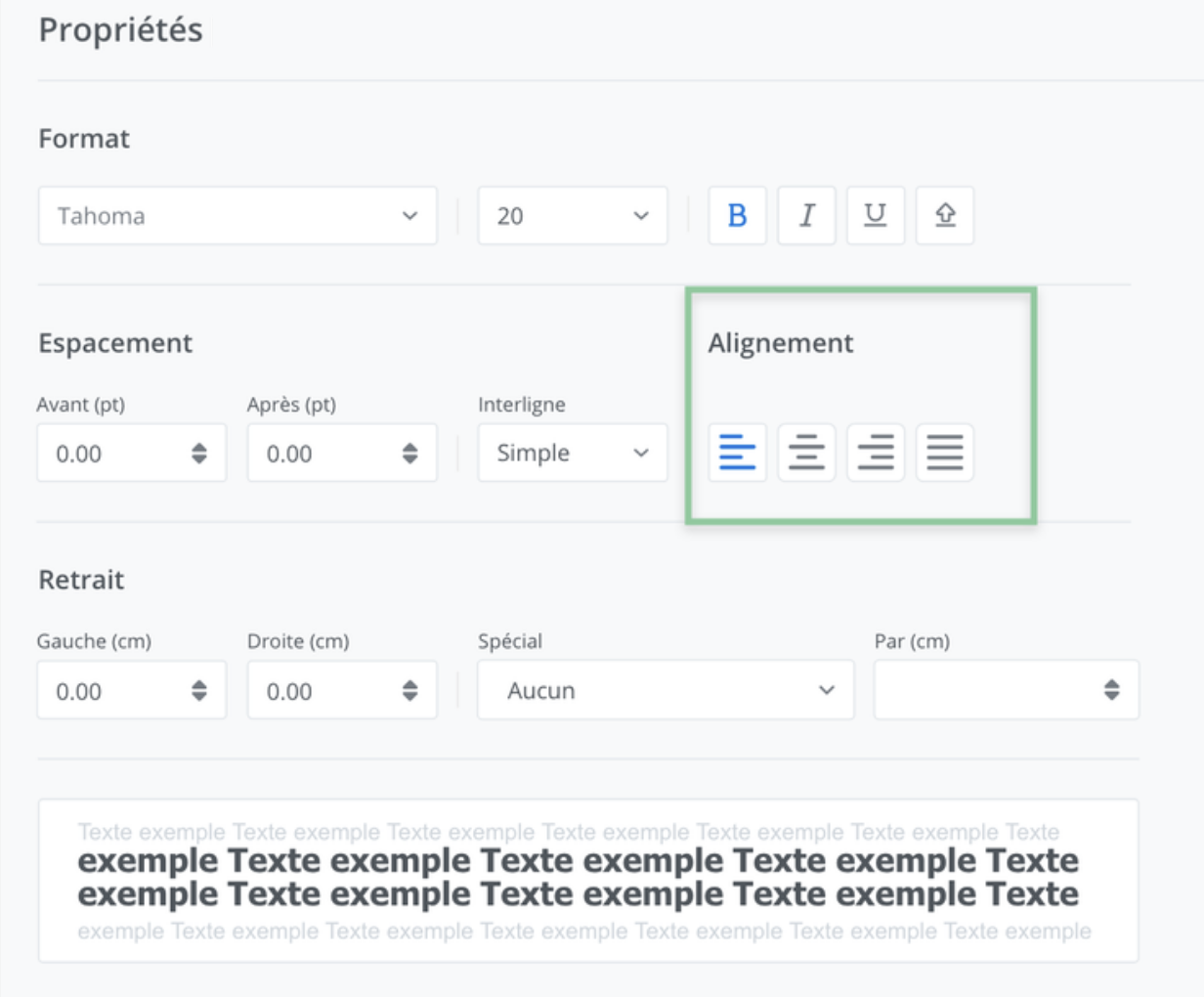
The parameters available for alignment customization are, in reading order, right-aligned (default option), centered, left-aligned, and justified.
To modify them, click the corresponding buttons to activate them.
See the preview window to view the effect of these changes.
(4) Modify indentation settings
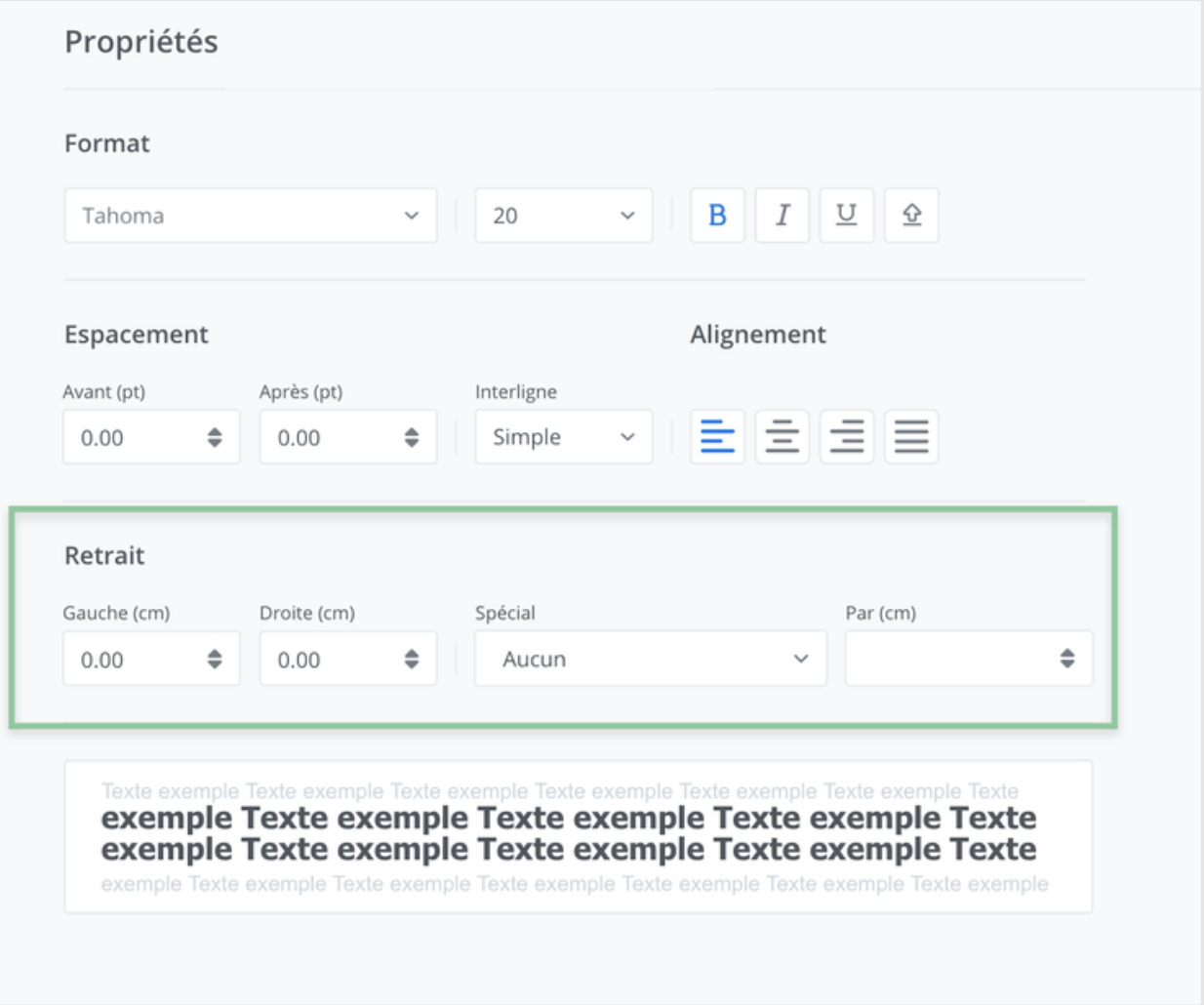
The parameters available for indent customization are, in reading order, indent from the left, indent from the right, and special indent.
To modify them, you can enter the measurements manually or use the corresponding drop-down menus, as applicable. Note that all measurements are indicated in centimeters (cm).
It is possible to adjust the measurements precisely using the control buttons provided for this purpose. They allow automatic increments of one-tenth (0.10cm).
Special indentation
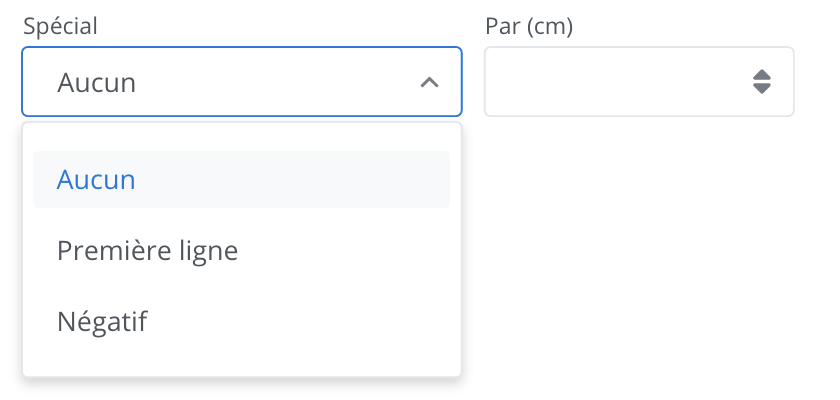
To add a special indent, use the drop-down menu to select the desired type of indent. The available indents are first line indent and negative indent.
Once the type is selected, it becomes possible to manually enter the desired value in centimeters (cm) in the By (cm) field.
It is possible to adjust the measurements precisely using the control buttons provided for this purpose. They allow automatic increments of one-tenth (0.10cm).
See the preview window to view the effect of these changes.
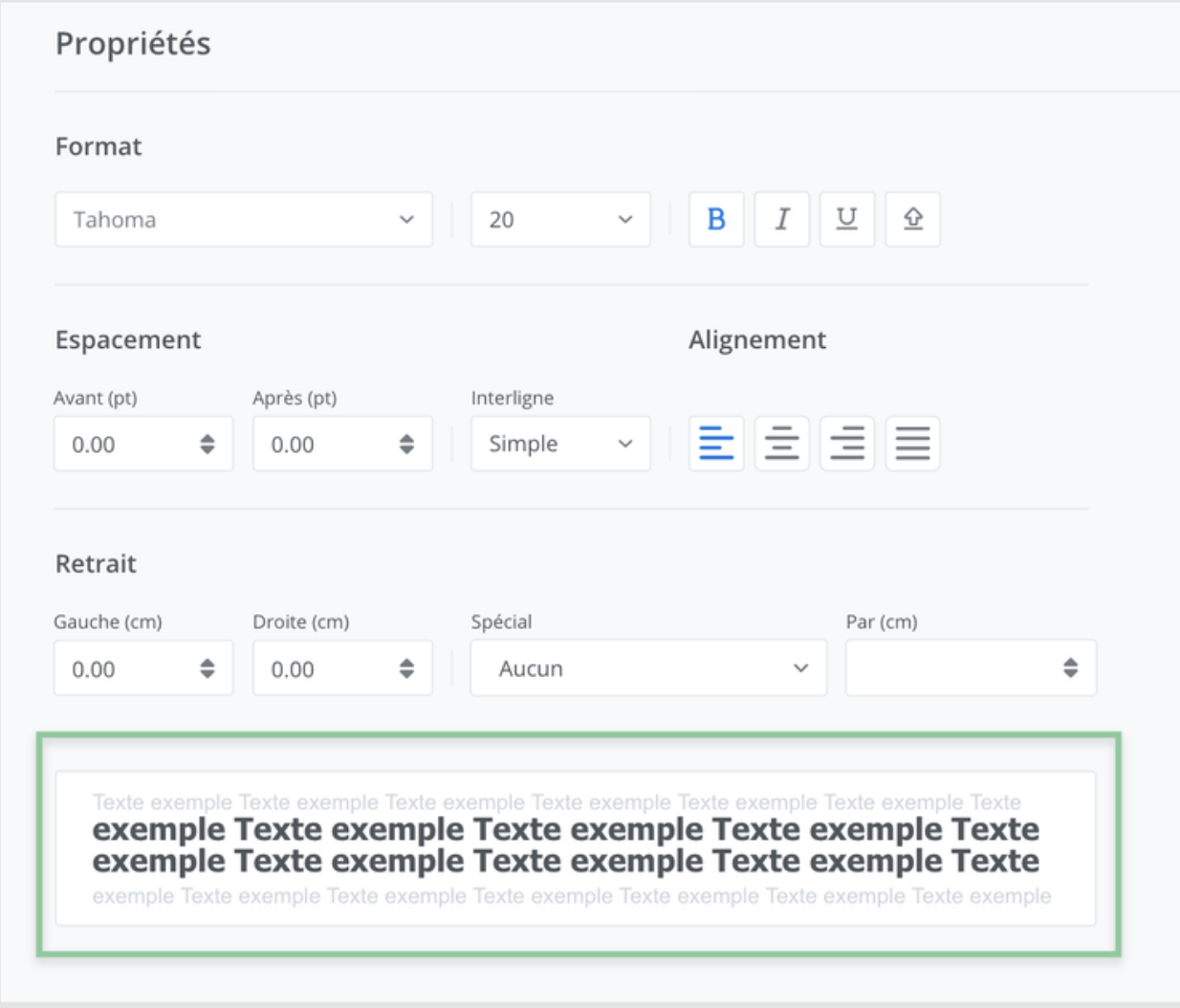
Modify the normal text style
Three tools are offered to customize the style:
(1) format settings,
(2) the Apply to all styles button,
(3) a preview window.
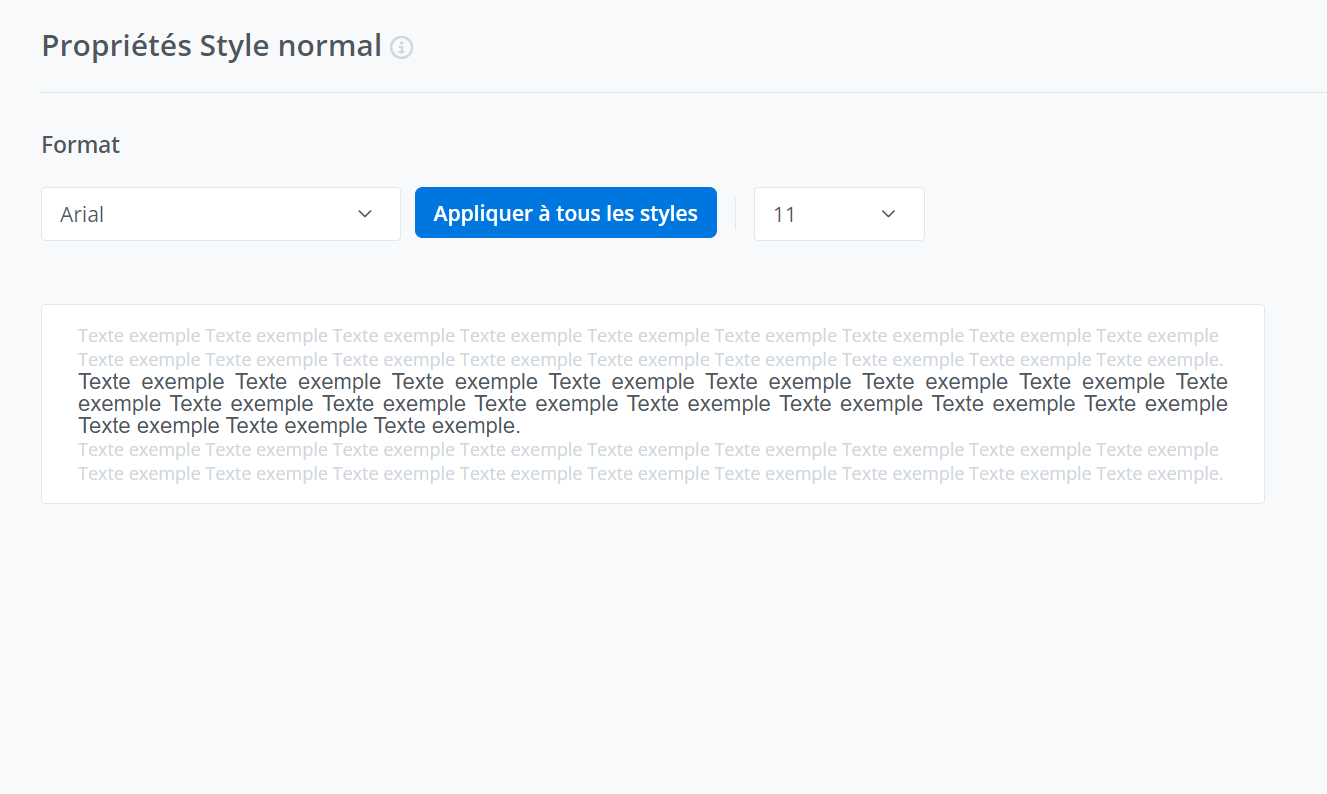
Normal text style settings
The parameters available for format customization are, in reading order, the font, the Apply to all styles button, and the text size.

To make a change, use the corresponding drop-down menus or click the corresponding buttons to activate them, as applicable.
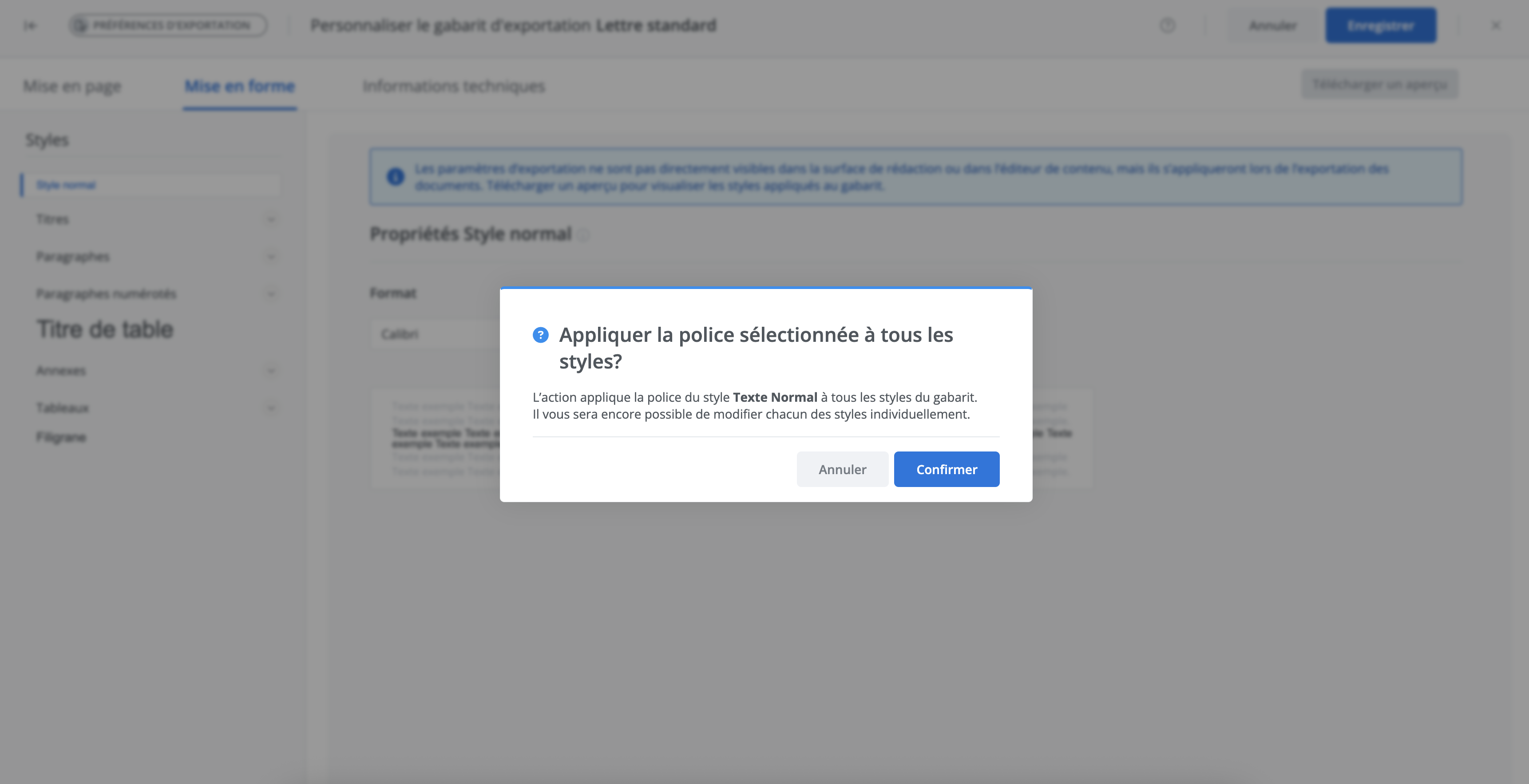
Apply to all styles button
As its name suggests, the button allows you to apply the selected font to all styles. In the previous image, this means applying the Arial font to the entire document.
A dialog box will ask for confirmation before applying the font to all the styles in the template.
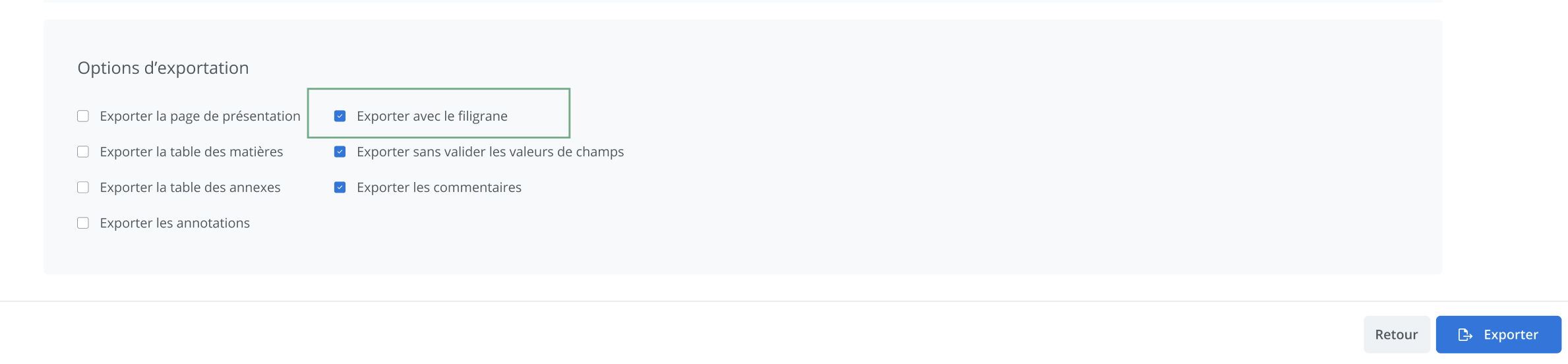
Modify the watermark style
The watermark is displayed in a project when the Export with watermark option is selected during export. It can be modified to customize what will be displayed in your documents.
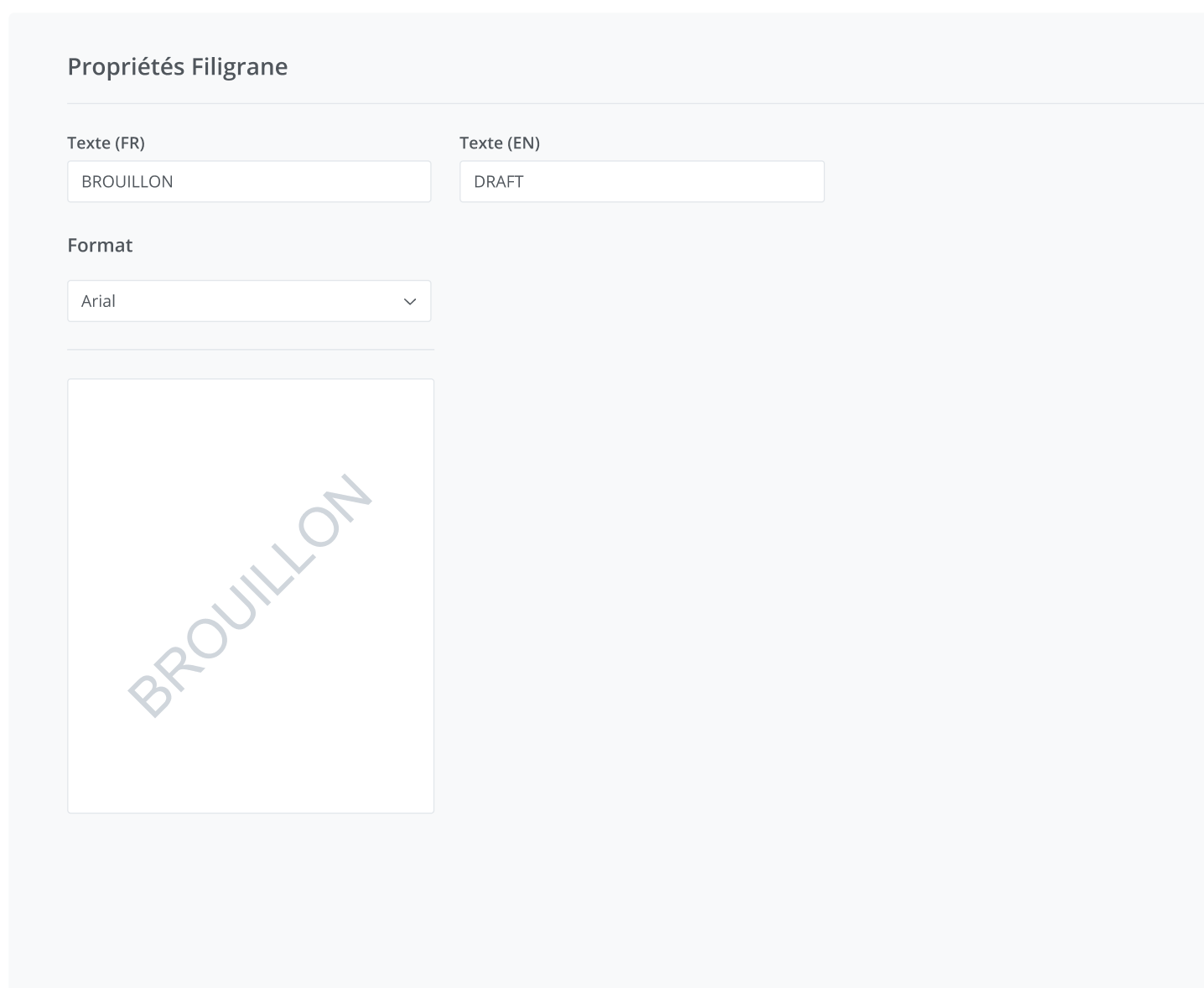
Three tools are offered to customize the style:
(1) entering the label to be displayed,
(2) adjusting its format (the font),
(3) a preview window*.
The preview window displays the label entered in the French language field only.
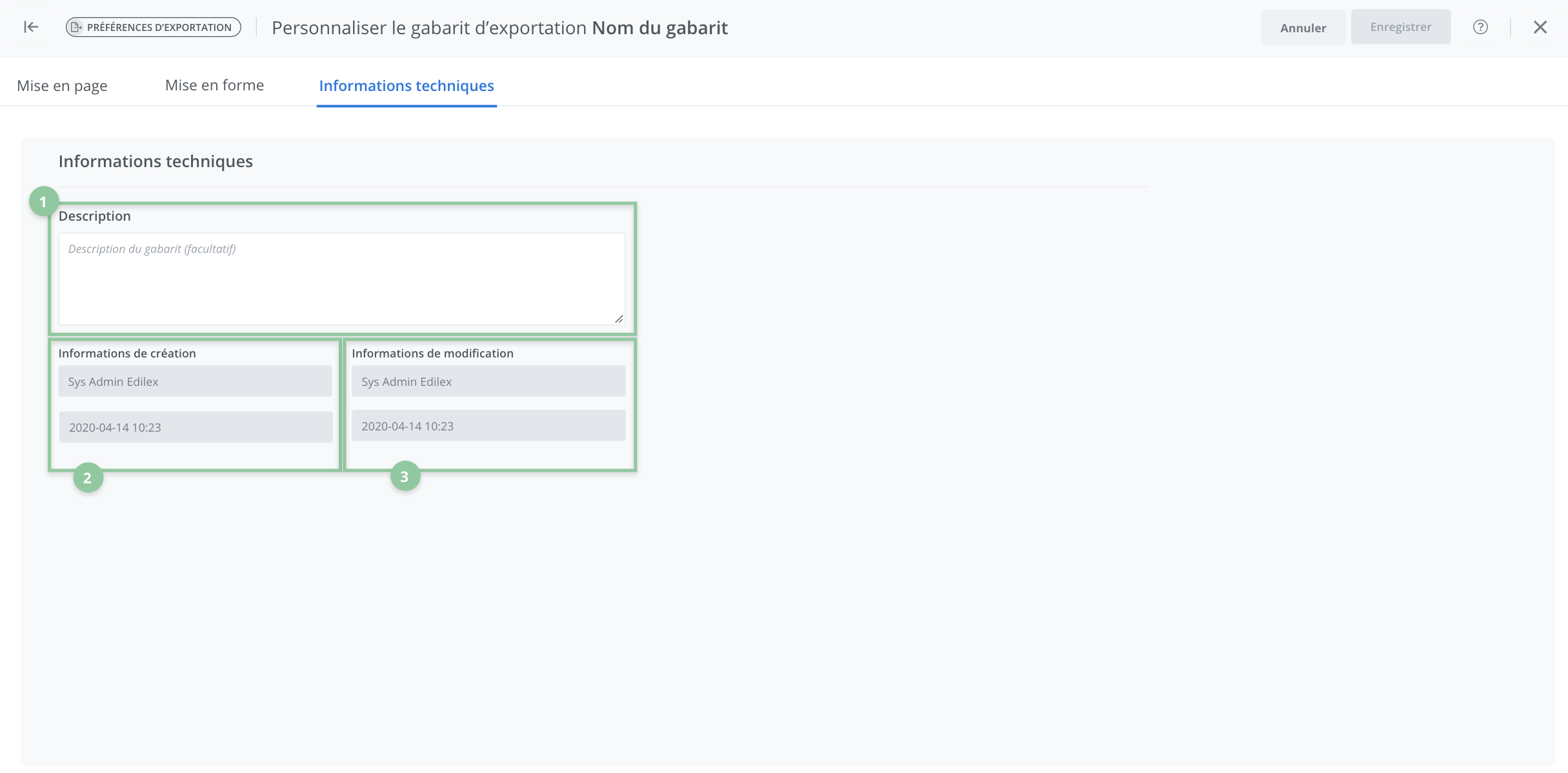
View technical information
To view the template's technical information, simply navigate to the corresponding tab from the header.
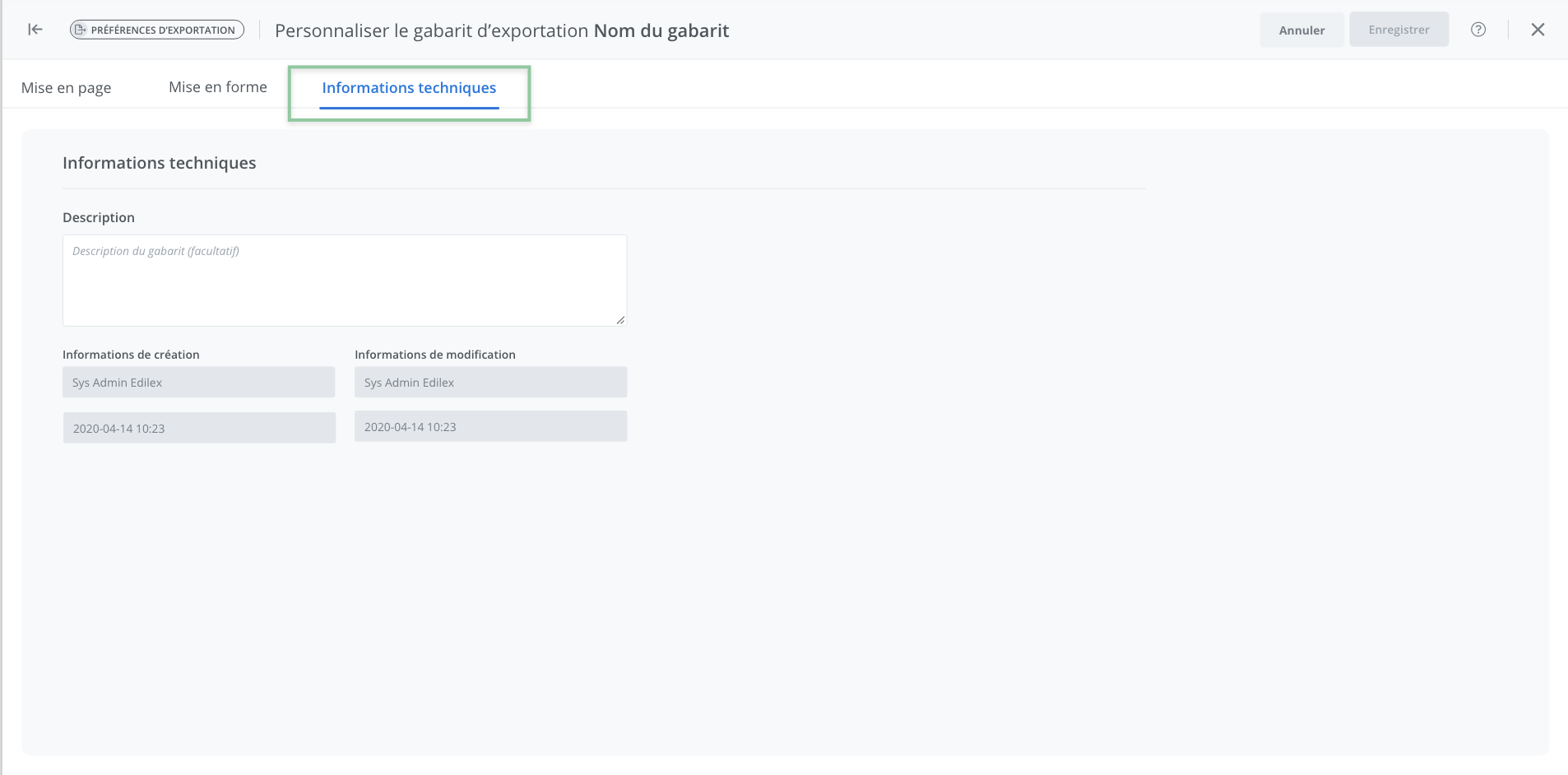
The technical information for a template provides three types of information:
(1) the template description,
(2) the template creation information,
(3) the modification information.
(1) The template description
The template description is optional information, but it is quite important, as it allows you to know certain details following a modification or customization of a template, which can make it easier to use.
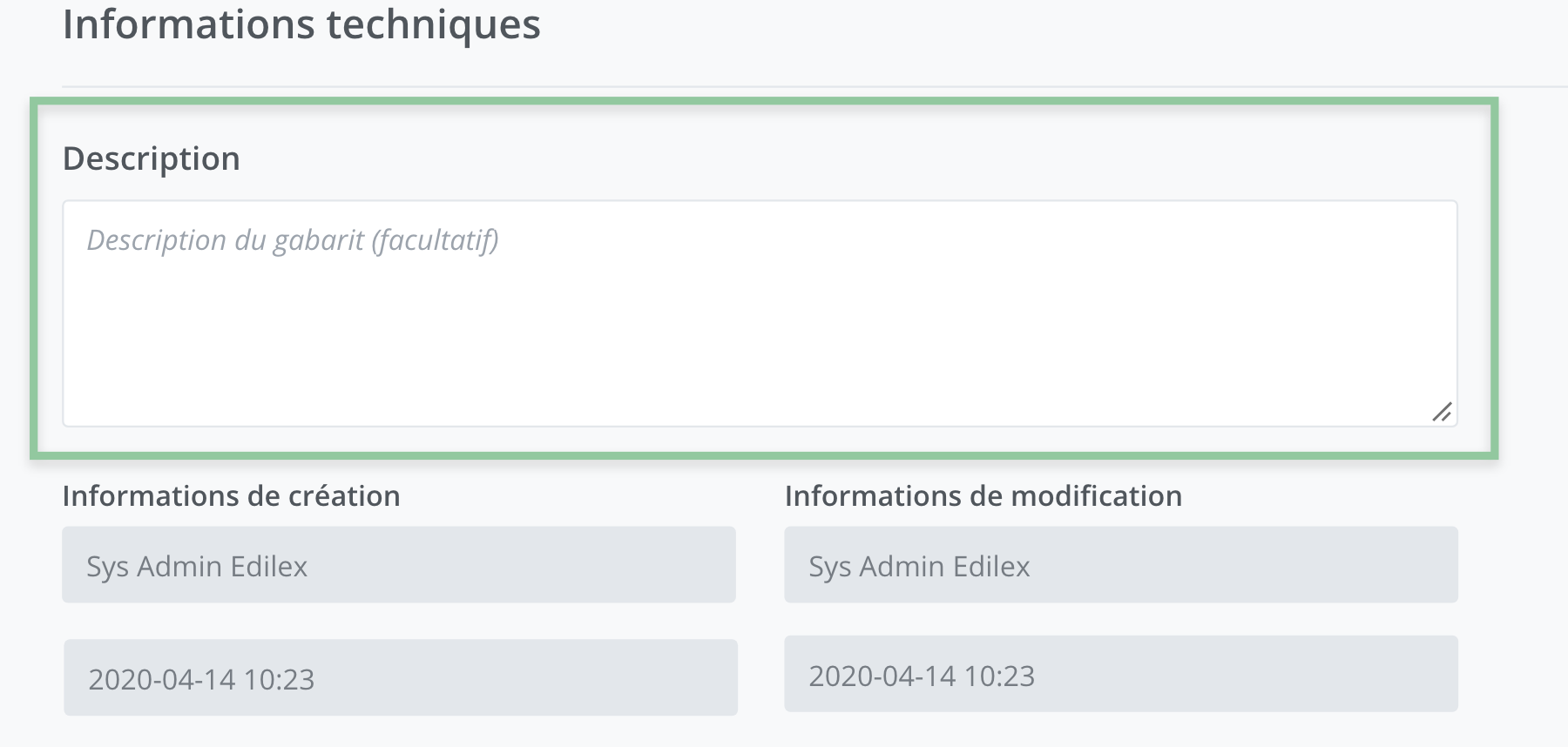
To modify it, simply enter the desired information in the text box provided for this purpose. The description will then be visible on the corresponding template tile in the list of templates.

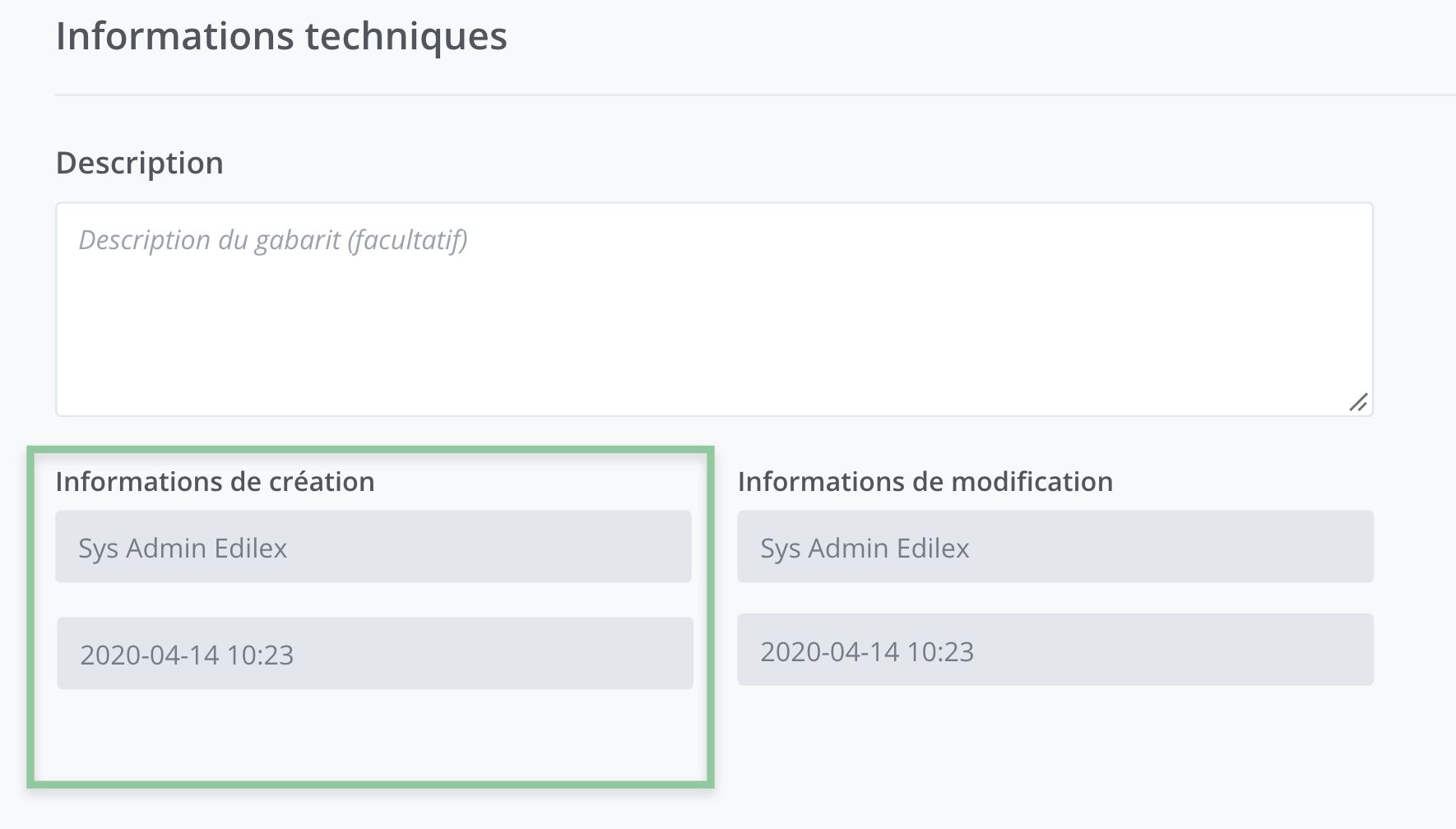
(2) The template creation information
The creation information section presents two specific pieces of information:
-
the user who created the template,
-
the creation date.
The order of the documents cannot be modified.
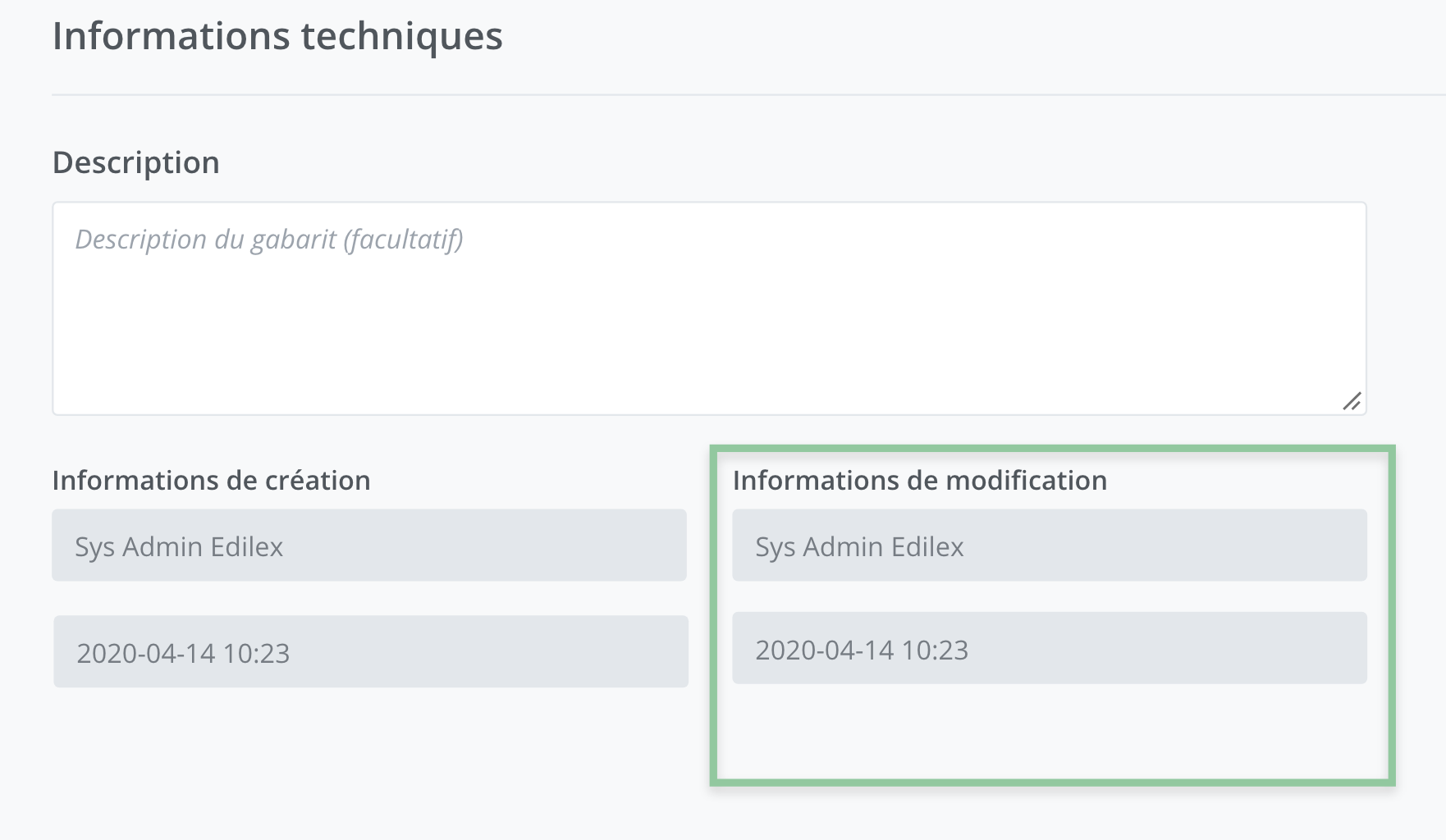
(3) The modification information
The modification information section presents two specific pieces of information:
-
the last user who modified the template,
-
the date of the last modification.
Important Notice
Please note that this information is automatically updated only when a user modifies the template settings from the administrator profile. Changes made from the document have no effect on the saved template model.
Related articles
Read the following articles to learn more about the export template and the style changes that can be made directly in the document