Description of the Feature
A content item (section, clause, schedule) can be added in a document at the desired location, or updated if a new version is available, using the add content submode.
Steps to add content
-
Open the add content submode.

In the Document management menu of the document, click Add content.
2. Select the type of content.
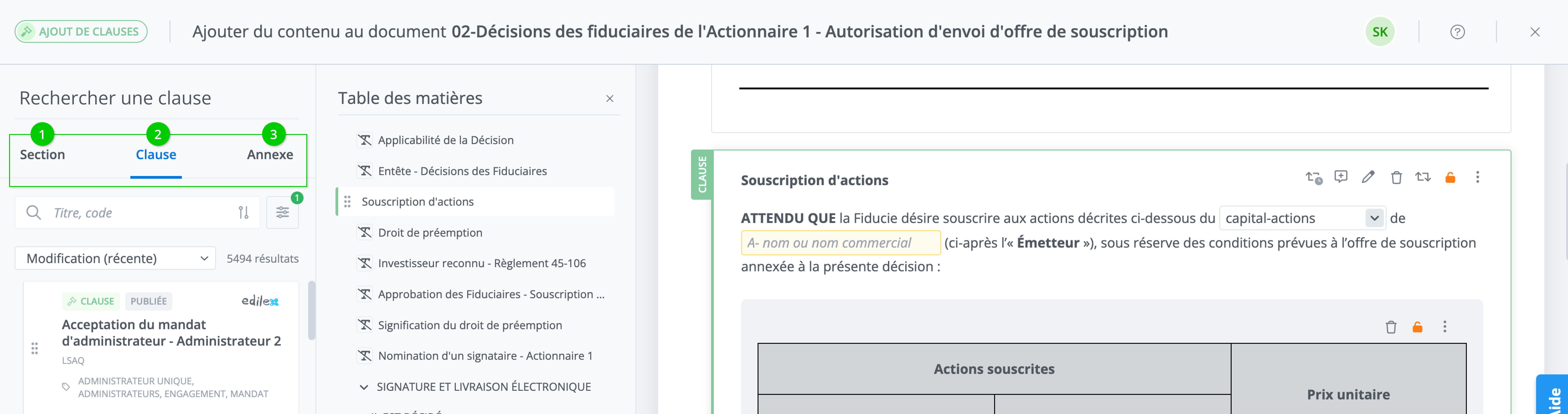
You can add three types of content in a document: a section, a clause or a schedule. The add content submode will open by default on the clauses tab.
3. Search desired content.
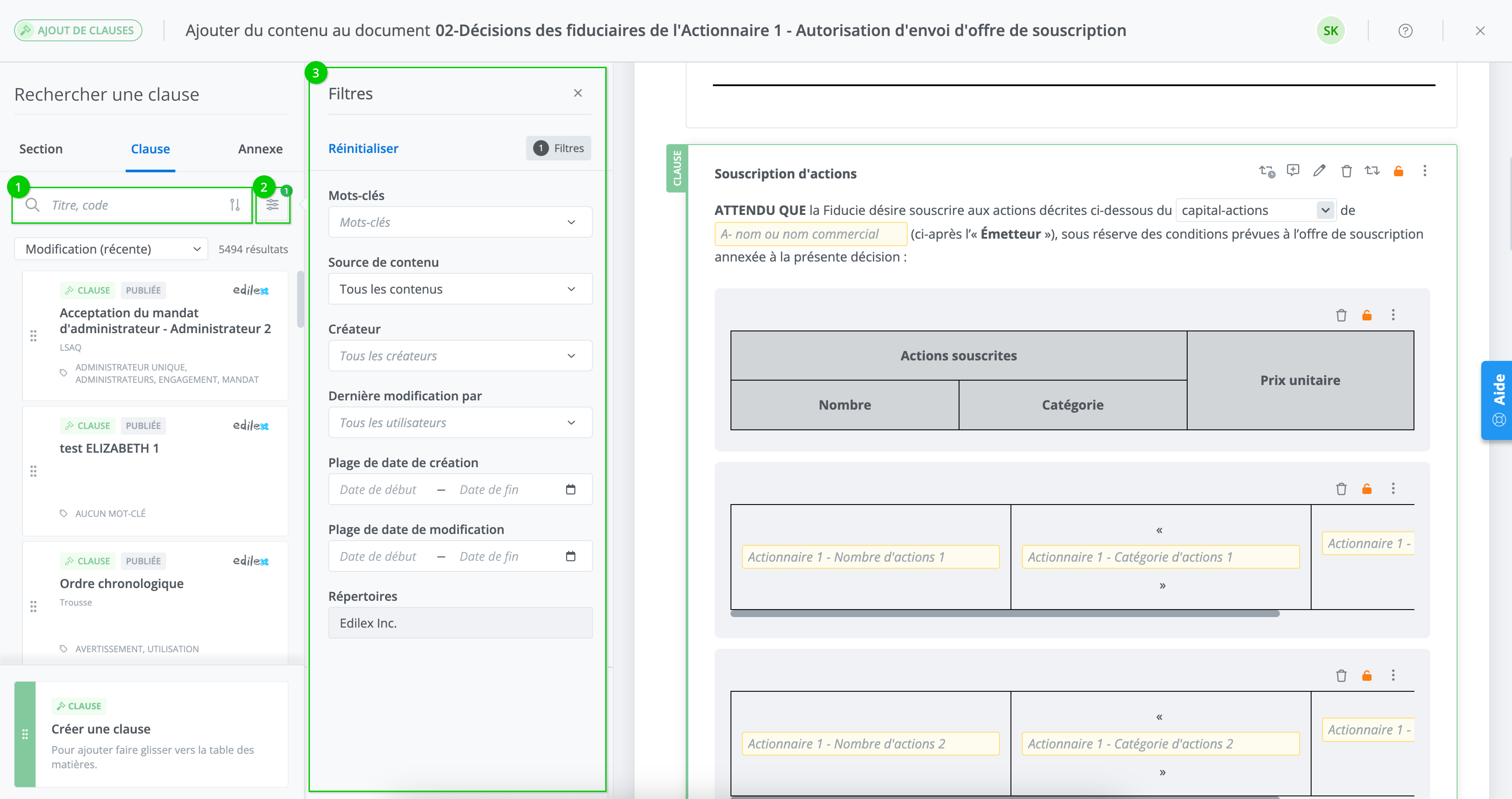
For an existing content item, search by code or by title in the search bar (1). In addition, the tags associated with a content item can be used to filter results by clicking the filter icon (2) and selecting the tags from the dropdown menu (3).
4. Select content item and place in the table of contents.
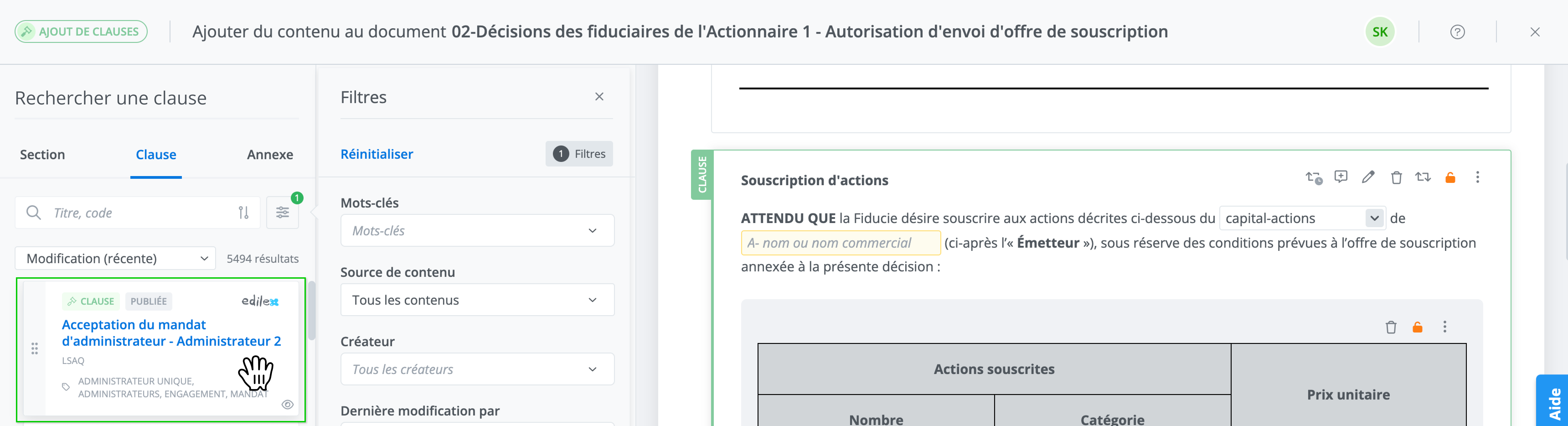
To place a content item, select it from the content list. The cursor changes to a hand icon. Hold the content item and drag it to the desired location in the table of contents.
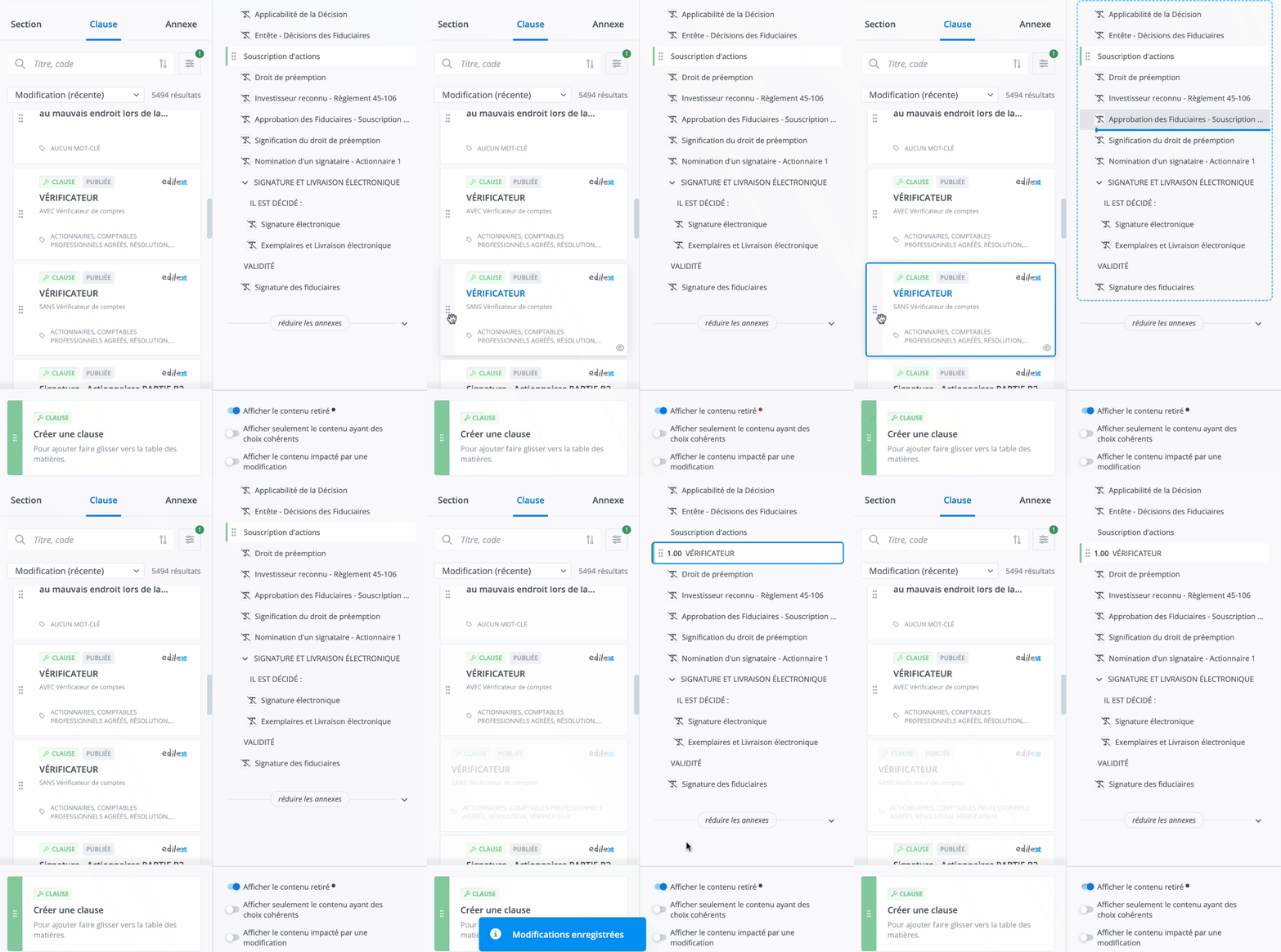
Create and add a new content item
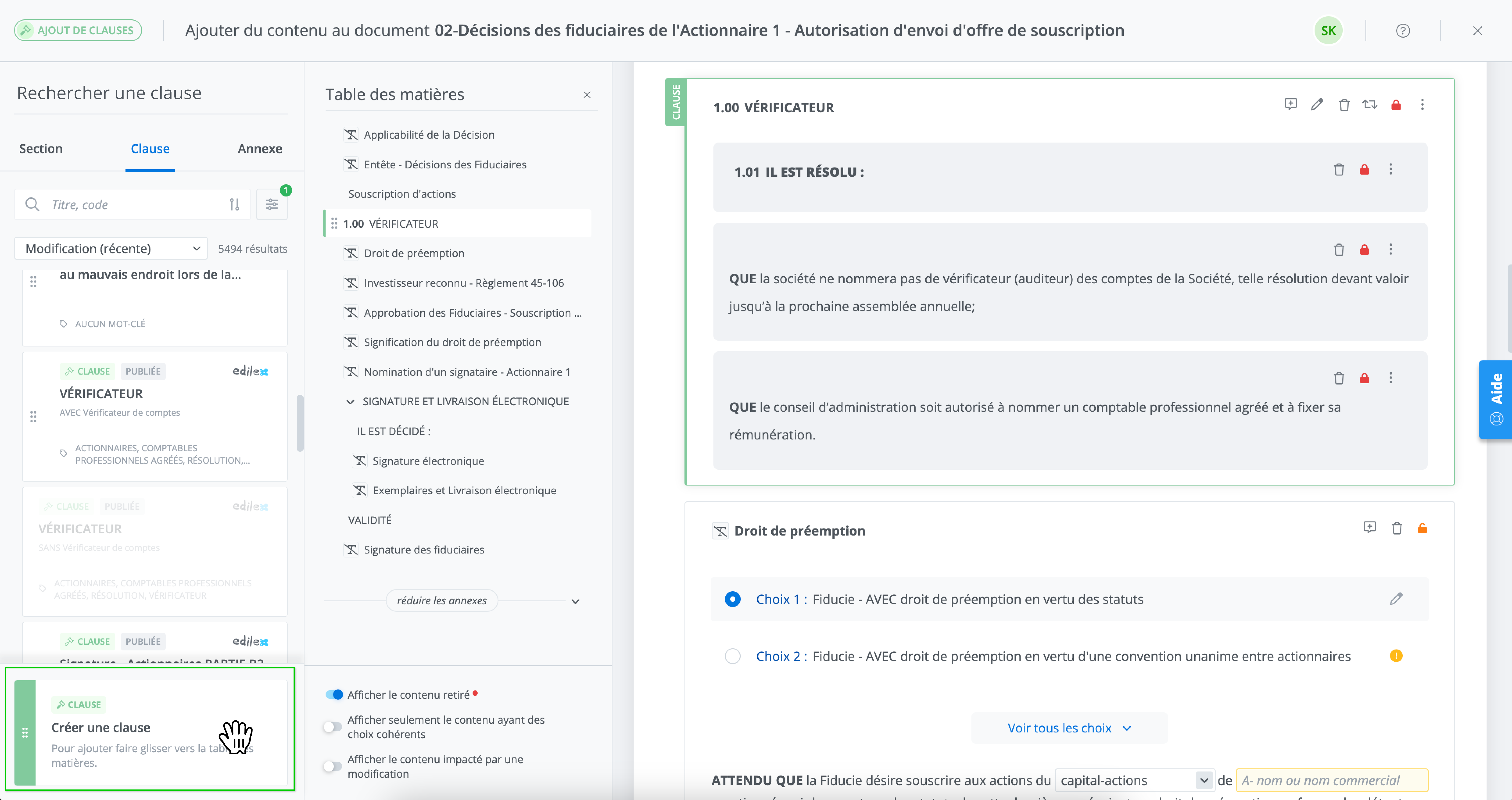
To create a new content item, first choose the type of content you want to create using the panel's tab system.
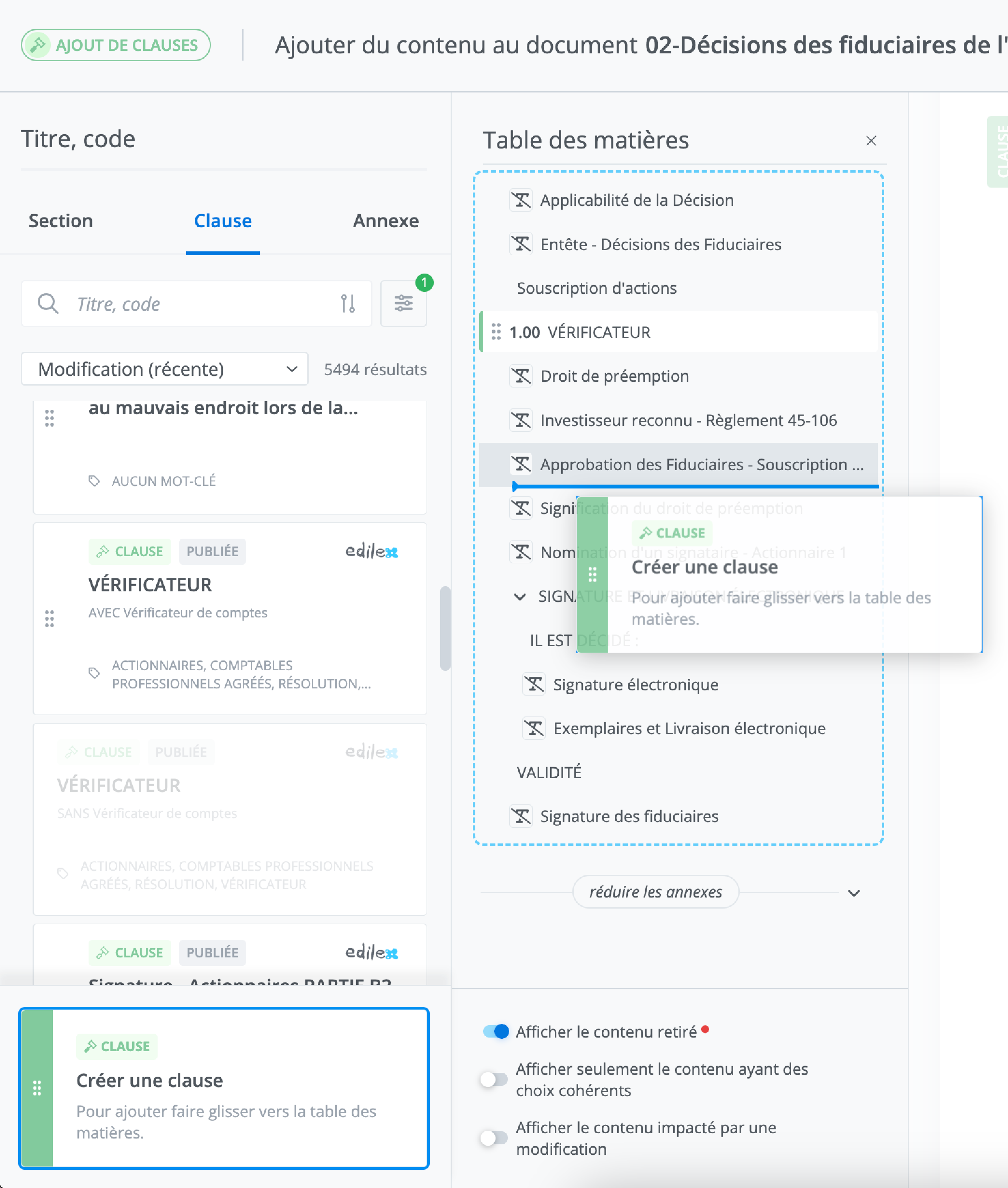
Then use the tile at the bottom of the panel Create a clause. The cursor changes to a hand icon. Hold the content item and drag it to the desired location in the table of contents.
Release the content item at the desired location, which will start the content creation process.
The add content submode opens and allows you to create the new content item.
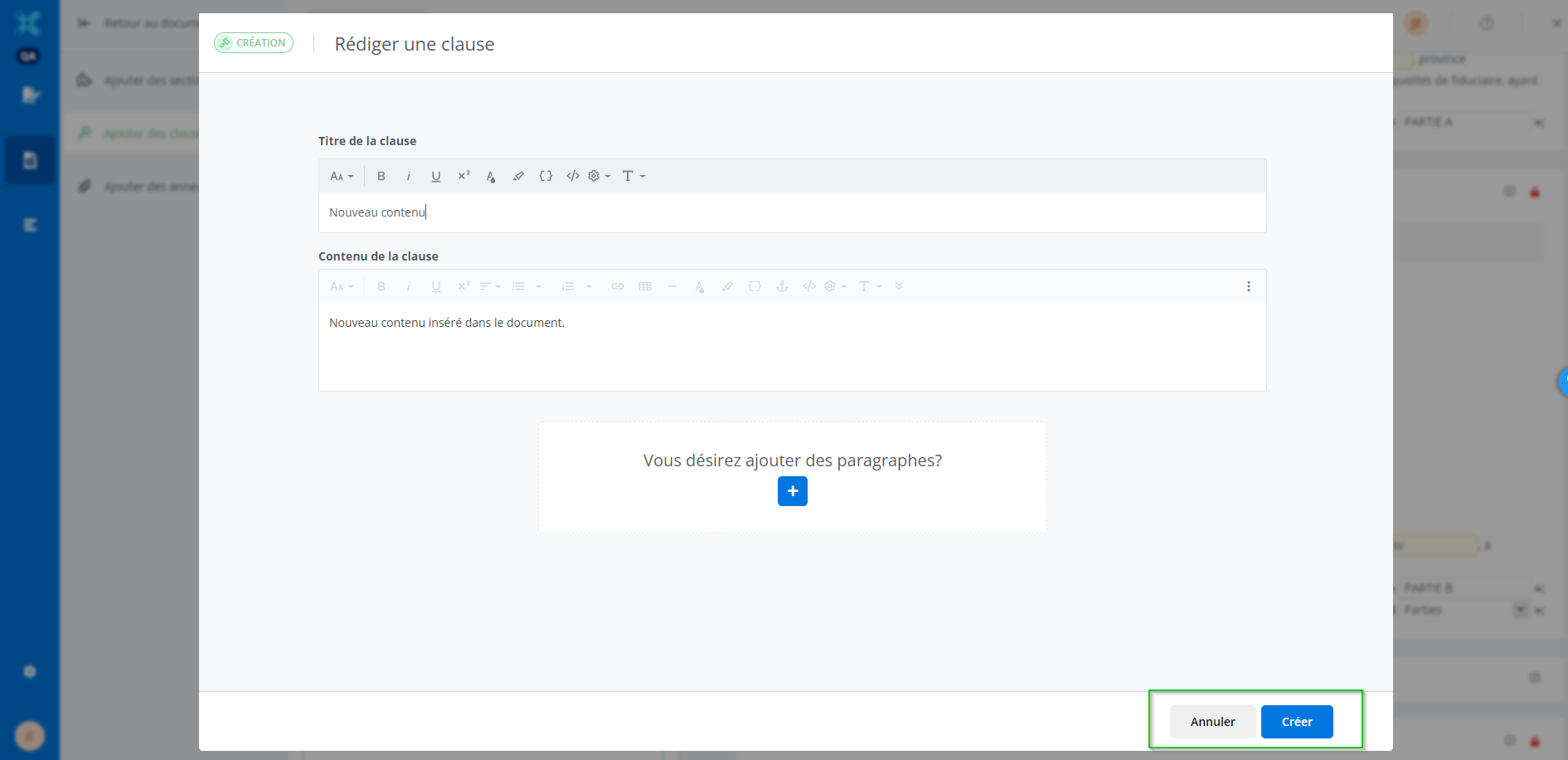
The create content item is added to the document by clicking Create. Click Cancel to cancel the creation and addition of a content item in the document.
Add an alternative
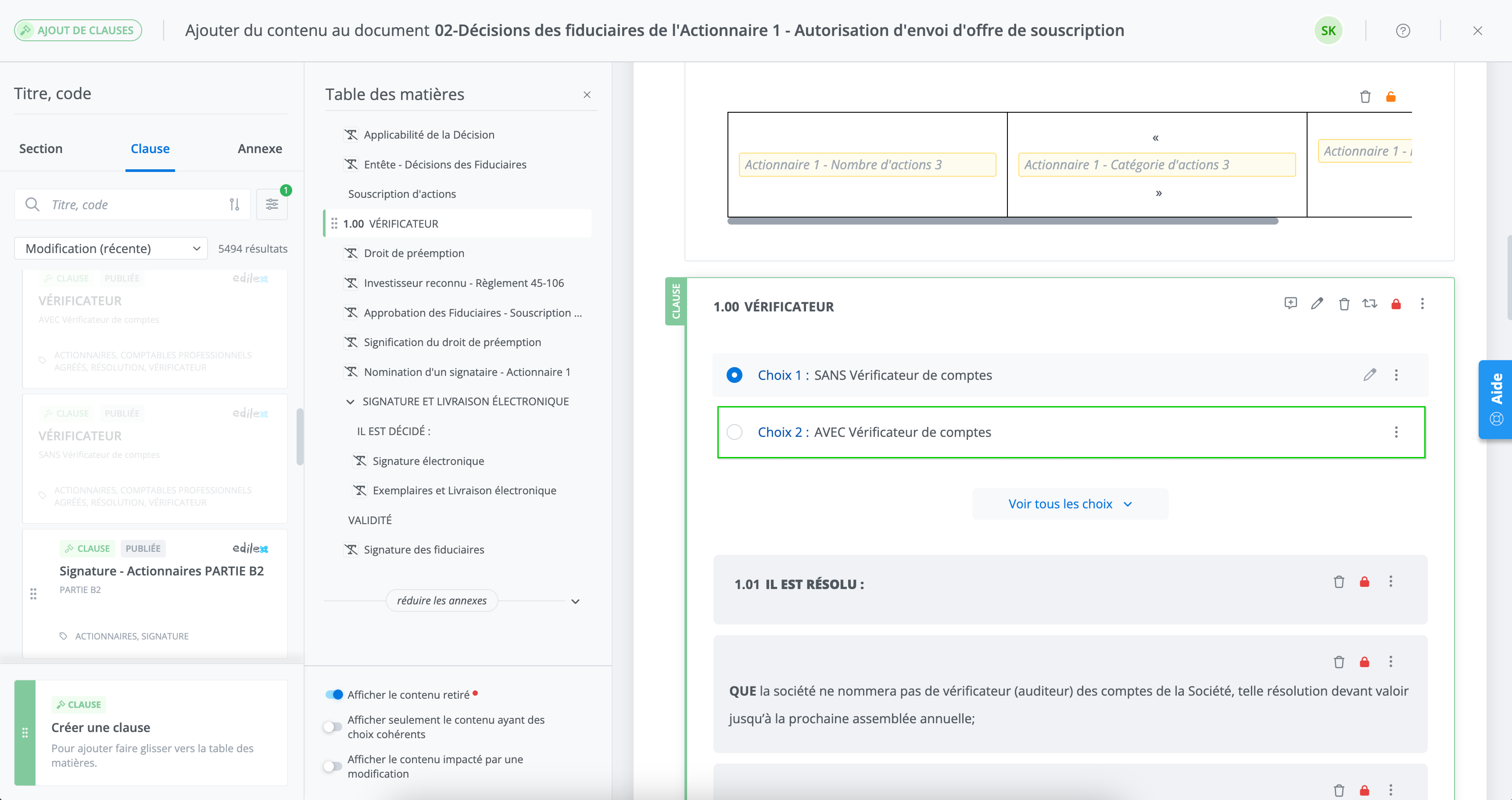
Some content items in the add content submode may be alternatives to content already present in the document. In such cases, you can drag the content to the indicated location in the table of contents to add it as an additional alternative in the document.
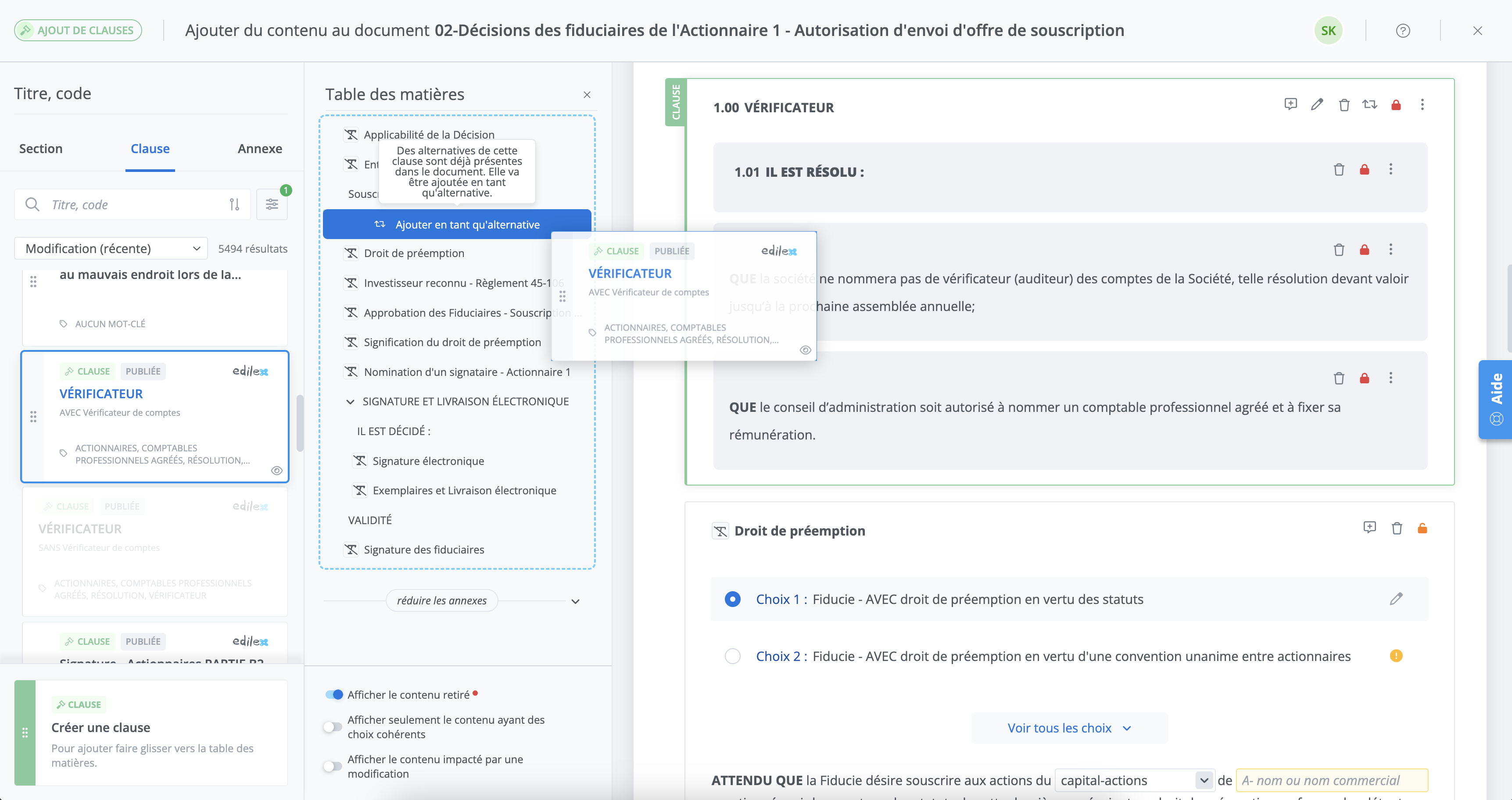
The alternative is added after the alternatives already present in the document for that content item.
Steps to update content
-
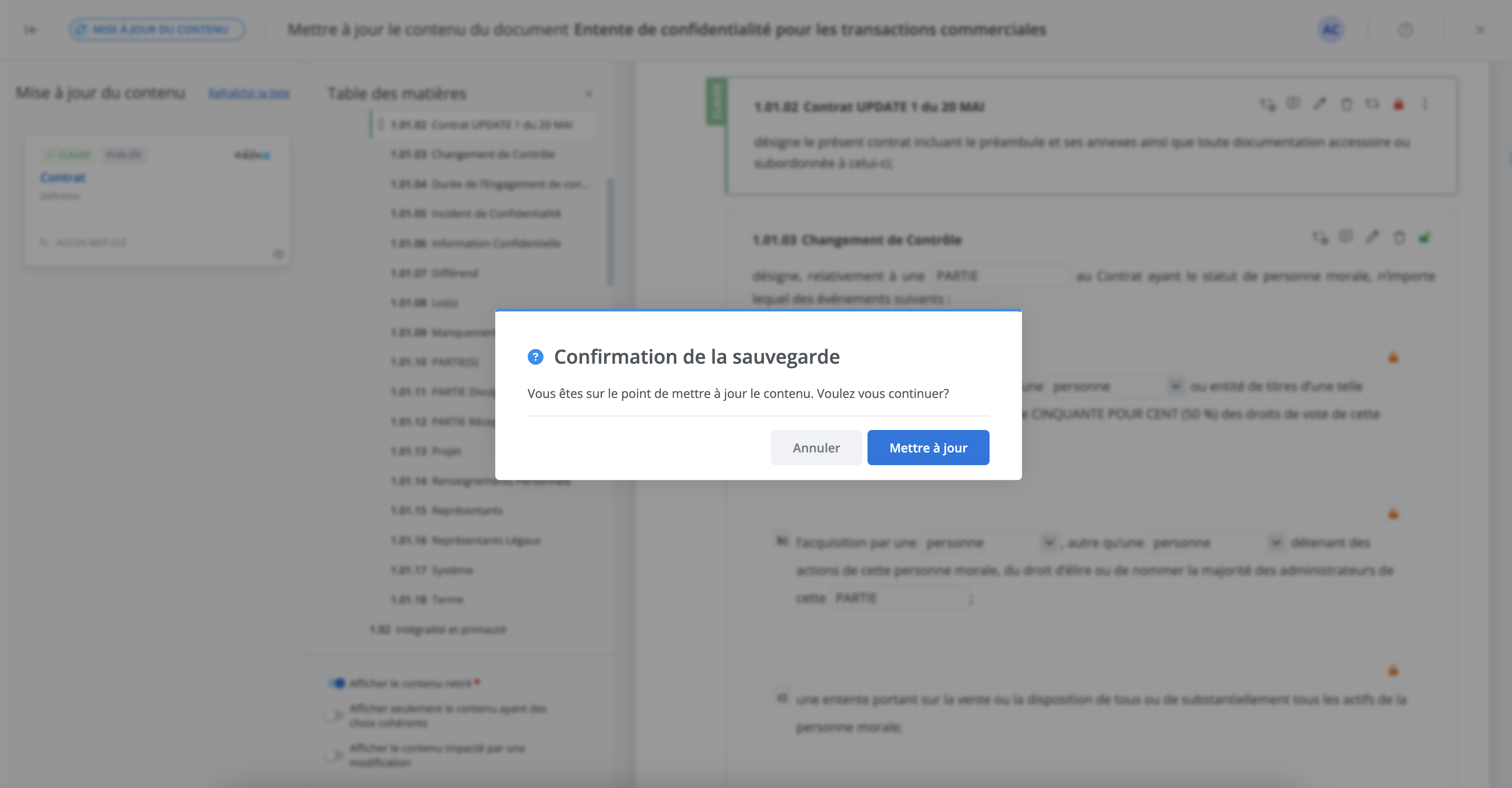
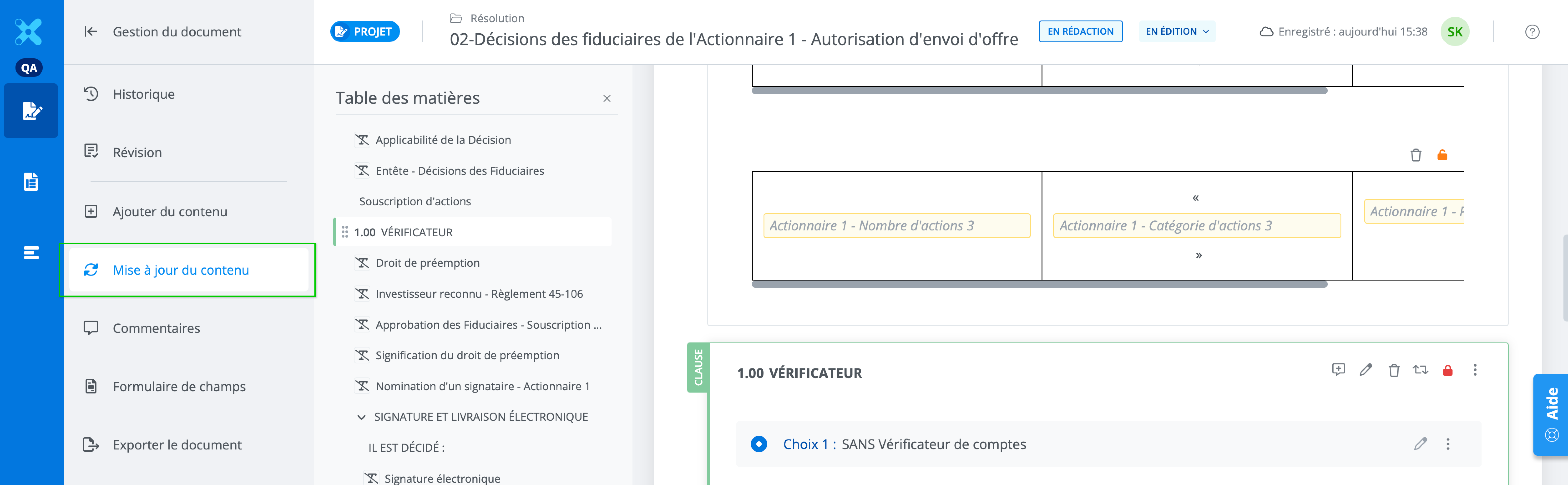
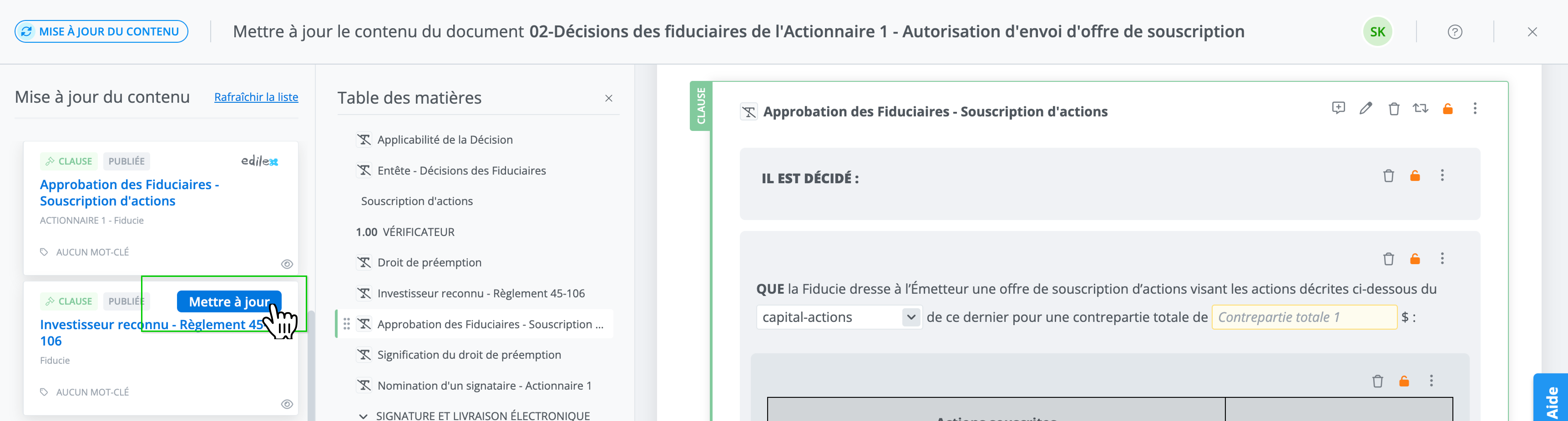
In the Document management menu of the document, click Update content to open the content update submode.
-
The content update submode contains the list of all content items (sections, clauses, schedules) present in the document for which there is a more recent version.
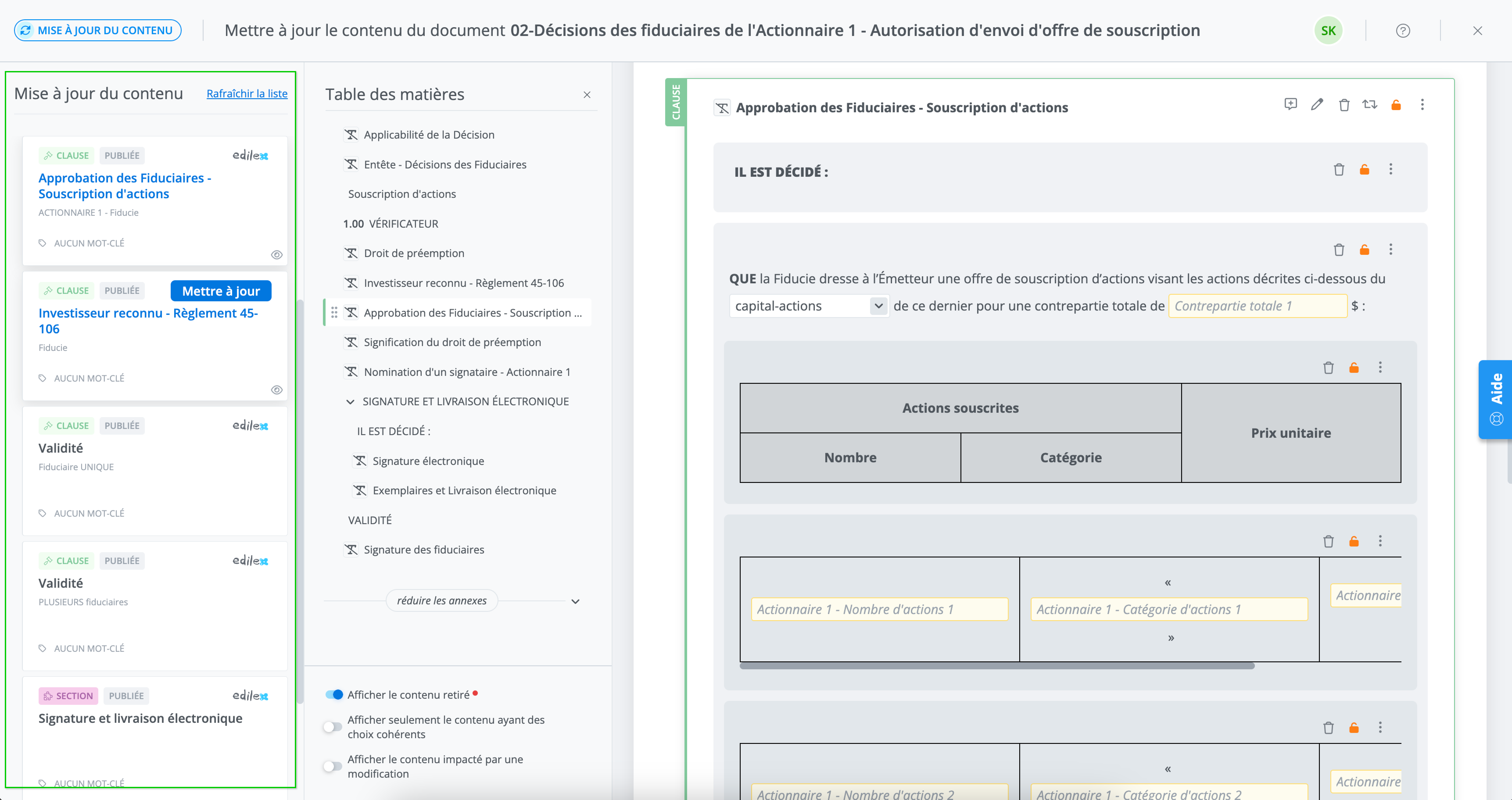
3. To update a content item, click Update.
-
To confirm the update, click Update or Cancel to stop the update.