
Summary Description of the Feature
The Export zip feature allows you to export all EDX documents of the project in a single process.
It is possible to select the documents to export as well as the export options that apply to each document.
Access to Feature
Access the export window by clicking the Export zip button in the main template management menu or the main document management menu.
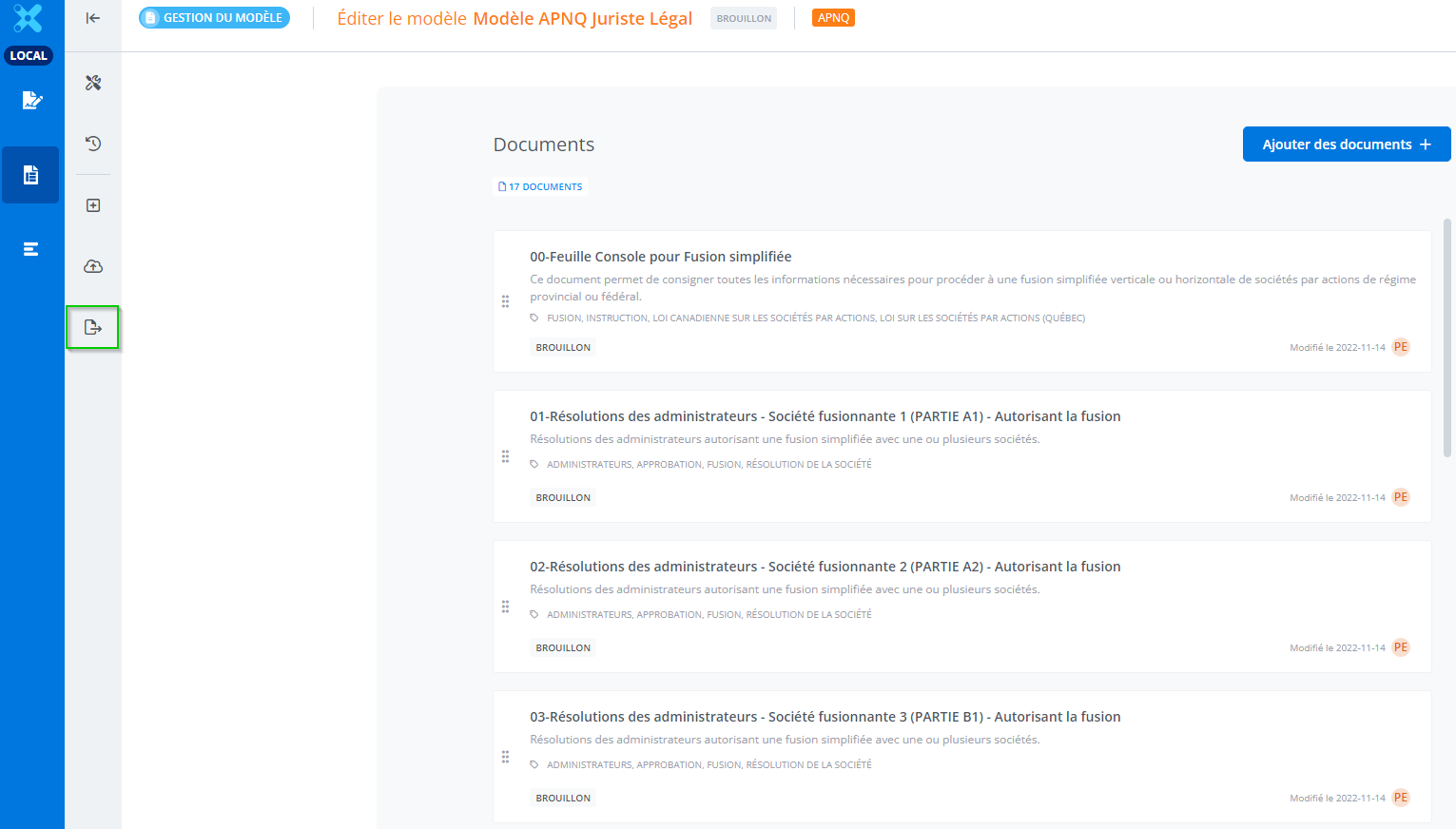
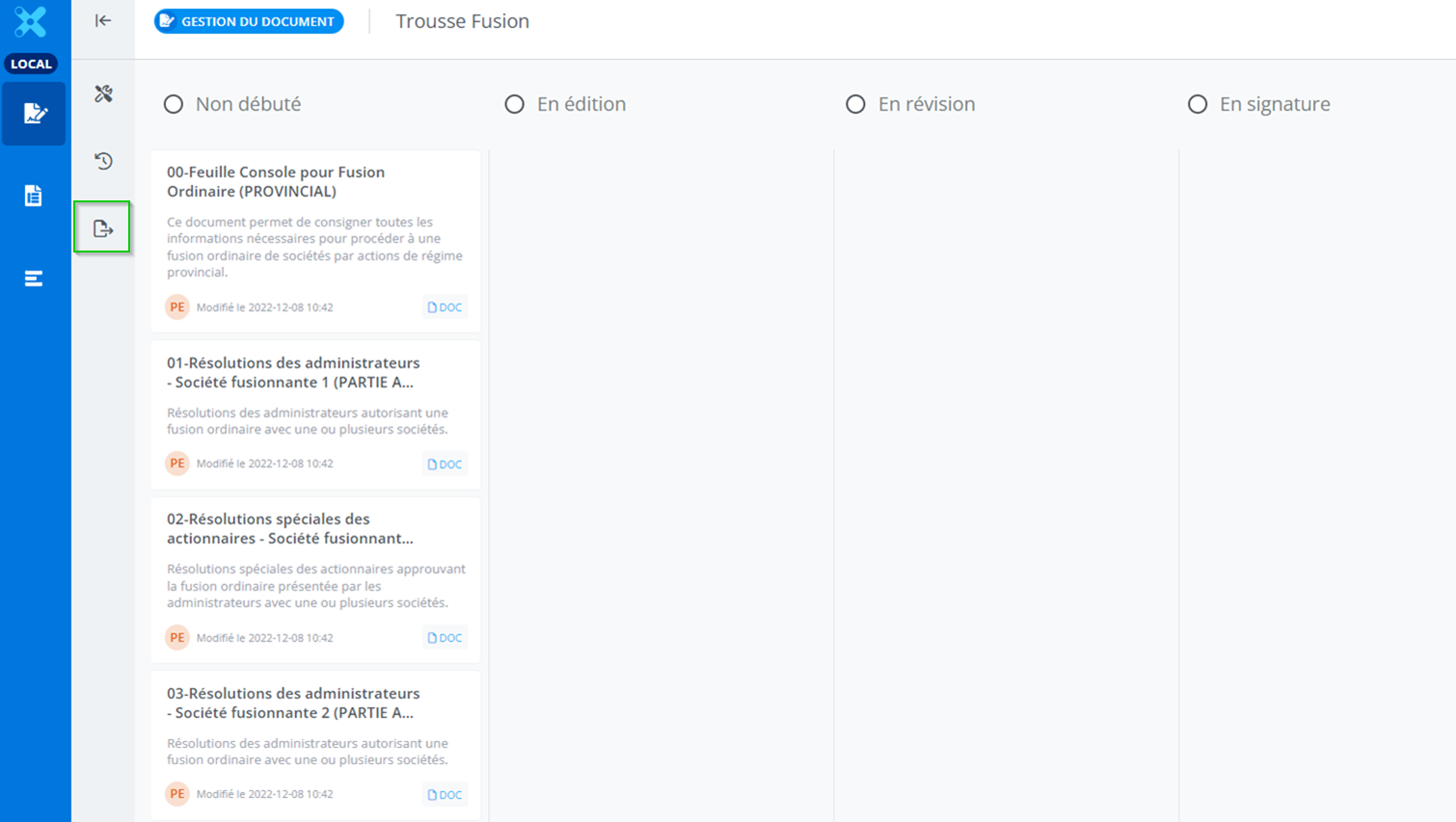
The Export zip button is only available for a kit.
Detailed Description of the Feature
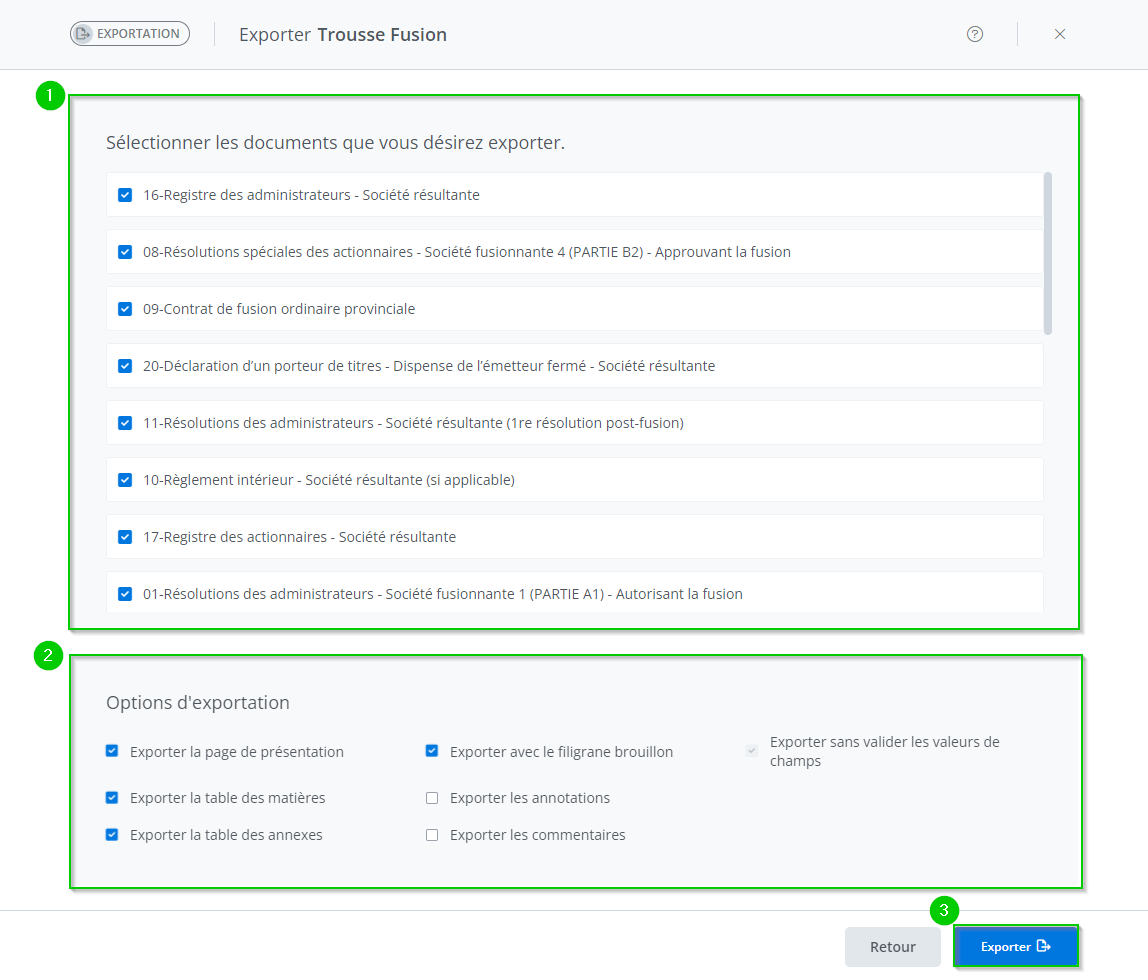
Description of the export window
-
The list of documents to export
-
The list of export options
-
The Export button
The list of documents to export
Click on the button ☑️ next to a document in the selection list to include this document in the export process.
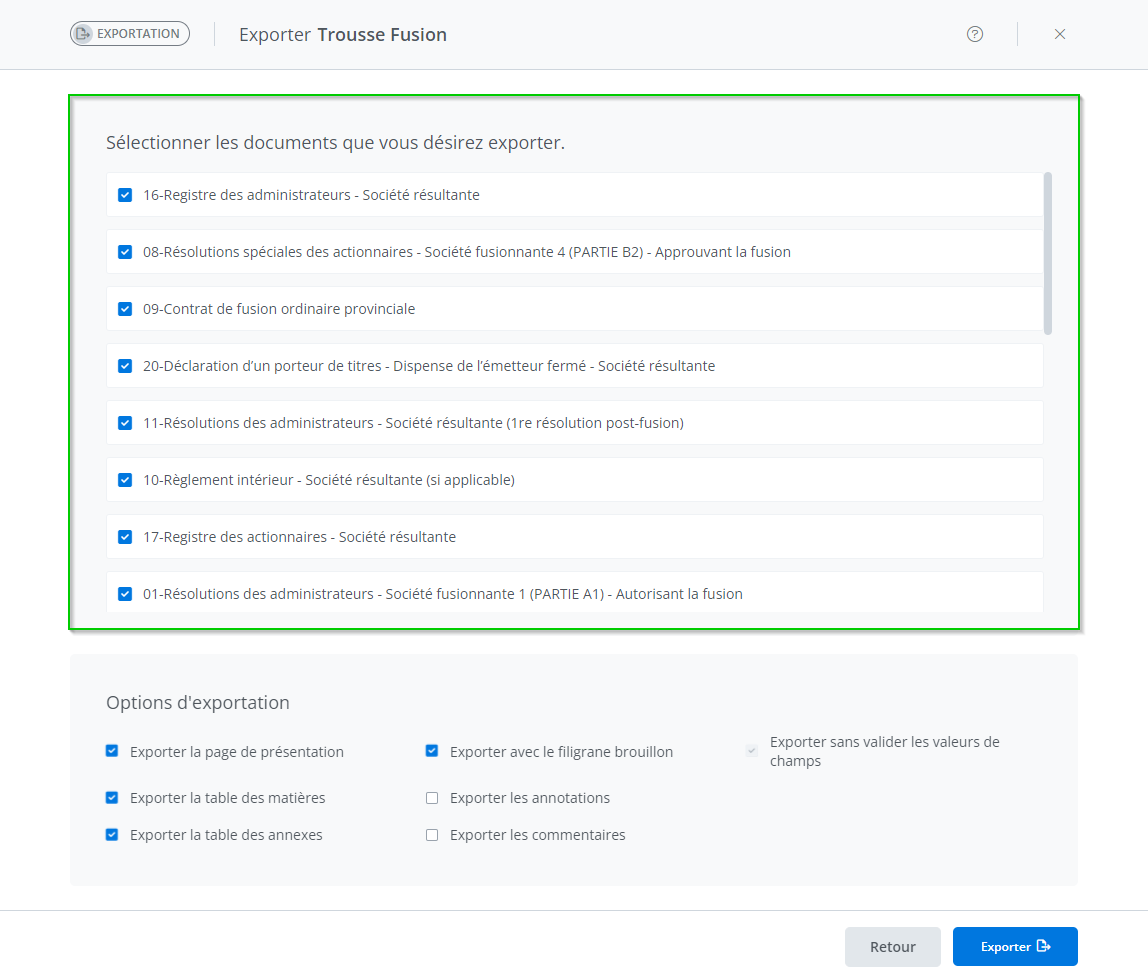
Documents are pre-selected in the list based on their selection status in the document export window.
-20221208-200919.png?cb=6cb2350fe50ef1aa026a86cf9f10ebdf)
The list of export options
Click on the button next to ☑️ an export option in the list allows all documents in the kit to be exported with that option.
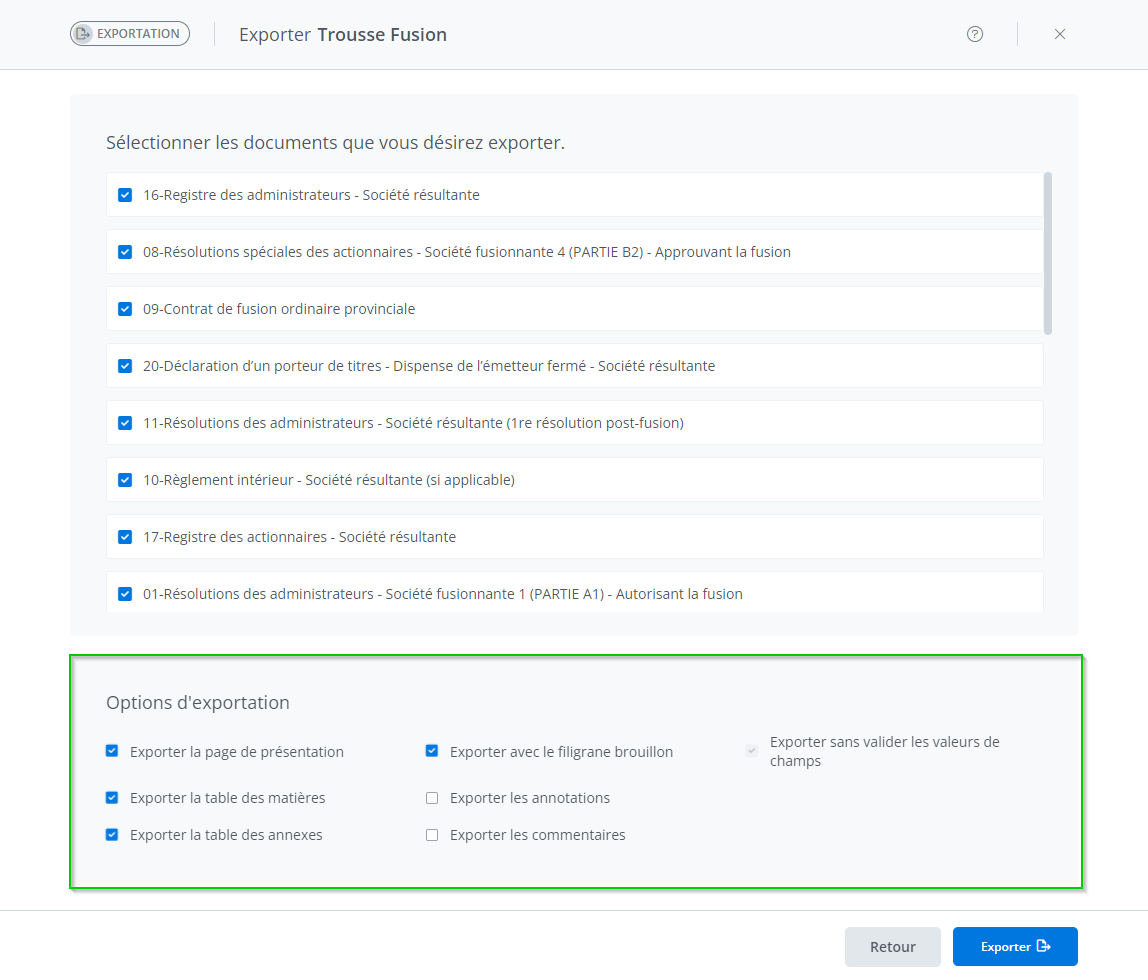
The "Export without validating fields and cross-references" option is selected by default and is read-only.
Exporting a kit
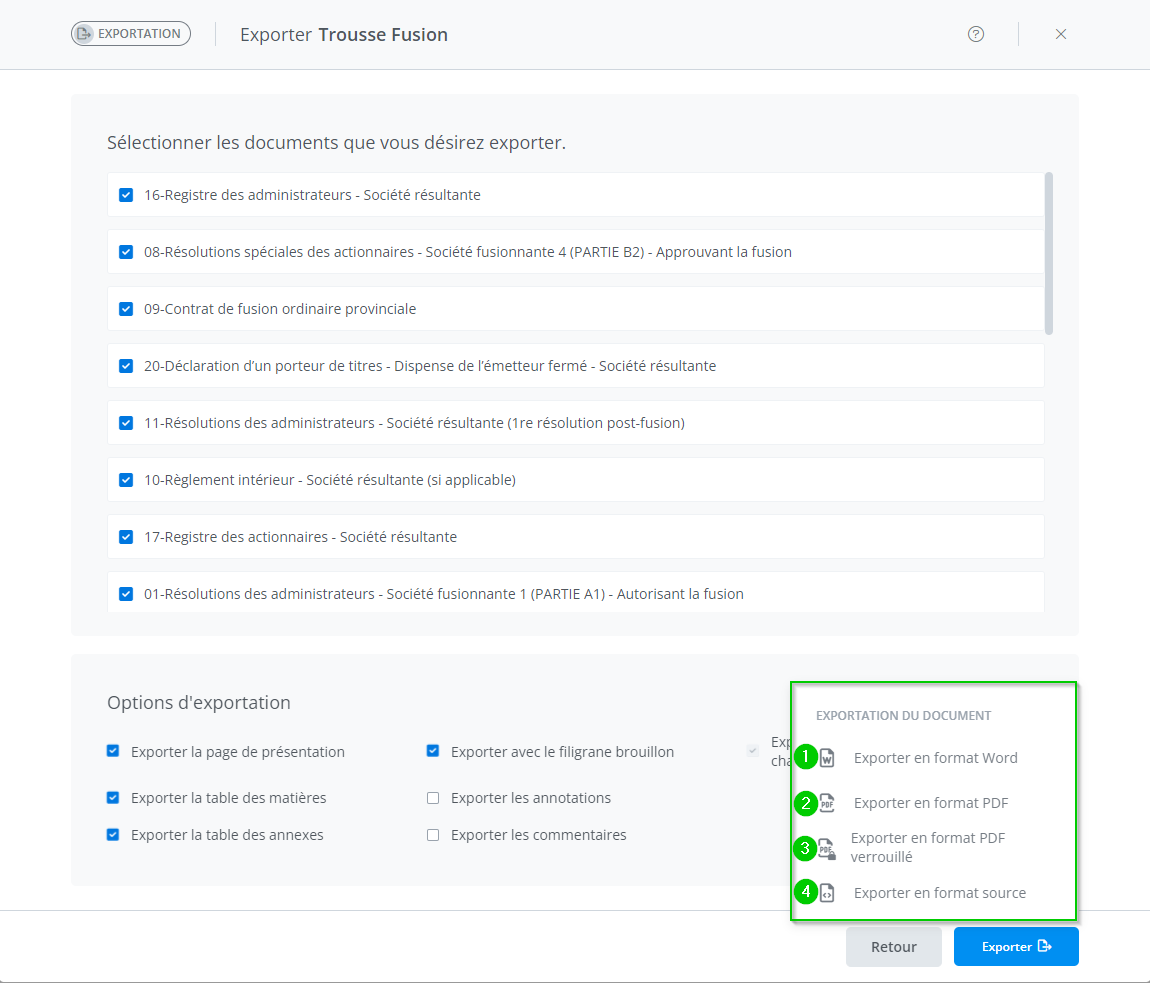
Exporting a kit allows for four formats:
-
Word
-
PDF
-
Locked PDF
-
Source
Click on Export Zip exports the kit with all its documents in the selected format.
The document selection is saved and allows the next export to be performed with this selection.
The kit is exported in Zip format and takes the name of the template or document.
The source export option is available only to an expert template programmer.