Accessing All Comments in the Document
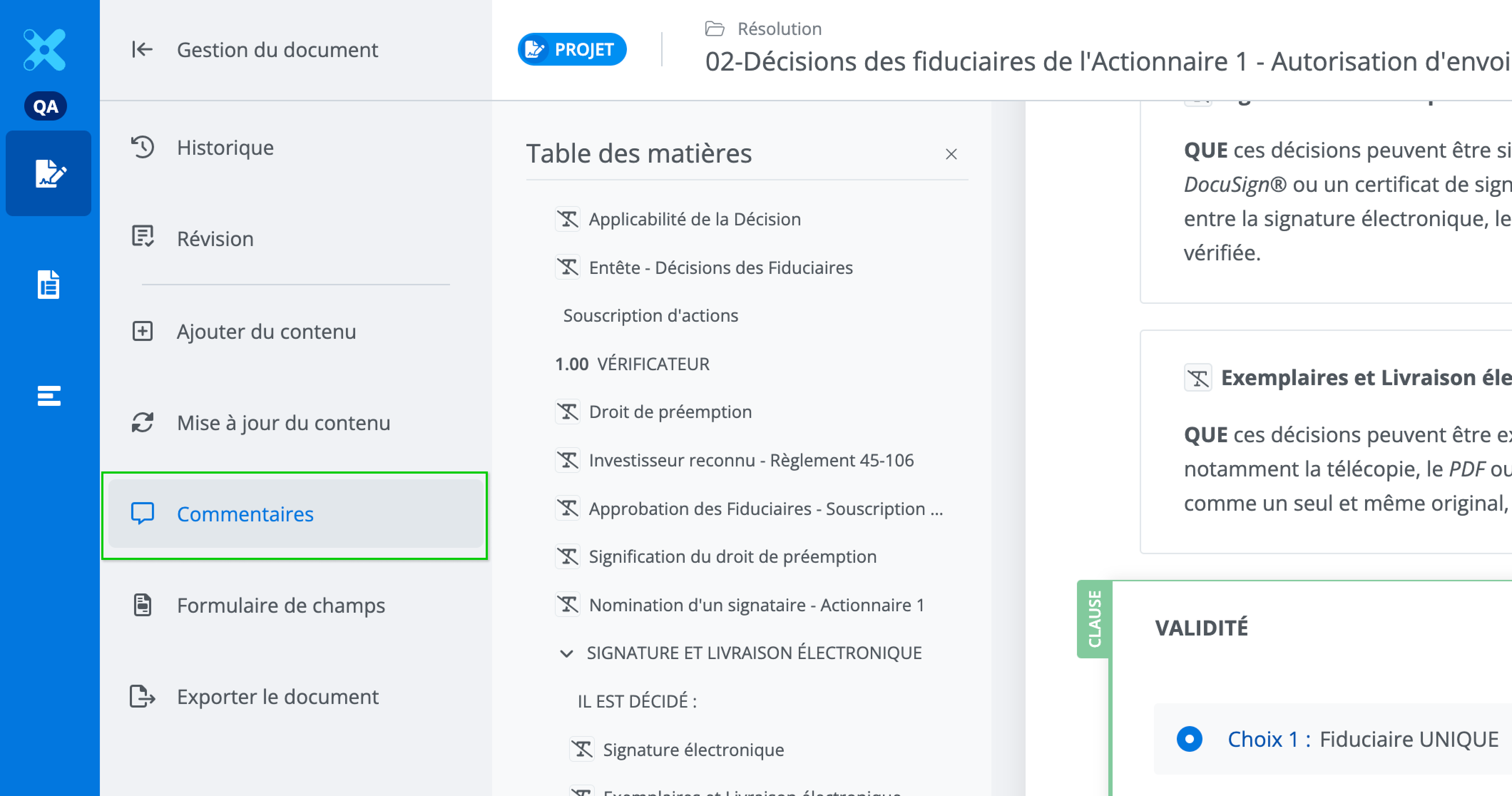
In the features menu, click Comments. This will open the comments panel with the option to view all comments in the document.
Accessing Comments for a Content Item
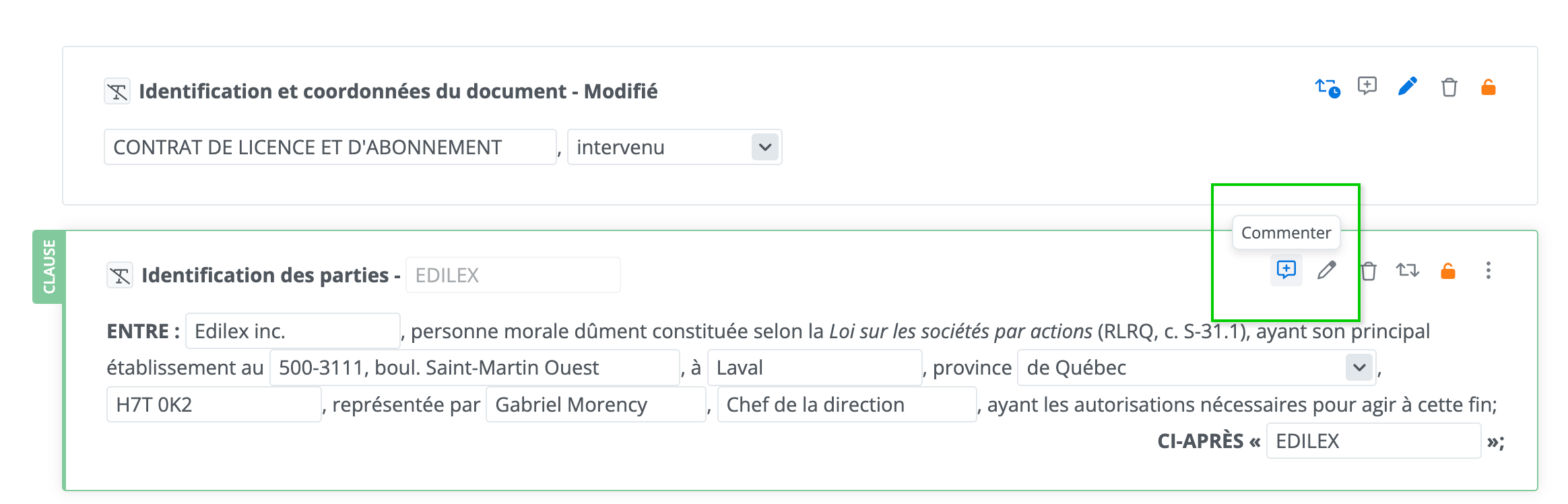
Click on Comments located in the content toolbar; you will then be able to view the comments associated with that content.
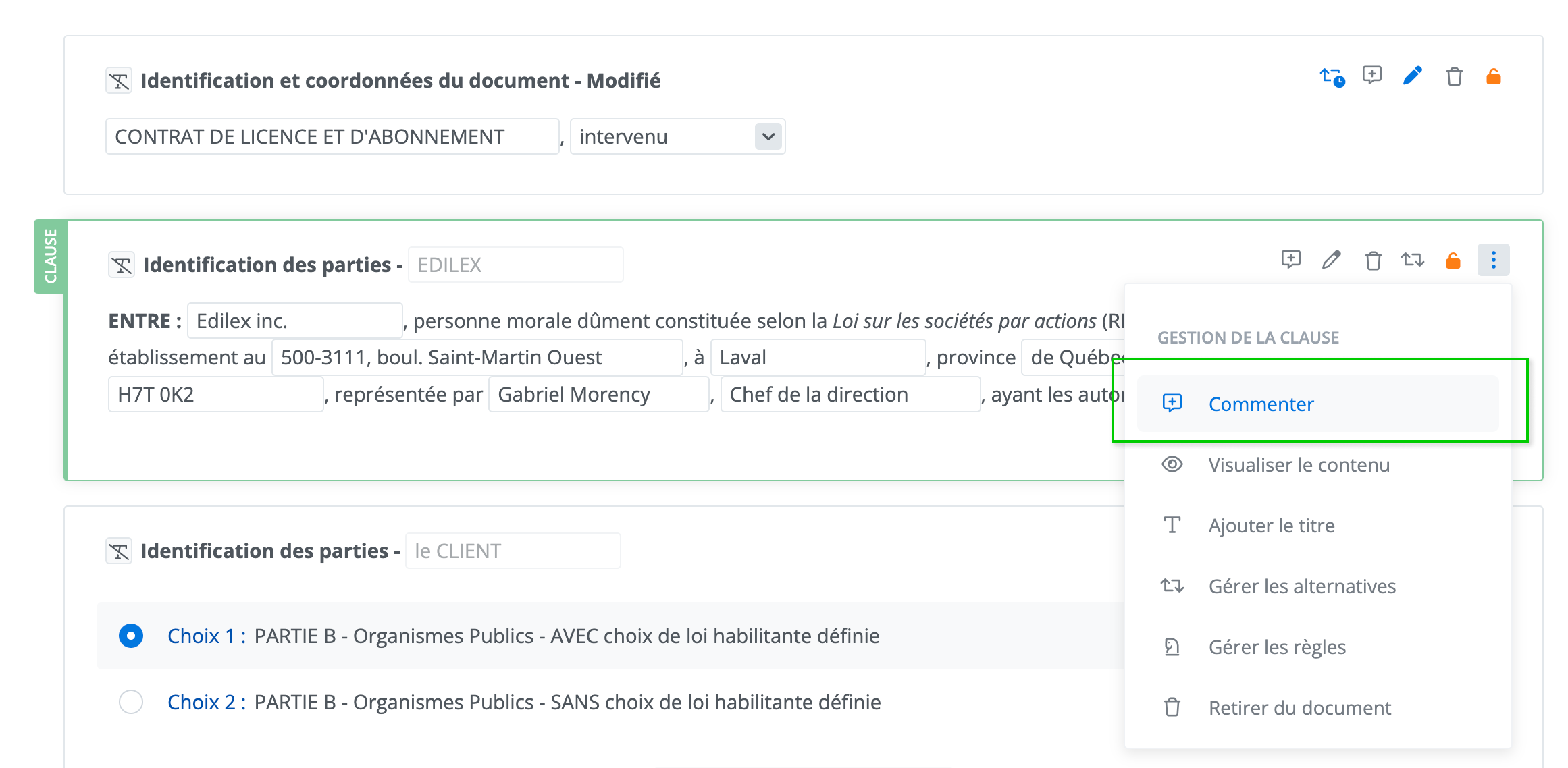
You will also find the Comments function in the toolbar menu.
Description of the Feature
Internal Comments Panel
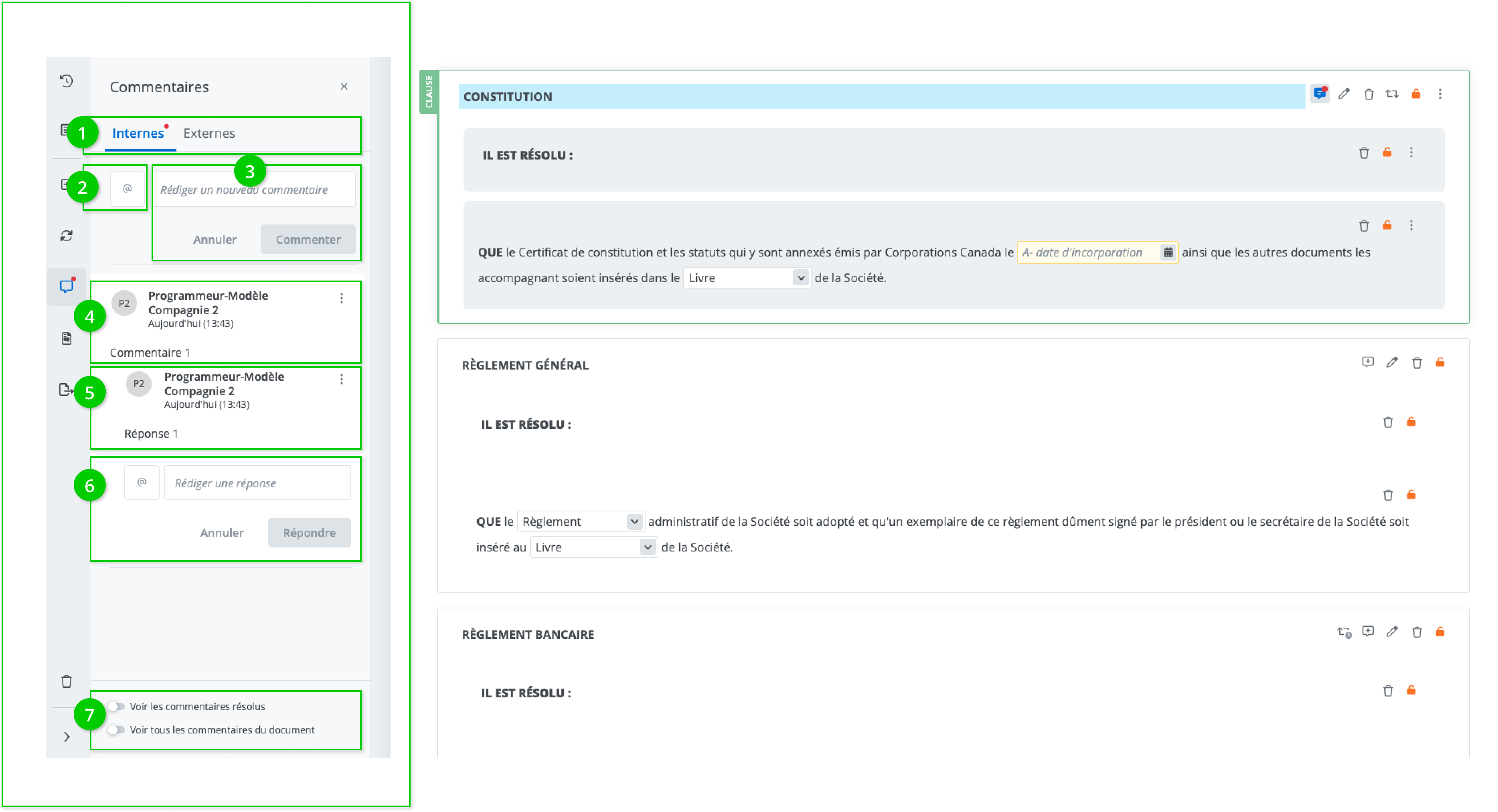
The internal comments panel consists of the following elements:
-
Tab navigation, access to the internal and external comments panel,
-
Comment assignment button,
-
Text field for writing a comment,
-
Comments,
-
Replies to a comment,
-
Text field for replying to a comment,
-
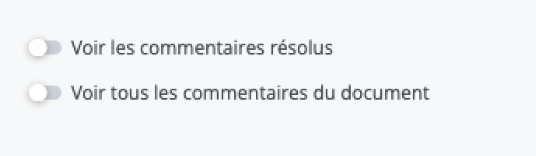
Two filter options:
-
Show resolved comments,
-
Show all comments in the document.
-
Assigning a Comment
Assigning a comment lets you address your comment directly to a user in the collaborators list and automatically send them an email notification containing your comment.
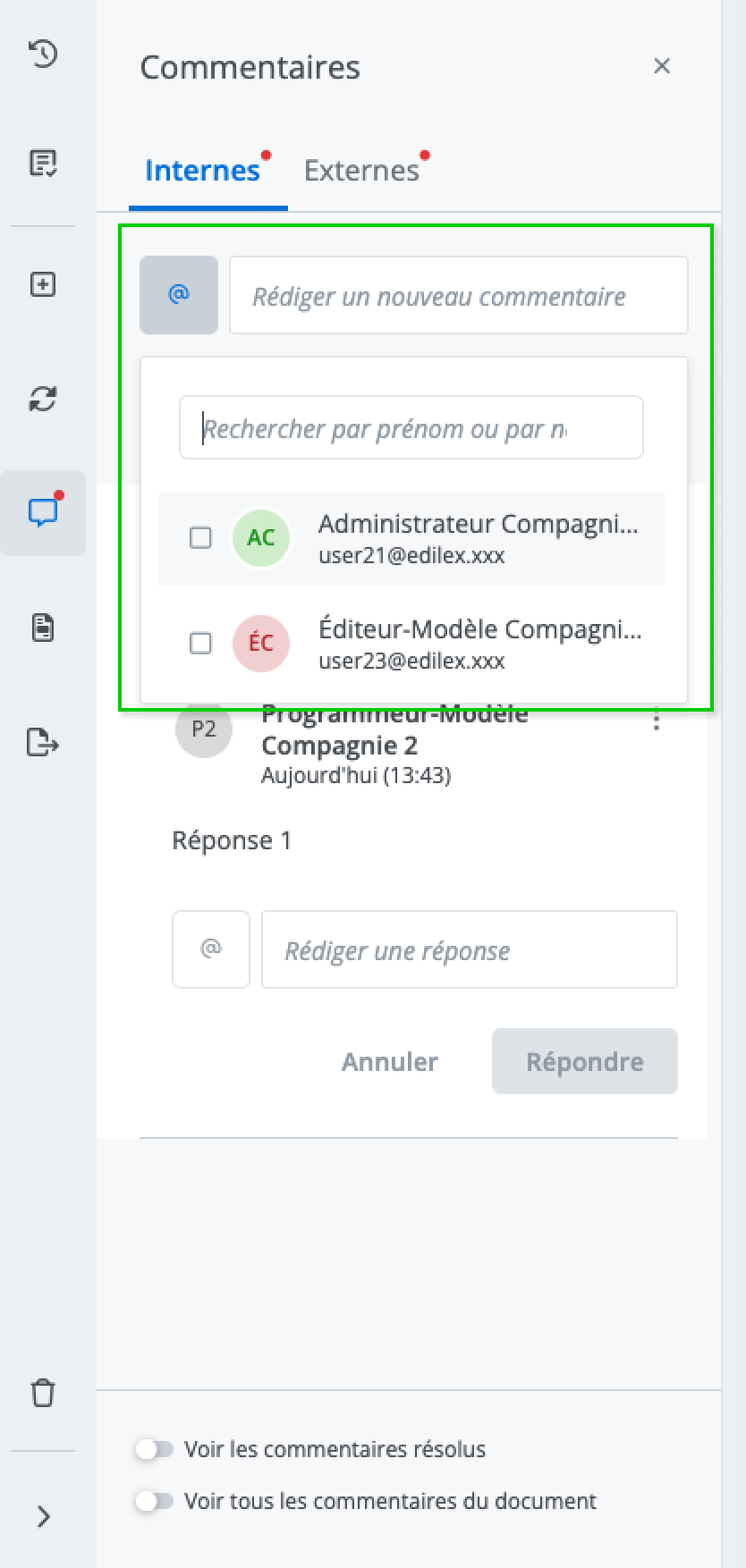
Click on @ to display the dropdown menu of available users and select the one to whom you want to send the notification.
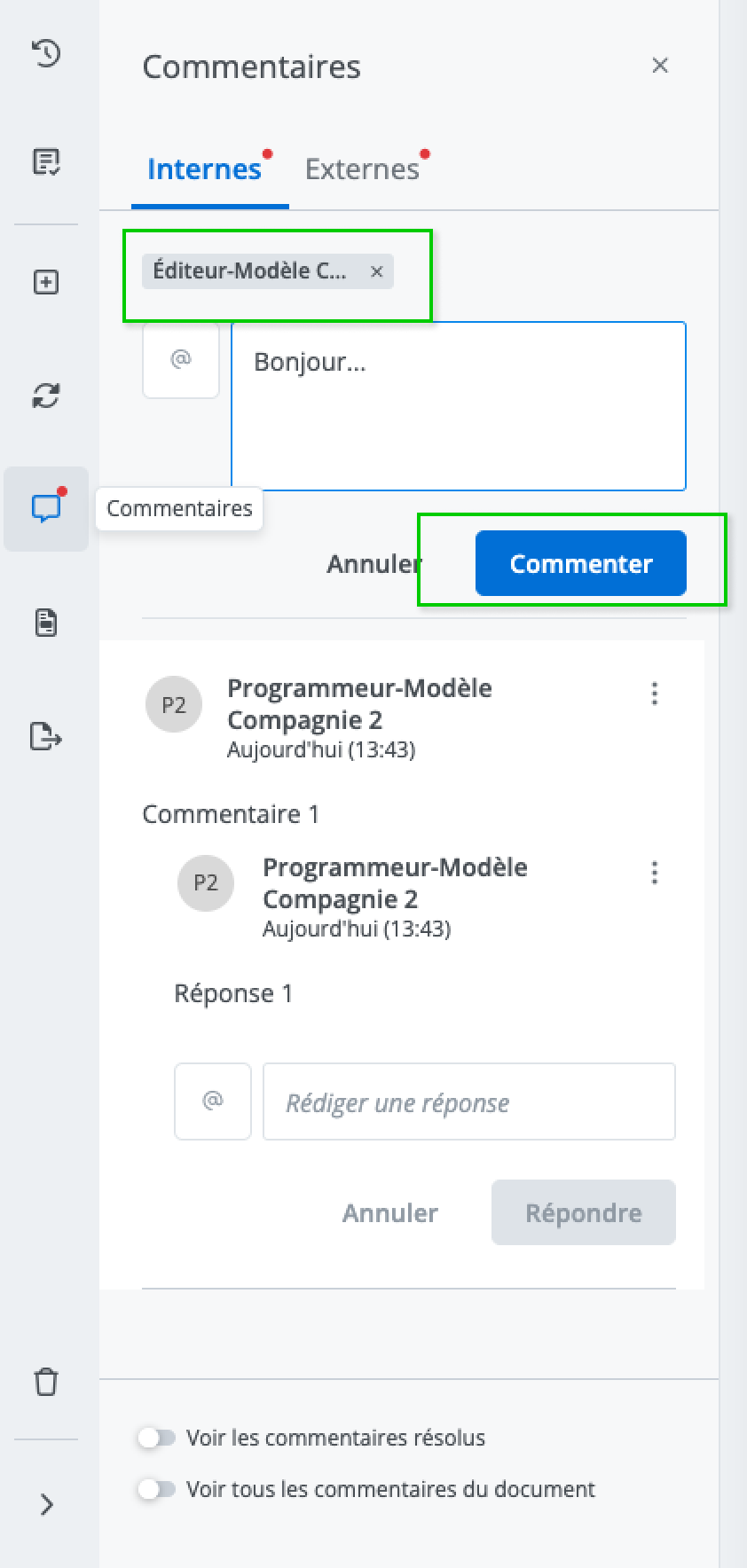
Then write your comment and click on Comments to send it.
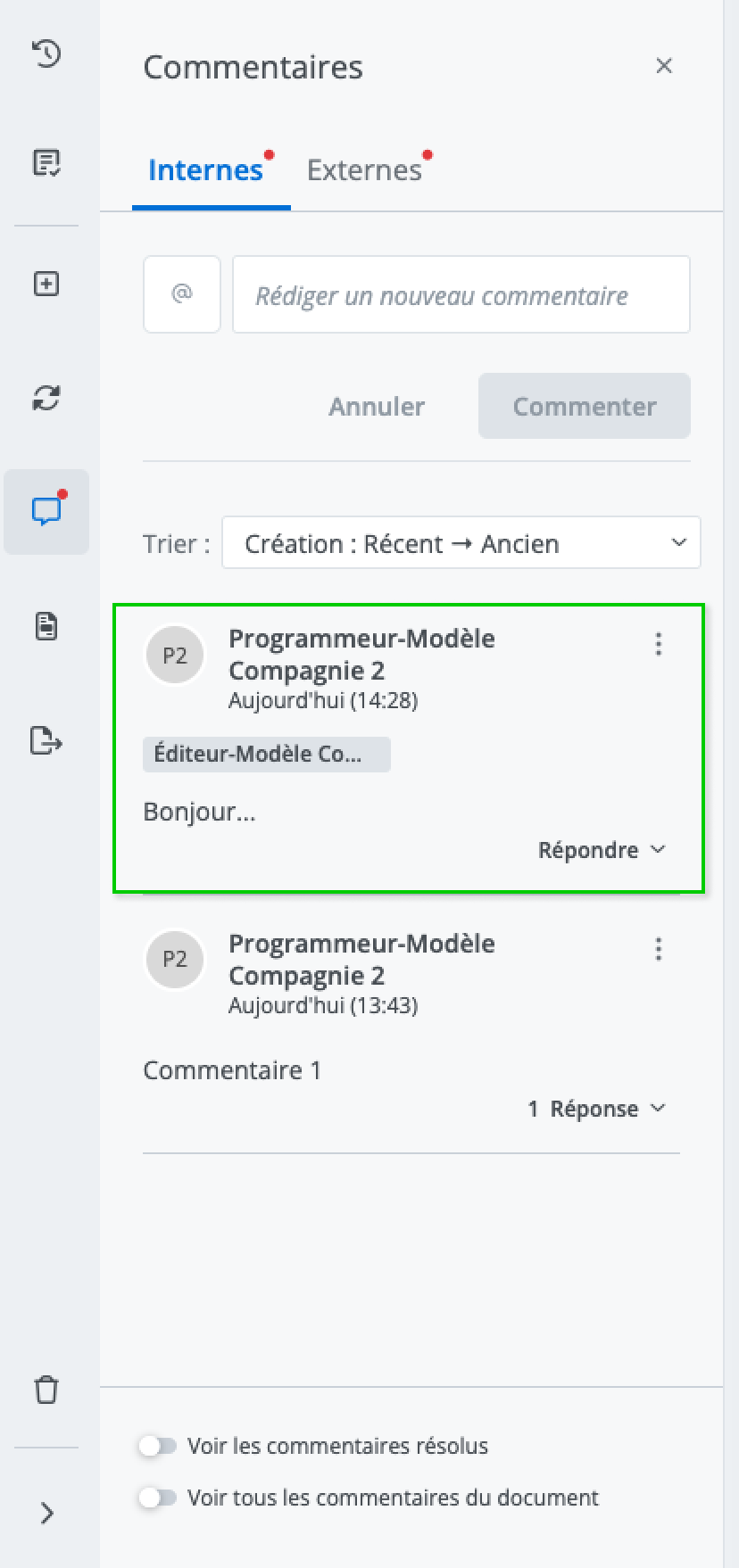
Your comment then appears in the panel’s comments list. A badge will indicate to whom you assigned your comment.
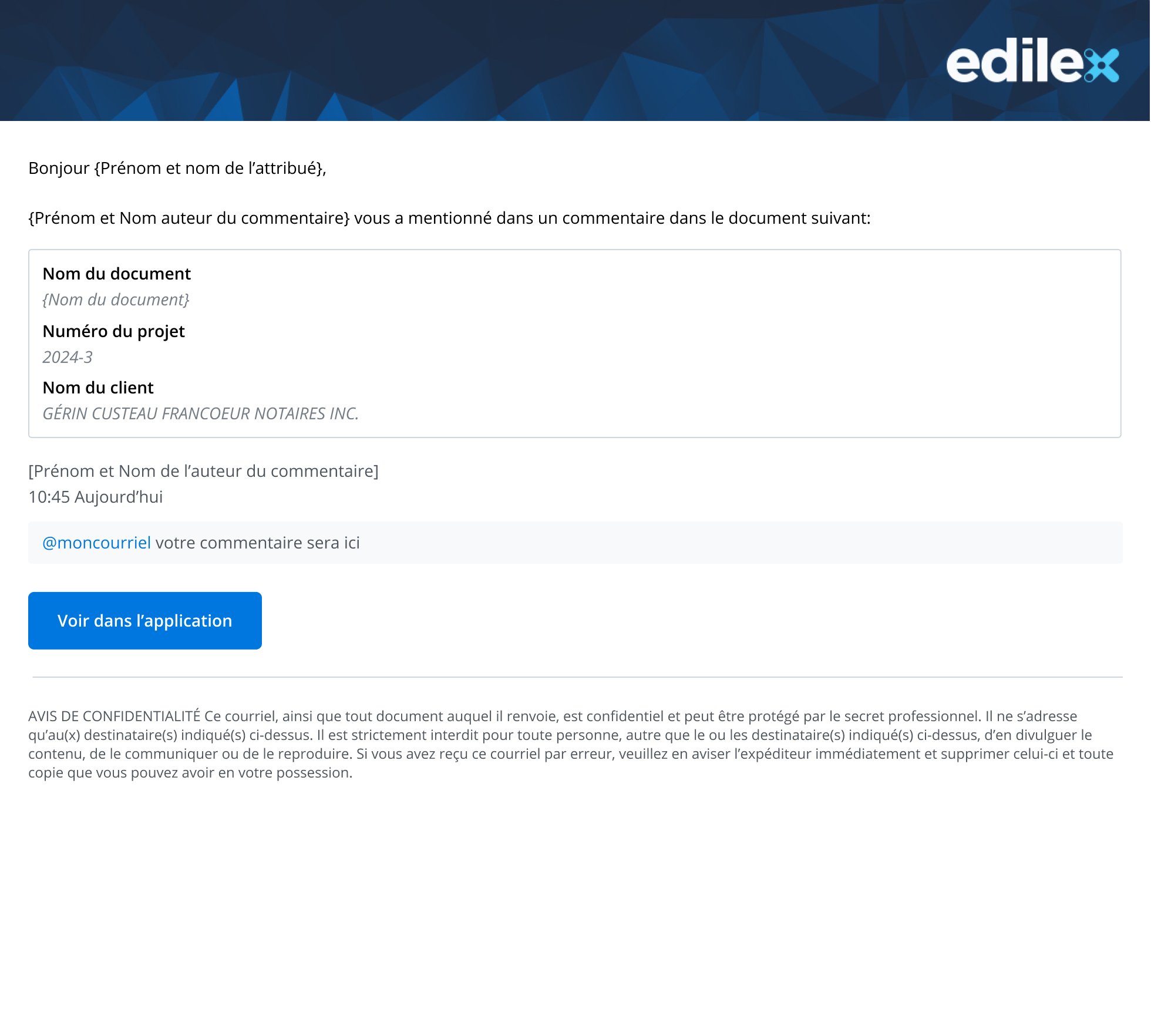
Here is an example of the notification sent by email:
Actions on a comment
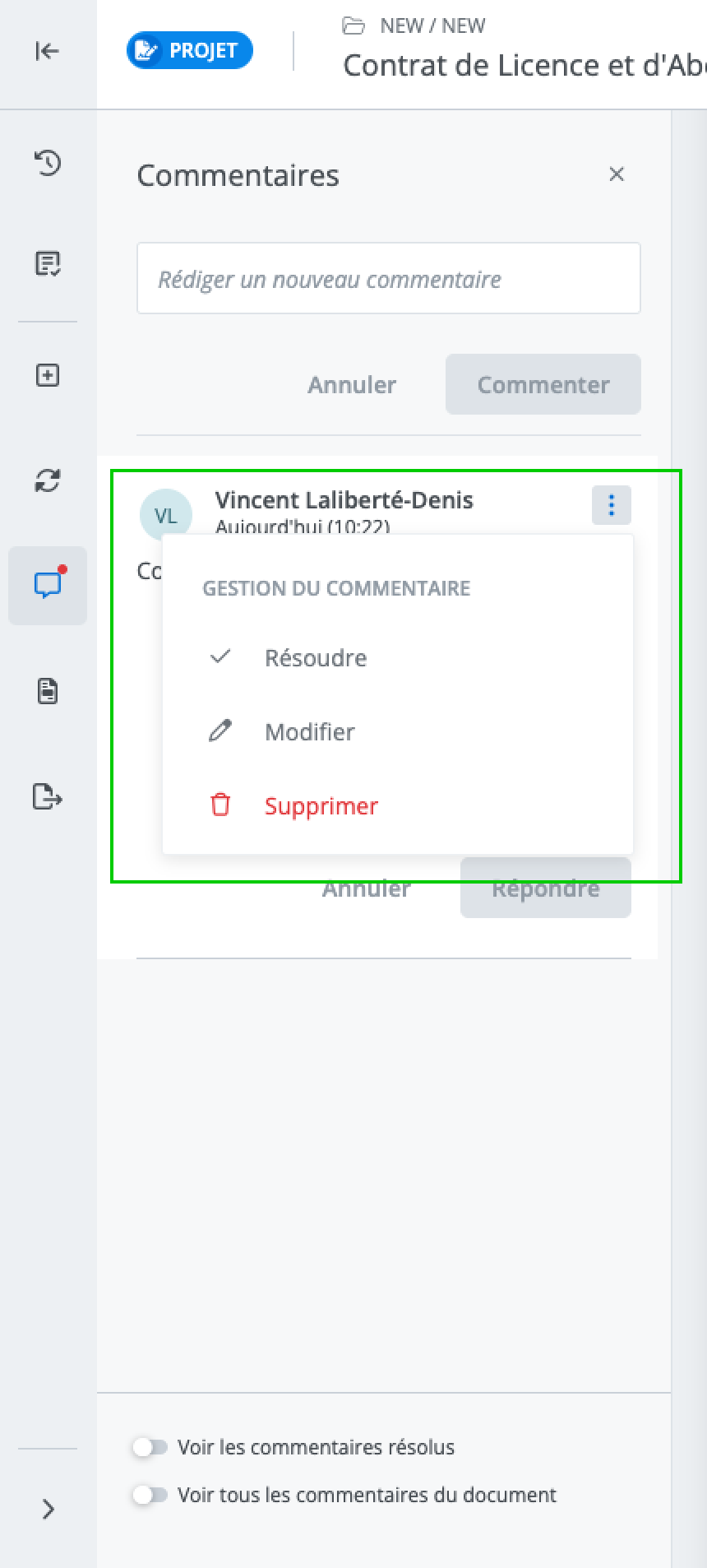
From a comment’s menu, you can perform the following actions:
-
Resolve: lets you resolve the comment. Note that if the comment contains replies, they will also be resolved;
-
Edit: lets you edit the comment;
-
Delete: lets you delete the comment. Note that if the comment contains replies, they will also be deleted.
Actions on a Reply
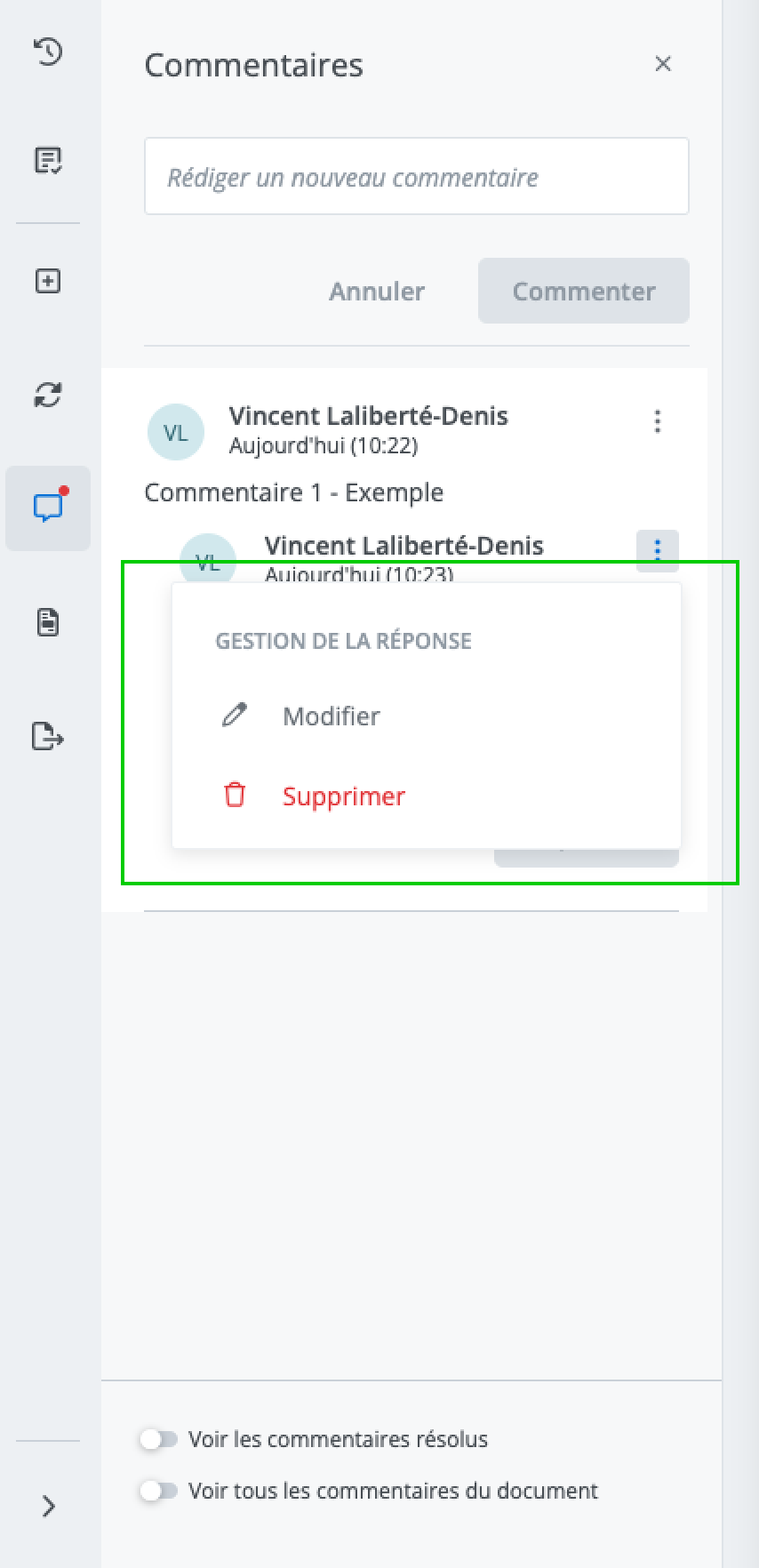
From a comment’s menu, you can perform the following actions:
-
Resolve: lets you resolve the comment. Note that if the comment contains replies, they will also be resolved.
-
Edit: lets you edit the comment;
-
Delete: lets you delete the comment. Note that if the comment contains replies, they will also be deleted.
Panel Filter Options
Show Resolved Comments
Possible Actions on a Resolved Comment
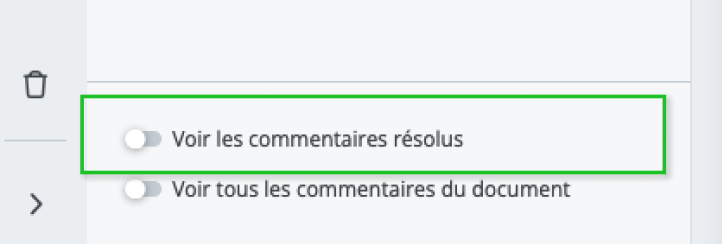
To access resolved comments, click on Show Resolved Comments.
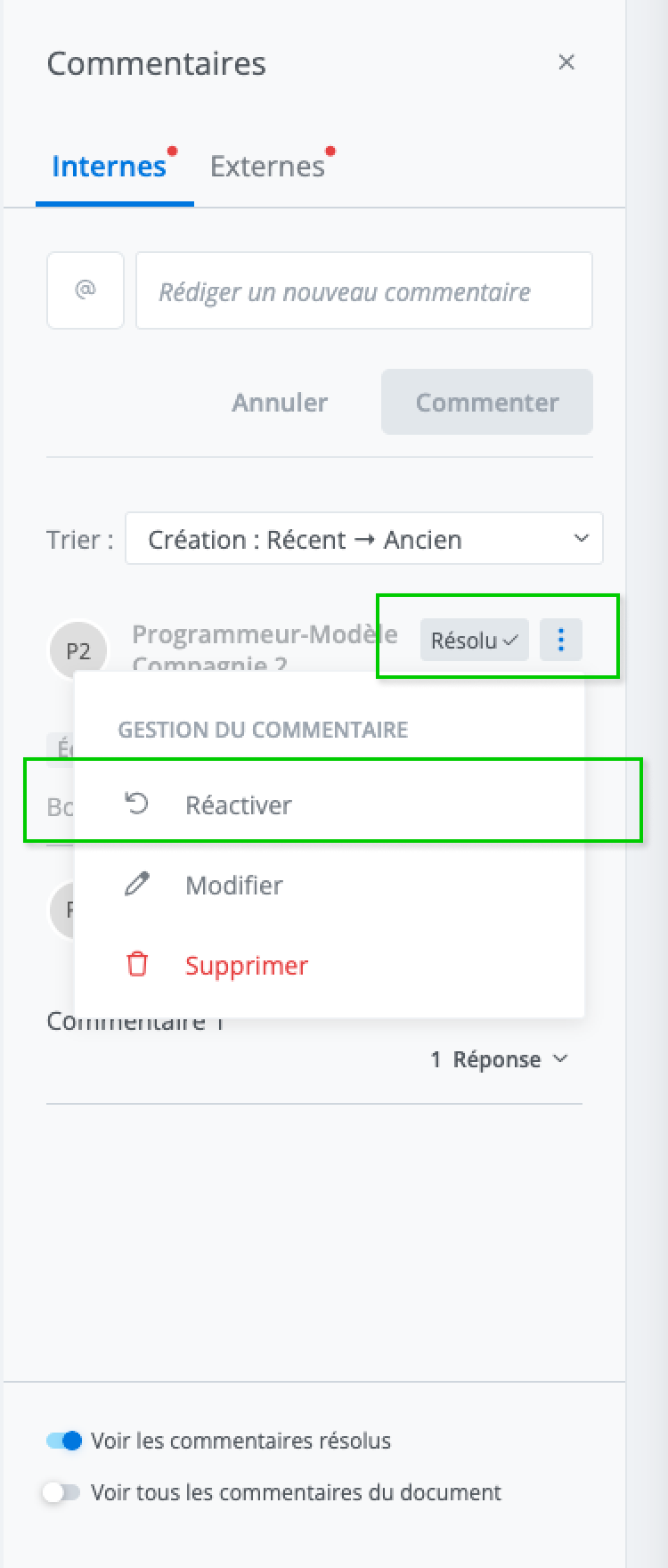
Then click on Reactivate in the resolved comment’s menu.
Show All Comments in the Document
This filter option lets you switch between the panel showing comments specific to a content item and the one displaying all comments present in the document.
To do this, click on Show all comments in the document.
External Comments Panel
The external comments panel is directly linked to the document sharing feature. This feature enables exchanges between external reviewers and internal collaborators. This panel therefore serves, in part, to separate exchanges among internal collaborators from exchanges with external reviewers.
The external comments panel has a few distinctive features, although its basic functionality and characteristics remain the same as the internal comments panel.
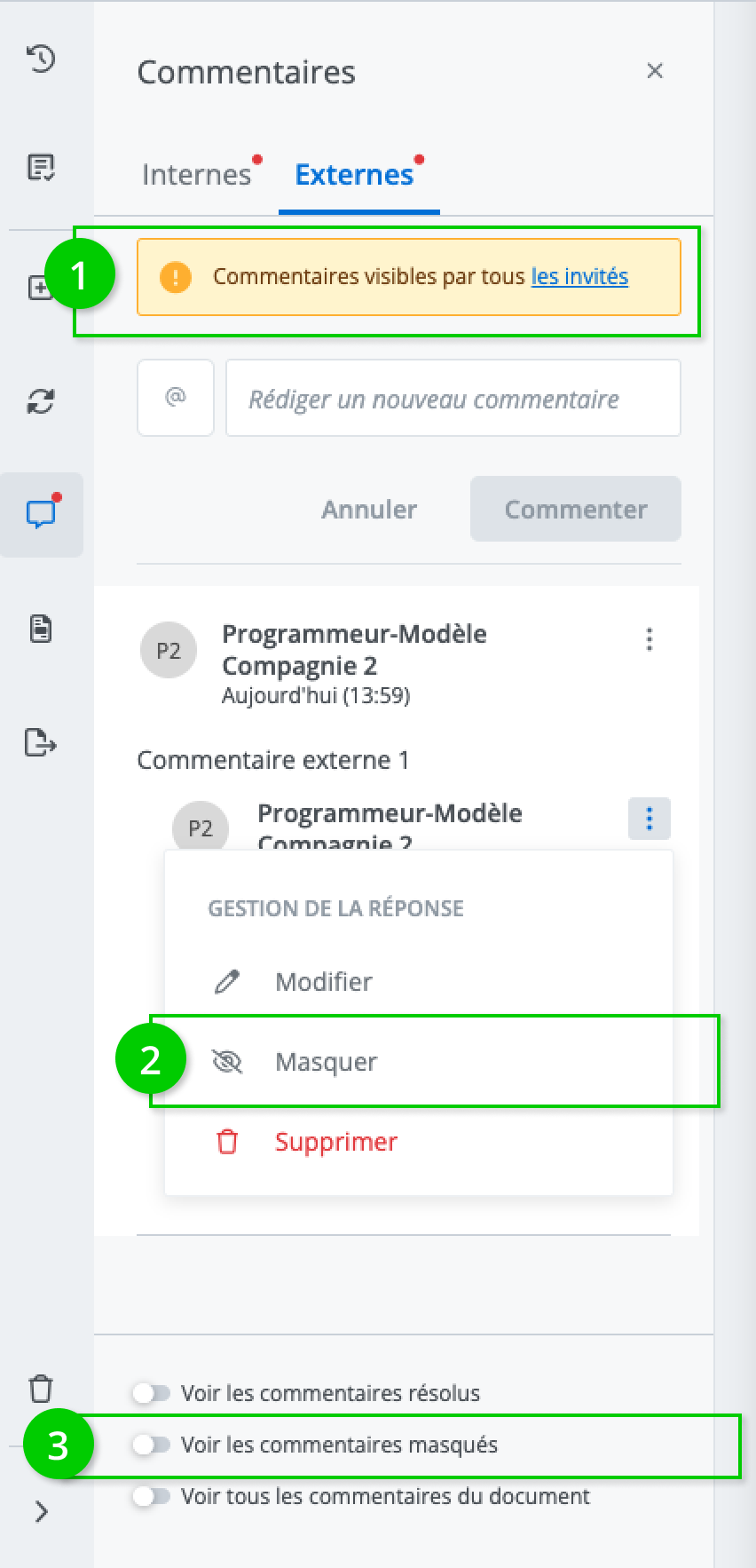
Distinctive Features of the External Comments Panel
-
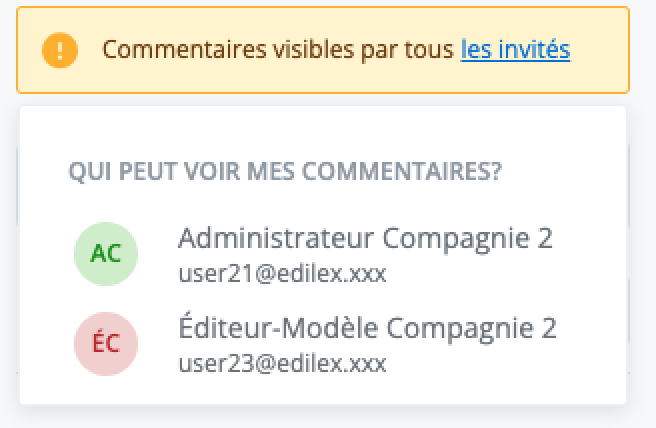
Display of users who can see the comments: This information is provided for transparency for internal collaborators. As the name suggests, this dropdown menu shows the names of users who will be able to read the comments.
-
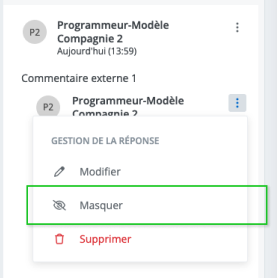
Hide a Comment: This feature is only available to the drafter and internal collaborators. It allows them to control exchanges or the transmission of sensitive information that may occur during comment exchanges.
-
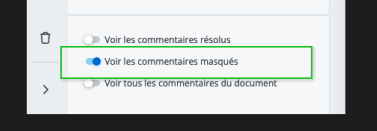
View Hidden Comments: this filter option lets you view comments that were previously hidden from the exchange.
Hide a comment
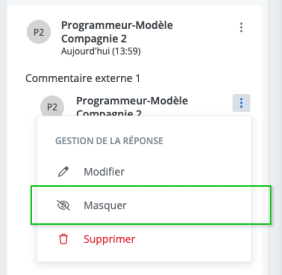
Click Hide to remove the comment affected by the action from the display. Note that this feature will only be shown to users with the necessary permissions.
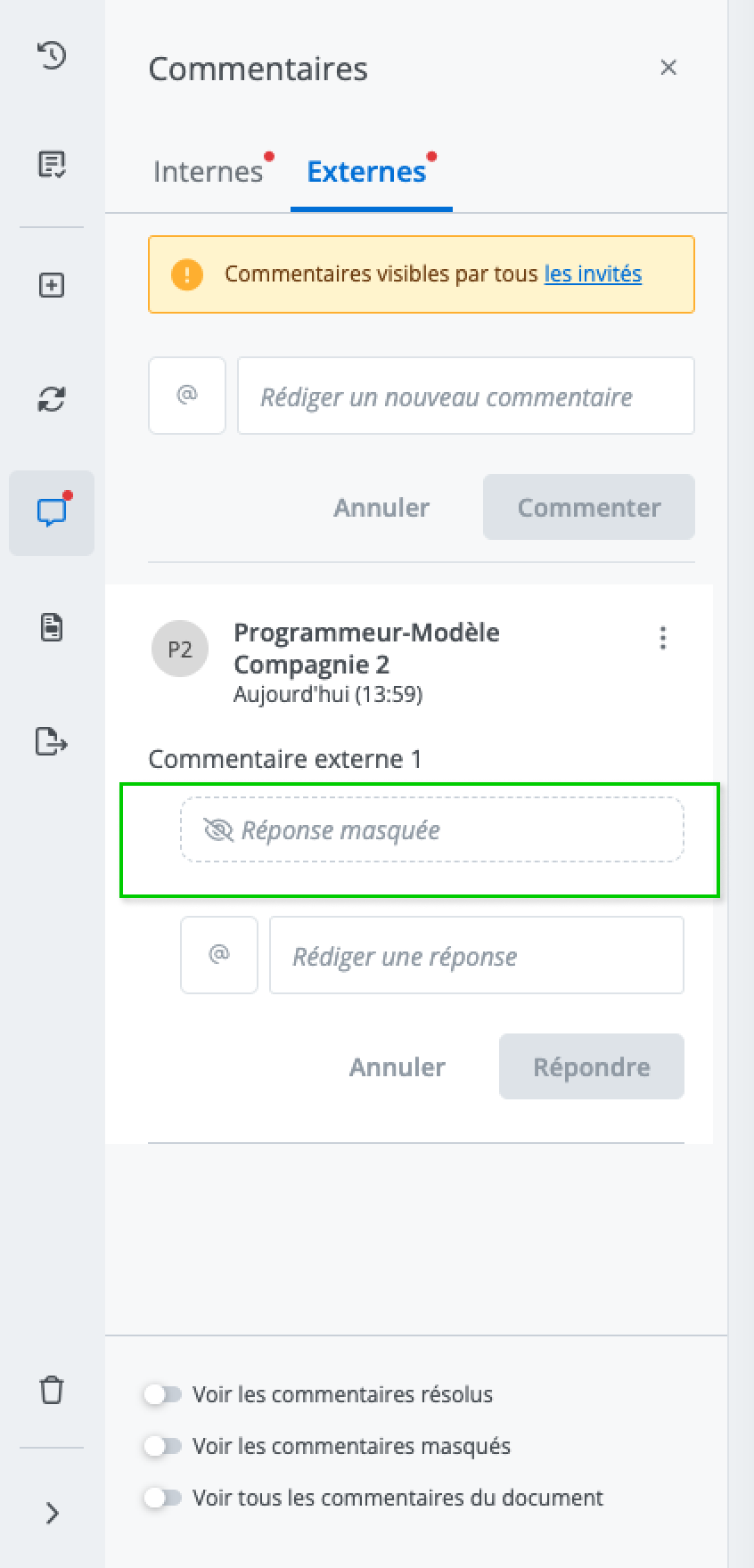
The comment then appears as follows:
Show a comment
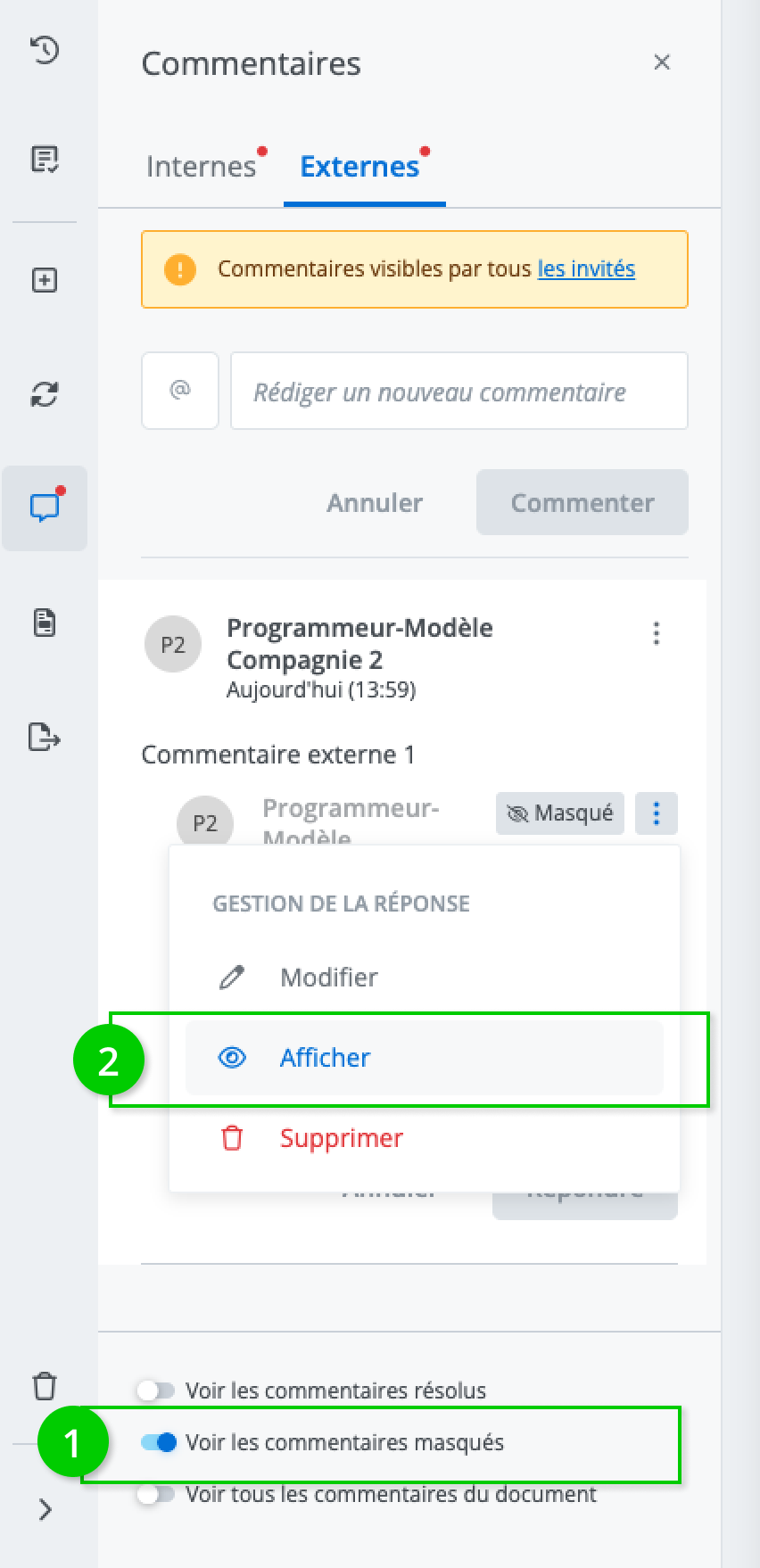
Showing a comment is the reverse action of hiding a comment. It must therefore be performed on a comment that was previously hidden. Also note that if you do not have the necessary permissions to use the Hidefeature, you will not be able to use this one either.
To show a hidden comment, first click Show hidden comments and then click on Display on the commentes menu.