
This feature allows you to see only the choices (alternatives) and content that can be selected, added, or removed without affecting the choices previously made in the document or in other documents in the kit.
In templates programmed on the platform, several types of content (including sections, clauses, schedule, and their paragraphs, as well as alternatives) are linked by intelligent rules based on the different usage contexts of the document.
Certain actions, such as selecting an alternative or removing a clause or paragraph, can therefore result in changes to the document, such as the addition or removal of content, or the selection of an alternative. Read the following article to learn more about how to view the impacts of a choice made in the document.
Actions taken in the document can therefore conflict with choices made previously in the document or in other documents in the kit: these are referred to as inconsistent choices.
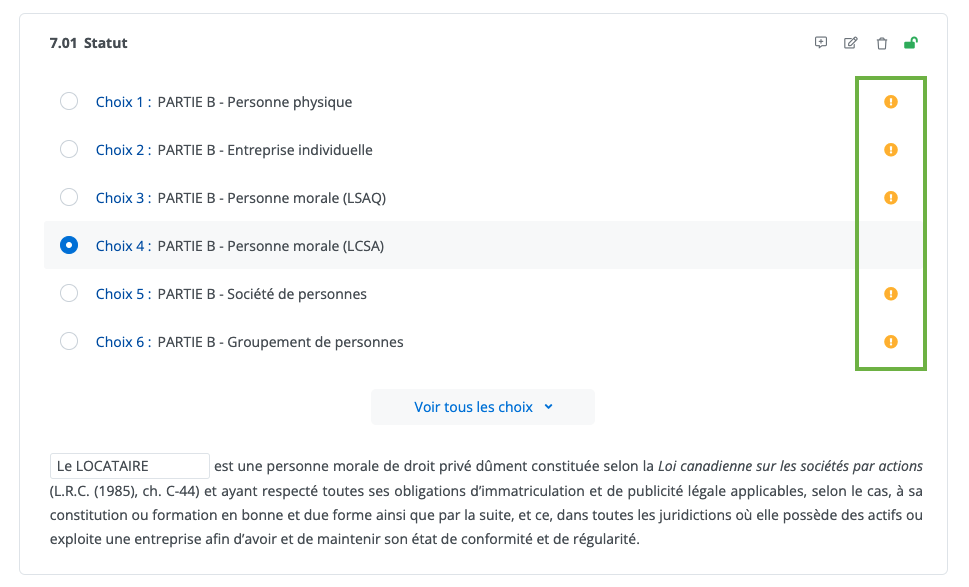
To prevent conflicts, the system displays visual warnings to alert users and help them make consistent choices.
Types of actions that lead to inconsistencies
Any inconsistent action will potentially result in one of the following outcomes:
-
Removing consistent content from the document;
-
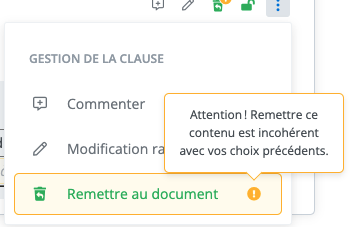
Restoring inconsistent content to the document;
-
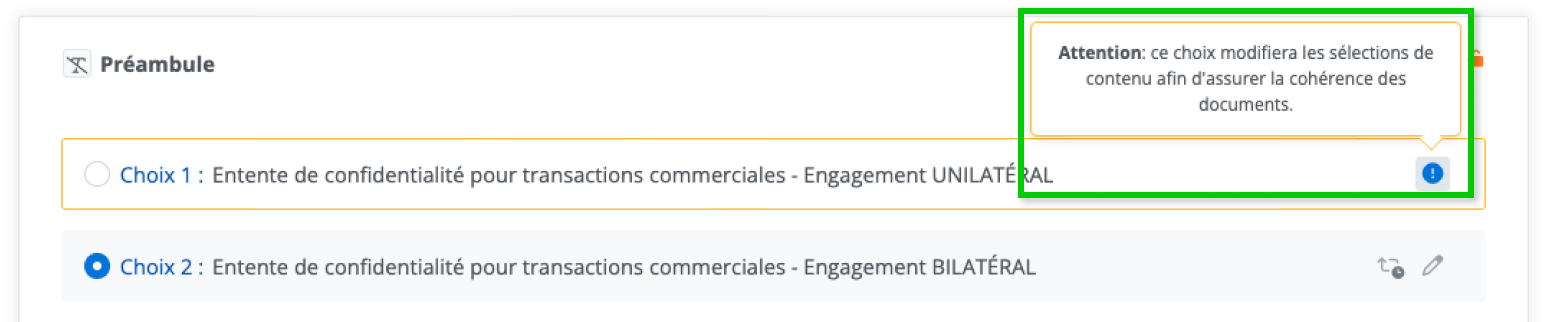
Choosing an inconsistent alternative
Removing content or selecting an alternative with an inconsistency indicator results in significant changes to the document. It is recommended to review the entire document or kit if such a choice is made.
Show content affected by a modification in the document
It is possible to see the consequences of choices made in the document by enabling the Show content affected by a modification filter.
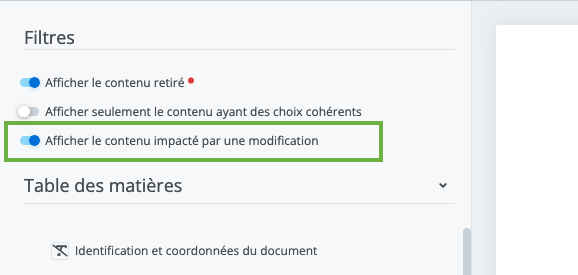
To learn more about this feature, see the following article:
View the impacts of a choice made in the document
Access to Feature
Visual indicators are present in the document and in the template to inform the drafter of the risks of inconsistency associated with each action in the document.
Visual indicator signaling an inconsistent choice

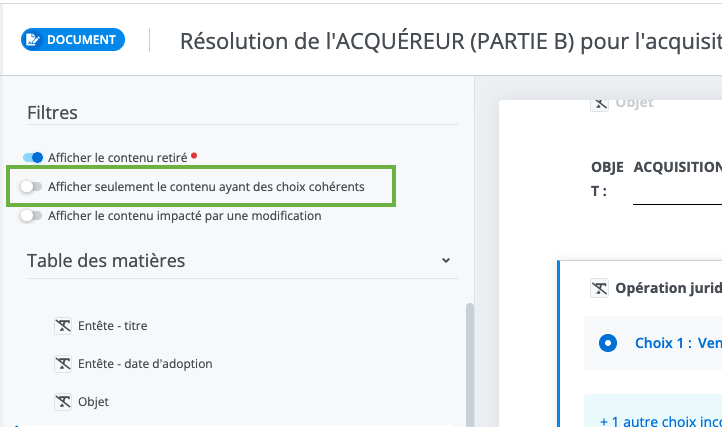
Show only content with compatible options
Show only content with compatible options filter
It is possible to display only content with consistent choices by using the filter provided for this purpose.
.gif)
Activate filter Show only content with compatible options:
-
Automatically disables the Show removed content filter;
-
Displays only consistent content in order to guide the choices made in the document.
See only the consistent alternatives for user profiles with a supervised profile
For certain more restricted profiles (Corporate Document Drafter), inconsistent choices are hidden in order to prevent errors. In this case, only consistent choices are displayed in the list of alternatives for a clause or schedule.
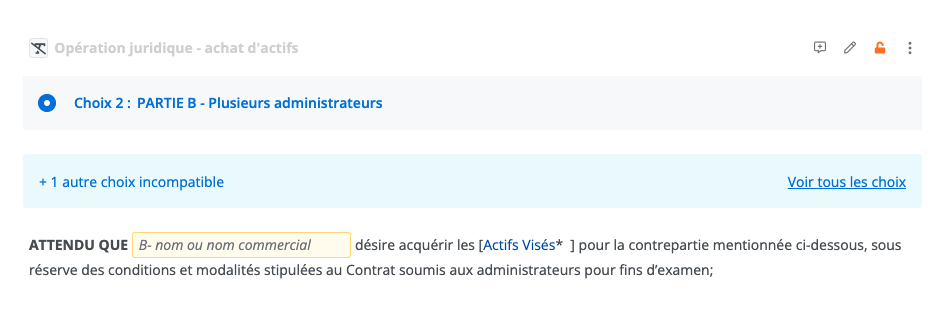
It is possible to read the content of all the choices by clicking See all options. To close the menu, click Hide all options.
.gif)
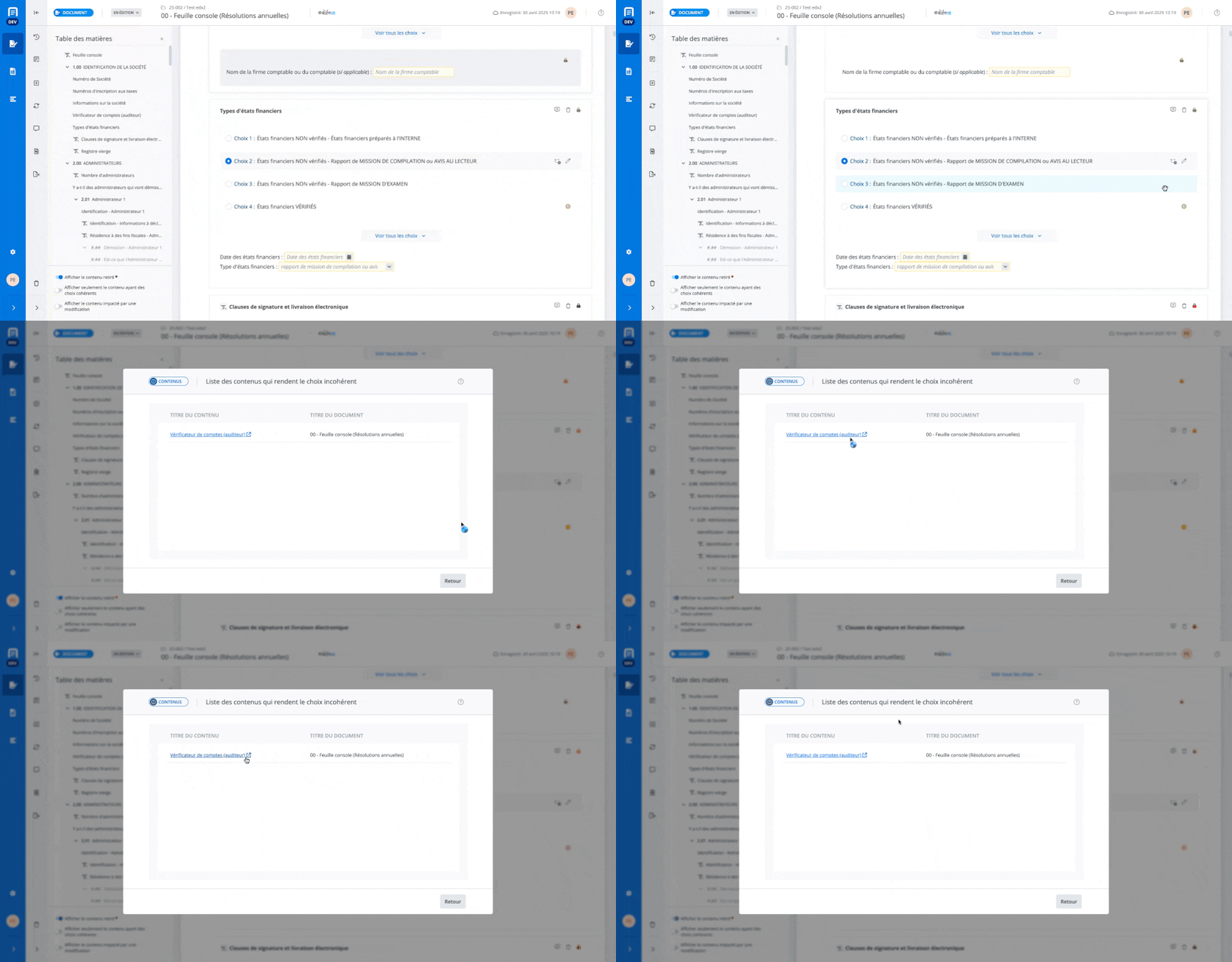
See the list of content that makes the choice inconsistent
It is possible for certain users (Template Programmer) to see the content that makes the choice inconsistent by clicking the warning button.
Related articles
View the impacts of a choice made in the document