
Once the project is shared, the Access section displays the list of users who have access to at least one document in your project and provides access to the access management feature.

The access section displays the following elements:
-
The guest who has access to the project is identified by the following information:
-
Their avatar,
-
Their first and last name,
-
and their email (the one entered when added to the contact book).
-
-
The review status: This changes from Pending review to Reviewed once guests finish reviewing all the documents to which you have given them access.
-
The Manage access button allows you to manage active access to your project's documents.
Access management feature
You can manage the various access permissions you grant to users using the Access Management feature. To access it, click Manage access located in the Access section of the sharing window.

By accessing Manage access, you arrive at the access management window for your project or document.
Please note there are some differences in display and tools depending on whether you are sharing a multi-document project or one made up of a single document. The sharing window consists of two main sections. Refer to the corresponding sections below for details.
In all cases, the information and tools available to you are as follows:
-
Information about guests (avatar, first and last name, email),
-
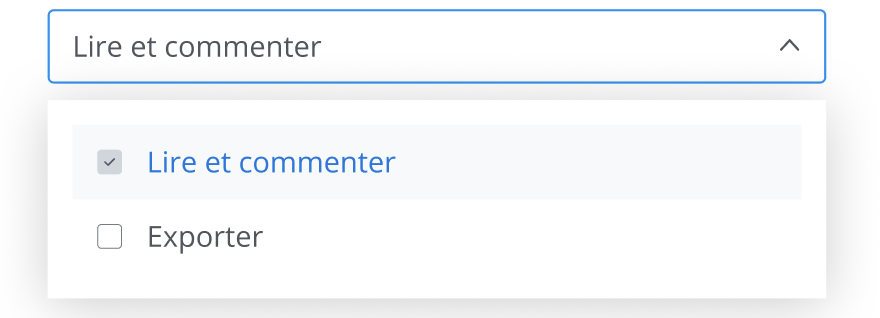
permissions (Read and comment, Export),
-
the link expiration date,
-
tool menu for managing a guest's access.
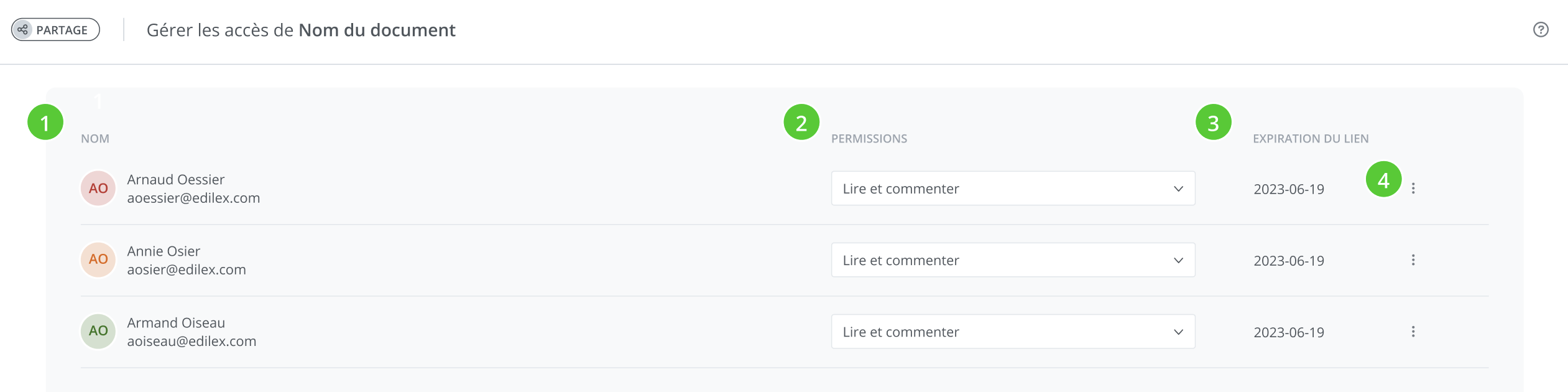
Adjust the sharing options for each user from this list; changes are applied instantly.
Adjust the permissions using the drop-down menu provided for this purpose.
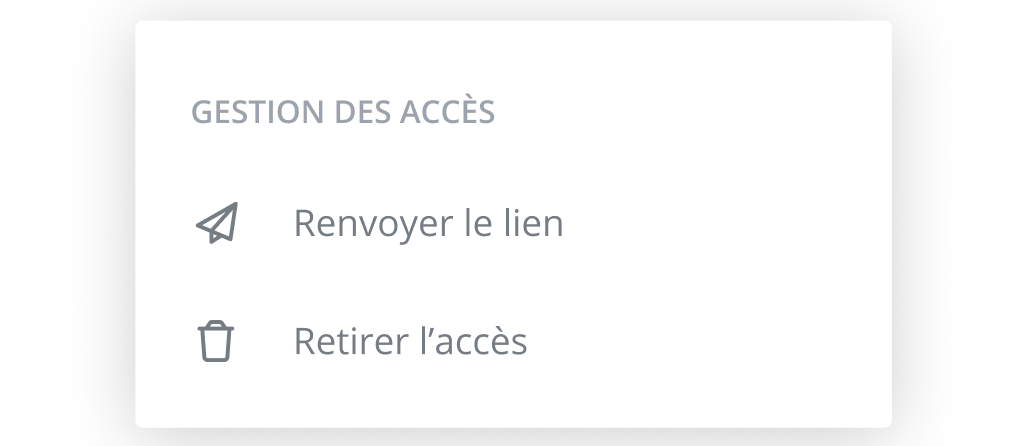
Use the tools menu to perform the following actions:
-
Resend link: as the name suggests, this tool allows you to resend the invitation email notification to the corresponding recipient. Note that resending the link also resets the link's expiration date to 30 days.
-
Remove access: allows you to remove the corresponding guest's access to your project. Access is removed instantly; note that you can share with this same user again at any time.
Sharing a multi-document project
The access management display is slightly different for a multi-document project.
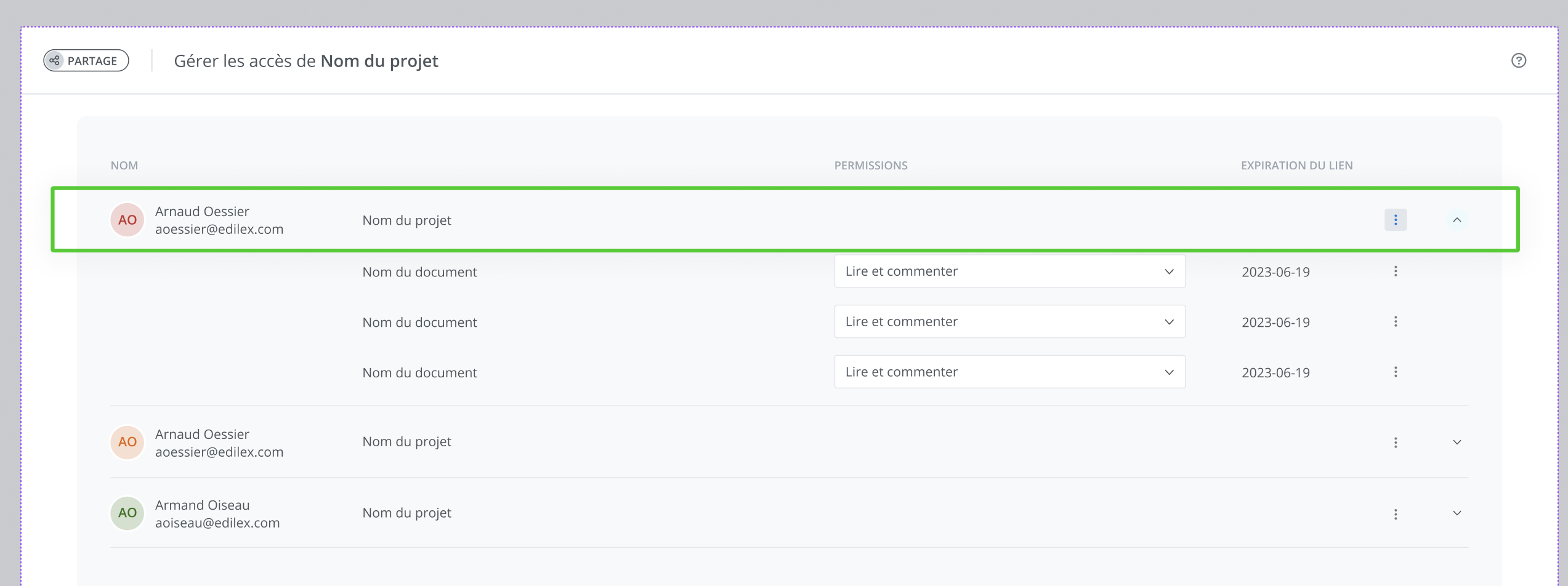
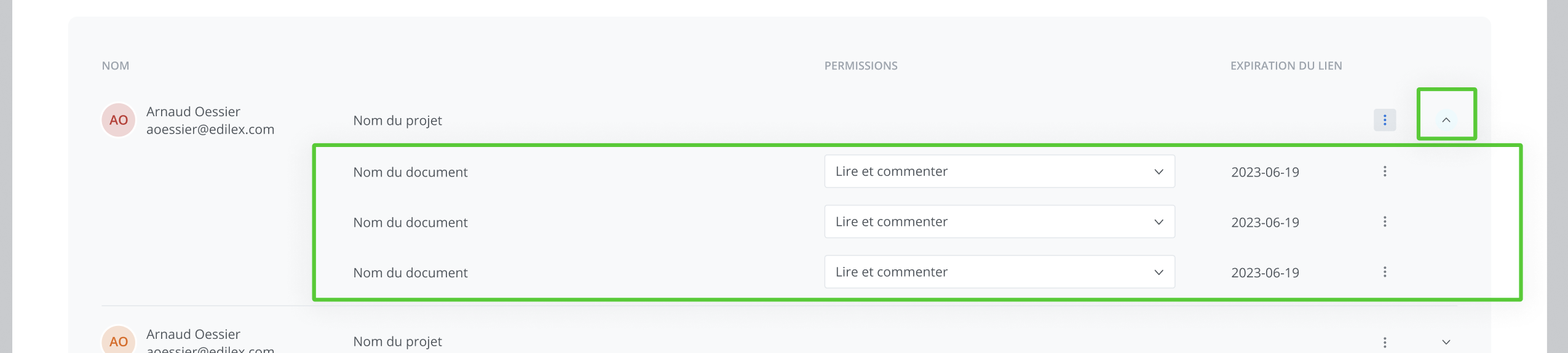
The main difference is that the list of project documents the user has access to is indented under a first row; this row allows for additional actions, namely:
-
Collapse/expand the list of shared project documents: Using the chevron button located at the far right of the row, you can show or hide the list of documents to make the table easier to read—for example, if you have shared the same project with multiple users, this makes it easier to review access information.
-
Bulk actions menu: The actions menu at the level of the first row of a project access allows you to instantly apply actions to all shared documents of that project.

Resend links: renews all the document access links for the project that you have shared with this guest. This results in a new email notification being sent and renews the access link expiration date for your kit to 30 days from the date you resend the links.
Remove access to kit: allows you to remove, in a single click, access to all the documents in your project that the guest has access to. You can reshare access with this same user at any time if you wish.