
Receipt of the review request
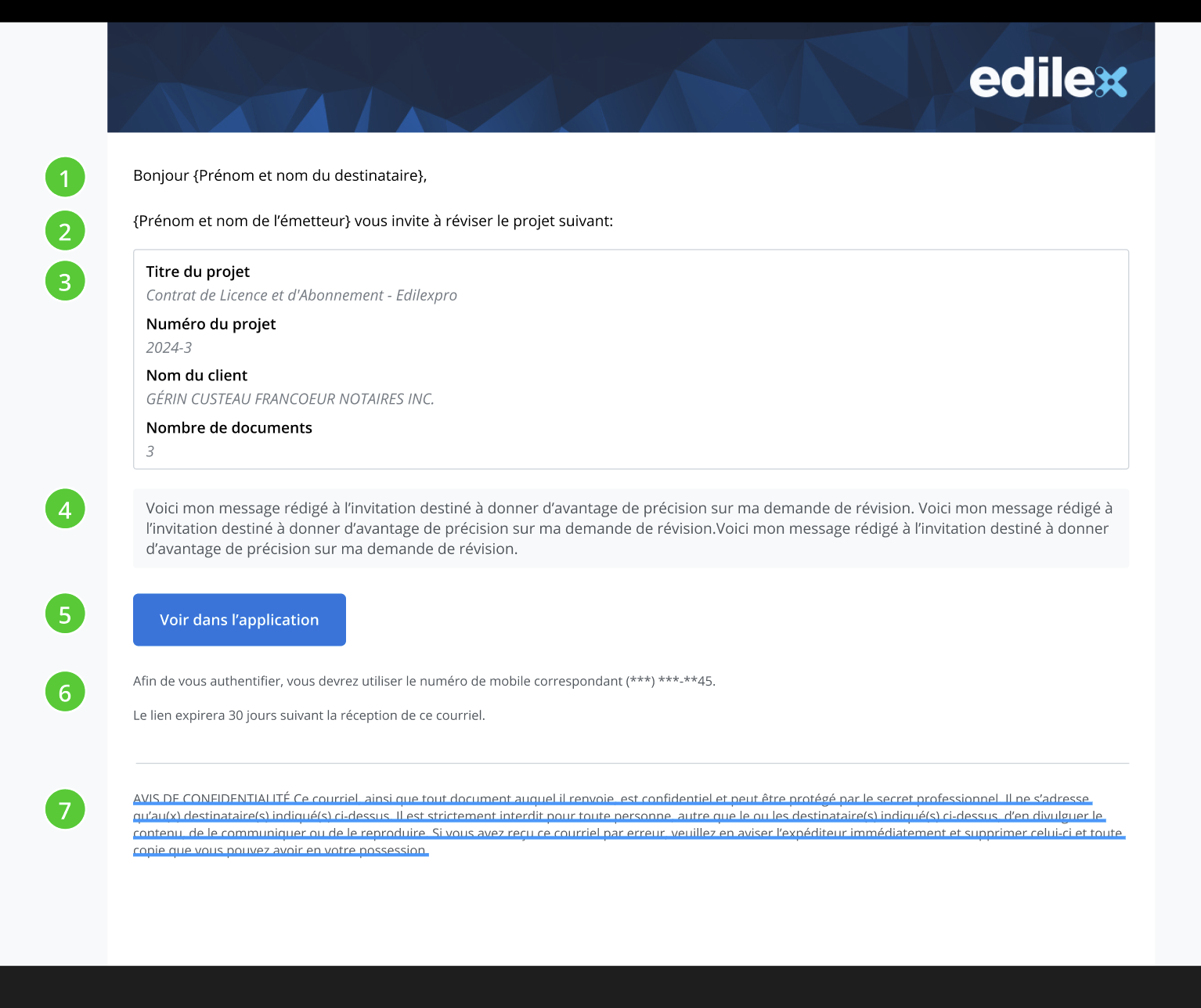
A review request begins with receiving an invitation email notification for the review of a project. The default invitation email contains the following information:
-
The first and last name of your recipient,
-
your first name, your last name, and the purpose of the communication,
-
the information concerning the project you are sharing,
-
your instructions (if you entered any when sending),
-
a button that will allow the recipient to navigate directly to your project on the platform,
-
two notes:
-
a preview of the mobile number you entered when adding the contact to your address book,
-
the link expiration (the link automatically expires after 30 days),
-
-
and finally, our confidentiality notice.
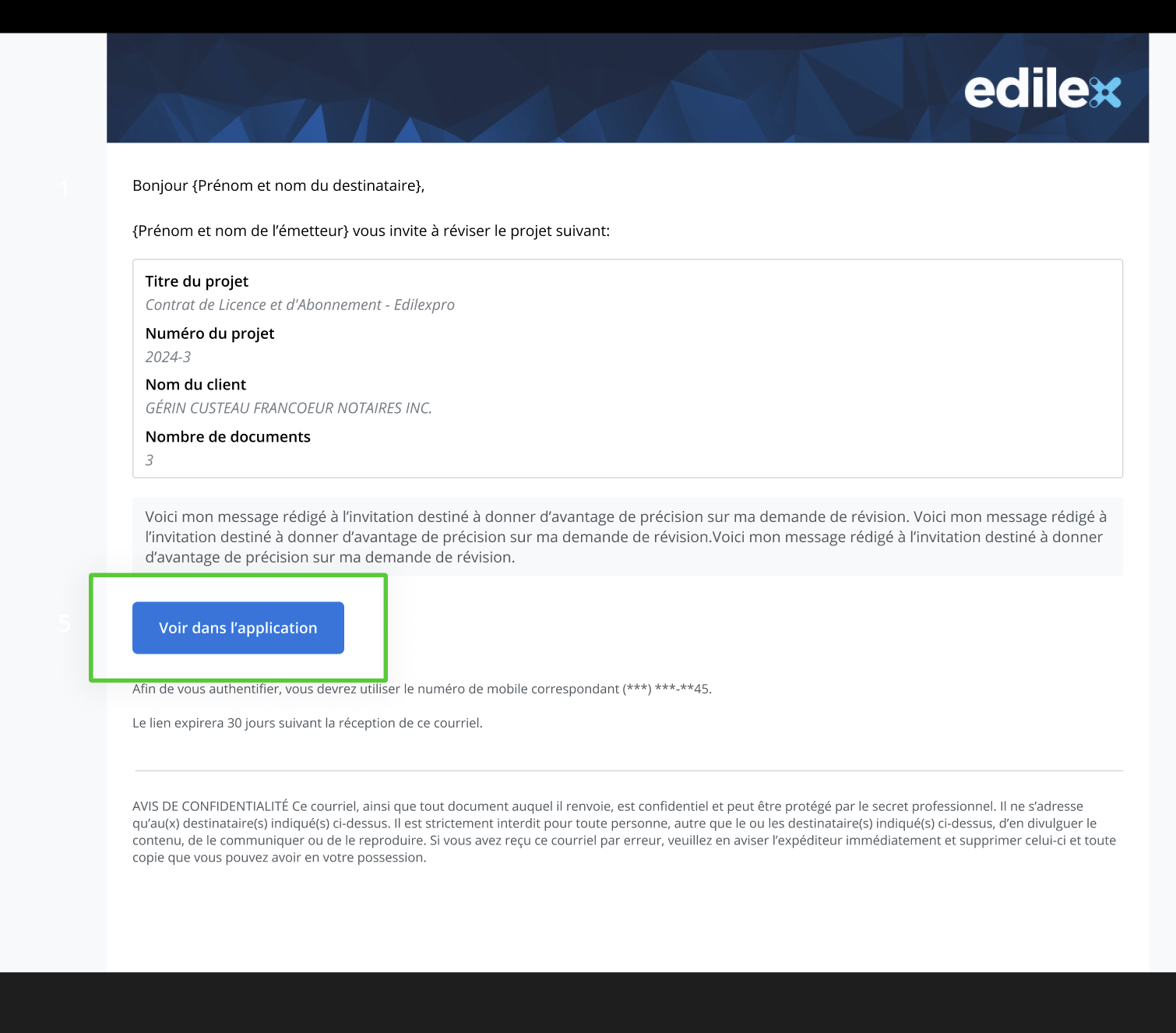
To access the documents to be reviewed, first click View in the application. You will then be redirected to the platform, from where you will first need to authenticate.
Authentication and login
There are two possible connection methods for an invited user.
-
With account creation (more secure):
-
The external user must create an account with a password the first time they log in. A mobile number is therefore required, as they must also authenticate using a code received by SMS.
-
A code is sent by SMS every time they log in for the first time on a new device.
-
-
-
Without account creation (simpler):
-
The external user simply logs in using their email address and a code sent to their email.
-
A code is sent by email every time they log in for the first time on a new device.
-
-
SMS authentication (user with an account)
Once on the platform, enter the email address that was used to invite you in order to log in.

Click on Next.

In order to provide an adequate level of security for users and our application, we use a two-factor authentication process for our accounts. At this step, you must therefore click Send the code or Call me in order to obtain a code with which you can proceed with authentication.

Then enter the code received by text message or by call.

Then click Verify the code, which will allow you to log in to the platform and access the documents.

List of review requests
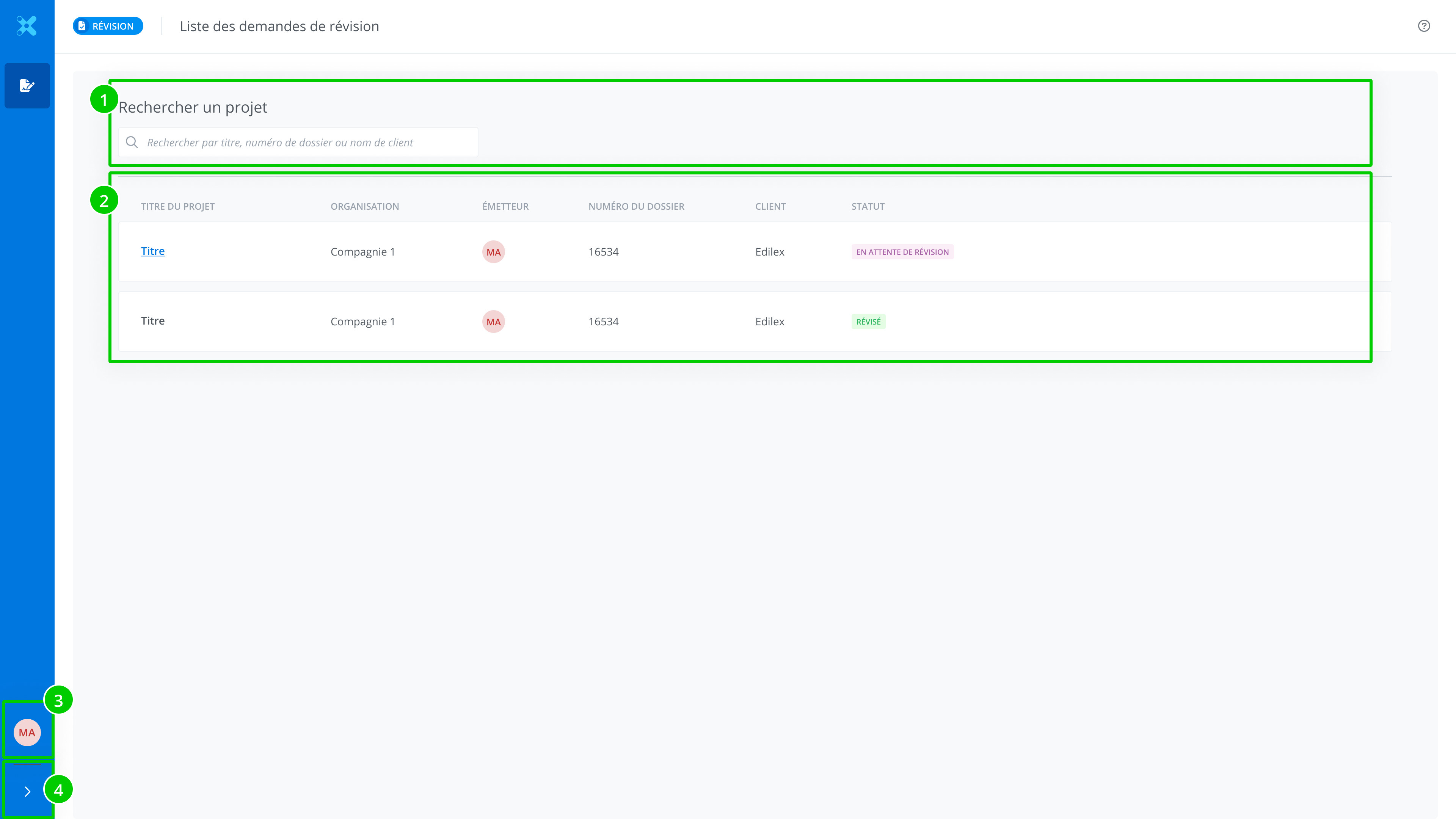
Once logged in, you arrive at the project list, which displays all the projects you currently have access to and for which you have received a review request. Several pieces of information and tools are presented to you, such as:
-
search bar,
-
list of projects to review,
-
avatar,
-
and a chevron button.
Search bar
This can help you find a specific project in the case of a list with many requests. Search by title, file number, or client name.

List of projects
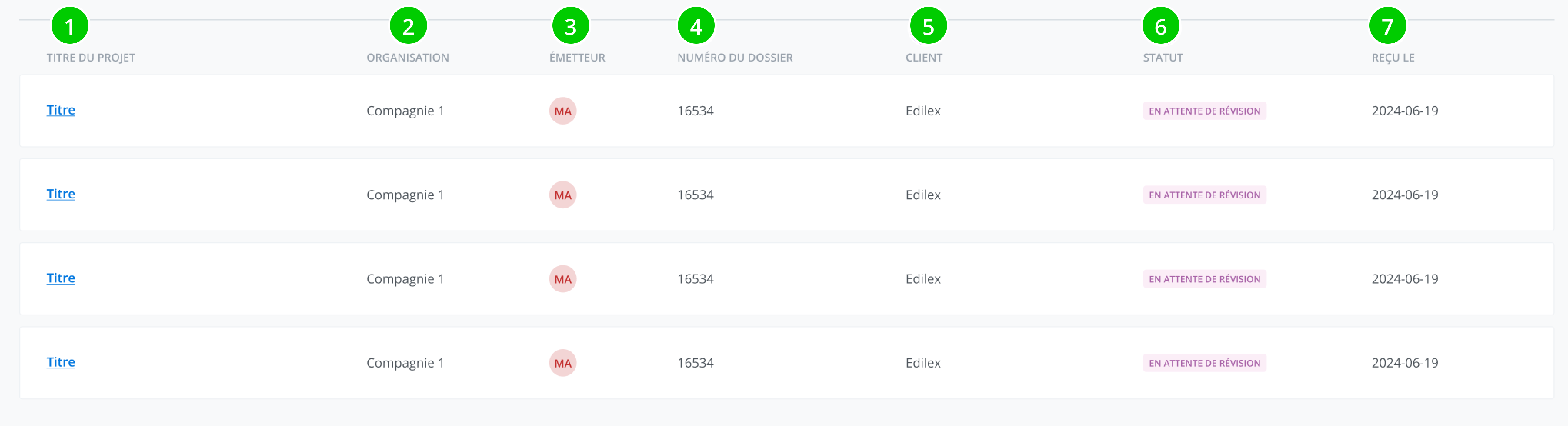
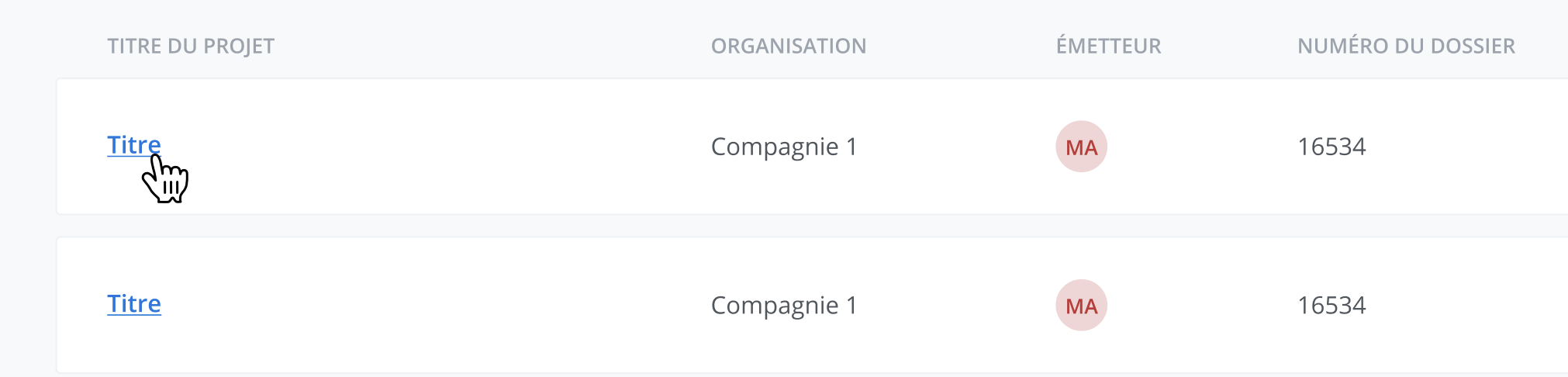
The list presents several pieces of information about the project being reviewed and allows access to the project's documents. What is presented to you is:
-
Project title, the one being reviewed.
-
Name of the organization, that of the user who shared the request with you.
-
Name of sender, corresponding to the user who issued the review request.
-
File number, the one associated with the issuer's file.
-
Client name, the one associated with the issuer's file.
-
Status, either In review or Reviewed, depending on whether or not you have completed your review of the project.
-
Date on which the request was received.
In order to view the documents making up the project, hover over the project titles and click them to access a document.
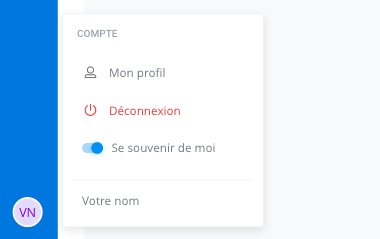
Avatar
This button provides access to view your profile details or to log out.
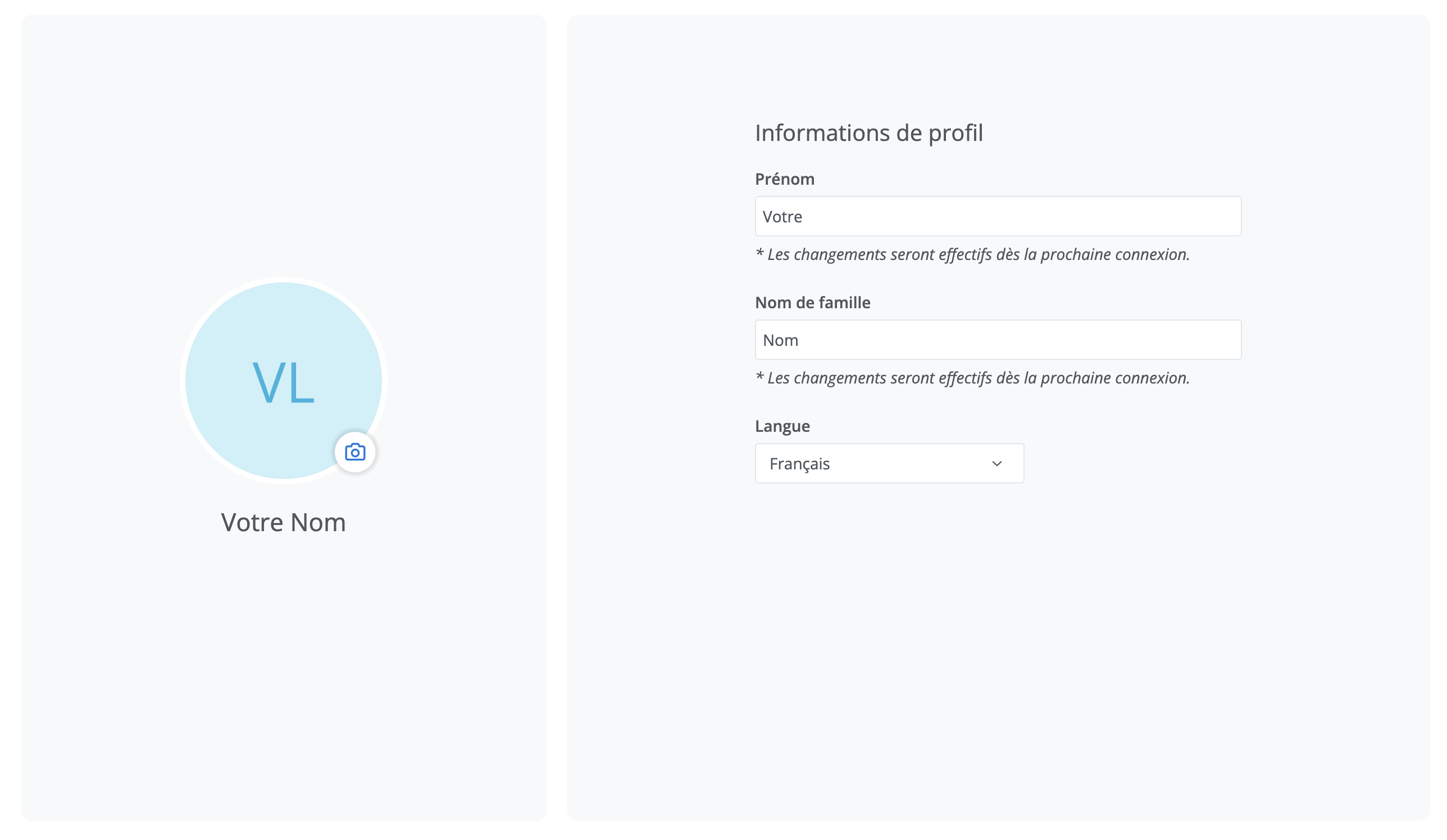
Your profile allows you to modify the following information:
-
First name,
-
Last name,
-
your session language.
Chevron button
This button, which you will find in the platform's menus, is used to switch between the expanded and collapsed display of the various menus.
Lists of project documents
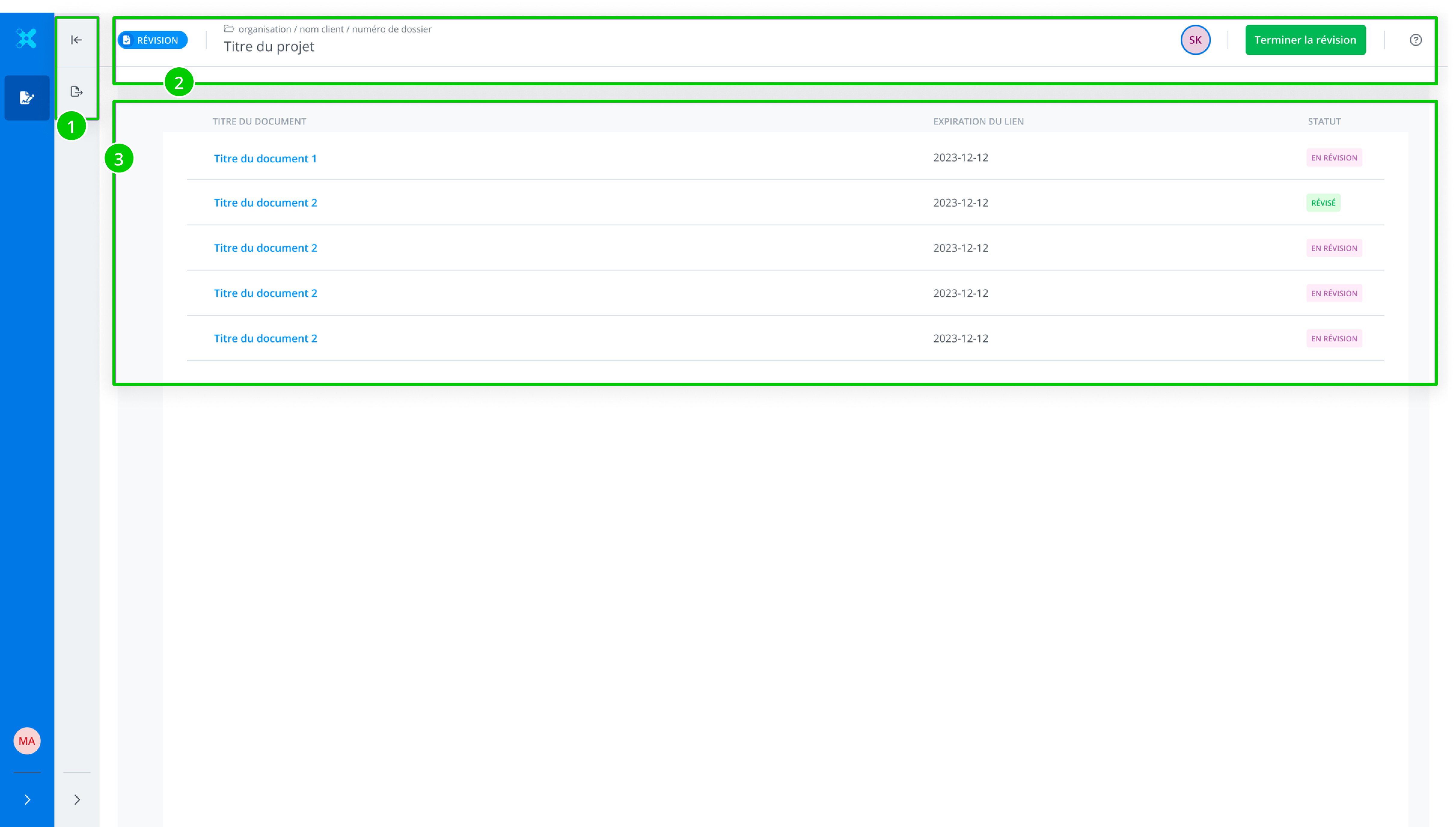
The list of documents for a project displays all the documents you currently have access to for this project and for which the issuer has requested a review. Several pieces of information and tools are presented to you, such as:
-
the features menu,
-
the information toolbar,
-
the list of project documents.
The features menu
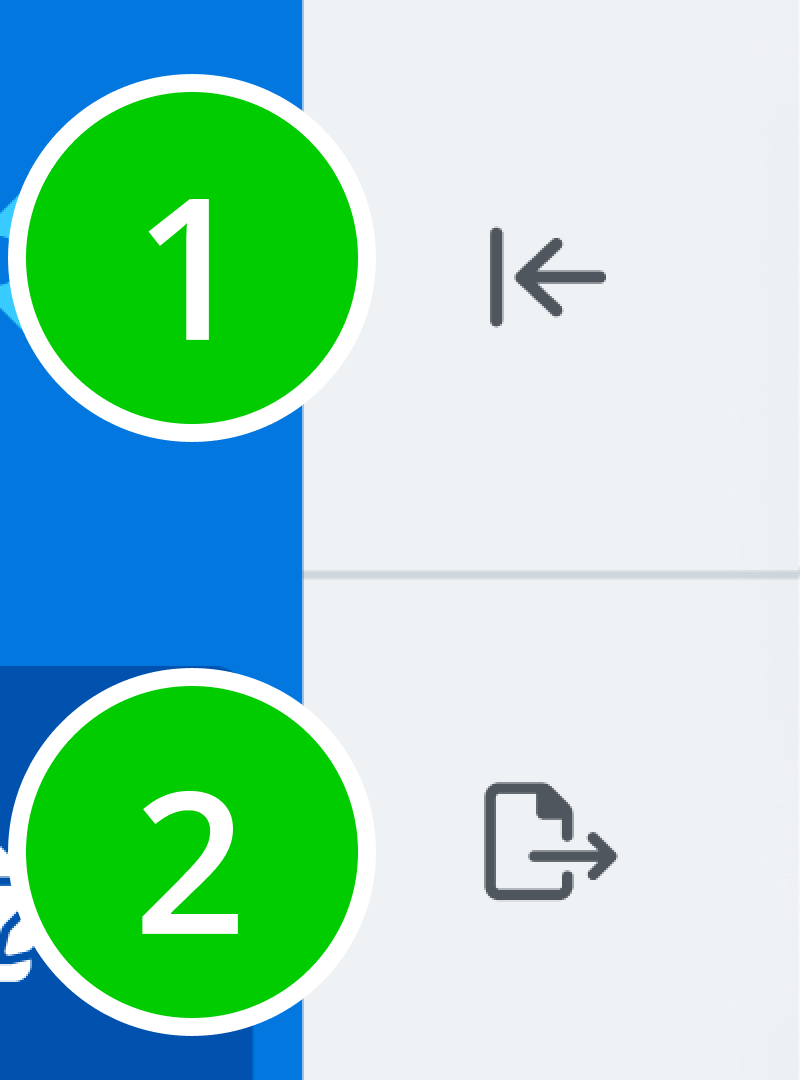
The features menu, when displayed, presents additional features that are often specific to the page you are viewing. In the case of the project's document list, you will have access to two buttons depending on the permissions assigned to you during sharing.
-
Back button: Allows you to return to the list of your review requests.
-
Export button: Allows you to export the project's documents for which the issuer has given you permission. It is therefore possible that the Export button may not be displayed.
The information toolbar
The information bar provides you with the following information and tools:
-
Project information: The information related to the project is displayed, namely the organization name, the client name, the file number, and the project name.
-
Avatar of the review request issuer: The avatar of the user who issued the review request.
-
Finish review button: Allows you to finish the review and automatically notify the issuer by email.
-
Access to the help center: If you have questions about the use of the features in general, you can find answers by consulting the help center.

Finish review button
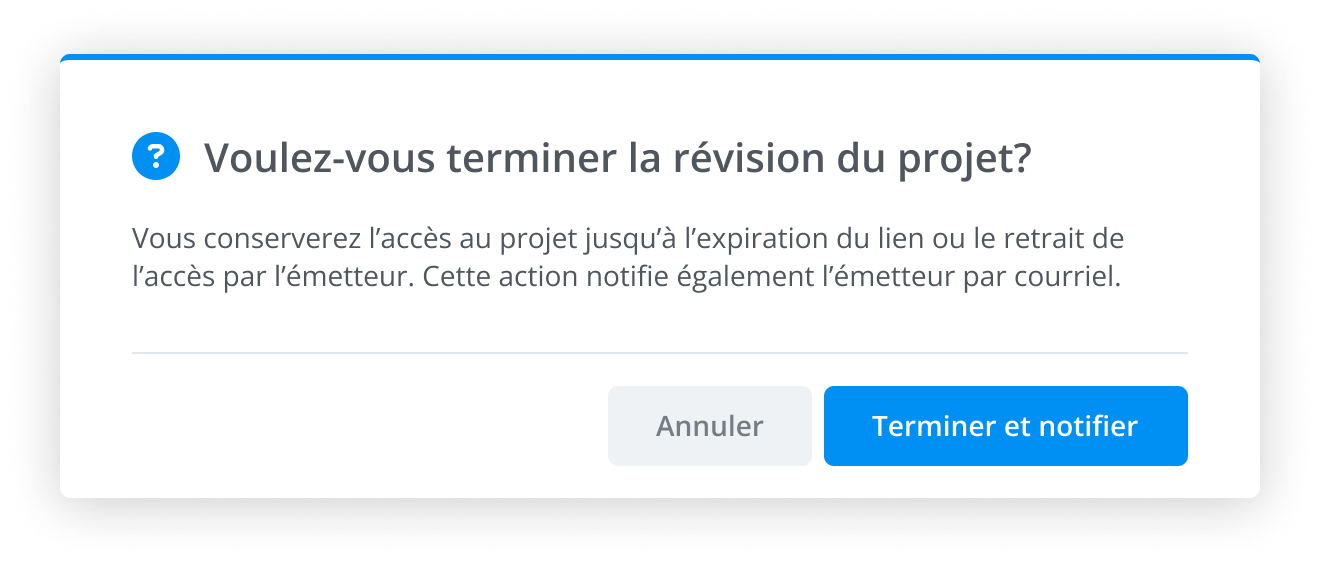
Clicking this button ends the review cycle. It changes the status of all the project's documents from In review to Reviewed and also notifies the request issuer that you have finished your review. Please note that you will retain access to the documents until the expiration date indicated in your list.

To finish the review, simply click Finish and notify.
List of project documents
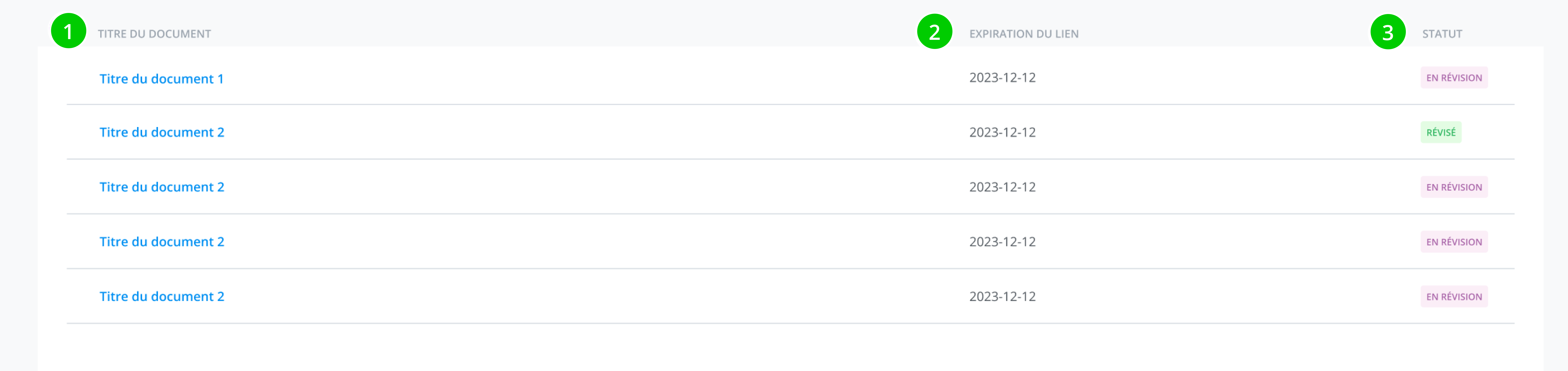
The list of project documents provides information on the documents to be reviewed, the time until which you will have access, and the status of the documents to help you keep track of what you still have left to review. The following columns display this information for each document row:
-
Document name: Clicking the document name navigates to the review interface where you can view the document's content.
-
Document access expiration date: You will have access to the documents until the date indicated in this column. If you need more time, you can contact the request issuer directly at any time.
-
Document status: This column presents 2 distinct statuses, Awaiting review or Reviewed. This status serves as an indicator to help you track which documents you have reviewed and which ones you still have left to review.
Review interface
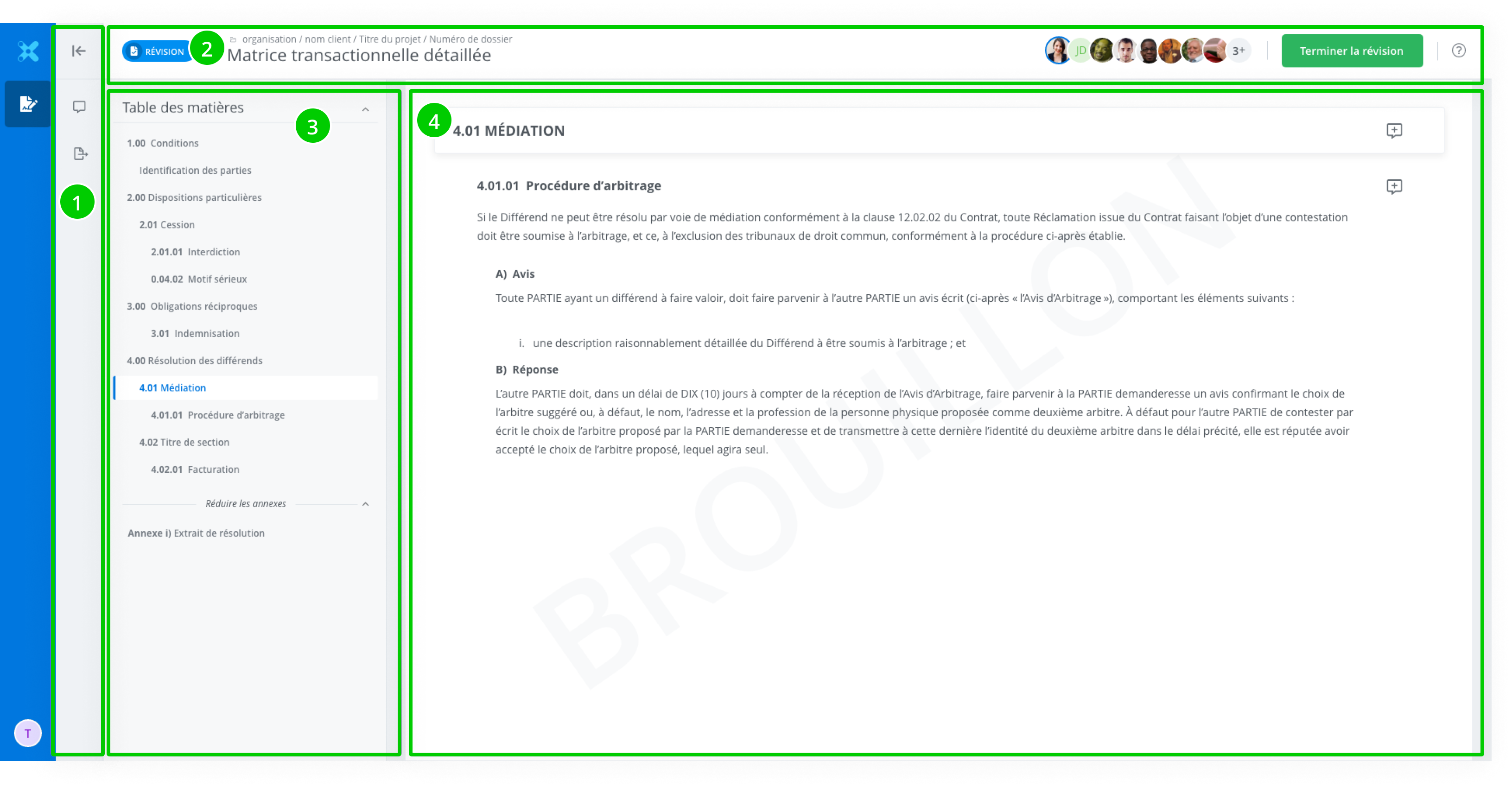
The document review interface is made up of the following elements:
-
The features toolbar,
-
The information toolbar,
-
The table of contents,
-
The review interface.
The features toolbar
The features toolbar allows you to perform the following actions:
-
Comment on clauses, sections, and schedules,
-
Export the document in PDF format;
The information toolbar
The information toolbar displays the following information:
-
The organization name, the client name, the project title, the file number;
-
The collaborators who currently have access to the document;
-
The Finish review button
-
The help button that leads to the documentation center.

Finish review button
Clicking this button ends the review cycle. It changes the document's status from In review to Reviewed. Please note that you will retain access to the documents until the expiration date indicated in your list. This action does not notify the issuer.
Table of contents
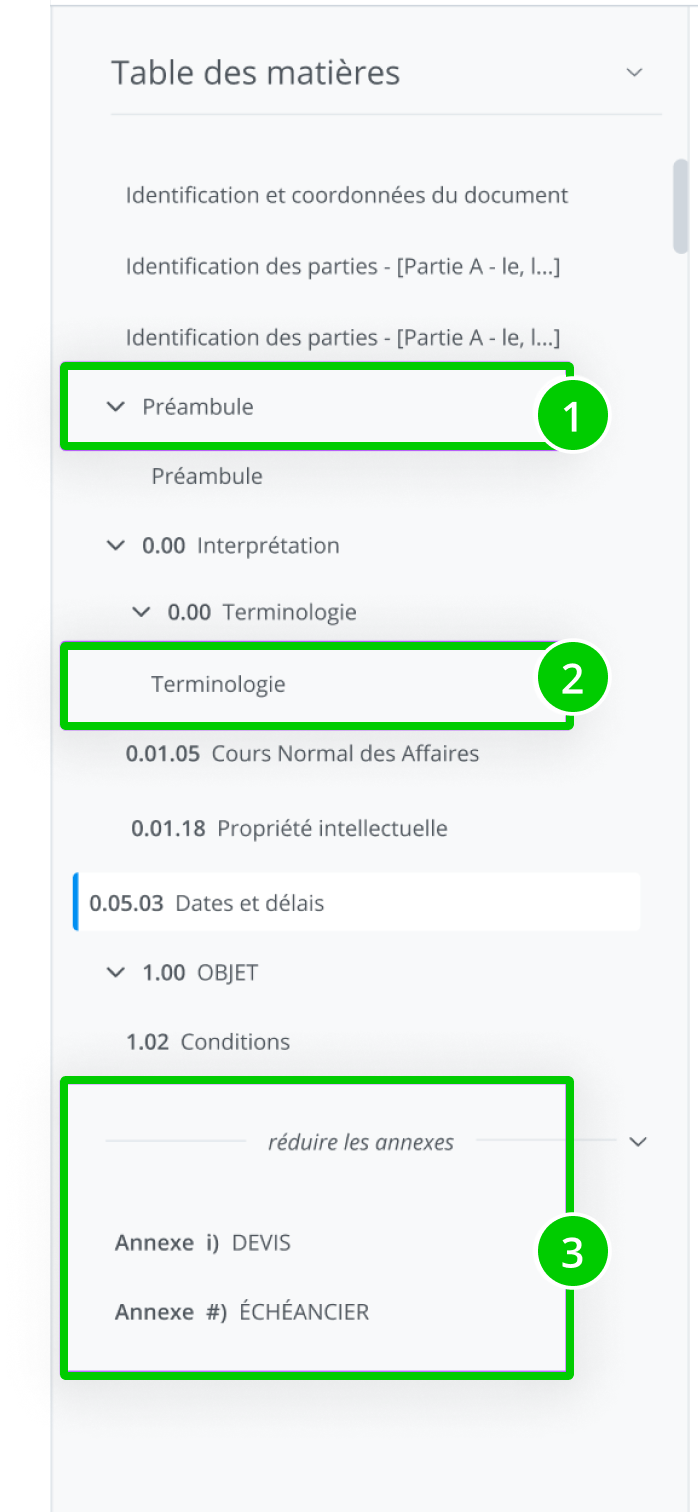
The table of contents displays the titles of the sections, clauses, and schedules included in the document. You can navigate through the document using the table of contents by clicking on the content you wish to view.
-
A section,
-
A clause,
-
The schedules.
Review interface
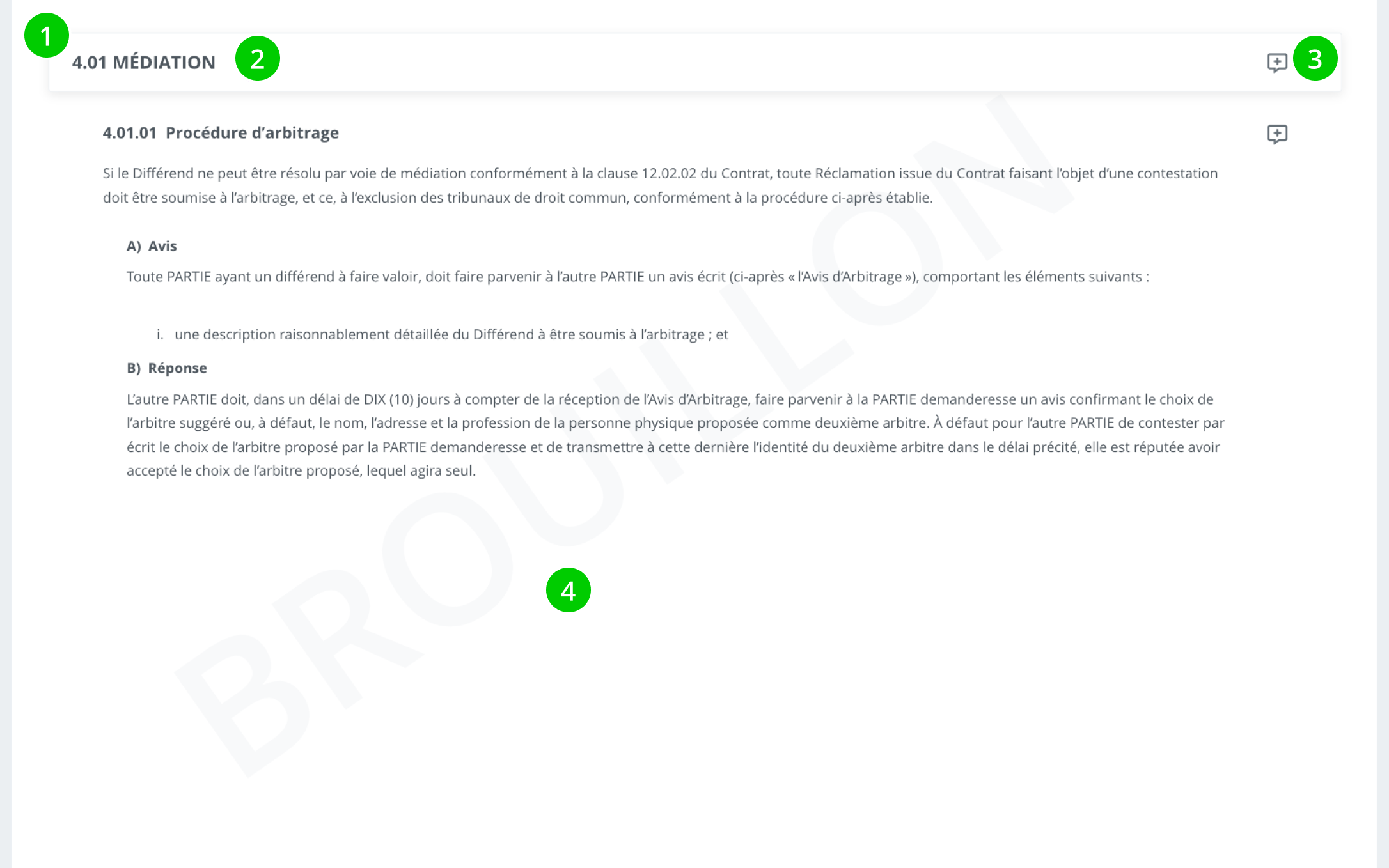
The review interface contains the textual content of the documents. The review interface is made up of the following elements:
-
A box that indicates the boundaries of the selected content;
-
The content title,
-
The comments tools.
-
A background watermark.
Review the document
When conducting your review, you can leave comments on the various sections, clauses, or schedules. To do so, you can use the Comment tool displayed to the right of each content item in the document.
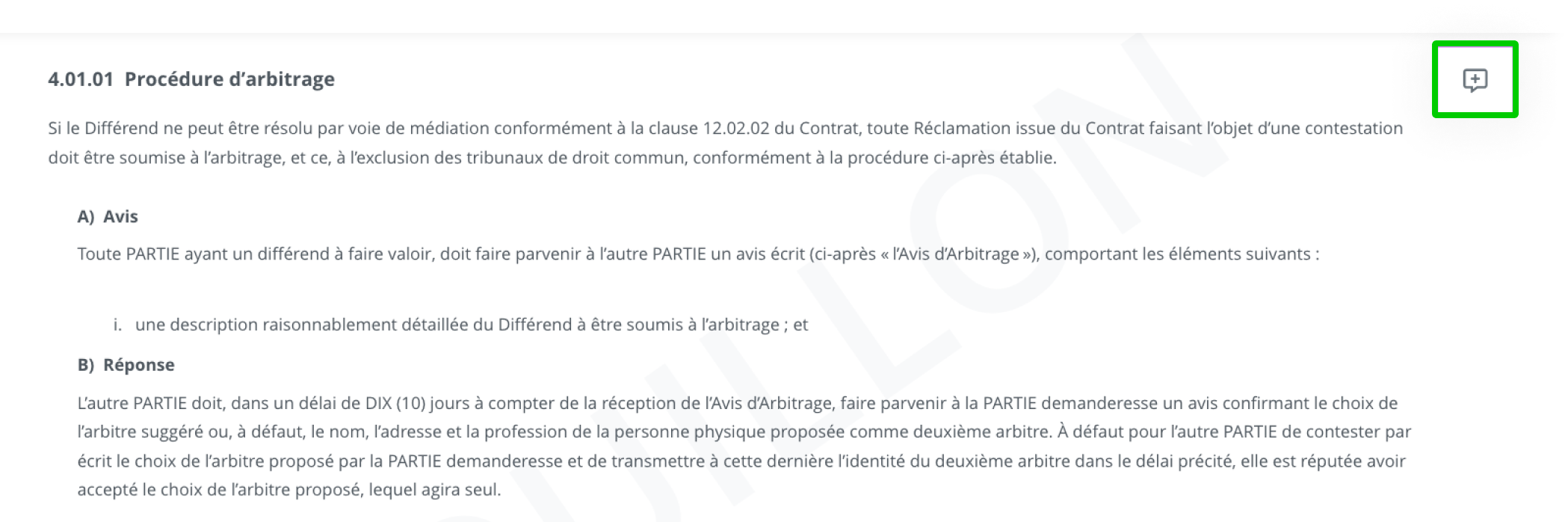
In a review context, it is quite possible that other users have commented on the document. In such a case, the display of the comment tool will differ and will appear in a way that indicates one or more active comments exist for the content.

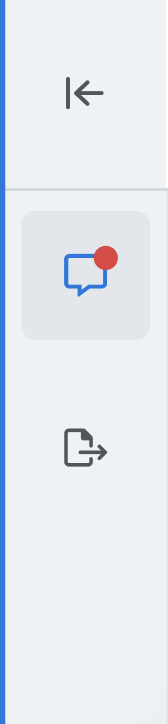
You will also find this same indicator in the features menu, letting you know that one or more comments are active somewhere in the document. To view them easily, click the tool to open the comments panel.
Commenting on the document
It is possible to leave a comment on a content item or to reply to an already existing comment.
To comment on a content item, click Comment in the toolbar to open the comments panel and write a comment.

In the features menu, click Comments. This will open the comments panel with the option to view all comments in the document.
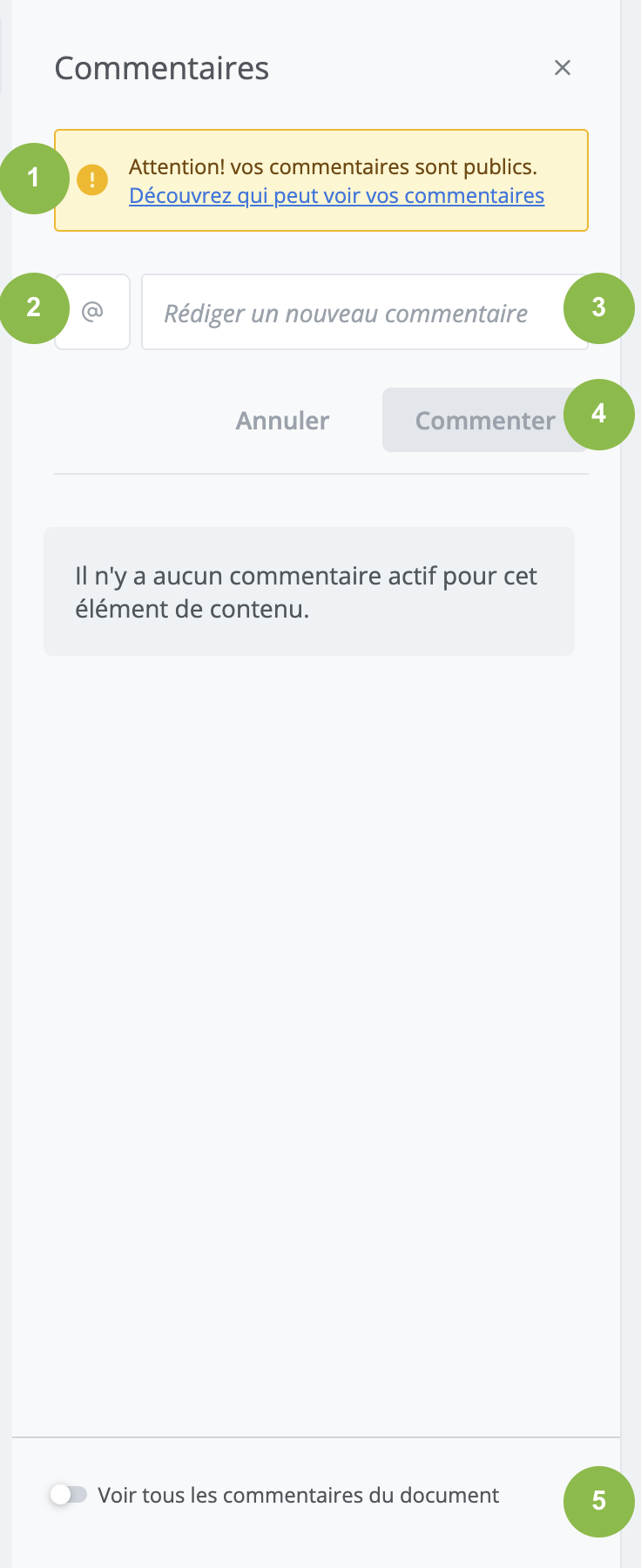
-
The information toolbar
-
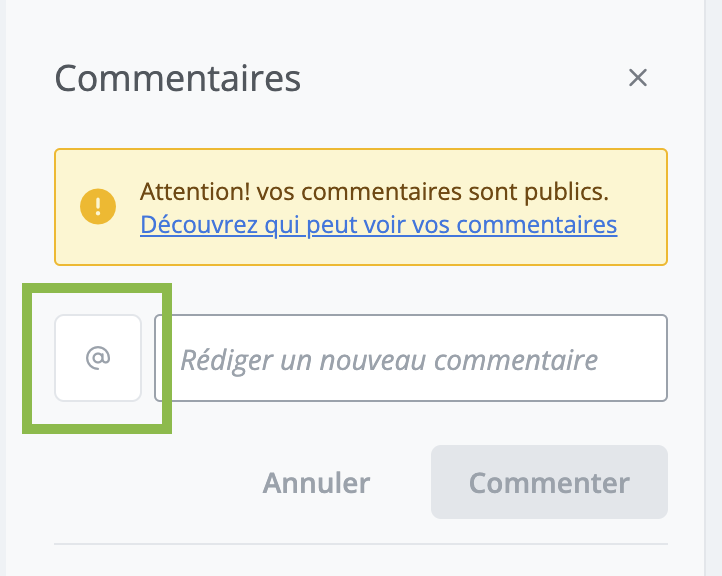
Button to Assign a comment;
-
Comment writing field;
-
Cancel and Comment button;
-
Show all comments in the document button.
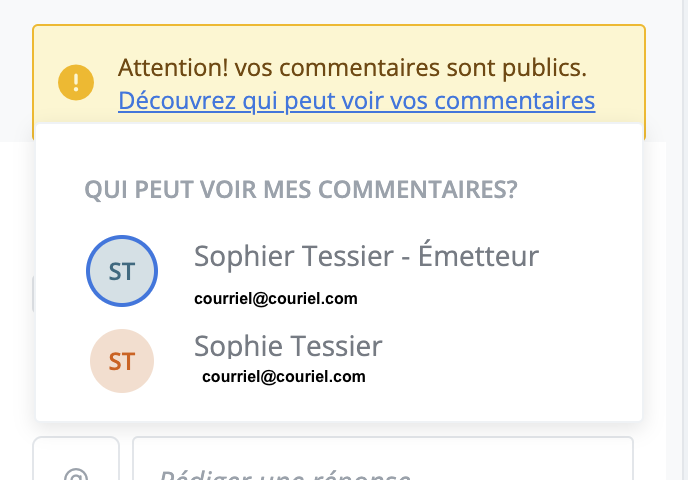
The information toolbar
Allows access to the list of users collaborating on the document, who can see your comments. The list provides information on the users' name, role, and email address.
Button to assign a comment
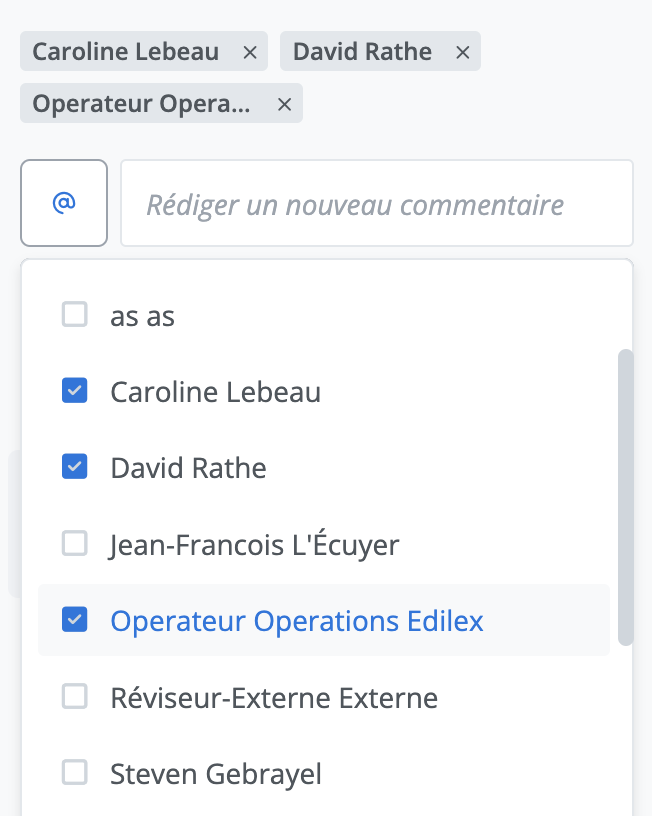
Comment assignment works the same way as the regular comment action, except that assignment automatically sends an email notification to the users assigned in a comment. To do so, click the assign button next to the comment input field.
Select the contact(s) to whom you wish to send an email notification. These will appear as tags above the comment field.
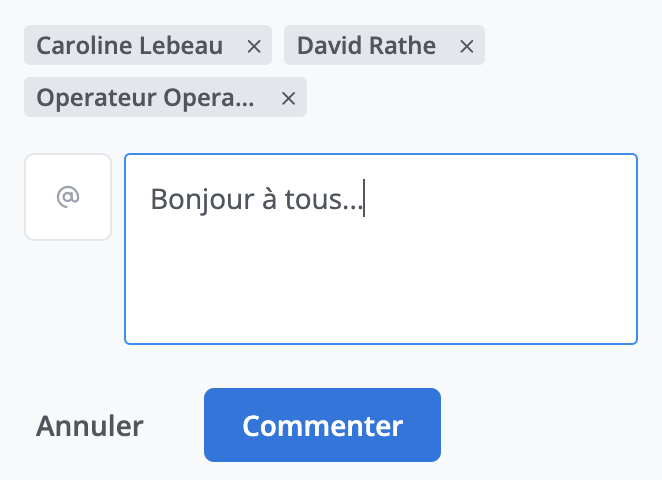
Enter your comment in the field provided for this purpose and click Comment.
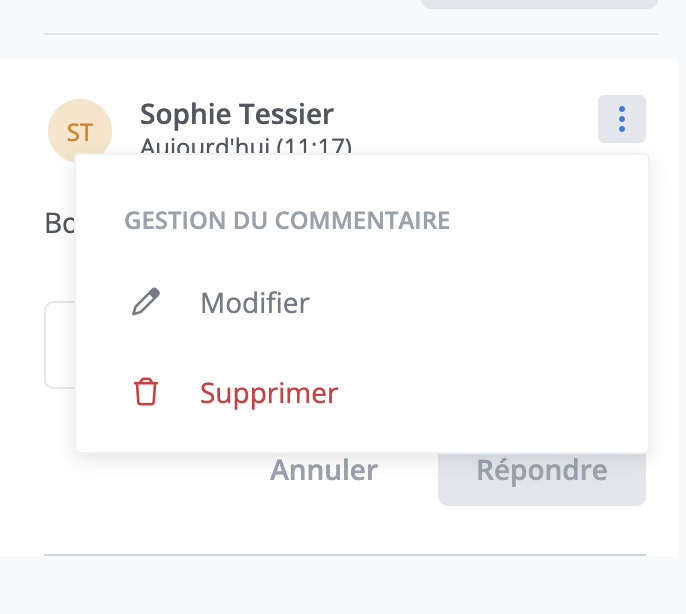
Comment Management
You can modify or delete your comments or replies at any time using the tools provided for this purpose, located in the menu next to your comments.
Show all comments in the document
This button allows you to switch between the comment panel specific to one piece of content and the panel displaying all the comments in the entire document. By doing so, you can click on a comment from the list to reach its target in the document and view the content it relates to.
