
Share a project in part or in its entirety using the sharing feature. To begin, click Share available in the features menu from within project management.
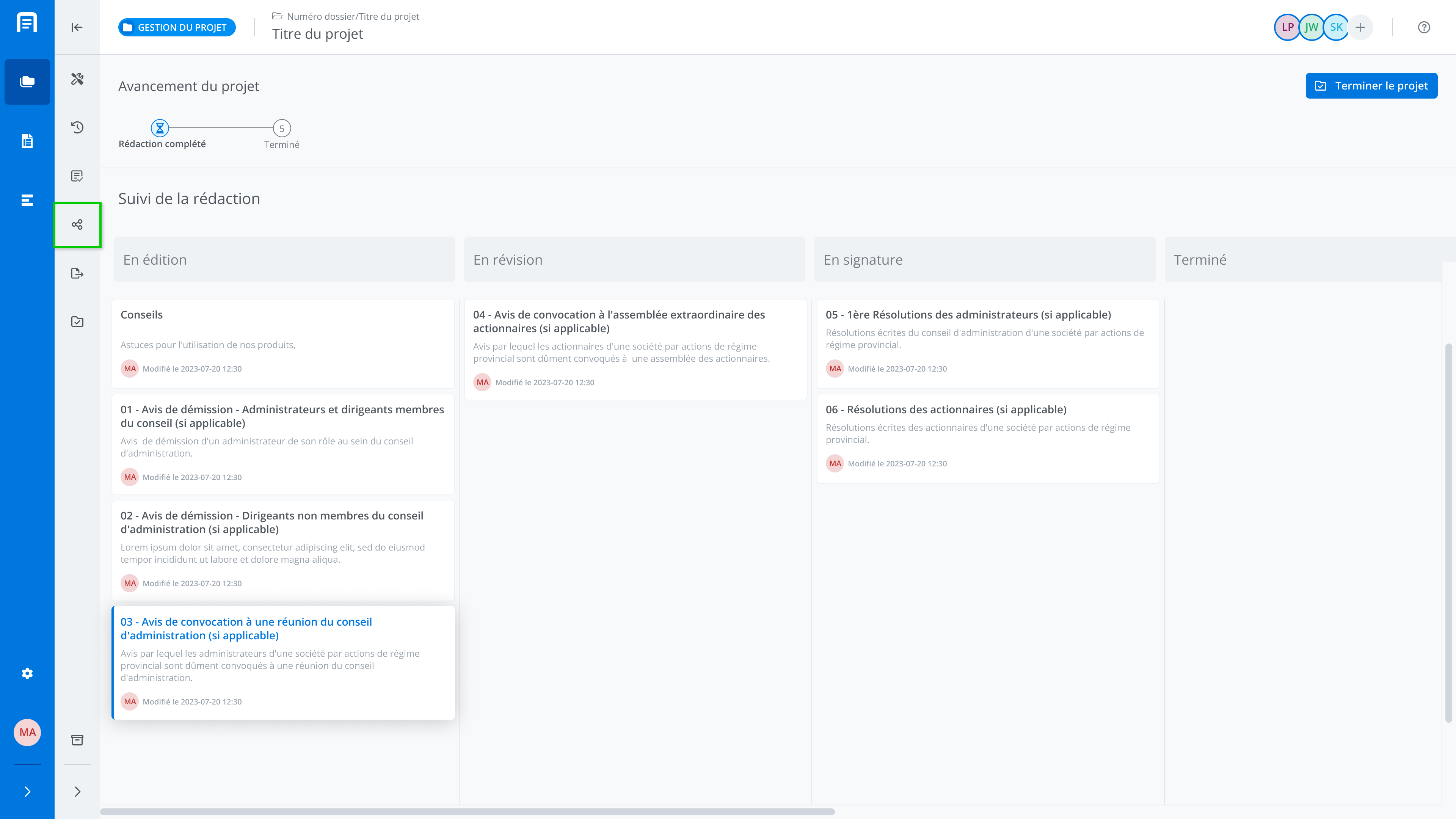
Share a project
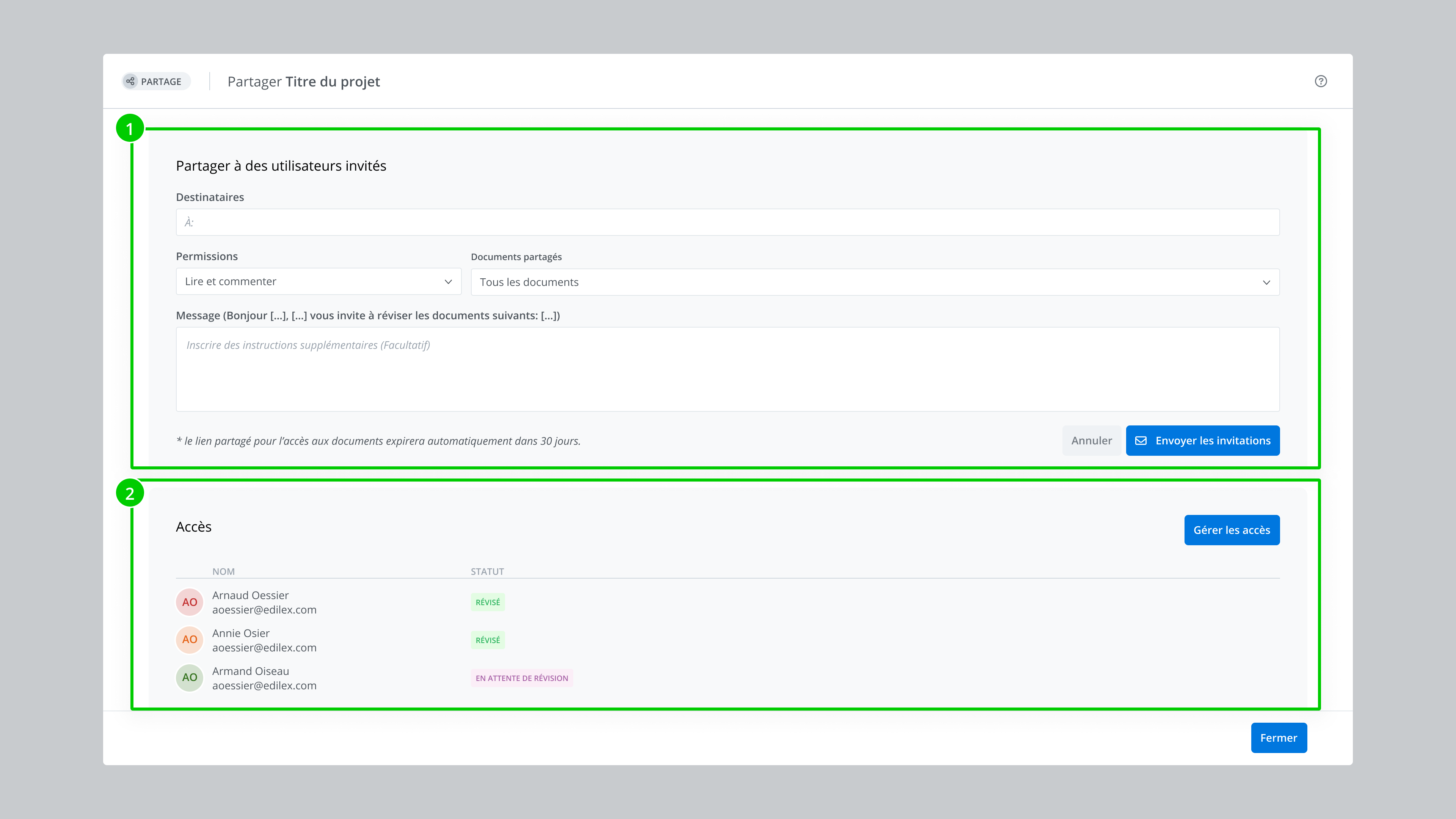
The sharing window is made up of two sections:
-
Section 1 - Share with invited users: This section is used to configure the sharing. It allows you to select the recipients, the permissions, the various documents to include in the share, and finally the option to customize the email notification that will be sent to the recipients.
-
Section 2 - Access: This section contains information about users who have access to at least one document in the project. The Manage access button provides access to the management tools for users with access, such as modifying permissions, removing access, or resending the access invitation. For more details, see the Manage access article.
Configure the sharing of a project
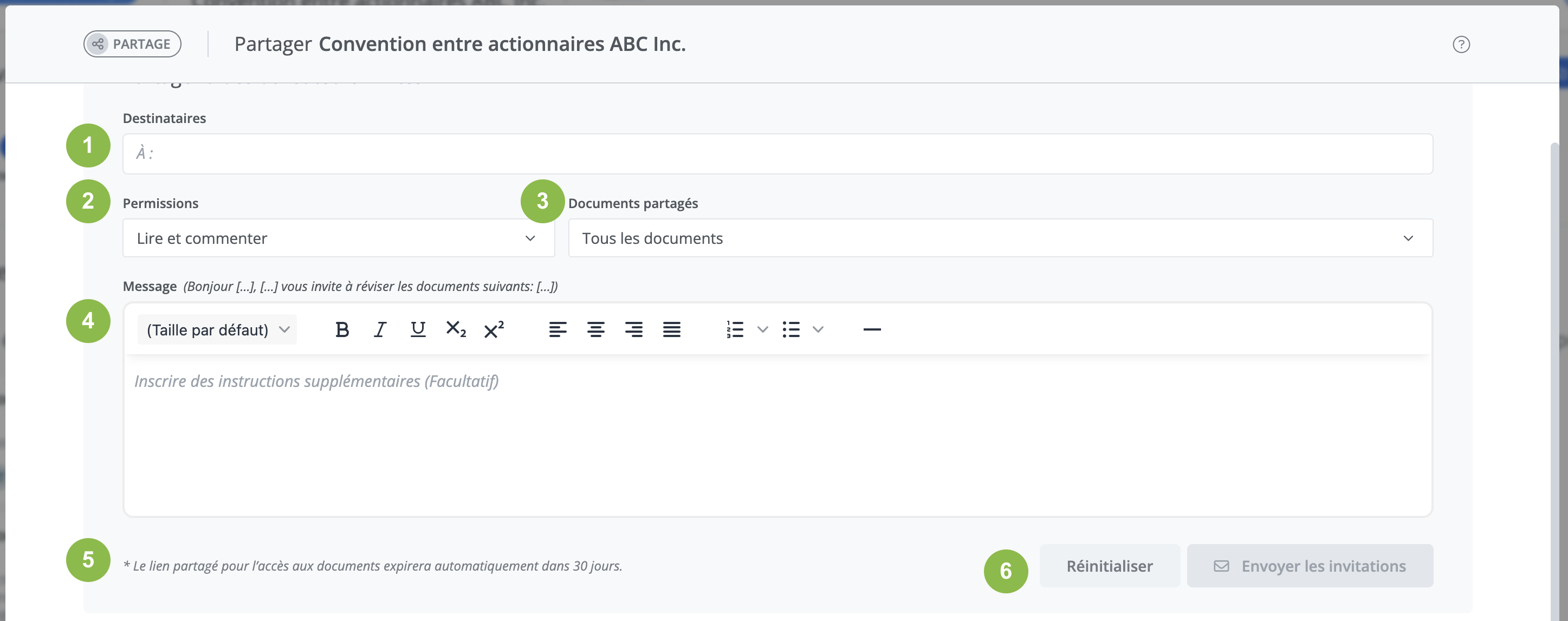
To share a project, use the options in the Share with invited users section. This section is made up of the following fields and information:
-
the recipient(s),
-
the permissions,
-
the shared documents,
-
the instructions addressed to the recipients,
-
information about the sharing link.
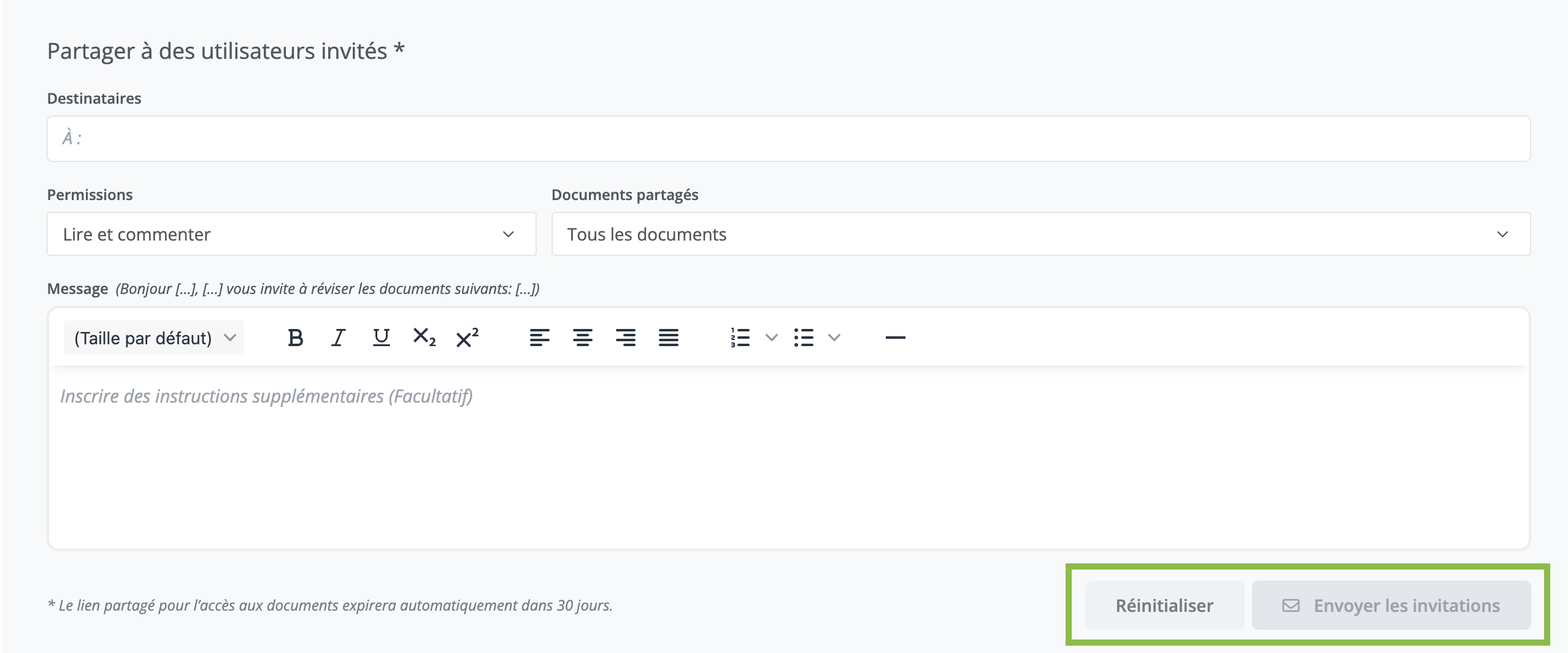
To complete the sharing, click Send invitations. To cancel the sharing, click Reset.
Add/remove recipients
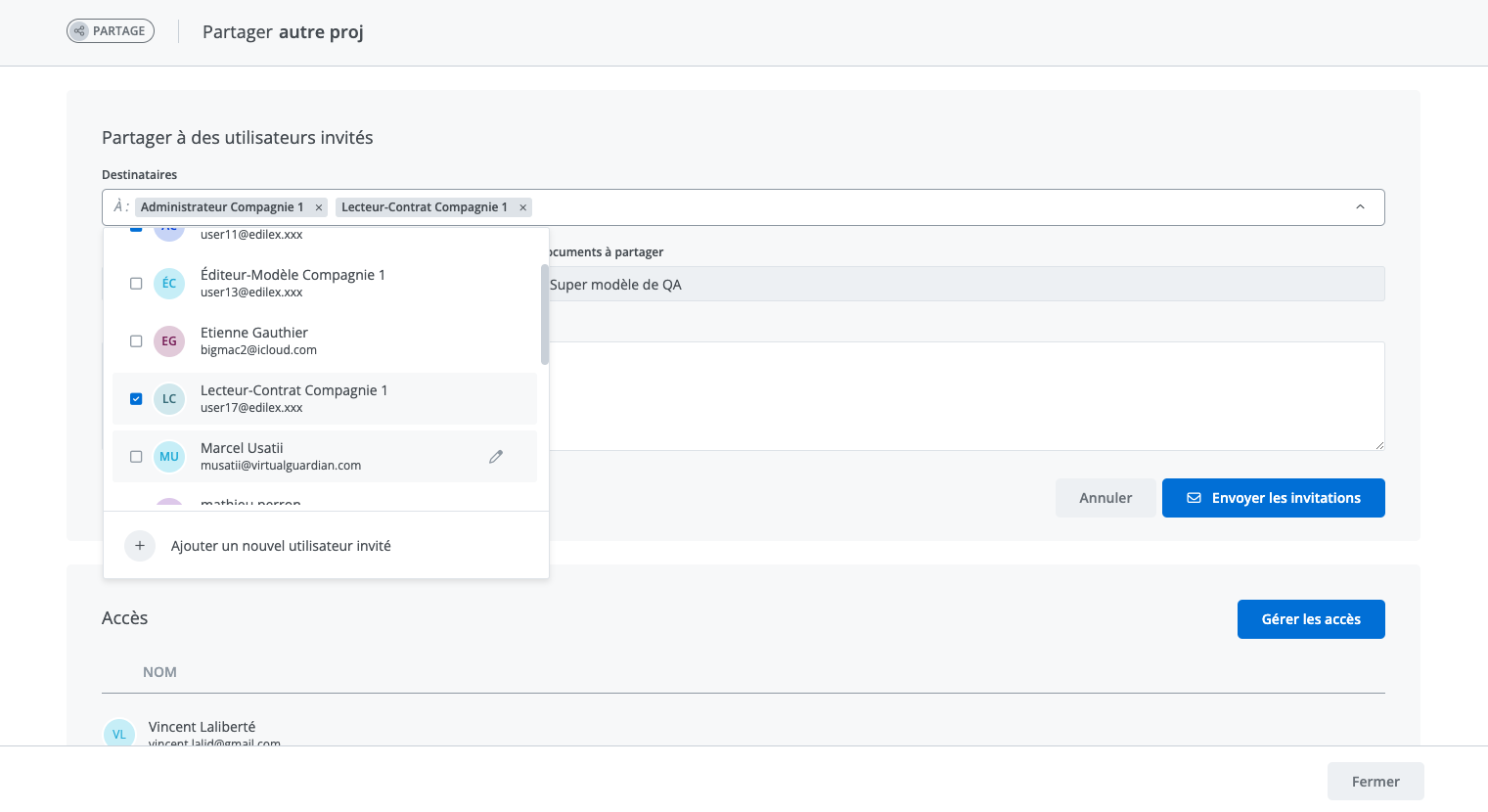
The Recipients field allows you to select who receives access to the project. Clicking the Recipients field displays the contact list; you can select several contacts for the same submission.
Each selected contact is displayed in the Recipients field as a tag. To remove a recipient from the list, click the X on the tag or deselect them from the drop-down menu.
Add a new invited user
The contact list contains the users from your organization, who can be added directly as recipients.
To share with invited users outside your organization, they must first be added to the address book.
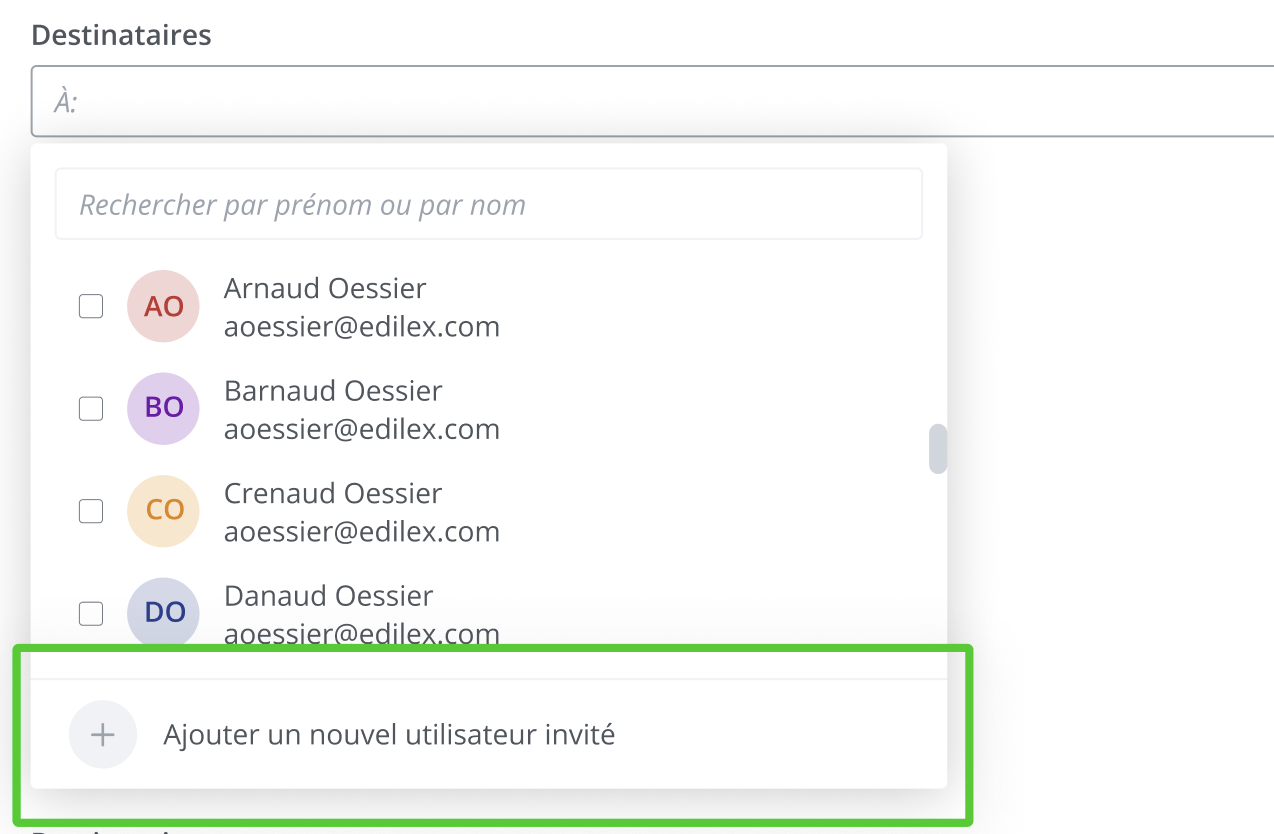
To do so, click Add a new invited user at the bottom of the Recipients drop-down menu.
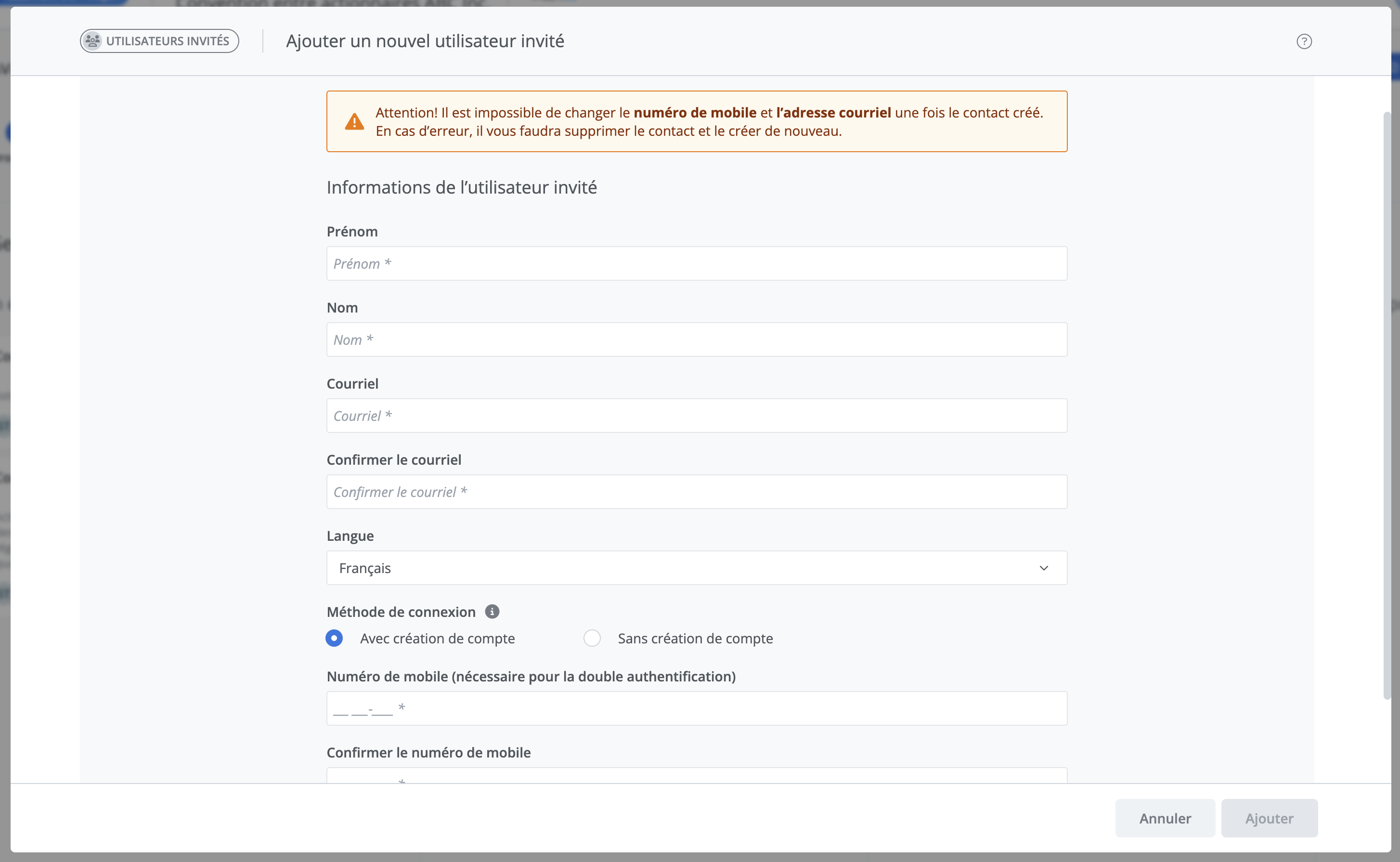
To add a new invited user to your contact list, enter the information required to complete their profile. This information is mandatory and will be used to authenticate the invited user's connection when they access your documents.
You must therefore provide the following mandatory information:
-
First name,
-
Last name,
-
Valid email address,
-
Valid mobile number,
-
and select the language of communication.
Please note that it is not possible to modify the contact's mobile number and email address once they have been created. Be careful when entering the information; if you make a mistake, delete the contact and create it again.
Once the contact information has been entered, click Add. The new contact is added to the recipient field.
Connection method
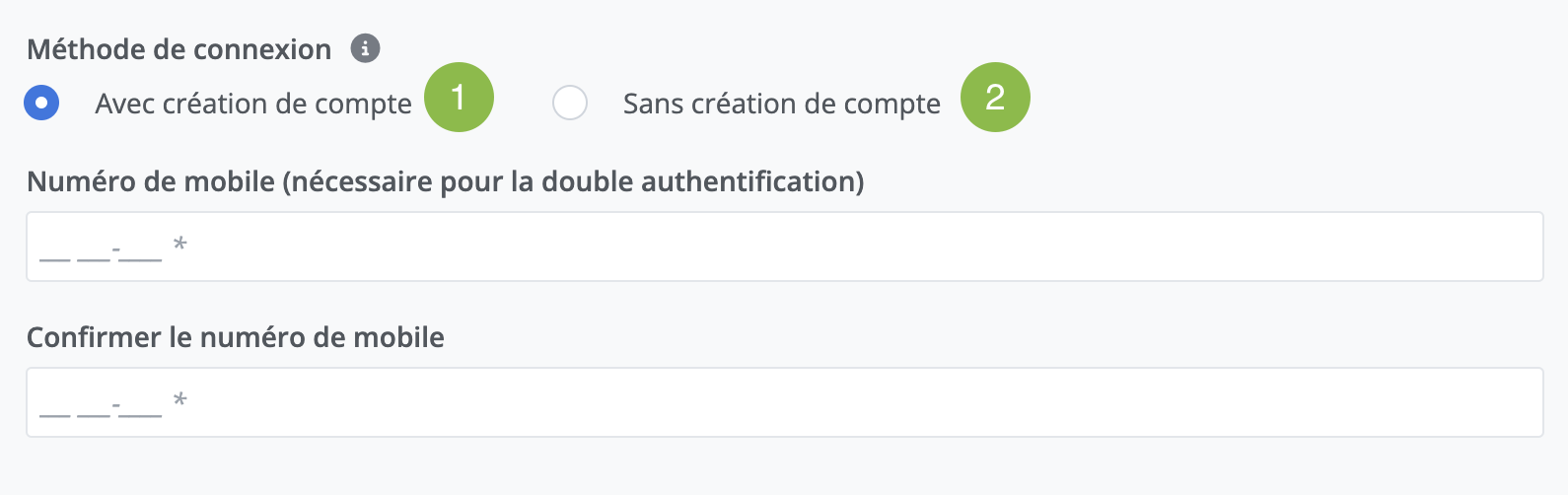
There are two possible connection methods for an invited user.
-
With account creation (more secure):
-
The external user must create an account with a password the first time they log in. A mobile number is therefore required, as they must also authenticate using a code received by SMS.
-
A code is sent by SMS every time they log in for the first time on a new device.
-
-
-
Without account creation (simpler):
-
The external user simply logs in using their email address and a code sent to their email.
-
A code is sent by email every time they log in for the first time on a new device.
-
-
Select permissions
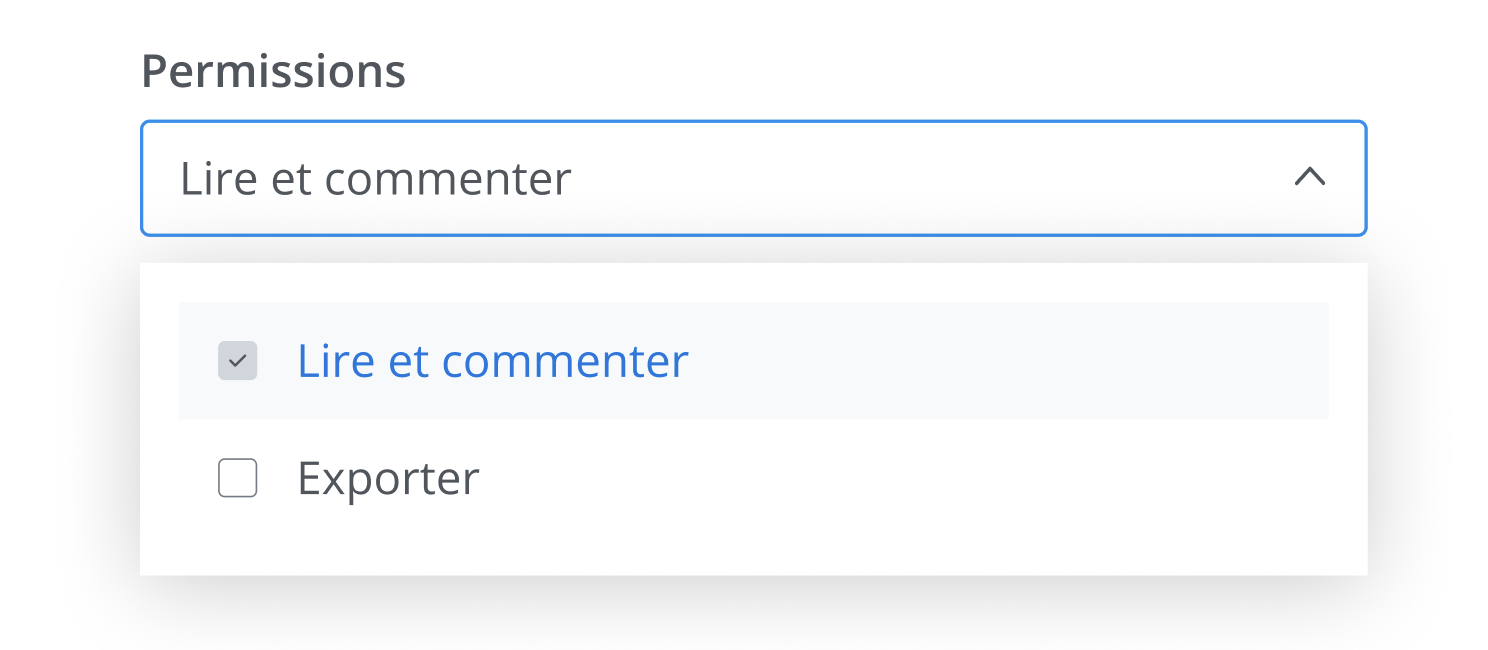
The permissions selected correspond to what the invited user will be able to do when accessing the documents.
Read and comment: is the default permission for a share; it cannot be deselected. All documents you grant access to can be viewed and commented on.
Export: this permission determines whether or not invited users can export the documents to which you grant access as locked PDFs.
Documents exported by invited users display a "Draft" watermark in the background by default, unless an alternative configuration is set.
Please note that even once shared, the permissions granted during the initial sharing can be modified at any time without having to share again.
See the Manage access section for details.
Shared documents
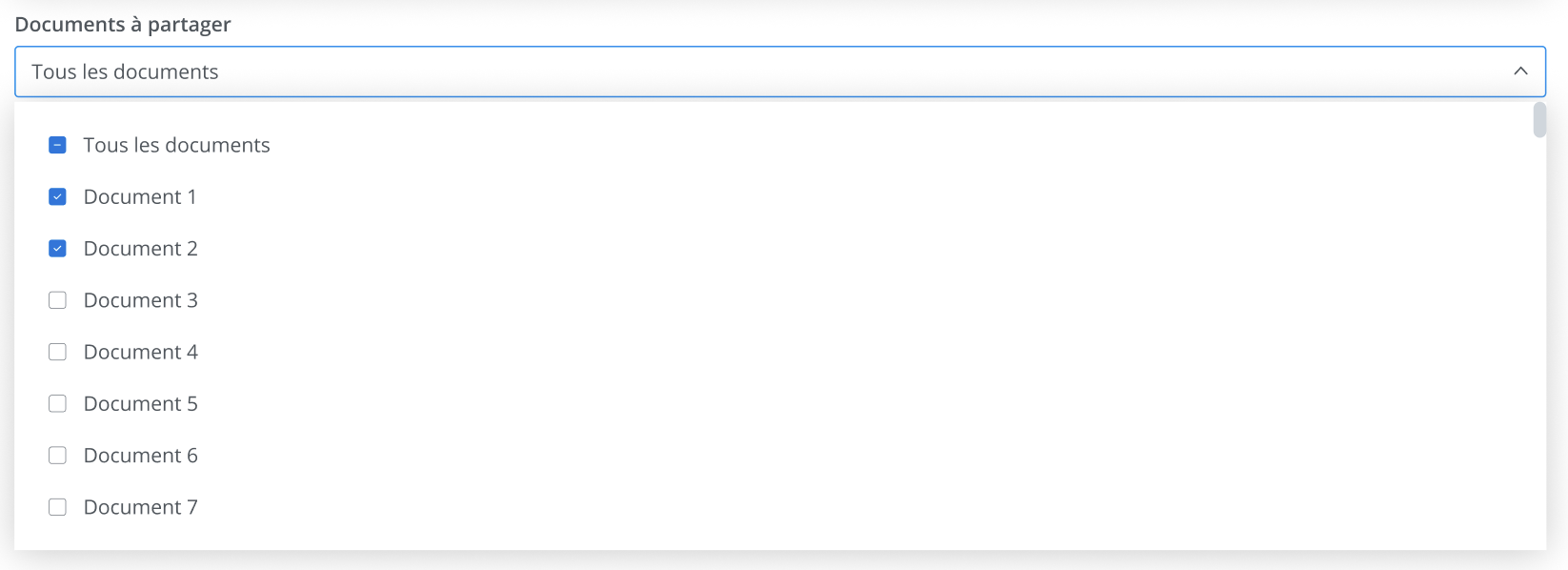
When sharing your project, you have the option of sharing it in its entirety or sharing only part of it. To do so, use the Shared documents field; the drop-down menu displays the list of all the documents in your project. Select the ones you wish to share.
Please note that access to the selected and shared documents can be modified at any time without having to share again.
See the Manage access section for details.
Email notification message
When you finish configuring your sharing and click Send invitations, the recipients targeted by the share receive an email notification inviting them to review the documents to which you have granted them access.
A default message is provided to inform recipients of your request and the details surrounding the sharing; however, it does not tell them what you specifically expect from the review. It is therefore recommended that you use the message field to add clarifications and instructions about your sharing.
To do so, enter your message in the field provided for this purpose so that it is included with the invitation email notification.

Here is an example of the email notification sent to a recipient upon invitation; your instructions are inserted in a grey box as shown (4).
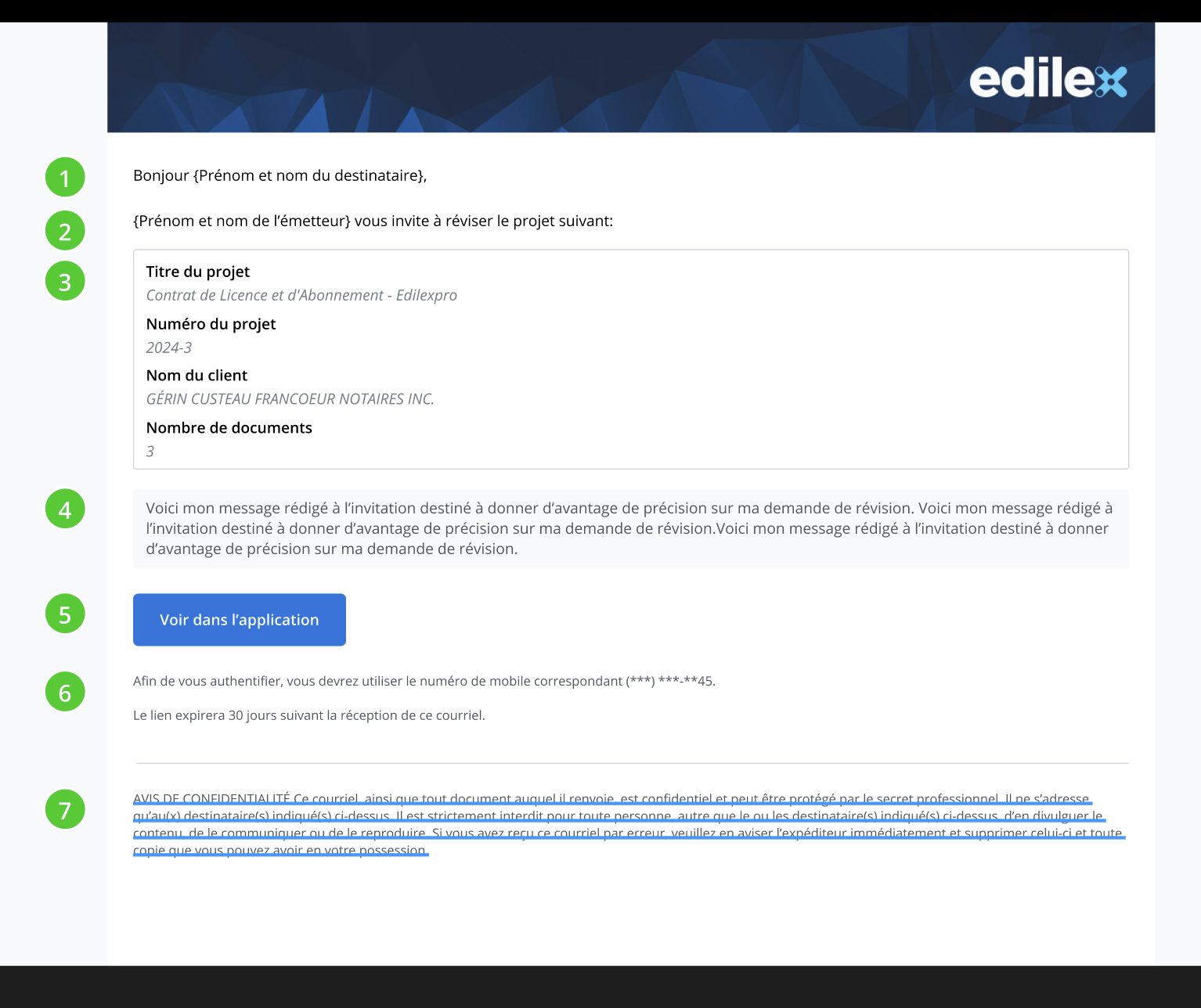
The default invitation email contains the following information:
-
The first and last name of your recipient,
-
your first name, your last name, and the purpose of the communication,
-
the information concerning the project you are sharing,
-
your instructions (if you entered any when sending),
-
a button that will allow the recipient to navigate directly to your project on the platform,
-
two notes:
-
a preview of the mobile number you entered when adding the contact to your address book,
-
the link expiration (the link automatically expires after 30 days),
-
-
and finally, our confidentiality notice.