
Access to Feature
Access manual document management by clicking the manual document management button from the menu in the organization window.
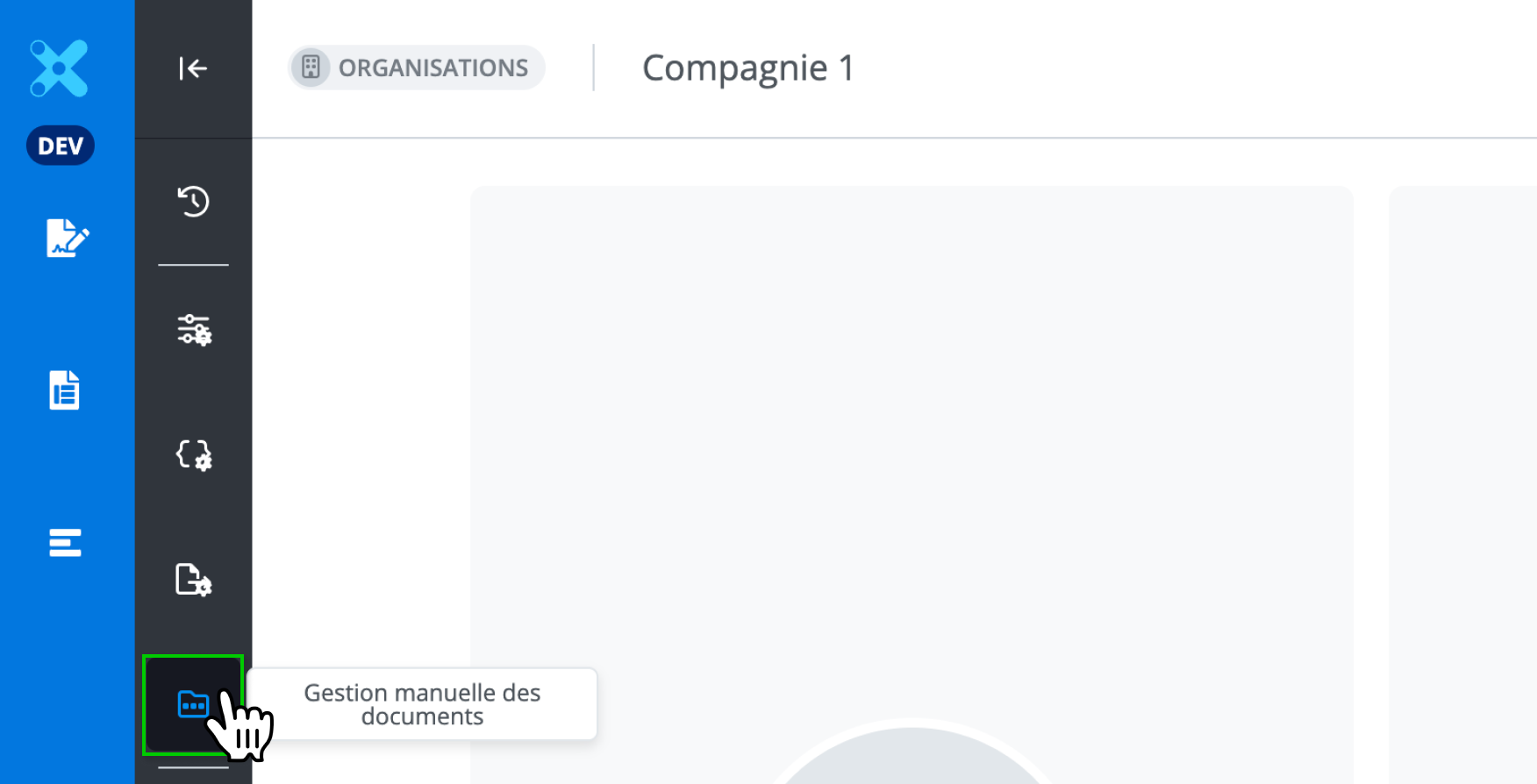
The button is only visible to an administrator of your organization.
Description of the Feature
Manual document management allows your organization's administrator to customize the column statuses.
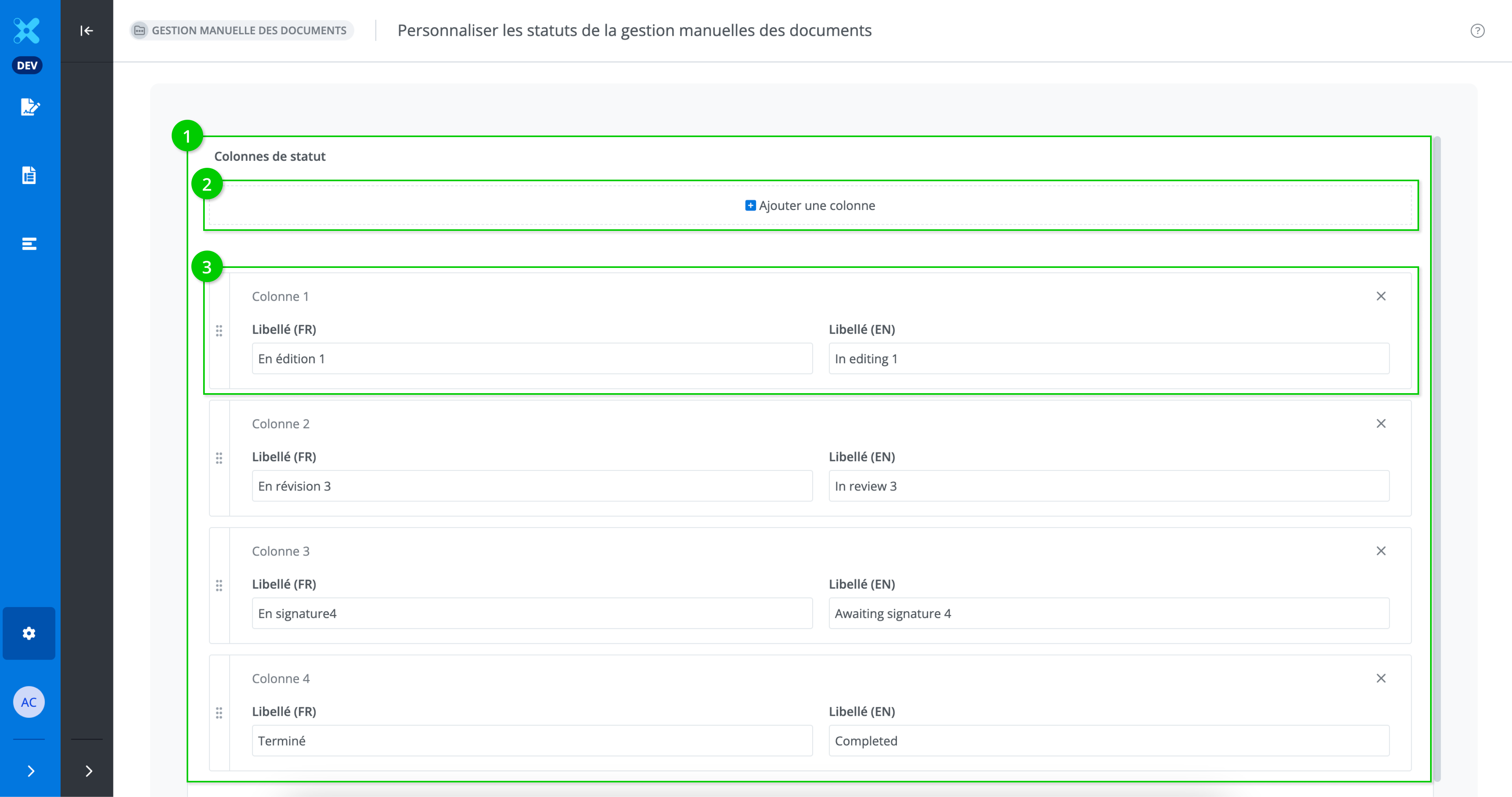
Manual document management includes the status columns (1), a button to add a column (2), and the column (3).
The column

The column can be moved (1), renamed in French (2), renamed in English (3), and deleted (4).
Insert a column
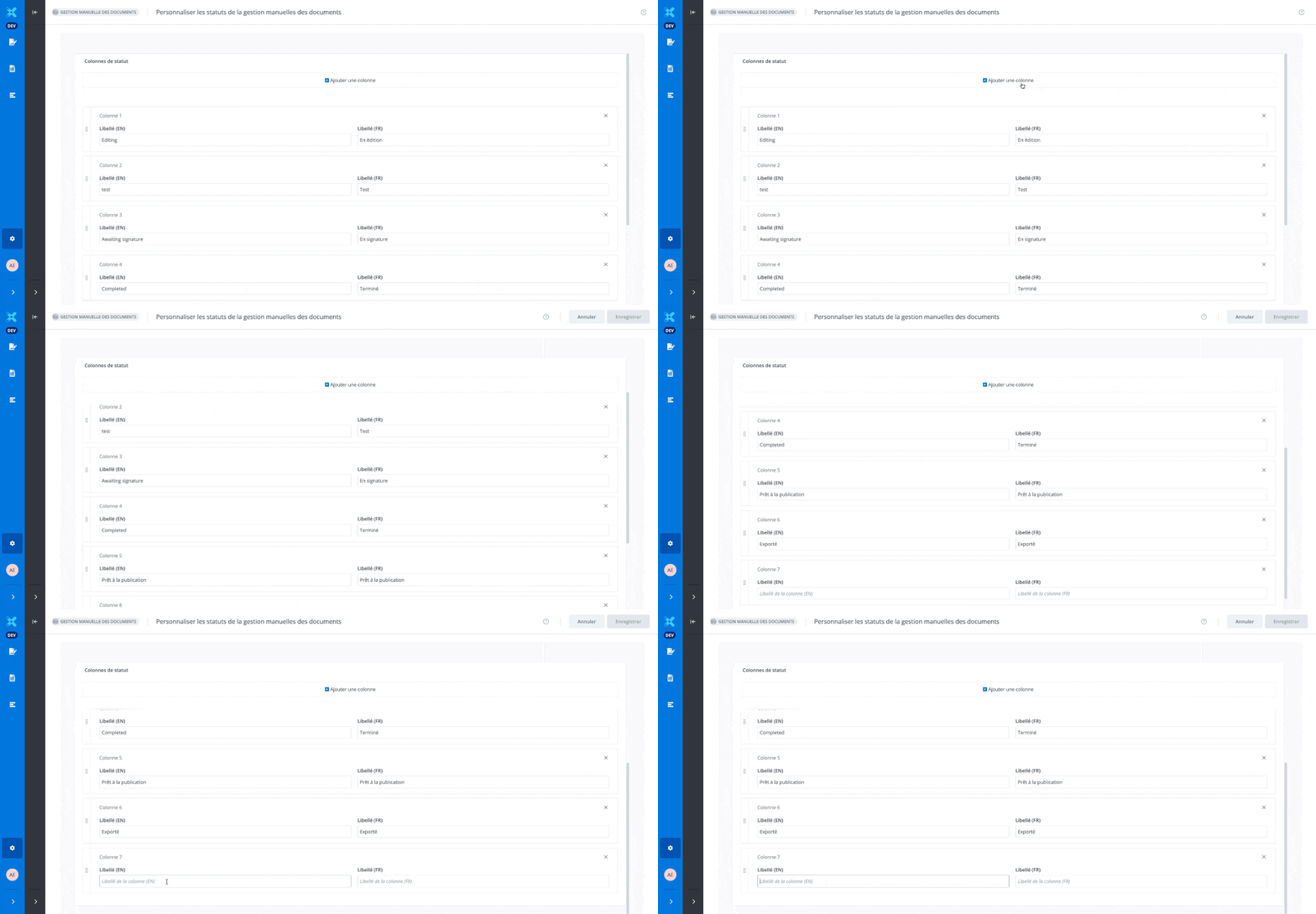
To add a column, click on Add column. The new colum will appear at the end.
It is not possible to save the changes if the column is not named.
Modify a column’s name
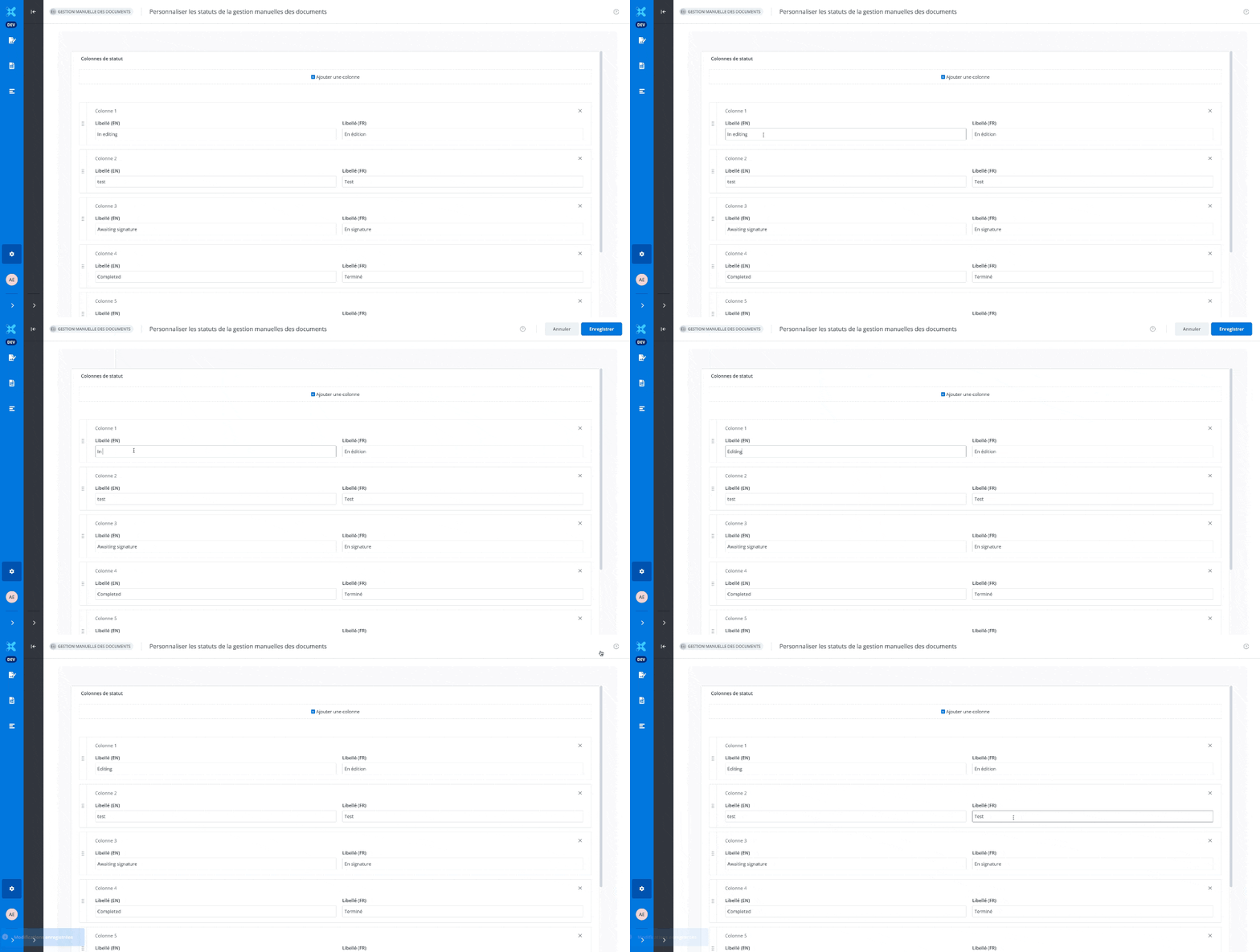
To change a column's name, simply edit the current name and click Save.
Move a column
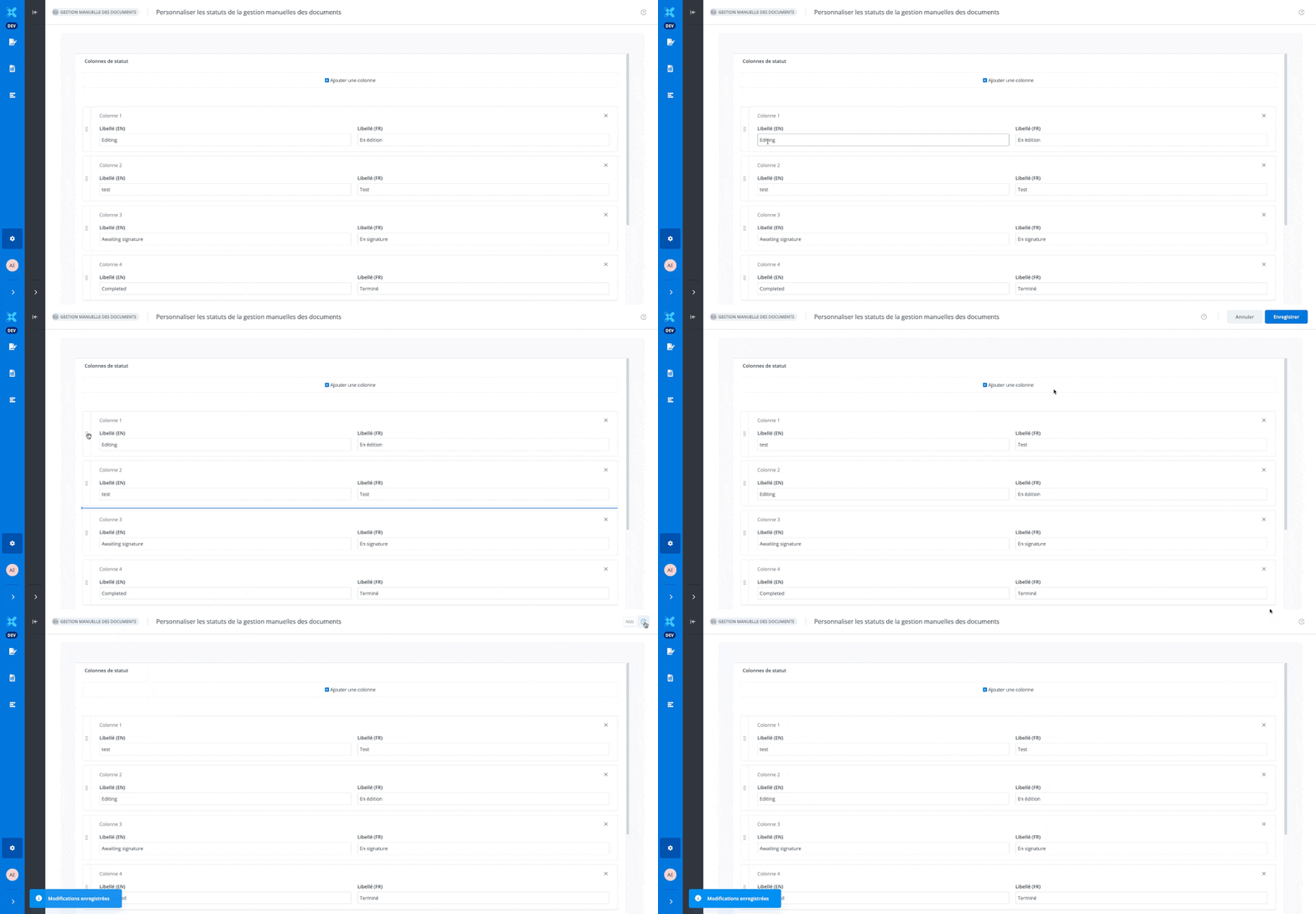
To move a column, simply drag and drop the column to the desired location and save the changes.
Delete a column
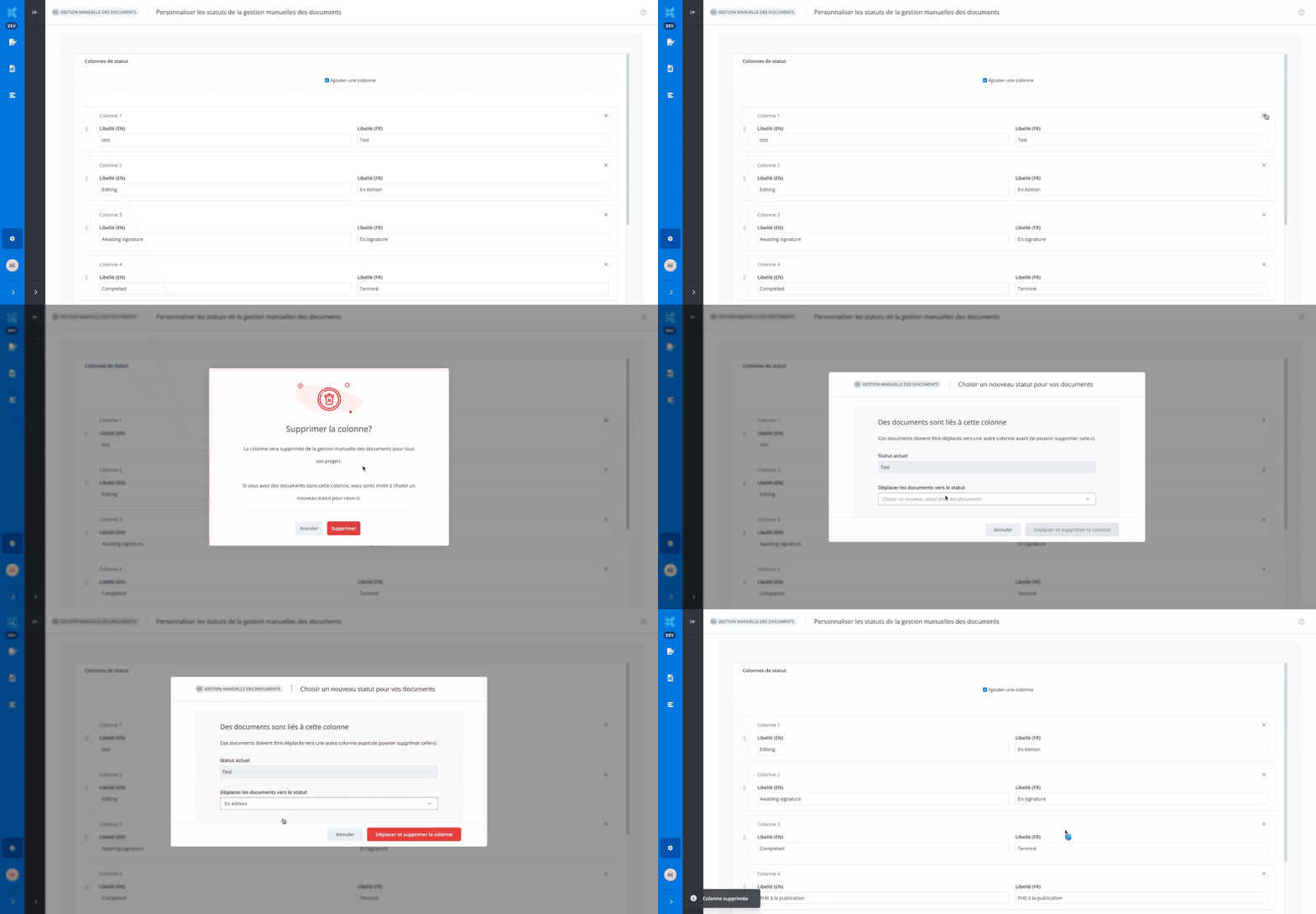
To delete a column, simply click on X.
Choose a new status for your documents
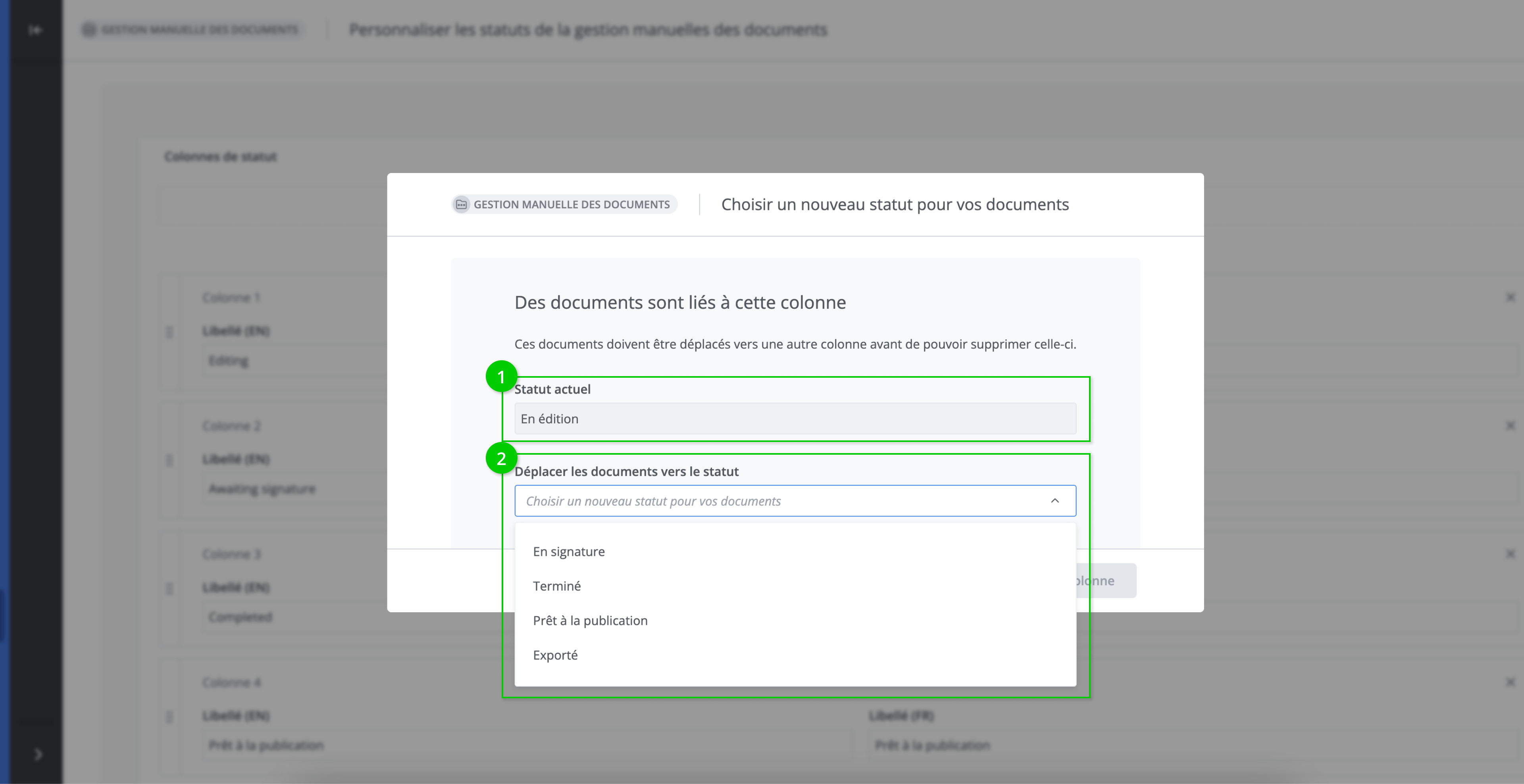
If you delete a column that contains documents, a window opens showing your documents' current status (1) and a drop-down list that lets you move the documents to a new status (2).