
Description of the Feature
This view allows you to add a rule to a clause/schedule/paragraph in a document.
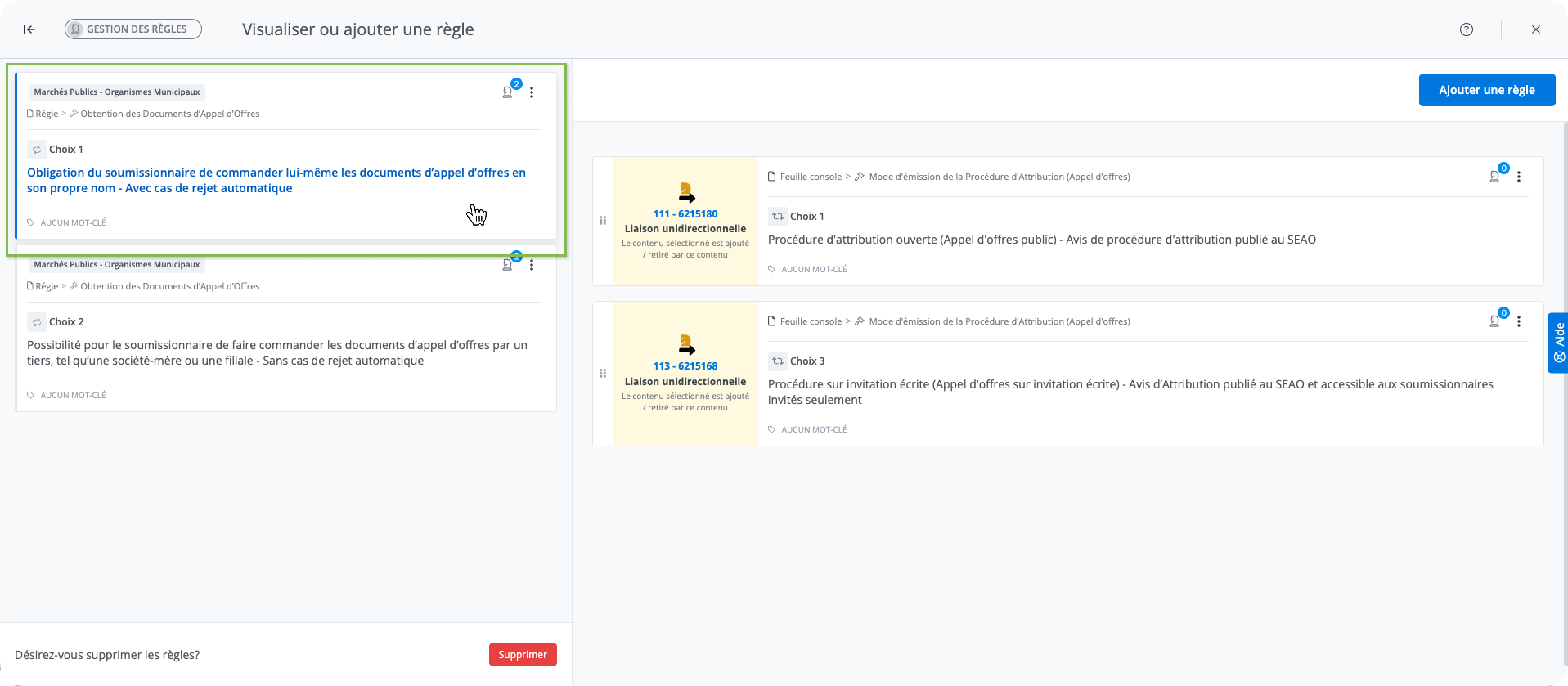
Content A of the rule is selected in the rule management page BEFORE opening the add rule view. For example, in the view below, content A is the alternative for which the rule list is displayed, namely the Preamble alternative for an “Employment Contract – Executive (Sales Director)”:
alternative “Choix 1 - Obligation du soumissionnaire de commander…” of the “Obtention des Documents d’Appel d’Offres” clause in the “Régie” document:
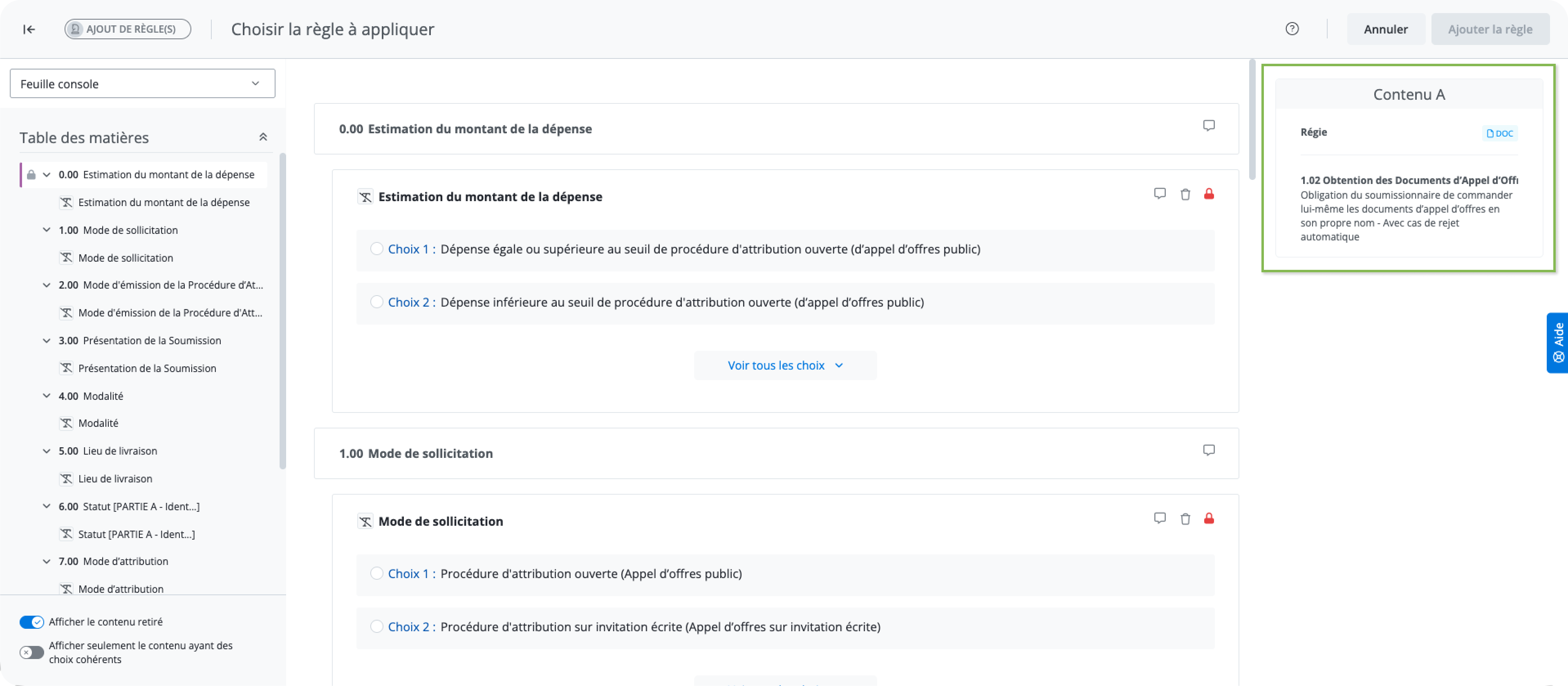
In the add rule view, the preselected content A is shown in the box at the top right of the screen:
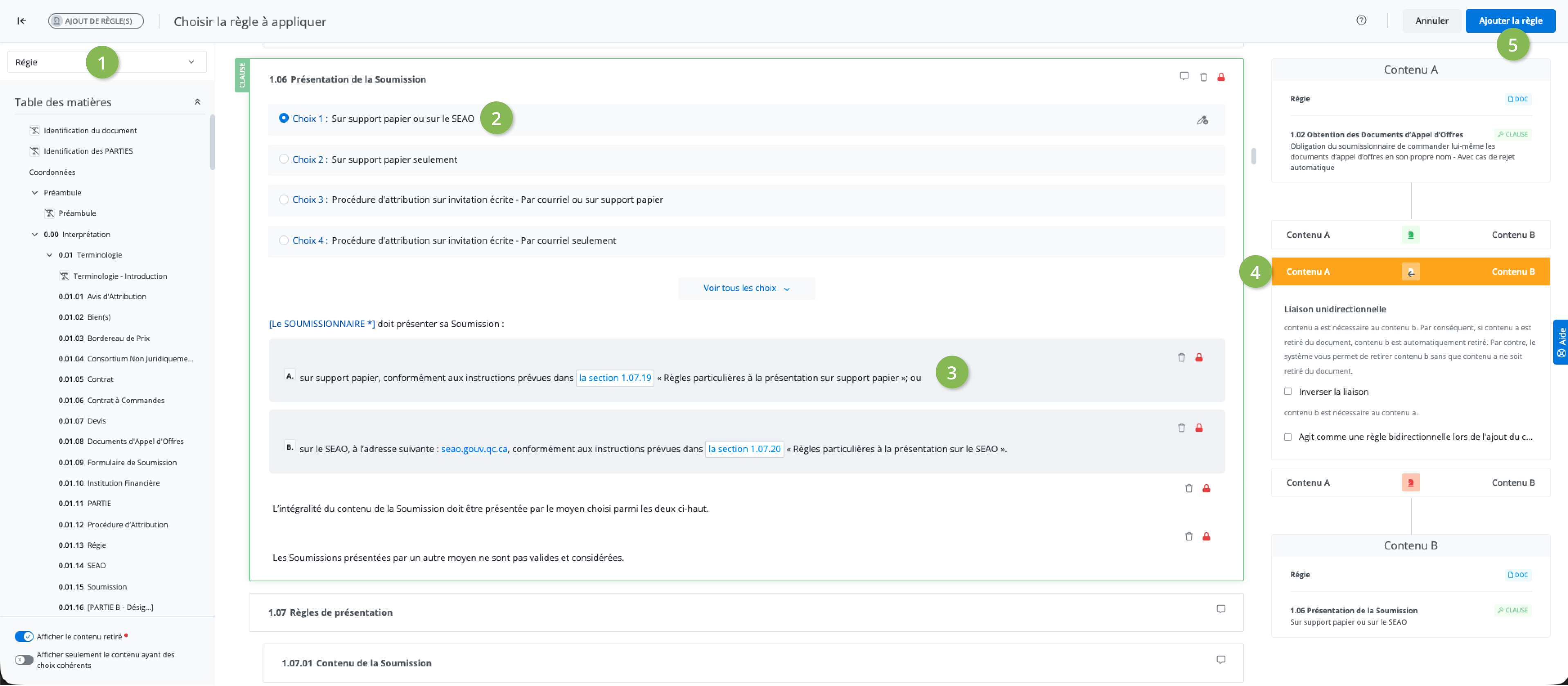
To create the rule, you must complete the following steps:
-
Open the document containing the desired content B from the dropdown list. NOTE: The dropdown list is only available for a kit with multiple documents.
-
In the document, select the clause/schedule alternative that represents content B of the rule.
-
If desired, select a paragraph of a clause/schedule as content B of the rule.
-
After selecting a valid content B, the rule types appear on the right.
Select one of the three rule types to see a description of it and certain other options, if applicable. -
Click Add rule to proceed with creating the rule, or Cancel to go back to the rule tree without creating a new rule.