Description of the Feature
In a project document, you can access content rule management from the rule button located on a content.
In this context, a content can refer to:
-
A clause
-
A schedule
-
A paragraph of a clause or schedule

Description of the screen
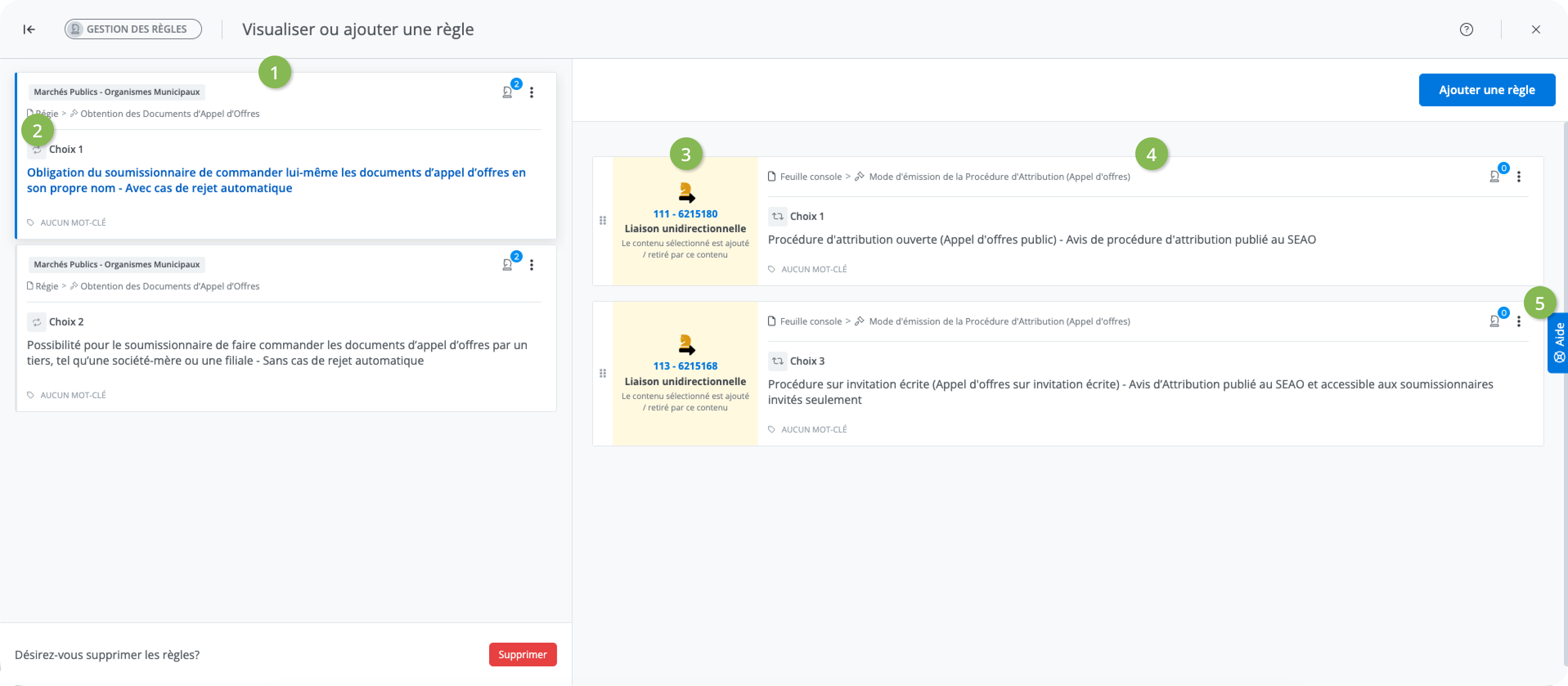
Once the button is clicked, a view appears displaying all the rules associated with each of the alternatives of the content for this document:
-
-
-
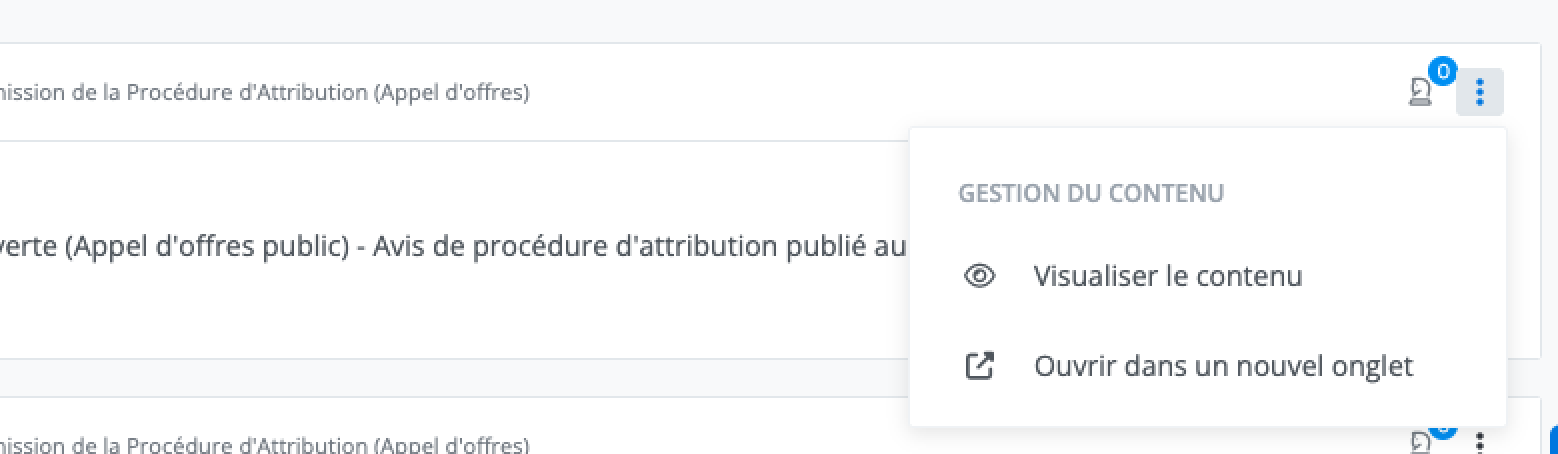
Il est possible de voir le détail de chaque contenu en ouvrant le menu contextuel et en sélectionnant Visualiser le contenu ou Ouvrir dans un nouvel onglet.
-
The list on the left displays all the alternatives of the content in the document.
-
The selected alternative is identified by blue highlighting on the left of the tile.
-
Each rule is displayed with a pictogram and establishes a relationship between the content selected in the left-hand list and another content in the template.
For each rule, the following information is displayed:-
A pictogram representing its type.
-
A number uniquely identifying the rule.
-
A label identifying its type.
-
A description of the rule’s behaviour.
Example in the screenshot: the first rule at the top is a unidirectional link (yellow horse) numbered 111-6215180.
-
-
Each rule makes it possible to associate a content with the content currently selected on the left. For each associated content, the following information is displayed:
-
The breadcrumb showing the content's source.
-
The document name above the dividing line.
Example in the screenshot: "Feuille console → Mode d'émission de la Procédure d'Attribution (Appel d'offres)". -
The numbering, if applicable, followed by the title of the content or the alternative’s choice number below the dividing line.
Example in the screenshot: "Choix 1." -
The content’s key words.
-
-
It is possible to view the details of each content by opening a context menu (popup menu) and selecting View this content or Open in a new tab.
Modifier les règles
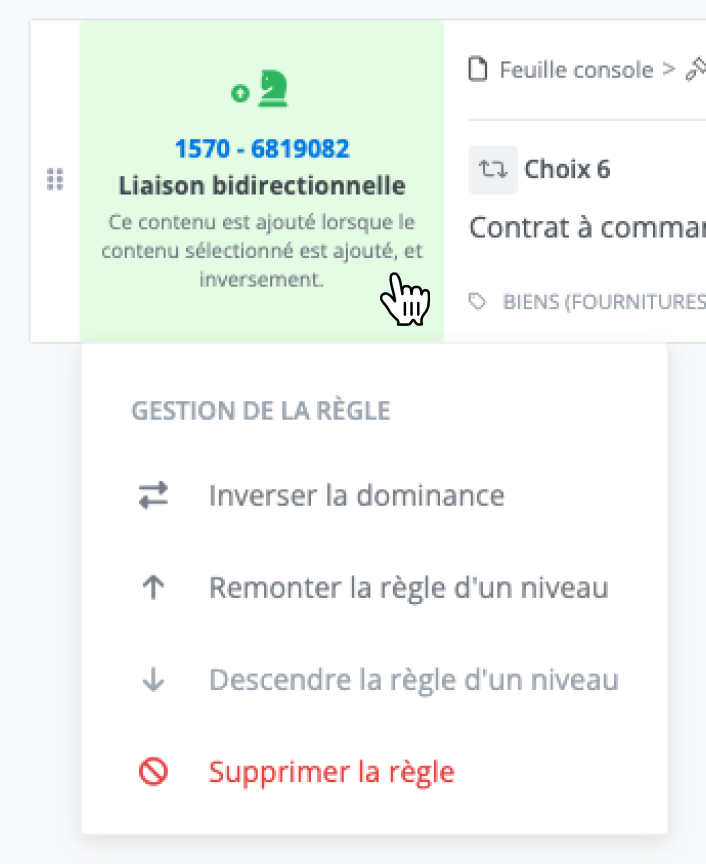
For users who have permission to edit a document's rules, a context menu (popup menu) appears when hovering the mouse over each rule. The available actions depend on the type of rule.
Bidirectional link or incompatibility rule types
-
It is possible to reverse the dominance of the rule.
Dominance affects the display of consistent choices in order to guide the user in making choices that align with those "already made previously" in the document. The dominant side of the rule is indicated by the small circle next to the horse icon.
-
It is possible to move the rule up or down.
-
It is possible to delete the rule.
Unidirectional link rule type
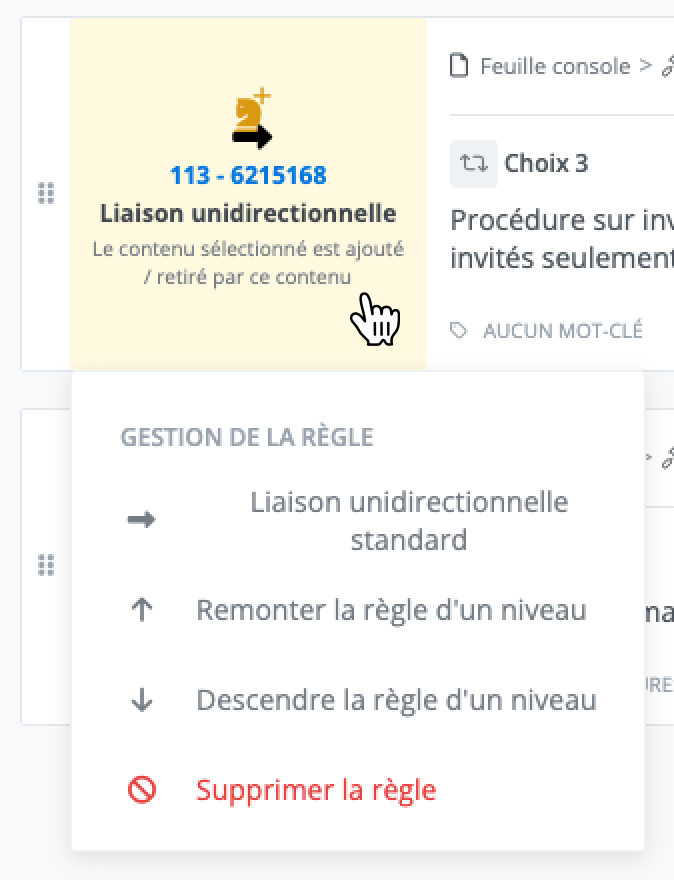
-
It is possible to change the rule's behavior between standard behavior and forcing the addition of the associated content when adding, as is the case with a bidirectional rule.
The small + next to the horse icon indicates that the rule forces the addition of the associated content.
In the case of a unidirectional rule, the dominant content is always the one pointed to by the arrow on the rule icon. The dominance of a unidirectional rule cannot be changed.
-
It is possible to move the rule up or down.
-
It is possible to delete the rule.
Adding Rules
Finally, at the top of the rules list is a button that allows a new rule to be added to the document: